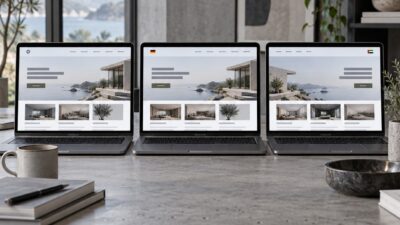
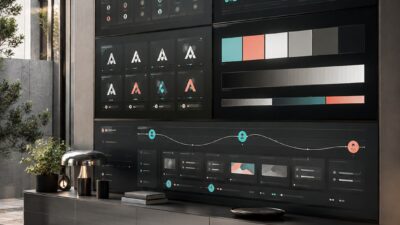
The first dashboard I designed for an enterprise client in Germany was technically correct. Every data point the client asked for was there. Every chart rendered perfectly. And almost no one used it. The project manager told me, six months after launch, that the team had gone back to their spreadsheets. That was my education in user experience basics.
Not every extra step is a usability failure. This discussion of good friction in UX design shows when confirmation, reflection or a deliberate pause can prevent errors and improve the user’s decision.
Good UX also depends on the same graphic design principles that shape posters and branding: hierarchy, contrast, spacing, rhythm, and unity. Interface design feels easier when the visual order supports the task instead of decorating around it.
UX isn’t about making things look good. It’s about making things work for the person using them. Those two goals sometimes overlap, but they’re not the same thing. I’ve spent the last decade working across web apps, product interfaces, and dashboard design, and the gap between a visually polished product and one people actually want to use is almost always the same set of fundamentals.
- What user experience actually means
- Mental models and why they matter
- The core principles of usability
- Information architecture: before you draw a single screen
- Visual hierarchy: guiding attention without words
- Feedback loops and microinteractions
- Accessibility: designing for the full range of users
- User flows and where design decisions really live
- Testing and iteration: how UX actually improves
- The tools designers actually use in 2026
- Frequently Asked Questions
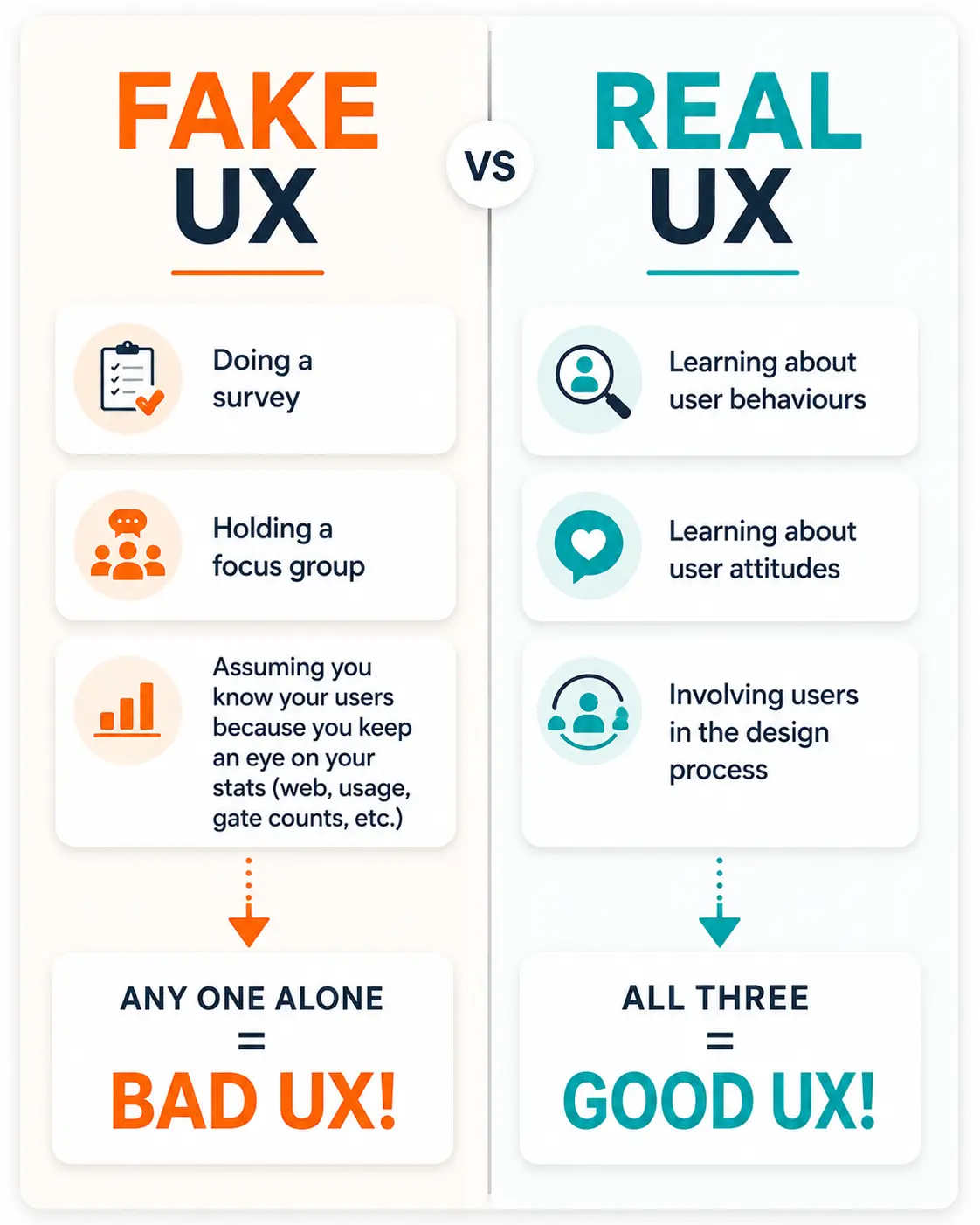
This is what I want to cover here: the principles behind that gap. Not frameworks, not career advice, not tool comparisons. Just the actual mechanics of why some interfaces feel obvious and others feel like a fight.
A useful habit is to test hierarchy with an accessible UI typography checklist before judging the screen visually. If the headings, labels, and body text still make sense at mobile width and higher zoom, the hierarchy is doing real UX work.
What user experience actually means
UX is the sum of how someone feels before, during, and after using a product. Not just what they click, but whether they understood what to do, whether they trusted the interface, and whether they got what they came for. The definition from the Nielsen Norman Group (the closest thing the field has to a reference authority) is deliberately broad: UX covers “all aspects of the end-user’s interaction with the company, its services, and its products.”
That breadth is the first thing most beginners miss. They think UX is the screens. But the onboarding email is UX. The error message is UX. The three-second loading delay is UX. Every point of contact contributes to whether a person returns.
UX vs UI: the difference that matters
I still get asked this constantly, so here it is plainly. UI is the visual layer: typography choices, button colors, icon styles, spacing. UX is the structural layer underneath: what the interface asks the user to do, in what order, and whether that sequence makes sense.
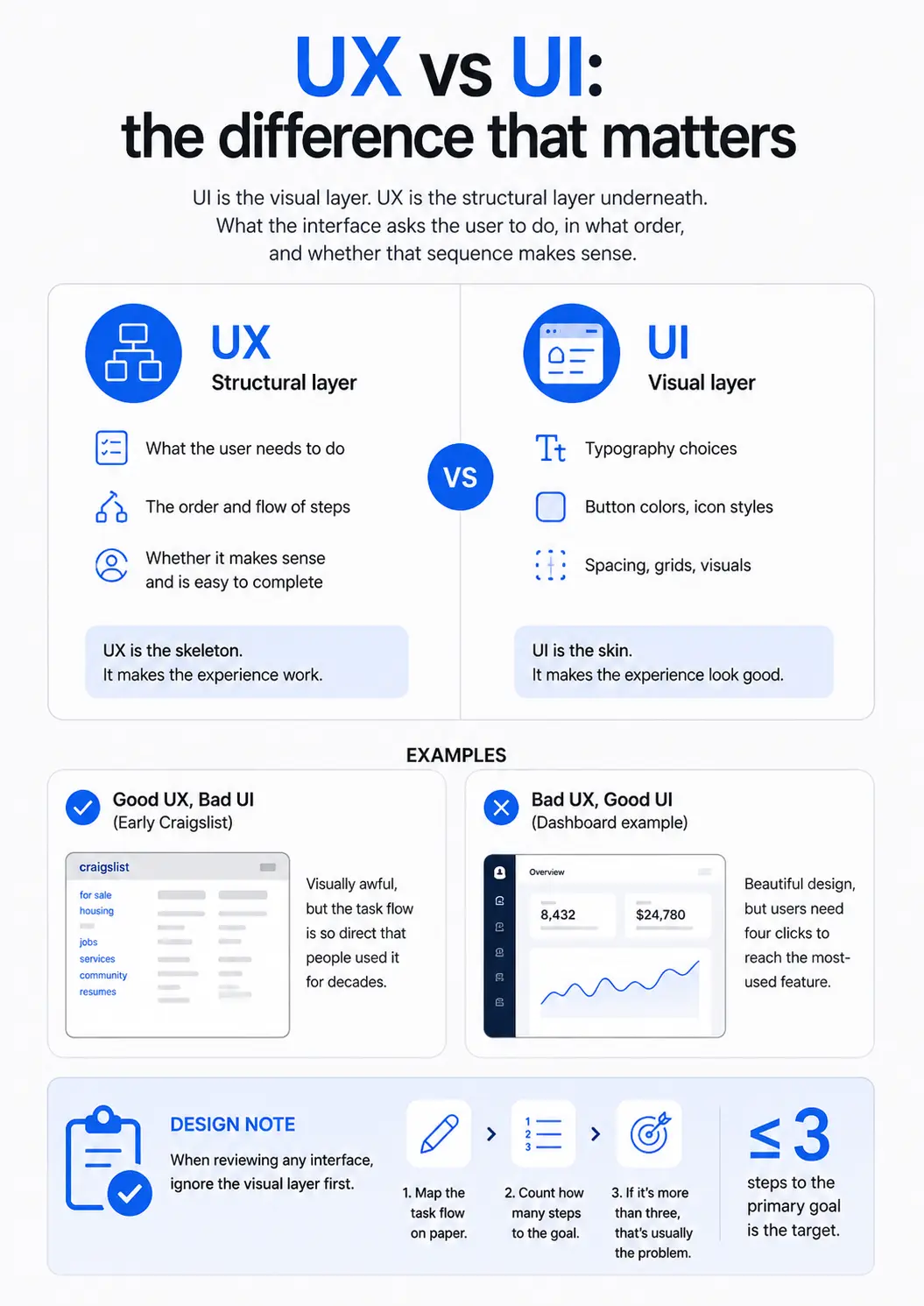
You can have terrible UI and excellent UX. Early Craigslist is the canonical example: visually awful, but the task flow is so direct that people used it for decades. The reverse is more common: a beautifully designed app where no one can figure out how to do the thing they came to do. A dashboard I audited last year had a stunning visual system and a navigation structure that required four clicks to reach the most-used feature. The UI team had done their job. No one had done the UX work.
Design note: When reviewing any interface, ignore the visual layer first. Map the task flow on paper. Find out how many steps the user needs to complete their primary goal. If it’s more than three, that’s usually where the problem lives.
Mental models and why they matter
A mental model is the user’s assumption about how a system works. They bring it from other products they’ve used, from the physical world, from conventions. When the interface matches that model, the user knows exactly what to do without reading instructions. When it doesn’t, they get confused.
The trash can icon on a desktop OS works because it maps to a physical mental model. The hamburger menu icon (three horizontal lines) works now because convention has made it familiar, even though it has no intuitive meaning on its own. When I designed a navigation component for a jewelry e-commerce portal, I tested two approaches: a standard top nav versus a sidebar that matched the client’s physical showroom layout. The sidebar won because the client’s customers already had a strong mental model from visiting the actual store. Context matters.

The core principles of usability
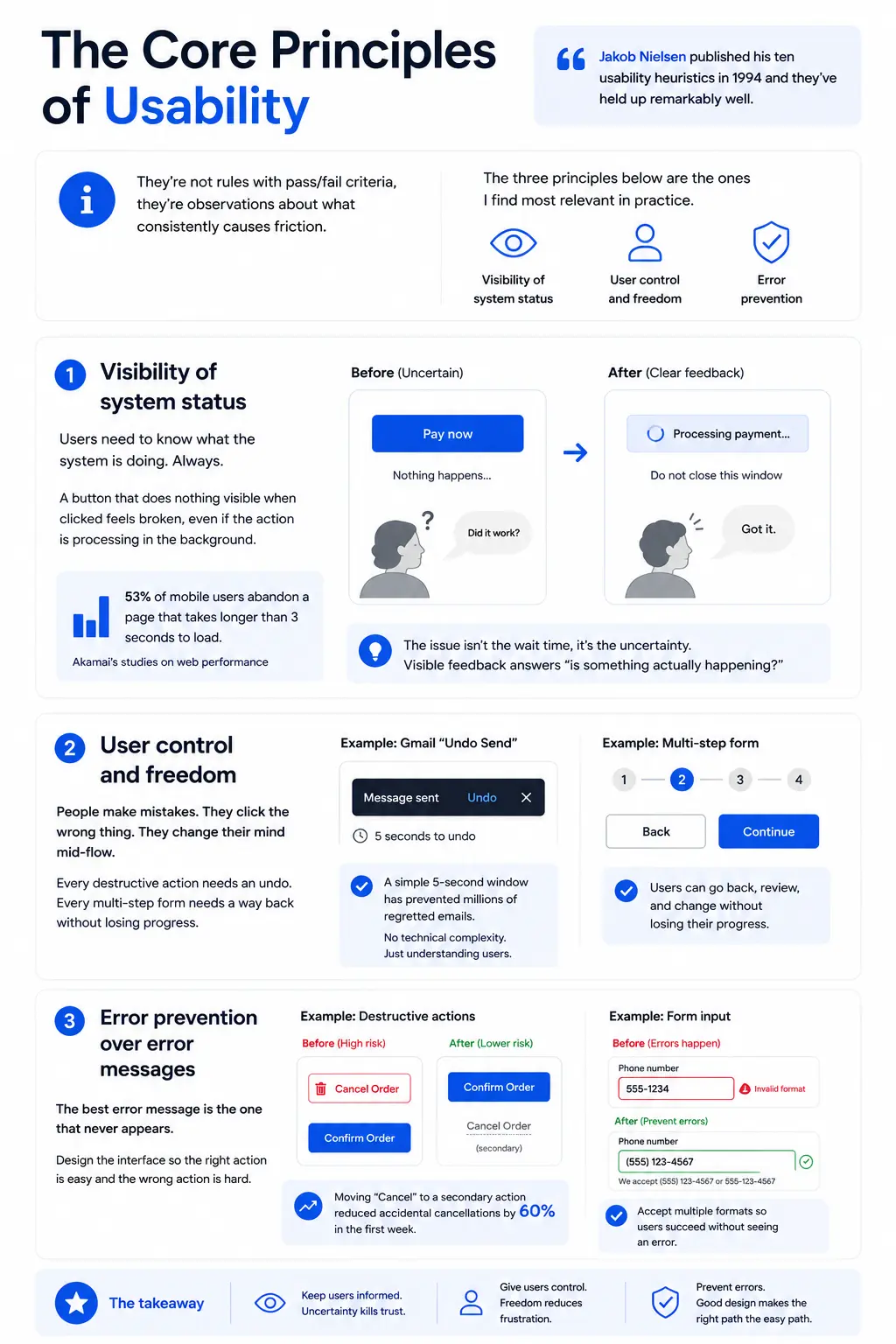
Jakob Nielsen published his ten usability heuristics in 1994 and they’ve held up remarkably well. They’re not rules with pass/fail criteria, they’re observations about what consistently causes friction. The ones I find most relevant in practice are visibility of system status, user control, and error prevention.
Visibility of system status
Users need to know what the system is doing. Always. A button that does nothing visible when clicked feels broken, even if the action is processing in the background. A progress indicator, a color change, a spinner, anything that confirms “I received your click and I’m working on it” reduces abandonment dramatically.
The research backs this up. Akamai’s studies on web performance showed that 53% of mobile users abandon a page that takes longer than three seconds to load, even when they know slow connections are the cause. The issue isn’t the wait time, it’s the uncertainty. A visible progress bar can extend the tolerable wait significantly because it answers the question “is something actually happening?”
User control and freedom
People make mistakes. They click the wrong thing. They change their mind mid-flow. An interface that doesn’t offer a clear way back is an interface that generates frustration and support tickets. Every destructive action needs an undo. Every multi-step form needs a way to go back without losing progress.
Gmail’s “undo send” feature is the textbook example. It doesn’t actually delay sending; it gives the user a five-second window to cancel. That tiny affordance has almost certainly prevented millions of regretted emails. The feature required no technical complexity. It required understanding that users would sometimes want to reverse an action they’d just taken.
Error prevention over error messages
The best error message is the one that never appears. If users consistently enter phone numbers in the wrong format on a form, the fix is to accept multiple formats, not to write a clearer error message. If users regularly delete items they meant to archive, the fix is to separate those actions more clearly, not to add a confirmation dialog they’ll click through automatically.
I redesigned a checkout flow for a client’s web app in 2022 where the “Cancel Order” button sat directly adjacent to “Confirm Order.” The error rate was high. Moving “Cancel” to a secondary action reduced accidental cancellations by 60% in the first week. No new copy was written. No new logic was built. Just spacing and hierarchy.

Information architecture: before you draw a single screen
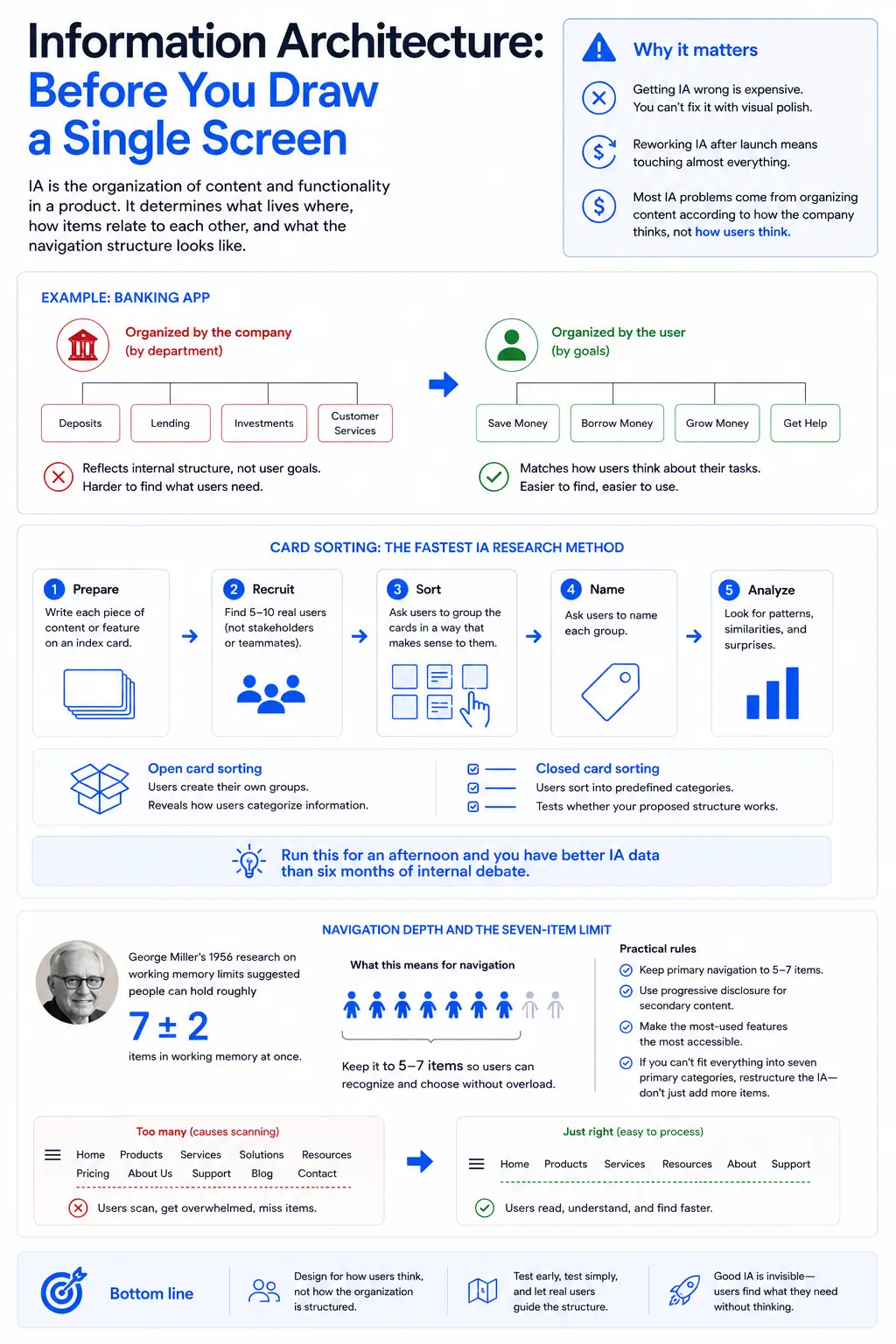
Information architecture (IA) is the organization of content and functionality in a product. It determines what lives where, how items relate to each other, and what the navigation structure looks like. Getting IA wrong is expensive: you can’t fix it with visual polish, and reworking it after launch means touching almost everything.
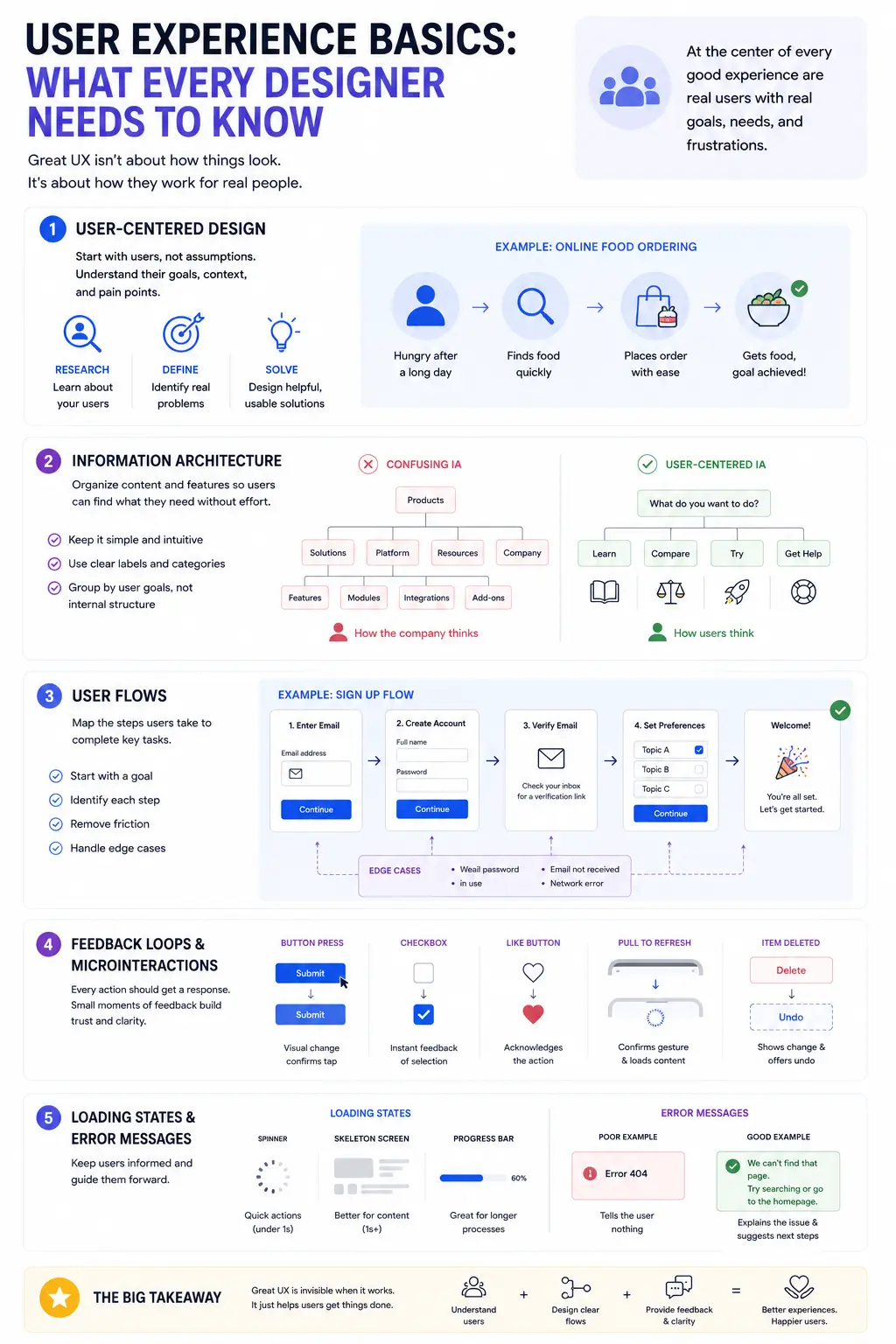
Most IA problems I’ve encountered come from organizing content according to how the company thinks about its products, rather than how users think about their tasks. A bank organized its app features by department (deposits, lending, investments) when users thought in terms of goals (save money, borrow money, grow money). Same content, different mental model, completely different navigation structure.
Card sorting: the fastest IA research method
Card sorting is exactly what it sounds like. Write each piece of content or feature on an index card. Give the cards to five to ten real users. Ask them to group the cards in a way that makes sense to them, then name each group. Run this for an afternoon and you have better IA data than six months of internal debate.
Open card sorting (users create their own groups) reveals how users categorize information. Closed card sorting (users sort into predefined categories) tests whether your proposed structure works. I’ve used both on every significant IA decision I’ve been involved in. The results consistently surprise teams who assumed they already knew how users thought.
Navigation depth and the seven-item limit
George Miller’s 1956 research on working memory limits suggested people can hold roughly seven items (plus or minus two) in working memory at once. Applied to navigation: menus with more than seven items force users to scan rather than read, which slows them down and increases error rates.
The practical rule is to keep primary navigation to five to seven items, use progressive disclosure for secondary content, and make the most-used features the most accessible. If you can’t fit everything into seven primary categories, the problem is usually that the IA needs restructuring, not that the menu needs to be longer.
Visual hierarchy: guiding attention without words
Visual hierarchy is the arrangement of elements so that the most important ones get noticed first. It’s done through size, weight, color, contrast, position, and whitespace. When hierarchy is clear, users can scan a page and understand what to do without reading every word. When it’s absent, everything competes for attention equally and nothing wins.
The F-pattern and Z-pattern eye-tracking studies from the Nielsen Norman Group showed that users don’t read interfaces, they scan them. They look at the top-left first, scan across, then move down the left edge. This means your primary action or most critical information needs to be in the top-left zone, not centered, not bottom-right, not buried in a sidebar.
Typography as hierarchy tool
Type size and weight are the two most reliable hierarchy signals. A clear typographic scale, where headings are visually distinct from body text, body text is distinct from captions, does most of the hierarchy work automatically. The common mistake is using too many type sizes. If you have six different font sizes on one page, none of them signal importance clearly.
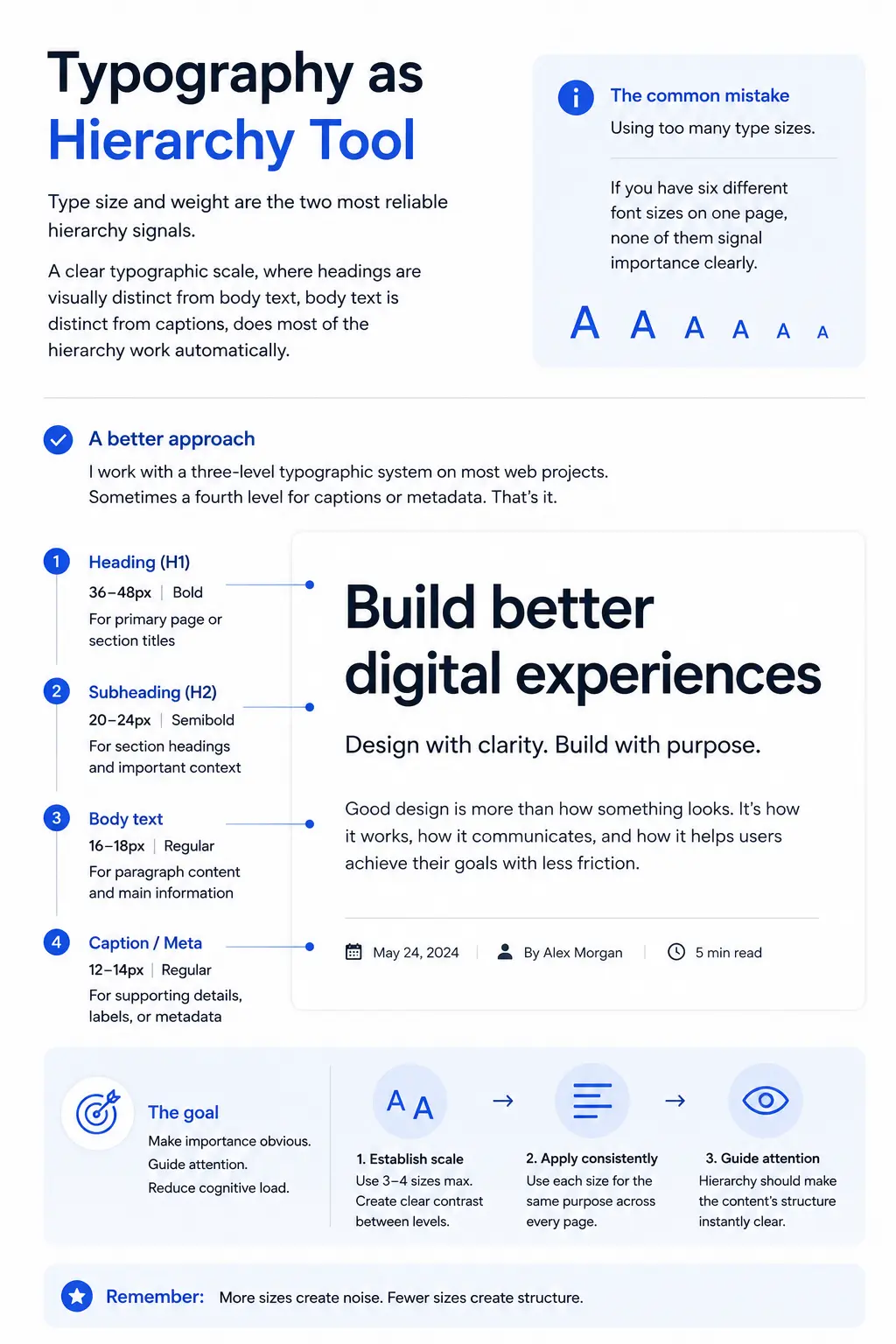
I work with a three-level typographic system on most web projects: a large heading (36-48px), a medium subheading (20-24px), and body text (16-18px). Sometimes a fourth level for captions or metadata. That’s it. Every size above that creates noise instead of structure.
Whitespace as communication
Whitespace isn’t empty space. It’s a signal that says “these things are separate” or “this element is important enough to stand alone.” Elements that are close together read as related. Elements with space around them read as primary. This is Gestalt psychology applied to screen design: proximity implies relationship, isolation implies importance.
The most common whitespace error I see is cramping elements together to fit more content above the fold. Users don’t mind scrolling. What they do mind is a cluttered page where nothing reads as primary. A page with one clear call-to-action surrounded by whitespace will outperform a page packed with four competing CTAs almost every time.
Feedback loops and microinteractions
Every action a user takes should produce a response from the system. Click a button: it should change state. Submit a form: the user should know it went through. Delete an item: the item should visibly disappear, ideally with an undo option. These responses are feedback loops, and without them, users are navigating in the dark.
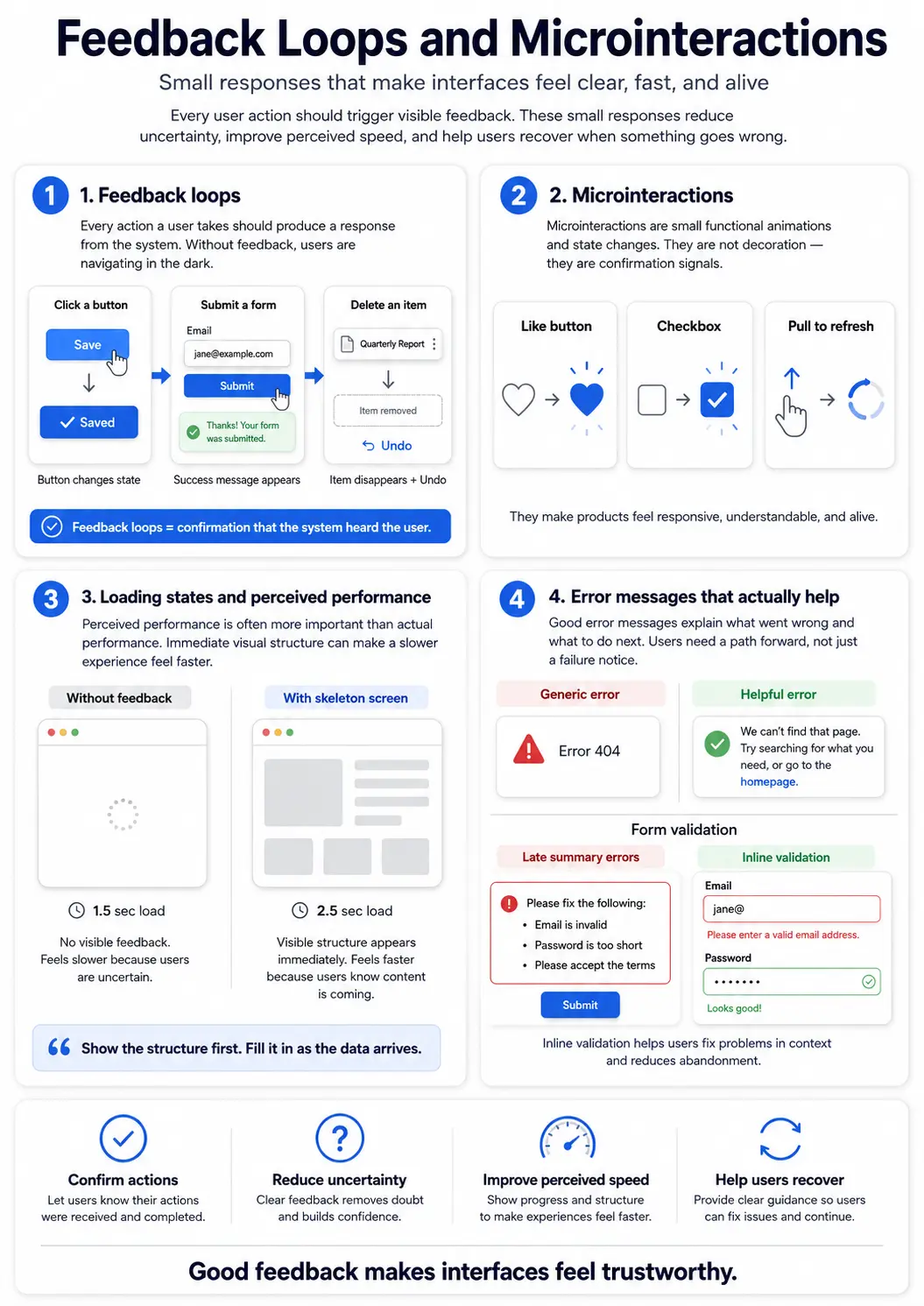
Microinteractions are the small, functional animations and state changes that make a product feel alive. The “like” button heart on Instagram that fills with color. The checkbox that gets a satisfying checkmark. The pull-to-refresh animation that confirms the user’s gesture was recognized. These aren’t decoration. They’re confirmation signals.
Loading states and perceived performance
Perceived performance is often more important than actual performance. A page that loads in 1.5 seconds but shows no visual feedback can feel slower than one that takes 2.5 seconds but shows a skeleton screen immediately. The skeleton screen tells the user “content is coming, here’s the shape of it.” That alone reduces bounce rates and frustration.
The YouTube skeleton screen is a well-studied example. When they introduced it, user perception of load time improved even though actual load time hadn’t changed. The same principle applies to any data-loading interface. Show the structure first. Fill it in as the data arrives.
Error messages that actually help
Most error messages describe what went wrong. Good error messages describe what went wrong and what to do next. “Error 404” tells you nothing. “We can’t find that page. Try searching for what you need, or go to the homepage” gives you a path forward. The difference is treating the user as someone who wants to complete a task, not as someone who needs to be notified of a failure.
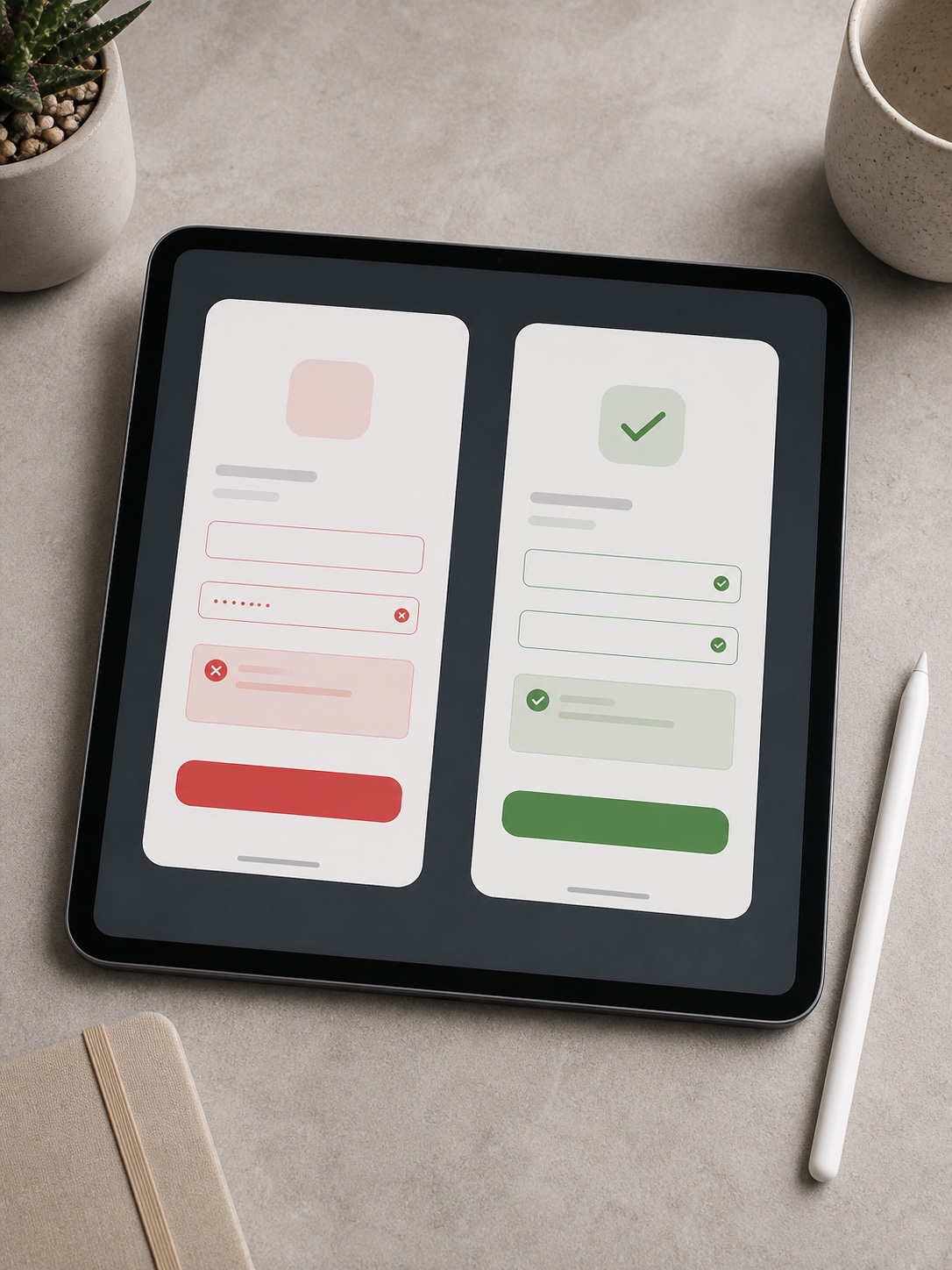
Error messages in forms are particularly important. Inline validation, where the field tells you while you’re still typing whether your input is accepted, is dramatically better than a summary error list at submission. Users fix problems immediately when they’re pointed out in context, and often abandon when they submit a form only to be shown a list of everything wrong.
Accessibility: designing for the full range of users
Accessibility in UX means designing so that people with visual, motor, cognitive, or hearing differences can use a product. This isn’t a niche concern: according to WHO data, roughly 15% of the global population lives with some form of disability, and situational impairments (bright sunlight making a screen hard to read, a broken arm making mouse use difficult) affect everyone at some point.
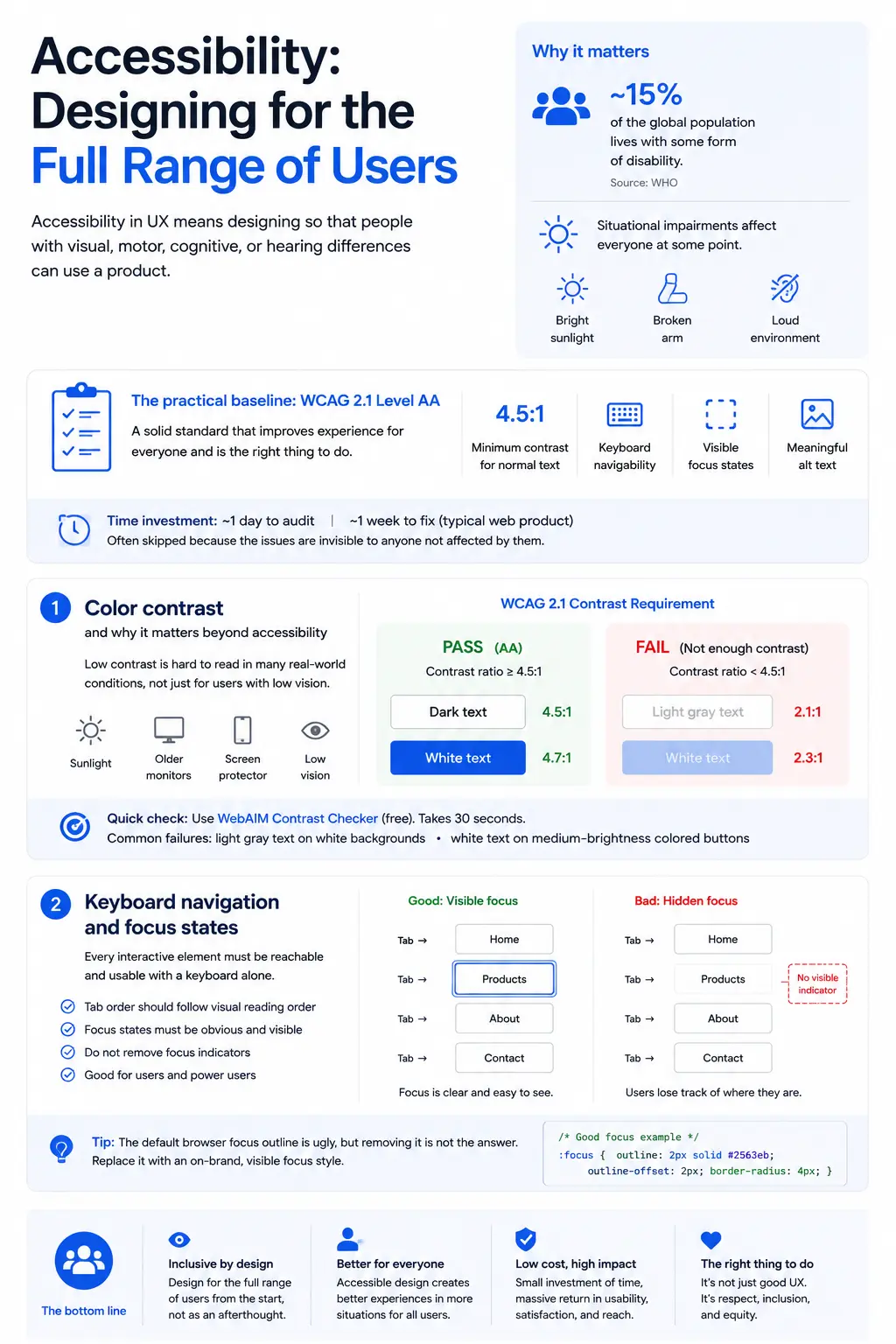
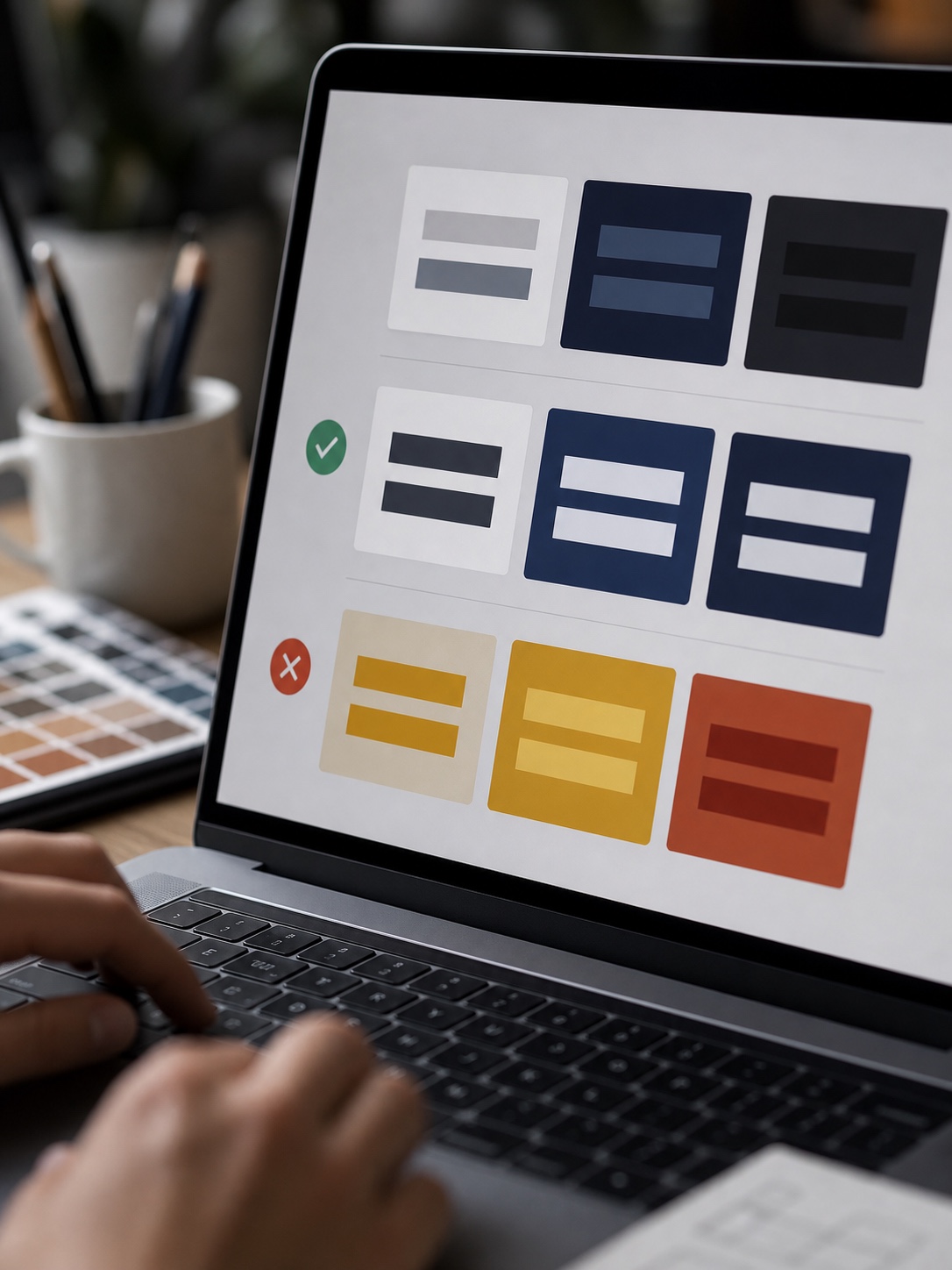
The practical baseline is WCAG 2.1 Level AA. For text, this means a minimum contrast ratio of 4.5:1 against the background. For interactive elements: keyboard navigability, visible focus states, and meaningful alt text on images. These requirements take about a day to audit on a typical web product and maybe a week to fix, but they’re skipped constantly because they’re invisible to anyone not affected by the lack of them.
Color contrast and why it matters beyond accessibility
Contrast requirements exist because low-contrast text is genuinely hard to read in many conditions, not just for users with low vision. Reading in sunlight, on an older monitor, on a phone with screen protector, all of these degrade contrast. Designing to WCAG AA minimums means the design holds up in the real range of conditions users actually use it in.
I check contrast on every project with the WebAIM Contrast Checker (free, takes thirty seconds). The failure modes I see most often are light grey text on white backgrounds (extremely common in minimalist design trends) and white text on medium-brightness colored buttons. Both read fine on a calibrated design monitor. Both fail badly in the real world.
Keyboard navigation and focus states
Every interactive element needs to be reachable and usable with a keyboard alone. This matters for users who can’t use a mouse, and it also matters for power users who prefer keyboard navigation. Tab order should follow visual reading order. Focus states, the visible highlight showing which element is currently selected, should be obvious enough to actually see.
The default browser focus outline is ugly, which is why designers suppress it with “outline: none” in CSS. The correct fix is to replace it with something visible and on-brand, not to remove it entirely. Every time I see a product with hidden focus states I know it was designed by someone who only used a mouse to test it.
User flows and where design decisions really live
A user flow is the sequence of steps a person takes to complete a specific goal. Sign up. Reset a password. Make a purchase. Find a setting. Every flow has a start state, a goal state, and a series of screens or interactions between them. Most usability problems live in flows, not in individual screens.
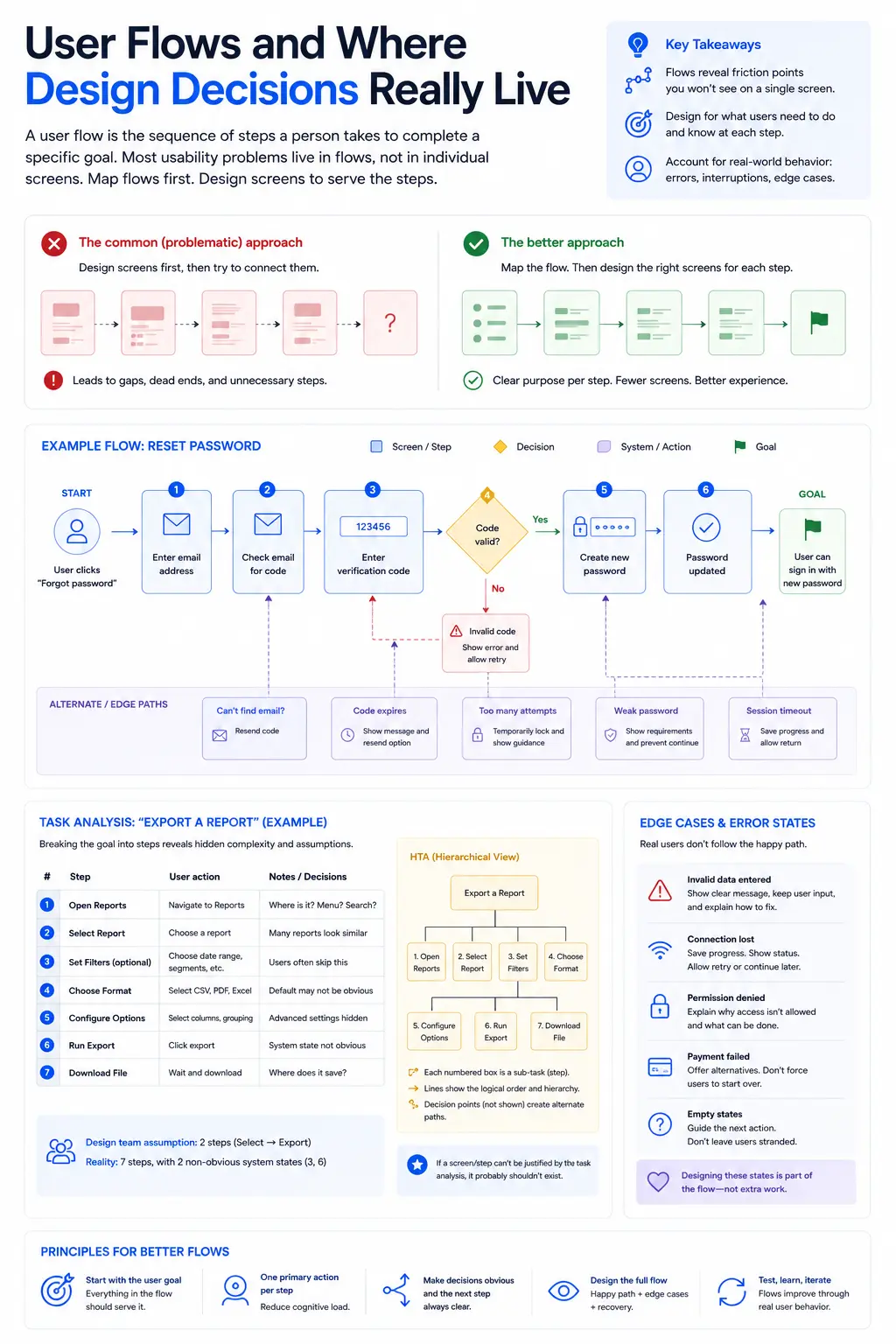
The mistake most teams make is designing screens and then stitching them together into flows as an afterthought. The better approach is to map flows first, decide what each step needs to communicate and accomplish, and then design the screens to serve those steps. This shifts the question from “what should this screen contain?” to “what does the user need to do here and what do they need to know?”
Task analysis: understanding what users actually do
Task analysis is the process of breaking a user goal into the steps required to achieve it. It sounds obvious but it consistently reveals assumptions that turn out to be wrong. When I was working on a web portal for enterprise users, the task analysis for “export a report” revealed seven steps, two of which required knowing a non-obvious system state. The design team thought it was two steps. That gap explained why the support team received the export-related tickets they did.
Hierarchical task analysis (HTA) maps out both the main path and the decision points where the user might take different routes. This produces a flowchart that becomes the brief for the design work. Any screen in the flow that can’t be justified by a step in the HTA probably shouldn’t exist.
Edge cases and error states in flows
Most UX design work focuses on the happy path: the user does exactly what’s expected and gets exactly what they want. But real users don’t follow the happy path reliably. They enter invalid data. They lose their internet connection mid-flow. They try to access something they don’t have permission for. Designing edge cases and error states isn’t optional; they’re part of the flow.
A useful exercise: once you’ve designed the happy path, systematically ask “what can go wrong at each step?” and design those states explicitly. Undesigned error states don’t disappear, they just get handled by default browser behavior or blank screens, both of which are worse than anything you’d design intentionally.
Testing and iteration: how UX actually improves
You cannot design UX by reasoning alone. You can get the principles right, you can map the flows correctly, you can nail the visual hierarchy, and a user will still find a way to misunderstand something you thought was obvious. Testing is the mechanism that closes that gap.
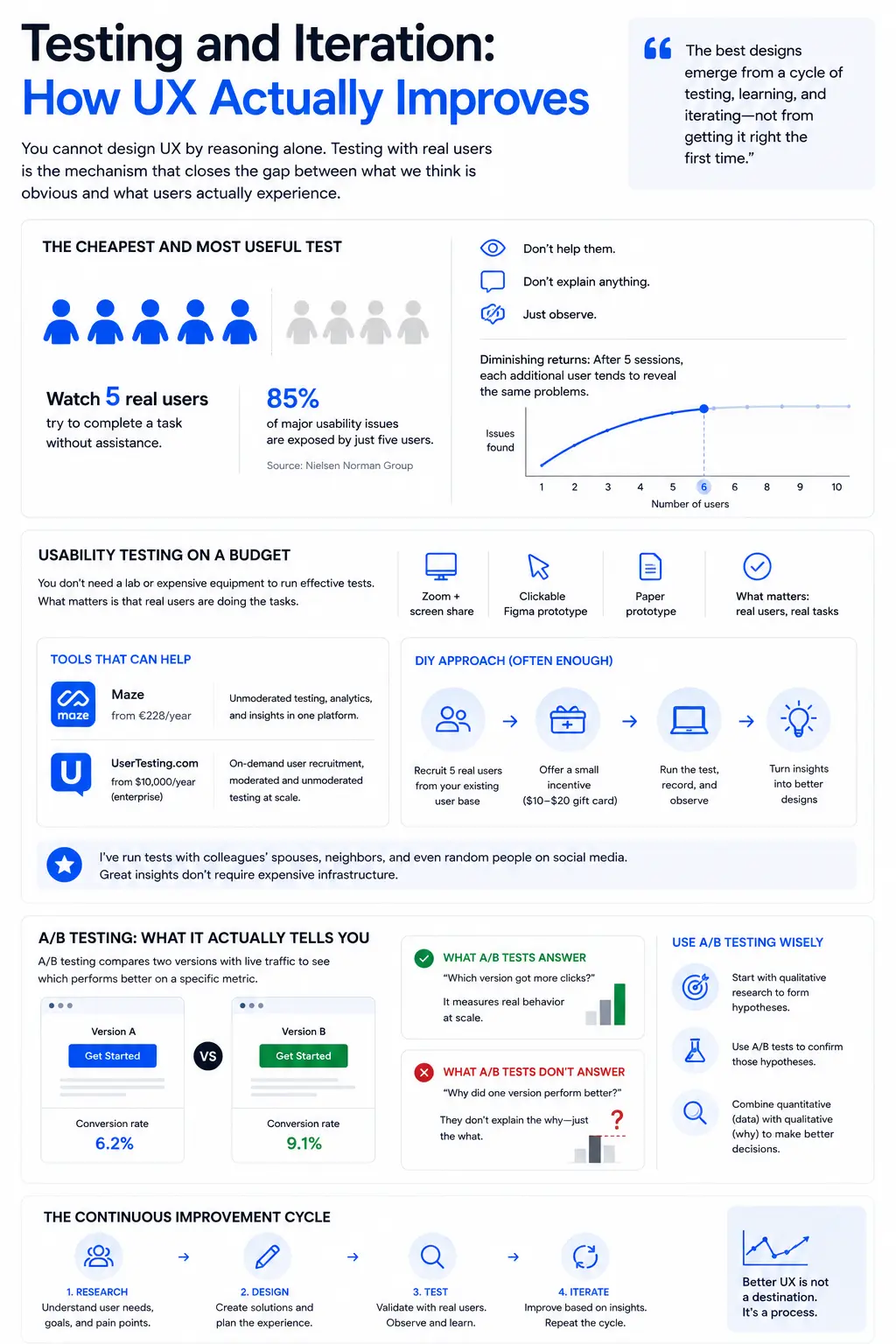
The cheapest and most useful test is watching five real users try to complete a task without assistance. Don’t help them. Don’t explain anything. Just observe. Five users will expose 85% of the major usability issues, according to Nielsen’s research on diminishing returns in usability testing. After five sessions, each additional user tends to show you the same problems you’ve already found.
Usability testing on a budget
You don’t need a usability lab or an eye-tracker to run effective tests. Zoom with screen share works fine. A clickable Figma prototype works fine. Even paper prototypes work for testing navigation and flows. What matters is that real users, not team members, are doing the tasks.
Tools like Maze (from €228/year) and UserTesting.com (from $10,000/year, enterprise) automate recruitment and recording. For smaller projects, recruiting five people from your existing user base with a $20 gift card as incentive is often enough to get actionable data. I’ve run tests with colleagues’ spouses, neighbors, random people on social media. The quality of insight doesn’t require expensive infrastructure.
A/B testing and what it actually tells you
A/B testing compares two versions of an interface with live traffic to see which performs better on a specific metric, usually conversion rate, click rate, or time on task. It’s powerful because it measures real behavior rather than stated preference. It’s also frequently misused.
A/B tests answer “which version got more clicks?” They don’t answer “why.” A red button might outperform a green button on your landing page, but without qualitative data you don’t know if it’s the color, the copy, the size, or the contrast ratio. Use A/B testing to confirm hypotheses that came from qualitative research, not as a replacement for understanding users.
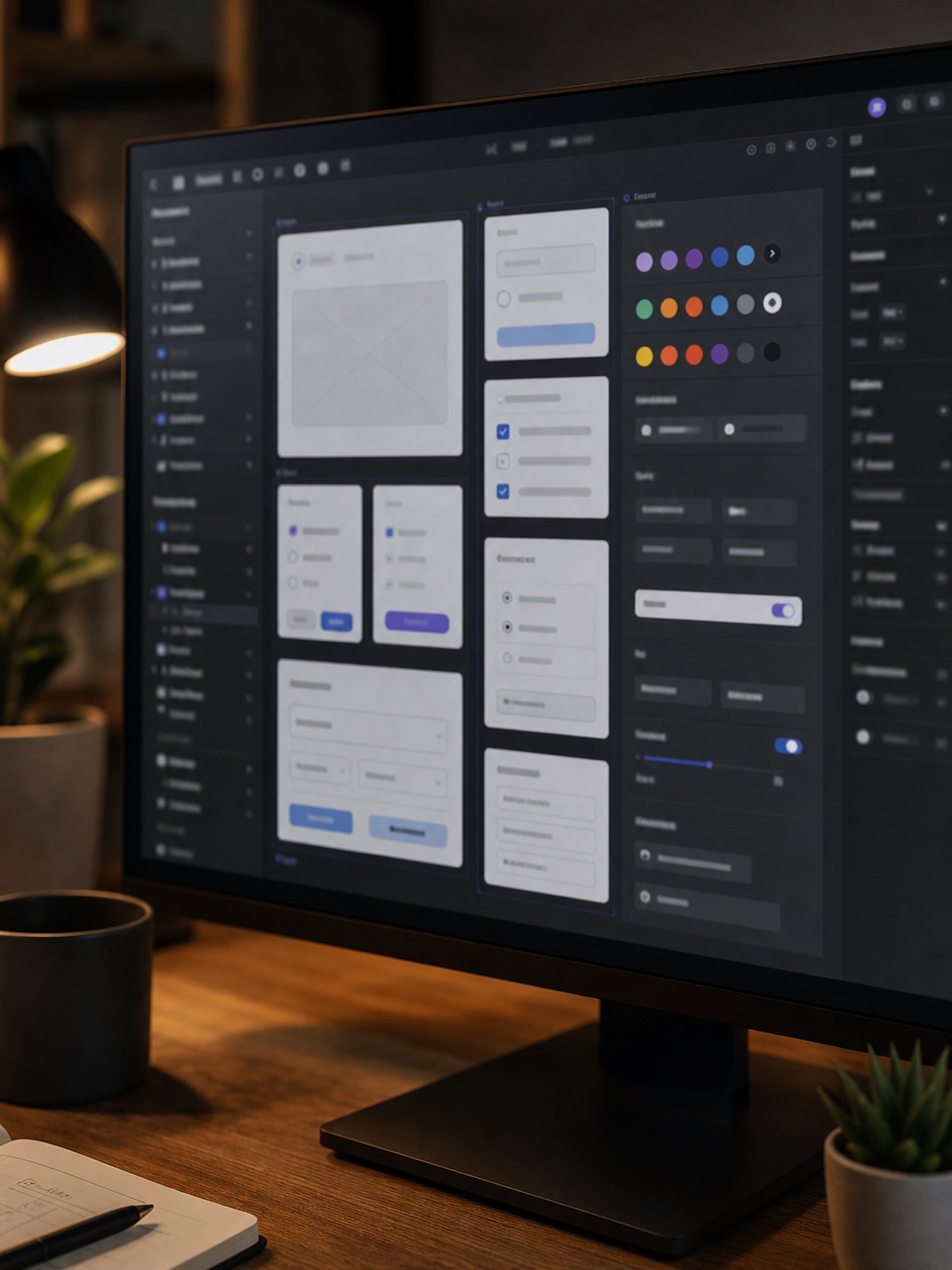
The tools designers actually use in 2026
Disclosure: This post contains affiliate links. As an Amazon Associate I earn from qualifying purchases. If you buy through links in this post, we may earn a small commission at no extra cost to you.
Figma is the industry standard and has been since about 2019. It handles wireframing, UI design, prototyping, and design systems in one tool, and the collaborative features mean a whole team can work in the same file simultaneously. I moved from Sketch to Figma in 2020 and haven’t looked back.

For user journey maps and workshop facilitation, Miro and FigJam both work well. FigJam is tighter if your team is already in Figma; Miro has more flexibility for mixed teams. For usability testing, Maze integrates directly with Figma prototypes, which makes setting up a test take about an hour rather than a day.
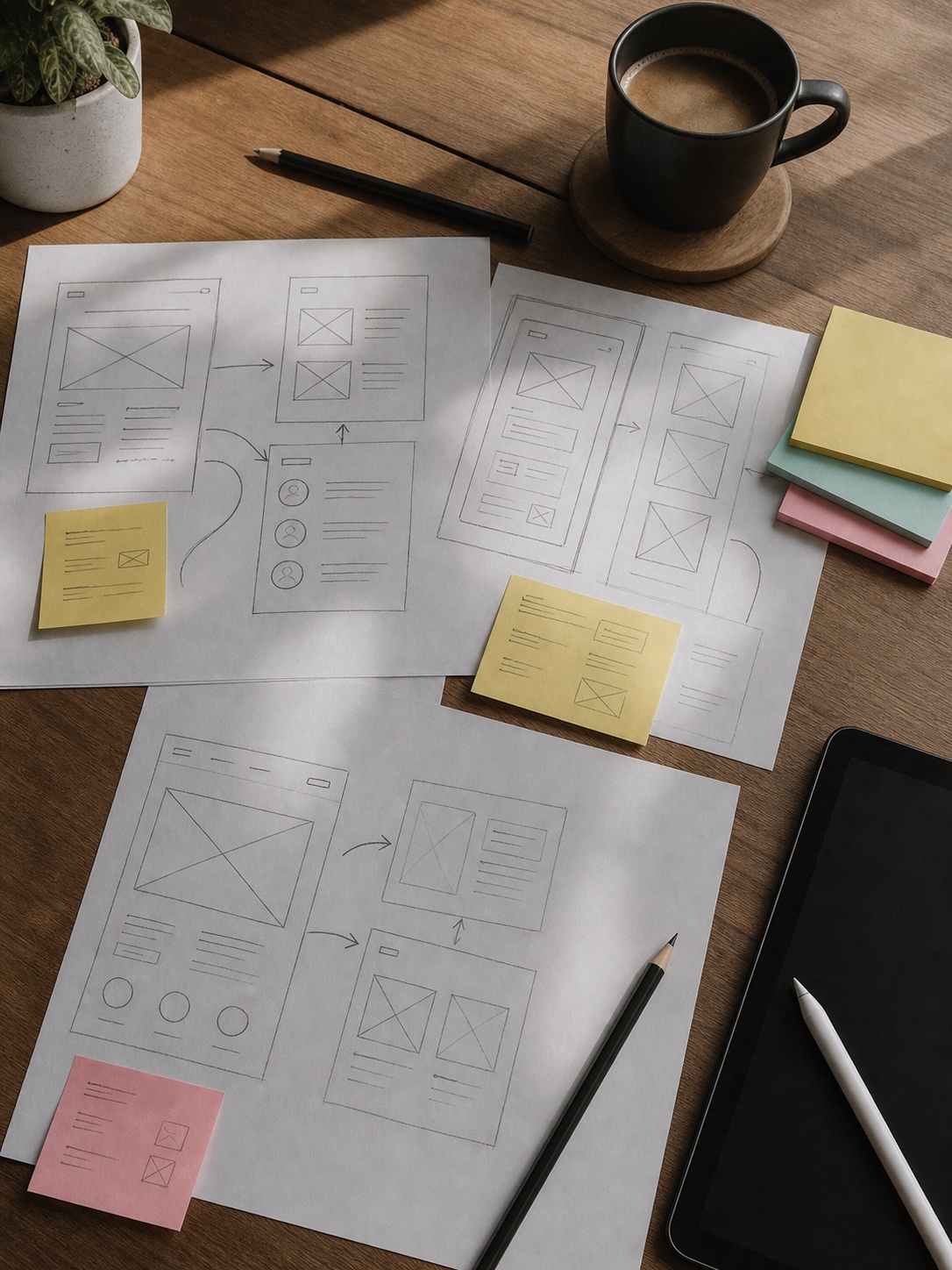
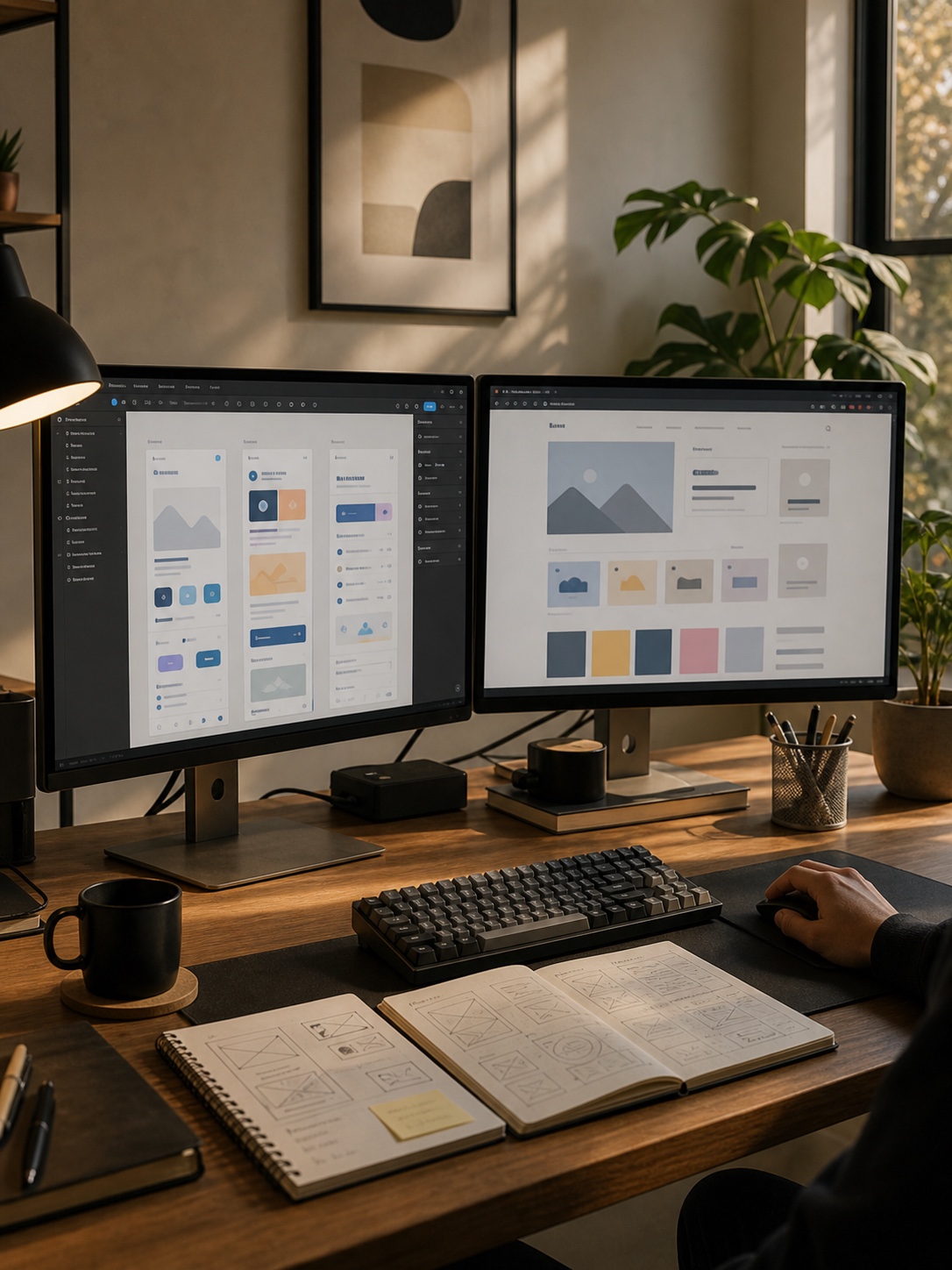
One tool that’s underused: paper. Serious. I sketch wireframes with a thick marker on A4 paper before opening Figma on every project. Markers force you to work at low fidelity, which forces you to think about layout and flow rather than color choices. It’s the fastest way to make decisions that would otherwise take hours in software.
If you are turning these UX basics into a vendor brief, compare what each UI UX design company in Noida says about research, journey mapping, testing, and developer handoff.
Frequently Asked Questions
What are user experience basics?
User experience basics are the foundational principles that determine how a person feels when interacting with a product or interface. They include usability, accessibility, information architecture, visual hierarchy, feedback loops, and consistency. Getting these right means users can complete tasks without friction.
What is the difference between UX and UI design?
UX design covers the overall experience of using a product: how it flows, what it asks the user to do, and whether those tasks feel natural. UI design handles the visual layer: typography, color, button states, and layout. A product can have beautiful UI and poor UX, or plain UI and excellent UX. The two disciplines overlap but are not the same thing.
What is a user flow?
A user flow is the path a person takes through a product to complete a specific task, such as signing up, making a purchase, or finding a piece of information. Mapping user flows early in the design process reveals where friction occurs and where users are likely to drop off.
How many items should a navigation menu have?
George Miller’s cognitive research from 1956 suggested a working memory limit of roughly seven items. In practice, navigation menus work best with five to seven items. Beyond that, users start scanning rather than reading, which increases error rates and slows down task completion.
What is accessibility in UX design?
Accessibility means designing so that people with visual, motor, or cognitive differences can use a product. This includes sufficient color contrast (WCAG minimum 4.5:1 for body text), keyboard navigation, alt text on images, and clear focus states. Accessible design almost always improves usability for everyone, not just users with disabilities.
What tools are used for UX design?
Figma is currently the industry standard for UI/UX design, used for wireframes, prototypes, and final UI specs. Miro or FigJam work well for user journey maps and collaborative workshops. For usability testing, Maze and UserTesting.com are widely used. Earlier in the process, paper sketching and card sorting are still among the fastest research tools available.
How do you test UX design?
The simplest test is to watch five real users try to complete a task without help. Record where they hesitate, click the wrong thing, or give up. Five users typically expose 85% of usability issues. After that, A/B testing compares two variants with live traffic, while heatmaps (via Hotjar or Microsoft Clarity) show where users actually look and click.
A strong user experience becomes easier to maintain when repeated decisions become reusable design modules instead of one-off fixes.
Good UX is easier when users can read the interface, so treat accessible color combinations for websites as part of the task flow.
A smoother reading path often starts with better font hierarchy and pairing, especially on pages with forms, cards, captions, and longer explanatory text.
- 304shares
- Facebook0
- Pinterest304
- Twitter0
- Reddit0