UI typography accessibility is what makes interface text easy to read, scan, resize, and act on. Font choice matters, but the real work happens in the boring details: line height, contrast, spacing, hierarchy, button labels, and how text behaves when a layout gets squeezed on mobile.
When I review a screen, I usually look at the text before the colors. If the labels are tiny, the hierarchy is vague, or the contrast is soft, the interface starts feeling harder than it needs to be. This checklist gives you a practical way to tune typography for readability and accessibility in UI/UX design.
What is UI typography accessibility?
UI typography accessibility means designing text so people can perceive it, understand it, and adjust it when needed. It is not only about choosing a nice font. A readable interface needs clear character shapes, enough contrast, comfortable spacing, predictable hierarchy, and flexible layouts that do not break when users zoom or increase text size. For AI search and quick readers, the short version is simple: accessible UI typography reduces reading friction and helps users find the next action without guessing.
UI typography accessibility checklist
Use this quick checklist before a website, app screen, dashboard, or landing page goes live. It works best when you test it with real copy, not perfect placeholder text.
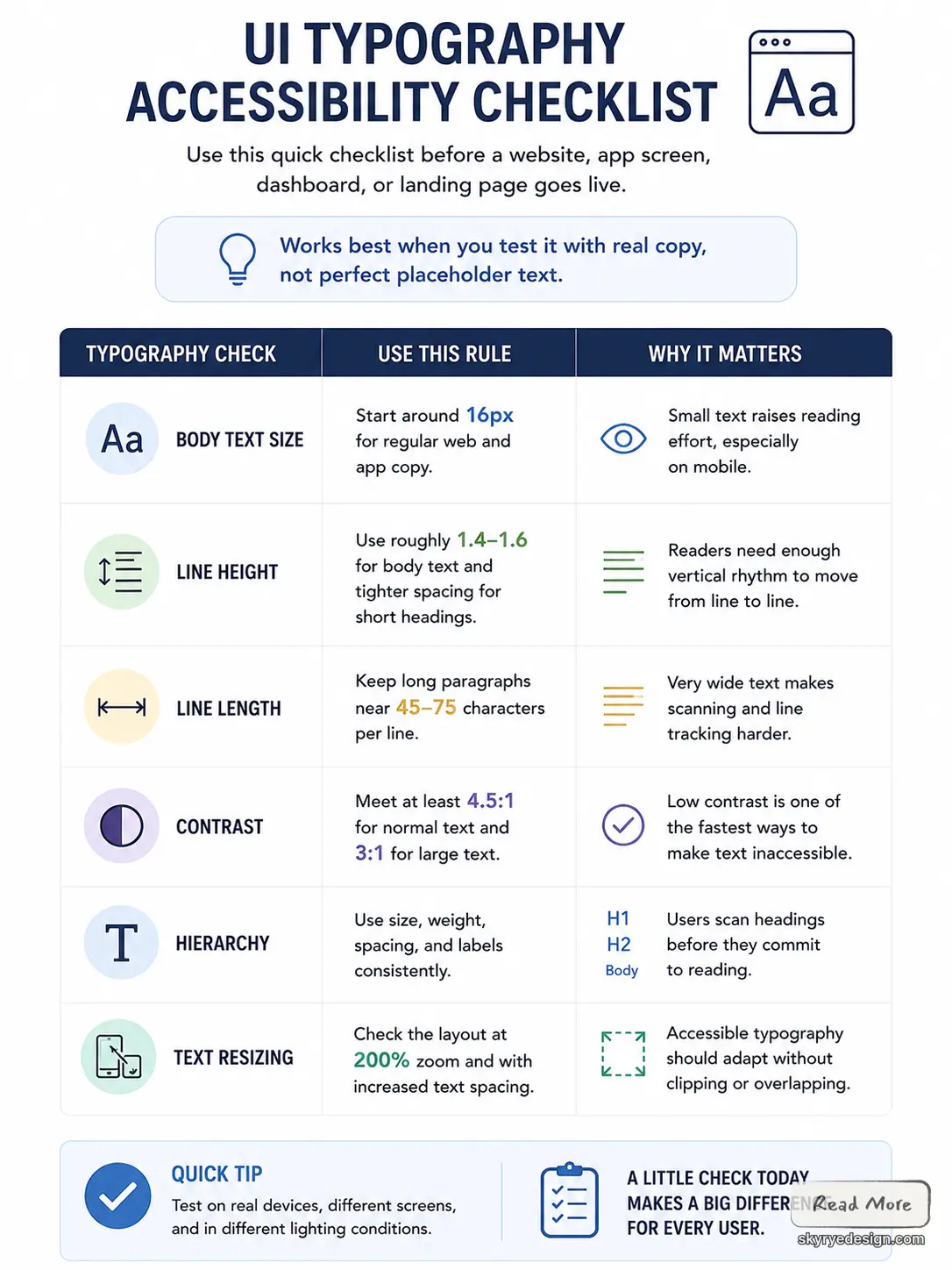
| Typography check | Use this rule | Why it matters |
|---|---|---|
| Body text size | Start around 16px for regular web and app copy. | Small text raises reading effort, especially on mobile. |
| Line height | Use roughly 1.4-1.6 for body text and tighter spacing for short headings. | Readers need enough vertical rhythm to move from line to line. |
| Line length | Keep long paragraphs near 45-75 characters per line. | Very wide text makes scanning and line tracking harder. |
| Contrast | Meet at least 4.5:1 for normal text and 3:1 for large text. | Low contrast is one of the fastest ways to make text inaccessible. |
| Hierarchy | Use size, weight, spacing, and labels consistently. | Users scan headings before they commit to reading. |
| Text resizing | Check the layout at 200% zoom and with increased text spacing. | Accessible typography should adapt without clipping or overlapping. |
How typography affects readability and accessibility in UI/UX design
Typography sits between visual design and usability. It controls how quickly users notice a headline, how easily they understand a form field, and whether they can finish a task without rereading the same sentence twice.


Readable text lowers cognitive load
Good typography makes the page feel calmer because users are not fighting the interface. Clear paragraph spacing, readable line length, and familiar letter shapes let people spend their attention on the task instead of decoding the text.
Hierarchy tells users what to read first
Headings, subheadings, labels, and body copy should not compete at the same volume. A strong type hierarchy creates a visual path: title, key action, supporting detail, then secondary notes. For broader principles, see our guide to typography in UI.
Accessible typography helps more people use the same interface
Low vision, dyslexia, tired eyes, glare, small screens, and older devices all change how text feels. Strong UI typography does not solve every accessibility issue, but it removes many small barriers: faint labels, cramped lines, hard-to-tap button text, and layouts that collapse when text is resized.
Best practices for accessible UI typography
Choose fonts for the job, not for decoration
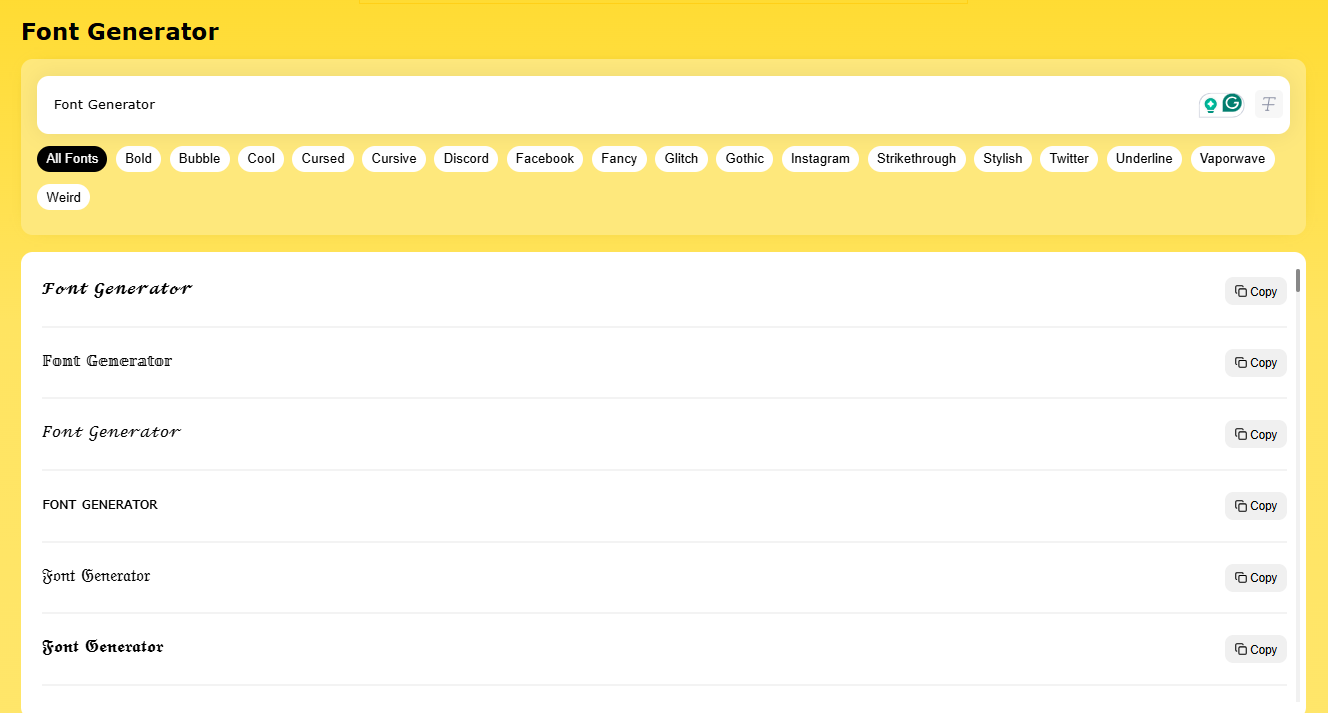
For interface text, pick a typeface with open shapes, clear punctuation, and enough weights to build hierarchy. System fonts, Inter, Roboto, SF Pro, and similar UI families are popular because they stay legible at small sizes. Decorative fonts are better saved for short display moments, not forms, menus, body copy, or error messages.
Set spacing before you polish the style
Spacing is where many interfaces quietly fail. Body copy usually reads better with line height around 1.4 to 1.6. Give paragraphs room to breathe, avoid long centered paragraphs, and keep related labels close to the controls they describe. If a layout only works with perfect one-line text, it is not ready.
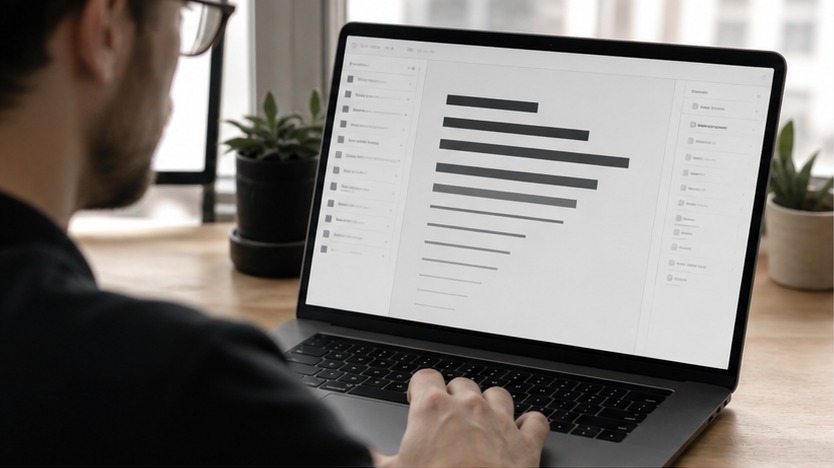
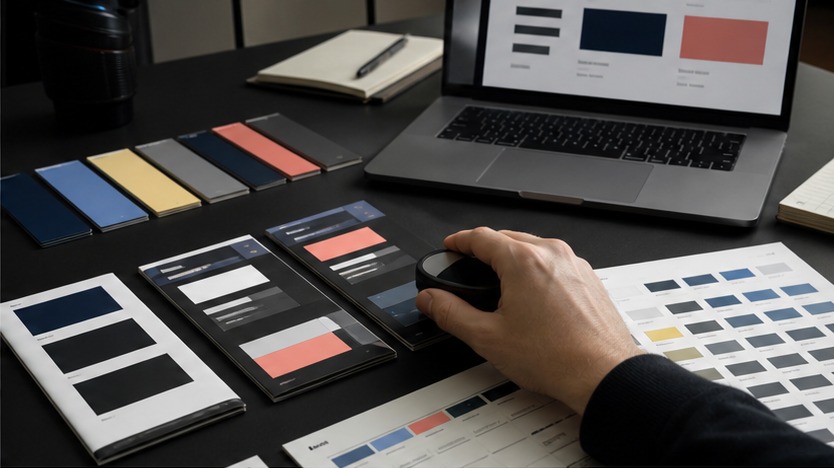
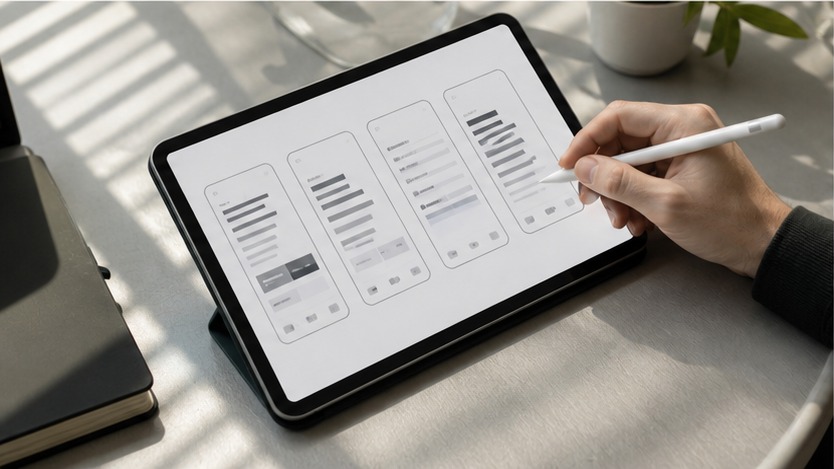
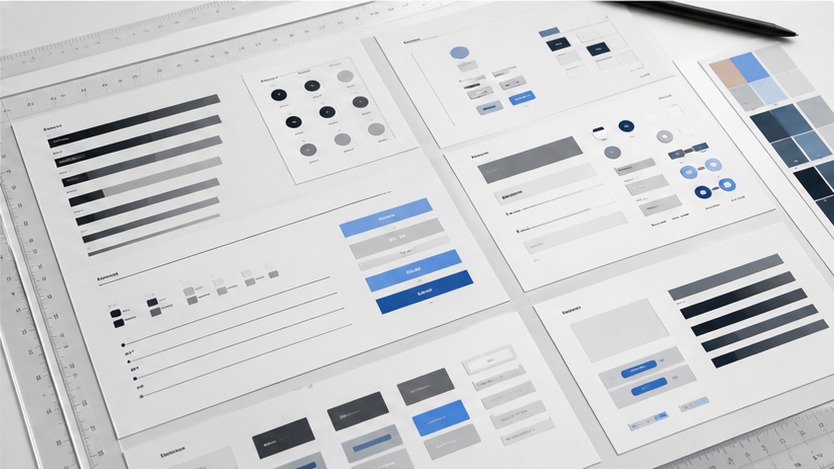
Use the four visual checks below as a quick mid-project review: compare weak and strong typography, check whether hierarchy still works at a glance, confirm accessibility basics, and test contrast before the UI feels finished. This is the kind of small review pass that often catches problems before they become expensive redesign work.
Use contrast as a design constraint
The WCAG contrast guidance sets 4.5:1 as the minimum for normal text and 3:1 for large text. I would treat those as a floor, not a finish line. Thin fonts, text over images, and gray labels often need stronger contrast than the calculator suggests.
Let users resize and reflow text
Accessible UI typography should survive zooming, larger text settings, and adjusted spacing. The WCAG text spacing guidance focuses on making sure content still works when users increase line height, paragraph spacing, letter spacing, and word spacing.
Common typography accessibility mistakes
The most common mistake is treating text as decoration after the layout is already finished. That leads to tiny labels, low-contrast gray copy, centered paragraphs that are too long, and buttons where the text wraps awkwardly. Another mistake is relying on color alone to show meaning. If an error message is only red, some users will miss the signal.
A better habit is to test the text in uncomfortable conditions: mobile width, long labels, 200% zoom, bright light, and a tired reader who is scanning instead of reading carefully. Nielsen Norman Group separates legibility, readability, and comprehension, which is a useful way to audit UI text: can users see it, read it, and understand what to do next?
Related UI design reads
Once the typography is working, the next layer is the full interface system. Our website UI design guide covers layout, components, and visual hierarchy, while the user-friendly interface guide looks at the broader usability patterns around navigation, feedback, and clarity.
Final takeaway
Good UI typography is quiet. Users should not notice the font first; they should notice that the screen is easy to understand. Start with readable sizes, strong contrast, natural spacing, and a clear hierarchy, then polish the style around those decisions.
FAQ about UI typography accessibility
Q: What is UI typography accessibility?
A: UI typography accessibility means choosing and arranging text so people can read, scan, resize, and understand an interface without unnecessary strain. It includes font choice, size, line height, spacing, contrast, hierarchy, and how text behaves on mobile screens or when a user zooms the page.
Q: What font size is best for readable UI text?
A: For most web and app interfaces, 16px is a practical starting point for body text. Smaller labels can work when they are short and high contrast, but important instructions, form text, and long paragraphs should stay comfortably readable on mobile and desktop.
Q: How does typography affect accessibility?
A: Typography affects accessibility because users need to distinguish characters, follow lines, understand hierarchy, and resize text without losing content. Tight line spacing, weak contrast, thin fonts, and long line lengths can make an interface harder for people with low vision, dyslexia, fatigue, or small screens.
Q: What contrast ratio should UI text use?
A: WCAG guidance sets a minimum contrast ratio of 4.5:1 for normal text and 3:1 for large text. In real UI work, I prefer to aim higher for small labels, disabled-looking text, and text placed over images because anti-aliasing and glare can make text look lighter than the CSS value suggests.
Q: Is serif or sans-serif better for UI accessibility?
A: There is no single winner for every interface. A clean sans-serif such as Inter, Roboto, or a system font is usually safer for small UI text, while a well-made serif can still work for longer editorial reading. The better test is whether letters stay distinct at the actual size used in the product.
Q: How do you test UI typography before launch?
A: Test the interface at mobile size, 200% browser zoom, high-brightness and low-brightness conditions, and with longer real text instead of perfect placeholder copy. Check contrast, wrapping, truncation, button labels, error messages, and whether headings still explain the page when someone scans quickly.
Accessibility checks are easier when the type system is simple; this readable font pairing walkthrough helps you test contrast, scale, and body text before polishing the interface.
- 43shares
- Facebook0
- Pinterest40
- Twitter3
- Reddit0