
My first real lesson in hardware limits came on an automotive surfacing project, watching a workstation choke on a Class-A model with too many NURBS patches open at once. That machine sat in one building. Everyone who needed that kind of power had to be in the same room as it, or close enough to drive there.
Remote design teams don’t get that luxury, and most of them figured out years ago that a laptop bought for email and Slack is not a laptop built for a 40-layer PSD, a live CAD assembly, or a rendering queue.
- Why remote design teams hit a performance wall
- What is a cloud workstation?
- Where cloud workstations fit in a design workflow
- Cloud workstations for Adobe, AutoCAD, 3D, and rendering
- Collaboration benefits for remote and hybrid teams
- Security and managed IT around cloud workstations
- Network and latency checklist
- Cost and scalability for creative agencies
- Cloud workstation setup checklist for design teams
- FAQ
Cloud workstations exist to close that gap: real GPU and CPU power, sitting somewhere else, available to a designer wherever they happen to be working that week.
I’ve since watched the same performance wall show up in jewelry CAD work and enterprise dashboard projects, different software entirely but the same underlying problem: the machine in front of the designer just can’t keep up with what the project needs. What follows is less a pitch for any specific platform and more a map of where the wall actually sits, what a cloud workstation solves versus what it doesn’t, and what a remote team needs around it to make the switch actually work.
Why remote design teams hit a performance wall
Adobe files, CAD models, 3D scenes, video timelines, and rendering queues
Creative software has never been polite about resource use, and it’s gotten less polite over time. A layered Photoshop file with smart objects and adjustment layers, a CAD assembly with hundreds of parts, a 3D scene with high-poly geometry and multiple render passes, a video timeline with 4K proxies — each one assumes real memory, real GPU throughput, and real disk speed. A laptop built for a general office role runs all of this technically, in the same sense that a compact car technically tows a trailer.
I still remember the specific frustration of a jewelry CAD file that took eleven minutes just to open on a machine that handled everything else fine. Eleven minutes doesn’t sound catastrophic until it happens six times in a workday, and the designer on the other end has quietly lost most of an hour to nothing but waiting.
Why laptops, home Wi-Fi, and local storage become bottlenecks
Three things quietly cap a remote designer’s output: the laptop’s own GPU, the home network’s actual upload speed (not the number on the router box), and local storage that fills up faster than anyone expects once source files, cache files, and render outputs start stacking. None of these show up as a single dramatic failure. They show up as a render that takes four hours instead of forty minutes, or a file sync that silently falls behind while someone keeps working on what they think is the current version.
The upload speed problem catches people off guard most often. Home internet plans advertise download speed prominently and bury the upload number, but a designer pushing a large project file back to a shared drive is entirely bound by that smaller, unadvertised figure. A connection that streams video beautifully can still take twenty minutes to push a single large render file upstream.
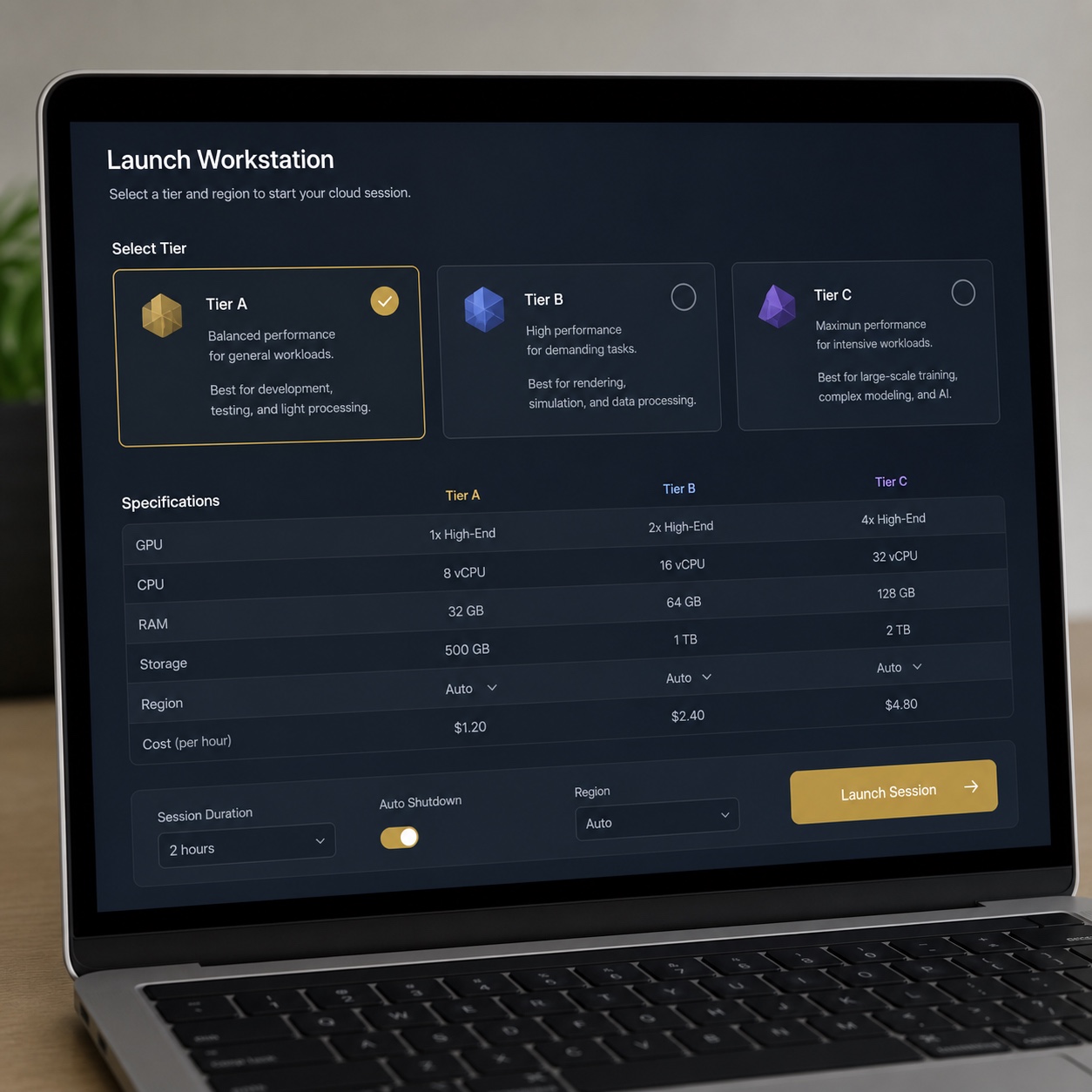
What is a cloud workstation?
Cloud workstation vs cloud PC vs virtual desktop infrastructure
A cloud PC is built for general office work: email, documents, browser-based tools, light multitasking. Virtual desktop infrastructure is the broader enterprise architecture underneath a lot of remote-access setups, built for consistency and control across a large fleet of users.
A cloud workstation is a specific, narrower thing: a remote machine provisioned with real GPU acceleration and workstation-class CPU and memory, built specifically for the software that laptops can’t comfortably run. Confusing the three usually means a design team ends up on infrastructure that was never sized for what they actually do.
The mix-up happens most often at the procurement stage, when whoever’s buying the solution reads “virtual desktop” and assumes it covers the team’s needs without checking whether the underlying hardware profile includes real GPU allocation. It’s an easy mistake, and it’s also an expensive one to discover three months in, once a design team’s actually trying to render on infrastructure that was speced for spreadsheets.
When designers need GPU acceleration, not just remote access
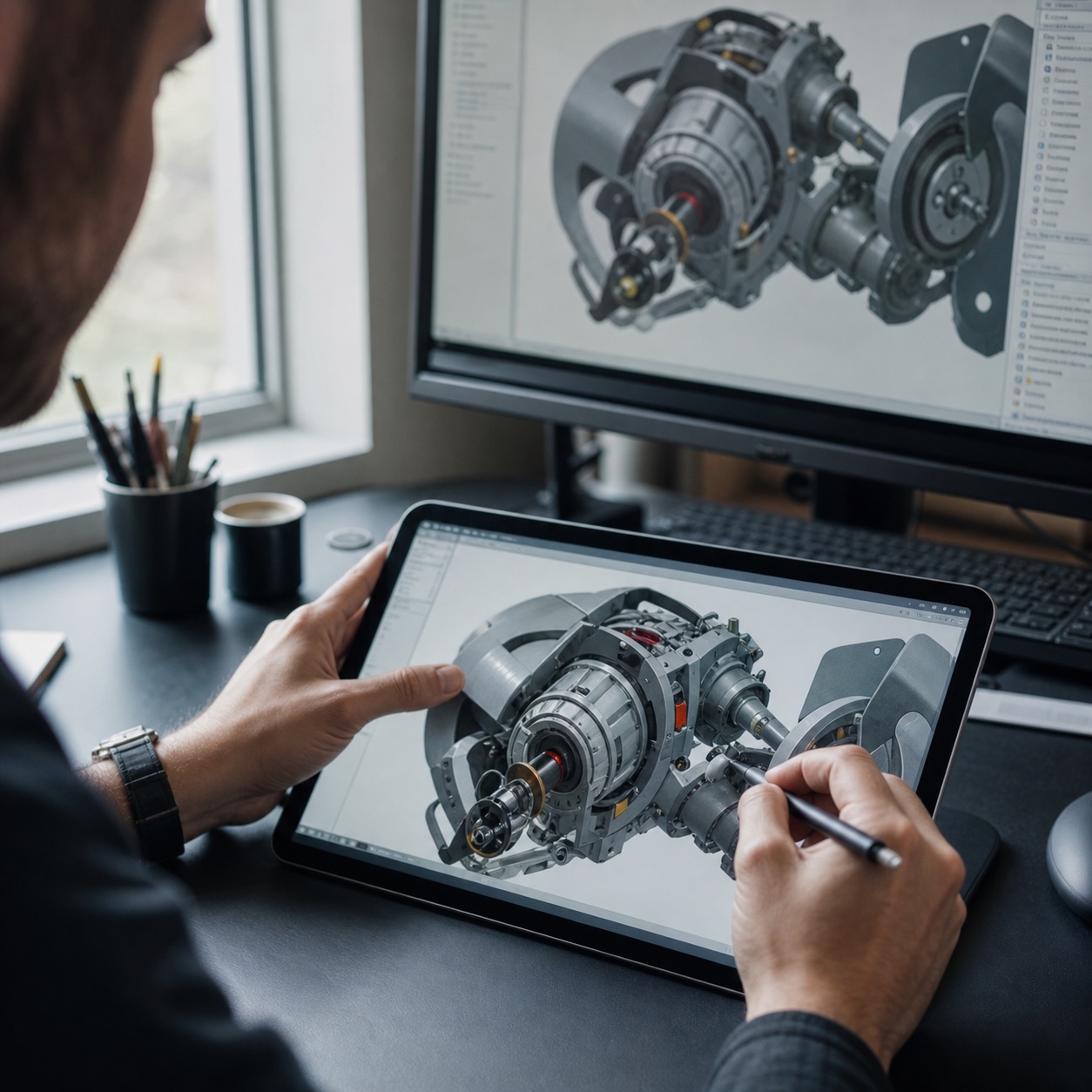
Remote access alone solves the “I need to reach my files” problem. It does nothing for the “my machine can’t render this scene” problem. If the daily bottleneck is bandwidth or convenience, a lighter remote-access setup might be enough. If the bottleneck is compute (long render times, laggy viewport navigation, choppy video scrubbing), nothing short of real GPU acceleration actually fixes it. I’ve watched teams solve the wrong problem here more than once, upgrading everyone’s internet connection when the actual issue was a graphics card three generations behind what the 3D software needed.
Where cloud workstations fit in a design workflow
Concept work, production files, 3D rendering, animation, client revisions, and handoff
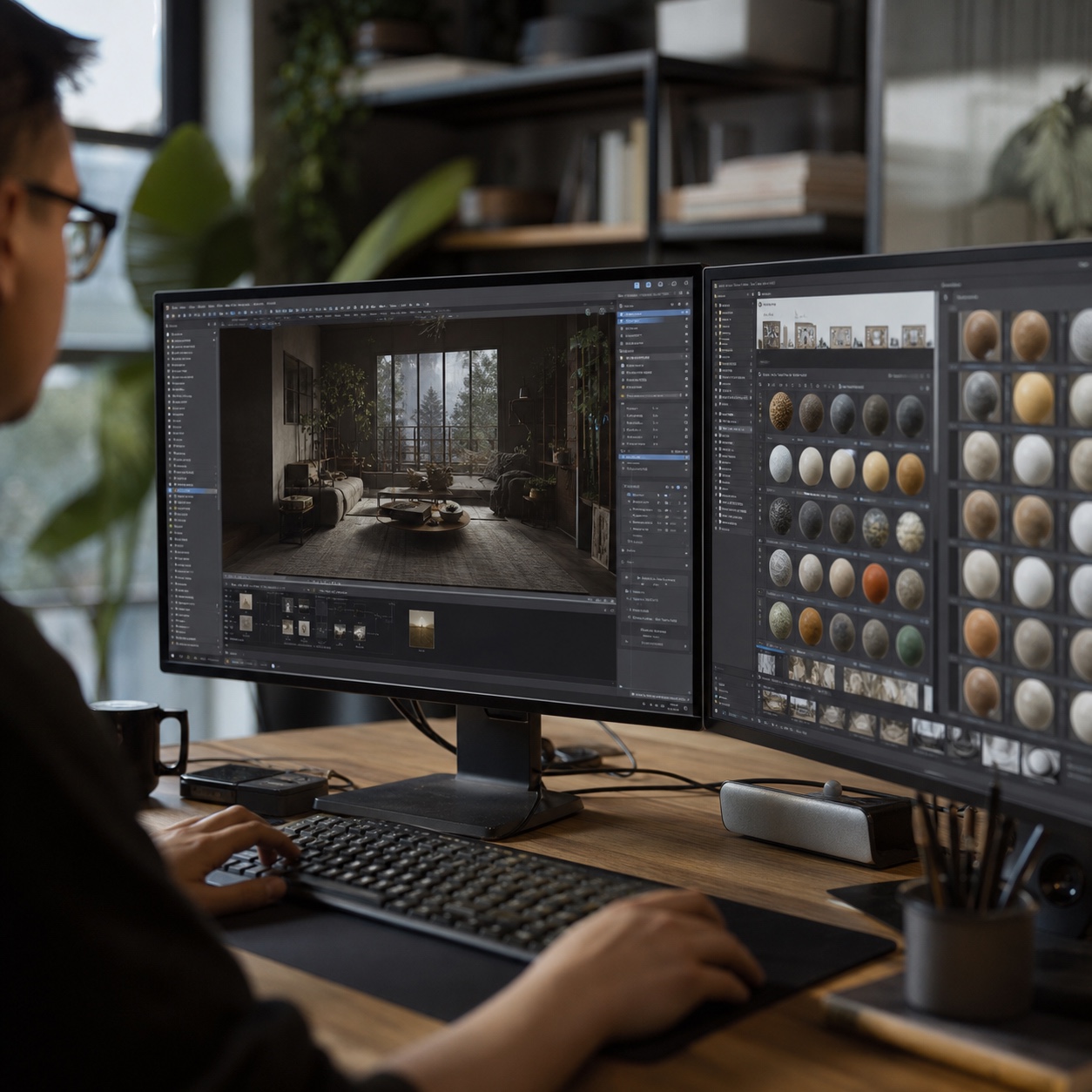
Not every stage of a project needs the same horsepower. Early concept sketching and moodboarding run fine on modest hardware. Production modeling, rendering, and animation are where a cloud workstation earns its place, because that’s where local hardware runs out of headroom fastest. Client revision rounds benefit too, since a designer working from a cloud machine can pull up the full-resolution scene during a live review instead of a compressed preview that hides exactly the detail a client is asking about.
Matching the tool to the project stage matters more than defaulting everyone onto the heaviest setup available. I’ve seen studios provision cloud workstations for the whole team when only the 3D and video specialists actually needed that tier of power, which wastes budget without improving anything for the people doing concept work on lighter software.
Keeping source files close to compute instead of moving huge files all day
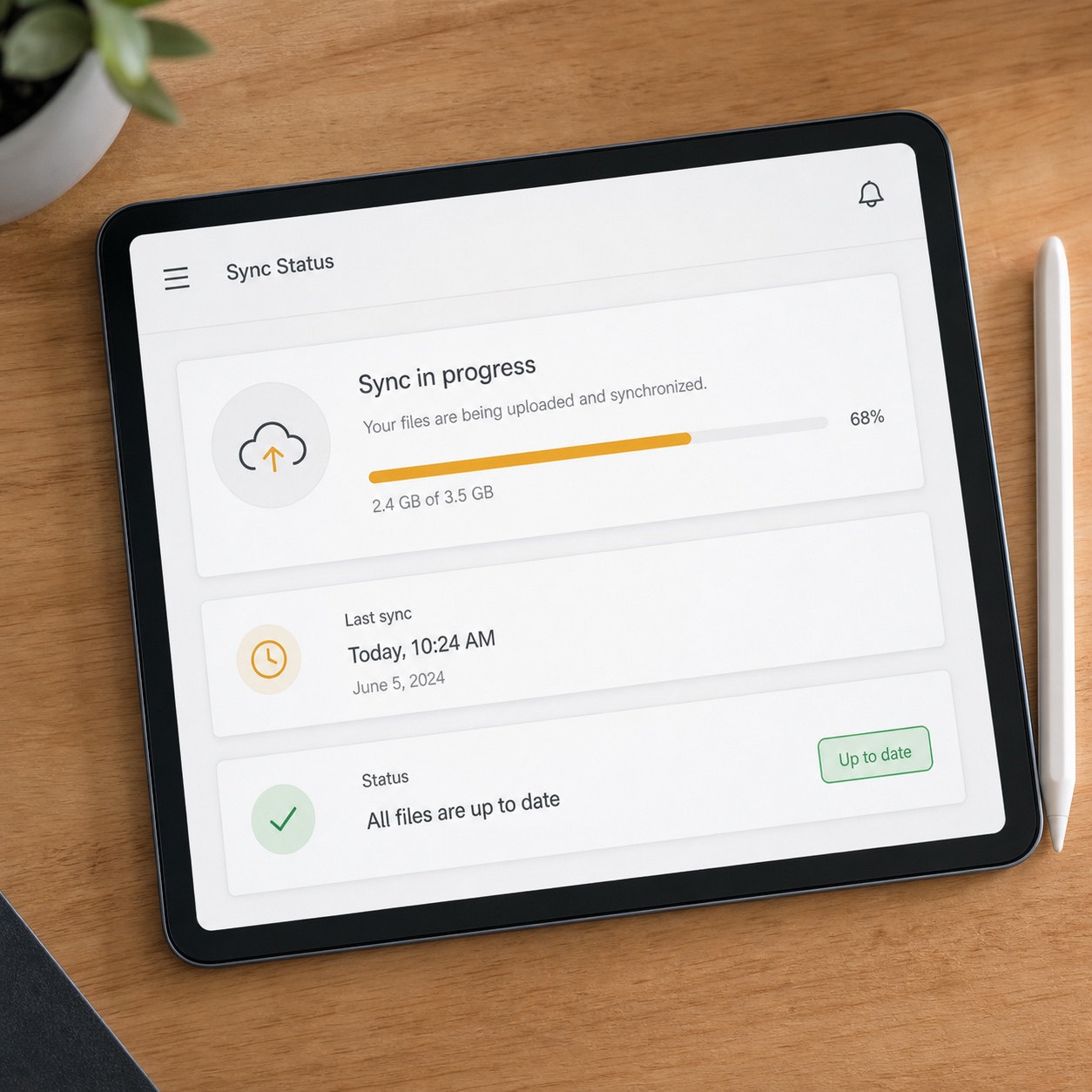
The old pattern (download a huge project file, work on it locally, upload it back) burns time and multiplies the chances of someone working on a stale copy. Keeping source files on the same cloud infrastructure as the compute that processes them removes that whole cycle. Nobody’s waiting on an upload before a teammate can see the current state, and nobody’s quietly working from a version that’s three saves behind.
This is the part of the shift that saves the most time in practice, more than the raw compute upgrade itself. A render that finishes forty minutes faster is a nice win. A team that stops losing half a day every few weeks to someone editing an outdated file is a bigger one, and it’s the kind of problem that’s nearly invisible until it’s gone.
Cloud workstations for Adobe, AutoCAD, 3D, and rendering
CPU, GPU, RAM, storage, color accuracy, tablet support, and peripheral issues
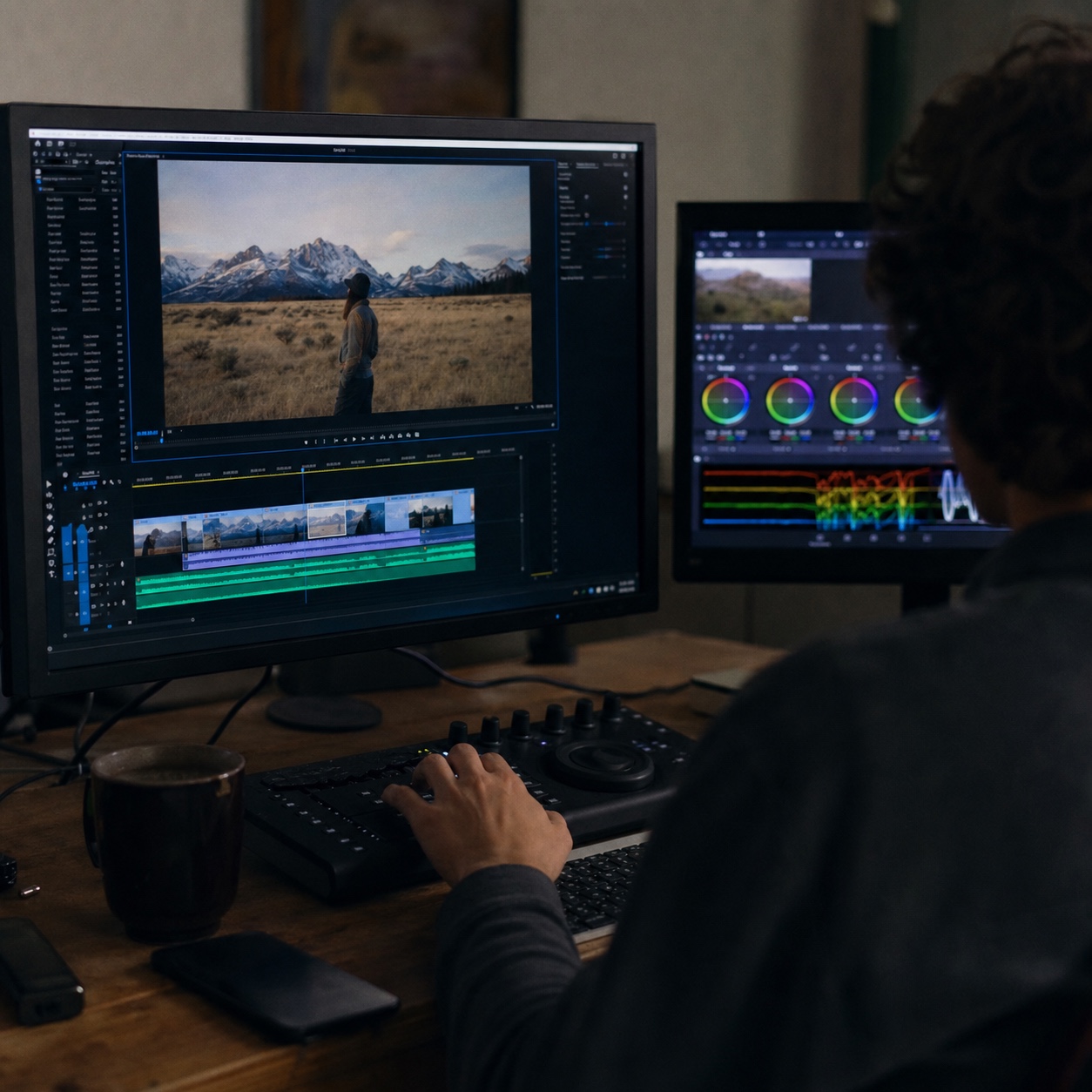
Different creative software stresses different parts of a machine. Adobe’s video and motion tools lean hard on GPU acceleration for playback and export. AutoCAD and other CAD platforms care more about single-core CPU speed and stable driver support than raw GPU horsepower. 3D rendering wants GPU memory above almost everything else, especially for scenes with large texture sets.
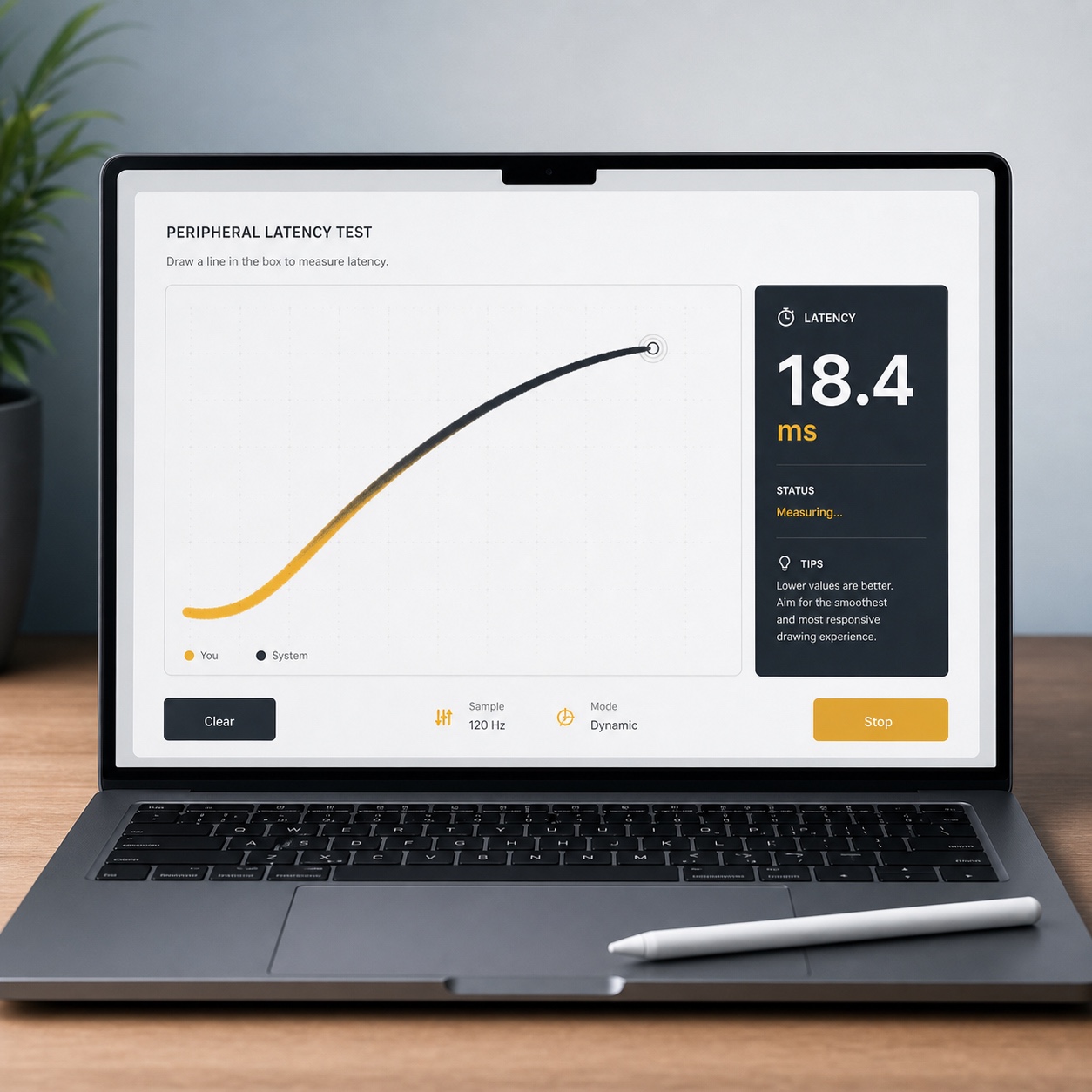
Color accuracy on the remote display matters more than most setups account for, since a designer color-grading over a compressed remote stream is working half-blind. Tablet and stylus support, plus general peripheral latency, deserve a real test before committing a whole team to a platform, because a half-second of pen lag turns fine linework into a fight with the software.
I test peripheral latency personally before recommending any remote setup to a team, specifically by sketching a tight curve and watching how far behind the line trails the pen tip. It’s a rough test, but it catches a real problem that spec sheets never mention: a platform can list impressive GPU numbers and still feel unusable for detailed linework if the input latency is even slightly off.
When cloud rendering is enough and when a full workstation is better
Cloud rendering services handle the specific job of turning a finished scene into final frames, and they’re excellent at that one job. They don’t help with the interactive part (modeling, texturing, lighting adjustments, viewport navigation) where a designer needs low-latency, real-time feedback from the machine they’re actually working on. A full cloud workstation covers both. A studio doing occasional heavy renders on otherwise-capable local machines might only need the rendering piece. A team doing daily 3D work on modest laptops needs the whole workstation.
Think of it as the difference between renting a print shop for the final output and renting the entire studio. Both solve a real problem, but they solve different ones, and picking the cheaper option because it sounds similar on paper usually means discovering the gap the hard way, mid-project.
Collaboration benefits for remote and hybrid teams
Shared environments, faster onboarding, standardized tools, and fewer device differences
A new hire on a cloud workstation setup gets the same software versions, the same plugins, and the same performance envelope as everyone else on day one, instead of spending a week getting their personal laptop up to spec. That consistency also kills a specific, quiet source of studio friction: the file that renders differently on one person’s machine because of a driver mismatch or a slightly different color profile nobody caught until the client review.
Onboarding speed matters more than it gets credit for. A freelancer brought on for a two-week sprint who spends the first three days just getting their machine configured has effectively lost a third of the engagement to setup. On a shared cloud environment, that same freelancer is productive within an hour of getting access.

Contractor access without shipping hardware or exposing every folder
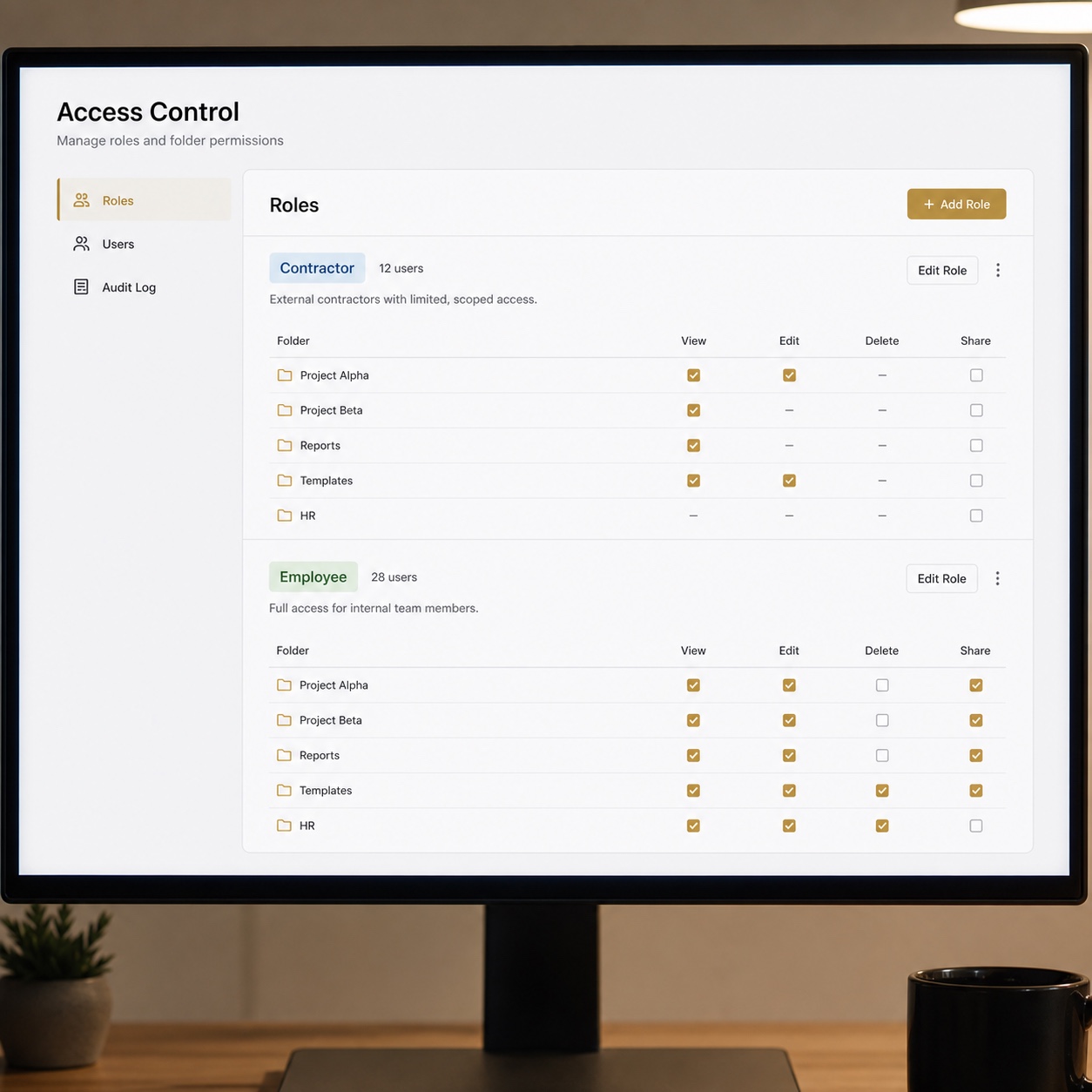
Freelancers and contractors are where cloud workstations solve a problem that used to have no clean answer. Instead of shipping a laptop to a two-week collaborator or granting broad access to a shared drive, a studio can spin up a scoped cloud workstation with exactly the files and software that contractor needs, then shut it down the moment the project wraps. No hardware in transit, no lingering access to folders that have nothing to do with the job.
I’ve dealt with the old version of this problem directly, coordinating a contractor on an enterprise dashboard project who needed access to one specific set of files and ended up with visibility into far more than that simply because the shared drive wasn’t set up to scope access that precisely. Nothing went wrong that time, but it was a near miss that a properly scoped cloud environment would have closed off entirely.
Security and managed IT around cloud workstations
MFA, role-based access, endpoint policies, backups, monitoring, and remote wipe
A cloud workstation is still an endpoint, and it still needs the basics: MFA on every account that touches it, role-based access so a contractor’s scoped machine can’t reach folders outside their project, and backups on the actual working files, not just an assumption that the cloud provider handles everything. Monitoring and the ability to remotely wipe or revoke a session matter more here than on a typical laptop, since a compromised cloud workstation can have direct access to a studio’s most valuable, unreleased work.
How managed IT support keeps performance and permissions aligned
Most design studios don’t have anyone whose job is tuning GPU allocation or managing role-based access policies, and that’s a specialist skill worth bringing in rather than learning from scratch. I’ve seen studios bring in Charter Technology Solutions’ tech management or work with a provider like The Contigo difference team specifically to keep performance and permissions aligned as the setup grows, rather than letting either one drift on its own. Performance tuning without security discipline creates a fast, exposed studio. Security discipline without performance tuning creates a locked-down studio that’s slow enough people start finding workarounds.
Network and latency checklist
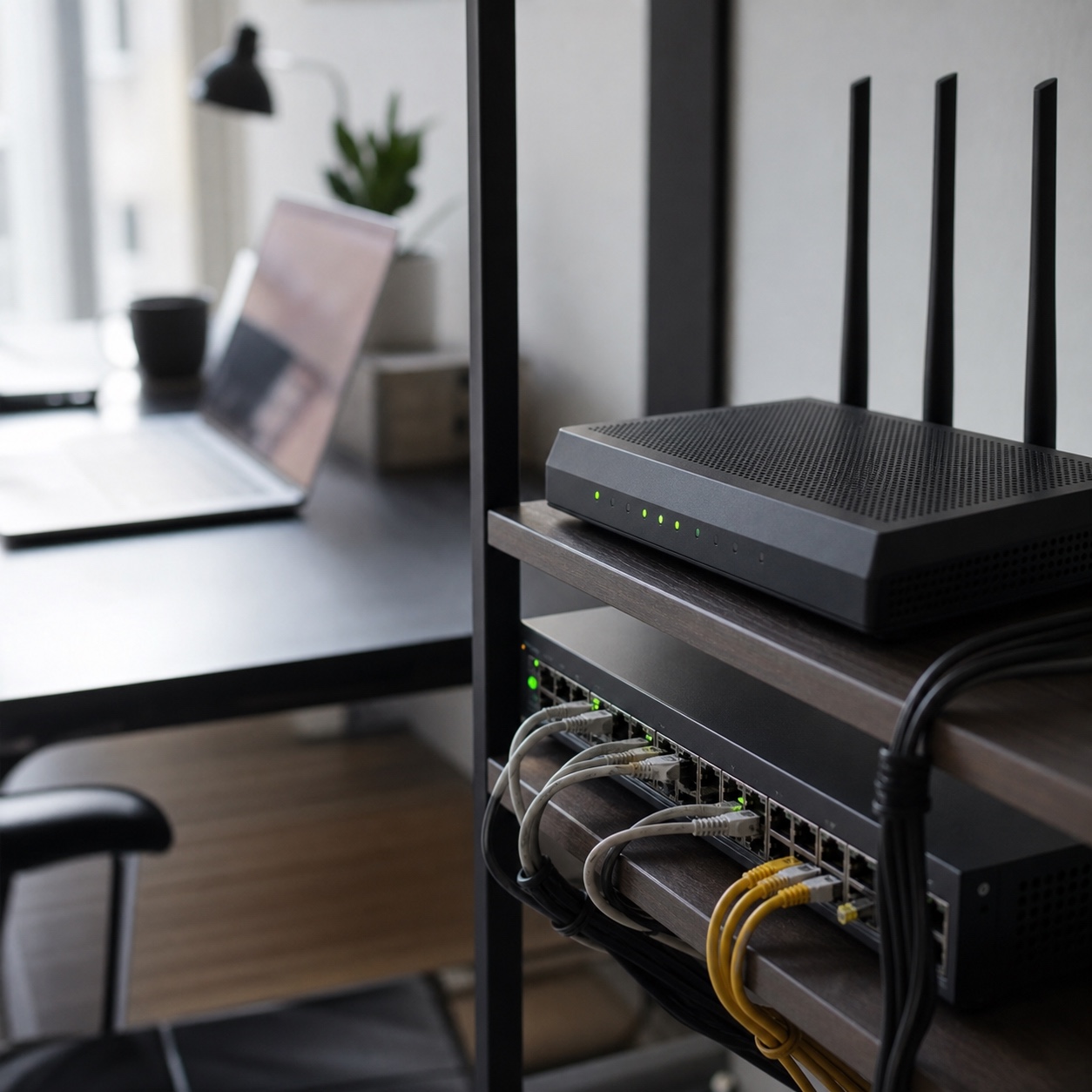
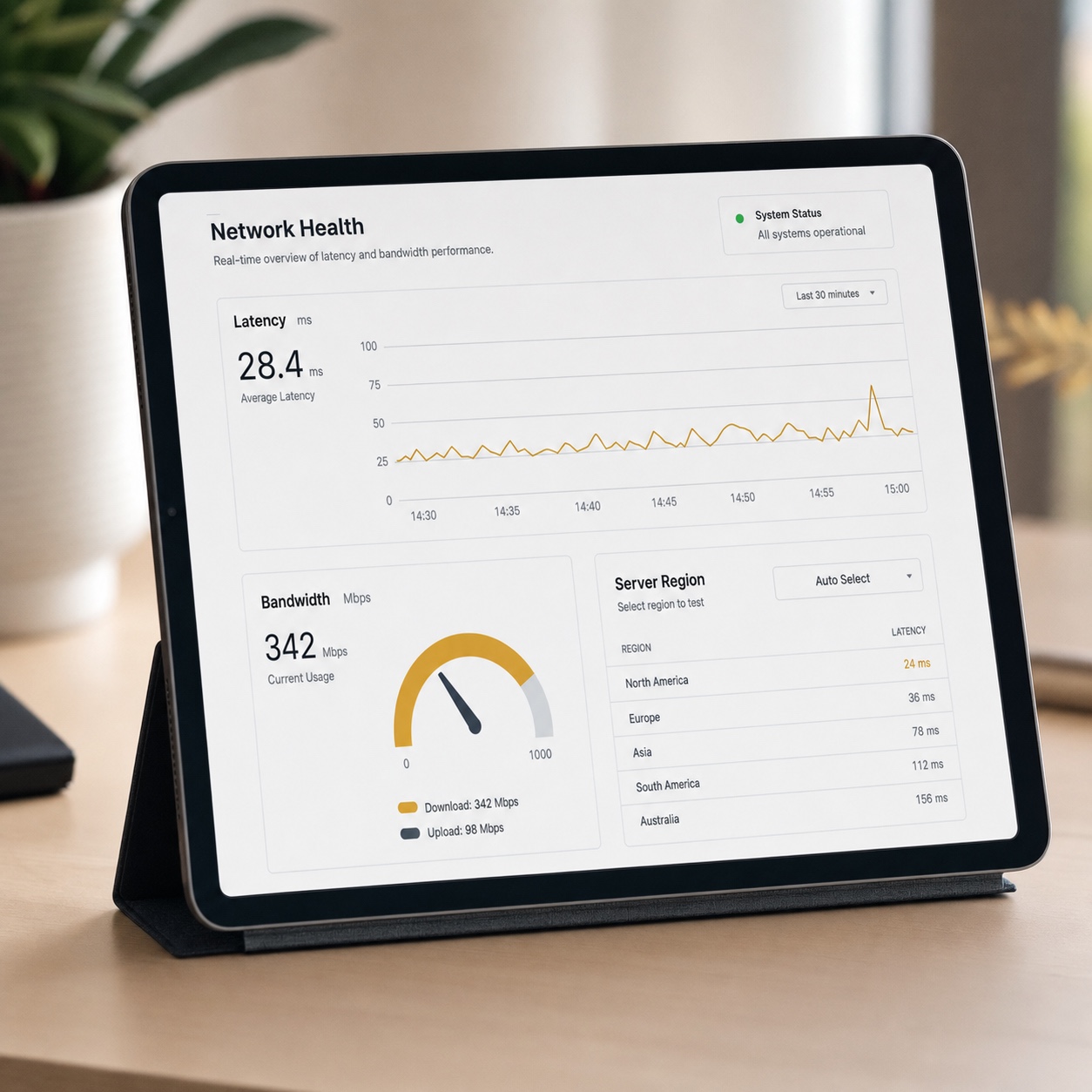
Bandwidth, region choice, display streaming protocol, file sync behavior, VPN or ZTNA setup, and a fallback plan for when the connection drops mid-render all belong on the same short list before rollout. Choose a server region close to where most of the team actually sits, since latency compounds fast over distance and turns a snappy remote session into a laggy one. Test the display streaming quality specifically for color-sensitive work, not just general responsiveness, and confirm there’s a real fallback (a way to keep working locally) for the inevitable connection drop during a deadline crunch.
Run this checklist against an actual work session, not a quick login test. A five-minute test connection can look perfectly smooth and still miss the kind of latency spike that only shows up twenty minutes into sustained use, once caching effects wear off and the real network conditions take over.
Cost and scalability for creative agencies
Project-based GPU resources, seasonal team growth, software licenses, and storage tiers
Cloud workstations scale in a way local hardware never could. A studio can spin up extra GPU capacity for a three-month project surge and scale back down once it wraps, instead of buying workstations that sit half-idle for most of the year. Software licenses and storage tiers deserve the same seasonal thinking: match capacity to actual project load rather than provisioning for the busiest month year-round.
This flexibility matters most for studios with genuinely uneven workloads — a busy season ahead of an industry trade show, a slow stretch afterward. Buying enough local hardware to cover peak demand means paying for idle capacity most of the year. Scaling cloud resources up and down with actual need avoids that trade-off entirely.
What to measure before replacing local workstations
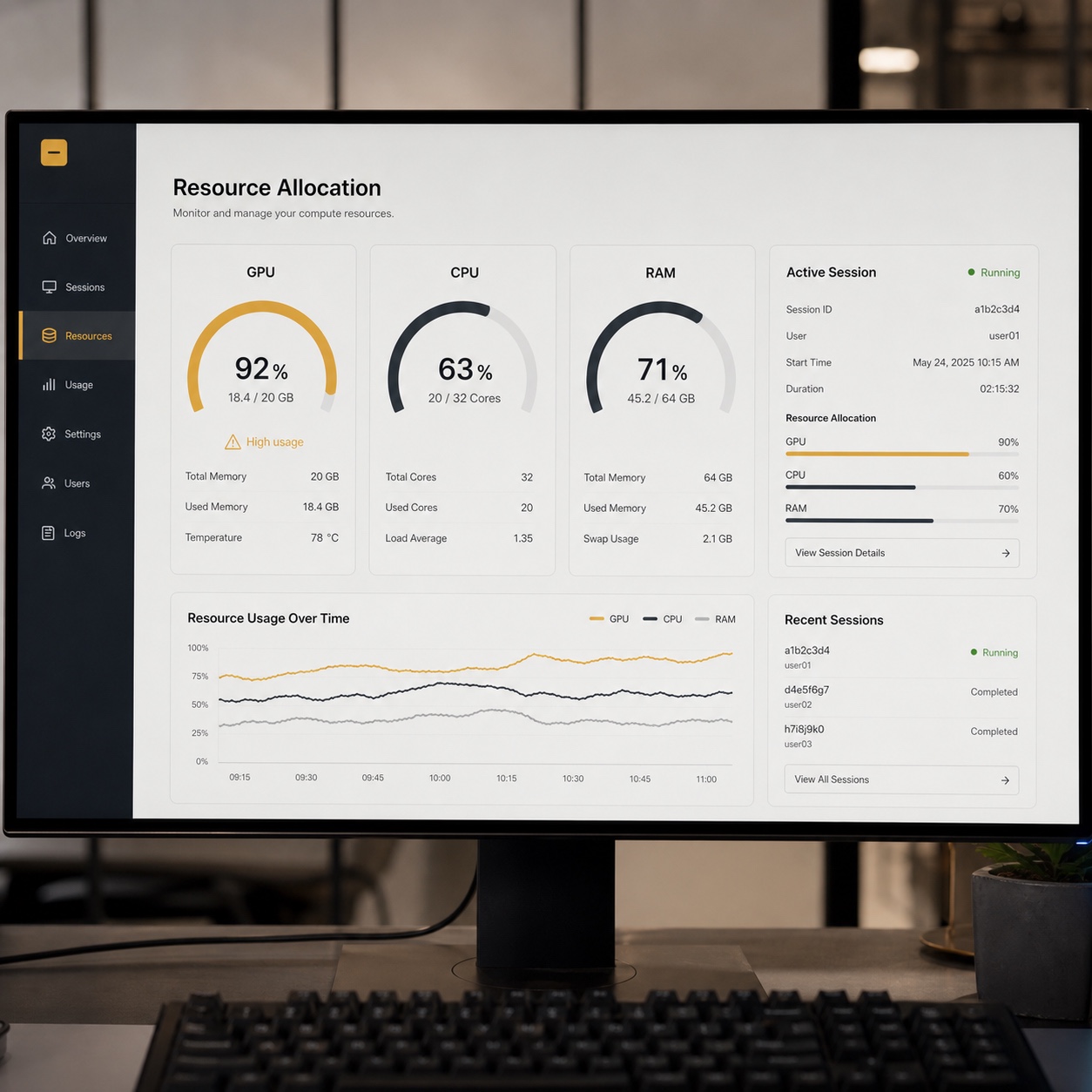
Track actual render times, file sync delays, and the frequency of hardware-related support tickets on the current setup before committing to a full switch. Those numbers tell you whether the performance wall is real and where it’s costing the most time, rather than making the decision on a hunch that things feel slow.

Cloud workstation setup checklist for design teams
Run through this before rolling a cloud workstation setup out to the full team:
- Apps: Every core creative tool tested on the platform before full rollout, not assumed compatible.
- Files: Source files live on the same infrastructure as the compute, not shuttled back and forth.
- Permissions: Contractor and freelancer access scoped to current projects, reviewed at project close.
- Hardware: Local displays and peripherals checked for color accuracy and input latency.
- Network: Bandwidth and server region tested from each team member’s actual location, not just headquarters.
- Backups: Working files backed up independently of whatever the platform provides by default.
- Support: A clear escalation path exists for performance issues, not just access issues.
- Exit plan: A documented way to pull files and work locally if the platform ever needs to change.

FAQ
What is a cloud workstation?
A cloud workstation is a remote machine provisioned with real GPU acceleration and workstation-class CPU and memory, built to run resource-heavy creative software like Adobe Creative Cloud, CAD platforms, and 3D rendering tools without requiring that power to sit on a local laptop. It differs from a basic remote-access setup specifically in the compute power behind it, not just the ability to connect from anywhere.
Are cloud workstations good for designers?
Yes, particularly for anyone regularly hitting the limits of local hardware: long render times, laggy 3D viewports, or a laptop that can’t keep up with a growing project file. For lighter work like early concept sketching, a cloud workstation is less necessary, but for production-stage 3D, video, and CAD work it solves a real bottleneck that no amount of internet speed alone can fix.
Can cloud workstations run Adobe Creative Cloud or AutoCAD?
Yes, both run on properly configured cloud workstations, though the ideal hardware profile differs. Adobe’s video and motion tools benefit most from strong GPU acceleration, while AutoCAD leans more on stable single-core CPU performance and solid driver support. Testing the specific software a team relies on daily, rather than trusting a generic spec sheet, is the only reliable way to confirm a platform fits.
What is the difference between cloud rendering and a cloud workstation?
Cloud rendering handles one specific task: turning a finished 3D scene into final output frames. A cloud workstation covers the full interactive workflow (modeling, texturing, lighting, and general software use) not just the rendering step at the end. A team can use both together, cloud rendering for final output and a cloud workstation for everything leading up to it.
Do remote design teams still need managed IT support?
Yes. A cloud workstation setup still needs someone managing performance tuning, access permissions, and security policy as the team grows, and that’s rarely a role a design-focused team wants to build in-house from scratch. The platform handles the infrastructure. A person still has to keep it tuned to how the team actually works.
The workstation that used to sit in one room, available only to whoever could get to it, now sits wherever the workload needs it, available to whoever’s actually doing the work. That shift doesn’t change what good creative software demands. It just removes the requirement that everyone capable of meeting that demand has to share a building. For a remote team, that’s not a convenience. It’s the difference between hiring the best person for the project and hiring whoever happens to own the right machine.
I think about it the same way I think about any other tool decision on a project: the technology should disappear into the work, not become a second job the design team has to manage on top of the actual creative problem. A cloud workstation setup that’s tuned right does exactly that. One that’s rushed into place without the network, security, and support layer around it becomes a new source of friction wearing the promise of solving the old one.
- 17shares
- Facebook0
- Pinterest17
- Twitter0
- Reddit0