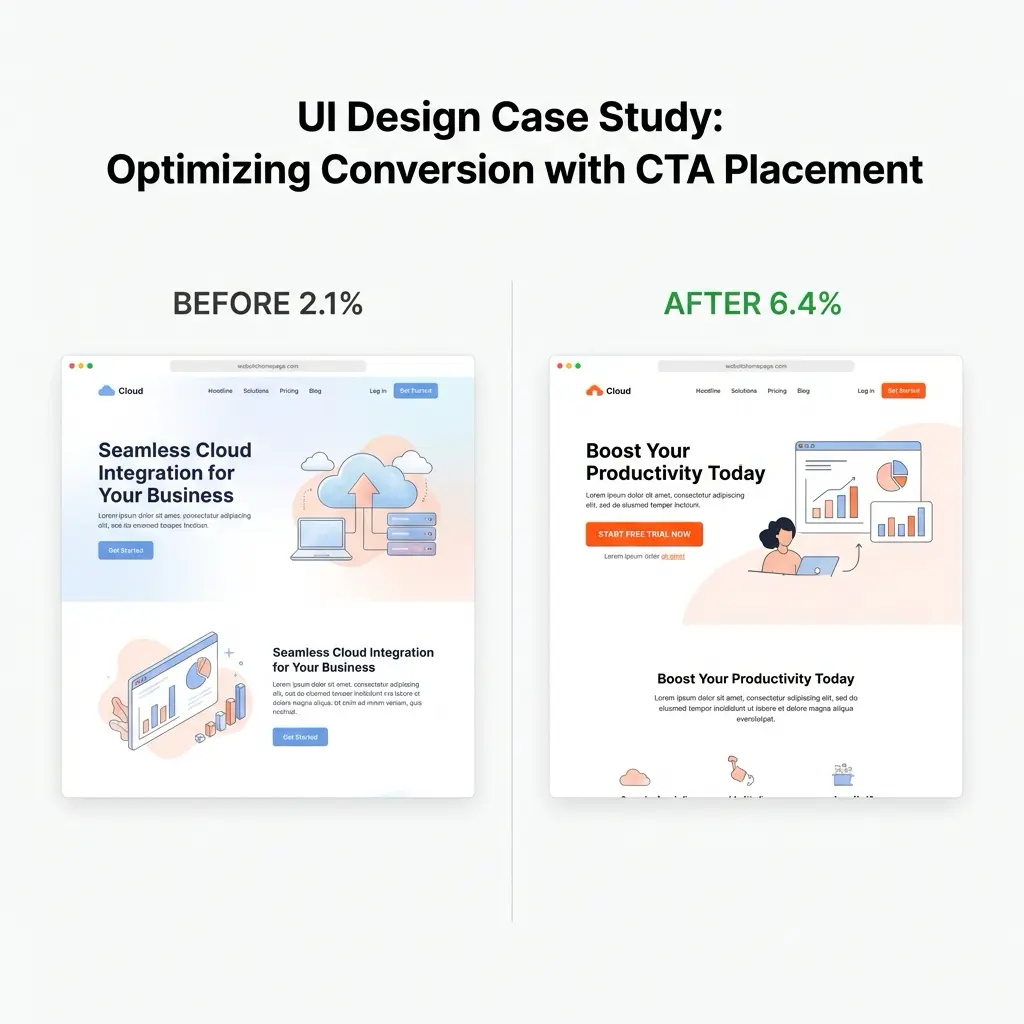
A few years ago, I audited a SaaS product that had spent $40,000 on visual design. The homepage looked genuinely impressive — custom illustrations, a thoughtful colour palette, smooth scroll animations. Their trial-to-paid conversion was 2.1%. The industry average for their category was 8%.
- Fundamentals of Website UI Design
- Key Elements of Effective Website UI
- Design Process and Prototyping
- Best Practices for Website UI Design
- Trends and Future Directions in Website UI
- FAQ: Website UI Design
- Q: What is website UI design, and how does it differ from UX?
- Q: What are the most important principles in website UI design?
- Q: Which tools do professional UI designers use in 2026?
- Q: How do I make a website UI more accessible?
- Q: What UI design mistakes hurt conversion rates the most?
- Q: How has AI changed website UI design in 2026?
- What Good Website UI Design Actually Delivers
The problem wasn’t the aesthetics. The problem was that the primary CTA was buried below the fold, the pricing page required four clicks to reach, and the onboarding flow asked for credit card details before showing users a single feature. Beautiful surfaces, broken structure.
Before you lock a website UI system, run the type scale through a quick UI typography accessibility checklist. It catches the small problems that make otherwise clean layouts hard to read: weak contrast, cramped labels, long line lengths, and text that breaks when it wraps.
That’s the gap that good website UI design actually closes. It isn’t about making things look polished — polish is a finish, not a foundation. Effective website UI design makes navigation instinctive, surfaces the right information at the right moment, and removes every unnecessary decision from the user’s path. When it works, users don’t notice the design at all. They get what they came for.


This guide covers the principles, elements, tools, and emerging patterns that make that happen — from the basics of visual hierarchy to where AI is reshaping what users expect in 2026.
Fundamentals of Website UI Design
Before any visual decision gets made, the foundation needs to be right. That foundation has three parts: understanding what UI actually is (and how it differs from UX), internalising the core design principles that separate functional interfaces from frustrating ones, and committing to simplicity and consistency as operating principles rather than aesthetic preferences.
Understanding UI vs UX — and Why Both Matter
UI and UX are frequently used interchangeably, and they’re not the same thing. UI — user interface — is everything a user can see and interact with: buttons, menus, forms, typography, icons, colour. It’s the surface layer. UX — user experience — is the broader question of how using the product feels overall: whether it’s intuitive, whether it accomplishes user goals, whether it generates trust or friction.
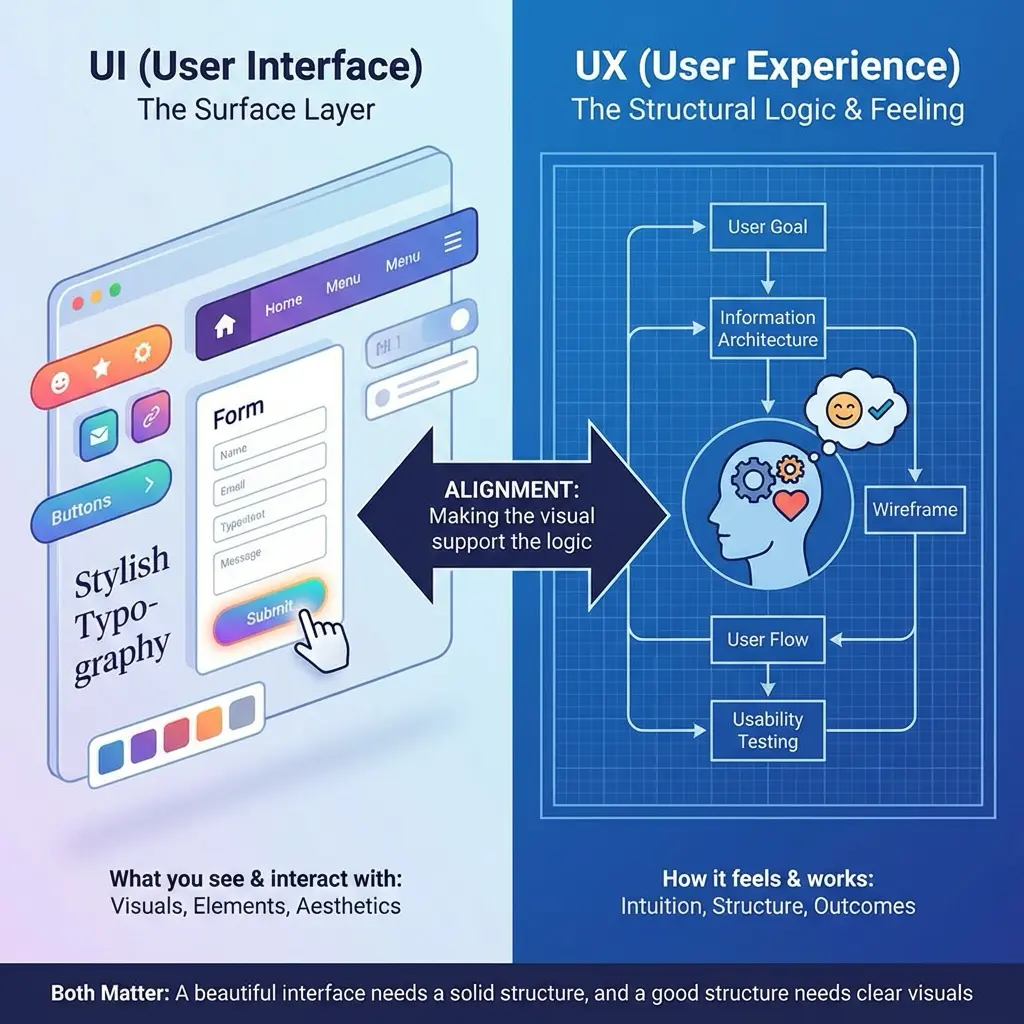
The two are inseparable in practice. A beautiful user interface sitting on top of a confused information architecture still produces a bad user experience. And a well-structured flow with poor visual execution — inconsistent spacing, illegible typography, ambiguous buttons — will frustrate users who can’t parse what they’re looking at.
Your job is alignment: making the visual layer support the structural logic, so the interface feels inevitable rather than arbitrary.
Core Principles That Govern Effective UI
Five principles show up in every well-designed interface, in some form. They’re not trends — they’ve been consistent for decades because they reflect how human perception actually works.
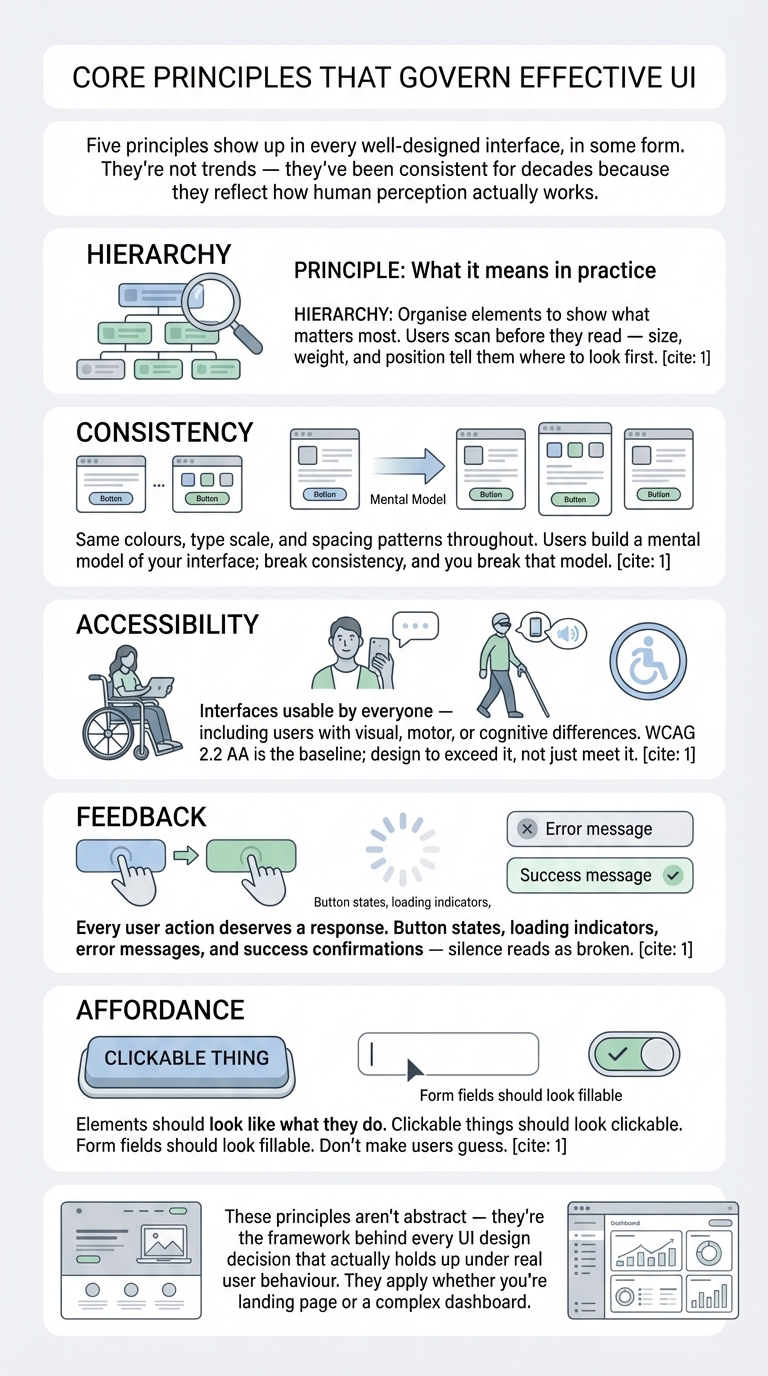
Principle: What it means in practice
Hierarchy: Organise elements to show what matters most. Users scan before they read — size, weight, and position tell them where to look first.
Consistency: Same colours, type scale, and spacing patterns throughout. Users build a mental model of your interface; break consistency, and you break that model.
Accessibility Interfaces usable by everyone — including users with visual, motor, or cognitive differences. WCAG 2.2 AA is the baseline; design to exceed it, not just meet it.
Feedback: Every user action deserves a response. Button states, loading indicators, error messages, and success confirmations — silence reads as broken.
Affordance Elements should look like what they do. Clickable things should look clickable. Form fields should look fillable. Don’t make users guess.
These principles aren’t abstract — they’re the framework behind every UI design decision that actually holds up under real user behaviour. They apply whether you’re designing a landing page or a complex dashboard.
Simplicity and Consistency as Operating Principles
Simplicity is frequently misunderstood as minimalism. They’re not the same. A simple interface isn’t necessarily sparse — it’s one where every element earns its presence. The question isn’t ‘how little can we show’ but ‘what does the user need right now, and what gets in the way of that’.
Consistency does something subtler but equally important: it reduces cognitive load. When users encounter a design trend they haven’t seen before, they have to think. When they encounter a familiar pattern, they act. Build your interface on conventions users already know — navigation at the top, primary CTA in high-contrast colour, forms that behave like forms — and save creative risk for the moments where differentiation actually matters.


A website interface usually exposes weak logos quickly; these business logo design examples are useful before placing a mark into a header or favicon.
Key Elements of Effective Website UI
The principles tell you what to aim for. The elements are where you actually implement them. Three categories determine the majority of how a website UI feels to use: typography, colour, and graphic design. Get all three wrong, and no amount of structural thinking recovers the experience. Get all three right, and the interface nearly disappears — which is exactly what you want.
Typography: The Element That Does the Most Work
Typography is doing more work in a UI than most designers give it credit for. It’s not just about legibility — it’s about hierarchy, pacing, tone, and trust. A well-set typeface on a blank page communicates professionalism before a single word is read. A poorly chosen one undermines content that’s genuinely good.
For screen use, sans-serif type families — Inter, Roboto, DM Sans — remain the workhorses because of their screen rendering at small sizes. The bigger decision is typographic hierarchy: a clear scale of H1 through body copy that guides the eye without requiring conscious navigation. Set your line height between 1.4 and 1.6 times the font size for body text — below that and lines feel cramped; above it and the text loses coherence.
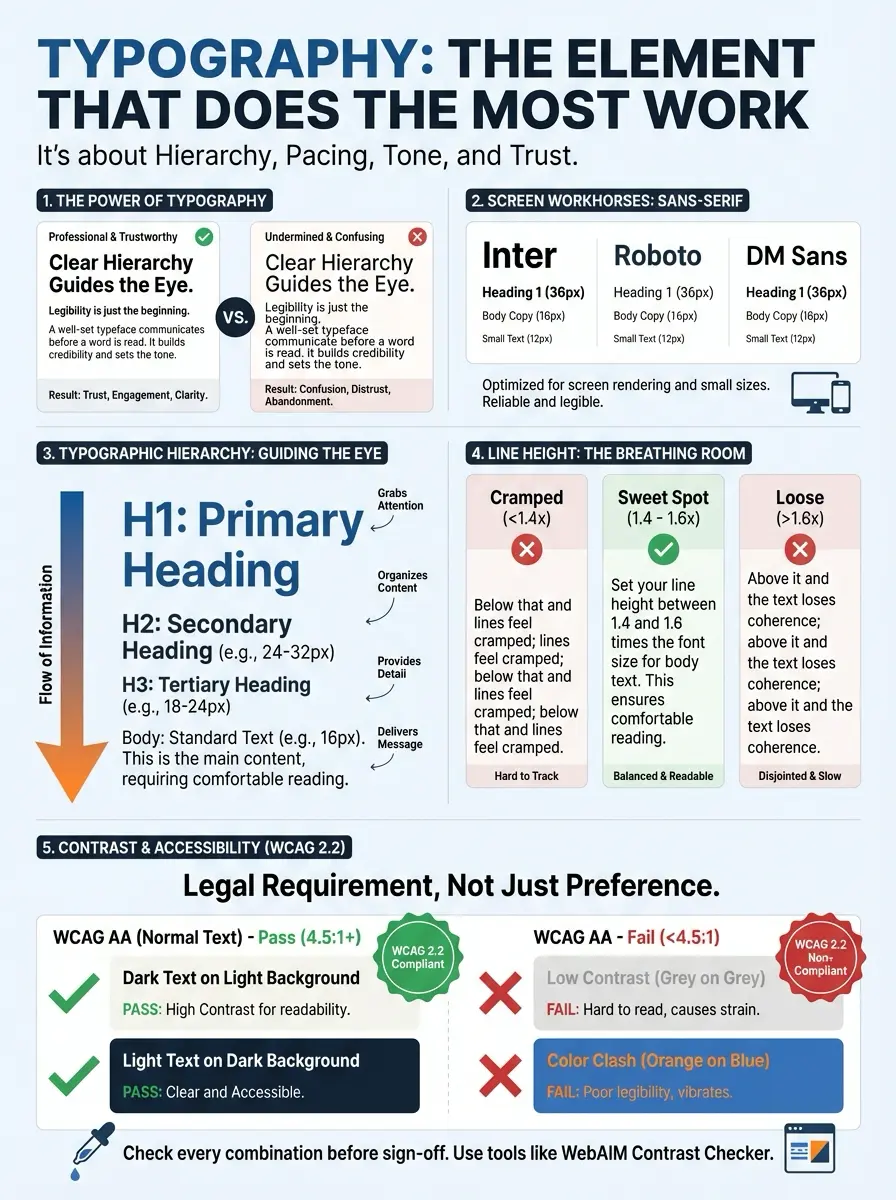
Contrast between text and background isn’t just a design preference — it’s a legal accessibility requirement in many jurisdictions. WCAG 2.2 requires a 4.5:1 contrast ratio for normal text. Check every text colour combination against this standard before sign-off, not after launch.


One more thing worth stating plainly: consistent typographic rules throughout an interface — not just on key pages, but everywhere — create the subconscious impression of a product that has been thought through. Inconsistent type treatment creates the opposite impression, even if users can’t articulate why something feels off.
Colour Theory and Visual Hierarchy
Colour is the fastest communicator in a UI. Before a user reads anything, colour has already told them where the action is, what the brand feels like, and whether something is wrong. That speed makes it powerful and risky in equal measure.
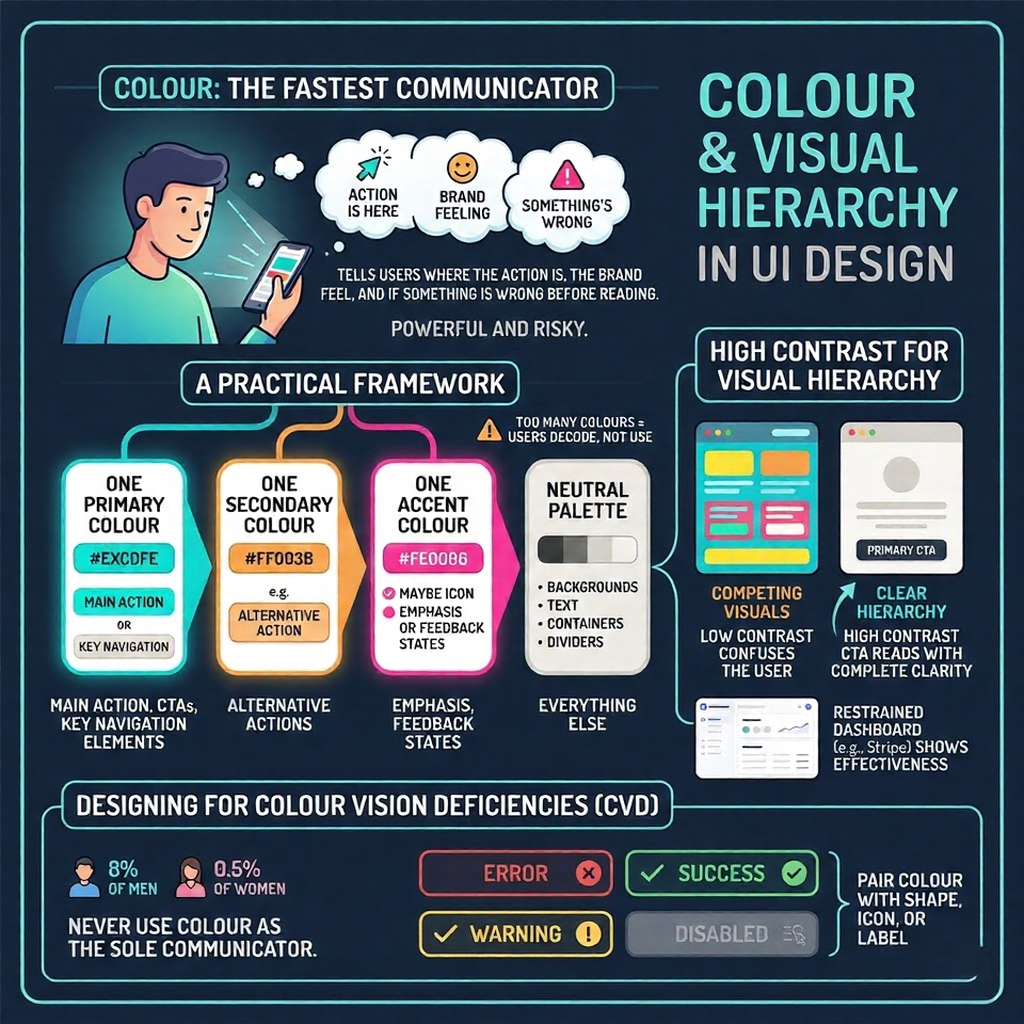
The practical framework: one primary colour for your main action (CTAs, key navigation elements), one secondary for alternative actions, one accent for emphasis or feedback states, and a neutral palette for everything else. More than that, and you’re creating a colour system your users have to decode rather than use.
High contrast isn’t just about accessibility — it’s about hierarchy. A primary CTA in high-contrast colour against a neutral page background will always outperform one that competes visually with surrounding elements. This sounds obvious until you see how frequently it’s violated in real products. The Stripe dashboard is a good reference for colour restraint done correctly: almost everything is neutral, which makes the few high-contrast elements read with complete clarity.
For users with colour vision deficiencies — around 8% of men and 0.5% of women — never use colour as the sole communicator. Pair colour with shape, icon, or label for every state that matters: error, success, warning, disabled.
Graphic Design: What Earns Its Place
Every visual element in a UI should pass one test: does this help the user understand or do something faster? Icons reduce cognitive load for common actions (search, menu, close, share) because they’re processed faster than text. Illustrations can communicate tone and personality on pages where purely functional elements feel cold. Data visualisations make complex information scannable.
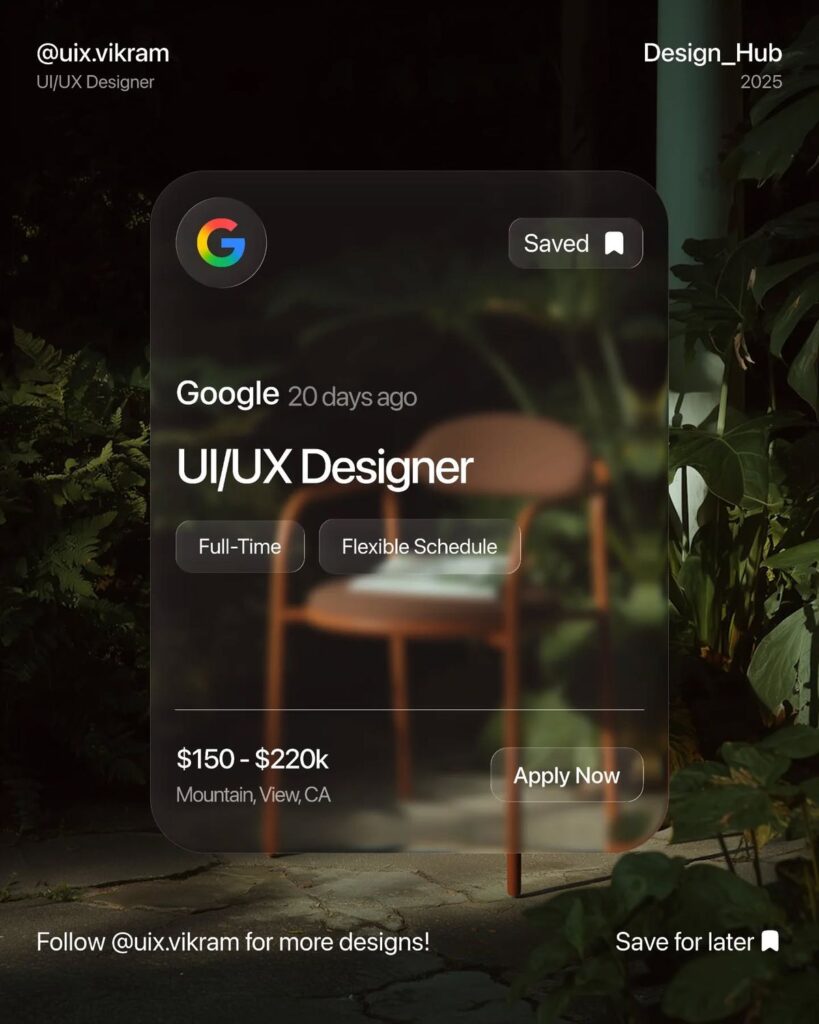
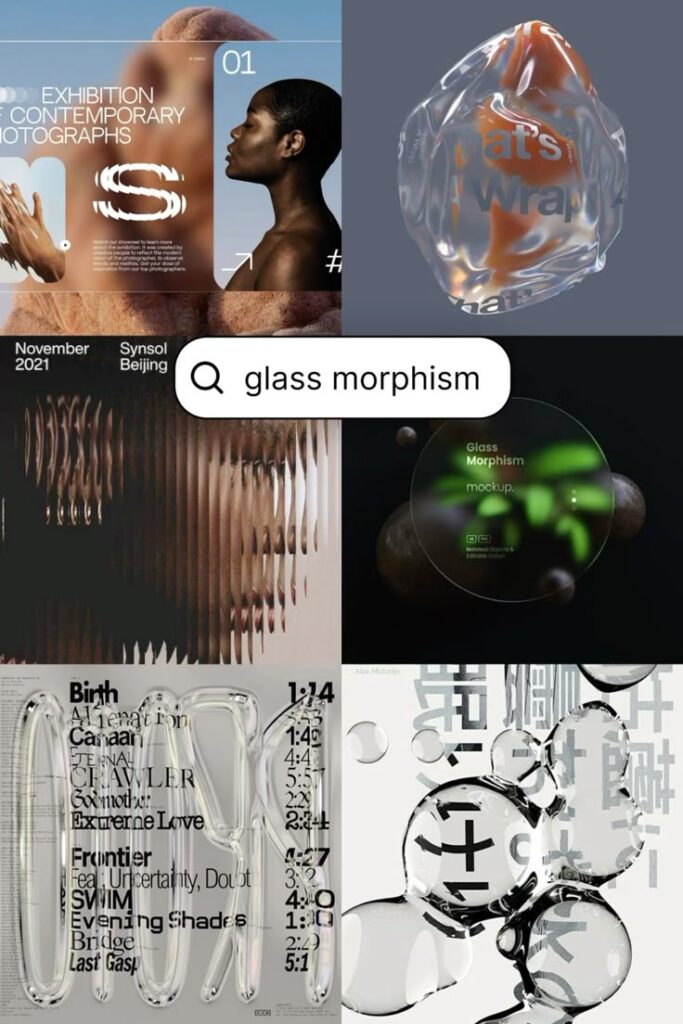
What graphic design shouldn’t do in a UI: add visual complexity for its own sake, slow the page down, or require interpretation. I’ve seen landing pages where every section has a large illustration, a gradient background, and an animated element. The result is a page that takes four seconds to load and communicates nothing clearly. Every graphic decision has a performance cost. Be deliberate about when it’s worth paying for it.
Alignment, spacing, and visual consistency in graphic elements aren’t subtle details — they’re the difference between an interface that looks built and one that looks assembled. Set a grid, stick to it, and audit spacing across devices before any page ships.
Design Process and Prototyping
Good website UI design doesn’t come from a single moment of inspiration. It comes from a process: defining the problem clearly, generating and testing options quickly, and iterating based on what real users actually do rather than what you expect them to do. Skip any of those three stages, and you’ll pay for it later.


Starting with the Problem, Not the Solution
The most expensive mistake in UI design is building the wrong thing beautifully. Before wireframes, before Figma files, before colour palettes: requirements. What is the user trying to accomplish? What does the business need to happen? Where do those two things align, and where do they conflict? Design thinking as a methodology exists precisely to surface these questions before design work starts.
Mind mapping and whiteboard sketching aren’t junior-designer activities — they’re the fastest way to generate options without the commitment overhead of digital tools. A sketch that takes five minutes to draw can be thrown away without loss. A Figma component that took three hours carries inertia.
Wireframing and Prototyping with the Right Tools
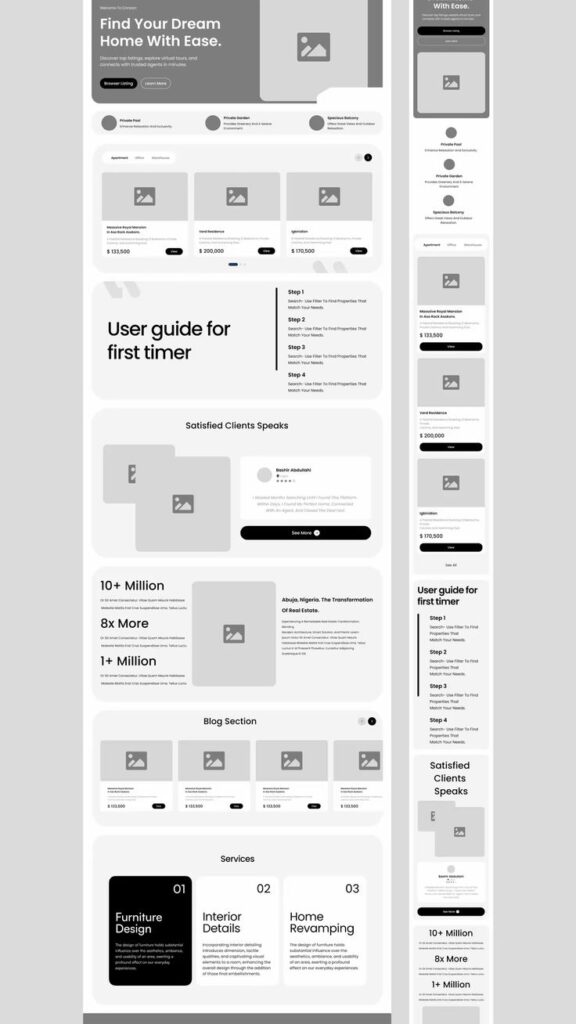
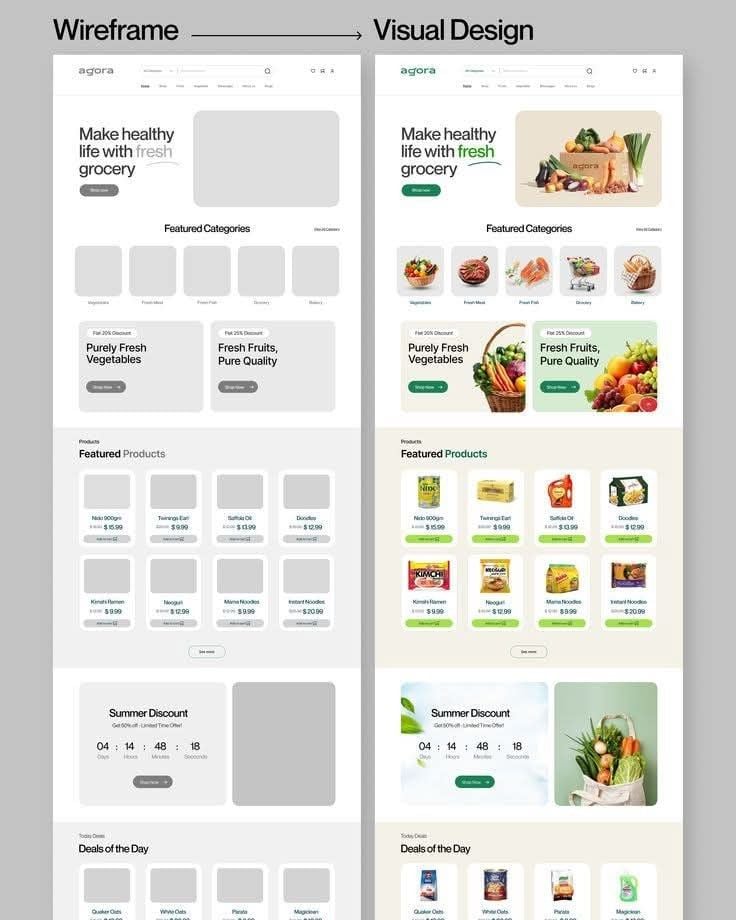
Figma has become the default tool for good reason: real-time collaboration, component libraries, interactive prototyping, and handoff to development in a single environment. If your team isn’t on Figma in 2026, the question worth asking is why not?
Wireframes should establish structure without suggesting final visual treatment. A wireframe that looks like a finished design stops people from questioning the structure and starts them commenting on colours. Keep wireframes low-fidelity for as long as the structure is still in question.
Prototypes earn their keep at the handoff stage. An interactive prototype built in Figma — with real navigation flows, hover states, and transition behaviours — exposes usability problems that static screens hide. A developer implementing a static spec has to make dozens of micro-decisions about behaviour. A developer implementing against an interactive prototype makes almost none.
User Feedback as a Design Input, Not an Afterthought
Testing with users isn’t a phase that happens at the end of a design process — it’s an input that should shape every significant decision. UX research methods range from 5-minute hallway tests to structured usability studies; what matters is that real users interact with the design before it ships, not after.
Document feedback systematically. Not every piece of feedback deserves action — one user struggling with a flow could be that user; five users struggling with the same flow is a design problem. Look for patterns. Prioritise usability issues by frequency and severity. Ship the fix, test again.
Best Practices for Website UI Design
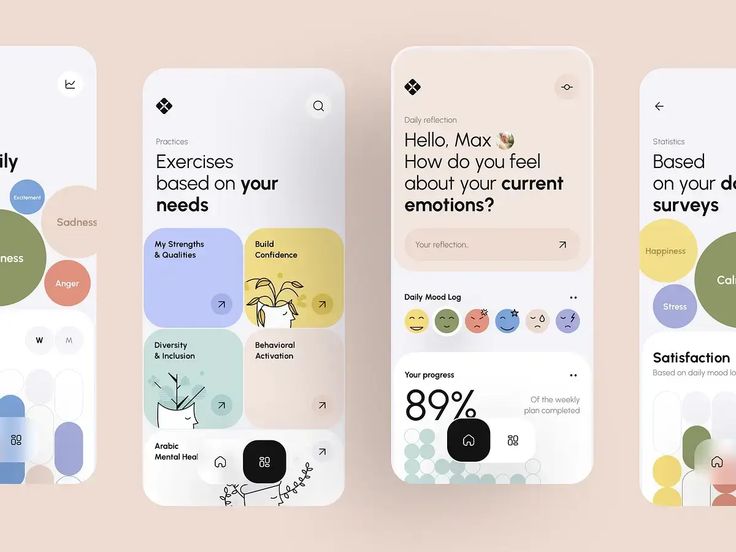
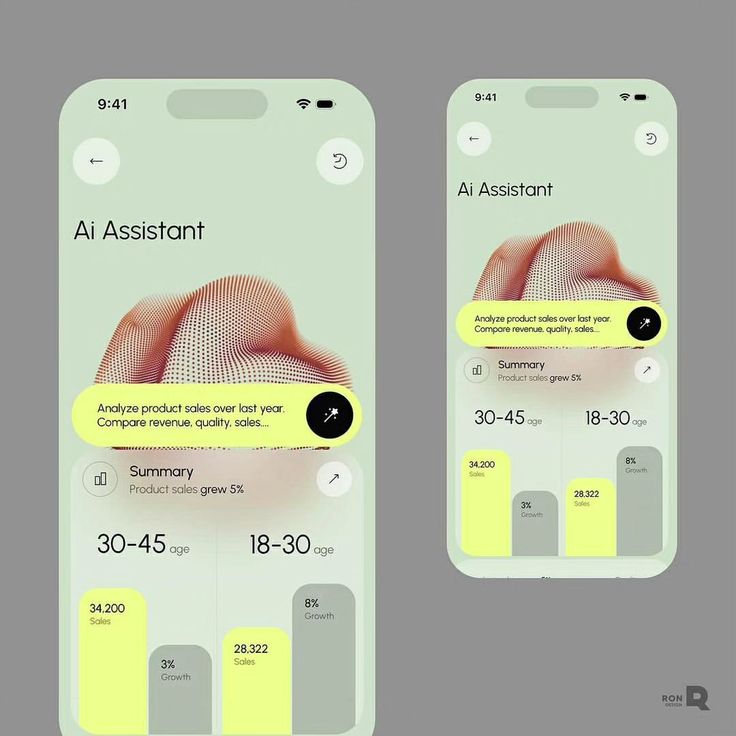
Principles and process get you the foundation. Best practices are what you apply consistently once that foundation is in place. Three areas matter most: accessibility, the design-to-development handoff, and the ongoing commitment to quality after launch.
Short content addition to Emerging Patterns in UI Design so that it now reads as follows:
Key trends include AI-driven personalization, adaptive layouts, and immersive design elements. Many sites now use large-scale, responsive typography and micro-interactions to keep users engaged. Gradients, minimalism, and subtle animation maintain visual interest without overwhelming your visitors.
Popular sites often incorporate 3D visuals, interactive backgrounds, and unique scroll effects. These features aim to create a memorable first impression while ensuring the interface stays intuitive. Expect to see more applications of voice and gesture controls, expanding how you interact with digital environments.
Accessibility and fast load times remain essential, as users expect smooth experiences on all devices. Consistent use of whitespace and clear navigation support easy browsing and task completion.
There is also more thought and expectation in harnessing empathy to transform user experience in a beneficial way. You can learn more about this by clicking here. clicking here
Accessibility: Non-Negotiable, Not Optional
WCAG 2.2 AA compliance is the legal and ethical baseline for accessible web design. Treat it as a minimum, not a target. The practical changes it requires are rarely dramatic: semantic HTML, text alternatives for images, sufficient colour contrast, keyboard navigability, and clear labels on form fields. None of these require significant design compromise.
Beyond compliance, accessible design is good design. High-contrast text is easier for everyone to read, not just users with visual impairments. Clear form labels reduce errors for everyone. Logical tab order benefits keyboard power users. Accessibility improvements almost always improve overall usability — the populations overlap differently.
A few specific actions: label every form field explicitly (no placeholder-text-as-label, which disappears on focus), ensure all interactive elements are reachable by keyboard, never rely solely on colour to communicate state, and test against WCAG using tools like axe or Lighthouse before any page ships.
- Use semantic HTML elements — <nav>, <main>, <button>, <label> — not div-soup with ARIA patches
- Provide text alternatives for all meaningful images (alt text that describes function, not appearance)
- Ensure adequate colour contrast: 4.5:1 for normal text, 3:1 for large text (18px+ or 14px+ bold)
- Test keyboard navigation across every interactive element before launch
- Run automated accessibility audits as part of your build process, not as a one-off check
Design-to-Development Handoff: Where Good Design Gets Lost
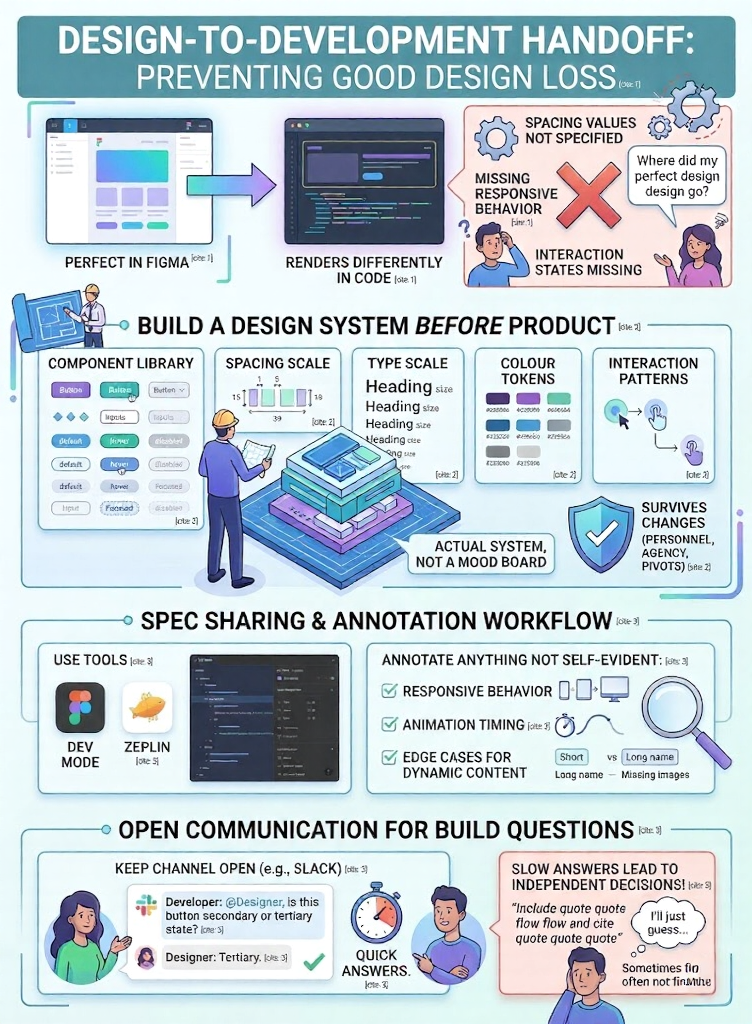
The handoff from design to development is where more good design intent gets destroyed than at any other point in the process. A component that looks perfect in Figma renders differently in code when spacing values aren’t specified, when responsive behaviour isn’t documented, and when interaction states are missing from the spec.
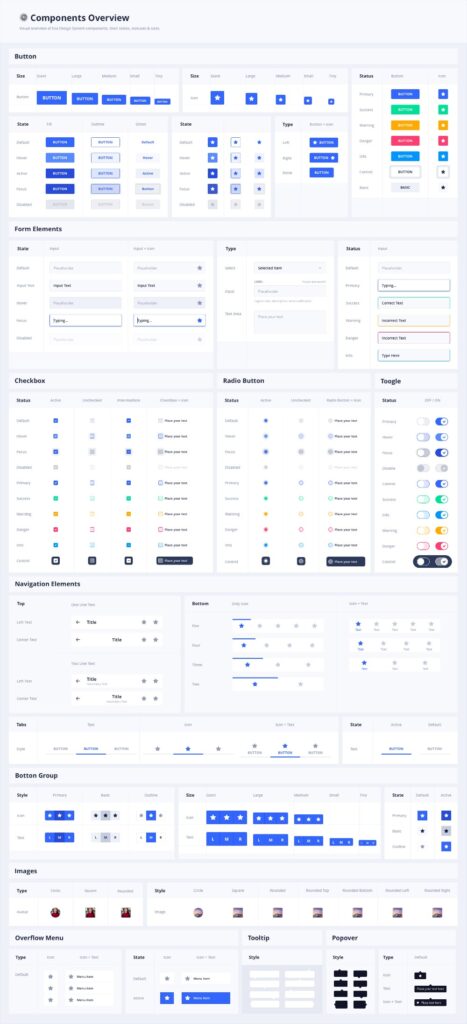
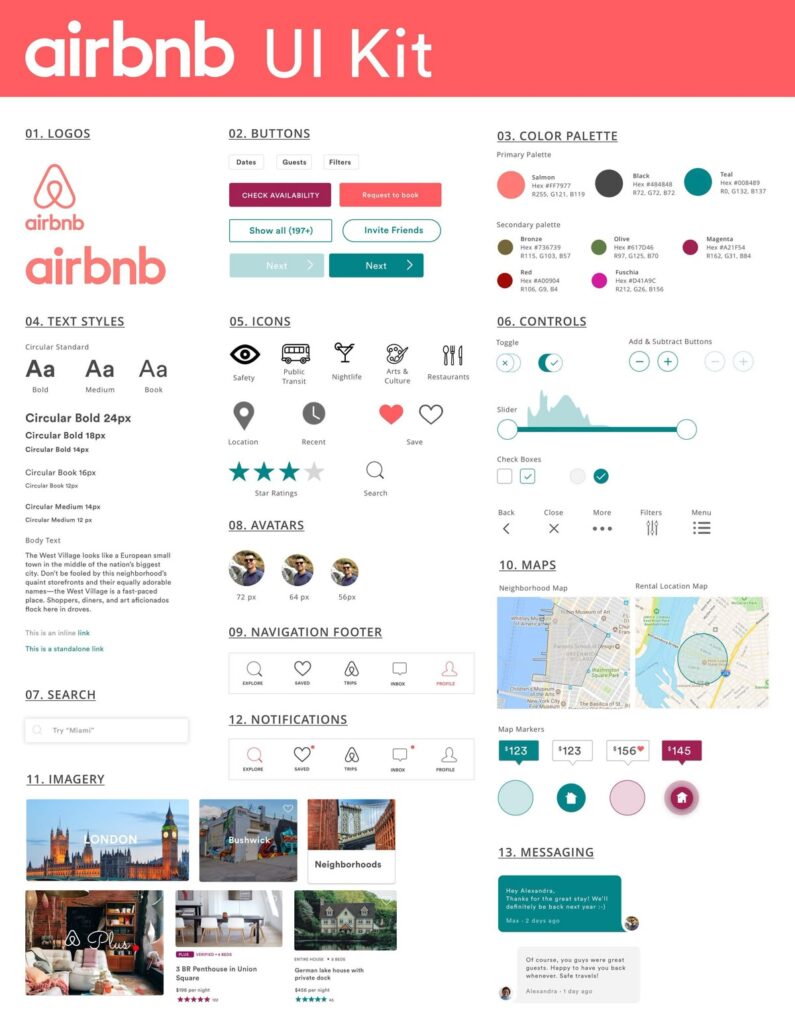
Build a design system before you build a product. Not a mood board — an actual system: component library with documented states, spacing scale, type scale, colour tokens, and interaction patterns. This is the artefact that survives personnel changes, agency handoffs, and product pivots.
If you are refreshing a live website this year, compare these fundamentals with the newer 2026 interface trends so the interface does not feel dated a few months after launch.

Use Figma’s Dev Mode or Zeplin for spec sharing. Annotate anything that isn’t self-evident — responsive behaviour, animation timing, edge cases for dynamic content. Keep a Slack channel or equivalent open for design questions during build. Developers who can’t get a quick answer to a design question will make a decision independently. Sometimes that’s fine. Often it isn’t.
Quality After Launch: The Maintenance Designers Skip
Most design teams optimise for the moment of launch and underinvest in what comes after. A UI that ships well can degrade surprisingly quickly — new features added without design review, spacing inconsistencies that accumulate, components that drift from the design system as the codebase evolves.
Heatmaps (Hotjar, Microsoft Clarity) and session recordings show you what users actually do, which diverges from what you expect them to do more often than you’d like. Pair that with analytics and regular usability testing, and you have the inputs for continuous improvement rather than the occasional redesign.
The goal isn’t a website that was well-designed. It’s a website that’s well-designed right now, for the users who are using it today.
Trends and Future Directions in Website UI
The principles of good website UI design are stable. The tools and patterns for implementing them aren’t. 2026 has brought several shifts that are significant enough to affect how interfaces are built and what users expect from them.
Emerging Patterns Worth Tracking
AI-driven personalisation has moved from a marketing talking point to a real implementation consideration. Personalised layouts and content that adapt based on user behaviour, role, or device are increasingly feasible for mid-size products, not just enterprise platforms. The UI challenge is maintaining consistency while adapting — personalisation that makes the interface feel unpredictable has the opposite effect from what’s intended.
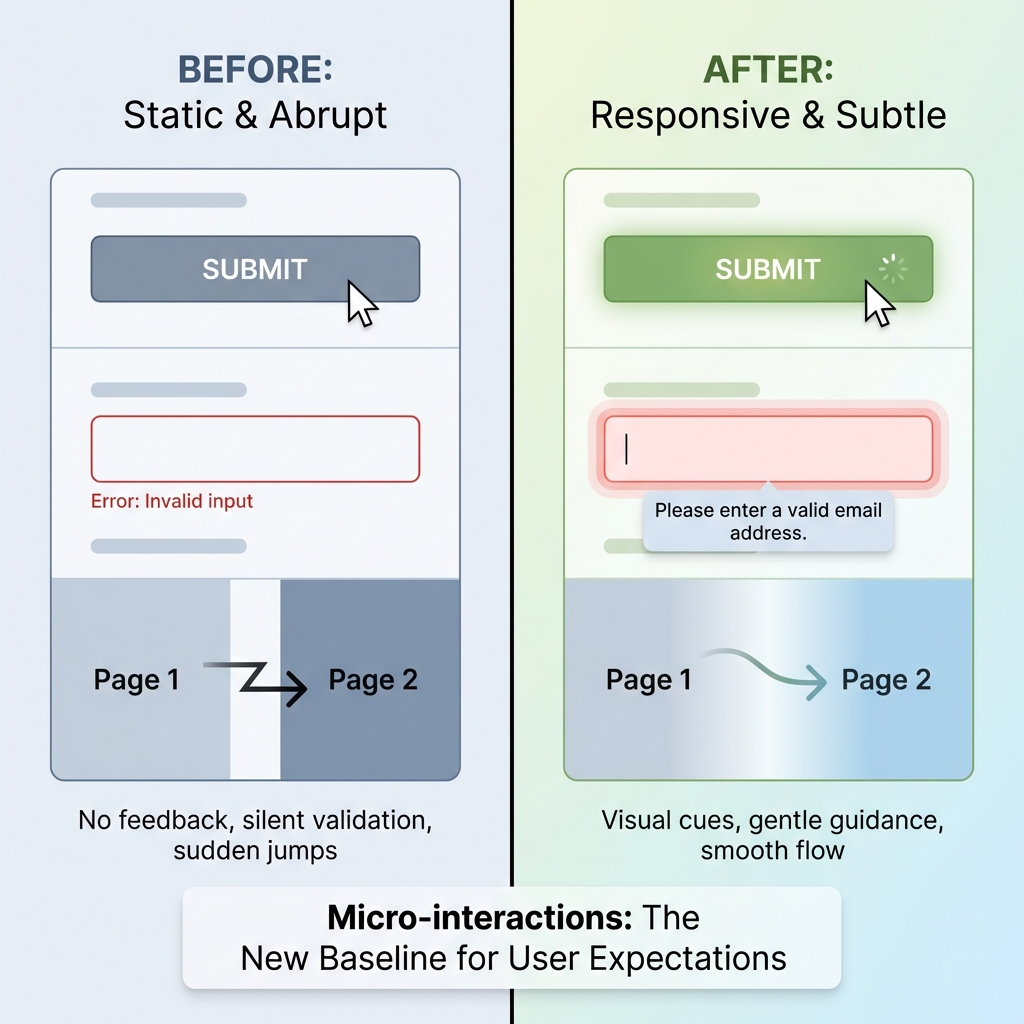
Micro-interactions have become a baseline expectation, not a differentiator. Users notice when buttons don’t respond, when form validation is silent, and when page transitions are abrupt. Subtle animation that communicates state changes — not animation for its own sake — is now table stakes.
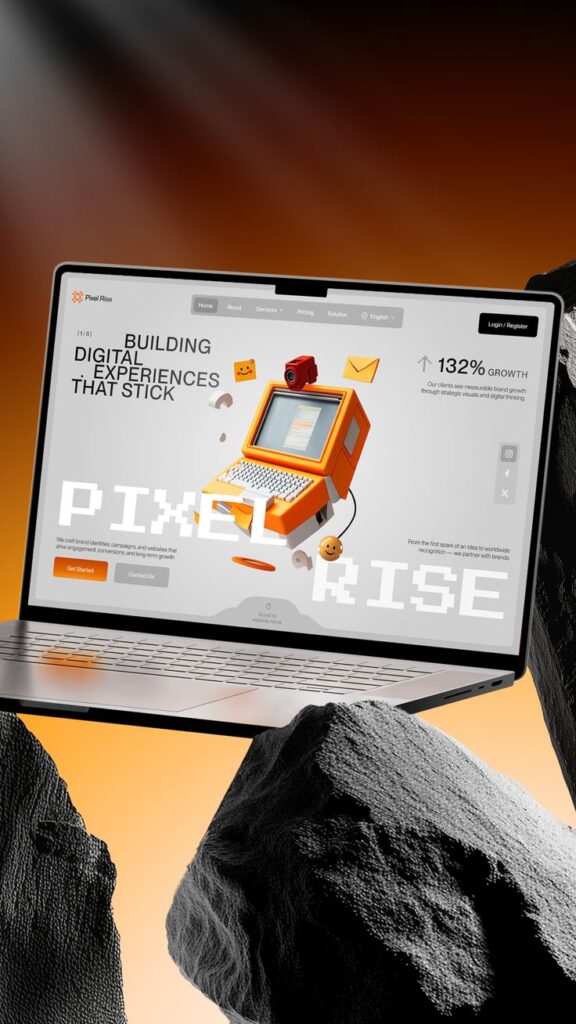
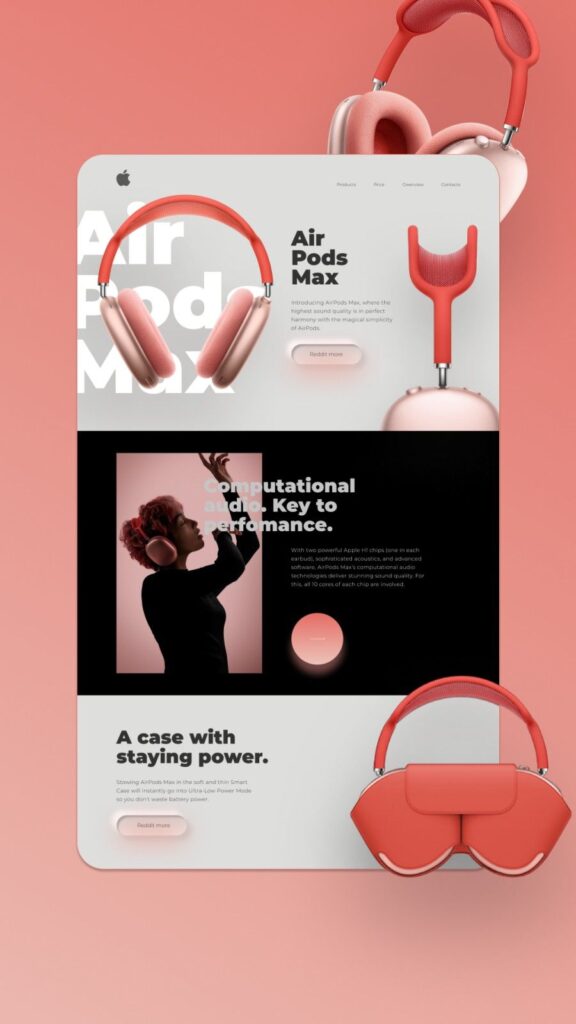
3D visuals and scroll-driven animations appear frequently in high-budget product sites, particularly in B2B SaaS and consumer tech. The risk is performance: a 3D hero that takes 8 seconds to load on mobile costs more in bounce rate than it returns in impressions. If visual spectacle requires a performance trade-off, measure that trade-off explicitly before making it.
UX Innovations Reshaping What Users Expect
Predictive search and AI-assisted navigation are changing how users expect to find things. The ‘search everything’ pattern — a single input that searches across all product content, surfacing results intelligently — has reduced tolerance for rigid navigation structures in complex products. Users who use tools like Notion or Linear expect their other tools to behave similarly.

Voice interfaces and conversational UI patterns are growing beyond smart speakers and into web products, particularly in customer service and complex workflow applications. Interactive and immersive experiences in education and onboarding contexts have demonstrated that task completion improves significantly when the interface guides rather than expects.
Data privacy and transparent information design have moved from a compliance checkbox to a genuine user expectation. Interfaces that are honest about what data they collect, clear about how it’s used, and straightforward about how to control it build more trust than those that bury this in footer links. Empathy-driven UX — designing interfaces that acknowledge the user’s situation and goals rather than just the product’s goals — is increasingly understood as a competitive advantage rather than a nice-to-have.
FAQ: Website UI Design


Q: What is website UI design, and how does it differ from UX?
UI design covers the visual and interactive layer of a website: buttons, typography, colours, icons, forms, and layout. UX (user experience) is broader — it’s the overall quality of the interaction, including how easy the site is to navigate, how efficiently it accomplishes user goals, and how it makes users feel. Good UI supports good UX. Beautiful UI on top of a confused structure still produces a bad experience.
Q: What are the most important principles in website UI design?
Five principles consistently show up in interfaces that work: visual hierarchy (showing users what matters most), consistency (same patterns throughout), accessibility (usable by everyone), feedback (every action gets a response), and affordance (elements look like what they do). These aren’t trends — they reflect how human perception works and have been stable for decades.
Q: Which tools do professional UI designers use in 2026?
Figma is the industry standard for UI design, wireframing, prototyping, and developer handoff — its real-time collaboration and Dev Mode make it the default choice for most teams. Framer is used for high-fidelity interactive prototypes and production-ready websites. Zeplin remains common for spec documentation. For accessibility testing, Axe and Google Lighthouse are built into standard workflows.
Q: How do I make a website UI more accessible?
Start with WCAG 2.2 AA compliance as your baseline: 4.5:1 colour contrast for normal text, semantic HTML structure, text alternatives for images, full keyboard navigability, and explicit labels on all form fields. Run automated audits with Axe or Lighthouse during development, not just before launch. Accessibility improvements almost always improve usability for all users, not just those with disabilities.
Q: What UI design mistakes hurt conversion rates the most?
The most damaging: burying the primary CTA below the fold or in low-contrast colour; requiring too many clicks to reach key content (pricing, contact, sign-up); form fields without clear labels or validation feedback; mobile layouts that weren’t tested on real devices; and page load times above 3 seconds. Each of these has a documented, significant impact on bounce rate and conversion. Most are fixable without a full redesign.
Q: How has AI changed website UI design in 2026?
AI has affected UI design in two distinct ways. For designers, AI tools (Figma AI, Galileo AI) accelerate iteration and generate component variants faster than manual methods. For users, AI-driven personalisation means interfaces that adapt to behaviour, role, and context — surfacing relevant content and reducing navigation friction. The design challenge is maintaining coherence: personalisation that makes an interface feel unpredictable defeats its own purpose.


What Good Website UI Design Actually Delivers
The SaaS product I mentioned at the start eventually addressed its structural problems. They moved the CTA above the fold, simplified the path to the pricing page, and restructured onboarding. The visual design barely changed. Conversion went from 2.1% to 6.4% in four months.
That’s what website UI design actually delivers when it’s working: not a more impressive-looking product, but a more usable one. The visual layer matters — typography, colour, graphic treatment — but only in service of the structural decisions that determine whether users can do what they came to do.
Start with hierarchy. Apply your principles consistently.
When a website starts repeating cards, buttons, and page sections, this guide to modular UI design shows how to turn those repeats into a cleaner system.
For the visual layer, use these website color schemes to connect layout hierarchy with readable text, buttons, and product states.
A website header makes logo problems obvious, so use a logo maker for brand design only after checking small-size readability and transparent file exports.
For teams redesigning a site rather than a full app, use these website UI principles alongside a shortlist of the top UI UX design company in Noida candidates.
Website UI gets easier to maintain when the source file is organized from the start. Use this Figma UI design workflow for wireframes, responsive frames, components, prototypes, and developer handoff notes.
- 5.7Kshares
- Facebook0
- Pinterest5.7K
- Twitter3
- Reddit0