
A polished image rarely convinces me until I have checked how it is built. After more than 15 years in cross-disciplinary design, with industrial design training, academic drawing, life painting and automotive concept work behind me, I look at ellipses, perspective and value structure before I look at surface finish. Does the wheel sit in its arch? Do the edges of that cylinder agree with one horizon? Do the darks describe form, or only decorate it?
Gloss can hide a broken skeleton. That habit shapes how I think about an ai image generator for artists. It can speed up the packaging around a drawing tutorial, and it can do that well. It cannot supply the lesson itself.
- Why a drawing tutorial needs more than the drawing
- The teaching layer versus the surrounding layer
- How to build a reference board without treating generated images as accuracy references
- How to make lesson thumbnails, covers, Pinterest graphics, and prompt cards with an AI image generator for artists
- Five rules for honest AI visuals in art education
- A practical workflow for a small magazine or tutorial creator
- What the digital image-generation process looks like
- 1. Enter the first prompt
- 2. Refine the brief
- 3. Choose the visual mode
- 4. Add an approved reference
- 5. Set the aspect ratio and safe area
- 6. Compare the variations
- 7. Inspect the selected image at full size
- 8. Revise only the problem area
- 9. Export and name the approved file
- 10. Record the source and disclosure
- Disclosure, platform labels, and copyright caveats
- FAQ
- Can I use AI-generated images as steps in a drawing tutorial?
- Can artists use AI-generated images as drawing references?
- Should AI-generated thumbnails and covers be labeled?
- What is the difference between a reference board and an accuracy reference?
- What should an artist look for in an AI image generator?
- Your next step: build an asset log
This article draws that boundary in practical terms. You will see where generated images help with reference boards, covers, lesson thumbnails, Pinterest graphics and practice prompt cards, and where the human-made teaching layer has to stay untouched. It is not a tool roundup or a general guide to making AI art. Other pages on the site cover those.
Why a drawing tutorial needs more than the drawing
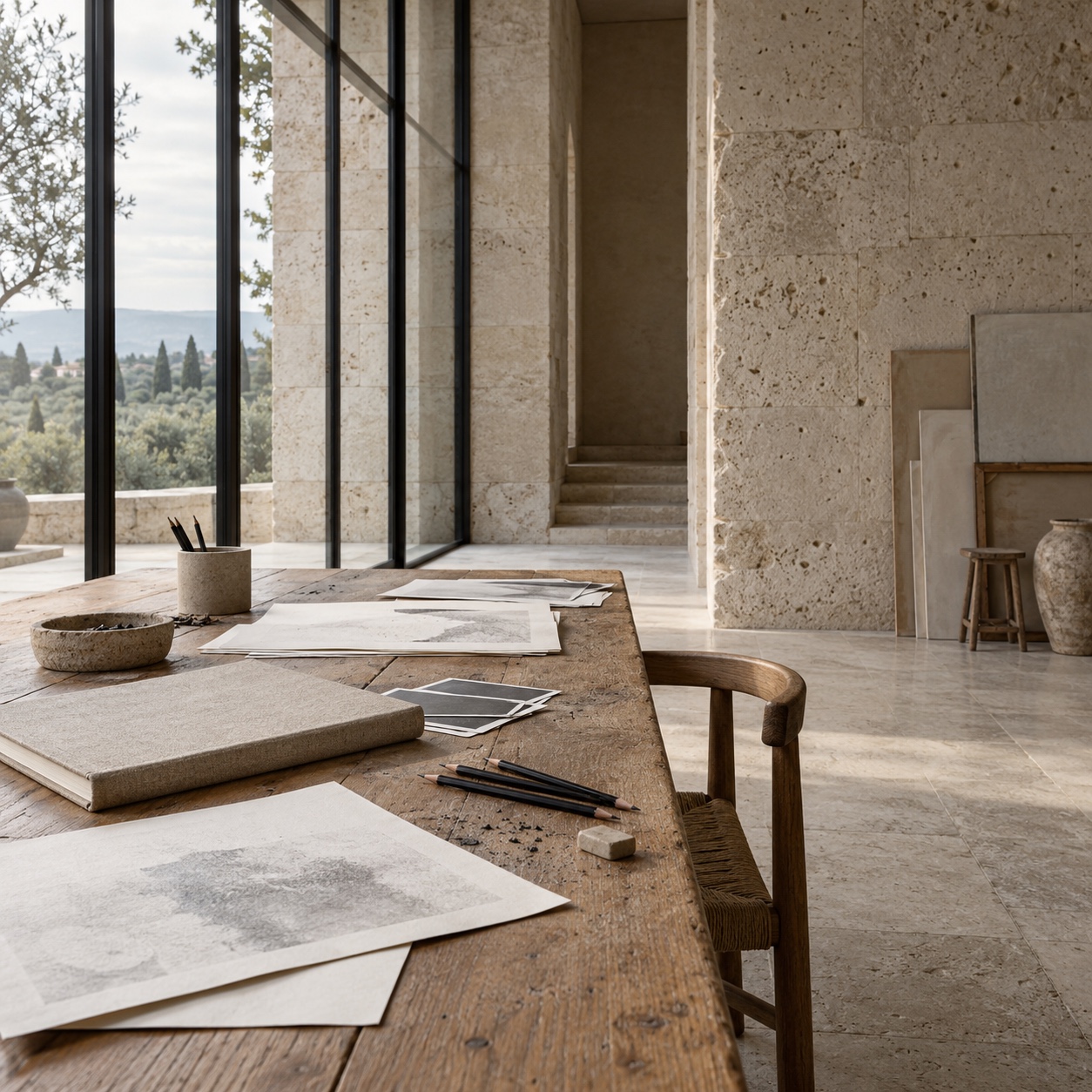
A drawing tutorial is rarely one asset. The lesson needs a cover image, a wide article header, a pin-sized graphic, a handful of idea cards for a practice challenge, and a board of references for planning the demonstration. A magazine that publishes several tutorials a week multiplies that list fast.
The workload is lopsided. The demonstration is slow and expert: someone who can draw has to build the construction, check proportions, correct mistakes and finish the piece, and a deadline does not speed that up. The packaging is repetitive and format-driven, so small teams either rush it or lose evenings to it.
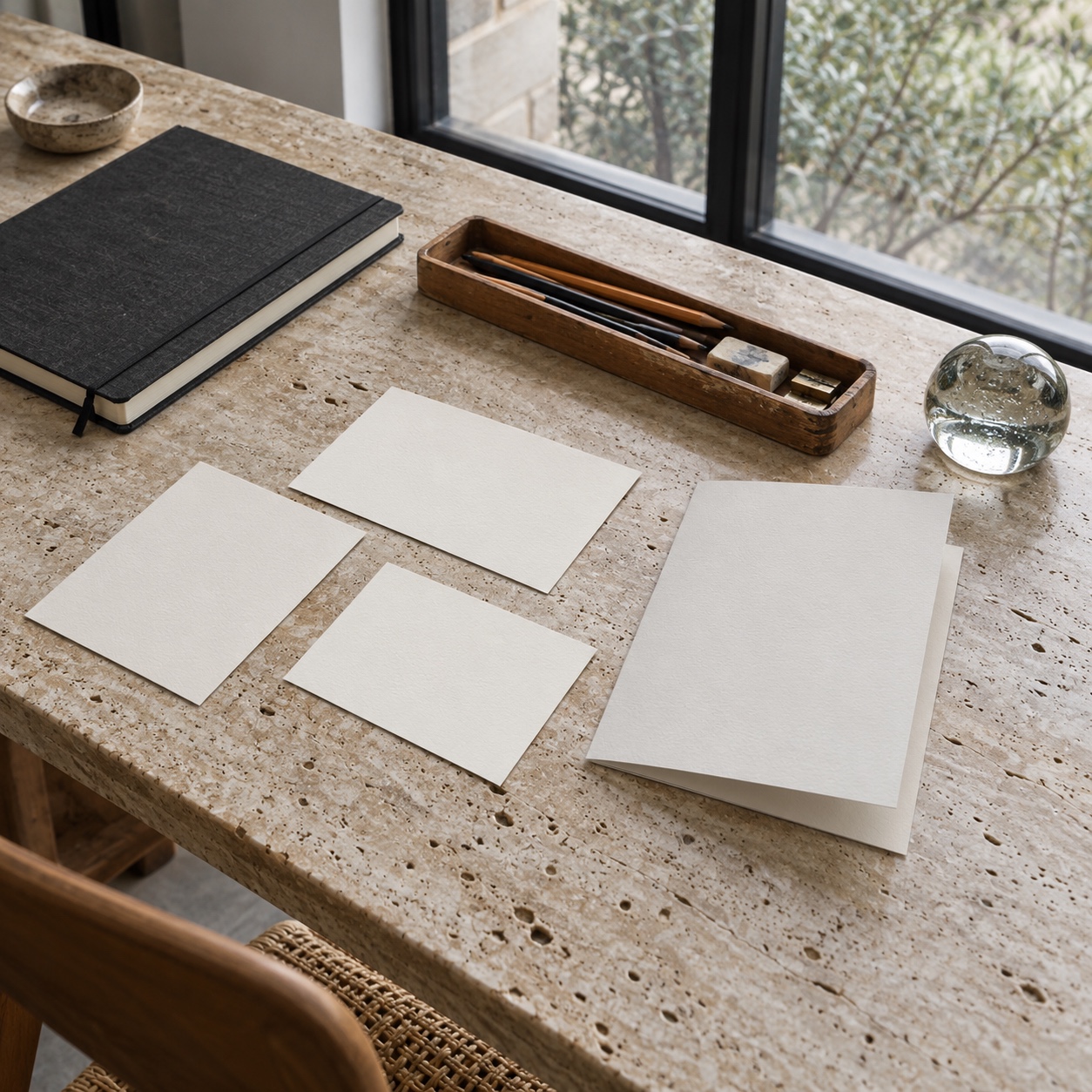
Teachers and editors who search for an ai image generator for teachers, or for art content in general, are usually looking for relief on that second side. A generated first pass of a cover or a mood study can arrive in minutes. Nothing in the tool helps with the slow part, and it should not try.
I treat the problem as sorting. Which assets teach, and which assets invite? Trouble starts when the two get mixed.
The teaching layer versus the surrounding layer
Think of a tutorial as two layers.
The teaching layer
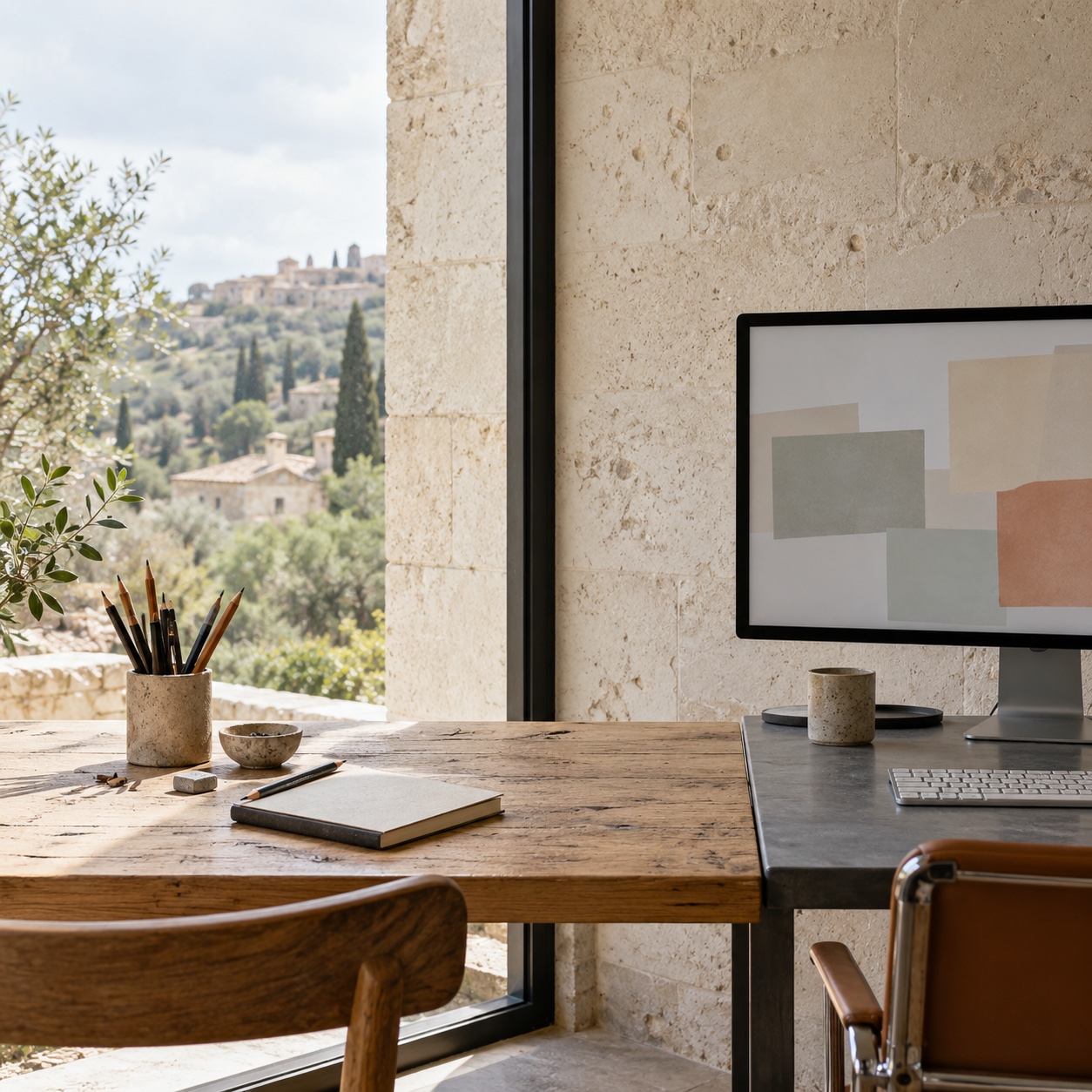
The teaching layer is everything a student learns from: real process drawings, proportion guides, corrections, the finished demonstration, and any reference used to check accuracy. A student copies what is in front of them, so what is in front of them has to be right.
A generated image can look right without being right. Years of correcting construction lines teach you that a convincing surface and a correct structure are separate achievements. A learner who only sees the surface cannot tell them apart. That is why this layer stays human-made or photographed, from the first thumbnail sketch to the last correction.
The surrounding layer
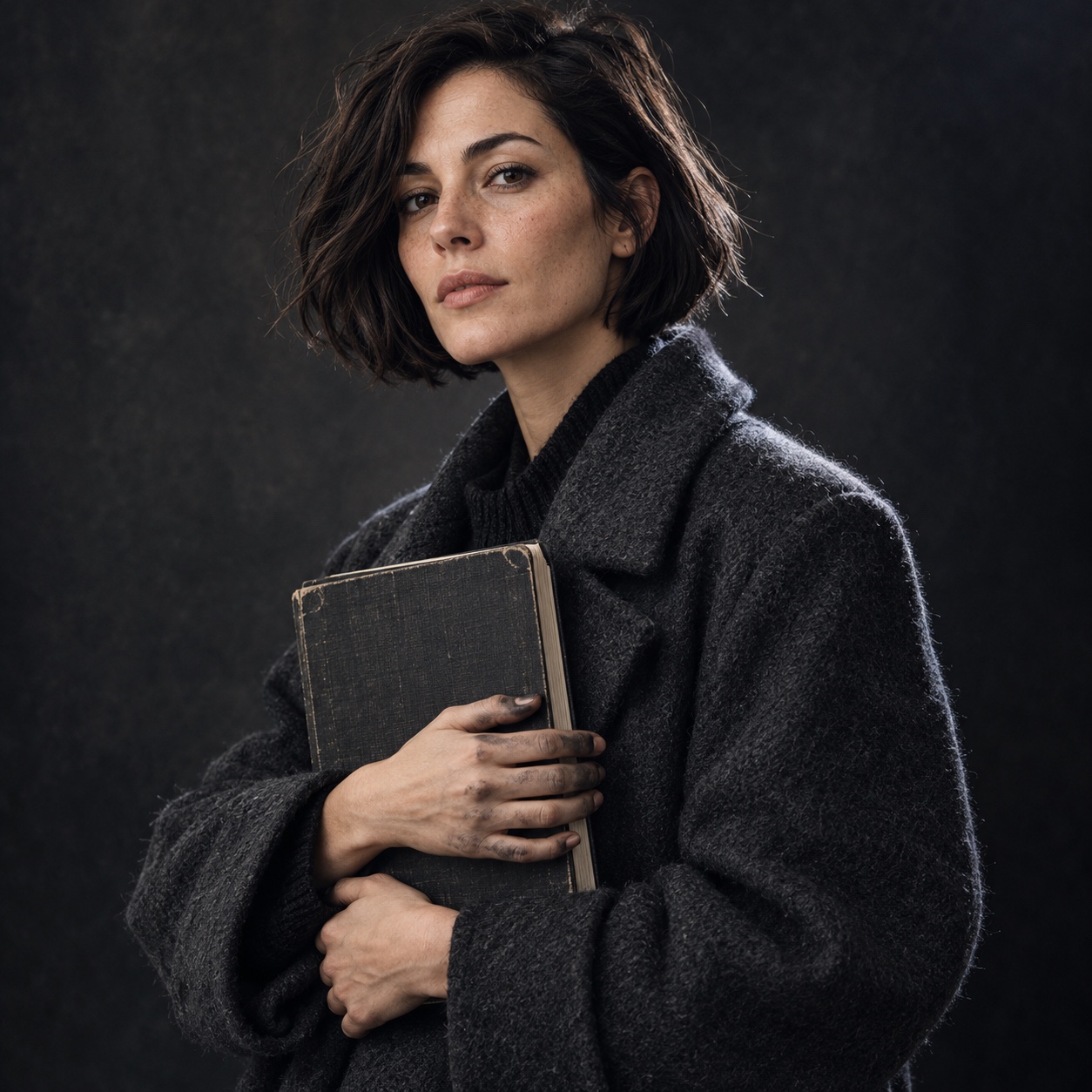
The surrounding layer helps people find, plan and want the lesson. Covers, thumbnails, mood boards, Pinterest graphics and idea cards live here. None of them claims to be the lesson, so a generated image can do honest work in this layer as long as it is labeled and reviewed.
Take a lesson on drawing a coastal lighthouse. A generated board can explore dusk light, a warm glow in the lantern room and a heavy sea, which helps the artist choose a direction. The taper of the tower, its perspective and the way waves break still come from photographs and observation. The demonstration comes from a real drawing, made in order, by a person who can explain each decision.
A simple test
If a student could mistake an image for an accurate model of the subject, or for a real stage of someone’s drawing, replace it or label it clearly before it goes out. Most of the advice below is a variation on that test.
When the line is hard to see, ask what job the image does. If it shows how something is made, such as a construction stage, a proportion check or a correction, it belongs to the teaching layer. If it shows what the subject really looks like, such as a wheel arch or a hand holding a pencil, it also belongs there, and it must come from observation. If it only sets a feeling or attracts attention, it belongs to the surrounding layer.
Mixed cases need care. A cover that previews the finished drawing should use the actual drawing, cropped and color-graded, instead of a generated lookalike. A generated cover that implies a different result from the one the lesson teaches sets the wrong expectation before the first line is drawn.
How to build a reference board without treating generated images as accuracy references
A reference board for artists is a planning tool. It collects what you must decide before the pencil moves: mood, composition, palette, light direction, and the subject facts you cannot afford to get wrong. The usual mistake is asking one kind of image to do all of those jobs.
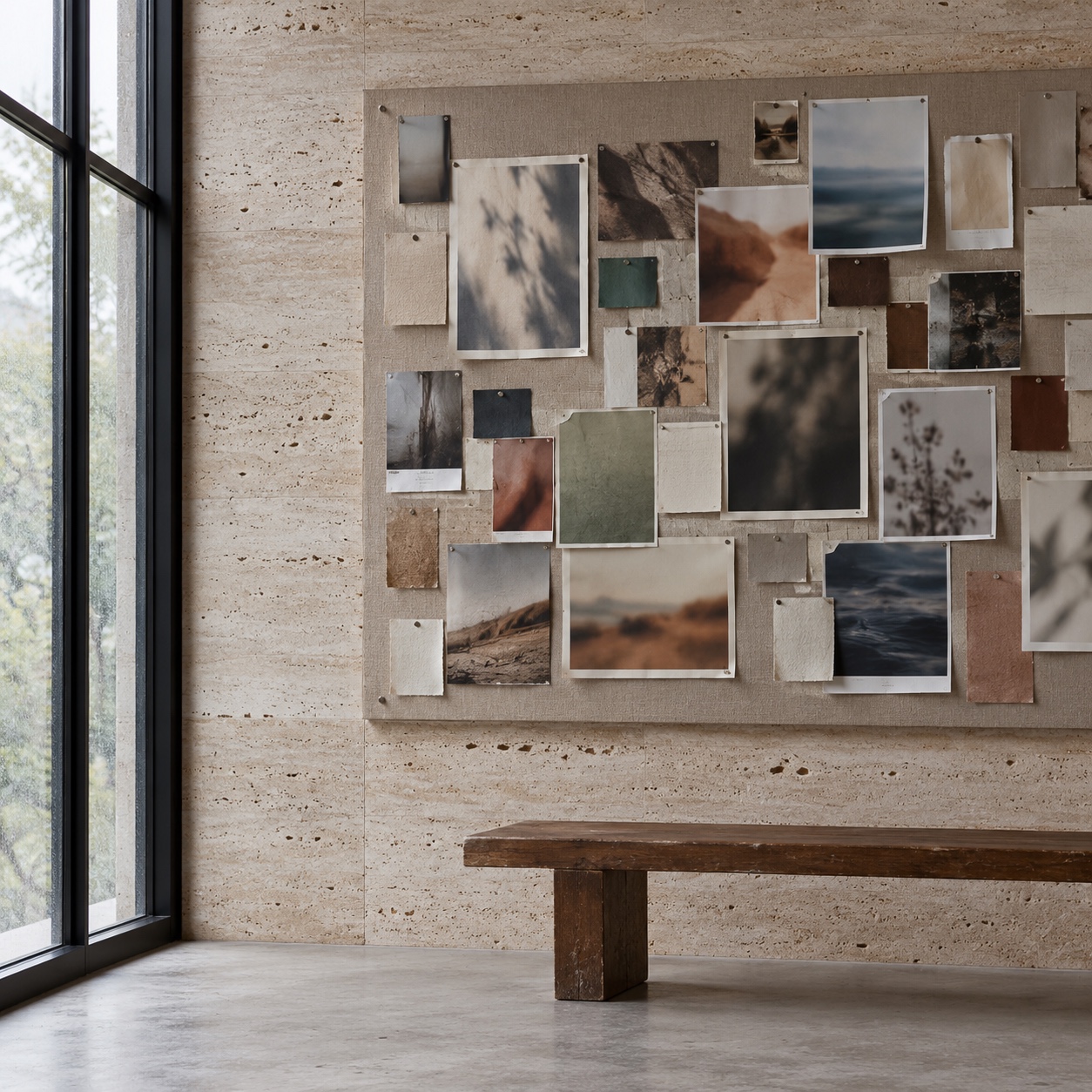
Use generated images for mood, composition, palette and lighting
This is where an ai mood board generator earns a place. Suppose you want a foggy harbor at dusk with a low horizon and a narrow palette. A few generated variations let you compare crops, try a high-key and a low-key version, and settle on a lighting direction before you commit hours to the drawing.
Treat those images as sketches of intent. They show what you want the lesson to feel like. They do not show how a cleat is fixed to a dock or how a hull meets the water. For the full process of turning a brief into an approved visual direction, read Purpose of a Mood Board in Design Projects. I will not repeat it here.
Use photographs and observation for accuracy
Reference hunting is slow, so the appeal of an ai art reference generator is easy to understand. A reference only works if it is true, though. Models keep improving, and I will not claim they always fail. The problem is narrower: they are unreliable as a source of truth, because subtle errors in anatomy, perspective, text and physical plausibility can survive a visual review. A wheel sitting slightly wrong in its arch, a hand with odd finger relationships, a staircase whose lines never resolve. Any one of these is easy to miss, and a student will copy it faithfully.
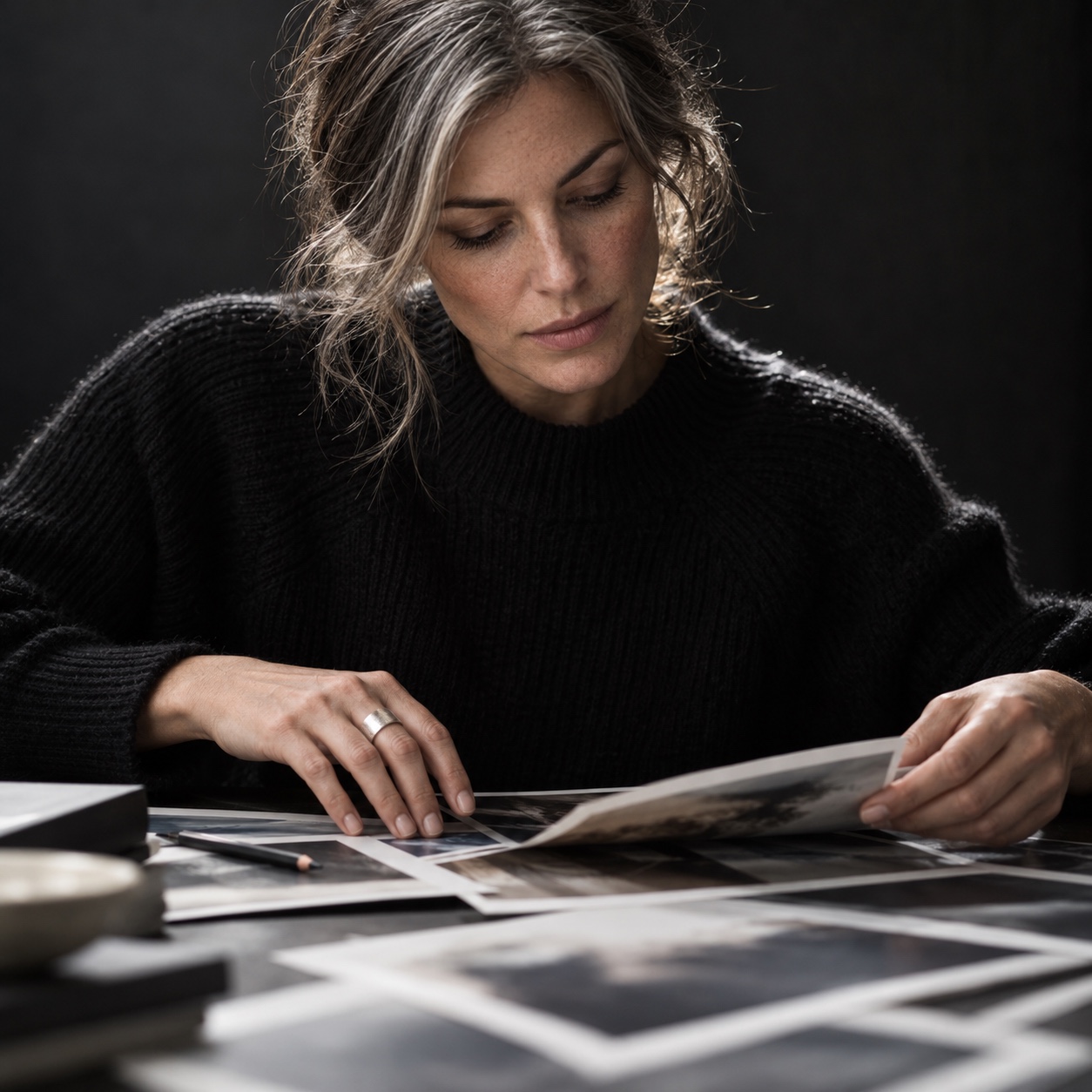
Photographic references for drawing accuracy come from places where a camera or an eye met the real subject. The Ford Mustang Drawing Guide shows the habit. It points readers to factory and enthusiast photography and official archives, and its troubleshooting centers on wheels, perspective and foreshortening, the areas where an observed subject matters most. For figure, pose and anatomy work, Drawing Reference Websites lists sources built for study.
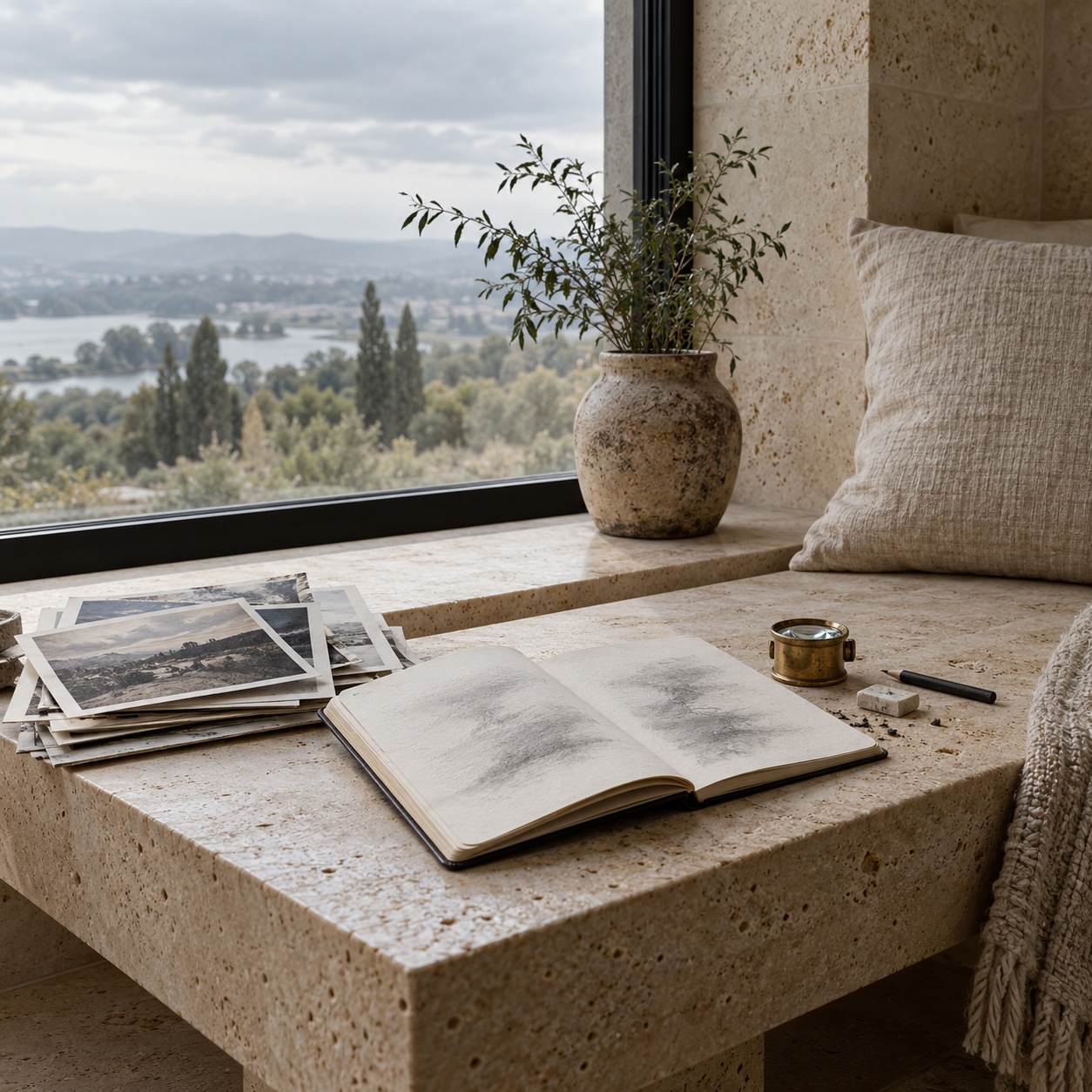
Keep the two groups visibly separate
On the board itself, mark which images are generated and which are photographed. A colored border or a corner dot is enough. Six months later, when you or an editor reopen the board, nobody should have to guess which picture is evidence and which is mood.
How to make lesson thumbnails, covers, Pinterest graphics, and prompt cards with an AI image generator for artists
Once the lesson is planned, the surrounding assets become a production job. This section covers drawing tutorial thumbnails and covers for art lessons. It is not a guide to video thumbnails, and it will not rank any ai thumbnail generator.
Brief the mood, subject, composition and text-safe space
Write the brief the way a photo editor would. Name the mood (quiet, graphic, warm), the subject (a lighthouse silhouette at dusk), the composition (subject in the right third, open sky on the left), and the area where the title will sit. Describe qualities instead of people: loose brushwork, a limited palette, soft side light.
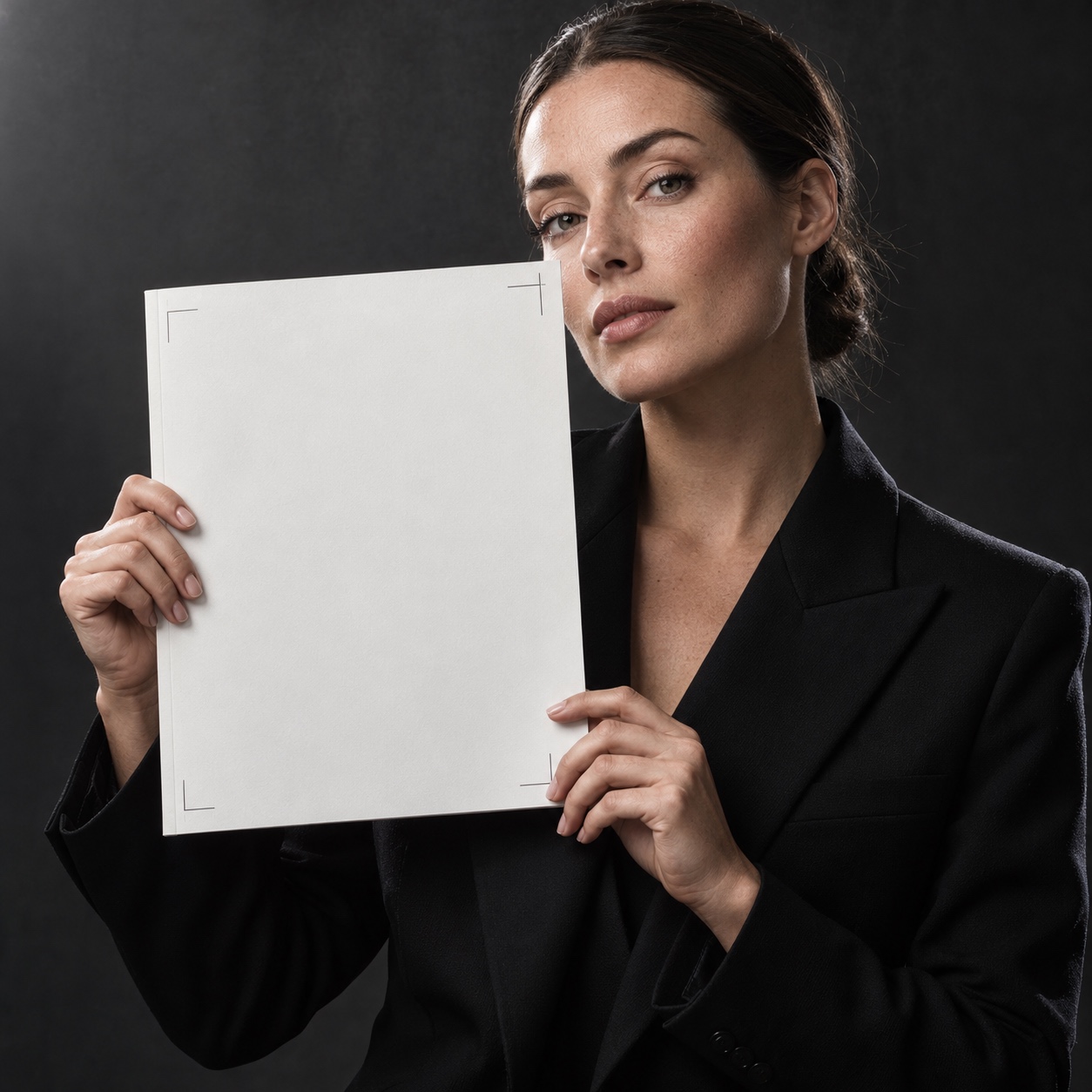
Ask for an empty, calm area for type, then set the title yourself in your layout software. Generated lettering often garbles, and a misspelled word on a lesson cover undermines a teacher faster than any shading error.
Build a visual family from one approved reference
Choose one generated image you approve and use it as the style reference for the rest, if your tool supports reference-image input. A month of covers then shares palette, grain and framing. Keep a short style note with aspect ratios, palette words and the corner where the title lives.
Pinterest graphics for art tutorials benefit from the same discipline. A tall pin with the same title position, the same logo corner and a consistent crop reads as one publication, even when the images differ. Compose the vertical version on its own instead of stretching a square.
AI-generated practice prompt cards fit this layer well. A thirty-day sketch challenge could use one card a day, each with a simple scene, a mood and an object to include. The cards spark ideas without supplying the answer, and the readers’ drawings become the content. Say in the caption that the card is a prompt, not a model to copy line by line.
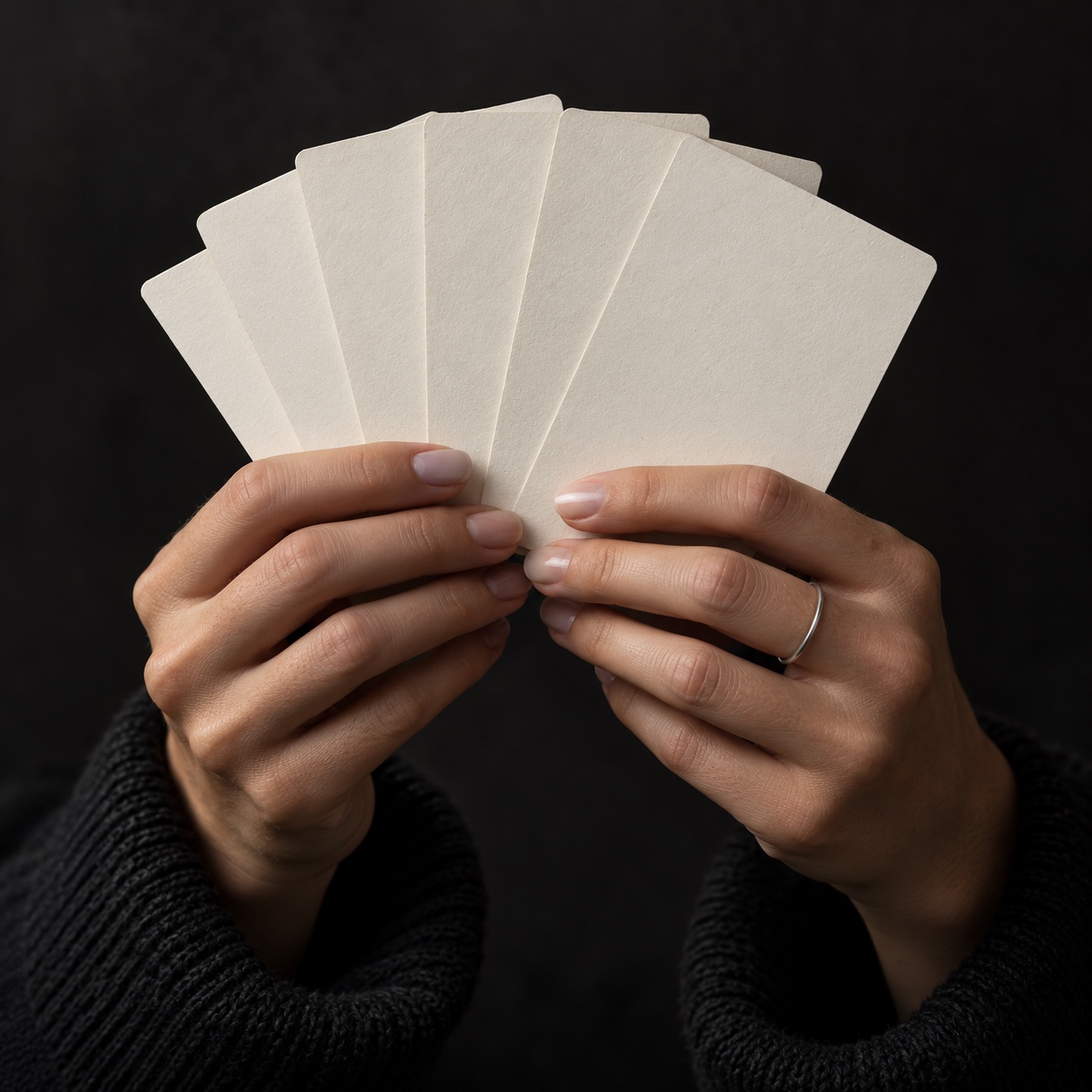
Review at phone and pin size
Shrink every asset to phone size before approving it. Fine detail disappears, a title that reads on a desktop can vanish, and a busy corner pulls the eye away from the focal point. Keep the focal point simple.
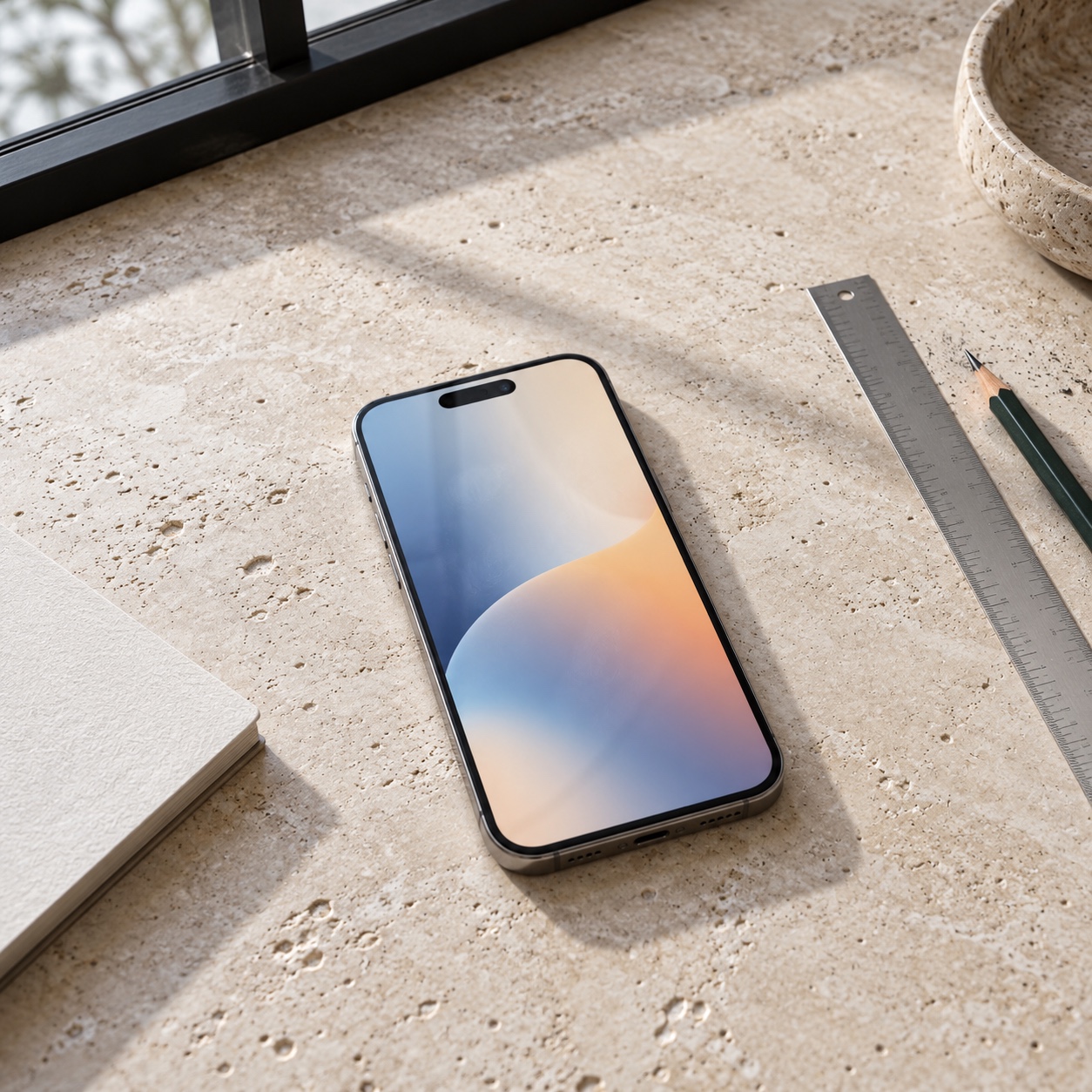
Then review at full size for the usual problems: hands and limbs, perspective that does not resolve, garbled text, objects melting into each other, and details that suggest the lesson teaches something it does not. A thumbnail showing a flawless shaded portrait promises a result the tutorial may never deliver.
Five rules for honest AI visuals in art education
Five rules keep generated visuals honest in an art education setting.
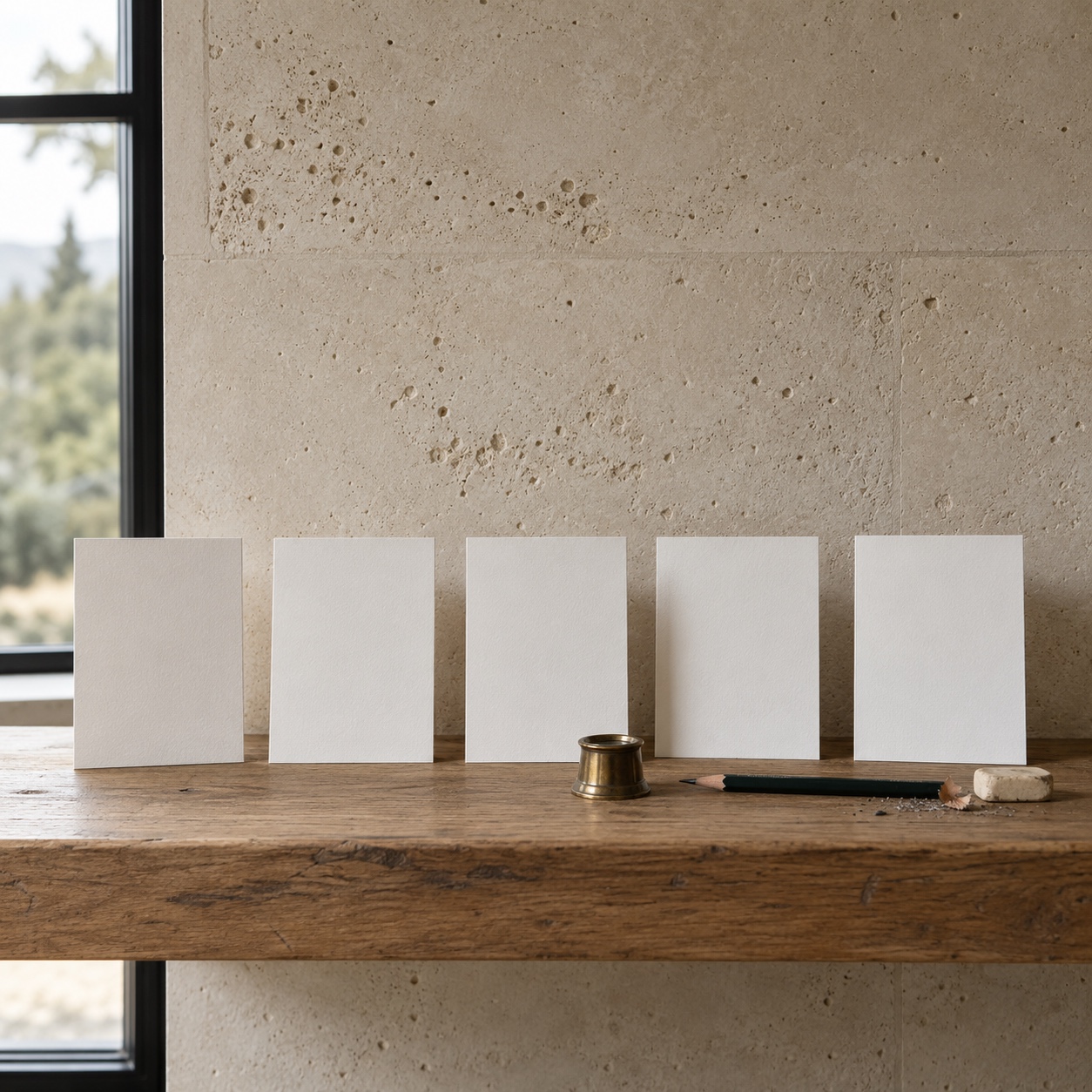
- Do not present a generated sequence as a step-by-step process. A sequence promises that someone drew each stage in order, and a learner may follow steps that could never produce the result. Photograph or scan real work in progress.
- Do not use generated output as an accuracy reference. Use photographs, official archives and direct observation for subjects that exist.
- Label AI-generated covers and mood-board images in the caption or credits, so readers know what they are looking at.
- Do not prompt for the style of a specific living artist. Describe the qualities you want instead, such as dry-brush texture or a restrained palette.
- Do not pass generated output off as student work or a guest artist’s submission. A gallery feature or reader submission should be what it says it is.
My view is that readers who care about craft forgive tools more readily than they forgive concealment. A label costs one line of caption and protects the trust a tutorial site depends on.
The rules also help a team move quickly. When an editor is unsure about an image, the question is short: would a reader take this for a real process, a real model or a real person’s work? If yes, replace it or label it.
They apply to every format. A hand-drawn cover is the right choice for a lesson you are proud of, and stock or archive photography is the right call when you need a true picture of a real subject. Generation fills the long tail of covers, pin graphics and planning boards that would otherwise go undone.
A practical workflow for a small magazine or tutorial creator
The sequence below keeps the teaching layer first and the packaging second.
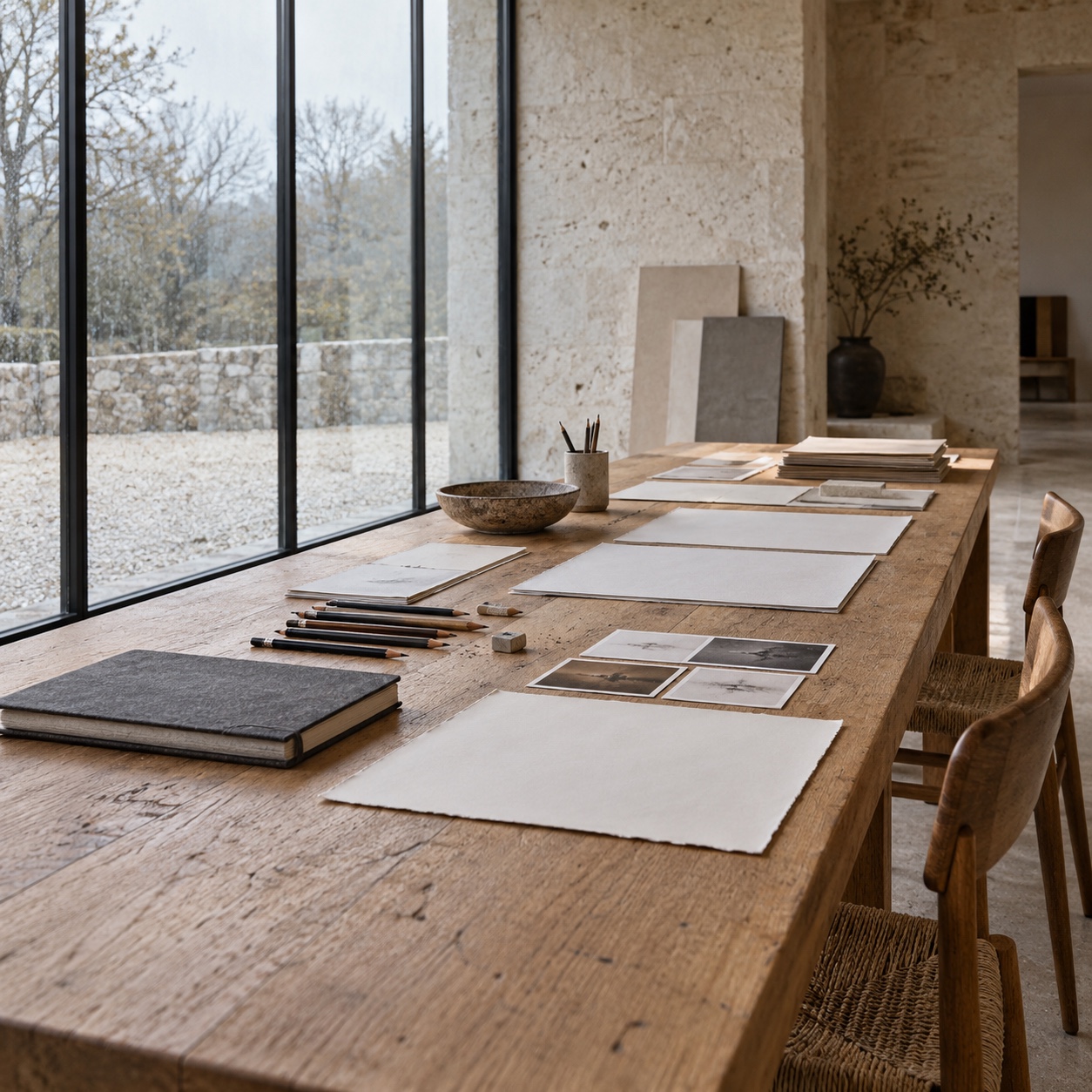
- Write the lesson brief: subject, skill level, and what the student should be able to do afterward.
- Collect verified photographic references for anything that must be accurate, and note where each came from.
- Make the human demonstration: construction, proportions, corrections and the finished drawing, photographed or scanned as you go.
- List the supporting assets: cover, header, pin graphic, prompt cards, and a mood board if the lesson needs one.
- Generate those assets from a written brief and, where possible, one approved style reference.
- Review each image for anatomy, perspective, text and misleading details.
- Check every crop at phone and pin size.
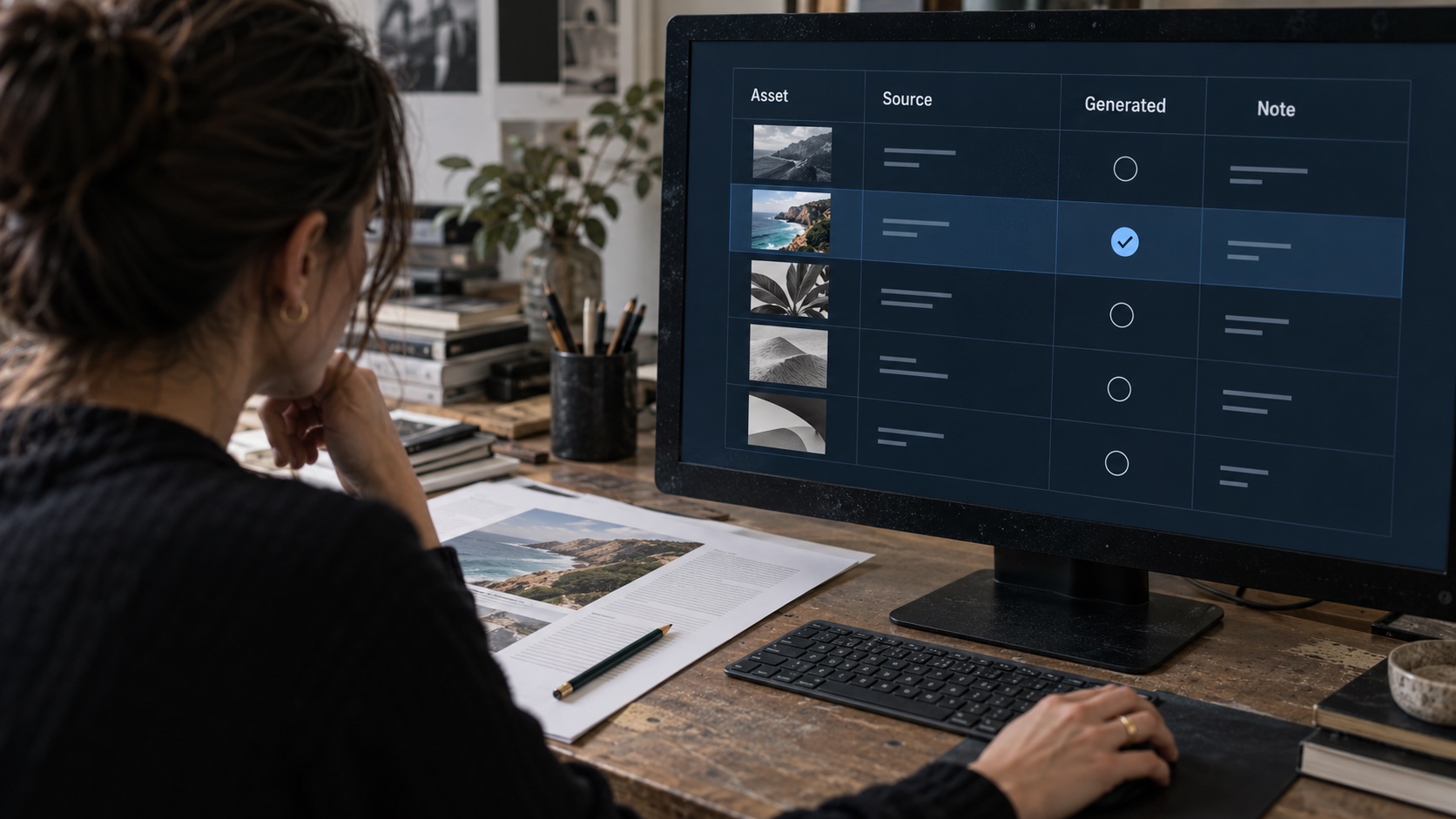
- Add disclosure to captions or credits, and record which assets were generated in a simple asset log.
A little applied detail helps at steps two and eight. For references, record the source and the date next to each file, and name files by subject and view, such as a three-quarter front or a side profile. For the asset log, a few columns are enough: the asset, where it appears, whether it is photographed, hand-made or generated, the tool used, who reviewed it, and the exact label text used in the caption.

Assign the review in step six to someone who did not generate the image, if your team has the people. A fresh eye catches an odd hand or a bent horizon that the person who wrote the prompt has stopped seeing. On a one-person site, leave the images overnight and look again in the morning.
For step five you need a tool with a few specific traits: enough style range that a watercolor lesson and a logo lesson do not look alike, reference-image input for series consistency, some control over composition so a title has room, and export sizes that match your layouts. One option is the AI Image Generator on Higgsfield, which the provider describes as a single workspace with several image models and generation from a reference image. I am relaying those stated features, not reporting my own test, so confirm the current model list and usage terms before you commit. If you are still choosing, 7 Free AI Tools for Artists compares free options.
What the digital image-generation process looks like
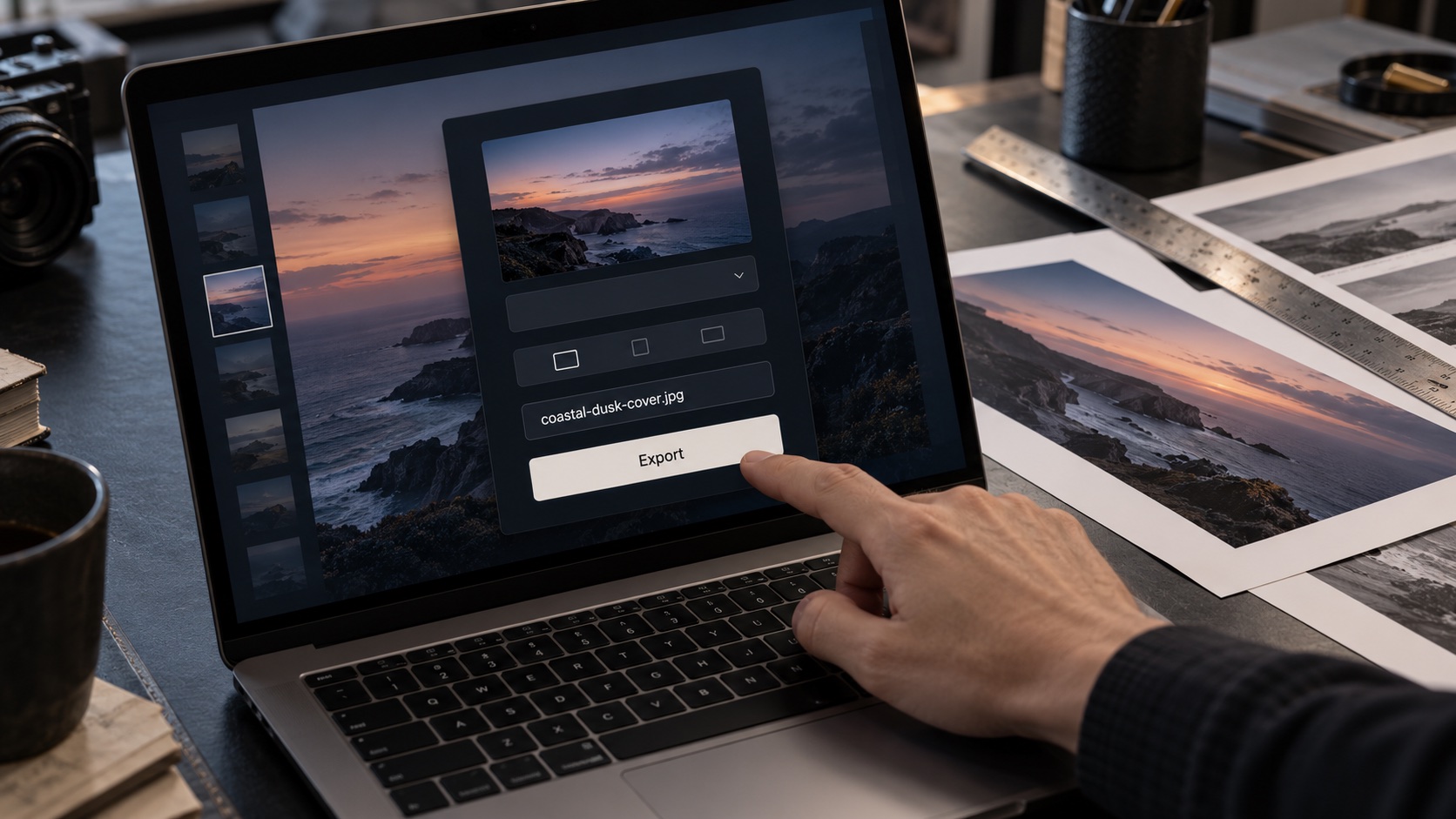
The exact controls and model names can change, but the working sequence stays recognizable: brief the image, choose a visual direction, establish the crop, compare variations, inspect the result, revise only what failed, and document the exported asset. The following conceptual interface views illustrate that production logic rather than reproducing the current Higgsfield interface pixel for pixel.
1. Enter the first prompt

2. Refine the brief
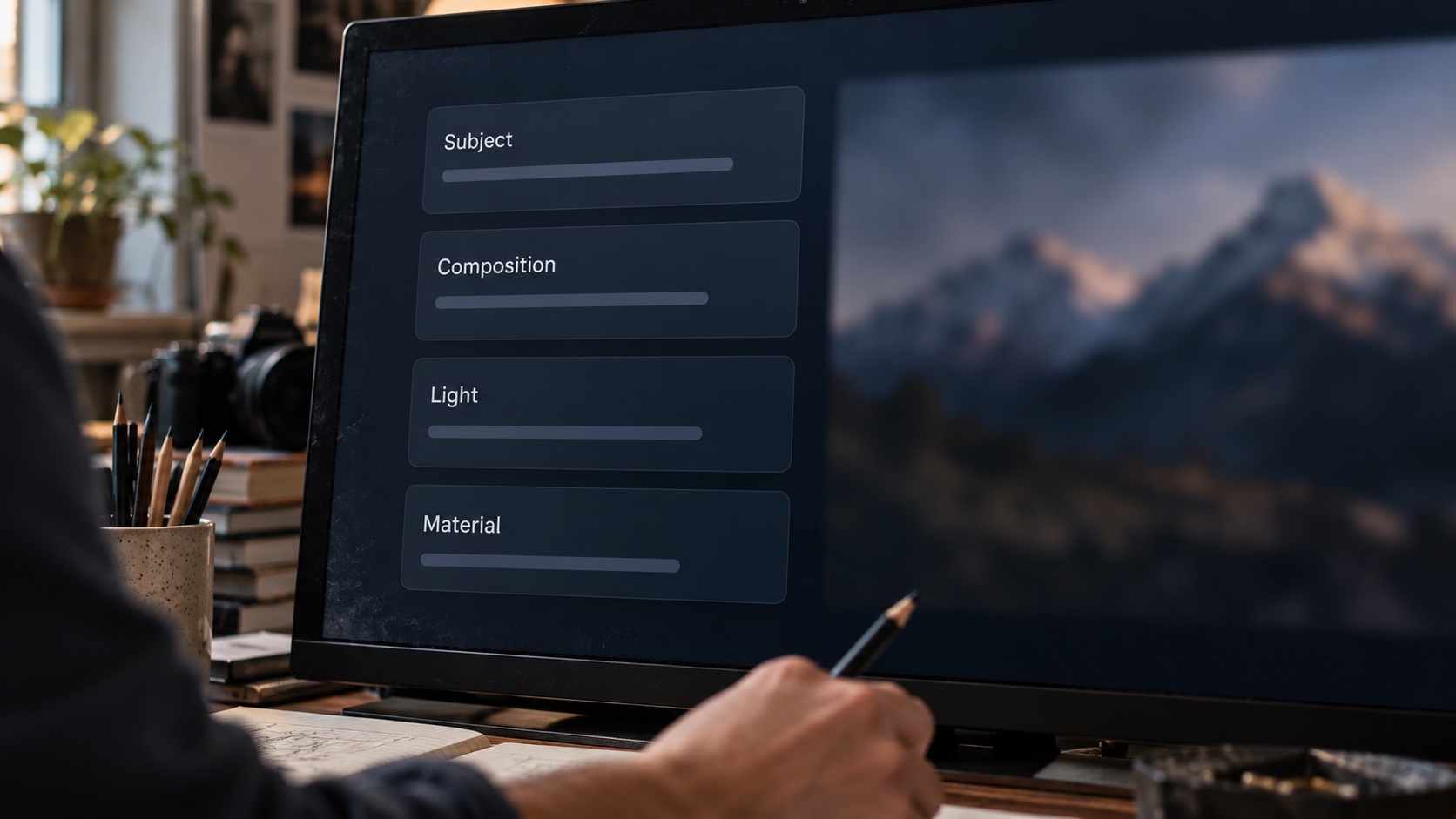
3. Choose the visual mode
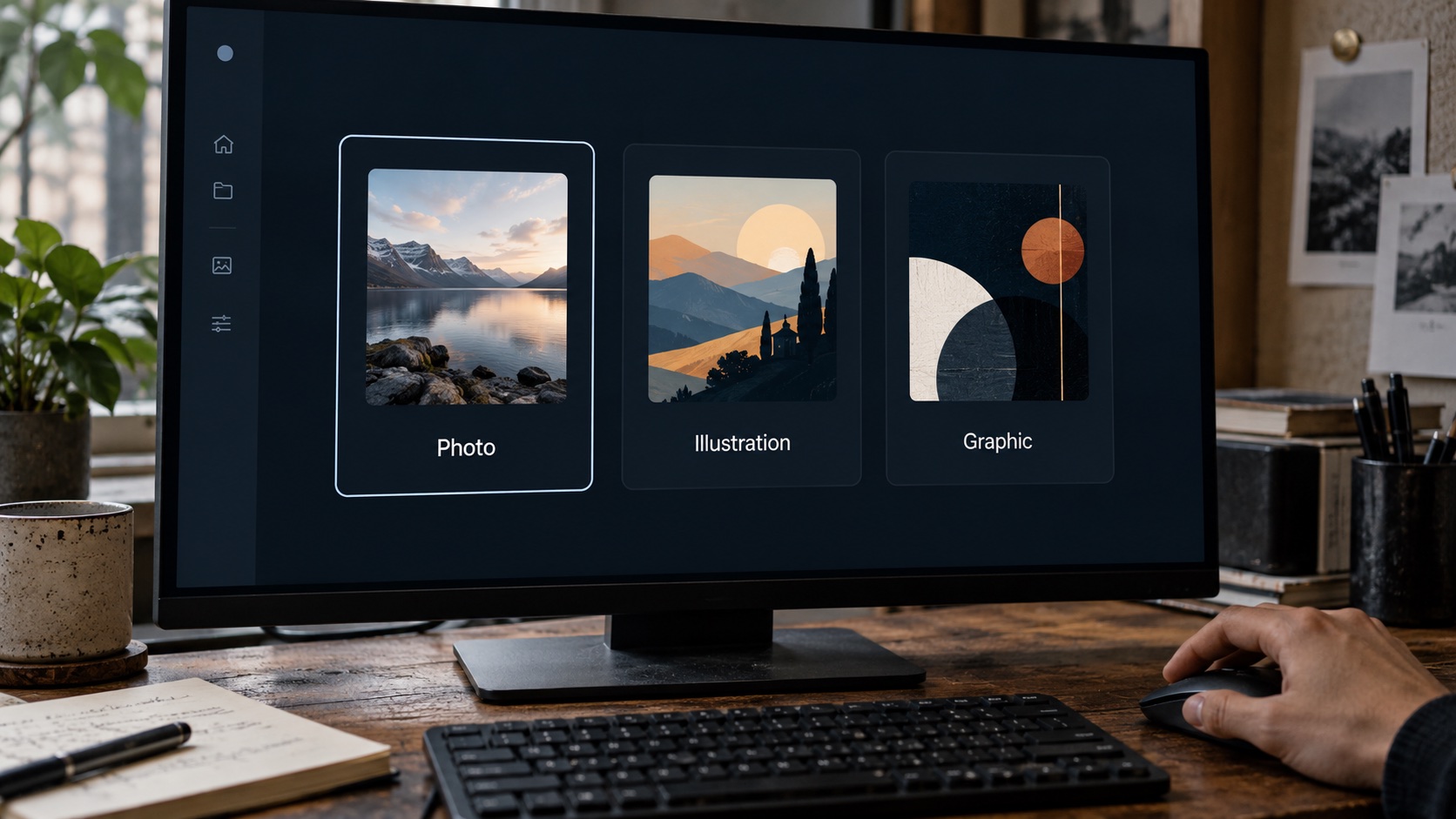
4. Add an approved reference
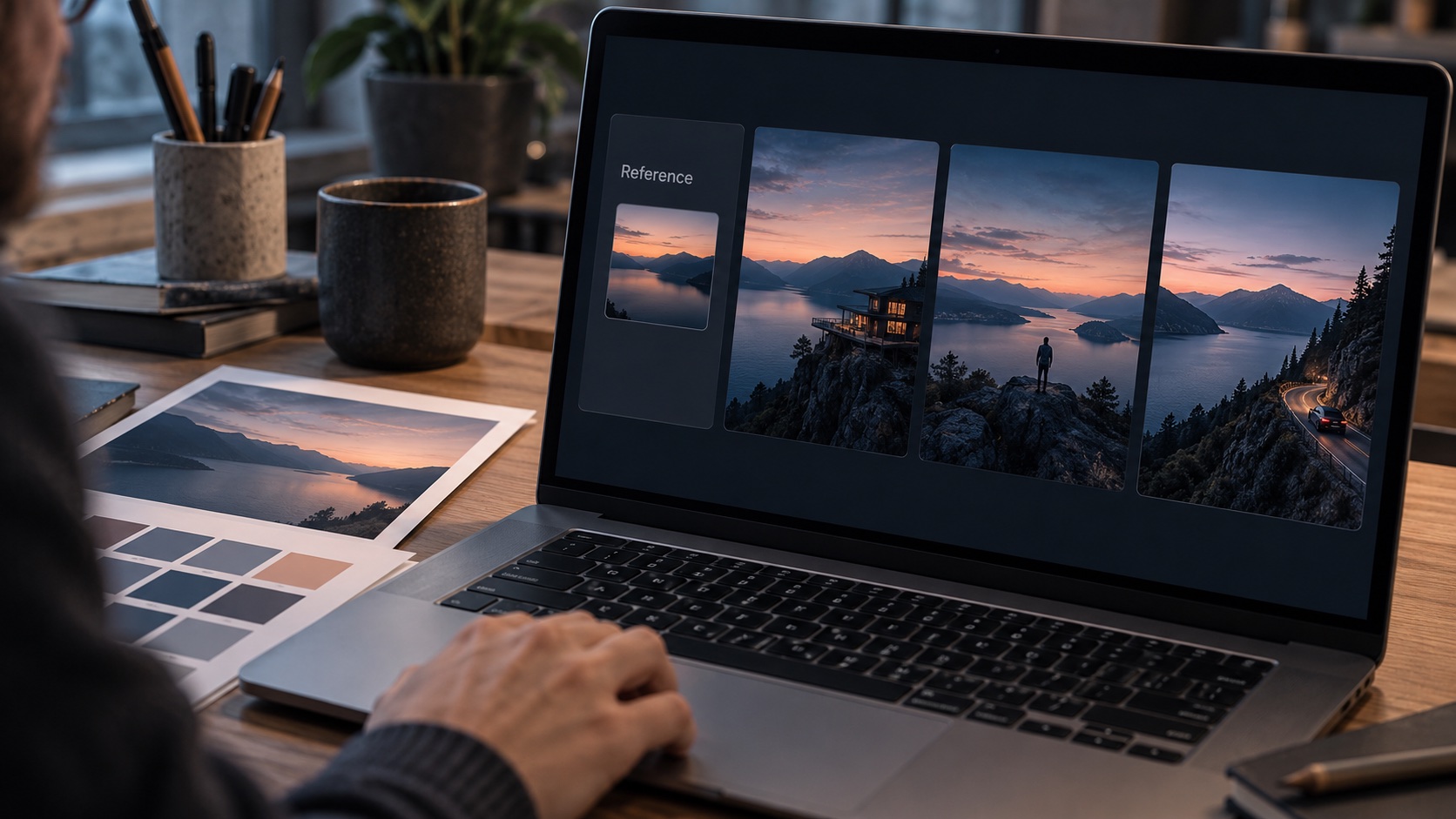
5. Set the aspect ratio and safe area
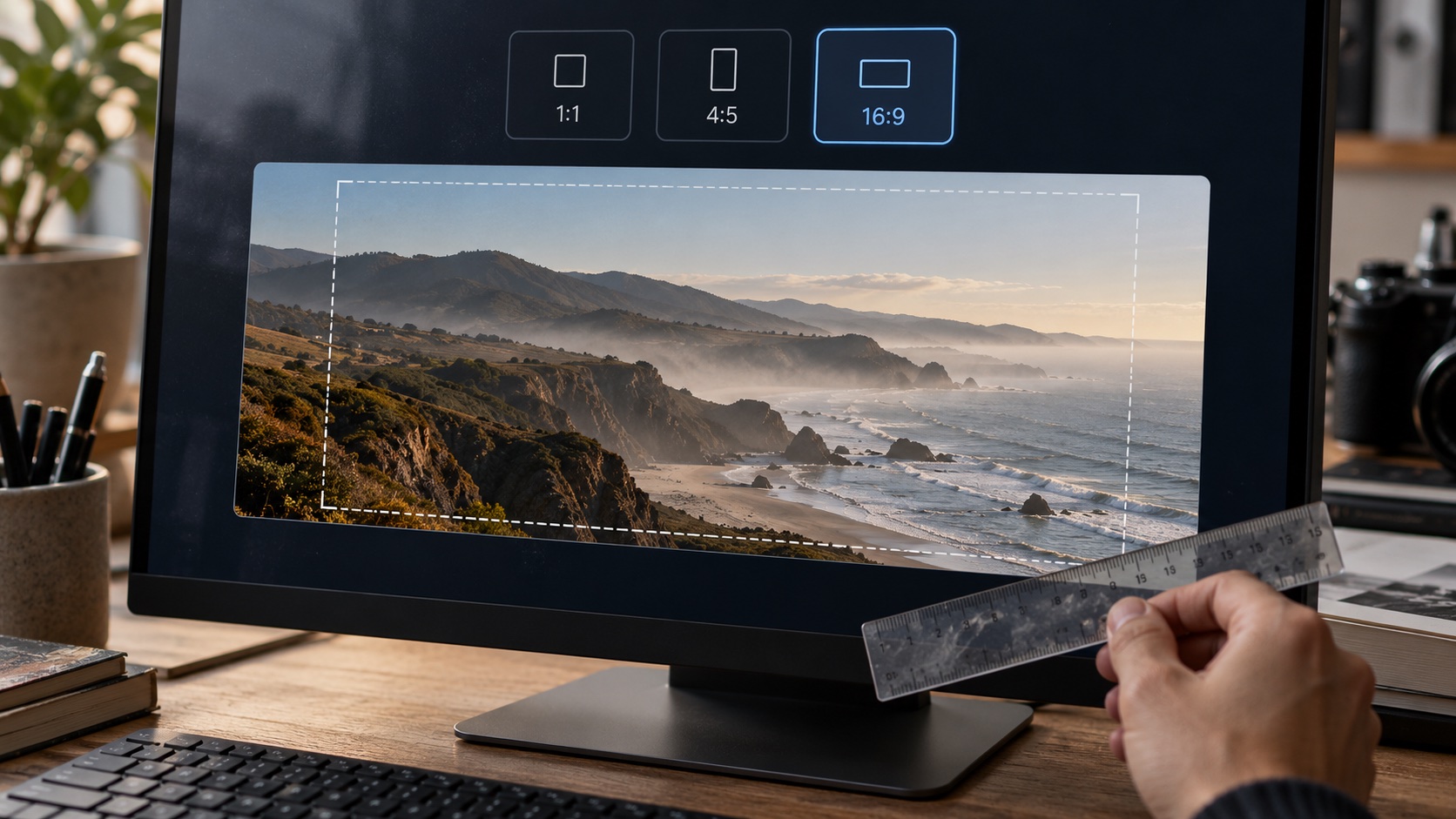
6. Compare the variations
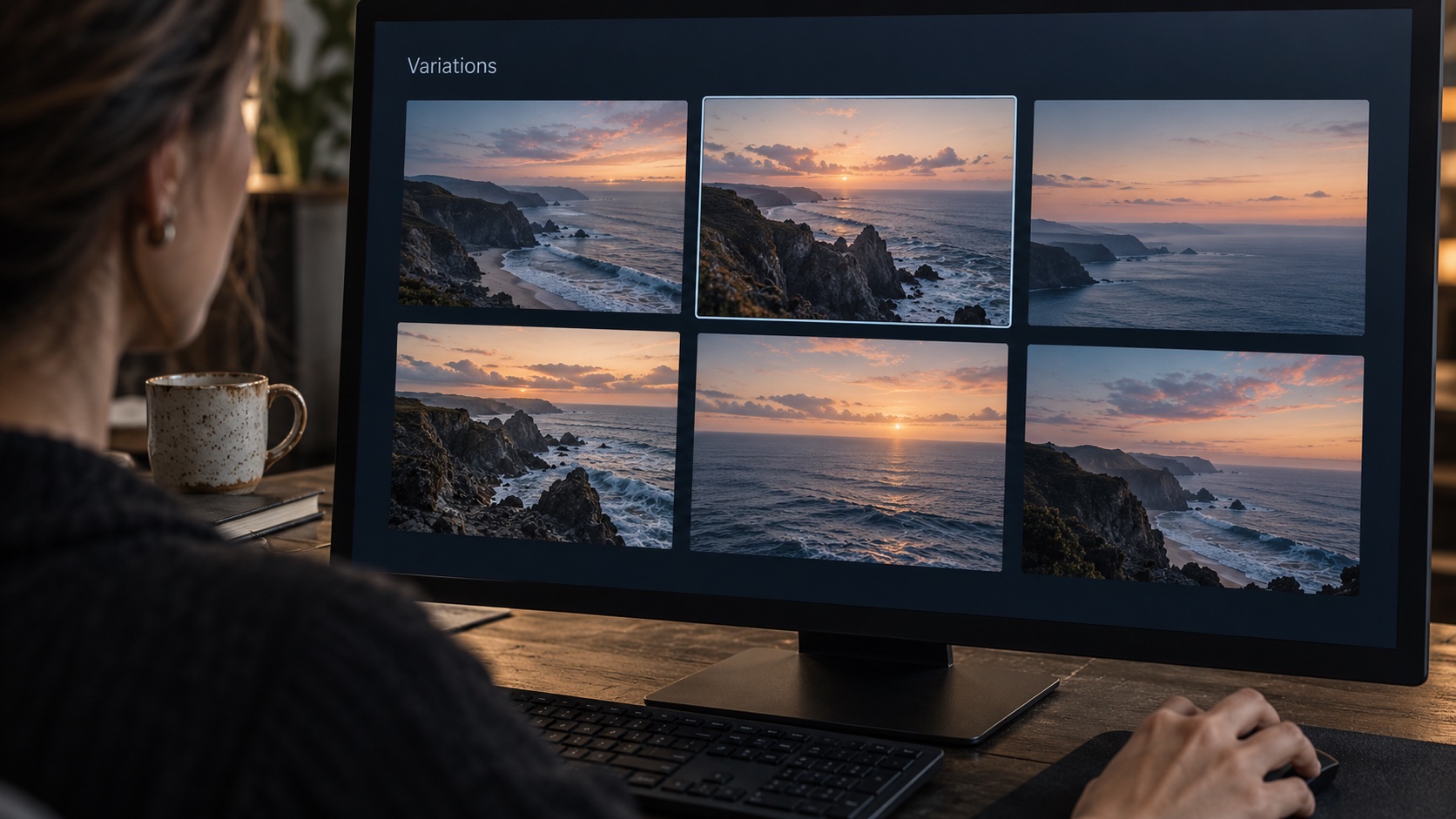
7. Inspect the selected image at full size
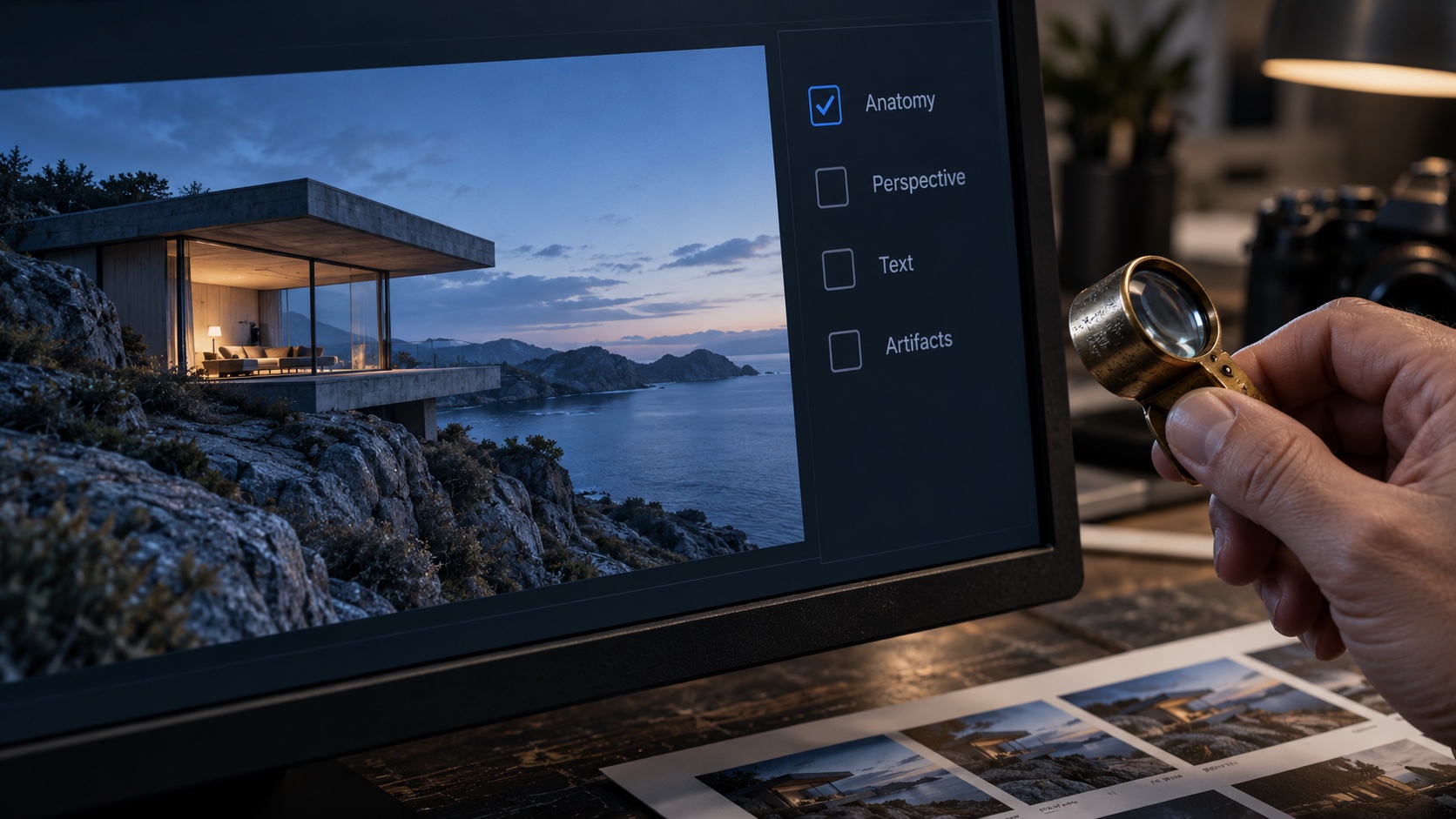
8. Revise only the problem area
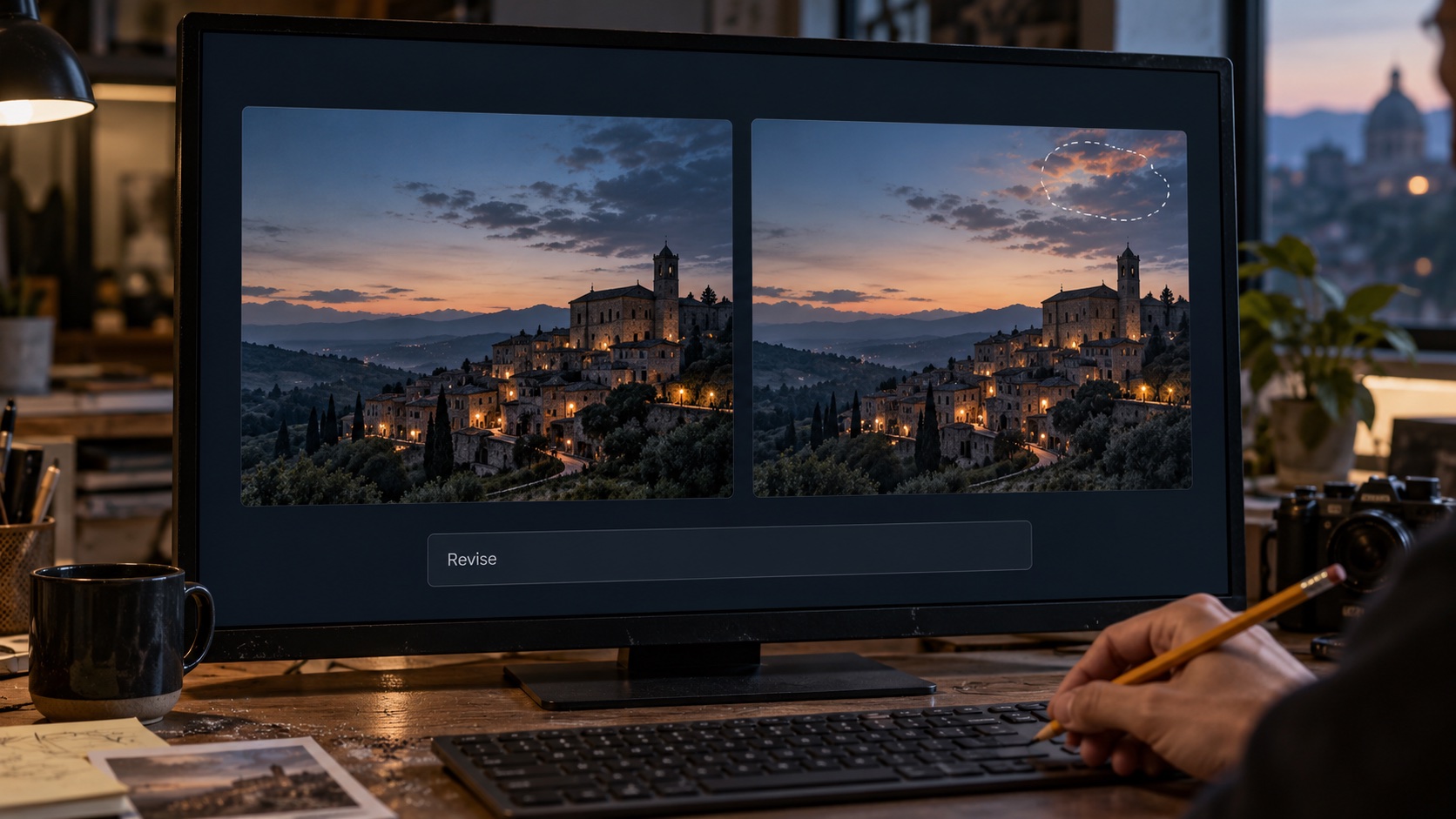
9. Export and name the approved file
10. Record the source and disclosure
An ai image generator for art content does not need to be the most advanced one available. It needs to be predictable, and it needs to leave your drawing alone.
For a small magazine, the practical gain is time moved to where it counts. Less goes into repetitive packaging, and more goes into the demonstrations readers actually come for.
Disclosure, platform labels, and copyright caveats
Pinterest has published guidance on labels for AI-generated or AI-modified Pins and on controls that let people see fewer AI Pins in some categories. Wording and behavior change, so check Pinterest’s current help pages before you publish, and do not assume how any detection system will treat a particular image. Honest captions and credits are the safer route. Stripping metadata to avoid a label might protect reach for a while, but it works against the trust a tutorial site needs.
Ownership is the other point. In the United States, the Copyright Office’s January 2025 report on copyrightability says protection depends on sufficient human authorship. Prompts alone generally do not establish it, while human-authored expression in an output, and creative selection, arrangement or modification of generated material, can be protected. That is a narrower statement than saying AI-assisted work can never be protected. Other jurisdictions differ.
The practical consequence for a magazine is to avoid counting on exclusive rights in a purely generated cover. Keep the distinctive parts human-made: titles, layout, logo and above all the real drawings. This is background information, not legal advice. Ask a qualified professional about specific cases.
FAQ
Can I use AI-generated images as steps in a drawing tutorial?
No. A step-by-step sequence promises a process someone followed, and a generated sequence cannot honestly make that promise. It may show stages that no hand would produce in that order. Photograph or scan your own work in progress, and keep generated images for covers, mood boards and prompt cards. If a lesson needs a diagram, such as a proportion grid, draw it yourself over a real photograph or construction.
Can artists use AI-generated images as drawing references?
For mood, composition and lighting ideas, yes. For anatomy, perspective or object-specific accuracy, they are a weak choice. Generated images can look convincing while carrying small errors in hands, wheels, text or physical logic, and those errors are hard to spot. Use photographs, official archives or direct observation for facts, and treat generated images as sketches of intent.
Should AI-generated thumbnails and covers be labeled?
Yes, in the caption or credits. Platforms may add their own labels, and their rules change, so check current guidance for each one. Labeling yourself keeps you consistent with whatever readers see, and it costs a single line.
What is the difference between a reference board and an accuracy reference?
A reference board sets direction: mood, palette, composition and light. An accuracy reference answers factual questions, such as how a wheel meets the arch of a specific car or how a hand wraps around a pencil. The first can include generated images. The second should be a photograph, an archive image or something you observe directly.
What should an artist look for in an AI image generator?
A good ai image generator for artists offers style range, reference-image input for consistent series, enough composition control to leave room for a title, and export sizes that suit your layouts. Check the provider’s current terms on commercial use as well. Then judge it by the same test as every other asset: does it support the lesson without pretending to be the lesson?
Your next step: build an asset log
Before your next tutorial, open a spreadsheet or a plain note with two columns. In the left column, list every teaching asset: process drawings, proportion guides, corrections, the finished demonstration, and each photographic reference with its source. In the right column, list every surrounding asset, and mark the ones that were generated.
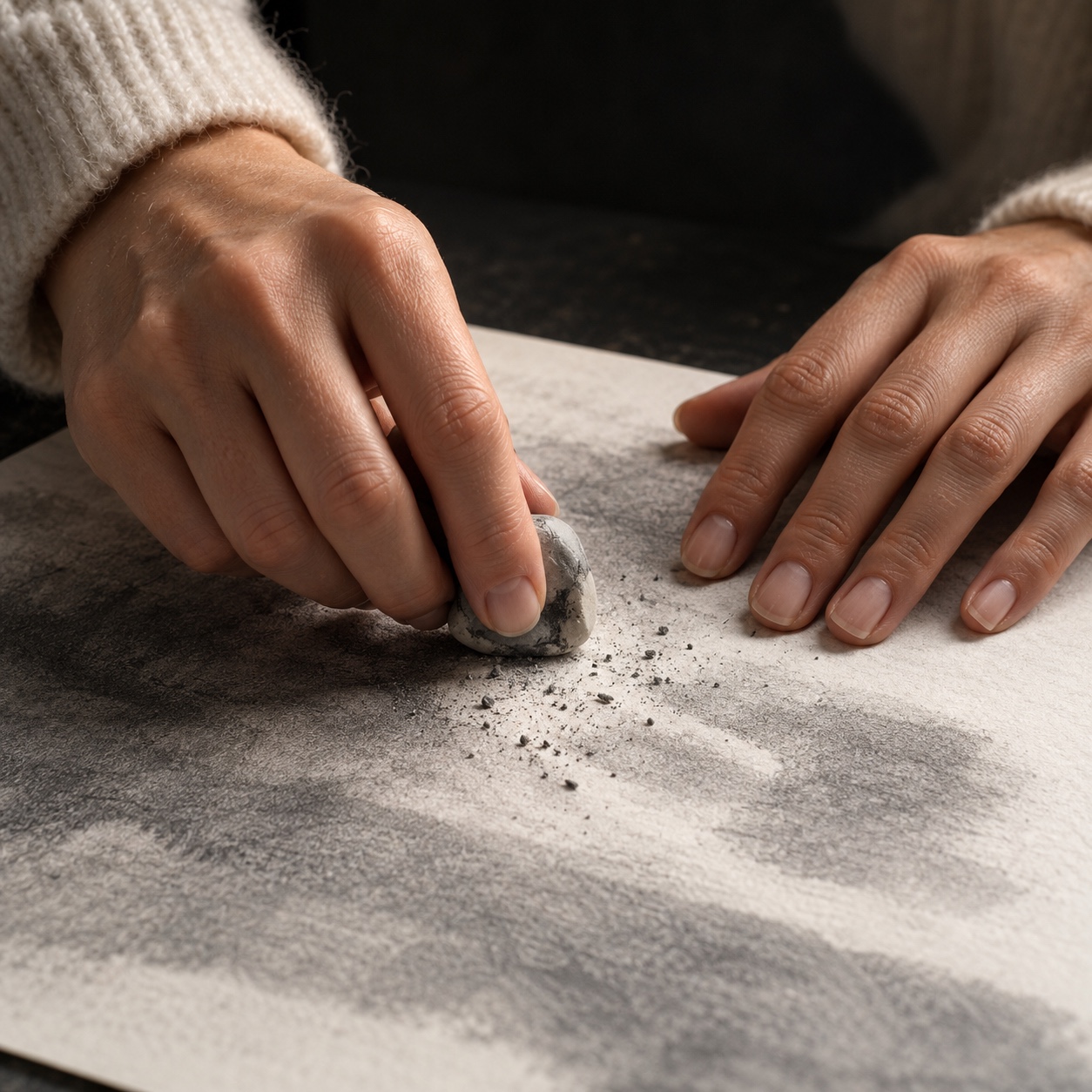
If anything generated appears in the left column, replace it before publishing. Then check each right-column image at phone size and add the labels to your captions. That one page answers most reader and platform questions before anyone asks them.
- 1share
- Facebook0
- Pinterest1
- Twitter0
- Reddit0