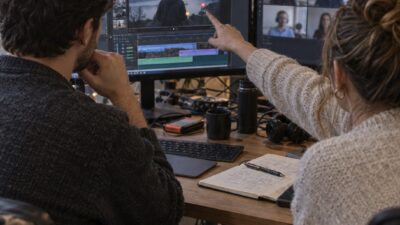
The first time I tried AI face swap on a video clip, I was convinced the technology just wasn’t ready.
The face looked close, but not close enough. Tiny edge flickers around movement. Skin tones that felt slightly off, like someone dragged the saturation slider half a notch too far. And the second the person spoke, the illusion cracked. Expressions stiffened up in a way your brain catches instantly, even if you can’t explain why.
- Why AI Face Swap Video Has Become a Real Creator Tool
- Step 1: Plan the Source Video for the Swap
- Step 2: Prepare the Target Face Reference
- Step 3: Choose the Right Tool for Your Workflow
- Step 4: Run the Swap and Review the Raw Output
- Step 5: Color Grade to Close the Mismatch
- Step 6: Motion Blur, Audio, and Final Assembly
- Testing, Failure Modes, and Quality Benchmarks
- FAQ: AI Face Swap Video
- Is changing a face in video using AI legal?
- What is the most important factor for convincing AI face swap video output?
- How long does AI face swap video take to process?
- Why does the color look wrong after an AI face swap?
- Can I use AI face swap for commercial video content?
- What causes artifacts in AI face swap video output?
- How do I know if my face swap video output is convincing enough?
I spent twenty minutes fighting with the clip before giving up and calling the whole thing a gimmick.
Then I saw a creator using a recurring character in short-form video and didn’t realize until halfway through that the face wasn’t real. Or rather, wasn’t the actor’s face. Same category of tools. Completely different result.
That got my attention.
And the weird part? The difference had less to do with the AI model than everything around it. Better source footage. Consistent lighting. Smarter cuts. A quick jump to b-roll right before the illusion started falling apart. Even the color grade mattered more than I expected.
Most bad AI face swap videos look like a technology problem. Usually they’re not. They’re a technique problem.
The creators getting convincing results have figured out a workflow: record cleaner footage, avoid situations that break facial tracking, edit around weak moments instead of forcing them, and stop expecting the tool to fix bad inputs. That’s what actually closes the gap between “obviously fake” and “wait… was that real?”
Why AI Face Swap Video Has Become a Real Creator Tool
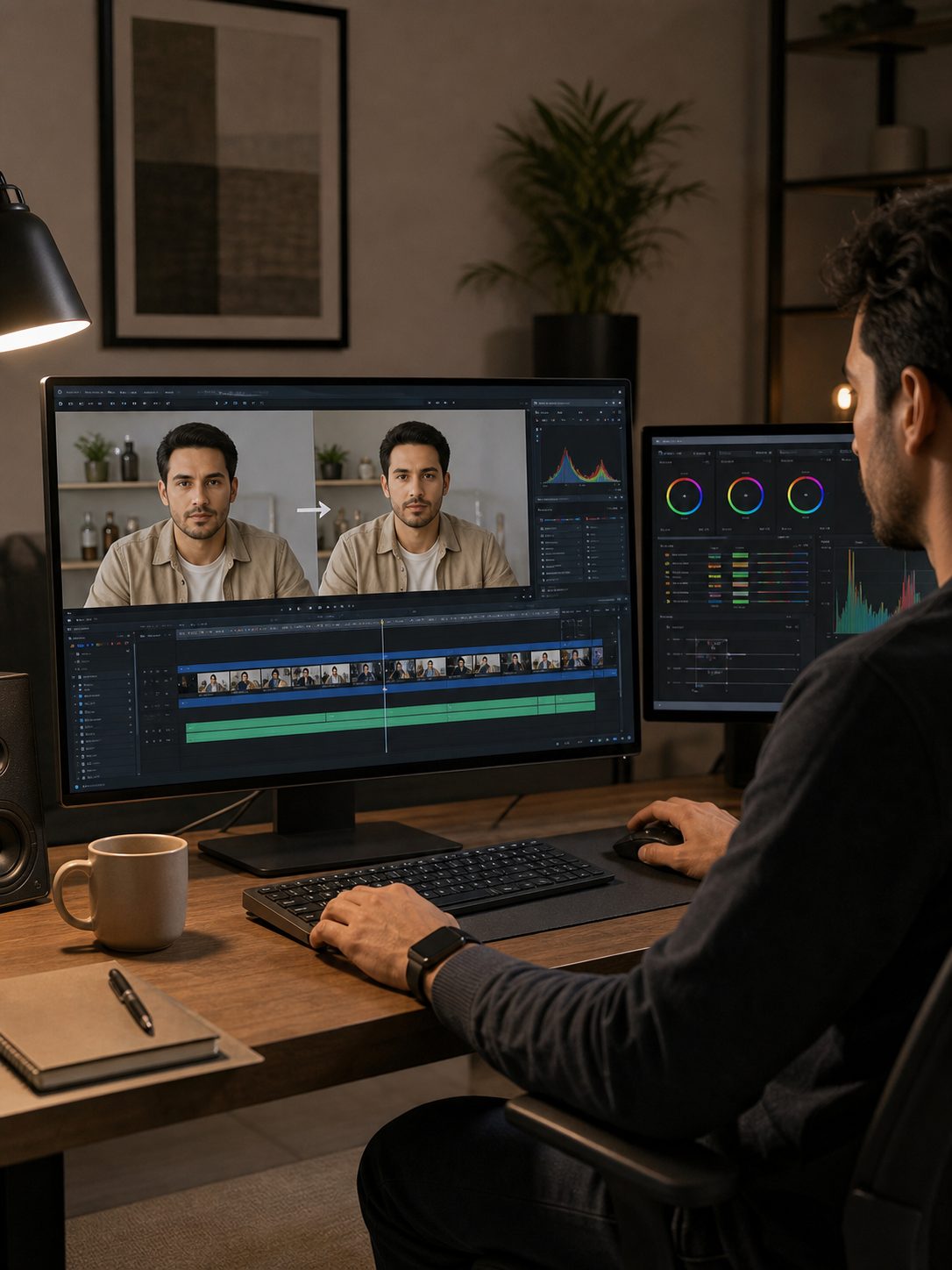
A year ago the honest answer about AI face swap for video was that it worked occasionally, impressively, and unpredictably. The output quality floor has risen significantly since then. Current tools, used with the right source material and post-processing discipline, produce output that passes casual viewer scrutiny consistently rather than occasionally.
That shift has made it a real production tool rather than a novelty. Working creators are using it for:
- Character consistency: maintaining a fictional character’s face across many shots when the on-camera person changes between sessions
- Avatar content: placing the creator’s own face onto AI-generated or pre-rendered character bodies for branded content
- Anonymization: replacing faces in footage where someone’s presence wasn’t anticipated or where they’ve withdrawn consent
- Localization: replacing the on-camera presenter in training or marketing videos for different regional markets
The consent line is worth stating clearly. Your own face, faces of paid models with documented consent, and fully synthetic faces are the appropriate inputs. A solid Change Face in Video workflow treats this as the default constraint rather than an afterthought. The legitimate use cases above are more than sufficient for real creator production needs.
Step 1: Plan the Source Video for the Swap
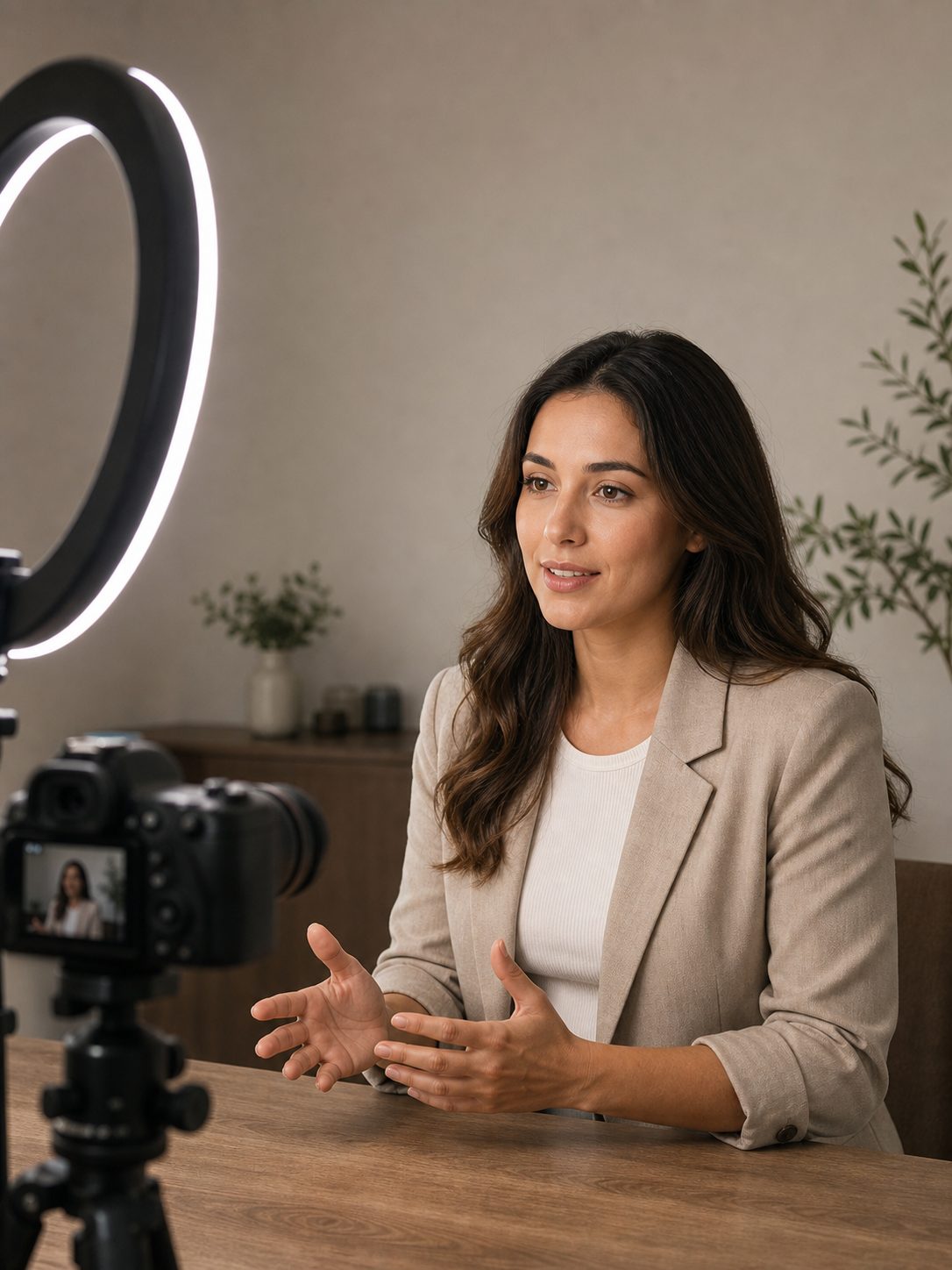
Output quality correlates almost perfectly with source video quality. This is the step most beginners skip or treat as an afterthought, and it’s the single biggest determinant of whether the swap works.
Record source video with the swap in mind:
Step A: Angle
Front-facing or three-quarter angle. Side profiles produce broken output from every current model. If the character needs to turn away from camera, cut around it rather than trying to swap through a profile shot.
Step B: Lighting
Even, diffused lighting on the face with no hard shadows in the eye socket or mouth area. Cross-lighting looks dramatic on camera but creates asymmetric shadow patterns the model struggles with. A soft ring light or large softbox at roughly camera height works well.
Step C: Expression range
Conversational emotional registers produce the most reliable output. Extreme expressions — deep grief, wide laughter, intense anger — still produce visible artifacts in most tools. If the content requires those registers, shoot them but test the swap output before committing to the take.
Step D: Camera motion
Slow motion or static framing. Fast handheld movement creates motion blur patterns the swap model interprets inconsistently. If the shot needs energy, add it in editing rather than in the source recording.
Step E: Clip length
Record in 10–20 second takes rather than long unbroken runs. Short clips produce cleaner output and make post-processing faster. The edit will cut between them anyway.
Step 2: Prepare the Target Face Reference
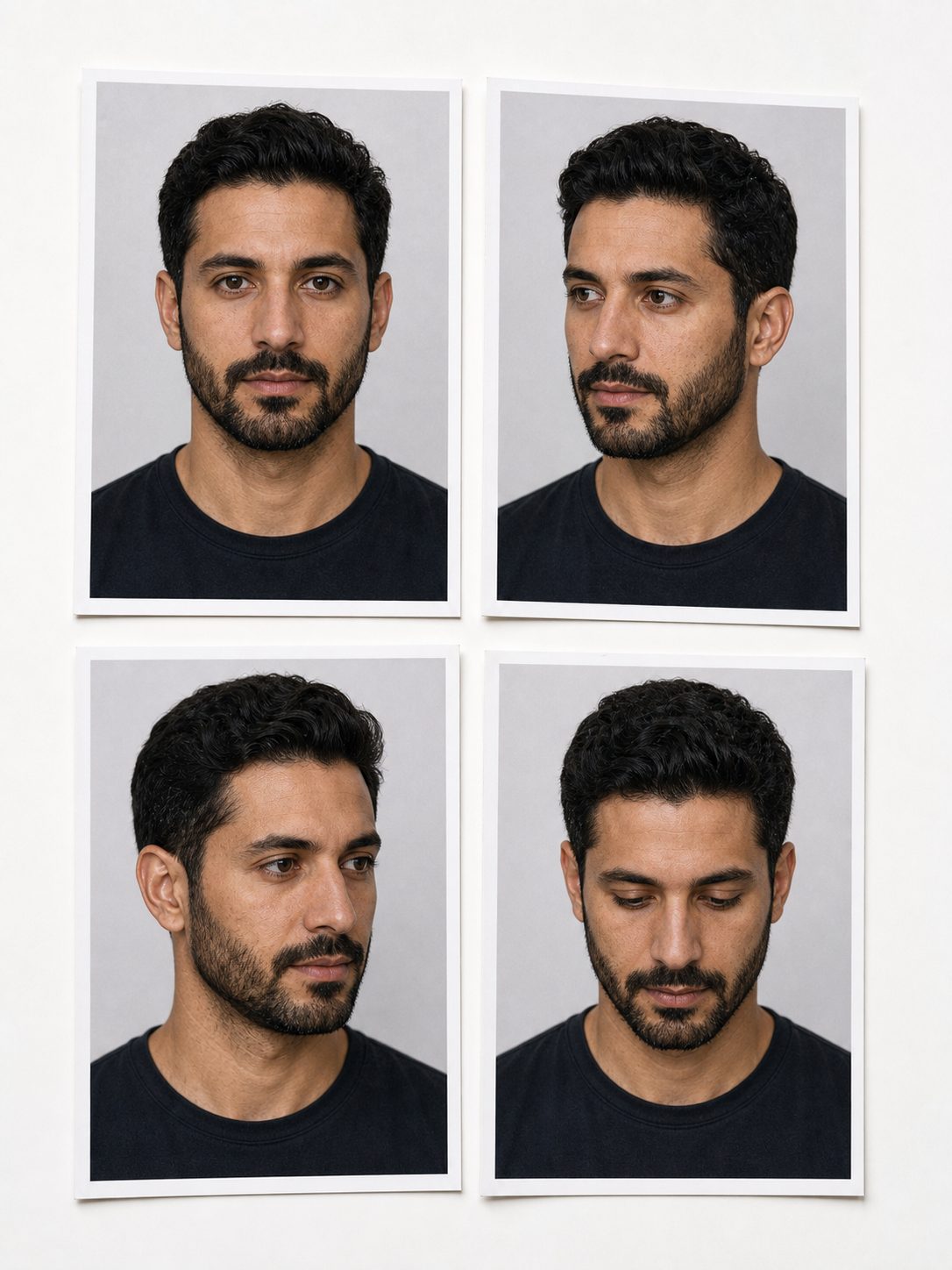
The face you want to swap in needs a clean multi-angle reference set. Single-photo references produce acceptable output in some tools; multi-angle sets produce noticeably better output in all of them.
The reference set should include:
- Front-facing portrait, neutral expression, even lighting
- Three-quarter angle from the left
- Three-quarter angle from the right
- Slight downward angle (looking slightly up at camera)
- Close range and medium distance shots of the same face
If the target face is synthetic — generated by Midjourney, DALL-E, or a similar tool — generate it in multiple angles using the same prompt with angle-specific descriptors. Consistency in lighting and color temperature across the reference set helps the model build a more accurate face representation.
For your own face as the target, this reference set takes about ten minutes to shoot against a neutral background with decent lighting. It’s worth doing properly once and reusing across many projects.
Step 3: Choose the Right Tool for Your Workflow
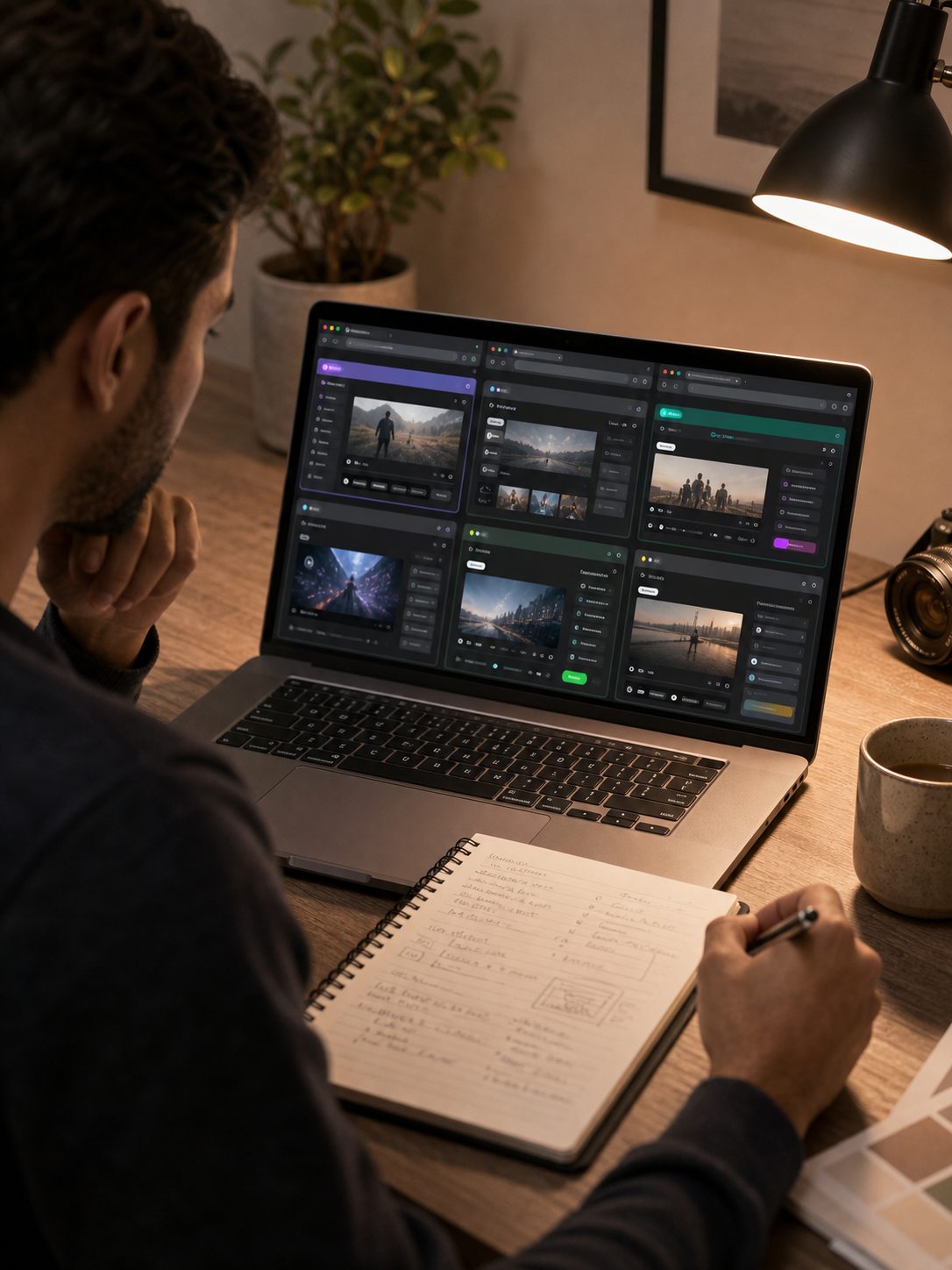
Current AI face swap video tools fall into three categories with meaningfully different quality ceilings and workflow implications:
Web-based tools: Upload-and-swap UX with minimal setup. Processing happens in the cloud. Quality ceiling is moderate but sufficient for most creator use cases. Best for occasional swaps or creators who want fast results without software installation. Per-clip costs can add up for high-volume production.
Desktop applications: Higher quality ceiling, more processing control, one-time or subscription cost rather than per-clip pricing. Requires capable hardware; most benefit from a dedicated GPU. The quality-per-hour-of-production calculation favors desktop tools for creators doing more than a few swaps per week.
Self-hosted open-source tools: Highest quality ceiling, most control, no per-use cost beyond hardware and electricity. Requires technical setup and ongoing maintenance. Worth the investment for creators whose entire content workflow centers on face swap.
For most creators starting out, a web-based tool establishes the workflow and tests whether the output quality meets the production standard. Moving to desktop or self-hosted is the right call once the workflow is established and volume justifies the setup investment.
Step 4: Run the Swap and Review the Raw Output
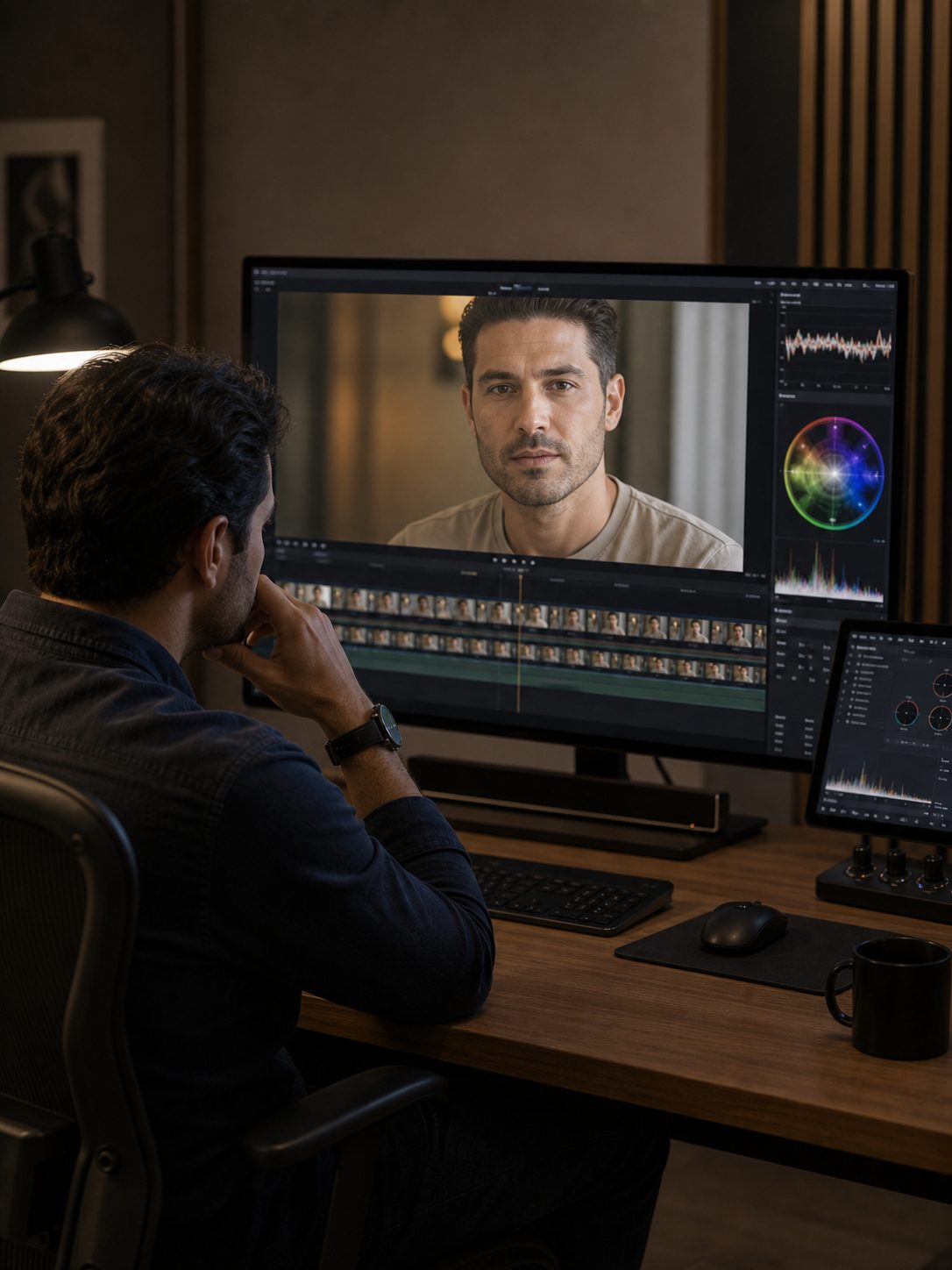
The swap itself is usually the fastest part of the workflow. A 15-second clip processes in two to five minutes on most web tools; desktop tools vary by hardware but are generally comparable.
On raw output review, look specifically for:
- Color mismatch: the swapped face reading warmer or cooler than the surrounding neck and body — this is the most common artifact and the most fixable
- Edge artifacts: flickering or soft-edge smearing around the hairline or jaw — usually caused by difficult lighting in the source video
- Expression lag: the swapped face responding slightly behind the audio — a processing artifact more common in longer clips
- Angle failures: shots that approach profile angle breaking down — identify these takes for either reshooting or cutting around
The review pass takes five minutes and identifies which clips need post-processing attention and which are ready for assembly. Don’t skip it — catching problems before color grading saves significant time.
Step 5: Color Grade to Close the Mismatch
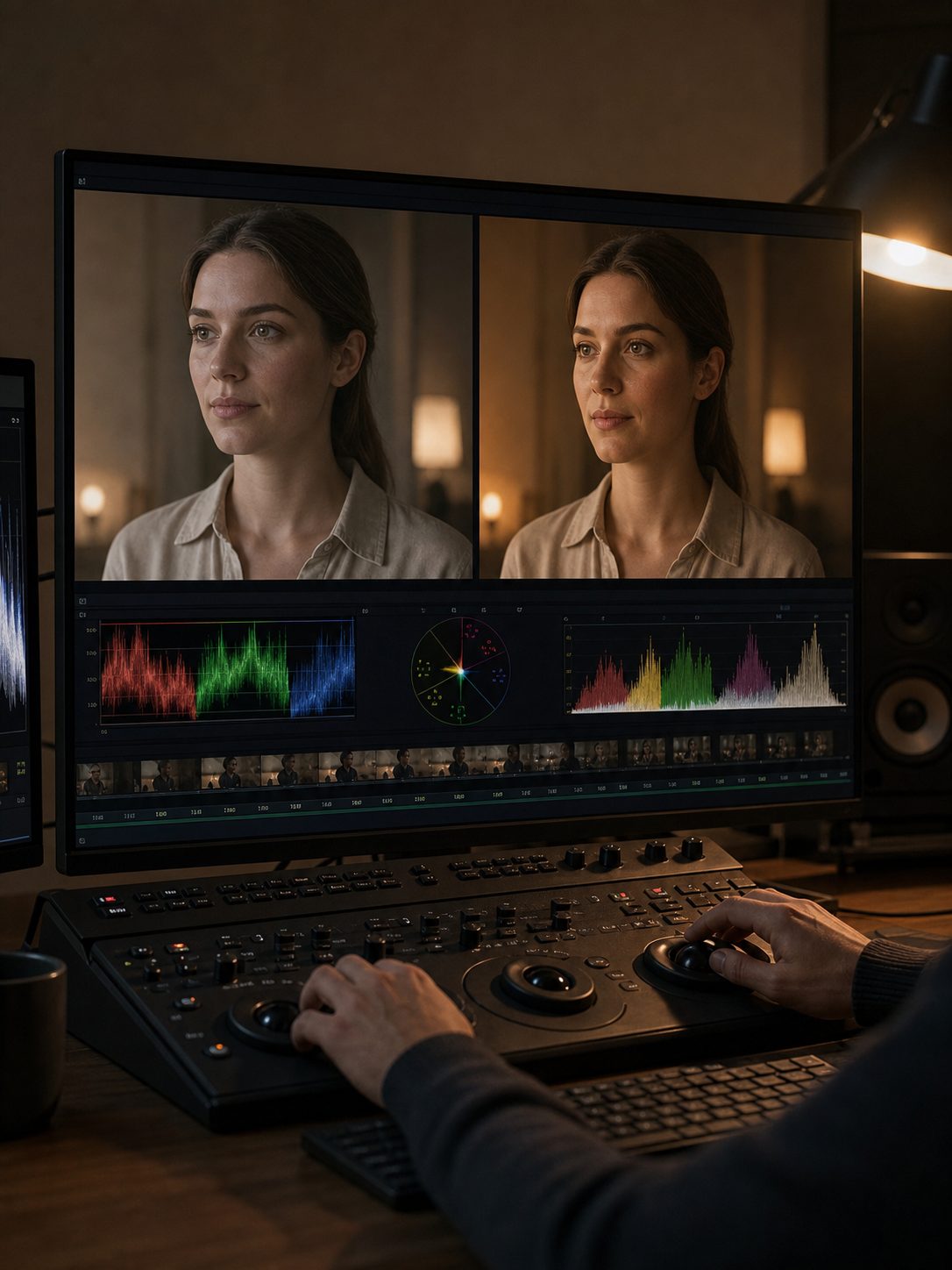
Color grading is the post-processing step that produces the largest single quality improvement in face swap video output. The raw swap almost always has some color temperature or skin tone mismatch between the placed face and the surrounding footage. The grade closes that gap.
The correction is usually straightforward in DaVinci Resolve, Premiere Pro, or CapCut:
- Use the color picker to sample the color temperature and tint of the body/neck area
- Adjust the face region’s color temperature to match — typically a small warm or cool shift
- Match the saturation level of the face to the surrounding skin
- Check shadows: the shadow areas on the swapped face should match the shadow color of the surrounding footage
- Review on a calibrated monitor or at minimum a well-lit screen — color correction done on an uncalibrated display in a dark room produces bad results
Working creators who do this consistently describe it as the step that moved their output from “obviously processed” to “might be real.” It’s thirty minutes that changes the perceived quality completely.
Step 6: Motion Blur, Audio, and Final Assembly
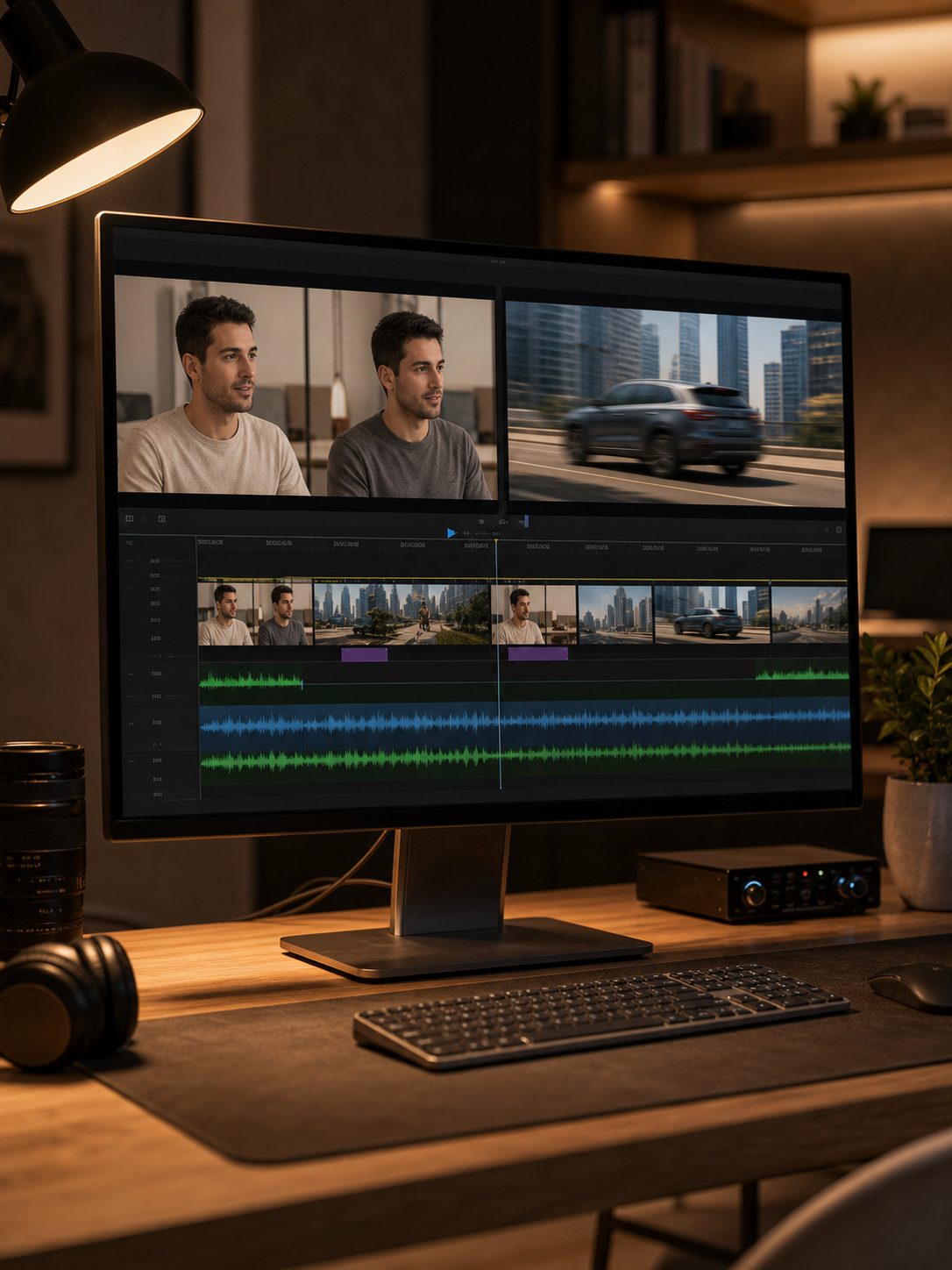
Three finishing elements determine whether the assembled video holds up to viewer scrutiny or breaks it:
Motion blur
One of the easiest ways to spot a bad face swap is movement.
The second the camera speeds up a little — handheld motion, a quick turn, someone moving across frame — the face can start feeling weirdly mechanical. Too sharp. Too clean. Like it’s moving differently from the footage around it. Most people won’t know why it looks off, but they’ll feel it.
A subtle motion blur pass usually fixes more than you’d expect.
And subtle matters here. Don’t crank it. You’re just trying to match the natural blur the original camera already produced in non-swapped footage. Medium-fast movement benefits most. Static shots? Leave them alone. Slow talking-head clips usually don’t need it either.
This is one of those tiny edits that sounds unimportant until you compare before and after. Suddenly the face feels like it belongs in the shot instead of floating slightly above it.
Sound design
Audio is doing at least half the work of selling the visual. Well-mixed dialogue, room tone that matches the visual environment, and appropriate ambient sound create the contextual plausibility that allows the viewer’s brain to accept the visual. Sloppy audio breaks the illusion even when the visual is strong — a phenomenon audio engineers call “seeing with your ears.” Spend real time here.
B-roll structure
Face swap output, like most AI talking head content, holds up better in 10–15 second windows than in long unbroken takes. Cutting to b-roll between face swap clips hides whatever was about to break in the illusion and gives the viewer a visual reset before the next face swap window. For a 60–90 second video, plan three to four b-roll cuts. The cuts are doing real structural work, not just adding visual variety.
Testing, Failure Modes, and Quality Benchmarks

The honest test for whether face swap output holds up is showing it to viewers who don’t know it’s been modified. Creator scrutiny is not the same as viewer scrutiny. After hours of working on a clip, the creator stops noticing things the viewer catches immediately. Fresh eyes are the only reliable quality benchmark.
The most common failure modes in production, in order of frequency:
- Skipped color grade: The single most common quality problem. Raw swap output almost always needs the grade. Skipping it is skipping the most impactful post step.
- Extreme expression takes: Anger, grief, and wide laughter still produce artifacts. If the content requires them, test the output before committing to the take.
- Long unbroken takes: Keep clips short and cut between them. The cuts aren’t a concession to the technology’s limitations — they’re good editing practice that happens to align with those limitations.
- Profile or high-angle source video: Stick to front-facing and three-quarter angles. Shoot angles the model can’t handle as cutaways rather than face-swap clips.
- Sloppy audio: Strong visuals paired with unfocused audio loses the illusion. The audio carries at least as much of the credibility as the visual.
A realistic production timeline for one short-form video using this workflow: 30 minutes recording source video, 10 minutes preparing the reference set, 20–30 minutes processing, 30 minutes on color grade, 30 minutes sound design, 30 minutes editing and assembly. That’s roughly 2–3 hours for a 60–90 second video. Experienced creators compress this to 90 minutes. Both timelines are sustainable for daily or near-daily production.
Face-swap and localization workflows should still use video performance analytics to compare retention, trust signals, and downstream actions.
FAQ: AI Face Swap Video
Is changing a face in video using AI legal?
Legality depends on consent and use. Your own face, faces of paid models with explicit consent, and fully synthetic faces are generally appropriate for creative work. Using someone’s likeness without consent is problematic legally and ethically. Most reputable platforms require confirmation that you have rights to all faces used. Check the specific tool’s terms and local laws in your jurisdiction.
What is the most important factor for convincing AI face swap video output?
Source video quality. Front-facing or three-quarter angles, even lighting with no deep shadows, restrained emotional registers, and stable framing produce dramatically better output than footage shot without the swap in mind. Experienced creators record source video specifically for the swap workflow rather than trying to use existing footage.
How long does AI face swap video take to process?
Web-based tools typically process a 10–30 second clip in two to five minutes. A complete workflow for one 60–90 second short-form video — source recording, swap processing, color grade, sound design — takes two to three hours for a creator new to the process and compresses to around 90 minutes with practice.
Why does the color look wrong after an AI face swap?
Color mismatch between the swapped face and the surrounding scene is the most common artifact. The model transfers the face without fully adjusting for color temperature, white balance, and skin tone context. A color grade pass in DaVinci Resolve, Premiere, or CapCut to match these values produces the biggest single quality improvement in post-processing.
Can I use AI face swap for commercial video content?
Yes, for legitimate commercial applications: branded character content, avatar-based creator content, product demonstrations using controlled characters, and anonymization for compliance. Check licensing terms of the specific platform — some restrict commercial use on free tiers. Consent for all faces used remains required regardless of commercial context.
What causes artifacts in AI face swap video output?
The most common causes are extreme facial expressions, side profile or high-angle source footage, long unbroken takes without cuts, skipped color grading, and mismatched lighting between the source face and the target environment. Each has a direct fix in a disciplined post-processing workflow.
How do I know if my face swap video output is convincing enough?
Show it to viewers who don’t know it has been modified. If they immediately notice something wrong, there is a problem to fix. If they respond to the content as if it were unmodified footage, the output has crossed the threshold. Creator scrutiny is not the same as viewer scrutiny — fresh eyes catch things the creator has stopped noticing.
The tools are mature enough that the work is no longer in fighting the models. It’s in directing them well and applying the post-processing discipline that makes the output hold up.
- 29shares
- Facebook0
- Pinterest29
- Twitter0
- Reddit0