

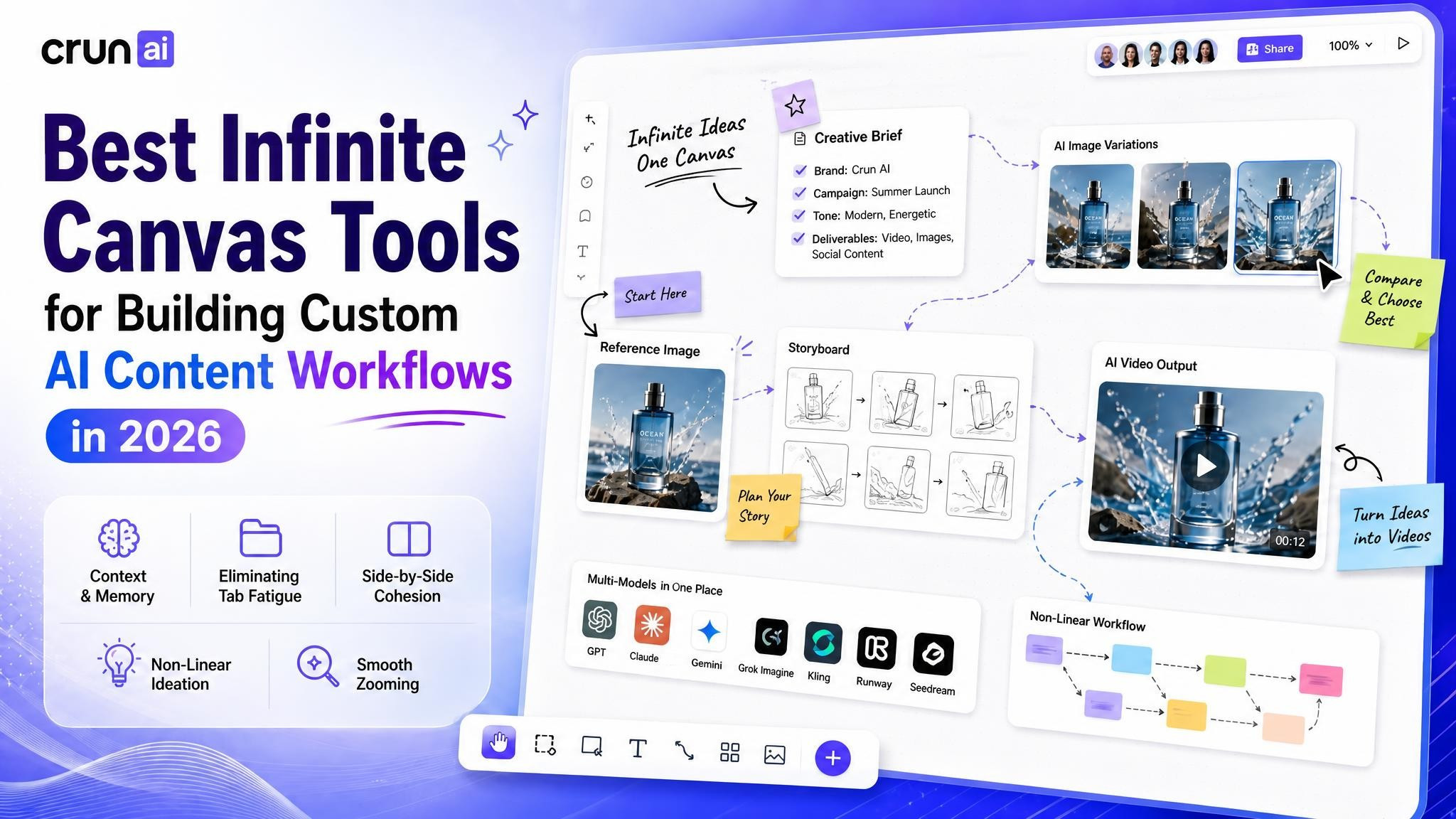
An infinite canvas is useful because creative AI work is rarely linear. A project may begin with one reference image, branch into four visual directions, pause for a storyboard, and return to an earlier idea after the first video test. When those decisions live in separate tabs and folders, the workflow becomes harder to read than the work itself.
Tools such as Crun AI place prompts, source images, generated variations, storyboards, and video outputs on one open surface. The real advantage is not unlimited space. It is visible context: you can see what each asset came from, why one branch was approved, and where the next iteration should begin.
What an infinite canvas changes in AI content production
Most AI tools present creation as a sequence: enter a prompt, generate an output, download it, and move to the next application. That works for a single image. It breaks down once a campaign has several references, aspect ratios, characters, and rounds of review.
An infinite canvas turns those isolated generations into a spatial production map. The layout records relationships, not just files. Put a source image beside its variations, keep the selected frame next to the storyboard, and leave rejected branches visible long enough to understand why they failed.
Persistent visual context instead of repeated prompts
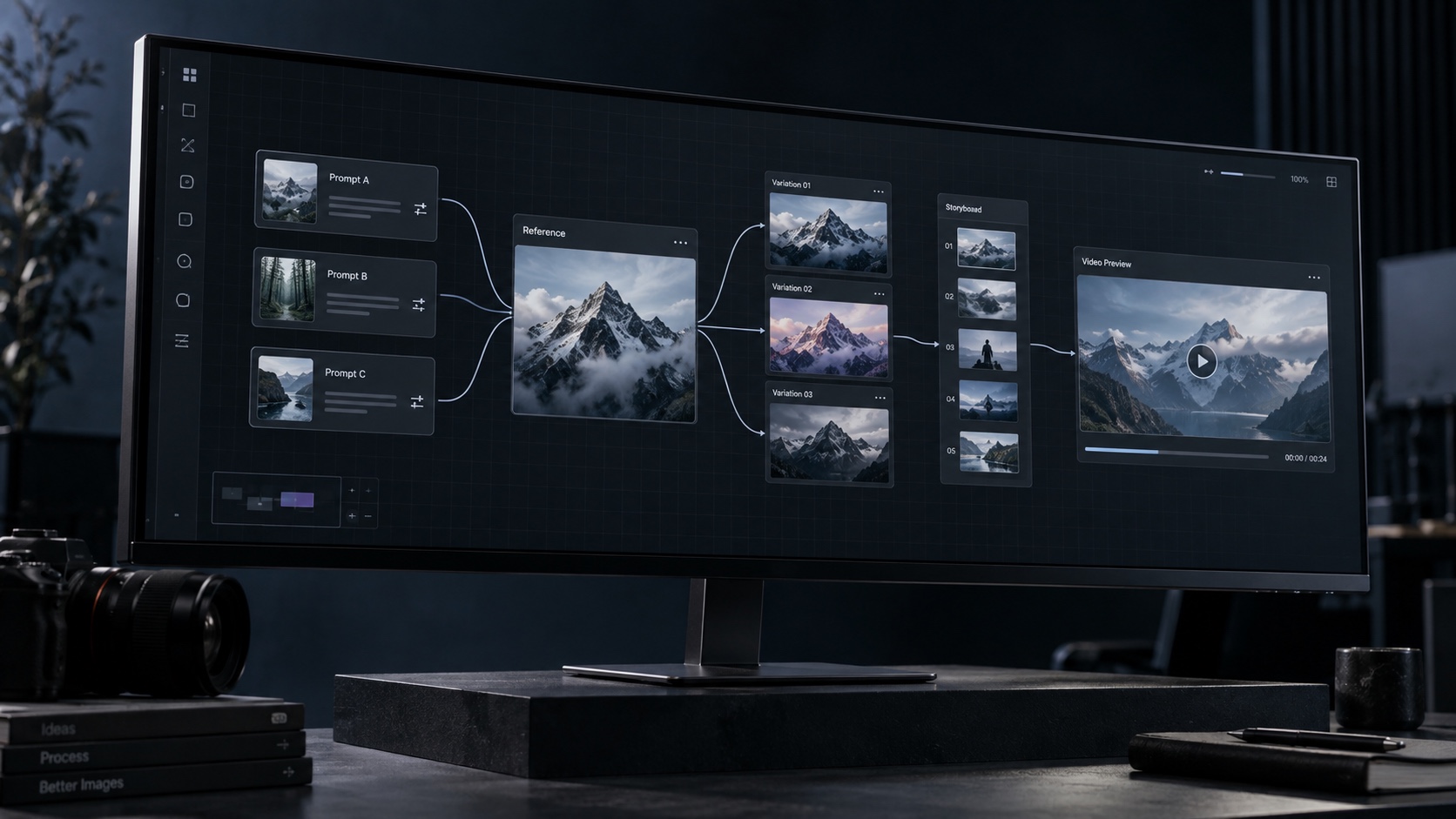
Context is easy to lose when assets are scattered. A product image may need to remain connected to its approved background. A character reference may control several scenes. A storyboard frame may inherit the lighting and camera angle of an earlier still.
On a canvas, those dependencies can stay visible. You spend less time rewriting the same description or hunting for the correct export. More importantly, reviewers can trace the decision path without asking which file is current.
Branching makes comparison practical
Creative work rarely moves in a straight line. I find it more useful to treat a strong reference as a trunk: each new composition, palette, crop, or model becomes a branch. The canvas should show those branches clearly enough that you can compare them against the same brief.
This is especially helpful for image generation. Keep the original reference beside every variation and evaluate silhouette, value structure, color temperature, and framing before choosing a direction. If you need a deeper reference-based workflow, this guide to image-to-image generation explains why a stable source image matters.
Close view and wide view support different decisions
Zoom in when you need to refine a mask, inspect a hand, or compare two almost identical crops. Zoom out when you need to check the whole campaign: which branches are approved, which aspect ratios are missing, and whether the storyboard still matches the original visual system.
That shift between detail and overview is one of the format’s strongest design benefits. A folder shows what exists. A well-planned canvas shows how the pieces relate.
Plan the canvas before you generate
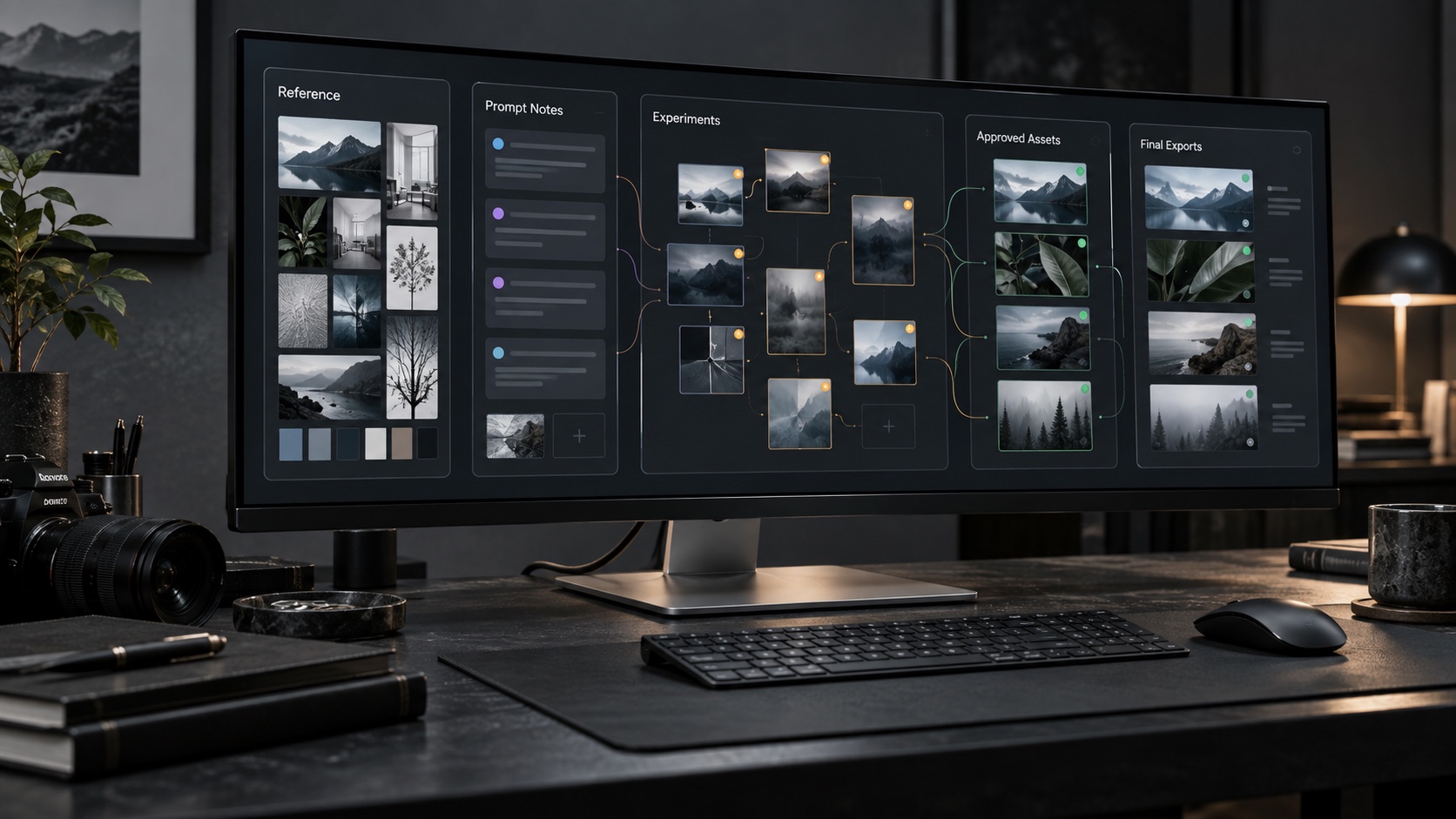
An unlimited workspace can become an unlimited mess. Before generating anything, divide the canvas into zones. A simple left-to-right structure works well: references, prompts, experiments, approved assets, storyboard, and final exports.
Define a compact visual system
Write down the few decisions that must remain stable across every output:
- subject or product details;
- color palette and contrast level;
- lighting direction and time of day;
- camera height, lens feel, and framing;
- aspect ratios and delivery channels;
- elements that must not change.
Keep this mini-brief near the center of the canvas. It should be short enough to scan while comparing images. If it becomes a page of prose, split it into a fixed visual brief and task-specific prompts.
Separate experiments from approved assets
Do not let a visually interesting test sit beside a final image without a status marker. Use a small, consistent system: gray for references, amber for experiments, green for approved assets, and blue for final exports. The colors matter less than consistency.
I also recommend an explicit archive zone. Move rejected branches there instead of deleting them immediately. A failed direction can still reveal which camera angle, background, or model setting caused the problem.
Name branches by the decision they test
Labels such as version 3 or final-final-2 explain nothing. Name branches by intent: warm-window-light, tight-product-crop, vertical-ugc, or minimal-studio. When a reviewer chooses one, the decision remains legible later.
Build an image-to-video workflow on an infinite canvas
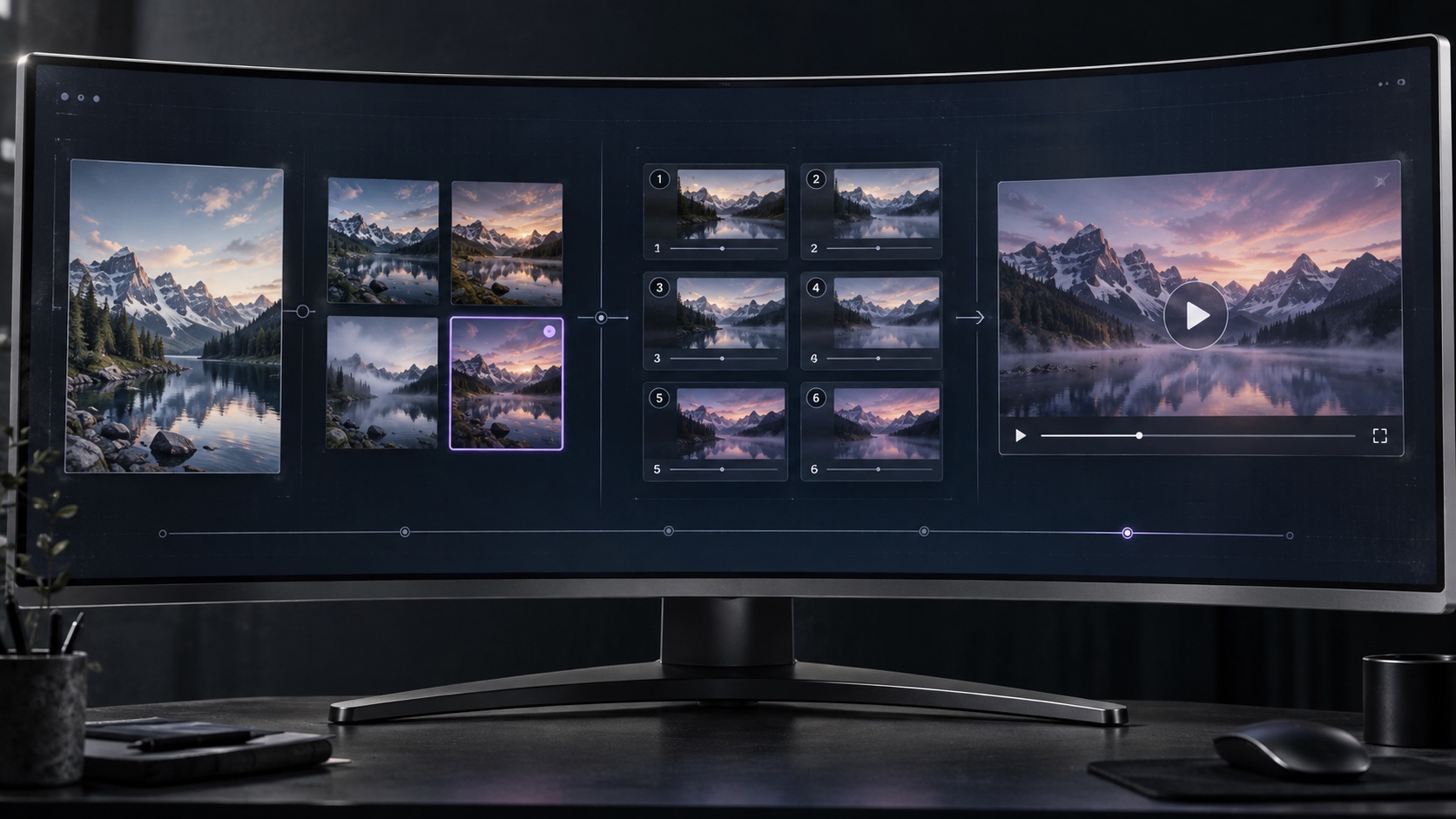
A practical image-to-video workflow has four visible stages: reference, variations, storyboard, and motion output. Keeping all four on the same canvas makes continuity easier to judge.
Start with one reliable reference image
Use an existing product photo, character sheet, interior rendering, or generated keyframe. The reference should establish the details that cannot drift. For a product, that may be shape, label placement, and material. For a character, it may be face, hair, clothing, and proportions.
If the reference is weak, generating more branches only multiplies the ambiguity. Fix the source first.
Branch into visual directions and choose deliberately
Create a small set of purposeful variations rather than a wall of random outputs. Test one variable at a time: background, lens, lighting, crop, or mood. Place the results in a row and write one short selection criterion above them.
For example: “Choose the frame with the clearest silhouette at phone size.” That is more useful than asking which image looks best.
Turn the selected direction into a storyboard
Once the visual direction is approved, build a short sequence beside it. A five-shot product storyboard might include an opening context shot, a closer product reveal, an interaction, a detail shot, and a closing frame. Keep the source image visible while planning movement so the sequence does not drift into a different campaign.
The same principle applies to narrative work. This storyboarding guide is written for comics, but its advice on readable silhouettes, shot changes, and visual continuity transfers well to AI video planning.
Generate video and review continuity beside the source
Place each video output next to the storyboard and approved still. Review subject consistency, direction of movement, lighting, background geometry, and the first and last frames. If a problem appears, branch from the closest good asset rather than rebuilding the whole chain.
For common motion problems and repair strategies, see how to turn a single photo into a video. The broader AI video generation guide for designers is useful when you need to compare production approaches rather than one canvas layout.
How Crun AI supports the workflow
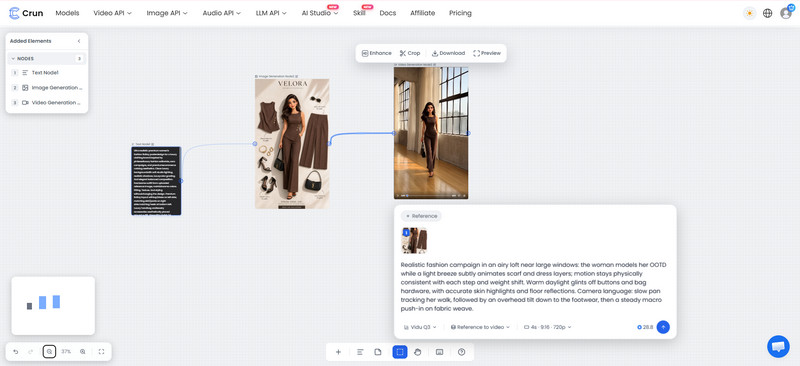
Crun AI Infinite Canvas provides an open workspace where text, image, and video generation can be arranged as connected nodes. Crun’s current platform also brings multiple image and video models into one environment, which can reduce tool switching when a project needs different generation stages.
The supplied interface shows the practical pattern clearly: start with a prompt or reference, connect it to an image result, and continue toward video. The canvas can be saved and uploaded again, so a longer project does not have to be reconstructed for every session.
Use the canvas as a decision record
The value is not simply that several models are available. Keep the reason for each model choice visible. One image model may preserve product geometry more reliably, while a video model may handle camera motion better. A short note beside each node prevents the team from repeating the same test later.
Edit locally when the direction is already right
When most of an image works, change the smallest possible area. Local edits are better for correcting a background object, product detail, or small compositional problem without throwing away the approved lighting and framing.
Treat the edit as another branch, not a silent replacement. That keeps the before-and-after relationship visible.
Practical infinite canvas use cases
The same spatial method works across different content formats. What changes is the asset chain and the criteria used to approve each branch.
E-commerce product campaigns
Start with a clean product reference and branch into studio, lifestyle, seasonal, and platform-specific directions. Once one direction is approved, build product details, storyboard frames, and social crops from that branch.

A useful chain is: product reference -> lifestyle variation -> storyboard -> product video -> vertical social cut. Keep packaging geometry and material reflections under close review; they are often the first details to drift.
AI UGC ads and vertical video
UGC-style production combines more moving parts than it first appears: creator reference, product, hook, script, location, shot list, and several aspect-ratio-safe compositions. An infinite canvas lets you keep these elements near one another without pretending they are one prompt.
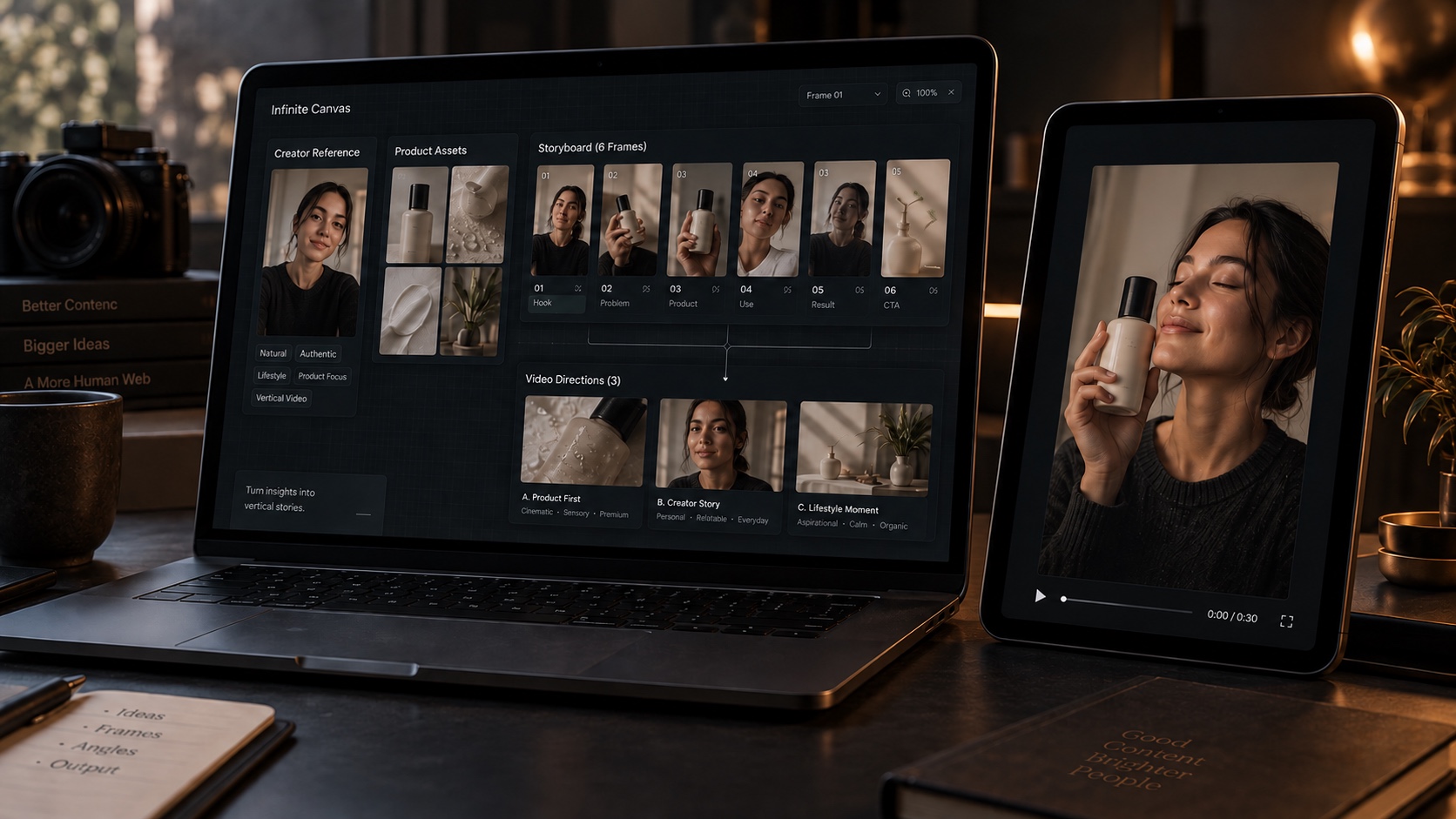
Separate the content hook from the visual direction. You can reuse the same creator and product references while testing a problem-solution opening, a demonstration, or a testimonial-style sequence. For text-led concepts, this guide to a text-to-video generator workflow covers the prompt-to-shot handoff.
Short-form narrative
For short drama or character-led video, use one area for character references, one for locations, and one for scene sequences. Connect every storyboard to the exact character and location references it should inherit.
Continuity checks should be visible on the canvas: wardrobe, time of day, screen direction, props, and camera distance. A good story idea will not hide inconsistent visuals once shots are cut together.
Reusable content systems for teams
Designers, marketers, and video editors can use the same canvas as a shared review surface. The designer controls the visual system, the marketer adds channel requirements and copy, and the editor develops the storyboard and motion tests.

The canvas becomes reusable when the team preserves its structure. Duplicate the zones and decision labels for the next campaign, then replace the references. Reusing a workflow is more valuable than reusing a pile of prompts with no context.
How to evaluate an infinite canvas app
Do not judge the tool by canvas size. Look at how well it protects relationships between assets and how clearly it supports decisions.
Context and relationship clarity
Can you see which prompt or reference produced each output? Can branches remain attached to the correct source? Does zooming out preserve enough detail to understand the workflow?
Model choice and editing control
Check whether the tool supports the image and video models you actually need. Model count alone is not a quality measure. Local editing, reference handling, variation control, and predictable exports matter more in daily work.
Persistence, export, and version clarity
Confirm that projects can be saved, reopened, and shared without losing structure. Test export naming and resolution before building a large campaign. If several collaborators use the canvas, look for a clear approval state and a version history you can trust.
Performance on a real project
Load a representative number of references, variations, and storyboard frames. Smooth zooming on an empty canvas says little. The useful test is whether navigation remains responsive once the board resembles your actual production workload.
Common workflow mistakes
Treating the canvas as an asset dump
More space does not create more clarity. Use zones, connectors, and short labels. If an asset has no visible relationship or purpose, move it to the archive area.
Generating branches without selection criteria
Before every batch, write down what you are testing. Compare one variable at a time where possible. Otherwise, ten attractive images may produce no confident decision.
Losing consistency between image, storyboard, and video
Keep the approved source beside every downstream stage. Check identity, product geometry, palette, lighting direction, and framing after each transition. Small drift compounds quickly.
Keeping every experiment in the active area
An infinite canvas still needs editing. Archive weak branches once the decision is documented. The active area should show the current logic of the project, not its entire history.
FAQ
What is an infinite canvas?
An infinite canvas is a zoomable workspace that can hold references, prompts, images, notes, storyboards, and outputs without a fixed page boundary. Its main advantage is keeping related assets visible and connected.
How is an infinite canvas different from a digital whiteboard?
A whiteboard is usually designed for notes and collaboration. An AI-focused infinite canvas may also connect generation nodes, models, references, edits, and outputs, so the board becomes part of the production process rather than only a planning surface.
How do designers use an infinite canvas for AI content?
Designers arrange a brief, references, prompt branches, generated variations, approved assets, storyboards, and exports in clear zones. They use connectors and status labels to show which assets belong together and which direction has been approved.
Can one canvas use different image and video models?
Some platforms can. Crun AI, for example, offers access to multiple image and video models within its broader platform. Check the models, reference controls, pricing, and export limits that apply to your project before committing.
Is an infinite canvas useful for storyboards?
Yes. It can keep storyboard frames beside character, product, location, and style references. That makes continuity easier to review and gives each shot a visible source of truth.
Can you save and resume an infinite canvas project?
That depends on the app. Crun AI’s interface includes options to create a new canvas or upload a saved one. For any platform, test saving, reopening, and exporting early, especially before building a large campaign.
Final thoughts
An infinite canvas works best as a visual decision system, not an endless mood board. Give the workspace a structure, keep approved references close to every downstream asset, and make each branch answer a specific question.
For AI content production, that visible chain from reference to variation, storyboard, and video is the real benefit. It reduces repeated setup, makes reviews easier, and leaves the team with a workflow they can understand and reuse.
- 0shares
- Facebook0
- Pinterest0
- Twitter0
- Reddit0