Give your iPhone a fresh, cozy look for January with a collage wallpaper that blends winter tones, monthly reminders, and personal photos. January collage wallpapers make your home screen both stylish and useful by combining aesthetic images with calendar elements or simple organization cues.
This post shows you popular collage styles, where to find free designs, and how to set up or make your own so your phone feels seasonal and organized.
Follow along to pick a look that fits your style and get quick, easy ways to customize a January collage that actually works for your day-to-day.
What is an iPhone January Collage Wallpaper Aesthetic?
This aesthetic blends winter visuals, clean layout, and personal touches to give your iPhone a calm, fresh feel for January.
You’ll see layered images, soft palettes, and small seasonal icons arranged to fit your screen.
Defining January Collage Aesthetic



A January collage wallpaper for iPhone combines several small images into one background.
You might include snowy photos, calendar snippets, coffee cups, and cozy textures. Each element sits in a grid, stack, or overlapping cluster so icons and widgets stay readable.
You pick images that match a mood—quiet, hopeful, or minimalist—and place them to work with app rows and the notch.
Collage size and spacing matter: keep main subjects near the center or edges where app icons won’t hide them. Crop, add thin borders, or use muted filters to make the pieces look unified.
Core Visual Elements and Themes



Expect a muted, cool color palette: icy blues, soft grays, cream, or pale green.
Textures often include frost, knit fabric, paper, and soft bokeh lights. Small seasonal icons—snowflakes, hot drinks, and month labels—help signal “January” without clutter.
Composition choices: simple grid for clean homescreens, layered polaroid style for a scrapbook look, or a single focal photo surrounded by smaller accents.
Fonts stay simple and legible if you add dates or quotes. Aim for contrast between images and app icons so your wallpaper looks good and remains functional.
Why January Is a Popular Choice
People pick January because it marks a fresh start and matches winter visuals.
Lots of folks update their iPhone background to reflect the new month, using January wallpapers to set a calm tone for routines and goals.
Practical reasons matter too: cooler palettes pair well with iOS widgets, and collage layouts let you show multiple memories or inspirations at once.
If you follow trends, you’ll spot plenty of free January backgrounds and packs that make building a collage quick and easy.
Popular January Collage Wallpaper Styles for iPhone
These collage styles focus on cool tones, soft textures, and simple shapes.
You’ll find snowy scenes, clean minimalist layouts, and warm, cozy motifs that fit different moods and home-screen icon setups.
Winter Wonderland and Snow Themes



Pick images of snowy landscapes, frosted branches, and icy textures for a classic winter wallpaper.
Combine a photo of fresh snow with close-up shots of snowflakes or a frozen lake to make a layered collage that still reads clearly behind app icons.
Use a mix of cool blues, pale grays, and white to keep the collage crisp.
Add a single accent color—like deep navy or muted teal—to guide the eye without crowding the screen.
Textures such as soft bokeh lights or light snowfall overlays give depth without making the wallpaper busy.
For visibility, place darker or busier photo elements toward the edges of the collage and leave the center lighter.
That helps your widgets and time display stay readable.
If you like a more artistic look, swap one photo for a simple geometric or icy-blue watercolor panel.
Minimalist and Modern Designs



Choose plain color blocks, clean lines, and negative space for a minimalist January aesthetic wallpaper.
Collages here use only two or three elements: a solid color background, a small photograph (like a single frosted leaf), and a thin-line graphic or date label.
Stick to muted palettes—soft ivory, slate gray, and icy blue—for a modern feel.
Use consistent margins between collage panels so your home screen looks tidy. Minimalist collages work especially well if you keep widgets and app icons in neat columns.
If you want an aesthetic phone wallpaper that still shows personality, add a tiny handwritten date or a simple icon (coffee cup, snowflake) in one corner.
That small detail keeps the design personal without cluttering your screen.
Cute and Cozy January Aesthetics



Choose warm, comforting images: chunky knit scarves, steaming mugs, fuzzy socks, and soft fairy lights.
Collages mix these photos with pastel backgrounds—muted pink, warm beige, or cloudy blue—to create a cute January wallpaper that feels snug.
Include small, playful elements like stickers, heart doodles, or a tiny calendar square labeled “Jan.”
Balance textures by pairing a close-up fabric shot with a flat color or soft pattern. This prevents the collage from feeling overwhelming behind icons.
For readability, keep the center area calmer and put busier or high-contrast images toward the edges.
That way, your lock screen clock and widgets stay clear.
These collages work well when you want an inviting look without losing function.
Functional January Wallpapers: Collage Calendars & Organizational Backgrounds
Use a January phone wallpaper that helps you plan your month and keeps important dates visible.
Choose a background that balances clear text with visual style so your home screen stays useful and attractive.
Calendar Wallpaper Designs


Pick a calendar wallpaper that shows the full month at a glance without cluttering icons.
Look for simple grid layouts or a small monthly strip placed at the top or bottom of your screen.
This keeps app icons usable and the dates readable.
- Minimal grid: clean numbers, muted background, strong contrast for legibility.
- Strip calendar: one-row bar with week numbers or key dates highlighted.
- Overlay style: semi-transparent calendar box over a photo or collage.
When you add events, use wallpapers with space near the top or bottom.
That keeps widgets and icons from covering dates.
Use a high-resolution January phone background so the calendar stays sharp on iPhone screens.
Yearly Goals and Motivational Collages

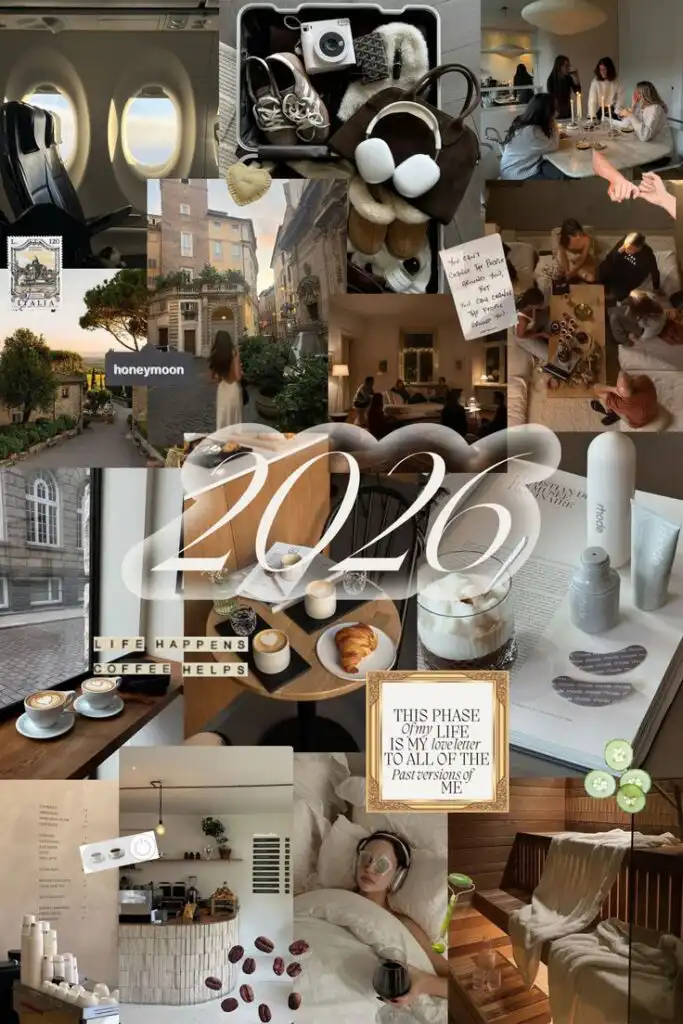
Create a collage that mixes a small January calendar with goal reminders and motivational images.
Place a short goals list — 3 items max — near the calendar so you see priorities every time you unlock your phone.
- Top-left: calendar tile for quick reference.
- Center: one motivational quote or image.
- Bottom-right: two to three goal bullets or habit trackers.
Keep fonts large and simple so the calendar and goals remain readable as a January phone wallpaper.
Use soft color palettes to avoid fighting with app icons.
If you want seasonal flair, add subtle winter elements like frost or neutral textures without overpowering the calendar box.
Where to Find Free January Phone Collage Wallpapers
Find free January collage wallpapers on sites that offer high-resolution downloads, editable collage templates, and clear usage rules.
You’ll learn which sites have strong free selections, how Wallpapers.com handles downloads and credit, and how to edit collage styles with Canva and other online tools.
Best Wallpaper and Aesthetic Resources
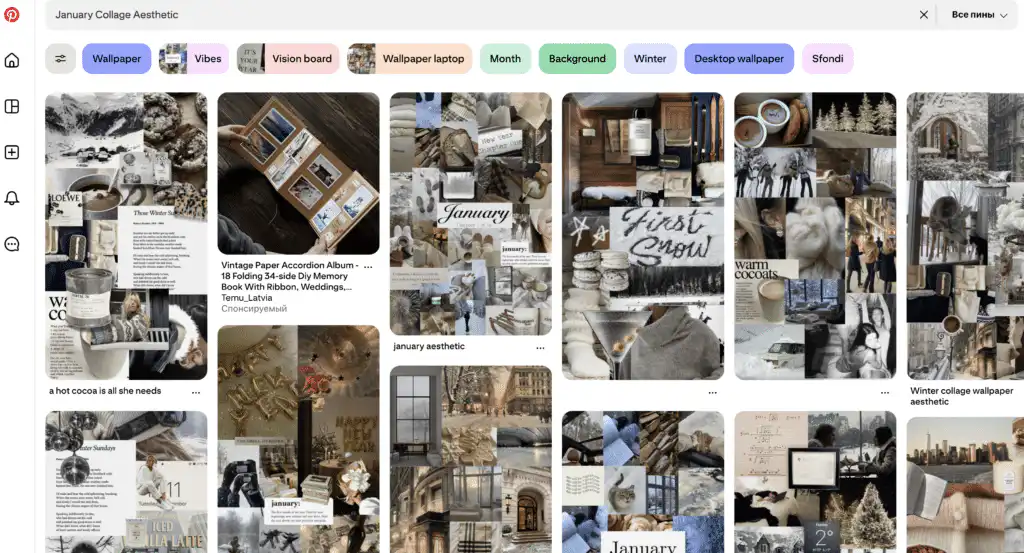
Look first at wallpaper galleries and aesthetic blogs that curate seasonal packs.
Sites like Wallpaper Cave, Zedge, and niche blogs often list January collage sets with snowy, minimalist, or pastel themes.
Search for terms like “January collage wallpaper” or “January aesthetic iPhone wallpaper” to narrow results.
Pay attention to file sizes and aspect ratios.
For iPhone models, look for 1170 x 2532 or 1284 x 2778 pixels for newer phones.
Many free packs include multiple sizes for lock and home screens.
Also, check usage notes: some creators allow personal use only.
If a site says “personal use,” you can download and set the wallpaper, but not reshare it as your own.
Using Wallpapers.com and Attribution
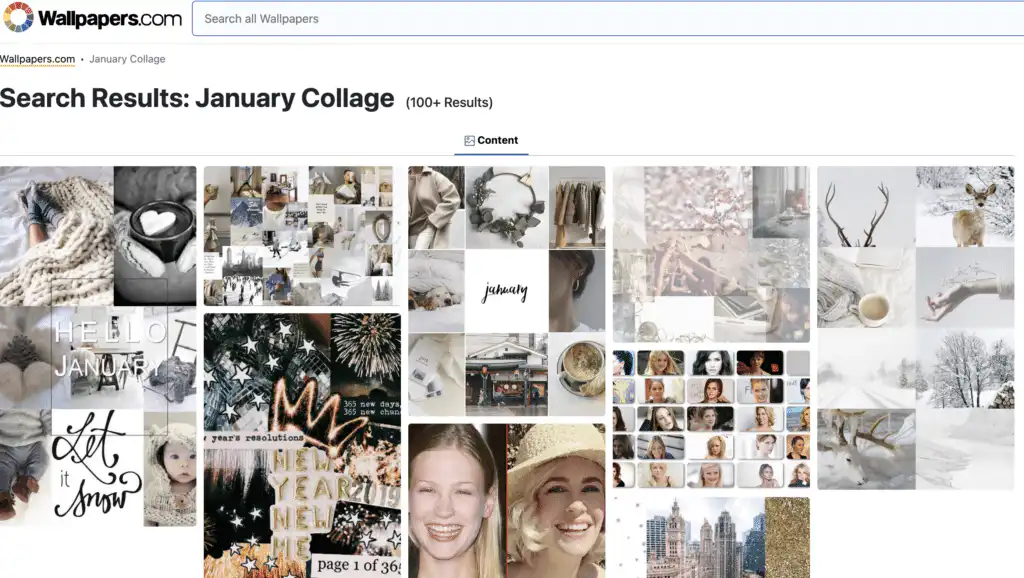
Wallpapers.com offers large free collections and high-resolution downloads you can filter by theme and device.
When you use content from Wallpapers.com, look for the download button and the listed resolution to pick the right size for your model.
Some images come from community uploads or partner creators.
If a page says “this has been designed using content from Wallpapers.com,” that usually means the site sourced or adapted images from that collection.
Keep an eye on any attribution lines.
If a creator asks for credit, include a simple mention (creator name + source) when reposting or sharing on social media.
Customizing With Canva and Online Tools
Canva gives you ready-made collage templates sized for iPhone screens.
Start a custom design by choosing the “iPhone wallpaper” preset or setting a custom canvas size.
Upload free January phone wallpapers or use Canva’s free photo library to mix snow textures, calendar stickers, and typography.
Use layers to place images, crop to 9:16 or specific pixel sizes, and add a translucent overlay so icons stay readable.
Export as PNG or JPG at high quality.
Other editors like Fotor or Pixlr work similarly and let you combine multiple free January phone wallpapers into a single collage for a unique look.
How to Download and Set a January Collage Wallpaper on iPhone
You’ll download a January collage wallpaper file and then set it as either your lock screen or home screen.
The steps below show how to get high-quality images, save them to Photos, and apply them with the correct size and position.
Easy Download Steps
Find a trusted source for January phone wallpapers, like a wallpaper site or a collage maker app.
Tap the image you want, then look for a download or save button.
If the site shows the image full screen, press and hold the image and choose Save Image to add it to your Photos library.
Check the image resolution in the site details when available.
Aim for vertical images near 1170×2532 pixels (or higher) so the collage fits modern iPhones without blur.
If the image comes in multiple sizes, pick the largest.
If you built a collage in an app, export it at a 9:16 aspect ratio before saving.
If the download is a ZIP or an external link, open it or use the app’s export feature first.
Verify the saved image in Photos and crop or edit if any important parts sit behind icons.
Setting as Lock Screen or Home Screen
Open the Photos app, find your January collage wallpaper, and tap the Share icon.
Choose Use as Wallpaper to enter the preview screen.
Pinch to zoom and drag to position the collage how you want it.
Use the Perspective Zoom toggle if you want slight motion on the lock screen, or turn it off for a static look that keeps the collage steady behind widgets and icons.
Tap Set, then choose Set Lock Screen, Set Home Screen, or Set Both.
For the home screen, consider leaving space in the collage where app icons appear.
For lock screens, avoid placing important text or faces under the time display.
Check both screens after setting and adjust by re-editing the image if icons or the clock block key details.
Tips for Creating Your Own January Collage Wallpaper
Pick a clear color mood and photos with similar tones. Choose a layout that leaves space for icons and widgets.
Use simple edits like adjusting brightness or contrast. If you want a date or phrase, add a small text line.
Export at the right size for your iPhone model.
Choosing Images and Layouts



Choose 6–9 photos that share colors or a theme, like icy blues, soft grays, or cozy neutrals. Consistent tones help your collage look clean and match the January vibe.
Mix close-ups and wide shots for some variety, but don’t go overboard. Too much going on can make things feel cluttered.
Try a 9:16 ratio for your layout so it fits most iPhone screens. Grid layouts or a three-panel vertical split usually work best because app icons won’t cover faces or important details.
Leave some empty space near the center and corners for widgets and the clock. It’s frustrating when the clock lands right on top of your favorite photo.
If you’re using Canva or another editor, pick a template labeled “phone wallpaper” or set custom dimensions (like 1170×2532 for recent iPhones). Lock background layers so you don’t accidentally move photos around.
Export a preview and test it on your lock screen before you finalize everything. Sometimes what looks good on your computer just doesn’t work on your phone.
Adding Text and Aesthetic Elements
Keep text short—maybe just one word or a phrase like “new” or “beginning.” Clean sans-serif fonts in medium weight usually stay readable over photos.
Put text where there’s high contrast, like on a plain sky or a blurred edge. Otherwise, it gets lost.
Add subtle overlays and filters to tie your collage together. A semi-transparent white or blue overlay at 10–20% can cool down a warm photo and help everything match that winter palette.
Use small decorative stickers—maybe a snowflake or a bit of film grain. Just don’t let big elements block your icons.
If you want that aesthetic phone wallpaper vibe, try minimalist shapes or a faint border. Save a version with and without text so you can swap between the lock screen and the home screen if you feel like it.
Exporting and Optimizing for iPhone
Set your canvas to the iPhone’s screen resolution to avoid cropping or pixelation. Common sizes: 1170×2532 (iPhone 12/13/14 series), 1284×2778 (Plus/Pro Max).
Check your specific model and export at 72–150 DPI. It’s annoying to see your hard work get blurry because of the wrong size.
Export as a high-quality JPEG or PNG. Use “Save for web” or “High” quality to keep file size manageable and still preserve detail.
If your editor has a quality slider, set it higher to avoid compression artifacts. No one likes a pixelated wallpaper.
Test the image by setting it as your wallpaper. If icons or the clock hide key parts, just reopen the file and shift or resize things.
Keep an editable copy in Canva or your app so you can tweak colors or text later. You never know when you’ll want to change something up.
For private-party or unclear sources, try TinEye or Google Reverse Image Search to find the original creator before using the image.
FAQ
What is an iPhone January collage wallpaper aesthetic?
An iPhone January collage wallpaper aesthetic blends winter visuals, a clean layout, and personal touches to give your phone a calm and fresh January feel, often featuring layered images and seasonal icons
How can I find free January collage wallpapers for my iPhone?
You can find free January collage wallpapers on wallpaper galleries, aesthetic blogs, and sites like Wallpaper Cave and Zedge, which offer high-resolution downloads and seasonal packs.
What are some popular January collage wallpaper styles for iPhone?
Popular styles include winter wonderland themes with snowy landscapes, minimalist modern designs with simple color blocks, and cute cozy motifs with warm textures and playful elements.
How do I set a downloaded collage wallpaper on my iPhone?
To set a wallpaper, open the Photos app, tap the image, choose ‘Use as Wallpaper’, adjust the positioning, and select ‘Set Lock Screen’, ‘Set Home Screen’, or ‘Set Both’ depending on your preference.
What tips can help me create my own January collage wallpaper?
Choose images with similar tones, plan a layout that leaves space for app icons, use simple edits like brightness adjustments, add minimal text or overlays, and export in the correct size for your iPhone model.
- 73shares
- Facebook0
- Pinterest70
- Twitter3
- Reddit0