Vector drawing apps make it easier than ever to create artwork that stays sharp no matter how big or small it appears. From simple logos to complex illustrations, they help your designs look clean, confident, and professional every time. In this ultimate guide, you will learn how these apps work, compare free and paid versions, and discover the top features worth exploring.
Understand vector drawing apps
Vector graphics are made of mathematical paths rather than pixels. This means you can resize your artwork infinitely without losing quality. Unlike raster images, which can become blurry when enlarged, vector drawings stay crisp.
How vectors differ from raster images
- Resolution-independence keeps lines strong at any size
- Shapes, paths, and curves are defined by anchor points, not pixels
- Artwork can be easily converted to a range of formats, such as .ai, .eps, or .svg
- Perfect for logos and icons where sharp edges matter most
According to Penji, vector graphics are especially valuable in marketing and branding because they can be scaled to fit everything from a business card to a billboard without sacrificing clarity.
Choose between free and paid
You will find both free and paid vector drawing apps on the market. The free options can be surprisingly powerful, but they sometimes lack advanced features or polished interfaces.
- Free apps like Inkscape provide robust basic vector editing (and are highly regarded by Zeenesia)
- Paid apps such as Adobe Illustrator or CorelDRAW offer more advanced tools and better file compatibility
Many designers adopt a hybrid approach by starting projects in free software and then moving their work to paid apps for refined editing (Zeenesia).
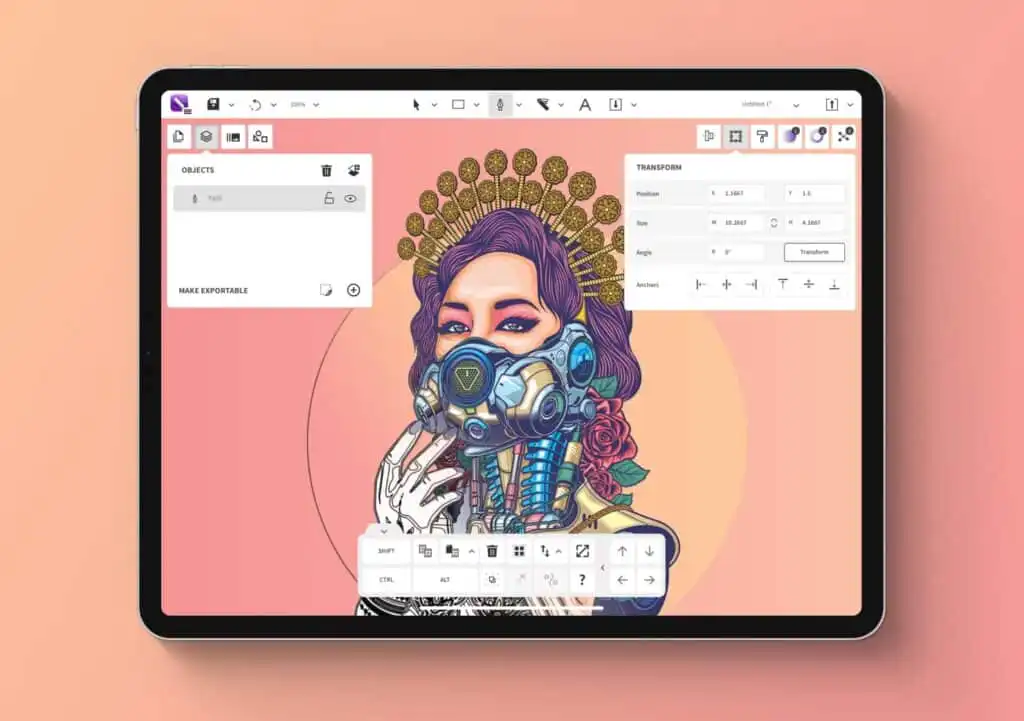
Follow a basic workflow
When you open a vector drawing app, you will typically go through these steps:
Sketch initial shapes
- Use the pen or pencil tool to draw rough lines
- Focus on getting your basic structure in place
Refine anchor points
- Adjust curves and angles for smooth edges
- Control precision by moving points or handles
Add color and layers
- Fill shapes with solid hues, gradients, or patterns
- Organize separate elements on different layers
Save and export
- Choose vector-friendly file formats like .svg or .ai
- Ensure you select the best export settings for print or digital
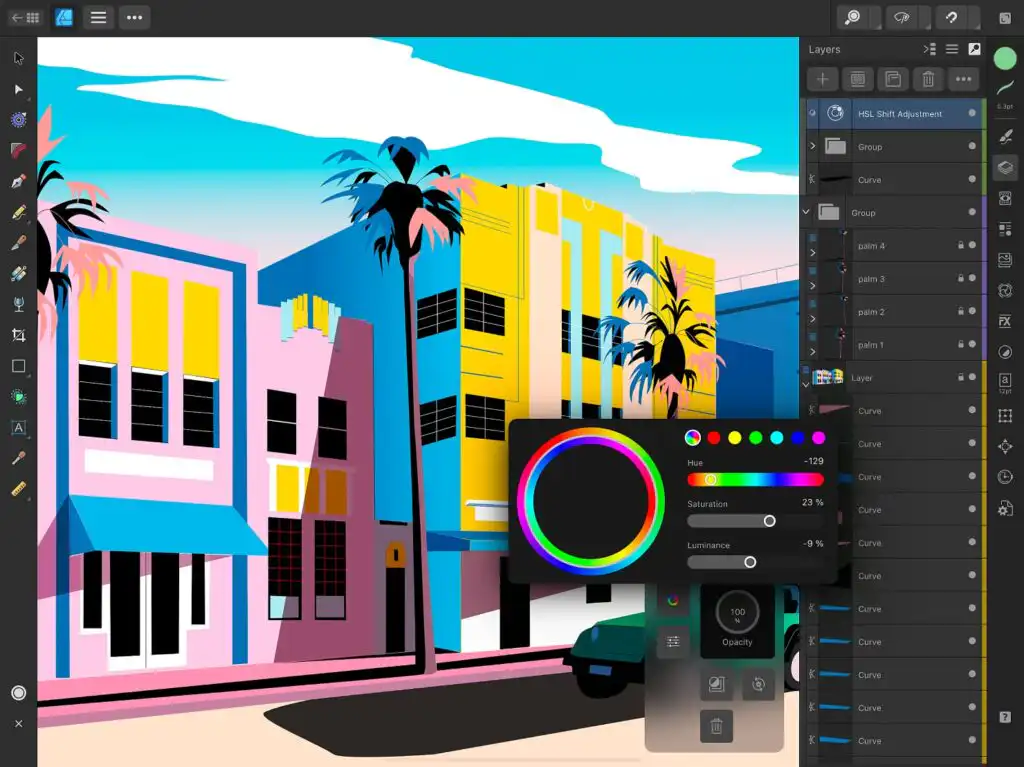
Unlock essential features
Vector drawing apps offer numerous tools to help you fine-tune your work. Some of the most useful features you may encounter include:
Layers for organized design
Layers let you separate background, foreground, and other elements, making it easier to edit specific parts of your design without disturbing the rest.
Anchor points and handles
Anchor points define the shape of each path. By manipulating these points, you can achieve smooth curves or sharp angles. Precision is key in vector artwork.
Advanced brush options
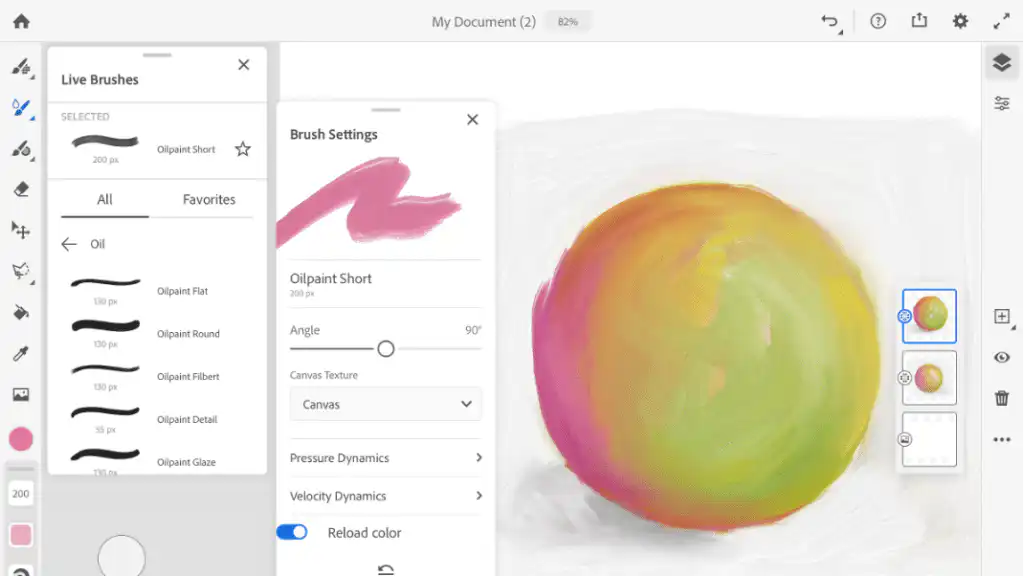
For more natural-looking lines, explore bristle or calligraphy brushes. Some apps, such as Adobe Fresco, blend pixel and vector brushes to give you flexibility (SarahRenaeClark.com).
Check out popular examples
Below is a quick snapshot of leading vector drawing apps worth considering:
- Adobe Illustrator
- Industry-standard for vector graphics in 2025
- Full suite of tools for professional designers
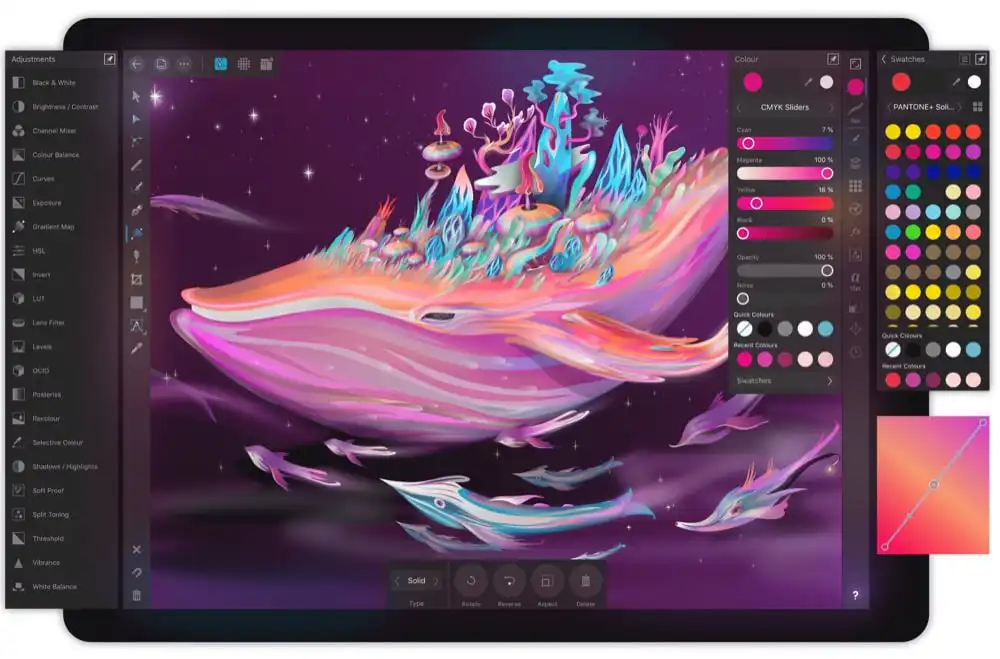
- Affinity Designer
- Cost-effective, supports both vector and raster workflows
- Smooth performance with real-time transformations
- Inkscape
- Top free editor, supports advanced path tools and SVG format
- May experience slowdowns on very large files (Veikk)
- Linearity Curve (formerly Vectornator)
- Free vector-based drawing app for Apple devices
- Ideal for on-the-go designs with Apple Pencil support (SarahRenaeClark.com)
You do not have to stick to just one app. Experiment with demos or free trials to see which interface and features feel most comfortable for your workflow.
| App | Platform | Pricing | Primary Use | Key Strengths |
|---|---|---|---|---|
| Adobe Fresco | iPad, Windows | Free tier + Premium Subscription (~$9.99/mo) | Illustration & drawing | Live and vector brushes, Apple Pencil support, Adobe ecosystem |
| Adobe Illustrator | Windows, macOS, iPad | Subscription (~$24.99/mo) | Professional vector design | Industry standard, precision tools, advanced typography |
| CorelDRAW | Windows, macOS | Subscription (~$34.95/mo) or One-time License (~$799) | Graphic & print design | Strong print tools, flexible layout options |
| Affinity Designer | Windows, macOS, iPad | One-time purchase (~$54.99) | Vector + raster design | Excellent performance, great value for money |
| Inkscape | Windows, macOS, Linux | Free (open-source) | Vector graphics | Open-source, SVG-focused, strong community support |
Address common FAQs
1. Are vector drawing apps suitable for beginners?
Yes. Many vector drawing apps include tutorials and simplified tools to help newcomers learn anchor points, pen tool basics, and layering. Start with a free app like Inkscape for an easy introduction.
2. How do free apps compare to paid software?
Free apps often come with essential features and are perfect for hobbyists or light design work. Paid apps provide advanced editing tools, robust file compatibility, and professional support. Your choice depends on your design needs and budget.
3. Can you convert raster images to vector in these apps?
Most apps let you trace a raster image to produce vector shapes. You will then refine anchor points to capture details accurately, but results vary depending on the complexity of the original image.
4. What file formats should you use for printing?
Save your artwork in scalable formats like .svg, .eps, or .pdf. These preserve the vector data and ensure clear printing at any size.
5. Is it possible to create animations with vector drawing apps?
Some apps include basic animation features. However, if you want more advanced animation, you might need specialized software or export your vector layers to programs dedicated to motion graphics.
By harnessing the power of vector drawing apps, you can give your artwork an edge that stands out across both digital and print media. Whether you opt for a free tool or a premium suite, the key is to practice, refine your technique, and explore new features that spark your creativity.
- 49shares
- Facebook0
- Pinterest49
- Twitter0
- Reddit0