If you’ve been searching for a vector drawing tutorial that can truly elevate your designs, you’re in the right place. Vector graphics are known for their crisp clarity and unlimited scalability, making them a powerful choice for creatives at any level. With the right techniques, you can create artwork that looks sharp on everything—from mobile screens to large-format prints—and take your creative projects to the next level. Whether you want to design a brand logo, develop custom icons, or illustrate detailed artwork, vector drawing puts you in full control of each line and curve.
Below, you’ll find a comprehensive guide to help you understand the basics, master essential tools, and avoid common pitfalls along the way. Let’s get started!


Understand what vector drawing means
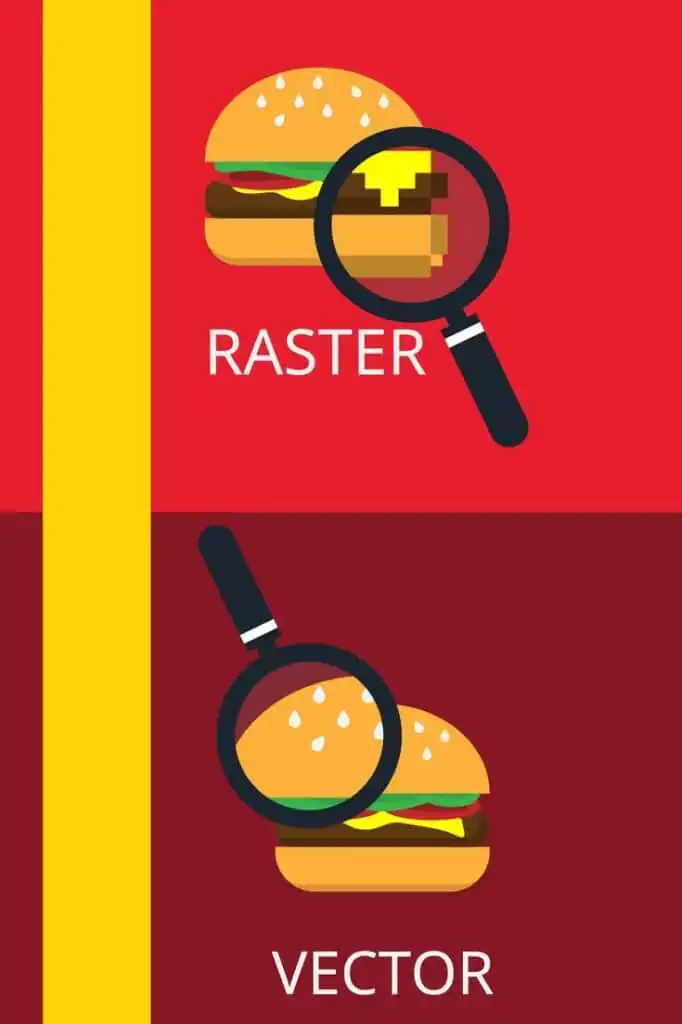
Vector drawing relies on mathematical paths, curves, and anchor points rather than pixels. This means your graphics stay crisp at any size, making them perfect for both digital and print media. Unlike raster images that can blur or pixelate when enlarged, vector files never lose clarity.
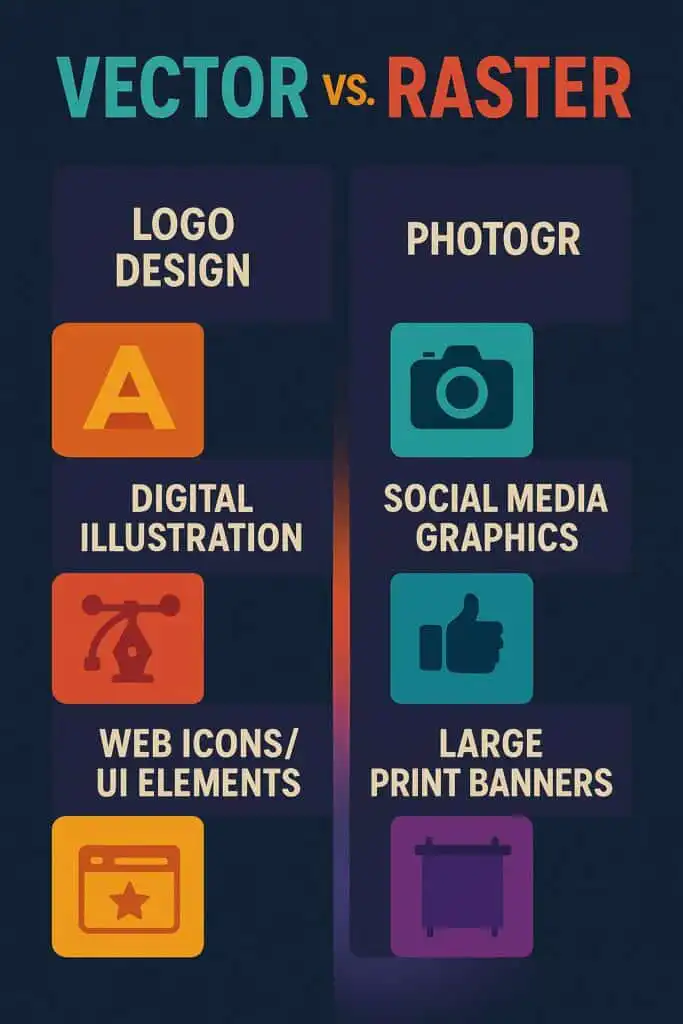
Vector vs. raster in simple terms
- Vector images: Composed of paths and points
- Raster images: Made up of pixels
- Scalability: Infinite for vector graphics without losing quality
- Typical uses: Logos, icons, illustrations, print collateral
For a deeper insight into how vectors remain sharp in different sizes, take a look at Penji’s summary of vector drawing (Penji).
Why it matters for design
When you’re working on branding or illustrations that might appear in multiple sizes and formats, smooth and clean lines are essential. Vectors make sure colors, edges, and shapes remain perfect, whether your work is on a small business card or a giant billboard.
Set up your workspace and tools
Choosing the right software is the first step. Popular options include Adobe Illustrator, CorelDRAW, and the free alternative Inkscape. Each offers the ability to create and edit vector paths, ensuring a professional look for your designs.
Essential tools to master
- Pen tool: Draw precise lines and curves
- Anchor point tool: Refine the curve or angle of your path
- Fill and stroke: Add colors and outlines to your shapes
- Layers: Organize your artwork for easy editing
If you’re curious about Illustrator’s full range of capabilities, check out Adobe’s official guide (Adobe HelpX). You’ll learn more about tools like the Pencil tool [N] and the Blob Brush tool [Shift+B], perfect for freehand sketching in vector form.

Create your first vector design
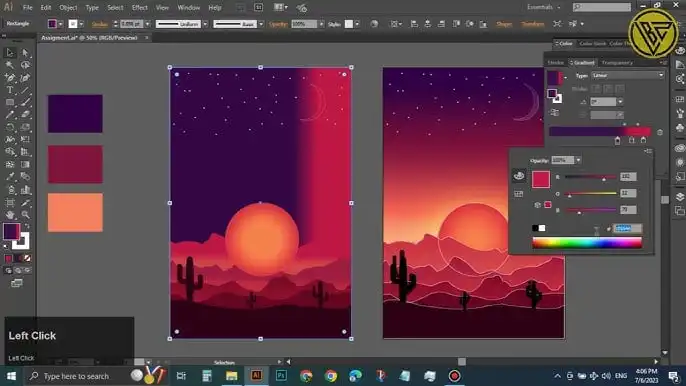
There’s nothing like hands-on practice. Start with a simple shape, such as a circle, and experiment with anchor points to see how they influence your drawing. Slowly build up to more complex designs as you grow confident.
- Begin with a rough sketch.
- Use the Pen tool to trace your outlines.
- Adjust anchor points and handles for smoother curves.
- Apply fill colors or gradients to add depth.
- Label layers clearly so you can stay organized.
Even if you’re brand new to vector work, a structured course can guide you with step-by-step lessons. Domestika has a beginner-friendly course led by Aarón Martínez (Domestika) for building strong fundamentals in Illustrator.
Avoid common mistakes
Vector drawing can be rewarding, but a few missteps can set you back. Here are some frequent problems and how to address them:
- Overusing anchor points: Too many points can make your shapes bumpy and hard to edit (A1Digitizing). Aim for the minimal number needed to achieve smooth lines.
- Neglecting layers and groups: Proper organization keeps your design workflow seamless.
- Mixing up color modes: Use RGB for on-screen graphics and CMYK for print (DigitEMB).
- Forgetting to convert text to outlines: When sharing files, expand your text so fonts don’t change on another computer.
- Skipping bleed for prints: Add about 3 mm of bleed to ensure your design extends well beyond the trim line.
Elevate your skills with advanced tools
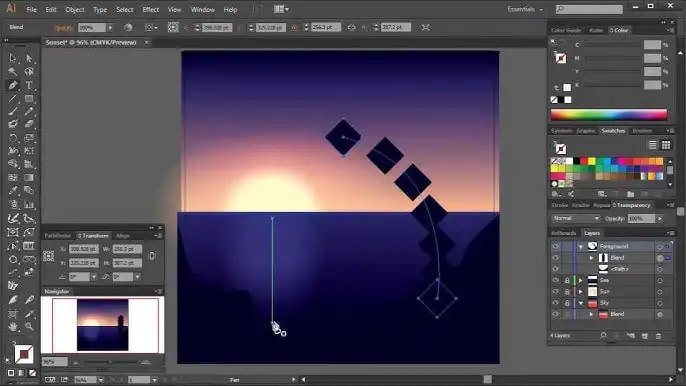
Once you’ve nailed the basics, take your vector drawing to the next level with more specialized features in Illustrator:
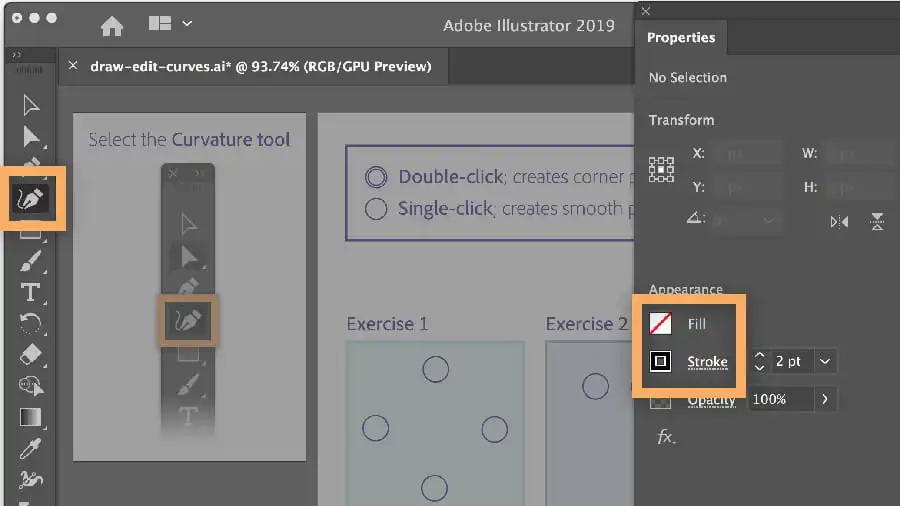
- Curvature tool [Shift+~]: Lets you create smooth, continuous curves without switching between pen and anchor point tools.
- Shaper tool [Shift+N]: Converts rough sketches into crisp shapes automatically, speeding up your workflow.
- Perspective Grid tool [Shift+P]: Lays down a perspective-based template so your artwork gains visual depth.
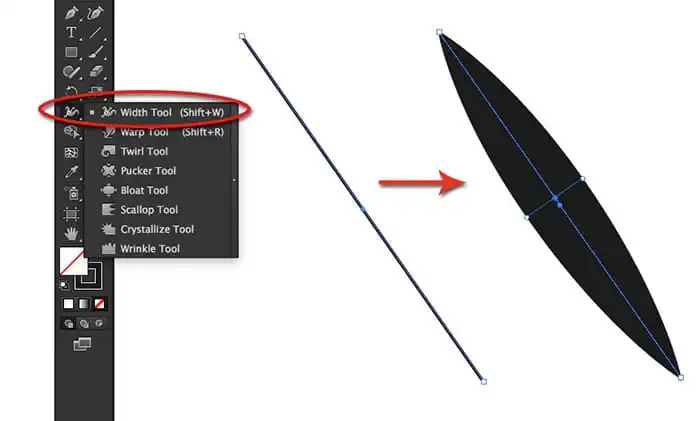
- Width tool [Shift+W]: Modifies stroke thickness for custom line styles.
Exploring these advanced functions can significantly refine your artwork and boost your confidence as a designer. Adobe’s documentation offers details on how to use each tool effectively (Adobe HelpX).
Continue learning with expert-led courses
If you want a structured path to hone your craft, an online course might be your best bet. Aarón Martínez’s “Vector Illustration for Beginners” on Domestika (Domestika) covers everything from the Illustrator interface to creating complex designs. You’ll learn at your own pace and immediately apply your new skills in real-world projects.
FAQs about vector drawing
What software do I need for vector drawing?
You can use Adobe Illustrator, CorelDRAW, or Inkscape. Each offers robust tools for drawing paths, managing layers, and working with anchor points.How do I keep my artwork organized?
Use descriptive layer names and group related elements. This approach makes large projects easier to navigate and edit.Why is scaling so important in vector graphics?
Vectors scale without losing quality, so your art stays sharp no matter how big or small it becomes. This is crucial for branding elements that appear across different media.Should I always convert text to outlines?
Yes. Converting text to outlines prevents font substitution issues. It’s especially important when sending files to print shops or colleagues who may not have the same typefaces installed.How do I prevent dull colors in print?
Check your color mode. Use CMYK for printing and add bleed areas to avoid unwanted white edges after trimming. If it’s for digital use only, stick to RGB.
Feel free to explore these tips and gradually enhance your vector drawing skills. By taking it one step at a time and focusing on precision, you’ll soon notice a huge improvement in your work. And remember, practice is key—so open up your favorite vector software and start drawing today!
- 15shares
- Facebook0
- Pinterest15
- Twitter0
- Reddit0