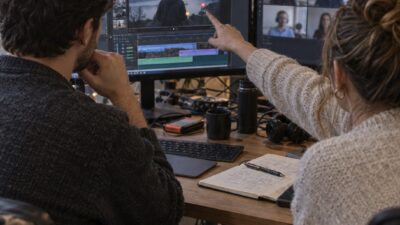
I was three hours into a Revit render when the client called.
“Can we see it in walnut instead of oak?”
Cool. Restart the render. Wait again. Pretend this is a normal way to work.
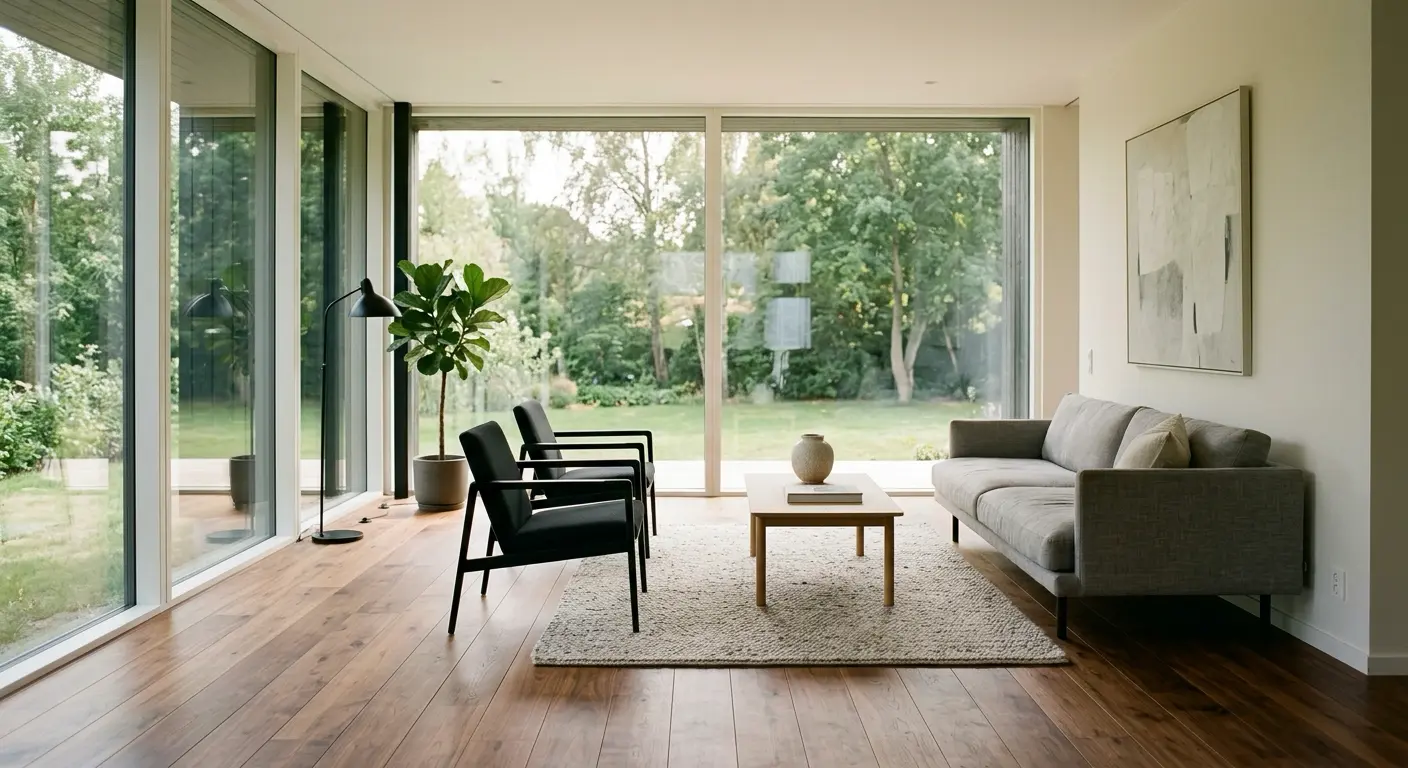
That was the moment I understood why so many studios are trying to get away from traditional rendering bottlenecks. Not because Revit is useless. It is not. But because small visual changes should not eat half your afternoon.
- What Nano Banana Pro API Actually Is (And Isn't)
- The Real Cost Breakdown (And Why It Matters)
- Prompting for Architectural Precision (Real Examples)
- Integration Workflows (From Sketch to Production)
- Getting Your API Key & First Integration
- ROI: When to Use Nano Banana Pro API (And When Not To)
- Conclusion
- FAQ
- Q: Is Nano Banana Pro API the same as the free Google AI Studio version?
- Q: How many reference images should I upload for material consistency?
- Q: Can I use Nano Banana Pro renders for final construction documents?
- Q: What's the cheapest way to generate 500 4K renders per month?
- Q: How do I maintain material and style consistency across multiple client projects?
- Q: Can Nano Banana Pro generate floor plans and architectural sections?
- Q: What happens if an API call fails mid-render?
- Q: Is Nano Banana Pro replacing Midjourney and DALL-E 3 for architects?
Nano Banana Pro API solves that exact problem, but only if you treat it like an engineering tool, not a magic button. You still need a proper workflow. You still need clean prompts, controlled inputs, and a way to test outputs without turning your studio into a guessing game.
This guide is for people who are actually thinking about using Nano Banana Pro API in a real design or architecture workflow. Not the hype version. Not another “five cool AI use cases” post.
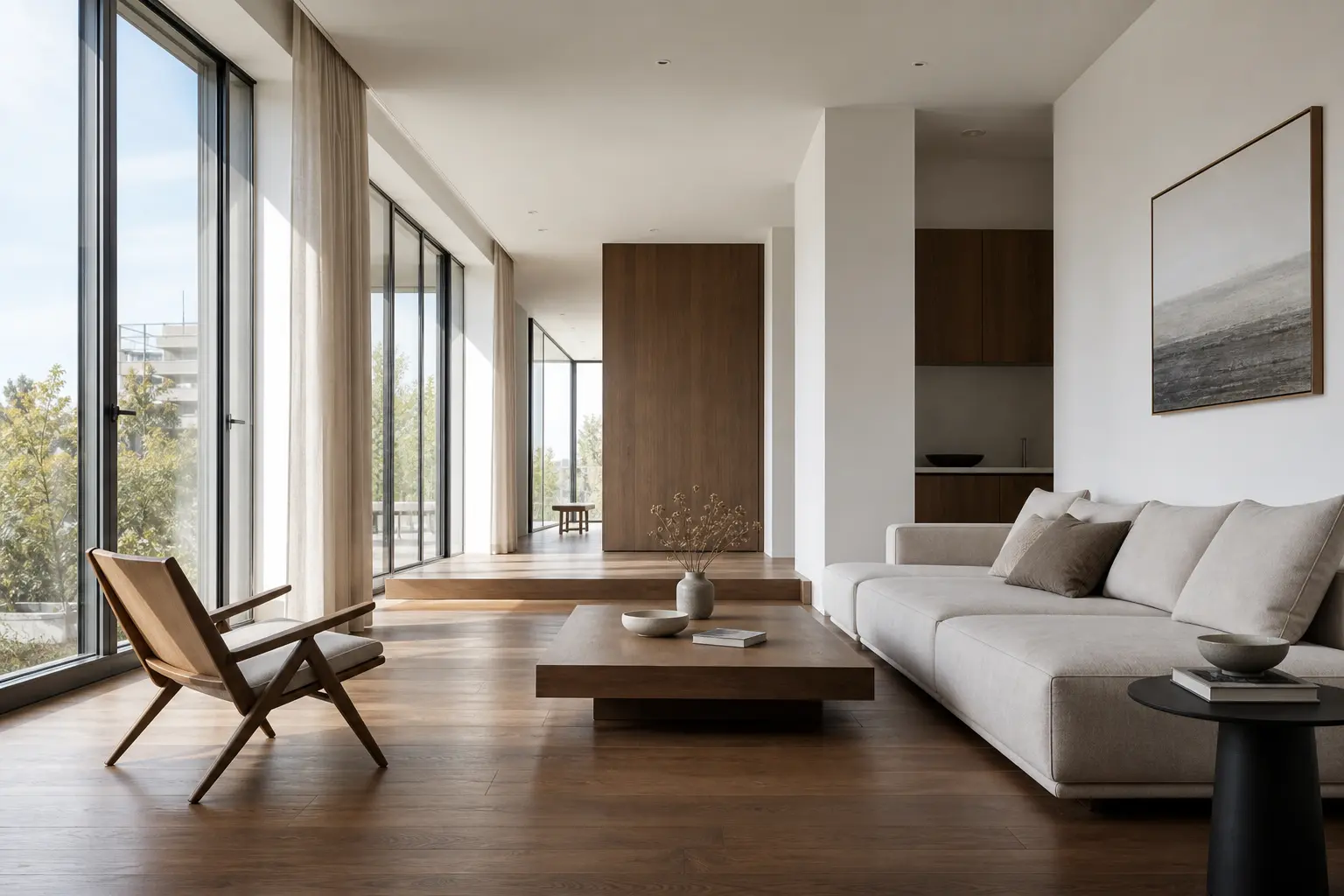
I will cover the pricing routes that are easy to miss, the prompt structure that gives more consistent results, and where the API fits compared with Revit, V-Ray, Enscape, or whatever you already use.
You will see how to move from a sketch to a photorealistic 4K render in under two minutes. How to test material swaps without opening your 3D software. And why the most expensive option is not always the smartest place to spend your budget.
By the end, you should have a clear answer: integrate Nano Banana Pro API into your studio now, or wait until the workflow is more mature.
What Nano Banana Pro API Actually Is (And Isn’t)
The Three Versions (Web vs. API vs. Studio)
Let’s start with the confusion nobody talks about. There are three different ways to use Nano Banana Pro. They look similar. They produce the same quality output. But they’re completely different tools depending on what you’re trying to do.
Google AI Studio (Web version):
This is the free/subscription model. You go to ai.google.dev, sign up, and start generating images. 50 free requests per day if you’re on the free tier. Pay $19.99/month for Google AI Pro and you get roughly 100 images per day. The watermark appears on free-tier images—not ideal for client presentations.
Why it matters: This is great for exploring. Testing prompts. Learning how the model responds to architectural language. But it’s not production-ready for a studio generating dozens of renders per project.
The API version:
This is what I’m covering in this article. Per-image pricing, no watermark, no daily quota limits (only rate limits). Requires you to write code or use a third-party wrapper. No subscription. You pay for exactly what you generate.
Why it matters: Scalability. Automation. Integration into your existing pipeline—whether that’s SketchUp exports or batch processing overnight. Once you understand the official pricing, you can choose whether the Nano Banana Pro API works for your studio’s volume or if you should look at alternative pricing routes.
Vertex AI (Enterprise version):
Google’s infrastructure for teams running at scale. Provisioned throughput, dedicated support, compliance controls. Not necessary unless you’re generating 10,000+ images per month or need enterprise SLAs.
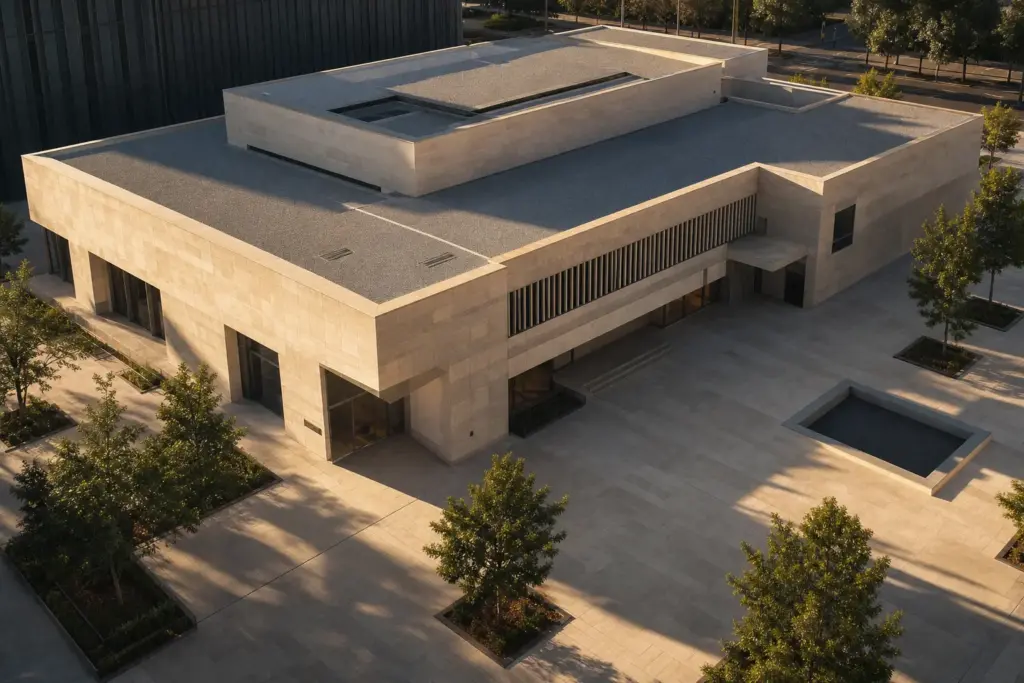
The difference sounds simple but it changes everything about how you think about cost and workflow.
How It Differs from Midjourney & DALL-E 3
I tested Nano Banana Pro against Midjourney and DALL-E 3 on the same architectural prompt. Same materials. Same lighting direction. Same camera angle. Here’s what actually happened.
Nano Banana Pro = the engineer.
It understands spatial logic. If you describe a building with 3:2 floor-to-ceiling proportions and a flat roof, it respects those constraints. The shadows fall correctly. Windows scale proportionally. Materials behave like they actually exist in physics. Text rendering is crisp—you can add signage, interior labels, whatever you need. It’s technical. It’s precise. But it won’t add artistic flair you didn’t ask for.
Midjourney = the dreamer.
Golden hour lighting even when you didn’t request it. Moody atmospheres. Cinematic composition. It interprets your prompt with artistic freedom. That’s beautiful for mood boards and concept exploration. But if you need exact material consistency across five angles of the same building? Midjourney will drift on you. The marble in shot one looks slightly different in shot two. The window proportions shift.
DALL-E 3 = the communicator.
Easy to use. Genuinely good instruction-following. But it often lacks that final layer of realism. Shadows look painted instead of photographed. Materials feel slightly flat. For architecture specifically, it struggles with complex spatial reasoning.
For architects: Nano Banana Pro wins for production work. Midjourney wins for early concept mood exploration. DALL-E 3 is reliable for simple presentations if you just need something fast.
The “Human in the Loop” Reality Check
Here’s the honest part that the marketing skips: the API doesn’t just generate from a sketch on the first try. It requires iteration and human guidance.
I uploaded a SketchUp floor plan and wrote a detailed prompt. The first render came back with a beautiful interior but the furniture scale was off—a sofa that should be 8 feet looked like 12. Second attempt: lighting was perfect but the wood finish drifted to a glossy varnish instead of the matte walnut I specified. By the fifth iteration, I had something I could actually show to a client without apology.
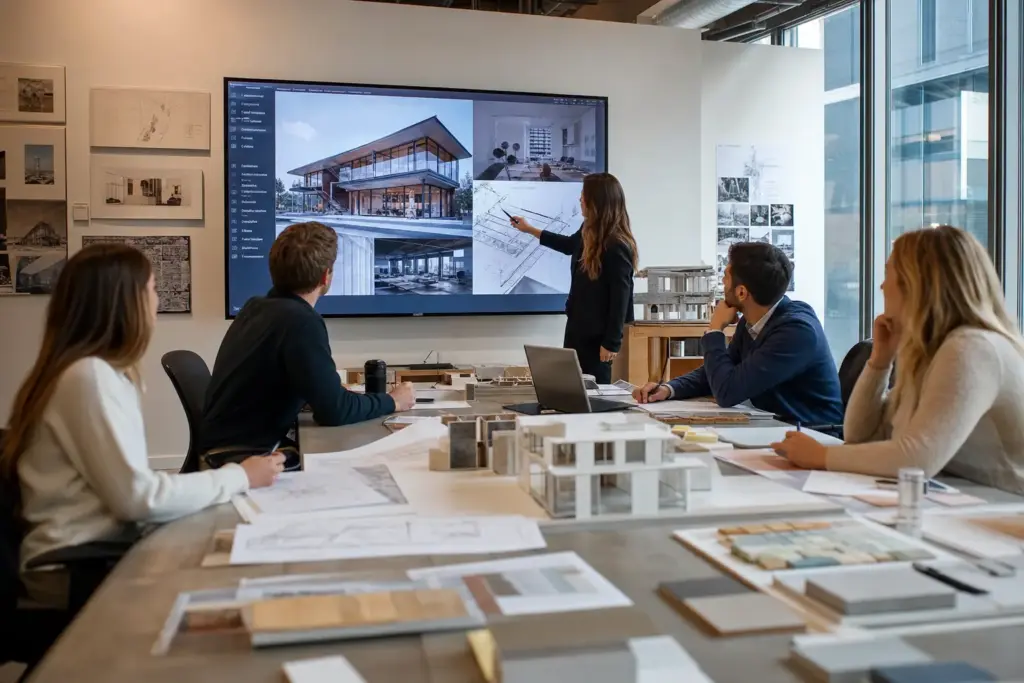
That’s not a flaw. That’s the actual workflow. You guide it. It responds. You refine. That back-and-forth is where the quality comes from.
Some people expect the API to understand a sketch perfectly on the first try. It doesn’t. And if you go in expecting magic, you’ll frustrate yourself. But if you treat it like a collaborative tool—where you’re the designer providing technical instructions and the API is executing them—suddenly it becomes incredibly fast.
The best prompts are specific and technical, not poetic. Walnut parquet flooring with matte finish, subtle grain visible under soft north-facing morning light, 50mm lens perspective from 2 meters out” beats “beautiful natural wood floors” every single time. The API is trained on technical architectural language. Use it.
The difference between a vague prompt and a technical one is usually three iterations versus one. At $0.134 per image on the standard API, that adds up.
The Real Cost Breakdown (And Why It Matters)
The pricing question kills more projects than technical ones do. Developers see $0.24 per 4K image and do the math wrong. They think “200 renders per month = $48.” Then they hit it with real workflow scale and suddenly the number looks like a feature budget.
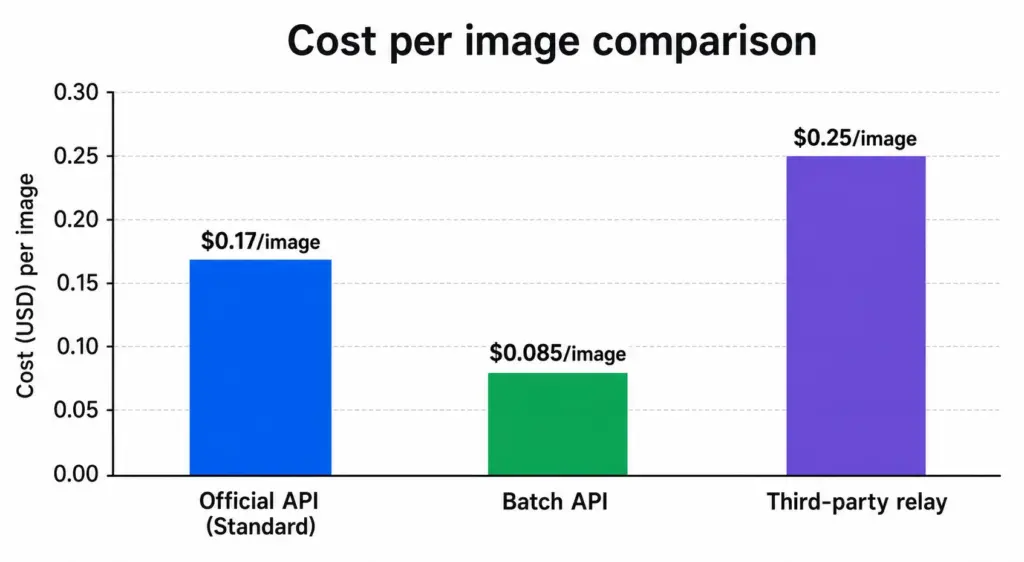
Here’s what actually matters.
Official API Pricing (Per-Image Model)
Google charges by token consumption, but it translates to simple per-image rates:
Standard pricing (real-time, immediate delivery): 1K/2K resolution: $0.134 per image. 4K resolution: $0.24 per image.
Batch API pricing (asynchronous, 24–48 hour turnaround): 1K/2K resolution: $0.067 per image (50% discount). 4K resolution: $0.12 per image (50% discount).
The difference between standard and Batch is delivery speed, not quality. Standard requests process instantly. Batch requests queue overnight. Same final image. Half the cost.
Do the math for a real workflow: 50 renders per week of 4K quality.
Standard API: 50 × $0.24 = $12/week, or roughly $48/month
Batch API: 50 × $0.12 = $6/week, or roughly $24/month
For a studio doing 500 renders per month (roughly 12 per day), the difference is $240/month versus $120/month. That’s not trivial.
When to use standard: Client calls Friday afternoon asking for three material variations by Monday morning. You need real-time turnaround. Pay the premium.
When to use Batch: You’re queuing design concepts for Monday’s internal review. The work wasn’t needed yesterday. Queue it tonight, retrieve rendered assets tomorrow. Save 50%.
Third-Party Relay Services (The Cost Trap & Opportunity)
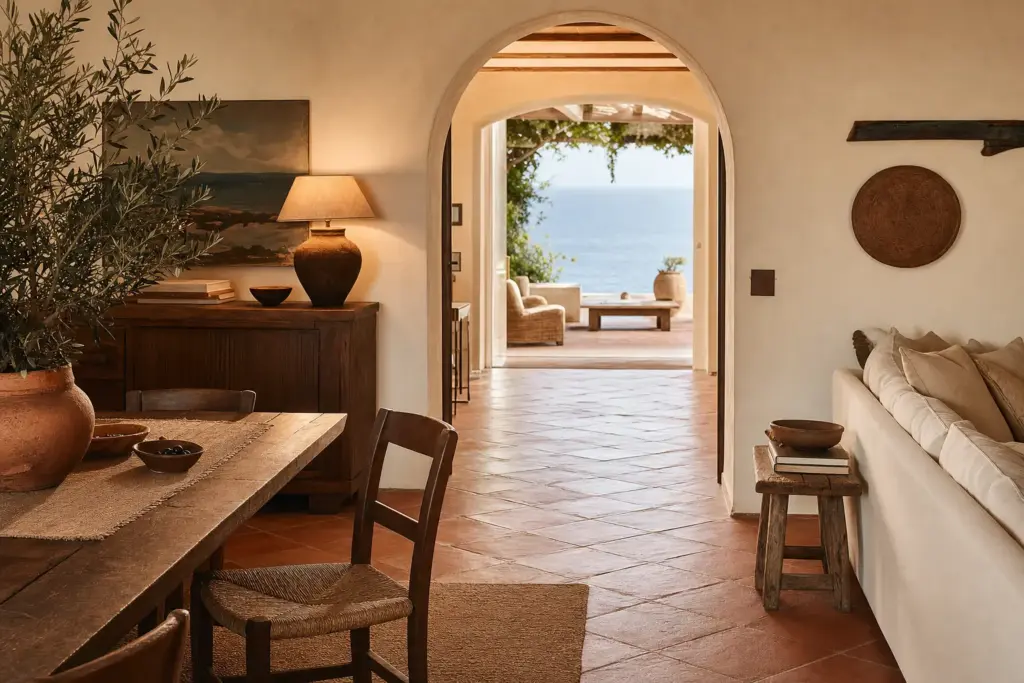
This is where most people get confused—and where serious cost savings happen.
Third-party platforms like APIYI, Replicate, and Fal.ai act as intermediaries. They resell access to the same Nano Banana Pro model at lower rates:
Third-party relay pricing: Standard 1K/2K: $0.05–$0.09 per image. Standard 4K: $0.05–$0.15 per image (Prices vary by provider and region).
Same model. Same quality output. Significantly cheaper.
Trade-offs: Slightly higher latency (a few extra seconds per request), no direct Google support, aggregated rate limits (you share bandwidth with other users on that relay), and variable reliability depending on the provider.
At what volume does this make sense?
500 4K renders/month: Official API: $120 (Batch). Relay service: $25–$50 (depending on provider). Savings: $70–$95/month
2,000 4K renders/month: Official API: $480 (Batch). Relay service: $100–$200. Savings: $280–$380/month
The key question becomes whether you’re at a volume where direct API makes sense, or if a relay service delivers the same quality at a fraction of the cost. For most studios, Nano Banana Pro API through a relay is the smarter route until you hit 1,000+ images/month.
The catch: not all relay services are equally reliable. Some have gone down during peak hours. Do a test run with 50 images before committing your entire workflow to one.
The Subscription Trap
Google offers subscription tiers: $19.99/month gets you roughly 100 images per day (3,000/month). $99.99/month gets you roughly 1,000 images per day (30,000/month).
Here’s why most studios should skip subscriptions:
At $19.99/month for 3,000 images, your cost per image is $0.0067. Sounds incredible. But here’s the reality: if you only use 1,000 images that month, you wasted quota. Those unused 2,000 images disappear. You don’t bank them. You don’t carry them forward.
If you generate fewer than 50 images per month, subscriptions work. If you generate more than 200 per month, Batch API is cheaper. Subscriptions only make sense for steady, predictable volume—and even then, only if you use 100% of your quota every single month.
For most studios, the workflow is lumpy. Some projects require 100 renders. Some months you’re between projects. Subscriptions punish that variability.
Use Google AI Studio’s free 50 images per day for testing and exploration. Scale to Batch for production. That’s the sweet spot.
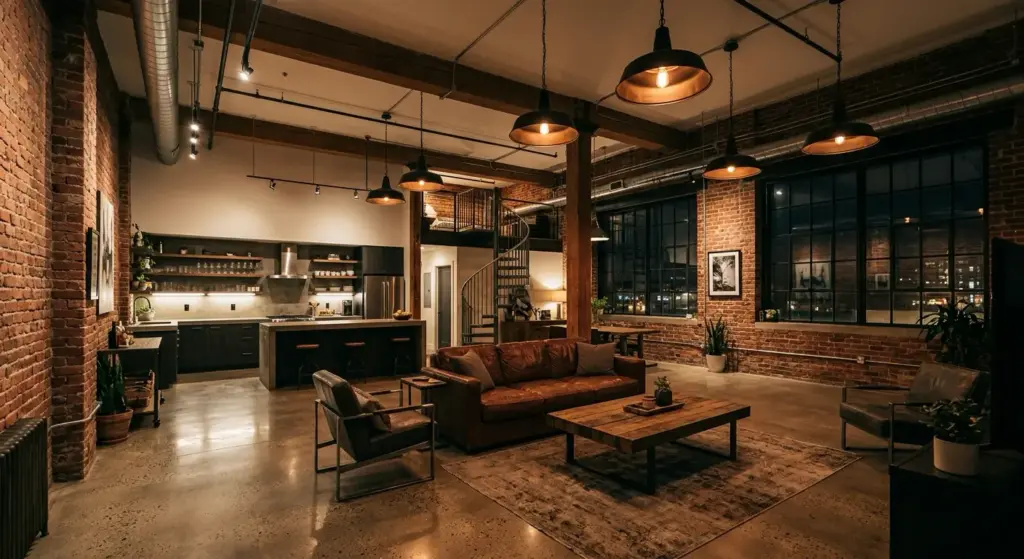
Prompting for Architectural Precision (Real Examples)
The gap between a mediocre render and a production-ready one isn’t the model. It’s the prompt. I’ve seen architects waste hours iterating when 30 seconds spent structuring a better prompt would’ve solved it on the first try.
This section is where the technical precision actually pays off.
The Anatomy of a Working Architectural Prompt
Nano Banana Pro is trained on technical language. Feed it poetry and it guesses. Feed it specifications and it executes.
A working architectural prompt has this structure:
Start with subject: “Modern minimalist living room interior, Scandinavian design”
Add materials explicitly: “Walnut parquet flooring with matte finish, subtle grain visible, light linen upholstery on mid-century lounge chair, white plaster walls”
Specify lighting direction & time of day: “Soft north-facing natural light, overcast morning, no direct sun, subtle cool shadows”
Include camera angle in three dimensions: “Shot from eye-level 2 meters from left wall, 50mm lens equivalent, architectural photography style”
Add context: “Large tranquil space, minimal furnishings, potted monstera plant near window, wooden side table”
Put it together: Modern minimalist living room interior, Scandinavian design. Walnut parquet flooring with matte finish, subtle grain visible. Light linen upholstery on mid-century lounge chair, white plaster walls. Soft north-facing natural light, overcast morning, no direct sun, subtle cool shadows. Shot from eye-level 2 meters from left wall, 50mm lens equivalent, architectural photography style. Large tranquil space, minimal furnishings, potted monstera plant near window, wooden side table.
That’s technical. That’s specific. That’s what works.
Compare it to: “Beautiful Scandinavian living room with nice natural lighting.” The first prompt produces consistent, controllable results. The second produces a guess.
Reference Images for Consistency (The Game-Changer)
Reference images are fine for one-off experiments. But the moment you need to show a client four angles of the same building, or six material options in the same room, a single prompt starts to fall apart.
That’s where references matter.
You can upload 2–8 reference images with the prompt, and the API treats them more like a source file than a mood board. The references help lock in the things you don’t want the model guessing: the material finish, the architectural style, the lighting, and even the color grade.
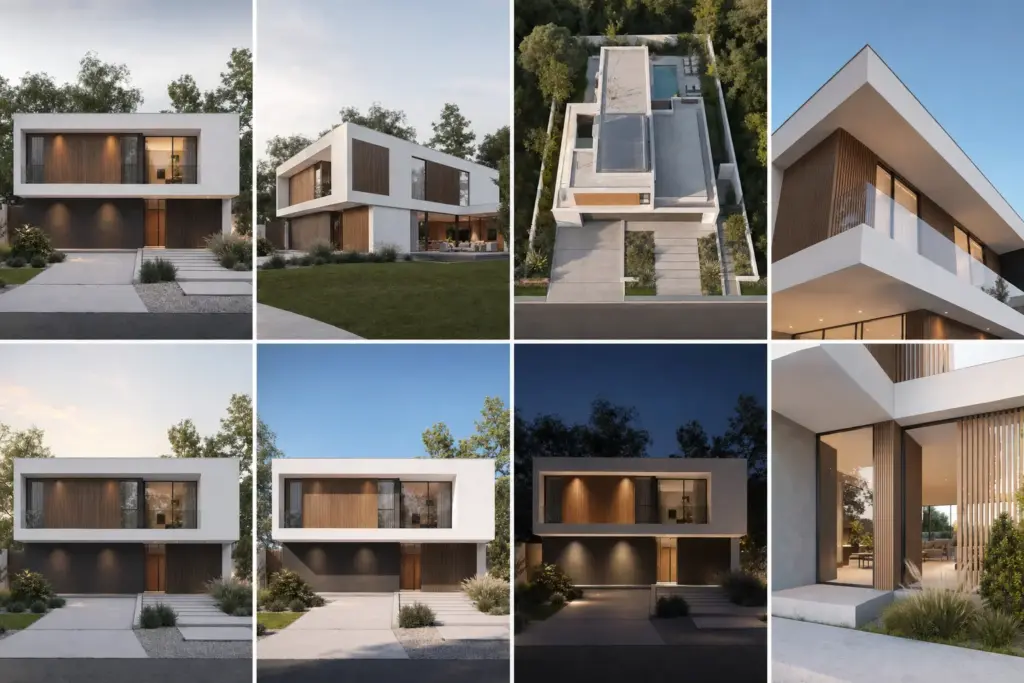
For example, I had to show a client the same interior with four flooring options: oak, walnut, tile, and polished concrete. I used one base render as the main reference, then added a material swatch for each version.
The result was much more controlled. Same room. Same lighting. Same camera feel. Only the floor changed, which is exactly what you want when the client is comparing options instead of reacting to random changes in the render.
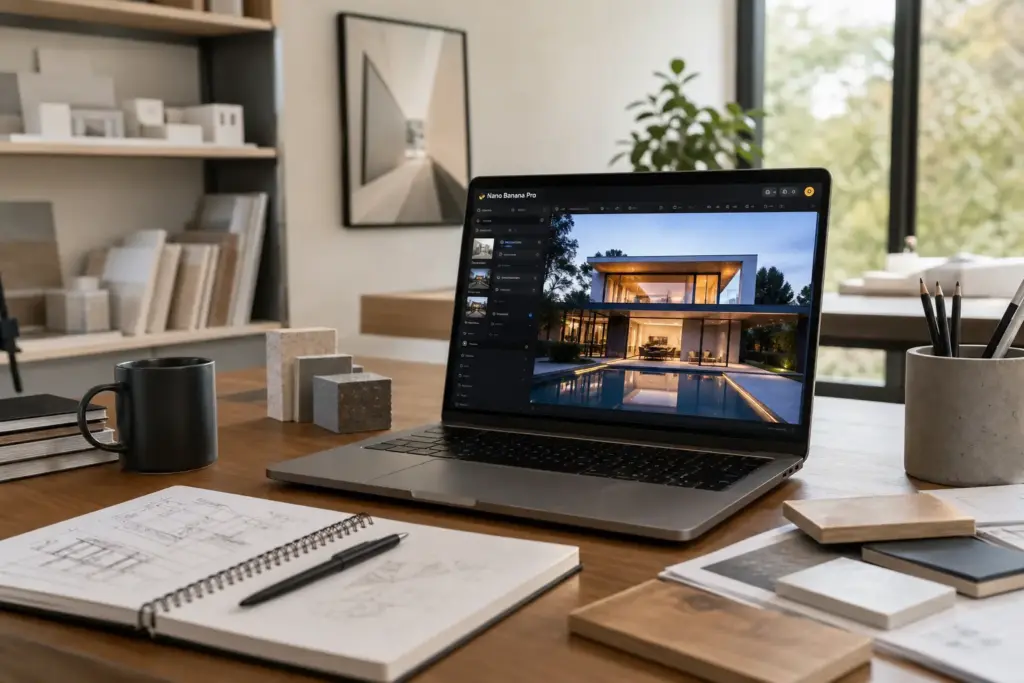
Reference 1: Original interior render. Reference 2 (oak variant): Close-up of light oak boards at correct scale. Reference 3 (walnut): Matte walnut sample. Reference 4 (tile): Hexagonal ceramic tile in warm gray. Reference 5 (concrete): Polished concrete detail with subtle aggregate.
Four API calls. Four variations from the same room. Material consistency perfect. Client loved seeing the options without waiting for re-renders in Revit.
The key: quality of reference images matters more than quantity. One perfect material swatch beats five mediocre inspiration photos.
Prompts That Fail (And Why)
I’ve tested thousands of prompts. Some patterns consistently fail:
“A beautiful modern house” — Too vague. Every generation drifts. You get five different buildings, none matching the previous one.
“Make it look like Midjourney” — Style confusion. Nano Banana Pro has a different training dataset. You’re asking it to imitate a competitor’s aesthetic, and it gets confused.
“Add more realistic” — Ambiguous. Realistic in which way? Lighting? Materials? Resolution? The API generates hallucination trying to guess your intent.
“Professional architectural render” — Meaningless. All renders from this API are professional-grade. This tells it nothing.
What works instead: Specific materials with finishes (walnut, matte, subtle grain). Lighting physics (north-facing, soft diffused, 10 AM shadows). Camera specifications (50mm equivalent, eye-level, 2-meter distance). Real contexts (potted plants, books on shelf, morning coffee cup).
Specificity beats brevity. Technical beats artistic. Every time.
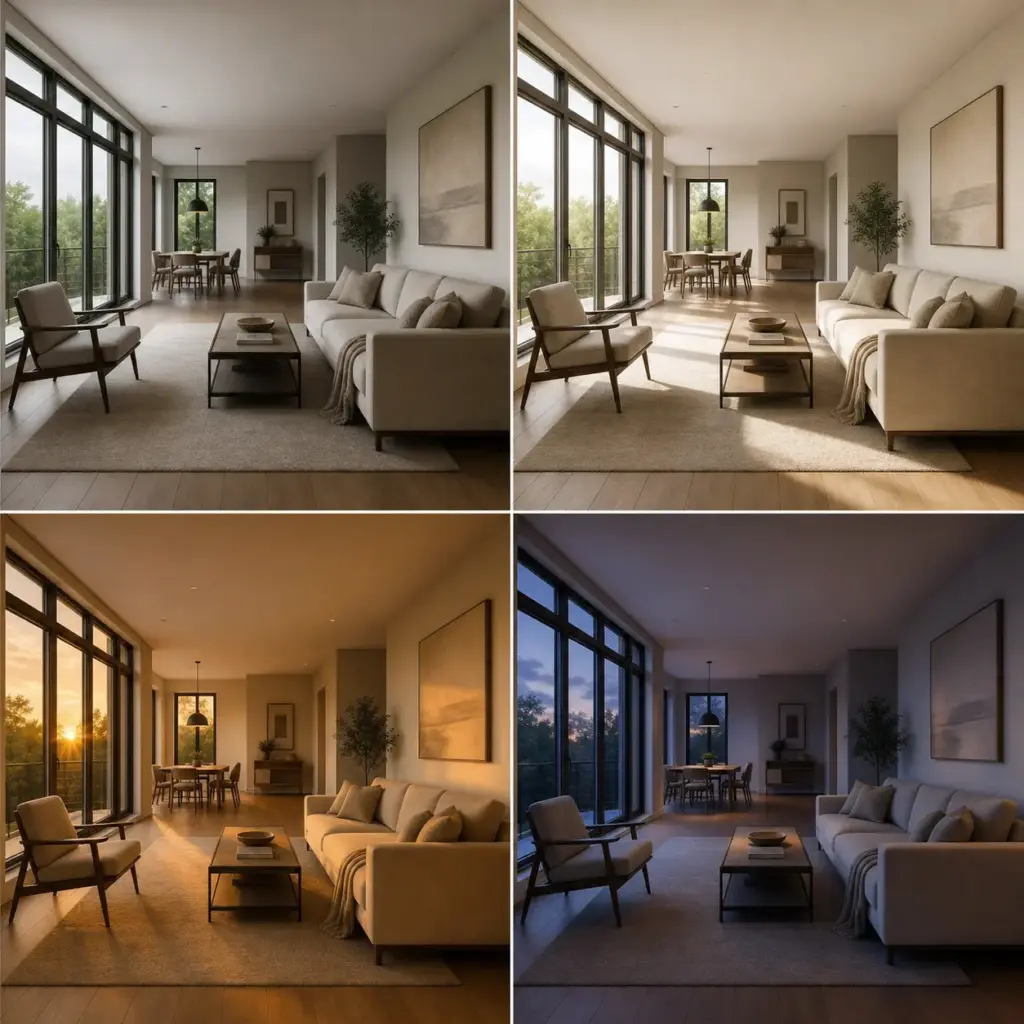
The lesson: if a prompt failed, the problem isn’t the model. The prompt wasn’t specific enough. Add another material detail, lock down the camera angle, specify the light direction differently. Usually solves it on the next try.
Integration Workflows (From Sketch to Production)
Knowing how to prompt is one thing. Actually integrating it into your studio’s existing pipeline is another. This is where Nano Banana Pro API stops being a toy and starts being a tool you rely on.
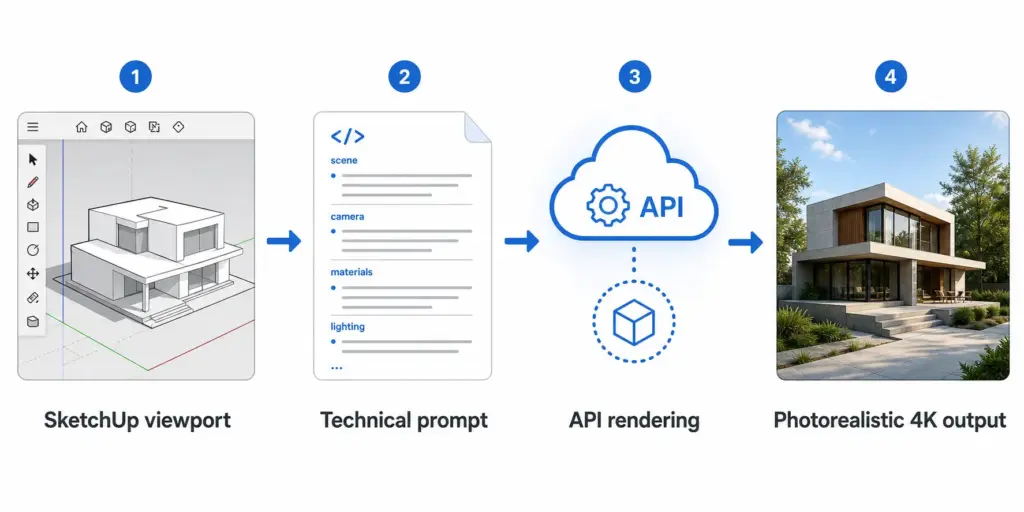
The SketchUp → API → Render Workflow
Most architects start in SketchUp. It’s fast, spatial reasoning is built-in, and your clients understand it. The Nano Banana Pro API integration starts there.
Here’s the workflow:
1. Export from SketchUp: Export your model viewport as an image (PNG, highest quality). Don’t use perspective mode with extreme distortion. Orthographic or mild perspective works best. The API needs to understand the spatial logic without fighting warped geometry.
2. Prepare the prompt: Using the technical structure from Section 3, write a detailed prompt that describes what should happen to this sketch. “Transform this architectural sketch into a photorealistic render with walnut flooring, soft morning light, and minimalist furnishings.”
3. Call the API: Send the SketchUp image as a reference alongside your prompt. The API “understands” the spatial logic and scales it to photorealism.
4. Retrieve the render: Get back a 4K image that respects the original proportions but looks photographic.
Real timing: SketchUp export (1 minute) + prompt writing (2 minutes) + API call (10–15 seconds) + download (5 seconds) = roughly 4 minutes total. Compare that to a 3-hour Revit render with manual post-processing in Photoshop.
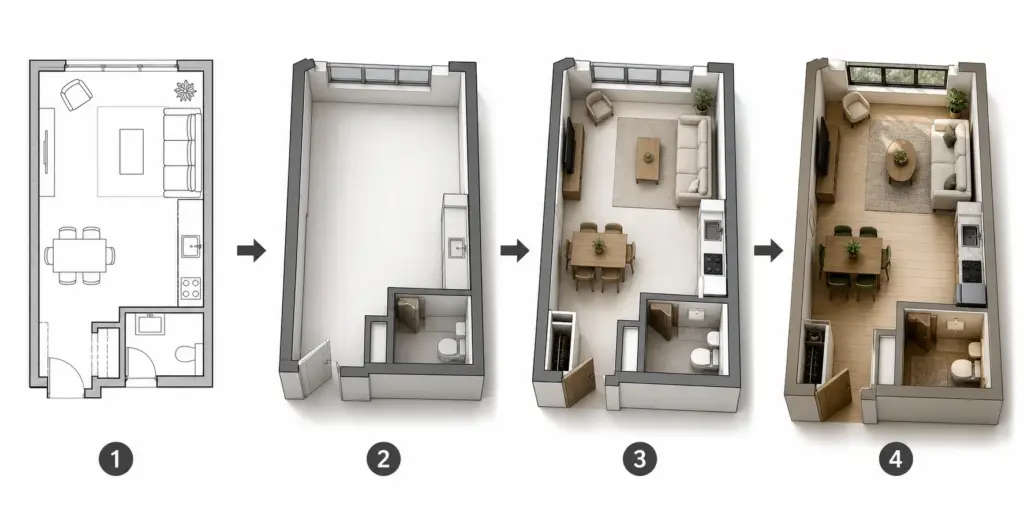
For floor plans specifically: export as isometric view, not top-down. Top-down confuses the spatial reasoning. Isometric shows depth and the API can work with that. Orthographic section views also work—the API understands 2D architectural drawing conventions.
Batch Processing for Client Presentations
This is where the cost math from Section 2 becomes real.
Client presentation scenario: You’re pitching three design concepts. Each needs four angles (12 renders total). Standard API: $2.88 (at $0.24 per 4K image). Batch API: $1.44. Processing time: 2 minutes to queue, 24 hours to deliver.
Compare that to three full Revit models, four camera angles per model, with lighting and material refinement. That’s minimum 36 hours of work across your team. The API cost is noise. The time savings are massive.
Material Variations Without Re-Opening 3D Software
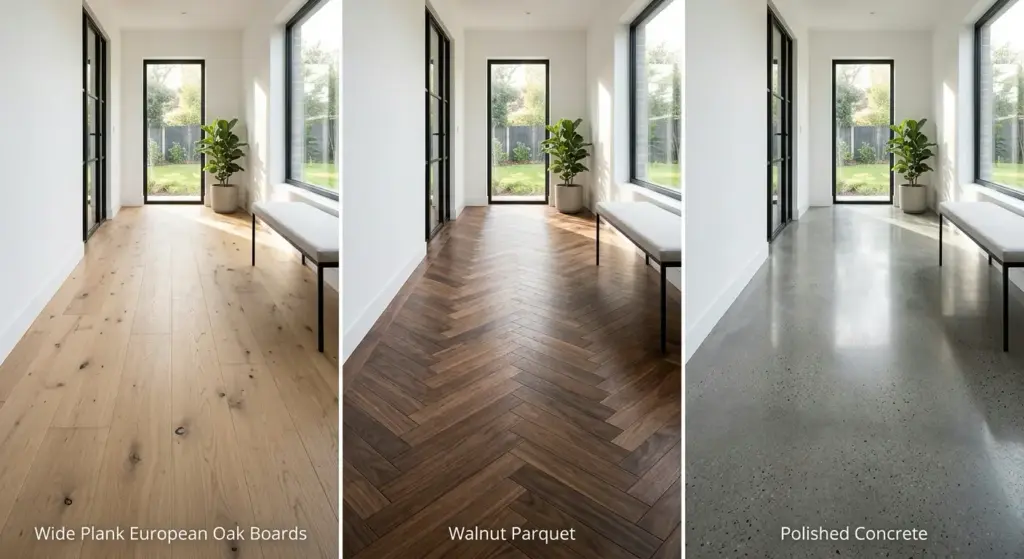
Most studios get client feedback mid-project: “Can we see this in a warmer wood tone?” In Revit or SketchUp, that means reopening the file, changing materials, re-rendering, re-exporting. With Nano Banana Pro API, you queue a new prompt variation using the same reference image but different material descriptions. Done in 90 seconds.
One base render becomes: Walnut variation, Oak variation, Tile variation, Concrete variation. All delivered the next morning. Same time spent in the API. Zero time lost reopening 3D software.
Getting Your API Key & First Integration
Step 1: Create a Google Account (Or Use Existing)
Go to https://ai.google.dev. Sign in with your Google account.
Step 2: Get Your API Key
Click “Get API Key” → Create API key in new project → Copy the key. Store it securely (this is your authentication for the API).
Step 3: Enable Billing
Google Cloud Console → Enable billing on your project. You won’t be charged until you actually make API calls.
Step 4: Make Your First Call
Using cURL or Python, make a test request:
cURL example:
curl -X POST https://generativelanguage.googleapis.com/v1beta/models/gemini-3-pro-image-preview:generateContent \
  -H "Content-Type: application/json" \
  -H "x-goog-api-key: YOUR_API_KEY" \
  -d '{
    "contents": [{
      "parts": [{
        "text": "Modern minimalist living room with walnut flooring"
      }]
    }]
  }'
Response: You get back a base64-encoded image. Save it, decode it, verify quality.
Common Error Codes (And Solutions)
429 (Rate Limited): You’ve hit the API’s rate limit. Implement exponential backoff: wait 1 second, retry. If it fails again, wait 2 seconds, retry. Most failures clear on first retry.
503 (Service Overload): Google’s servers are busy. Same solution: retry with exponential backoff. If it persists, try again in 30 minutes.
401 (Unauthorized): Your API key is invalid, expired, or hasn’t been enabled for this project. Double-check the key, verify billing is enabled, wait 5 minutes for propagation.
400 (Bad Request): Your prompt or payload is malformed. Check JSON syntax, verify required fields are present, ensure your prompt is a string (not an object).
ROI: When to Use Nano Banana Pro API (And When Not To)
Nano Banana Pro Wins (Use It For):
Design iteration on tight timelines. Material exploration without reopening 3D files. Mood board generation for early concepts. Quick client presentations (pitches, proposals). Rendering volumes above 200/month. Projects where 90% accuracy is sufficient.
Revit Still Wins (Stick With It For):
Final construction documents (BIM coordination, 100% spatial accuracy required). Daily updates to design (DWG export, laser-precise dimensions). Projects under 50 renders total. Complex geometry (intricate joinery, structural details). Anything where a contractor will build from the output.
Hybrid Approach (Best Practice):
Early concept phase: Nano Banana Pro (fast iteration, explore ideas). Design development: Nano Banana Pro (material/lighting variations, client presentations). Design refinement: Switch to Revit (precision, BIM accuracy). Construction documents: Revit (legally binding, precision required). Client final pitch: Nano Banana Pro (lifestyle photos, mood, atmosphere).
This workflow respects what each tool does best. Nano Banana Pro for vision. Revit for construction. They’re partners, not competitors.
Bottom line: If you’re generating more than 200 renders per month, spending more than 5 hours per week on manual renders in Revit, or facing client material variation requests mid-project—test it with your next project. Run 50 images through the Batch API for $6. See if your team’s productivity changes. Most studios that try it never go back to pure Revit rendering.
Conclusion
Nano Banana Pro API isn’t magic. It’s not a Revit replacement. It’s a precision tool for a specific workflow phase: fast iteration on visual concepts when spatial accuracy matters but construction documents don’t.
If you’re an architect or designer tired of re-rendering every time a client asks about walnut instead of oak, if your studio bills by the hour and render time is unproductive, if you’re drowning in material variation requests—it’s worth testing. The Batch API costs next to nothing. $6 for 50 renders is cheaper than 10 minutes of billable time.
Start with Google AI Studio (free tier, 50 images/day). Learn how to prompt. Write one good technical prompt and understand why vague prompts fail. Once you’re comfortable, scale to the Batch API for production work.
The future of architectural visualization isn’t “AI replaces architects.” It’s “architects use AI to focus on design instead of rendering.” Nano Banana Pro API is one piece of that shift.
Ready to test it? Get your API key. Write your first prompt. Render something tomorrow morning that would’ve taken 3 hours in Revit. Then decide.
Share what you build—tag @skyryedesign on social.
FAQ
Q: Is Nano Banana Pro API the same as the free Google AI Studio version?
A: No. Google AI Studio is the web interface (free tier: 50 images/day, watermarked). The API is per-image pricing, no watermark, requires code integration. Studio is for exploring and learning. The API is for studios automating renders at scale. Same underlying model (gemini-3-pro-image-preview), completely different access and pricing structure.
Q: How many reference images should I upload for material consistency?
A: 2–4 for simple projects (one room with material variations). 6–8 for complex multi-room interiors where you need to lock down style across different spaces. More references don’t guarantee better results—quality matters more than quantity. One perfect material swatch beats five vague inspiration photos. Test with 2 references first, add more only if you need tighter control.
Q: Can I use Nano Banana Pro renders for final construction documents?
A: Not recommended. The API’s spatial reasoning is ~90% accurate, which is great for client presentations but not reliable enough for a contractor to build from. Use Nano Banana Pro for concept exploration and lifestyle photography. Use Revit or other BIM software for final technical documentation. The tools serve different purposes.
Q: What’s the cheapest way to generate 500 4K renders per month?
A: Batch API at $0.12/image = $60/month (24–48 hour turnaround). Third-party relay services at $0.05–$0.09/image = $25–$50/month, but trade off slightly higher latency and less direct support. Don’t use the $19.99/month subscription unless you can guarantee you’ll use 3,000+ images that month—unused quota disappears. For 500 renders, Batch API is the official sweet spot.
Q: How do I maintain material and style consistency across multiple client projects?
A: Create a personal reference library (3–5 images showing your studio’s preferred aesthetic). Include one reference from this library in every API call. This locks down color grading, material finishes, and lighting mood across all projects. Clients see consistency even though each project is technically a separate API call. Update the library as your style evolves.
Q: Can Nano Banana Pro generate floor plans and architectural sections?
A: Yes, but not for technical accuracy. The API can generate conceptual diagrams, presentation-ready section drawings, and floor plans for marketing materials. However, dimensions and spatial precision (~90%) make them unsuitable for construction documents. Great for early design presentations. Not for contractor coordination.
Q: What happens if an API call fails mid-render?
A: The API returns an error code (most commonly 429 for rate limit, 503 for overload, 401 for authorization). Failed requests still consume quota, so implement retry logic with exponential backoff in your code (wait 1 second, retry; if it fails, wait 2 seconds, retry). Most failures clear on the first retry. Always test your workflow with small batches before scaling to hundreds of images.
Q: Is Nano Banana Pro replacing Midjourney and DALL-E 3 for architects?
A: No. Each tool has a different strength. Nano Banana Pro wins for technical accuracy and spatial reasoning—ideal for architectural precision. Midjourney wins for mood and artistic interpretation—better for early concept exploration. DALL-E 3 is the middle ground for simple, instruction-following tasks. Smart studios use all three depending on the phase (concept → design → presentation). Don’t choose one; use each where it excels.
- 32shares
- Facebook0
- Pinterest32
- Twitter0
- Reddit0