
Let’s be honest; everybody loves nice pictures. Not all people can afford to learn hard-to-use editing software. Maybe you are a student or a content creator or a small business owner and you just need quick and professional-looking results. That is where AI photo editors come in.
Artificial intelligence has made photo editing in 2026 easier. It is possible to fix lighting, remove backgrounds or even restore old photos, and this can be done with a few clicks.
In this guide, you’ll learn exactly how to edit photos using an AI photo editor, step by step and discover why HitPaw FotorPea is the ultimate choice this year. Read on to learn more.
What Is an AI Photo Editor and Why You Need One
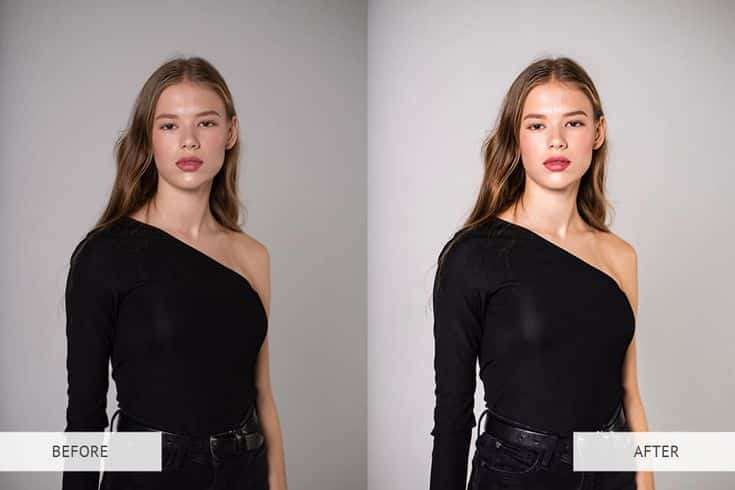
An AI photo editor is software that leverages artificial intelligence and machine learning models—such as deep learning convolutional neural networks—to automate and simplify complex image editing workflows. Unlike traditional editing applications that require manual adjustments to layers, masks, and curves, AI-powered editors analyze the pixel data of an image to instantly identify subjects, backgrounds, lighting discrepancies, and textures. This analysis allows the software to perform precise enhancements automatically, such as non-destructive background removal, object erasure, facial retouching, and resolution upscaling up to 8K. For modern content creators, designers, and e-commerce business owners, these tools eliminate the steep learning curve of professional desktop software, delivering studio-grade results in seconds and enabling rapid visual content creation at scale.
AI Photo Editor Comparison & Statistics
| AI Editor | Key Strengths | Upscale Max Resolution | Pricing Base | Recommended For |
|---|---|---|---|---|
| HitPaw FotorPea | All-in-one enhancement, noise reduction | 8K Resolution | $19.99 / month | Beginners & Content Creators |
| Photoshop Generative Fill | Object insertion, complex generative canvas | N/A (Variable) | $22.99 / month | Professional Graphic Designers |
| Picsart AI | Social media filters, rapid templates | 4K Resolution | $13.00 / month | Social Media Creators |
So, why does it matter? It saves you time and yet gives us professional-quality results. It does not require design expertise or practice hours. You can use AI to edit your selfie or product pictures more easily, faster and with less frustration. The fact that AI-driven tools provide people with best results with a few clicks is making many people switch to it in 2026.
Let us see how one can select the most appropriate ai photo editor and become a professional using it.
Step 1: Choose the Best AI Photo Editor
You will have to get the best ai photo editor before you start. There are plenty out there Adobe Photoshop AI, Picsart, SnapEdit, and more but no one balances simplicity and power quite like HitPaw FotorPea.
Here’s why it stands out:
● All-in-One Features: It is used to perform all tasks, including upscaling, denoise and background removal as well as the restoration and generation of AI portraits.
● Smart AIs Models: HitPaw will automatically recognize what kind of photo you are editing, whether it is a portrait, a landscape, a vintage or an anime and put the best improvement to use.
● Ultra-High Quality: You will be able to increase the resolution to 8K and retain the details.
● User-Friendly: It has a well-designed interface that is quick and user-friendly.
● Unique Tools: It includes special features like Anime Upscaler, Passport Photo Maker, and AI Portrait Generator.
Compared to others, HitPaw FotorPea keeps it simple. Such tools as Photoshop may be effective, yet they require time learning. FotorPea provides you with the studio quality edits without the headache.
Step 2: Import Your Photo
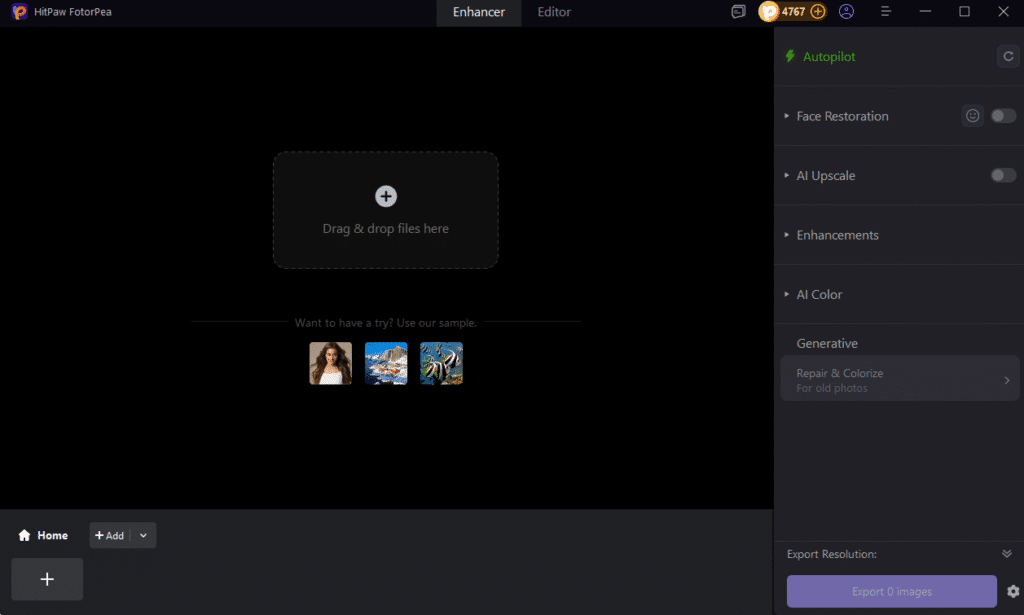
Once you’ve downloaded HitPaw FotorPea, open it on your computer. Click “Open” or drag and drop the photo you want to enhance.
Quick tips:
● You must always make a copy of your image.
● Use quality source files: AI works best with clear pictures.
The photo will appear in a few seconds and you will find your workspace ready. It is here that the magic takes place.
Step 3: Pick the Right AI Model
This is the secret to powerful editing. HitPaw FotorPea offers several AI models depending on your goal:
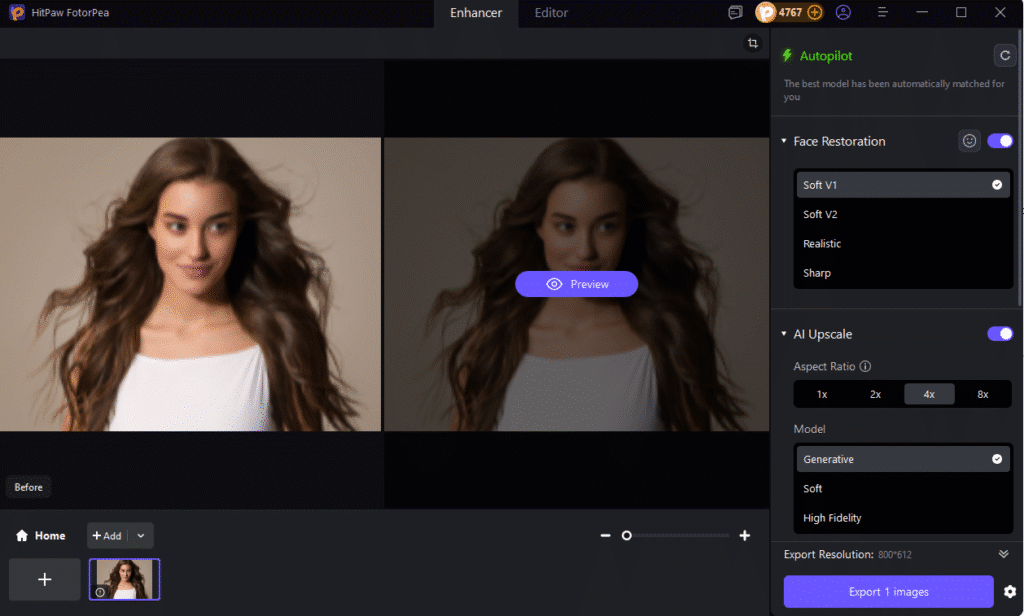
● Face Model: Perfect for portraits. It enhances skin, eyes, and texture without making you look fake.
● Denoise Model: Great for night or low-light photos. It clears grain and smooths lighting.
● Texture Model: Ideal for landscapes, products, or travel images. It boosts details and sharpness.
● Anime Model: Enhances illustrations and anime artwork by refining color and lines.
Choosing the right model helps your photo editor deliver natural and sharp results every time.
Step 4: Adjust the Resolution and Details
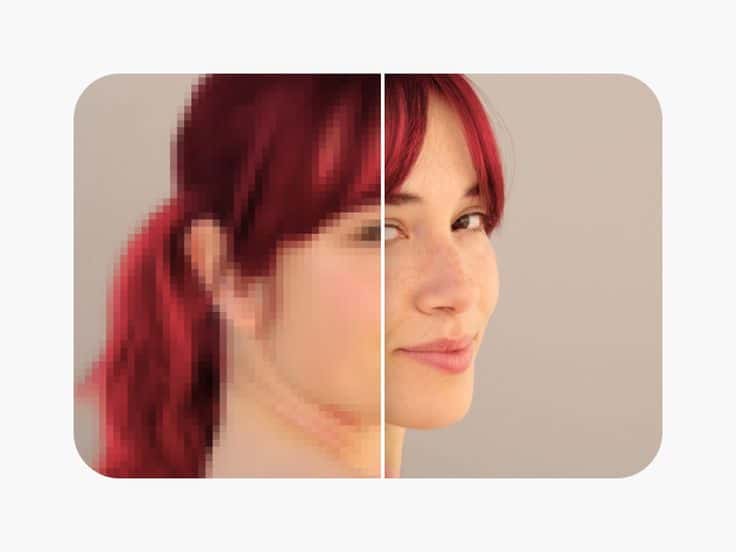
Want sharper, clearer photos? HitPaw also allows you to scale up pictures to HD, 2K, 4K and even 8K. It will be great for printing and marketing or online posting.
Here’s how:
● Click the resolution dropdown.
● Select your target (2×, 4×, 8× or 8K).
● Preview before exporting.
Pro Tip: When you are not just editing one picture but multiple, use the batch feature. It works on several pictures at once that saves time and energy.
Step 5: Preview and Compare
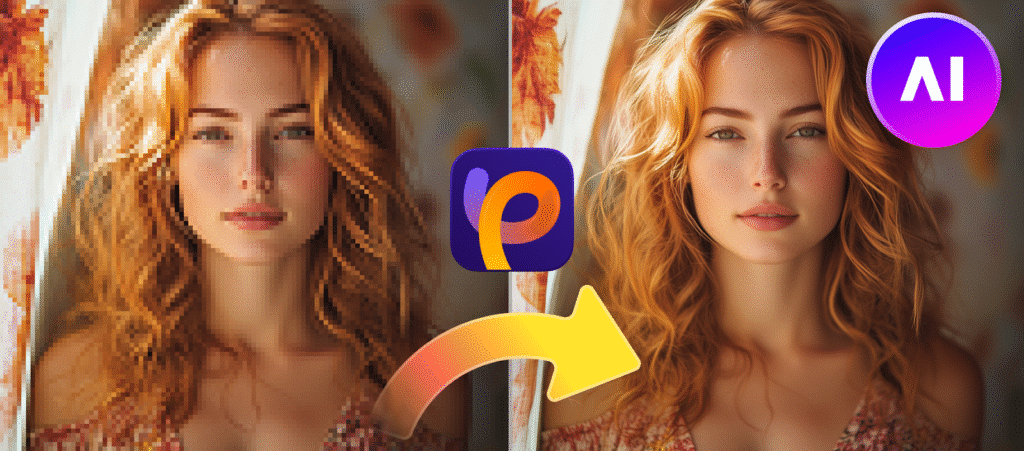
After the processing of the AI is completed, HitPaw FotorPea displays a split-screen preview. The results can be compared by dragging the slider to reveal the before and after results.
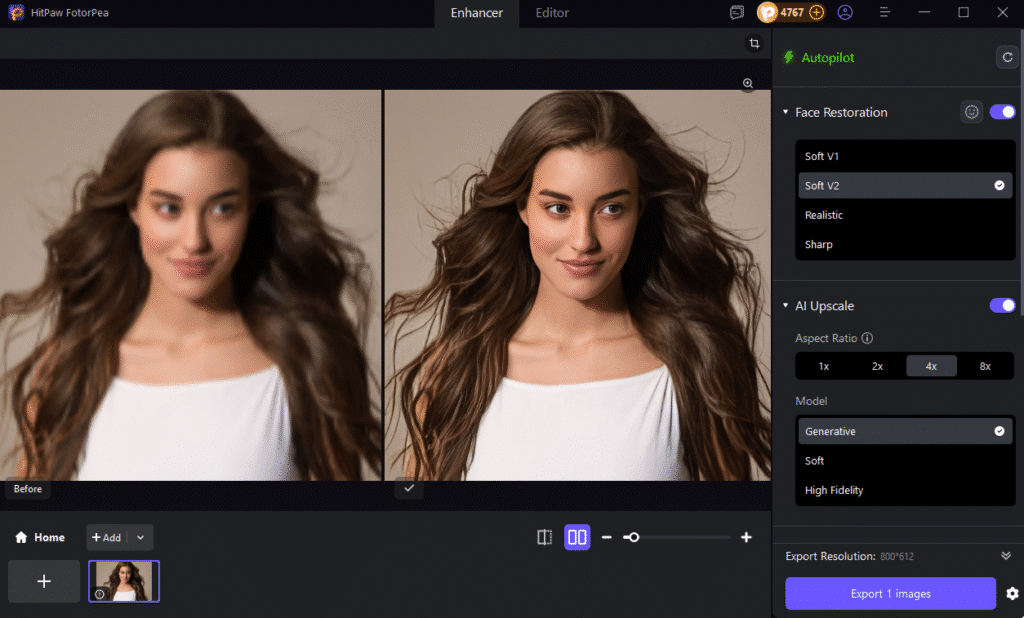
This step is crucial. Check for:
● Edge sharpness and clarity.
● Realistic skin tones.
● Smooth color transitions.
You will immediately notice how AI can change an average photo to be professionally edited.
Step 6: Export and Save
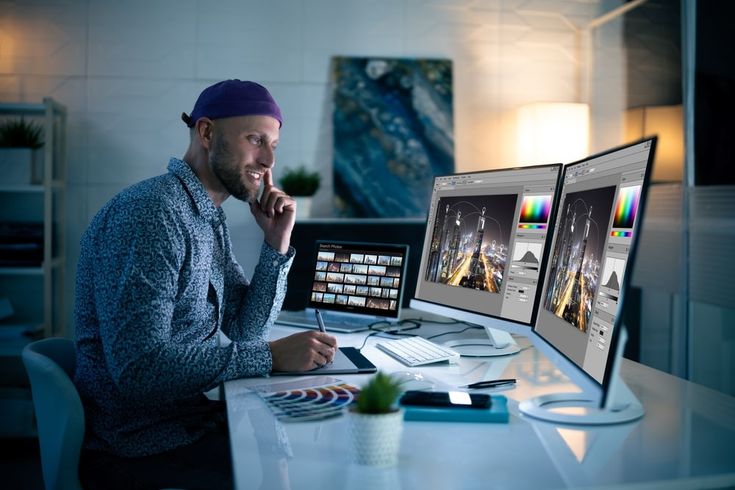
Press Export when you have finished making your edits. The decision is up to you, and you may select a file format of either JPG, PNG or WebP.
Quick export tips:
In order to save your photo in the best way possible, the following simple tips would help:
● PNG is best when it comes to sharing or printing images of high quality and clarity.
● Select JPG in case you want a small file that can be uploaded easily over the internet.
● Name your files with descriptive names, such as “portrait fixed” or “product upscaled,” so when you want to find them later, it becomes easier.
Your photo can be shared in seconds once you are done editing it.
Pro Tips for the Best Results
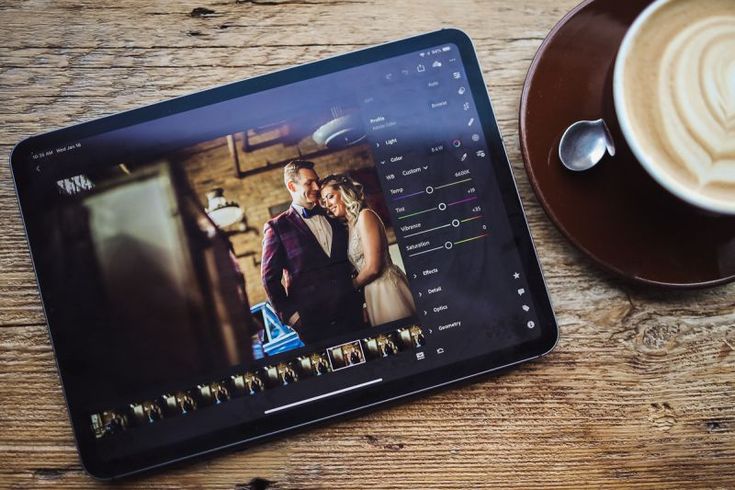
The following tricks can help you to make the most of your photo ai editor:
● Clear images that are well-lit should be used.
If you are comparing tools before editing client or product images, start with the best free AI photo editor options and test them on the same source photo.
● Export preview at 100% zoom.
● It is better to use clear images that are well-lit.
● Find the AI model that matches your image type most.
● One should not over-enhance; minor corrections look most natural.
● Use AI Replace (HitPaw v5.0 feature) to remove or swap objects easily.
● Use the Anime Upscaler for creative art or illustrations.
These practices will guarantee that you edit better and faster.
Why HitPaw FotorPea Wins Over Other Editors
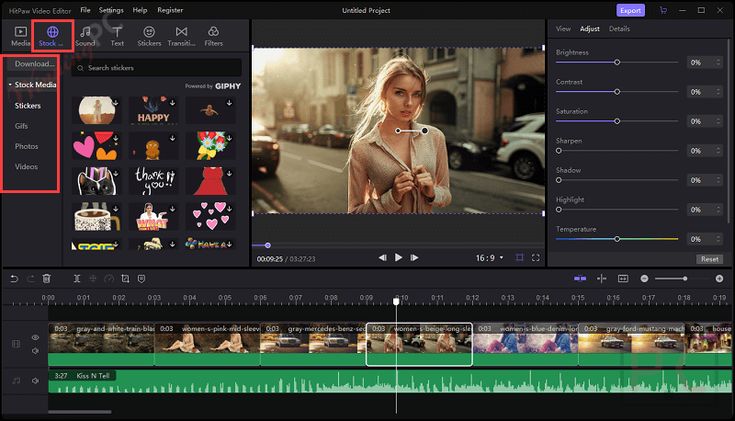
Let’s quickly compare it with other popular editing tools:
| Alternative Tool | Best For | Core Drawback | Target Audience |
|---|---|---|---|
| Photoshop AI | Advanced design & layers | Steep learning curve, higher cost | Professionals |
| Picsart AI | Quick social filters | Limited manual controls for detail work | Casual Creators |
| Pixelcut | E-commerce product backgrounds | Limited features outside product photography | Online Sellers |
| SnapEdit | Simple object removal | Basic adjustments only | Amateurs |
In the meantime, the HitPaw FotorPea packages all of them into a smooth bundle. It is intelligent, cheap and compatible with Windows as well as Mac. Also, since its AI is updated on a regular basis, the results are more stable and natural rather than overly sharp or unnatural, such as those created by other tools.
It is not surprising that it has been named the best ai photo editor in 2026 by both professionals and beginners.
AI Photo Editor FAQ
Q: What is the best AI photo editor for beginners in 2026?
A: HitPaw FotorPea is highly recommended for beginners. It features a straightforward user interface and automated one-click AI models that enhance images, reduce noise, and upscale resolution to 8K without requiring manual design experience.
Q: Can I upscale photos to 8K using an AI photo editor?
A: Yes, advanced AI tools like HitPaw FotorPea utilize deep learning models to upscale images up to 8K resolution. This process reconstructs missing pixels, making low-resolution images sharp and print-ready.
Q: Is AI photo editing free?
A: Many platforms offer free trials or basic free models, but professional-grade features (such as 8K export and advanced face models) typically require a premium subscription. Free tools often add watermarks or limit resolution.
Q: How does AI photo editing differ from traditional photo editing?
A: Traditional photo editing requires manual adjustments to layers, masks, and color curves. In contrast, AI photo editing uses trained neural networks to automatically recognize elements in the photo and apply precise corrections in seconds.
Q: Is my data safe when using an AI photo editor?
A: Data safety depends on the platform’s privacy policy. Reputable software developers like Adobe or HitPaw process images securely and do not share your private uploads. Always review the terms of service of any online tool you use.
Q: Can I use AI-edited photos for commercial purposes?
A: Yes, you generally own the rights to the photos you edit using premium platforms like HitPaw FotorPea or Photoshop. However, you should check the licensing terms of the specific models and assets you utilize during the process.
Conclusion:
Photo editing does not have to be complicated and time-consuming anymore. In a few minutes, you can turn any image into a masterpiece with the help of the right ai photo editor. And when it comes to versatility, speed and quality, HitPaw FotorPea takes the lead. Your photos will always look good with its all-in-one tools, smart models and 8K upscaling. So why settle for complicated software? Try HitPaw FotorPea today and bring your images to life effortlessly.
- 12shares
- Facebook0
- Pinterest9
- Twitter3
- Reddit0