If you’ve ever wanted to master an easy Minecraft sword drawing, you’re in the right place. In this friendly tutorial, you’ll learn how to create a pixel art sword step by step, from sketching the outline to adding vibrant shading.
By following these simple tricks, your Minecraft sword will pop off the page in no time. Let’s dive in and turn that blank grid into a legendary blade.
Gather drawing materials
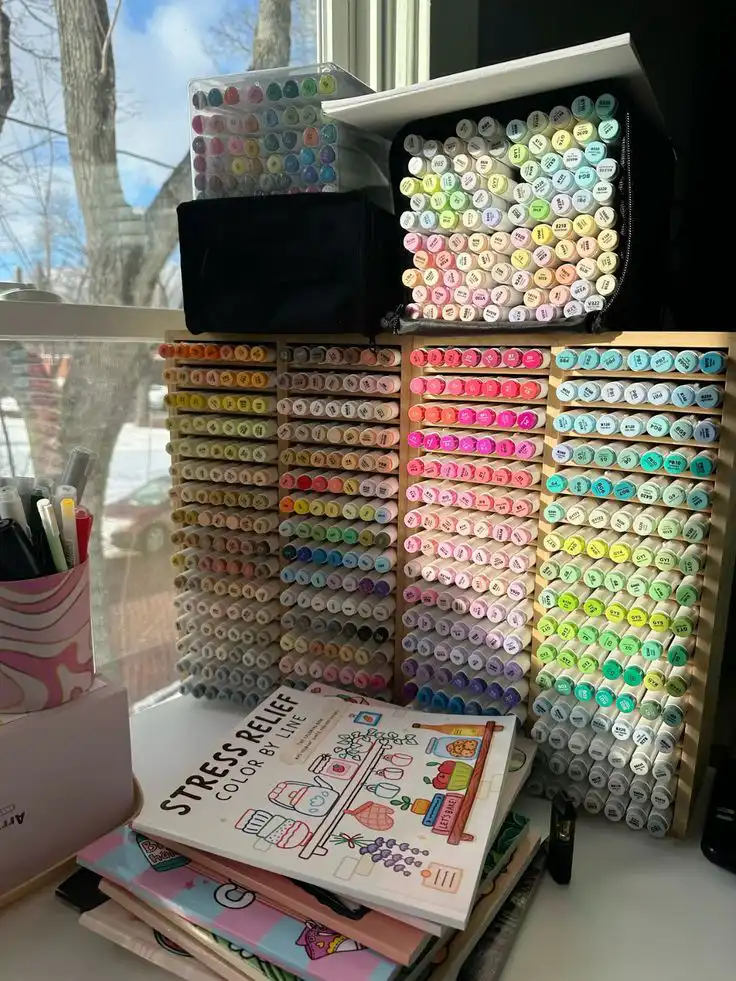
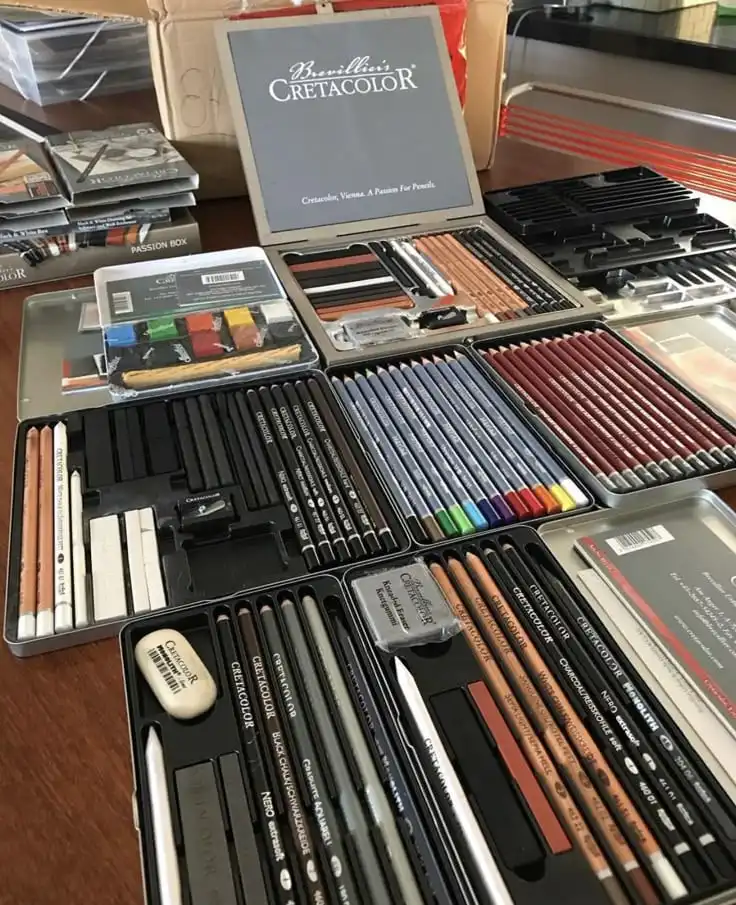
- Graph paper or a digital pixel grid
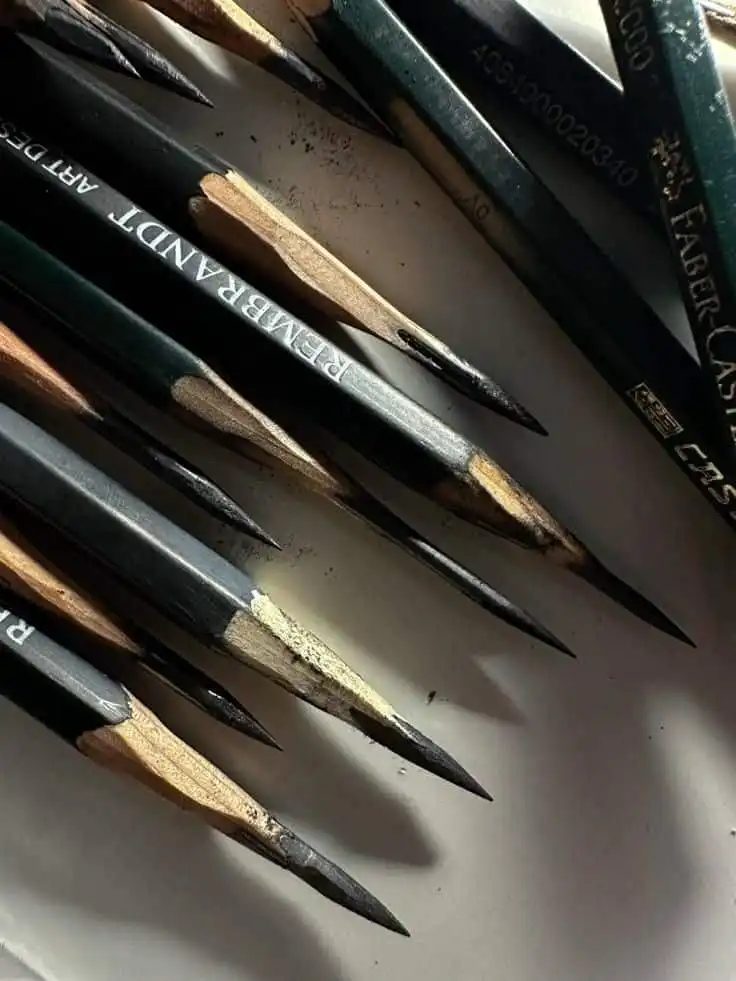
- Pencil and eraser
- Fineliner or black pen for outlines
- Colored pencils, markers, or digital brushes
- Ruler (optional, for straight edges)
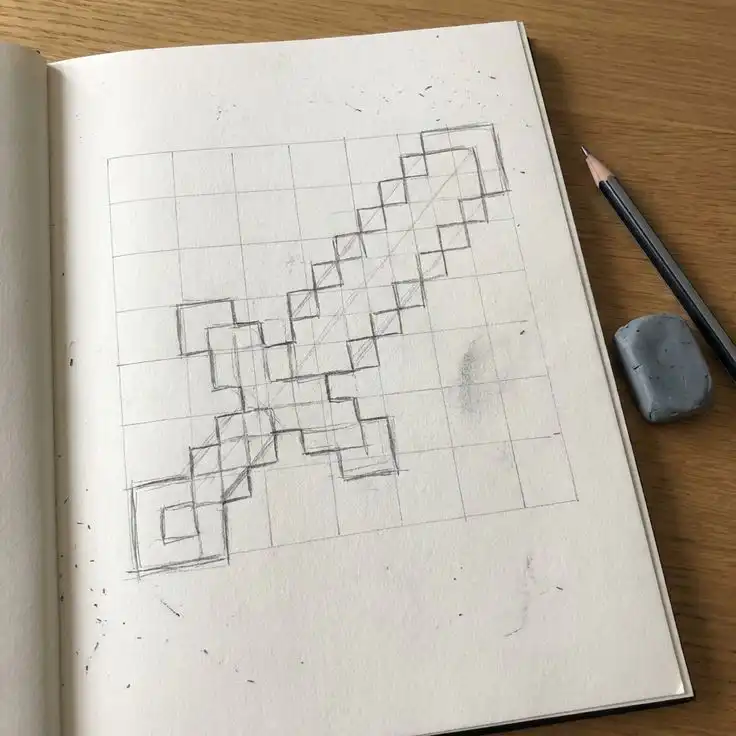
Set up pixel grid
- Choose your canvas size. A 16×16 grid is classic for a Minecraft sword, but you can go up to 32×32 for more detail.
- Lightly mark the center line. This helps you balance the blade and hilt on either side.
- Divide the blade and handle areas. Count roughly 10 pixels for the blade and 6 for the hilt in a 16×16 grid.
- Label rows or columns if you need extra guidance when sketching.
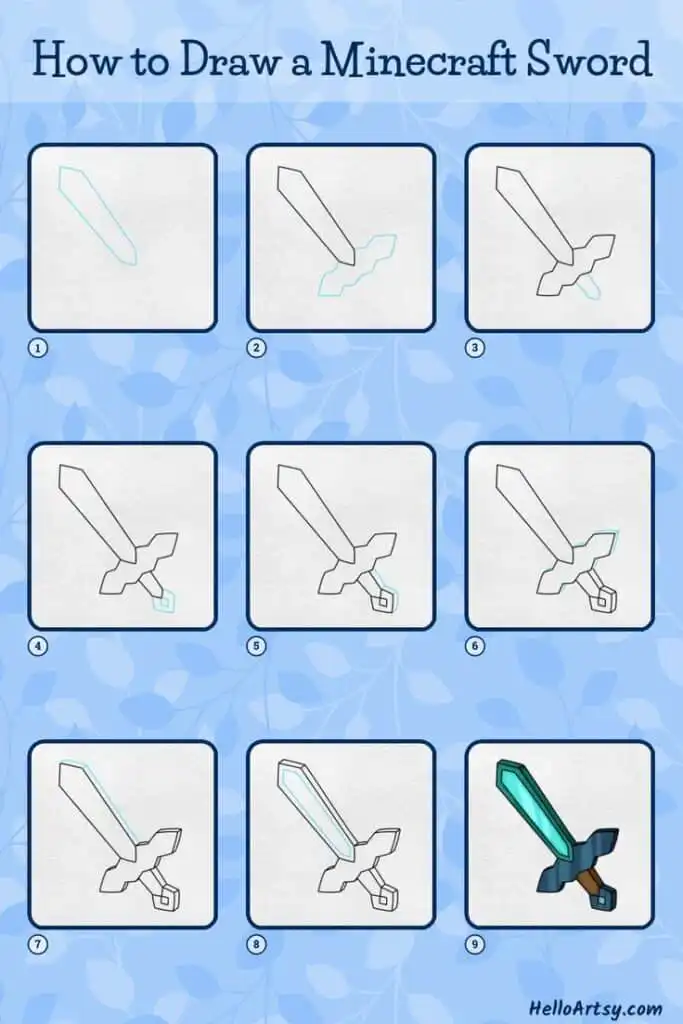
Sketch a basic sword shape
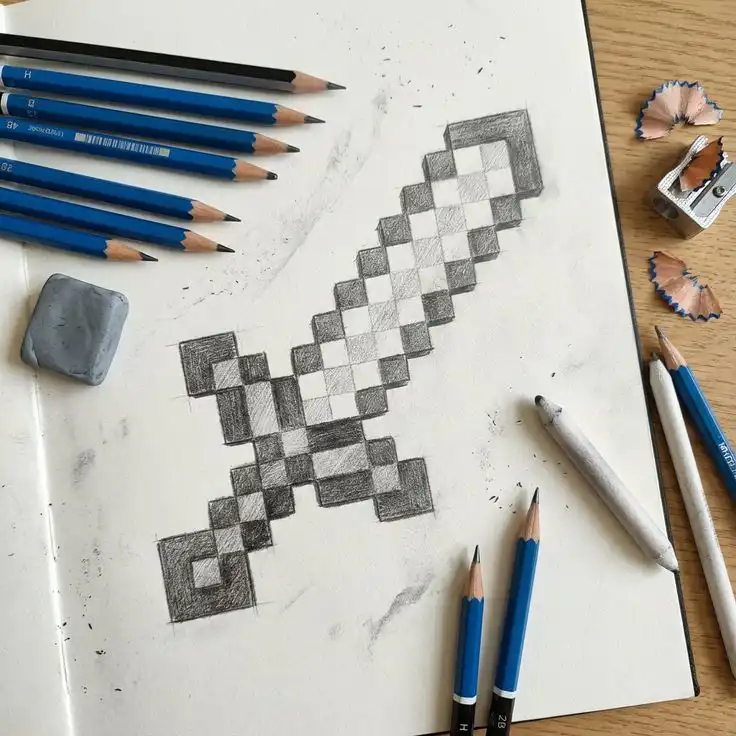
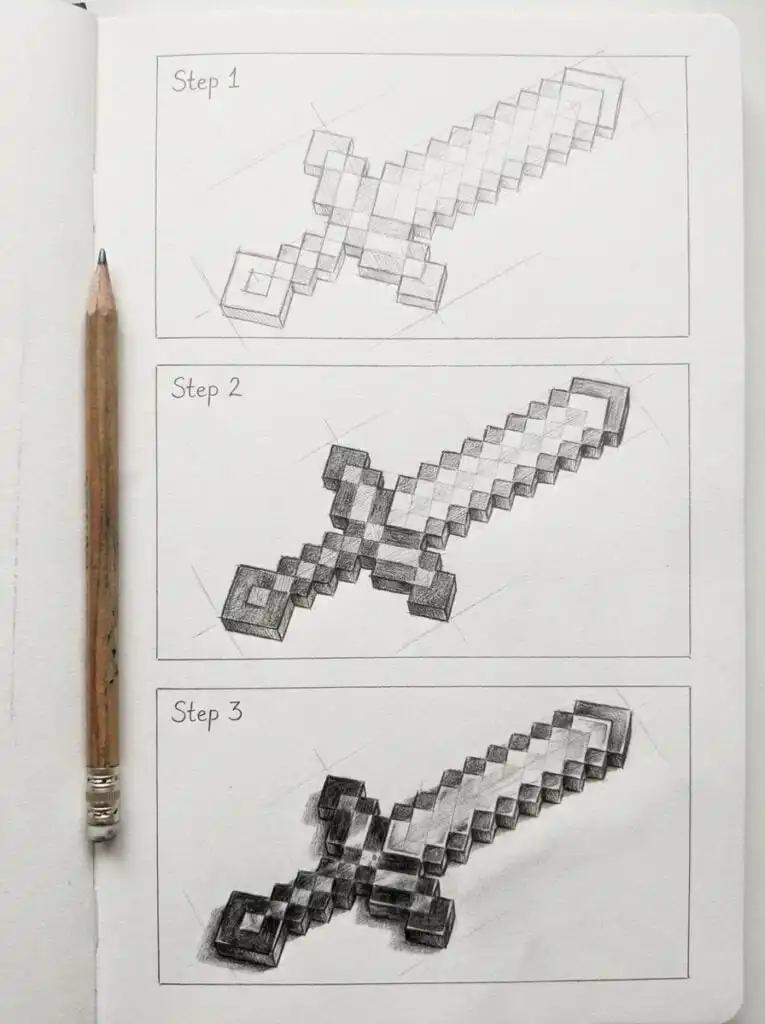
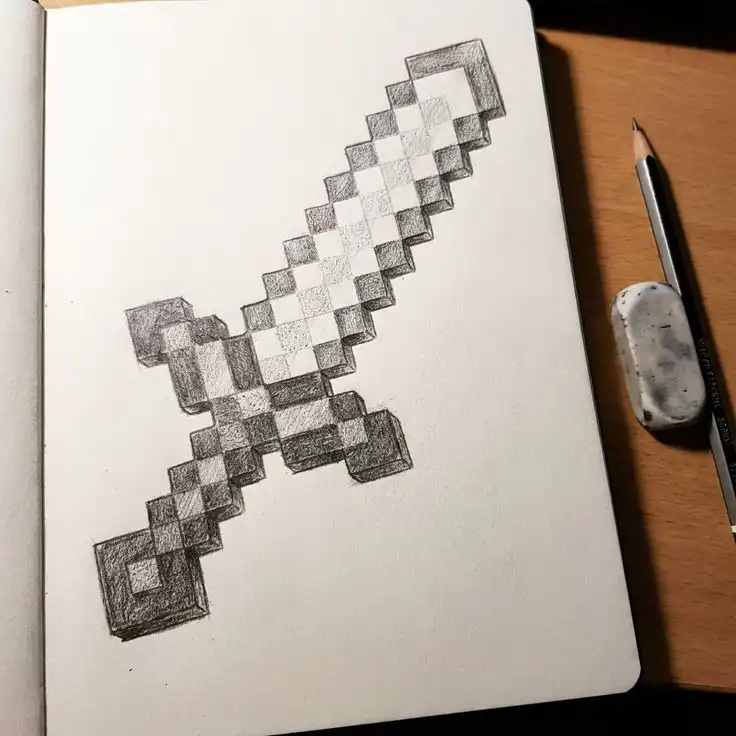
Outline the blade
Start at the top center of your grid and draw a narrow, elongated hexagon in pixels. Keep each edge straight—pixel art thrives on sharp angles.
Add the hilt
Below the blade, sketch a horizontal guard that’s about 4 pixels wide, then extend two vertical columns of pixels downward to form the handle. Finish with a single pixel base or pommel.
Refine sword outlines
Clean up your lines
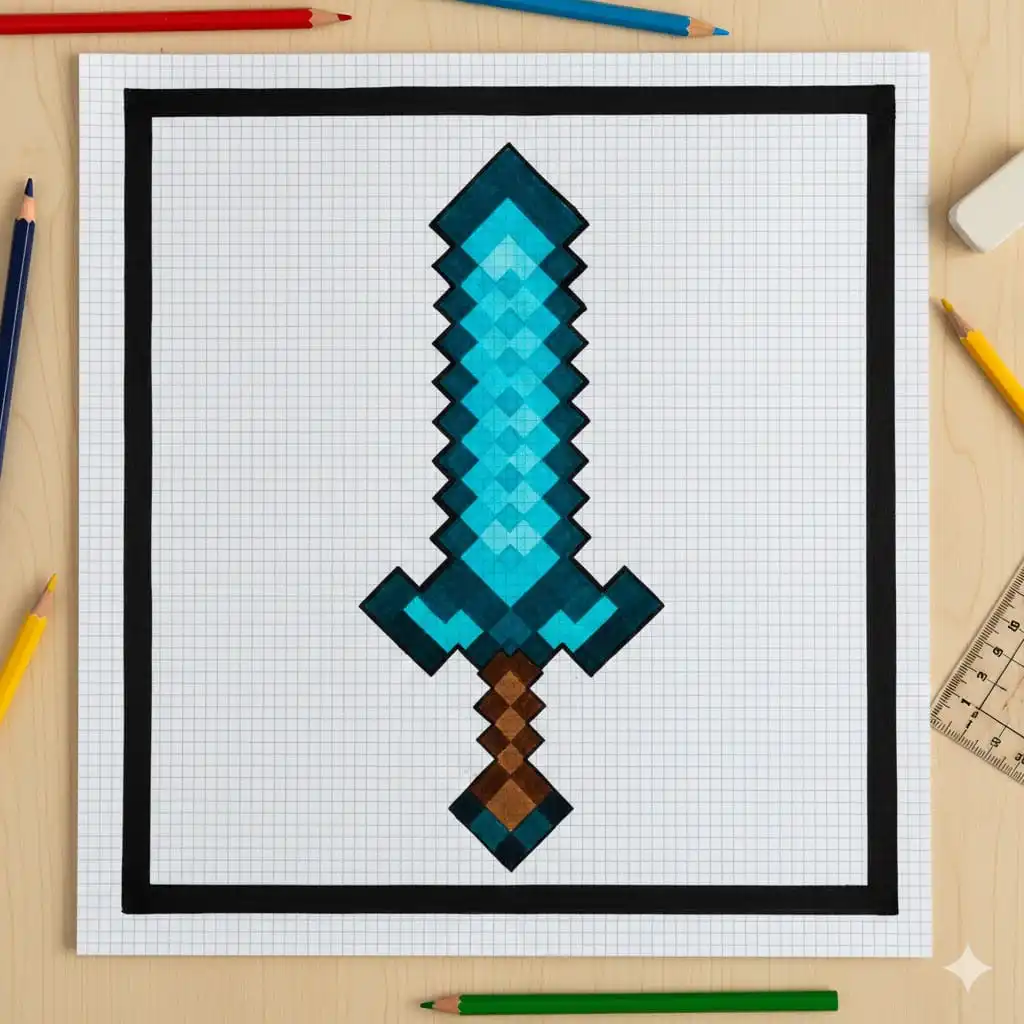
Go over your sketch with a fineliner or darker pencil. Erase stray pencil marks and straighten any crooked edges to sharpen the pixel outline.
Add bevel details
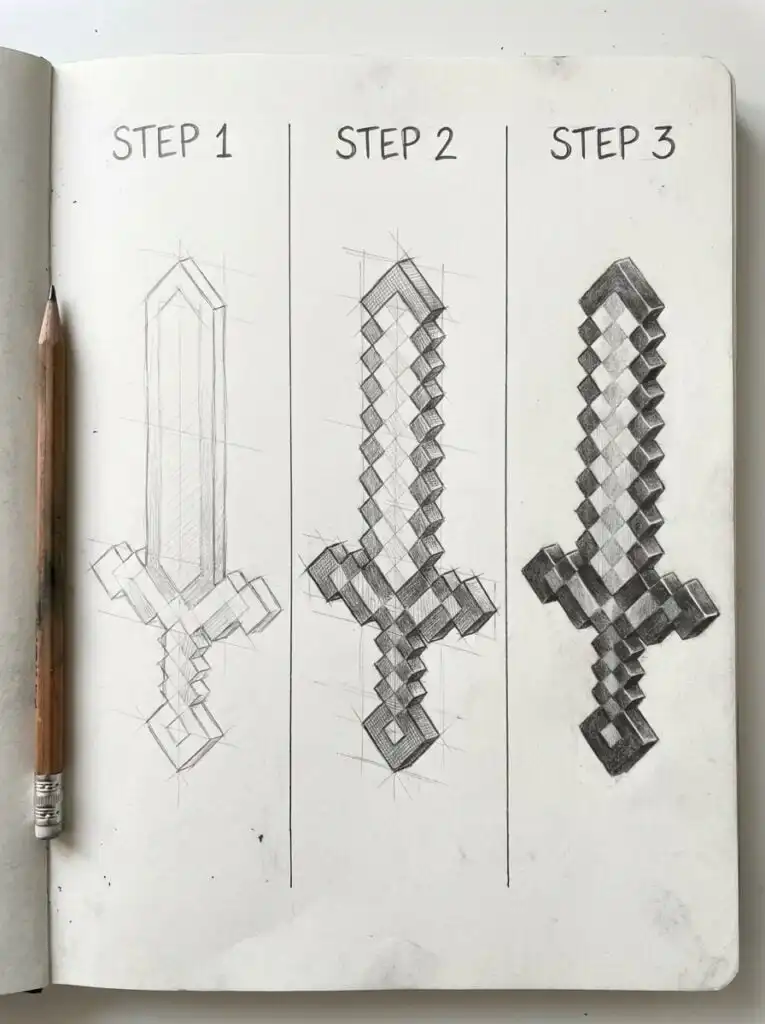
Introduce small diagonal pixel cuts along the blade edges to suggest a beveled, three-dimensional look. A single-pixel notch on each side goes a long way.
Color and shade pixels
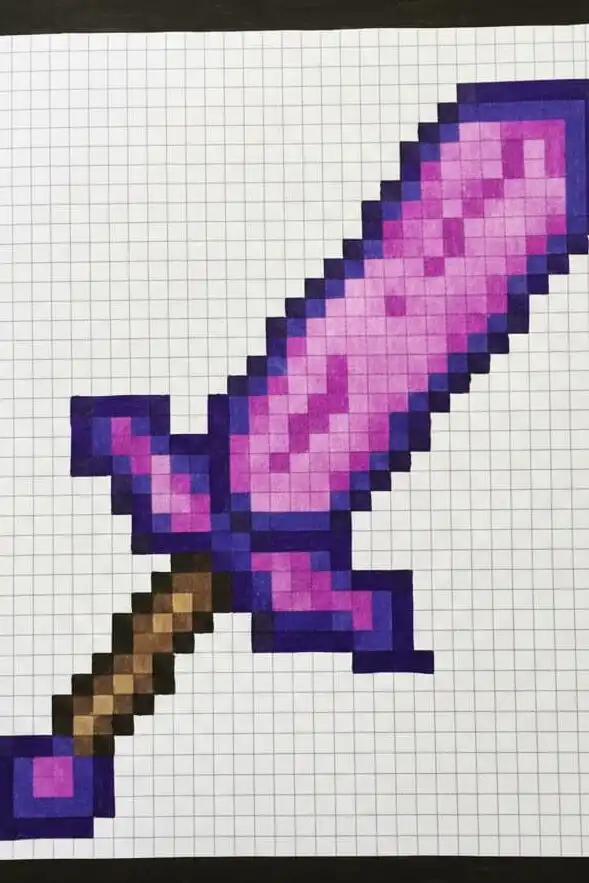
Choose a color palette
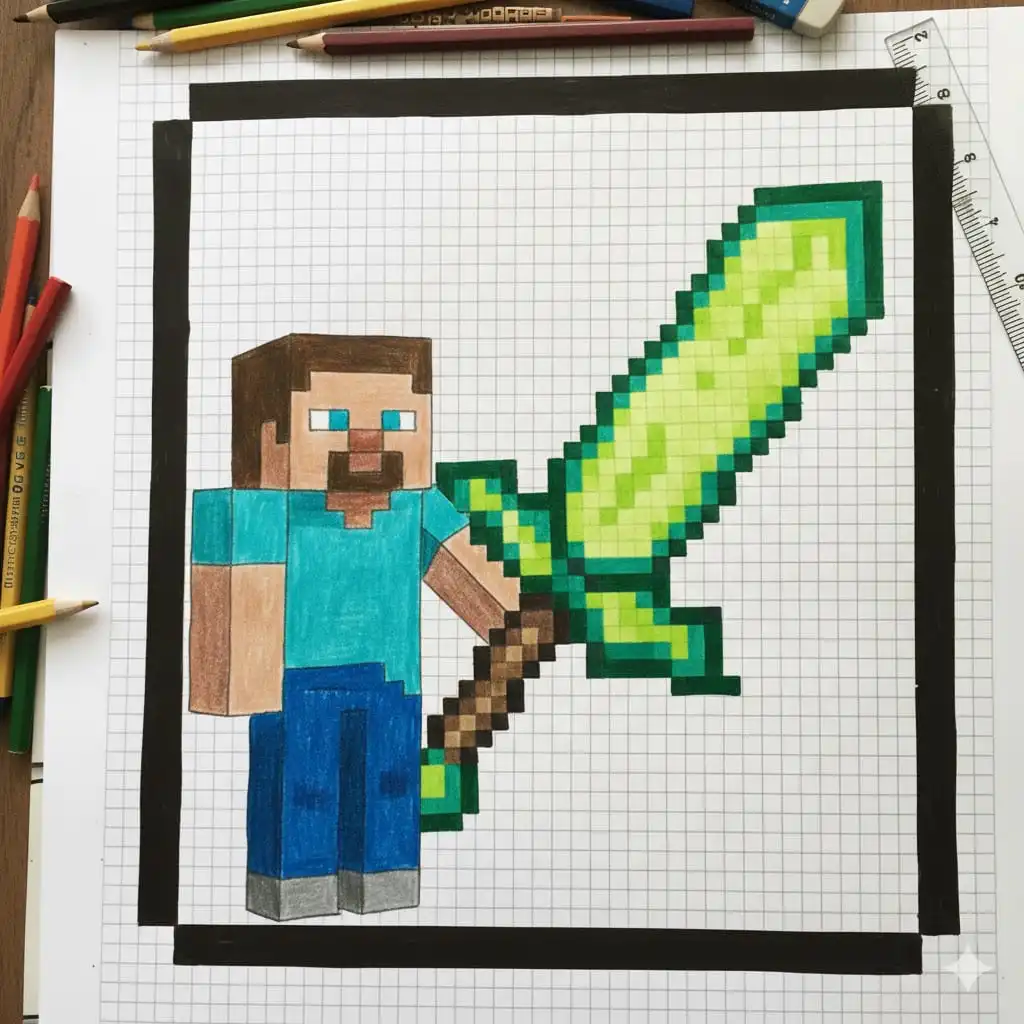
Pick one light shade, one midtone, and one dark shade for both the blade and the handle. Classic Minecraft swords use light gray, dark gray, and a touch of blue or cyan.
Apply shading
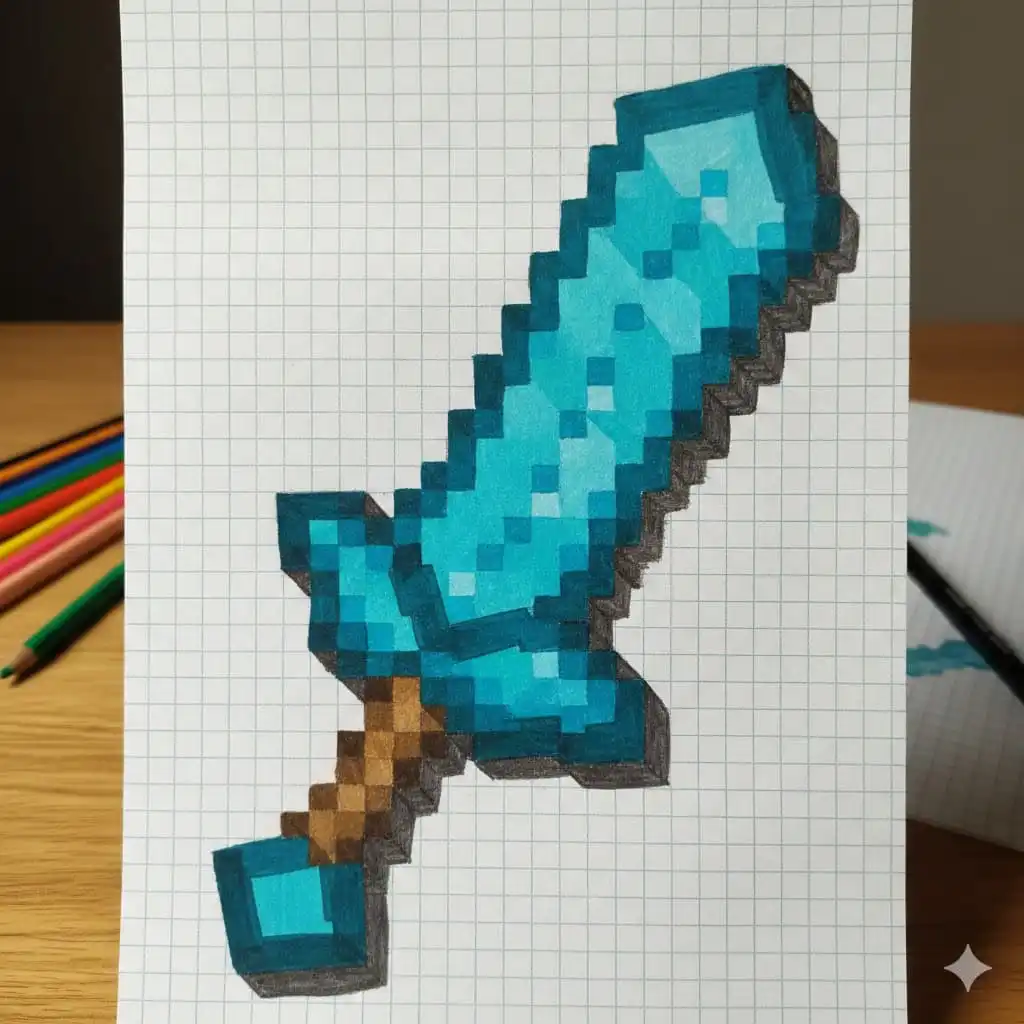
Fill the entire blade with your midtone. Then add dark pixels along one edge and light pixels on the opposite edge to simulate light and shadow.
Add highlights
Use your lightest shade sparingly on the blade’s center and guard corners. A couple of bright pixels create a polished steel effect.
Add finishing touches
Draw a background or shadow
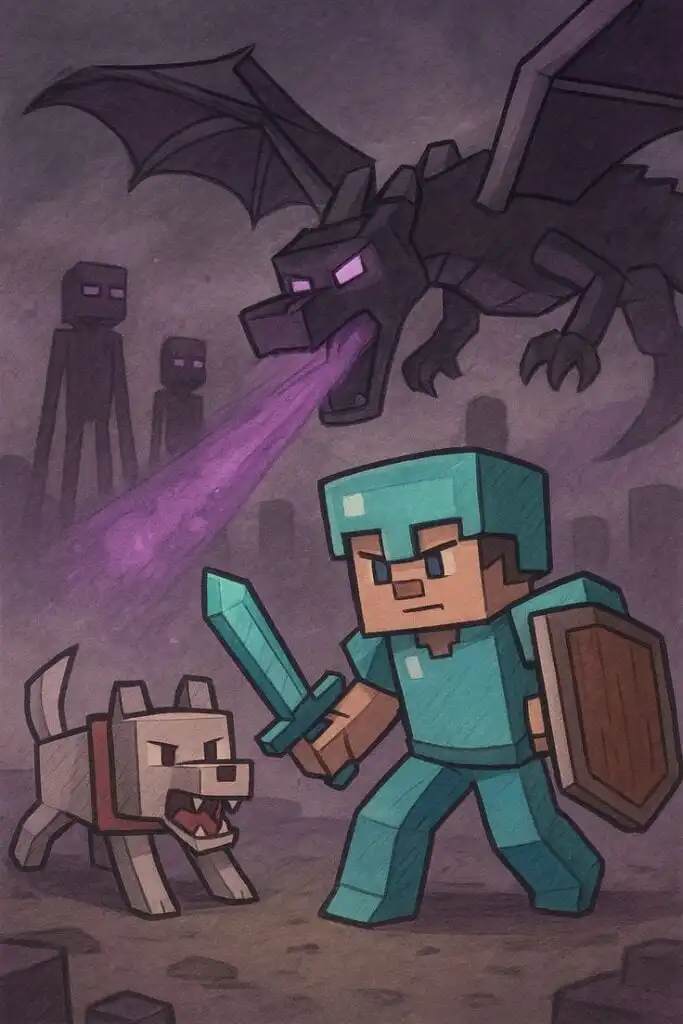
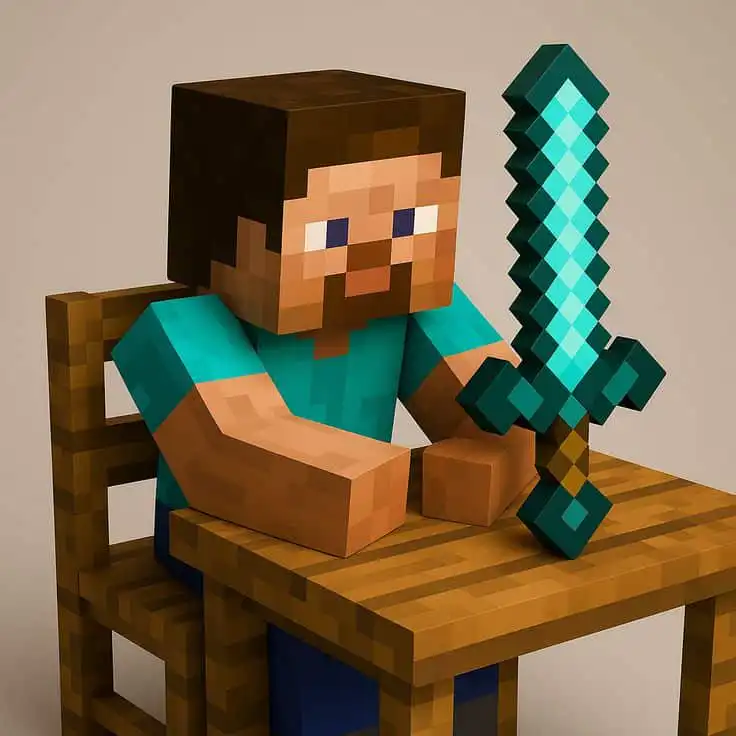
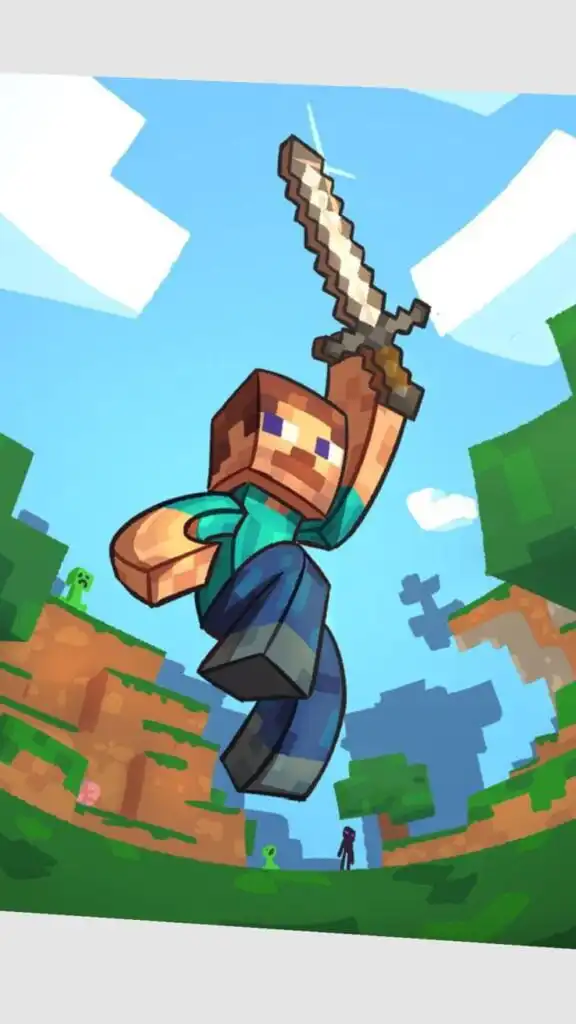
Sketch a simple drop shadow beneath the sword to make it float, or add a blocky grass or stone backdrop for context.
Final review
Zoom out or step back from your work. Make sure your sword looks balanced and the shading reads correctly at a glance. Tweak any pixels that seem out of place.
Frequently asked questions
What grid size works best for beginners?
A 16×16 grid hits the sweet spot for easy minecraft sword drawing. It’s small enough to manage but large enough to show detail.
Can I draw this tutorial digitally?
Absolutely. Use a pixel art program like Aseprite or Piskel and follow the same steps—just swap pencils for digital brushes.
How do I fix mistakes without ruining my drawing?
Work in layers if you’re digital, or keep your pencil lines light on paper. Use the eraser or layer undo to correct only the problematic pixels.
How can I make my sword look more detailed?
Increase your grid size to 32×32 and introduce more shading levels. You can also experiment with subtle color shifts like adding a teal hue to the blade’s highlight.
What tools are best for pixel art on paper?
Graph paper combined with a mechanical pencil gives you precise control. A fine-tip black pen helps your final outline stay crisp.
- 23shares
- Facebook0
- Pinterest23
- Twitter0
- Reddit0