

Open almost any research paper and the first thing your eye lands on is not the abstract. It’s Figure 1, the overview diagram that tries to explain a method, a mechanism or a whole system in one frame. For many readers, that image decides whether they keep reading.
Yet most scientific figures are made by people who were never trained to make them. A PhD student who can run a delicate experiment may still build the method diagram by dragging boxes around in PowerPoint the night before a deadline. The result is usually accurate and often hard to read.
- How do you make figures for scientific papers?
- Why scientific figures are an information design problem
- Give every figure one clear job
- Treat color as information, not decoration
- Build one visual system for every panel
- Design at the final publication size
- Use vector files for sharp, editable scientific figures
- Where AI fits into the scientific figure workflow
- Scientific figure checklist before submission
- Final thoughts
- FAQ
- References
I’ve spent 15 years on the other side of this problem. I trained as an industrial designer, with academic drawing and life painting in the curriculum, and I’ve since built enterprise dashboards, brand systems and car interiors.
Every one of those jobs asks the same question a figure asks: what should the viewer understand first? A research figure is information design, and the rules that make an interface or a poster work apply to it almost unchanged. This guide covers how to make figures for scientific papers using those rules, step by step.
How do you make figures for scientific papers?
To make figures for scientific papers, start by writing the one sentence the figure must prove, then build a visual hierarchy around it. Give each colour one meaning and keep the palette to three or four hues plus greys. Use a single typeface, two or three text sizes and fixed line weights across every panel, and lay the panels on a shared grid.
Preview the figure at the journal’s final printed size, because single-column figures are small, and remove detail until every label is readable. Export vector files such as SVG or PDF so you can still edit the figure when reviewers ask for changes. Finally, check the result in greyscale and with a colour-blind simulation before you submit. Do those steps in that order and most figures improve without any new data, because the problem was never the science. It was how the science was shown.
Why scientific figures are an information design problem
Scientific figure design gets treated as decoration, something you do after the real work is finished. That’s backwards. A figure is the part of your paper that gets screenshotted, shared in lab meetings and pasted into slides.
Why Figure 1 often decides whether a reader continues
Readers triage. They skim the title, glance at the figures, and only then decide whether the abstract deserves attention. If Figure 1 is a tangle of equal-sized boxes and arrows, they assume the work is just as tangled. That’s unfair, but it’s how people read.
I see the same behaviour in design reviews. A client opens a deck, glances at the first diagram, and forms an opinion. The content may be excellent. The first impression is made by the layout.
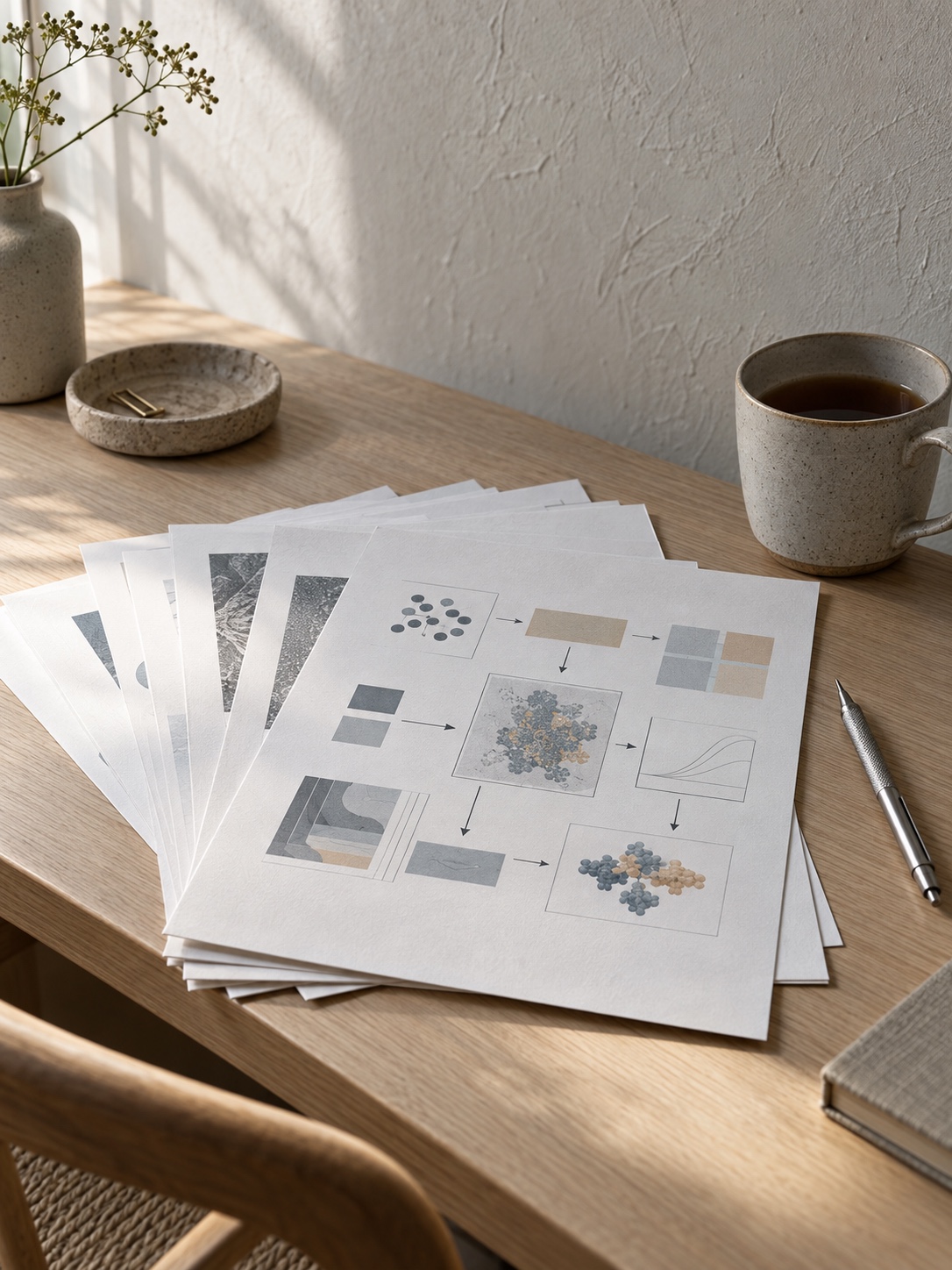
Accuracy is necessary, but readability is designed
Scientists check accuracy carefully, and they should. But a figure can be correct and still fail: tiny labels, five competing colours, arrows that cross for no reason. Nothing in the data is wrong. The reader just can’t get the point.
Readability doesn’t happen by accident. It comes from decisions about emphasis, spacing, colour and size, and those decisions can be learned. That’s the good news. Designers aren’t born with taste for hierarchy, they practise it.
Give every figure one clear job
Good design starts with hierarchy. What should the viewer see first, second and third? Scientific figures often skip this step, so every arrow, label and box gets the same visual weight and the reader has to work out the story alone.
Write the one-sentence takeaway before opening PowerPoint
Before drawing anything, write a one-sentence caption as if it were a headline. “Our model replaces the encoder with a lightweight attention block” is a job. “Overview of the architecture” is a label.
Once the sentence exists, every element has to earn its place. Whatever supports the headline stays prominent. Whatever doesn’t gets smaller, lighter or moves to the supplementary material. I’d go further and say that a figure with two jobs is two figures.
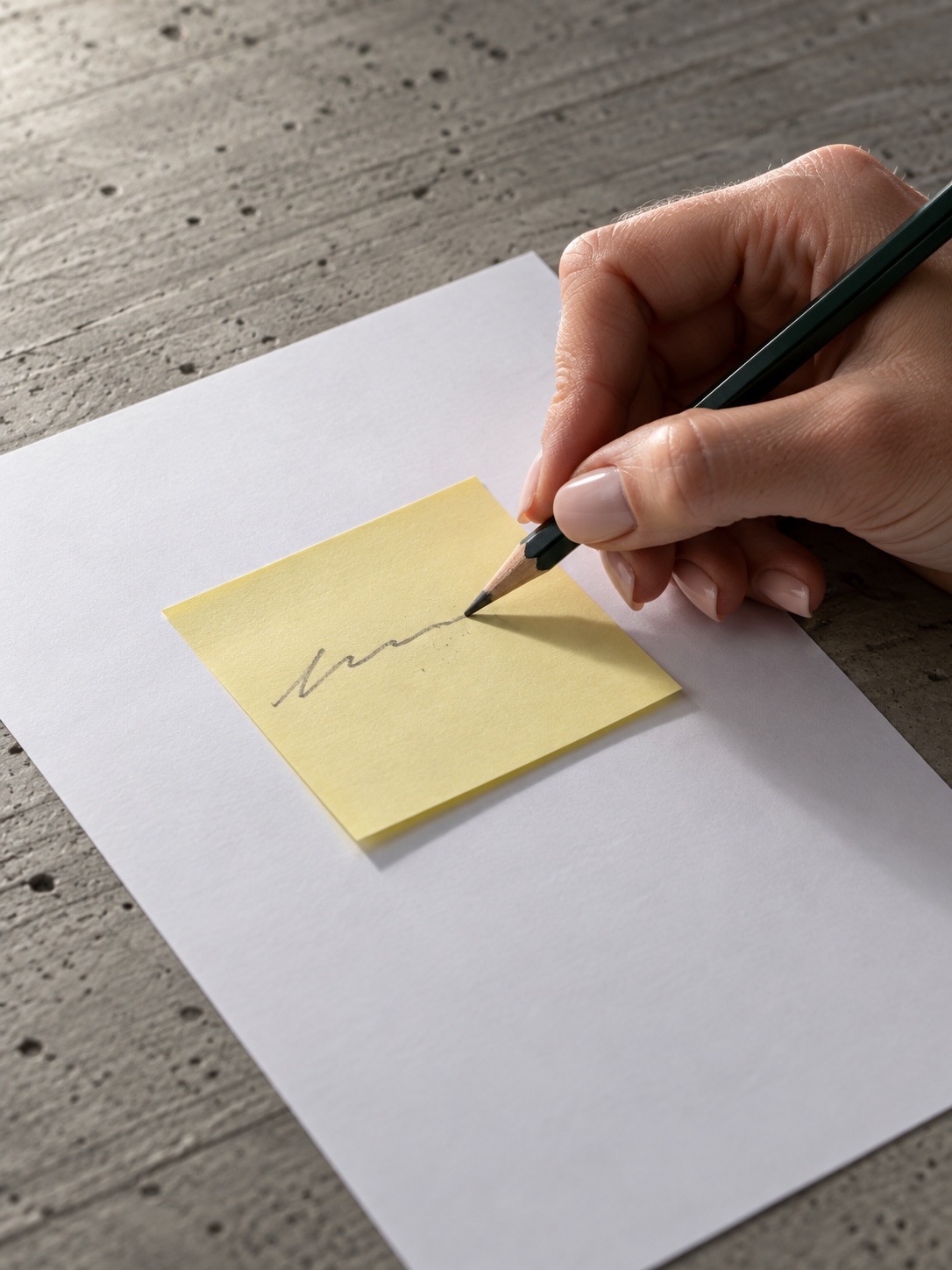
Here’s a concrete example. Say you’re drawing a three-stage pipeline: data collection, model training, evaluation. The unstructured version gives each stage a box of the same size and colour, joined by identical arrows. The designed version makes the stage your paper is about larger and darker, pushes the other two back in light grey, and uses one arrow style for every connection. Same content, completely different reading speed.
Build visual hierarchy: what the reader sees first, second and third
Hierarchy is controlled with a small set of tools: size, weight, contrast, position and whitespace. The element that matters most is bigger, darker or isolated by space. Supporting parts sit in lighter greys and thinner lines.
A trick from my life-drawing days: squint at the figure until the detail blurs. What survives is your real hierarchy. If the thing you care about disappears and a decorative arrow stays, the design is working against you. Fix it by lowering the contrast of everything else, not by making your key element louder and louder.
Treat color as information, not decoration
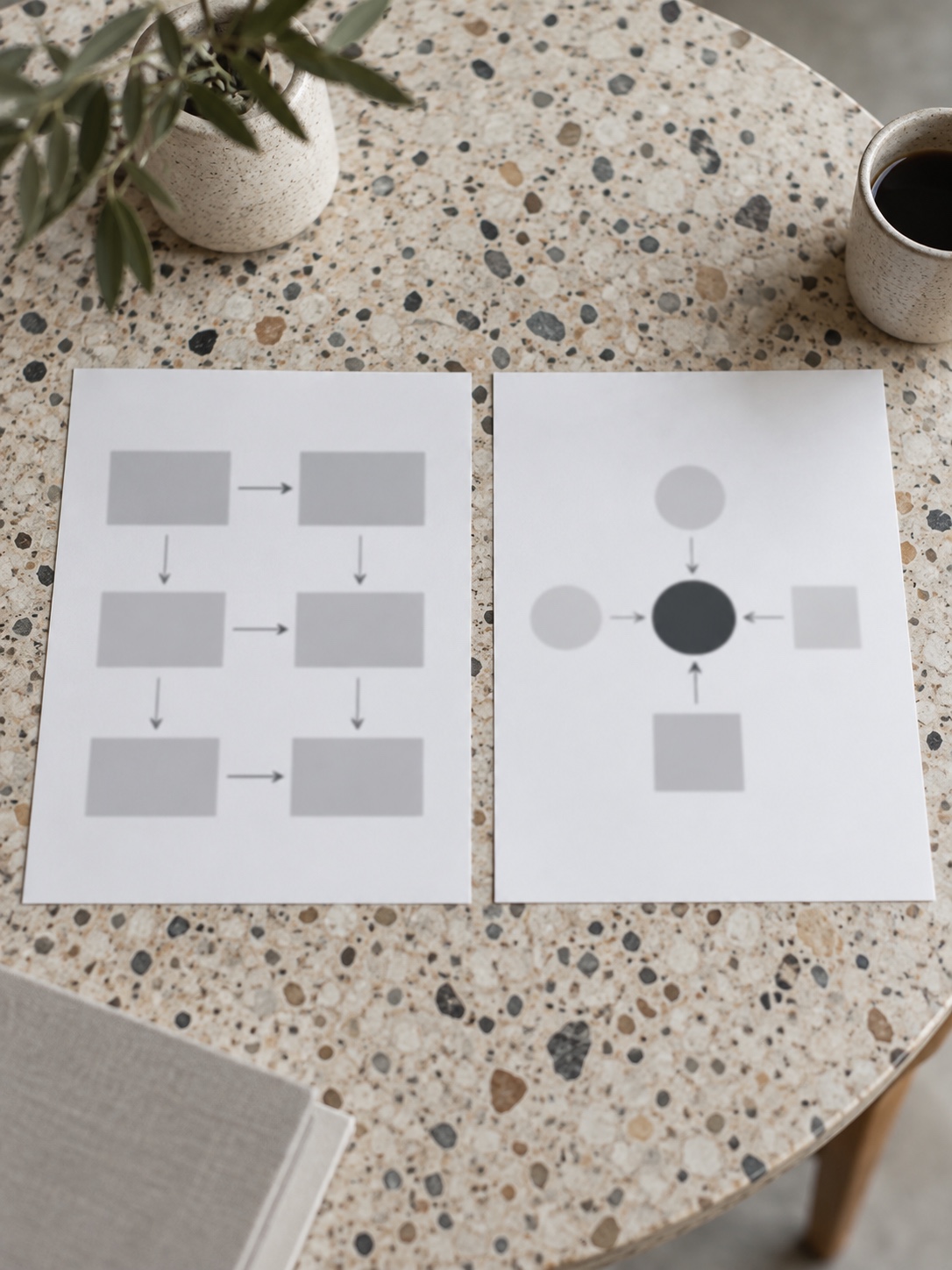
In decorative work, colour sets a mood. In a scientific figure, colour is a variable. Every colour should mean something, and it should mean the same thing everywhere in the paper.
Assign one meaning to each color across all panels
If blue marks the input data in panel A, it should mark input data in panels B, C and D as well. This sounds obvious, yet a surprising number of multi-panel figures reuse blue for treatment in one panel and for control in the next. The reader has to relearn the legend four times.
Write the colour rules down before you start: blue is input, orange is the intervention, grey is background. Then check each panel against that list. Your colour palette inspiration can help if you want a starting point, but meaning matters more than beauty here.

Keep the palette small and use one accent for emphasis
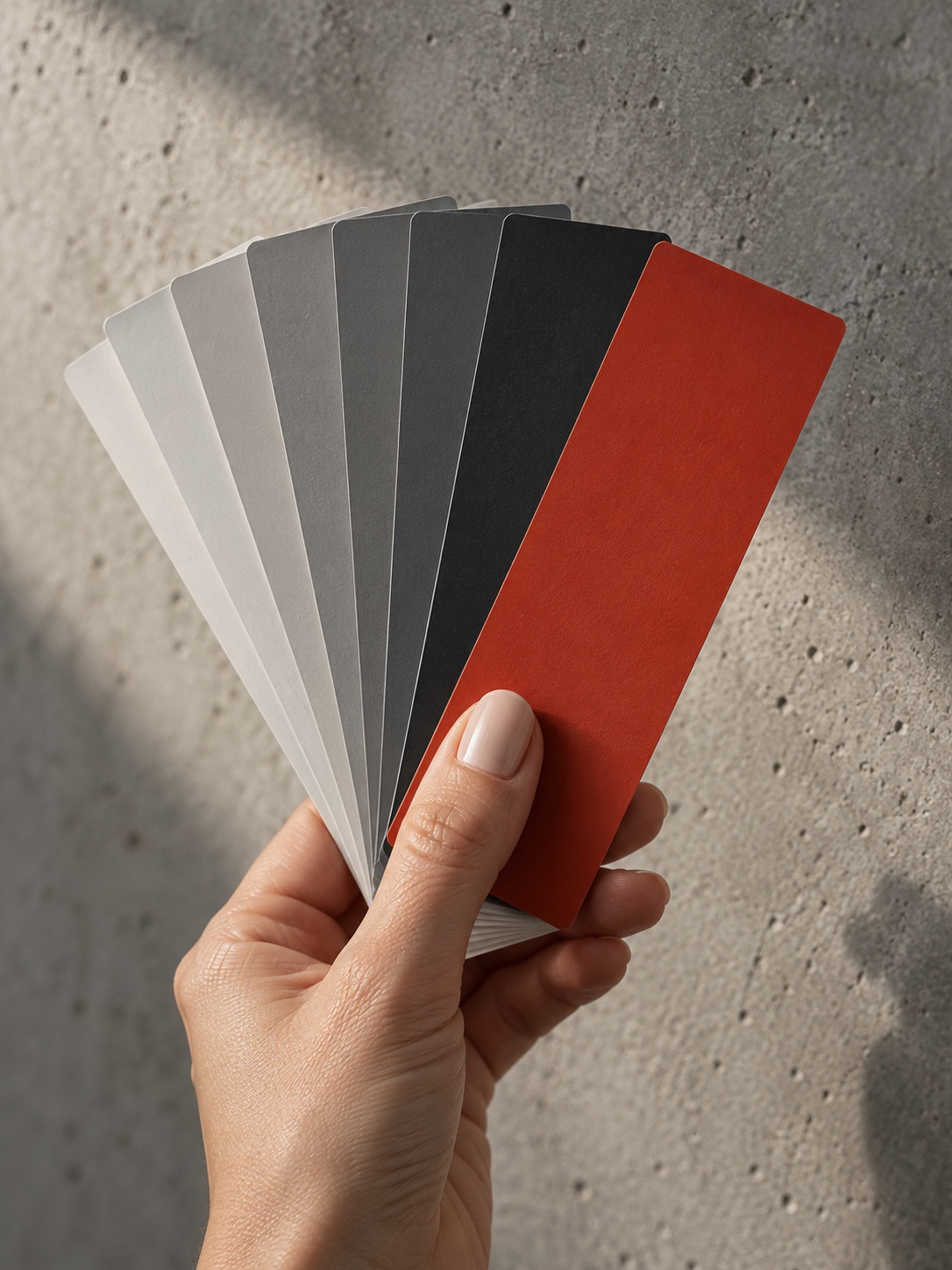
Limit the palette to three or four meaningful hues plus neutral greys, and use a single accent for the part you want readers to notice. A figure with eight bright colours has no emphasis at all, because everything shouts.
Here’s a rule I use on dashboards, where the temptation to colour everything is even stronger: grey for context, one colour for the point. If the accent appears in more than about a tenth of the figure, it’s no longer an accent.
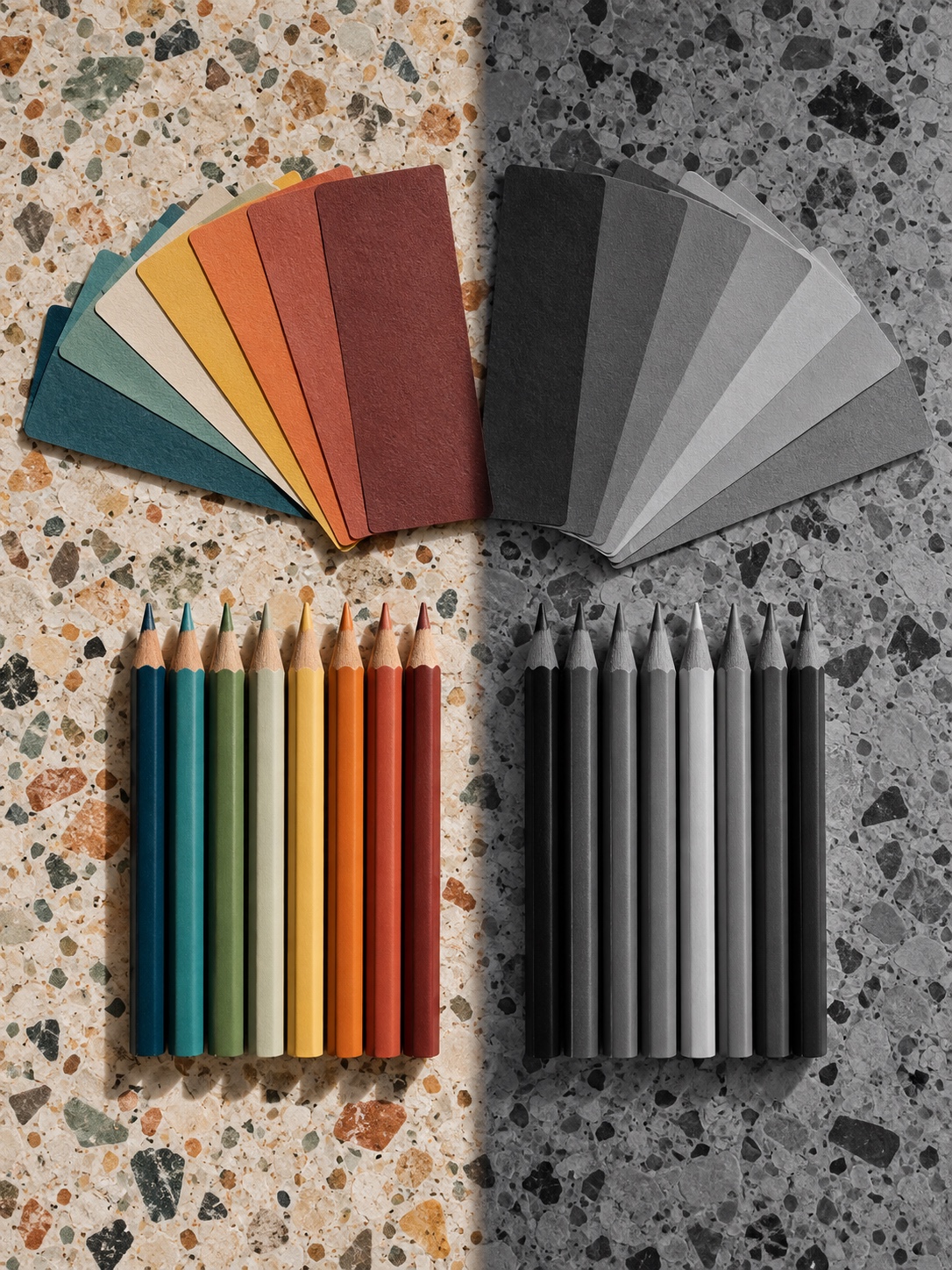
Test for color blindness and grayscale printing
Red and green contrasts are the most common trap. A widely cited estimate is that roughly one in twelve men and a much smaller share of women have some form of colour vision deficiency, though exact figures vary by population. Nature’s own figure guidance tells authors to use an accessible palette, such as the one published by Wong in Nature Methods in 2011, and to avoid combinations like red and green.
Two quick checks save you embarrassment. Convert the figure to greyscale and see if the categories are still distinguishable. Then run a colour-blindness simulation. If lines differ only by hue, add a second cue such as dashes, markers or direct labels.
Build one visual system for every panel
Multi-panel figures fall apart when each panel is built separately. One uses Arial at 8 pt, another Helvetica at 11 pt; line weights drift; arrows change style halfway through. Together, these small slips make careful work look careless.
Use one typeface, two or three text sizes, fixed stroke weights and consistent arrows
Designers solve this with a simple system, and you can copy it in an afternoon. Pick one sans-serif typeface. Nature’s specifications, for example, ask for a standard sans-serif such as Arial or Helvetica, with text between 5 and 7 pt and panel labels at 8 pt in bold lowercase. Pick two or three sizes inside the journal’s range and stick to them. Fix your line weights: one for outlines, one thinner for secondary lines. Choose one arrowhead style and one corner radius.
Treat these as a mini style guide for the figure. Once the rules exist, building a new panel takes minutes instead of hours, and the figure looks like one object. If you want the longer version of why consistent rules work, my guide to design principles in graphic design goes through the basics.
Align panels to a shared grid and preserve repeated visual codes
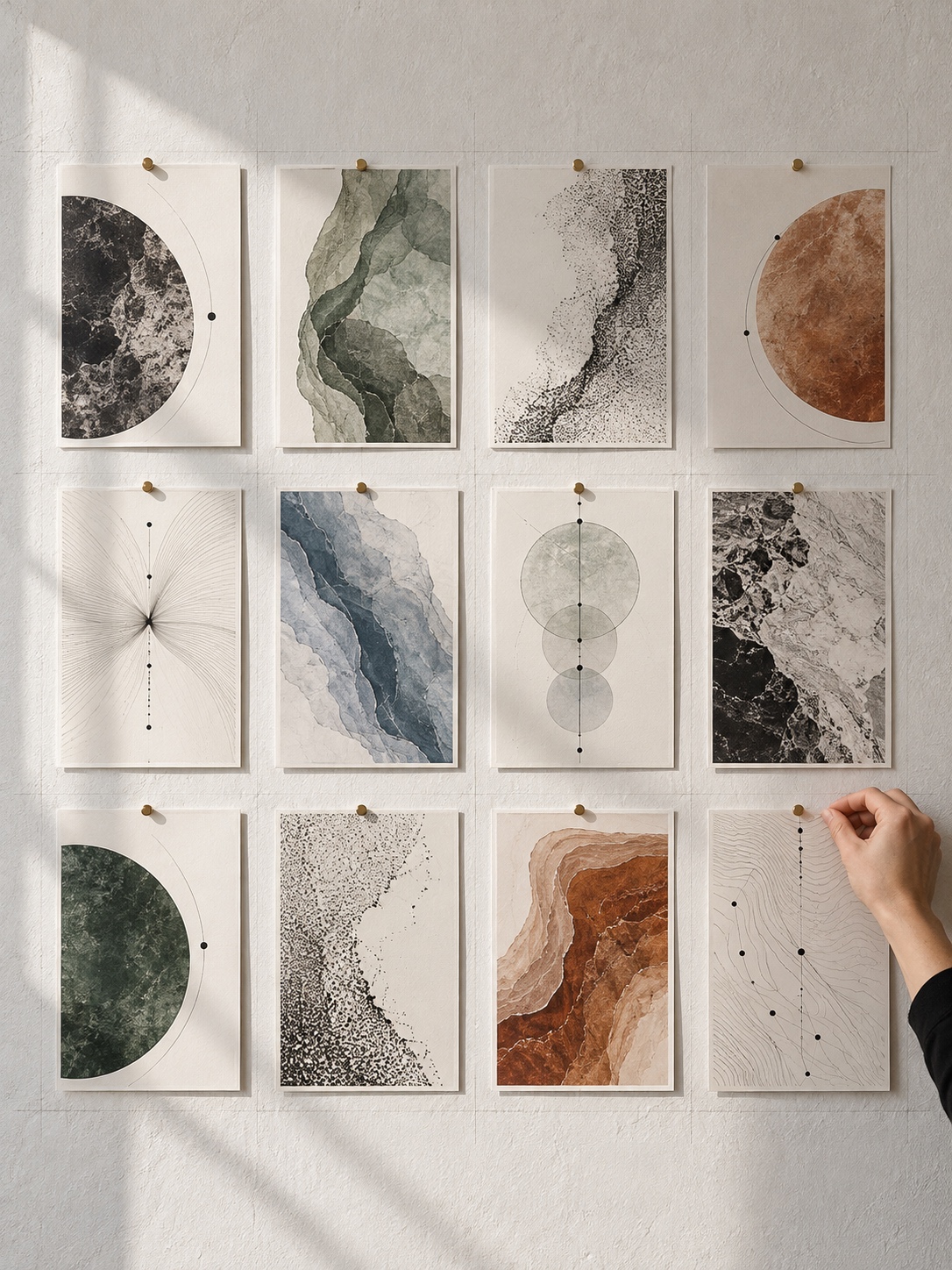
A shared grid is the cheapest way to look professional. Put panel edges, labels and legends on the same vertical and horizontal lines, and keep equal gaps between panels. The eye reads alignment as intention.
Repeated visual codes do the same job for meaning. If a dashed line means “predicted” in panel B, it means “predicted” in panel D. I borrow this from dashboard work: a chart type or colour is a promise to the reader, and breaking it costs trust. My piece on dashboard design principles shows how that logic scales across a whole screen of charts.
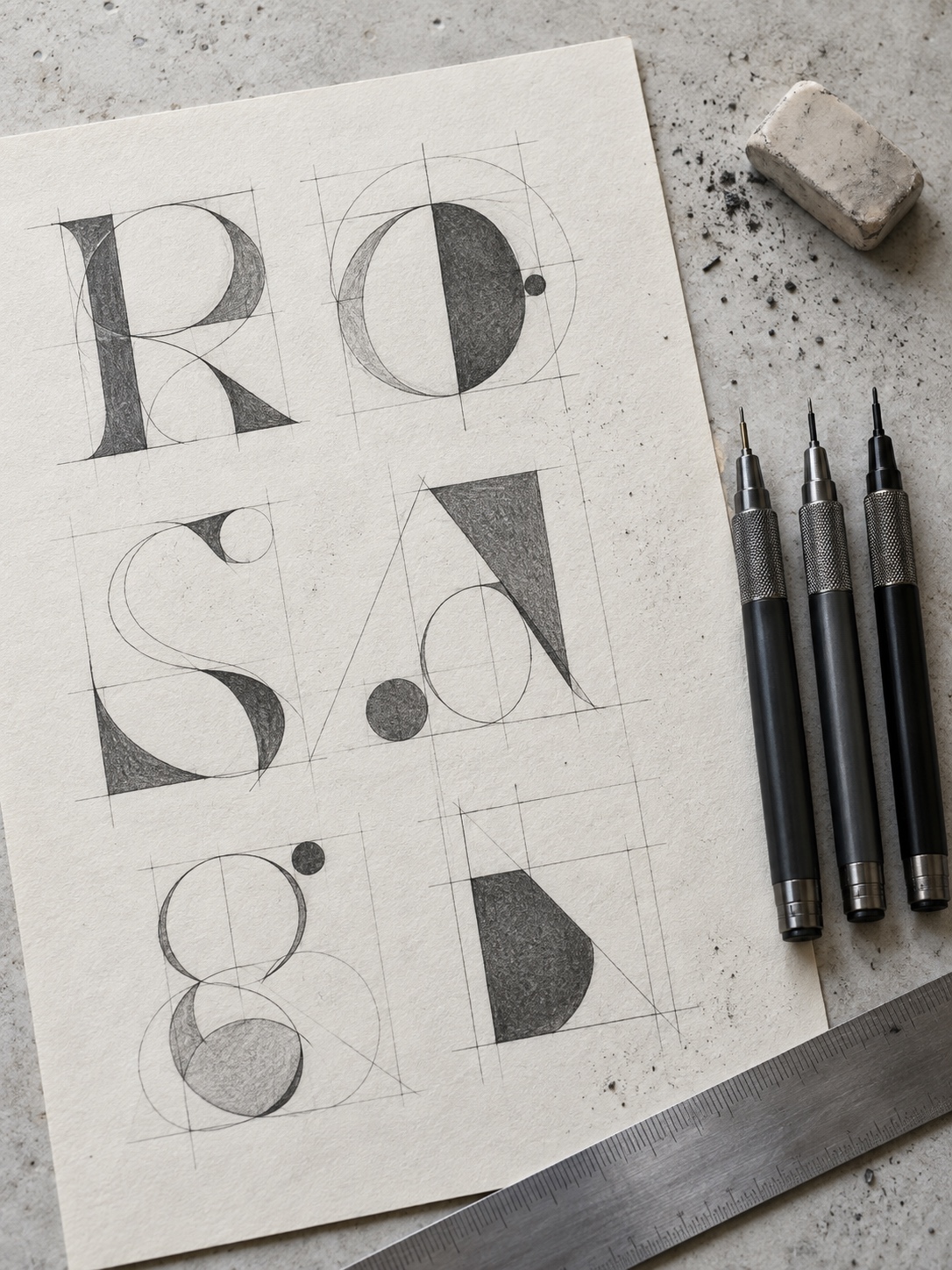
One more habit helps with all of this: sketch on paper first. Ten minutes with a pencil and a sheet of A4 tells you whether the layout works before you spend an hour aligning boxes. Fixing a bad idea in software is slow, and fixing it on paper is almost free.
Design at the final publication size
A figure that looks clean on a large monitor can become unreadable when a journal shrinks it to a single column, which in many journals is only about 9 cm wide. Labels that were comfortable on screen turn into specks.
Preview single-column and double-column dimensions
Set the artboard to the journal’s real width from the first minute, not at the end. Most publishers list single-column and double-column widths in their author guidelines, and they differ between journals, so check yours.
Then print the figure on paper at actual size, or zoom your screen to 100 percent of the physical size. If you have to squint, the text is too small or the figure is trying to say too much. A 20-second print test catches more problems than an hour of staring at a monitor.
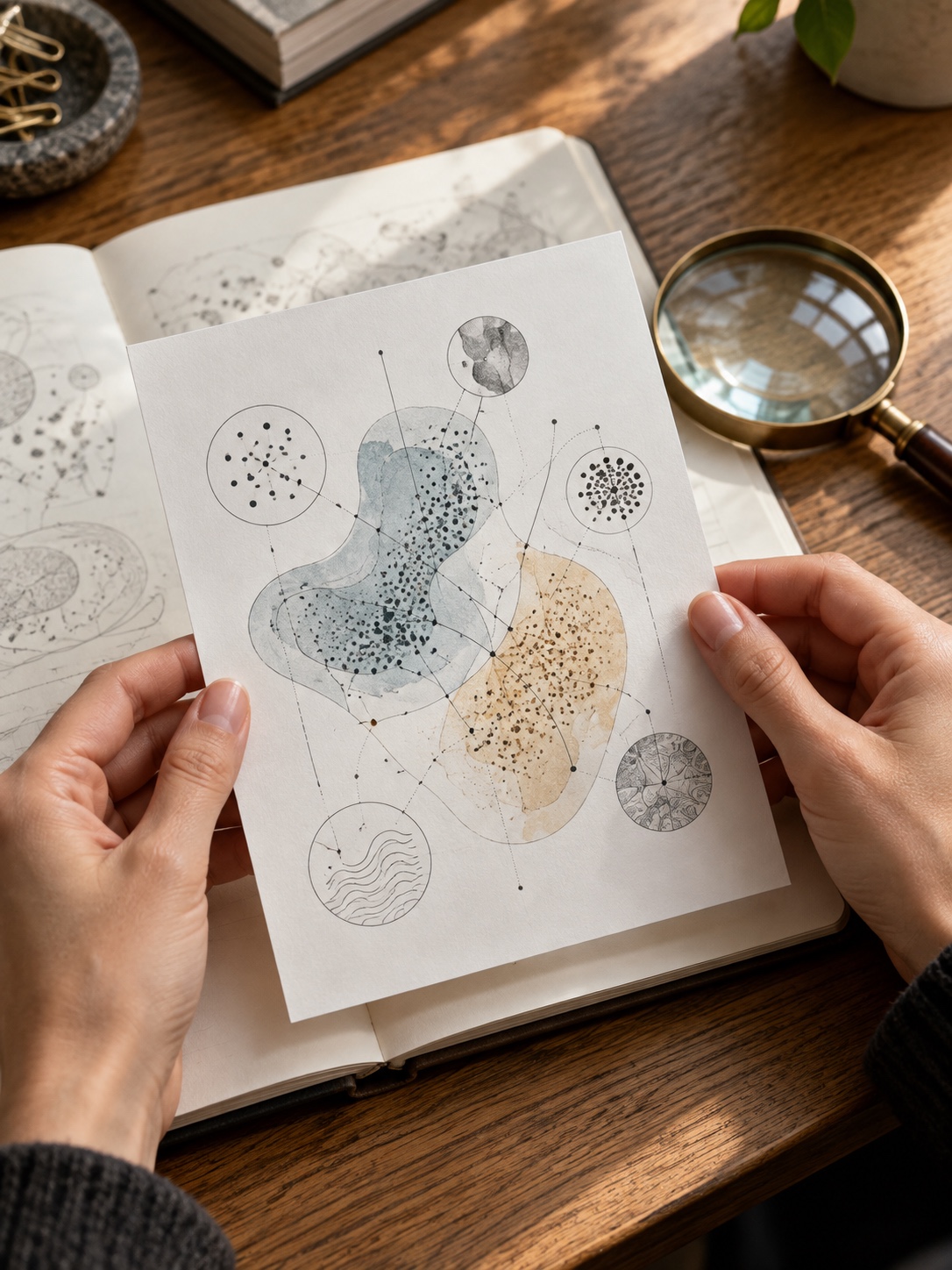
Remove detail before labels become unreadable
When a figure doesn’t fit, most people shrink everything. Designers do the opposite: they remove things. Cut secondary arrows. Merge boxes that explain the same step. Move the detailed variant to the supplementary material and leave a simplified version in the main text.
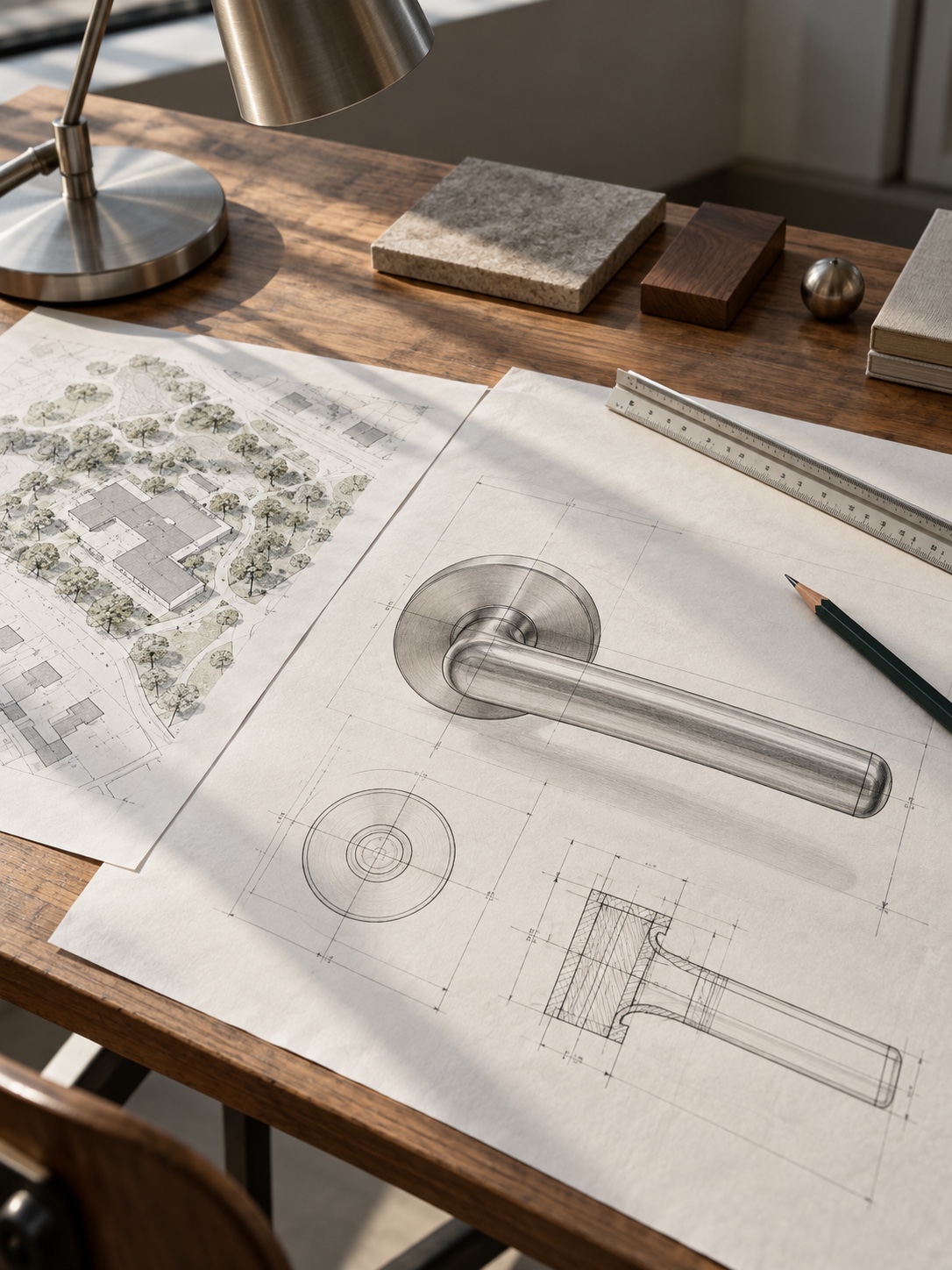
Architects do it with drawings at different scales: a 1:500 site plan doesn’t show door handles. Your single-column figure is the 1:500 plan, so it shouldn’t try to carry the 1:5 detail.
Use vector files for sharp, editable scientific figures
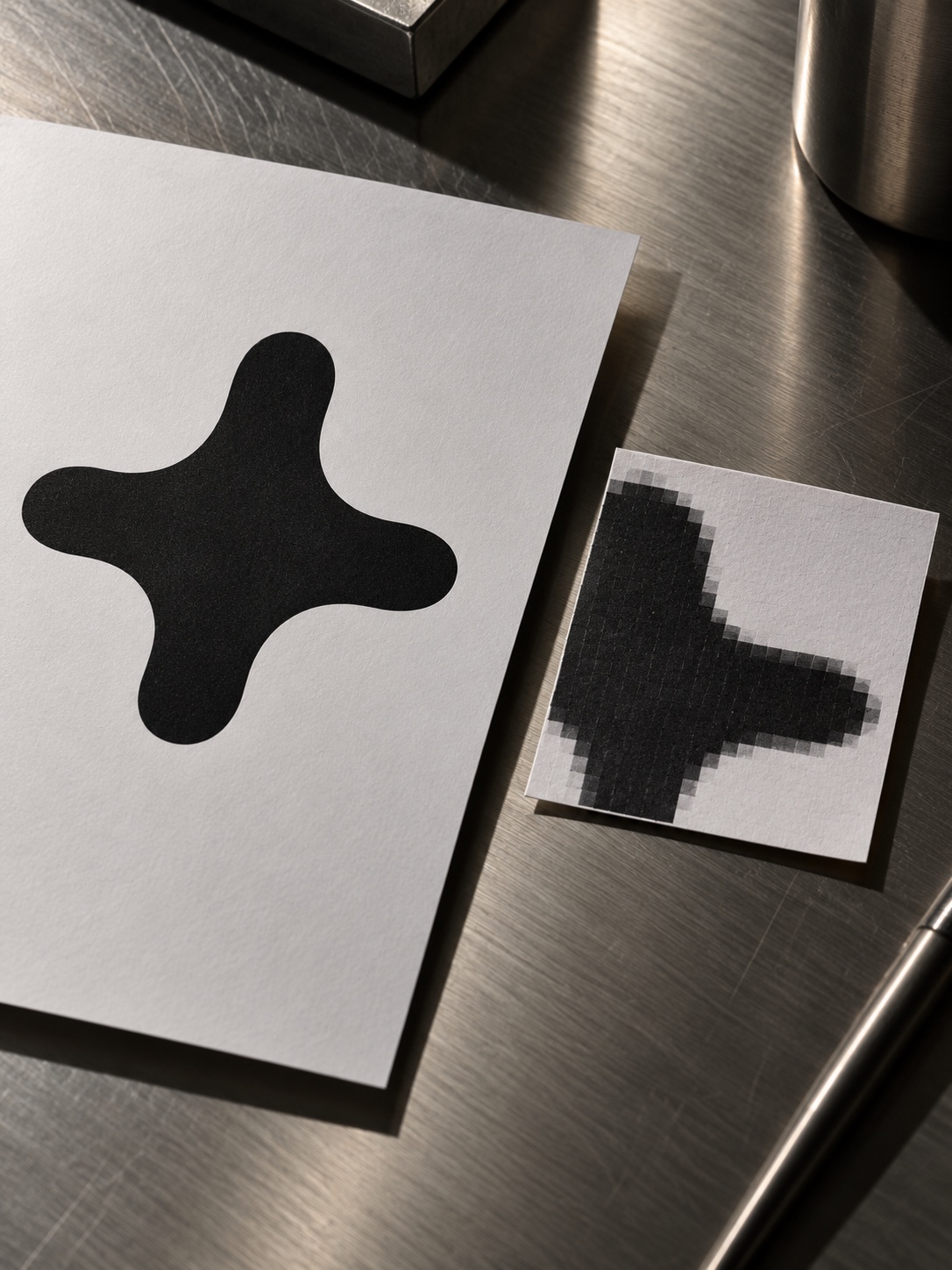
Raster images blur when scaled, and they are painful to revise. Change one label and you may have to redraw the whole region. Vector formats keep lines sharp at any size and leave every element editable.
When to export SVG or PDF instead of a raster image
Use vector for anything made of lines, shapes and text: diagrams, flowcharts, schematics, plots. Use raster only for photographs and microscopy images, where the pixels are the data. Nature’s figure guide, for instance, prefers PDF or EPS vector artwork and asks for at least 300 dpi on photographic images.
Typical safe workflow: build in a vector tool, export PDF for submission if the journal asks for it, keep the SVG as your master. If you’re new to vector tools, how to make vector graphics covers the basics in about the time it takes to drink a pot of tea. I’m partial to Shu Pu-erh while I work, though that’s not strictly required.
Keep labels, colors and layout editable for reviewer revisions
Reviewers will ask for changes. A different panel order, larger text, a new colour for the control group, an extra annotation. If your figure is a flat PNG, each request is a rebuild. If it’s a layered vector file with live text, it’s a ten-minute edit.
Keep your text as live text, not outlined paths, until the final version. Name your layers. Save the colours as swatches. These habits feel fussy for about a week and then save you weeks.
Where AI fits into the scientific figure workflow
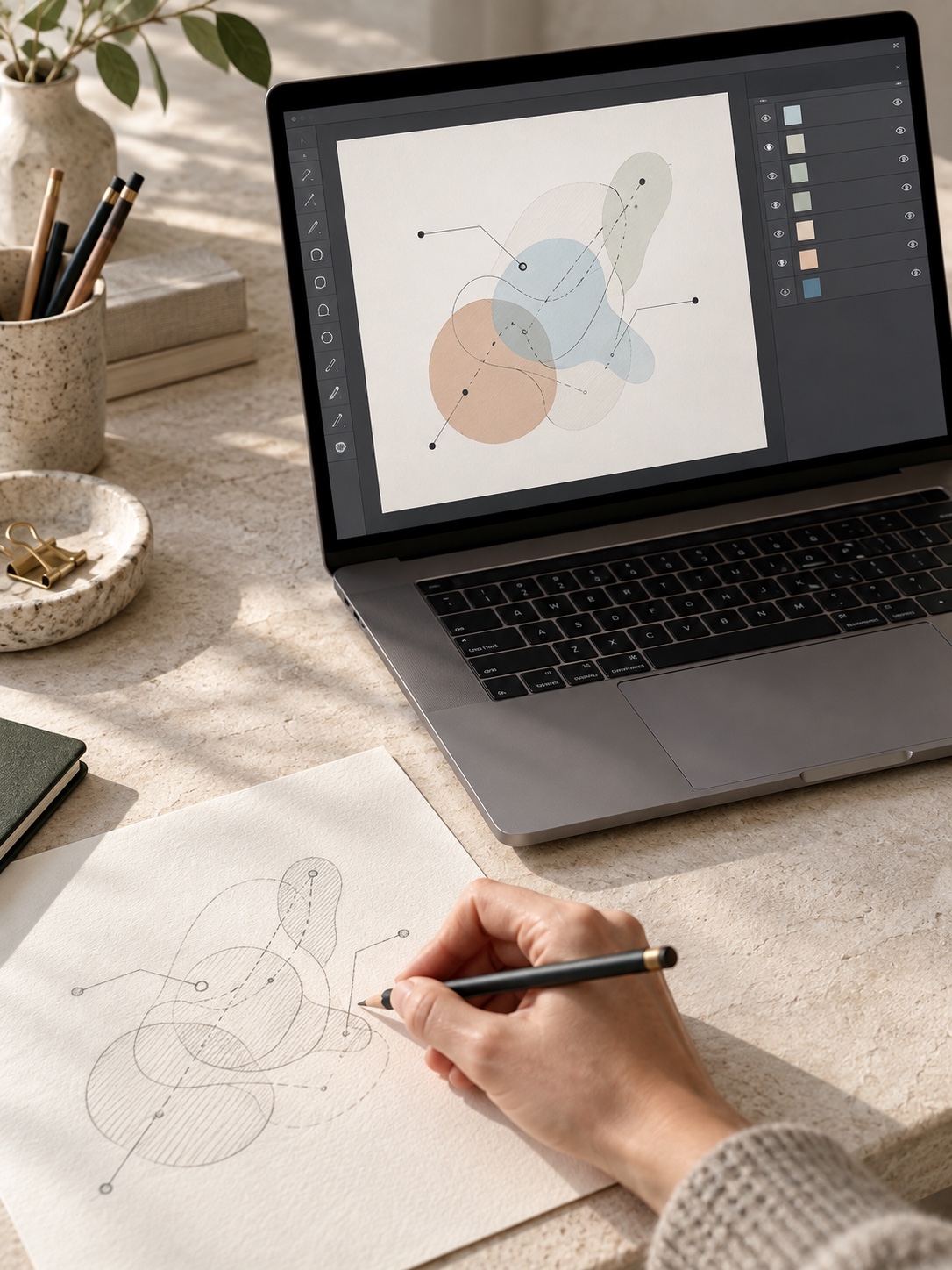
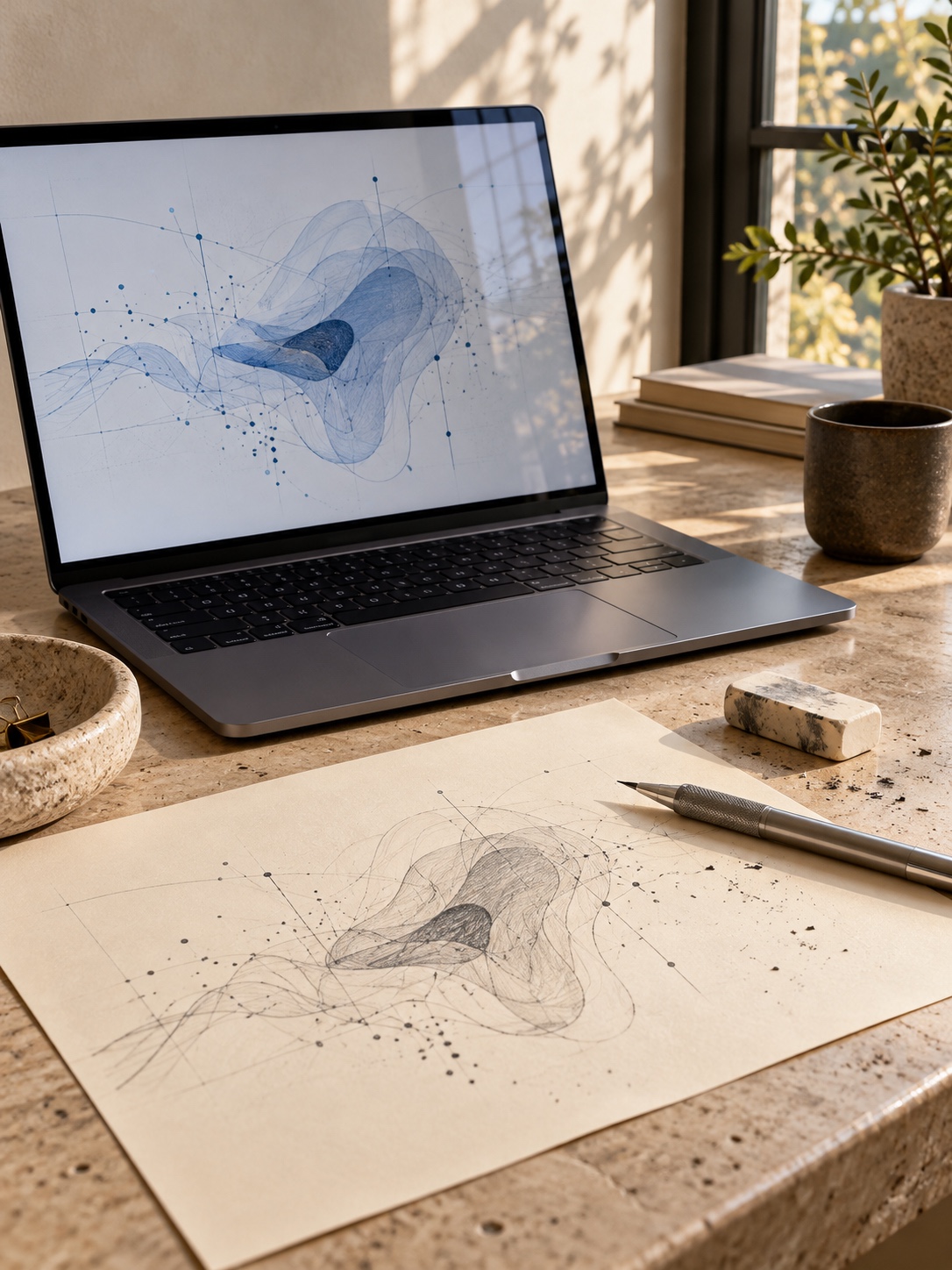
The hardest part of a scientific figure is usually the blank canvas. Researchers often know exactly what their method does but not how to lay it out visually, and that first layout can eat an afternoon.
Use an AI scientific figure generator to overcome the blank canvas
This is where a new category of tools helps. Paper Banana, for example, describes itself as built for researchers, students and educators who need publication-quality visuals without design expertise. You paste a method description or figure instructions (its generator accepts up to 4,000 characters), and it produces a draft illustration.
According to its pages, its AI scientific figure generator can export an editable SVG for Illustrator, Inkscape or draw.io, so the result is a starting point rather than a flat image you’re stuck with.
The site also lists an option to upload a reference figure from a published paper to guide the visual style, which could help match the conventions of your field. That feature is shown as paid, and I haven’t tested any of it myself, so treat these as the vendor’s own descriptions. Generation times are also described inconsistently across its pages, from about two minutes to several, so don’t plan your deadline around it.
Treat AI output as an editable draft, not scientific evidence
The design rules above still apply to anything an AI produces. A generated draft speeds up the first layout, but you still decide what the figure’s one job is. You still check that every colour carries a meaning, that panels share a system, and that the science is drawn correctly.
Neither of Paper Banana’s pages I read states anything about accuracy guarantees, journal acceptance or the need for human review, so that responsibility stays entirely with you. Also check your target journal’s policy on AI-generated images, since publishers’ rules on this are changing and some restrict it.
Researcher validation checklist: accuracy, emphasis, labels, units and conventions
Before any AI-drafted figure goes near a manuscript, go through five questions. Is every structure, pathway or component drawn correctly? Does the emphasis match your claim? Are all labels spelled and capitalised the way your field writes them? Are the units, scale bars and symbols right? Does the figure follow the conventions readers in your field expect, such as arrow meanings or colour codes?
If any answer is “not sure”, fix it by hand. The tool drafts; you’re accountable.
Scientific figure checklist before submission
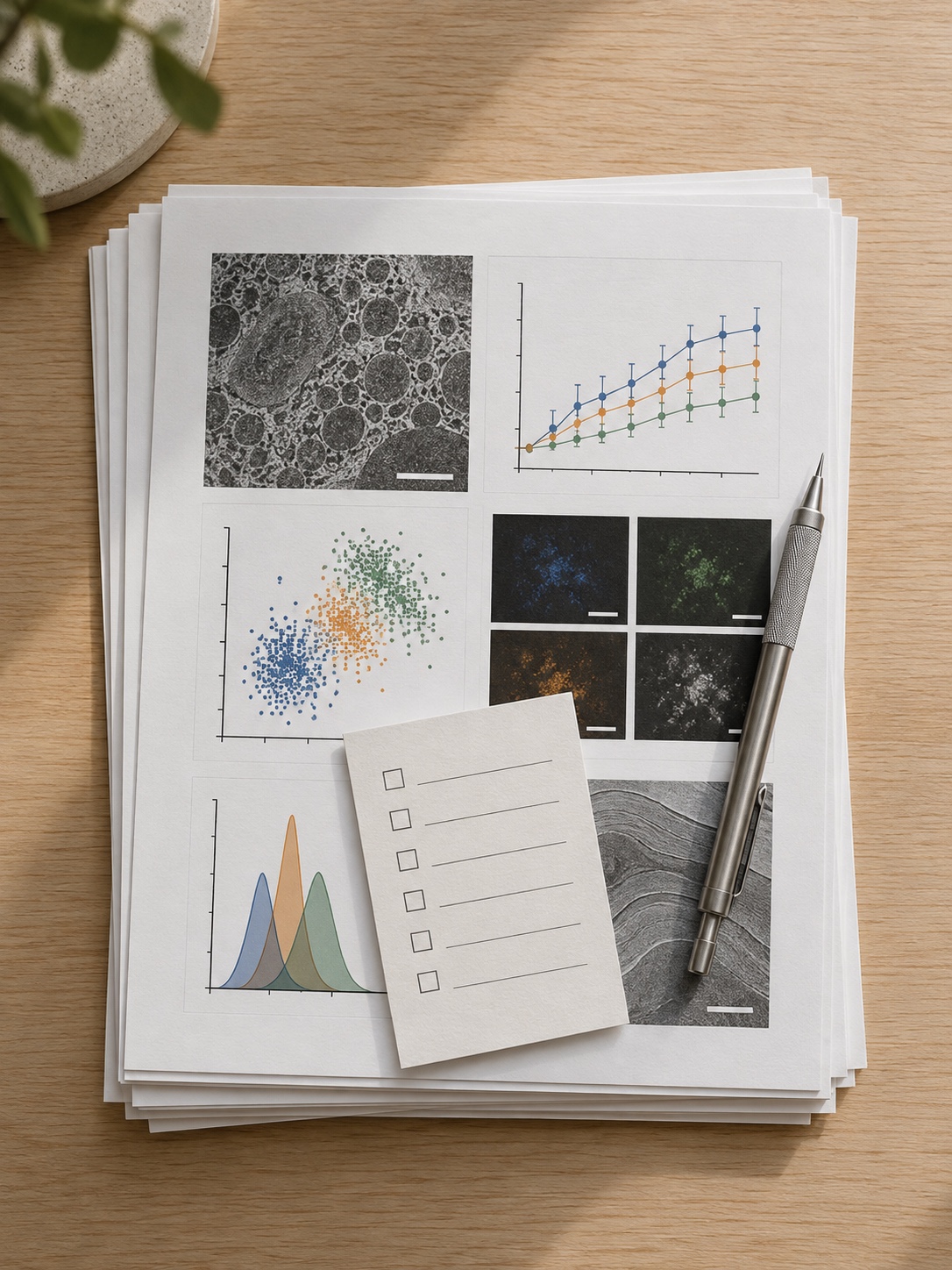
A short list beats a long guideline when you’re tired and the deadline is near. Run through it for every figure:
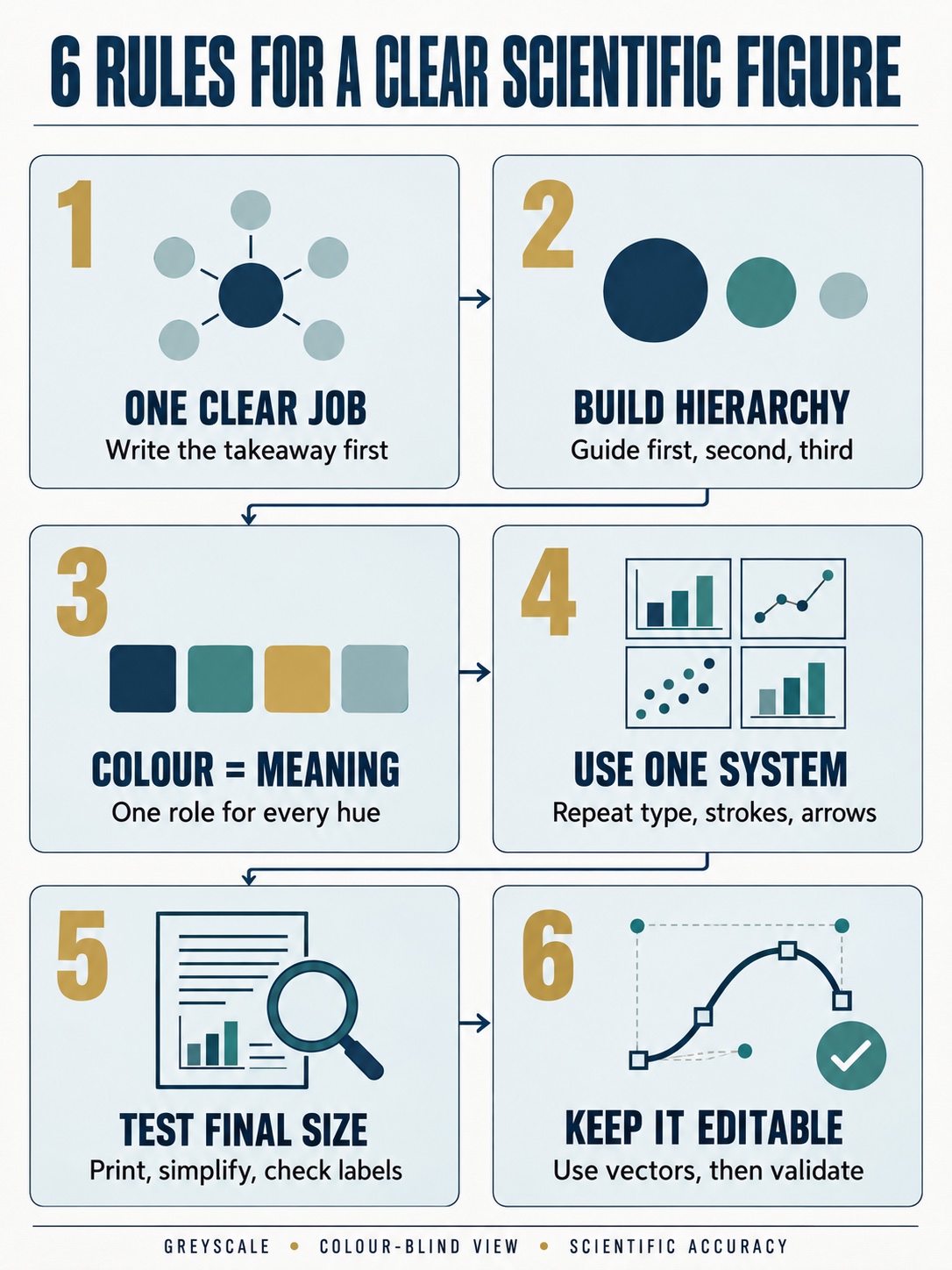
- Can you state the figure’s main point in one sentence?
- Does every colour carry a consistent meaning across panels?
- Do all panels share the same typeface, text sizes and stroke weights?
- Is every label readable at the final printed size?
- Is the file in a vector format you can still edit?
- Does it work in greyscale and for colour-blind readers?
If you can tick all six, you’ve done more than most authors do.
Final thoughts
Researchers spend months on the work behind a paper and sometimes only hours on the figures that represent it. Borrowing a few habits from designers, such as clear hierarchy, purposeful colour, consistent systems and vector workflows, closes much of that gap. Whether you draw every line yourself or start from an AI draft, the goal is the same: a figure a reader understands at a glance.
Pick one figure from your current manuscript and give it the six-question check today. It takes ten minutes, and it’s the quickest way to see how much of the design is already working for you.
FAQ
What makes a good scientific figure?
A good scientific figure has one clear message, a visible hierarchy and colour that means something. It stays readable at the journal’s printed size, uses one consistent system across panels and works in greyscale. If a reader can state the takeaway after a few seconds, the figure is doing its job.
How do you make figures for scientific papers?
Write the one-sentence takeaway first, then sketch the layout on paper. Build it in a vector tool with one typeface, two or three text sizes and fixed line weights. Assign each colour one meaning, preview at final printed size and export SVG or PDF. Check greyscale and colour-blind views before submitting.
What font size should a scientific figure use?
It depends on the journal. Nature, for instance, asks for sans-serif text between 5 and 7 pt, with panel labels at 8 pt bold and lowercase. Other publishers set their own ranges, so read your target journal’s author guidelines and test readability at the final printed size, not on your monitor.
Should scientific figures be SVG, PDF or PNG?
Use vector formats (SVG or PDF) for diagrams, charts and schematics, because lines stay sharp at any size and remain editable. Use raster formats such as PNG or TIFF for photographs and microscopy. Follow your journal’s file requirements, since some prefer PDF or EPS vector artwork and set minimum resolutions for images.
How do you make a scientific figure color-blind friendly?
Avoid relying on red and green alone. Choose an accessible palette such as the one Wong published in Nature Methods in 2011, add a second cue like dashes, markers or direct labels, and keep strong lightness contrast. Then convert to greyscale and run a colour-blindness simulation to confirm categories are still distinguishable.
Can AI generate figures for a research paper?
AI tools can draft diagrams and illustrations from a text description, and some export editable SVG, which makes them useful for getting past a blank canvas. They don’t verify the science. You still have to check accuracy, labels, units and conventions, and confirm that your target journal allows AI-generated images.
References
- 0shares
- Facebook0
- Pinterest0
- Twitter0
- Reddit0