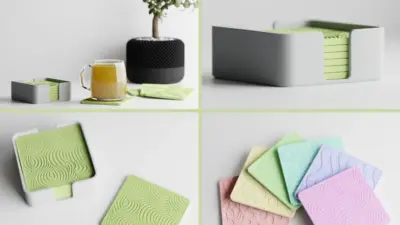
I have spent countless hours refining 3D models for printing, and I know how challenging it can be to get dimensionally accurate, stable, and visually appealing results. Whenever I share my 3d printing design tips, I always emphasize a few fundamentals that help me stay on track. In this article, I want to walk you through the top considerations I keep in mind when creating designs for 3D printing.
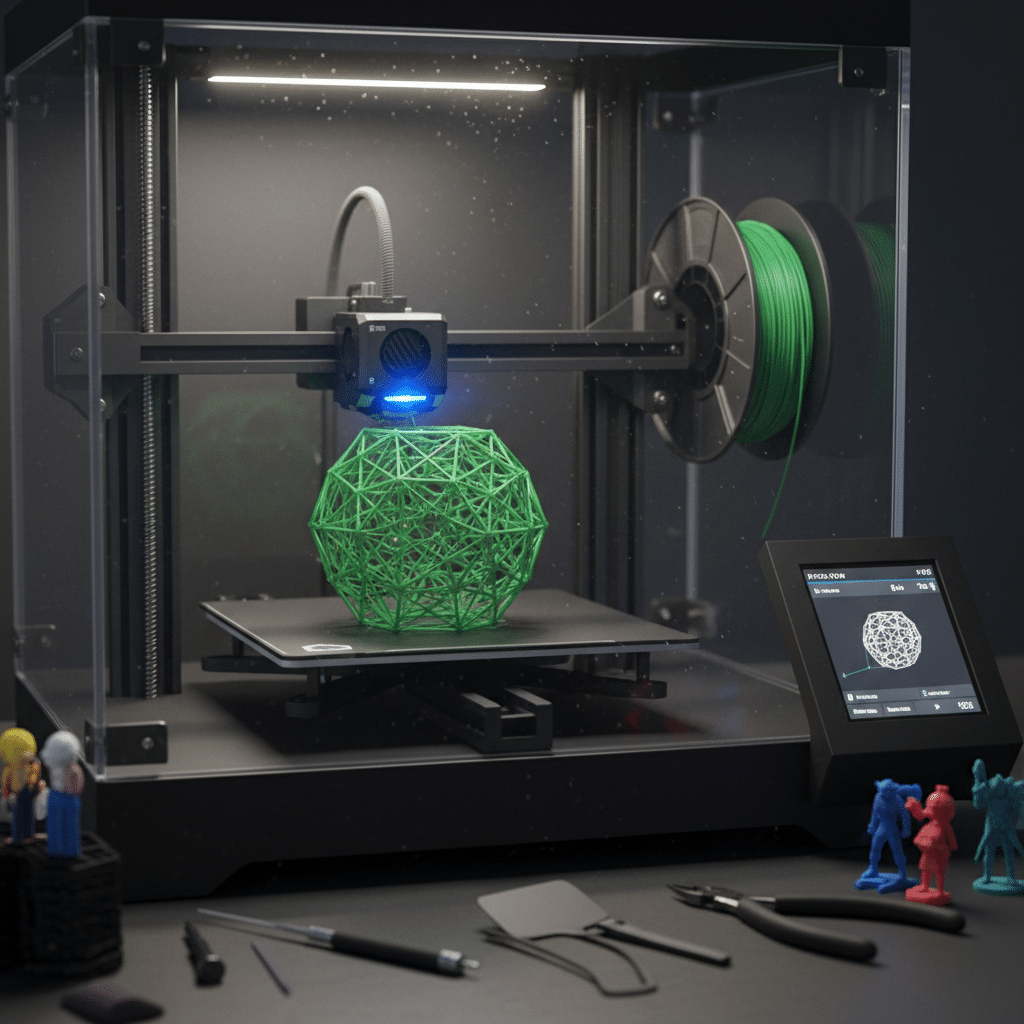
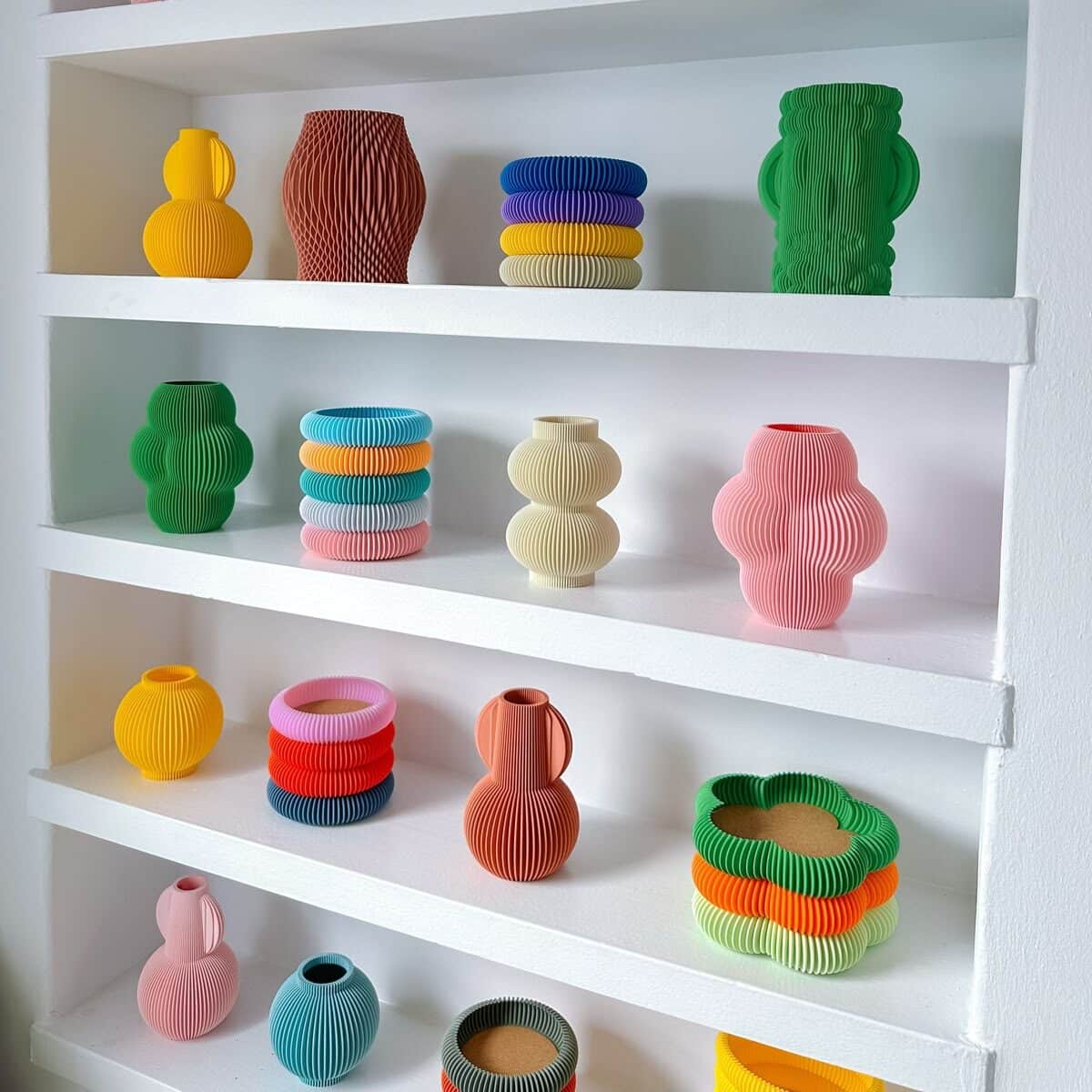
Recognize design importance
Getting a design right before hitting “Print” preserves both time and resources. As I learned early on, certain software tools automatically ensure wall thickness, curvature, and manifold settings. Solid modeling programs, for example, typically produce watertight models that avoid the zero-thickness walls common in polygon modeling (as noted by 3DPrint.com).
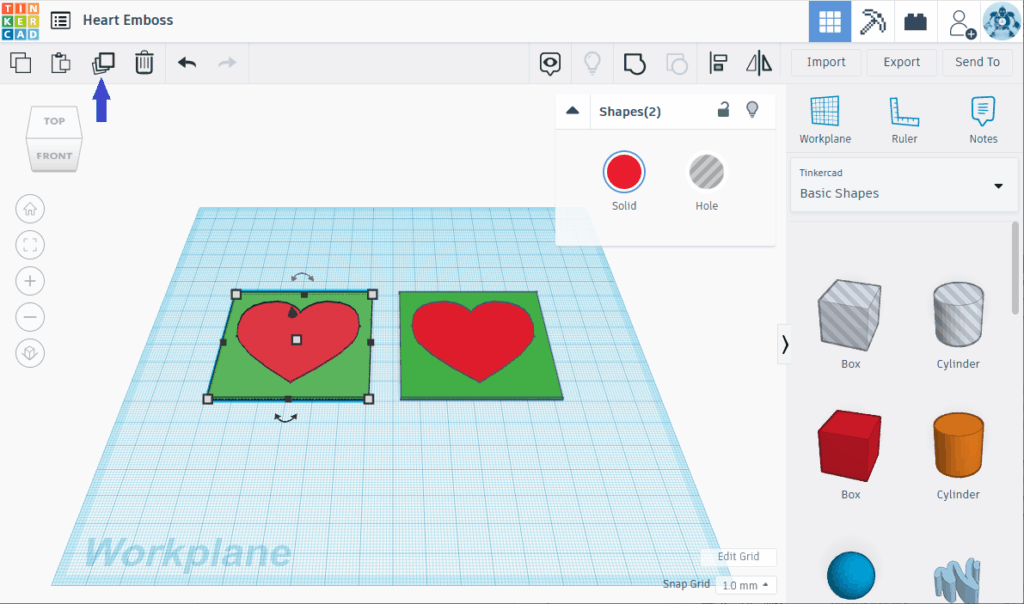
If you want a hands-on introduction, try starting with Tinkercad. I like using Tinkercad for quick exploratory designs because it’s intuitive and includes tutorials and guides. For something more advanced, I often turn to Fusion 360 or FreeCAD. You can read more about these options in my rundown of the best software for 3d printing design.
Prevent warping and distortion
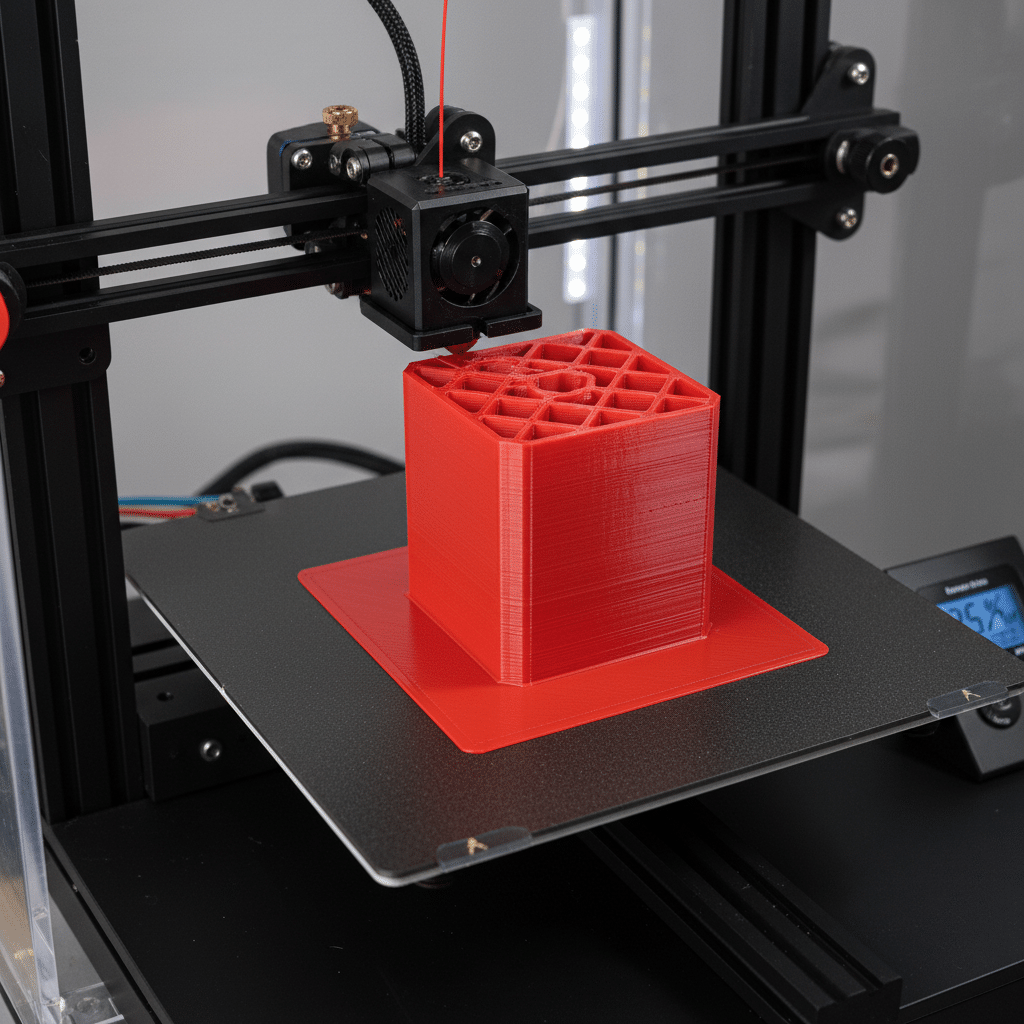
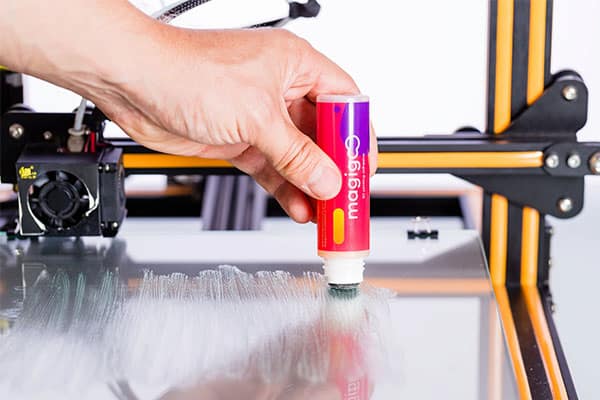
In my experience, warping is one of the biggest culprits for failed prints. Large, flat surfaces are especially prone to lifting at the corners, which can ruin an otherwise great design. According to Instructables, using methods like blue painter’s tape or a thin glue stick layer improves bed adhesion. I also pay special attention to bed leveling. Even slight unevenness in the first layer can amplify into major defects as the printer builds up layers.
When using technology like SLS or MJF printing, oversized parts or thin features may also warp and lose dimensional accuracy. Protolabs suggests keeping parts below around seven inches in length and properly managed in thickness to reduce these risks.
Optimize wall thickness
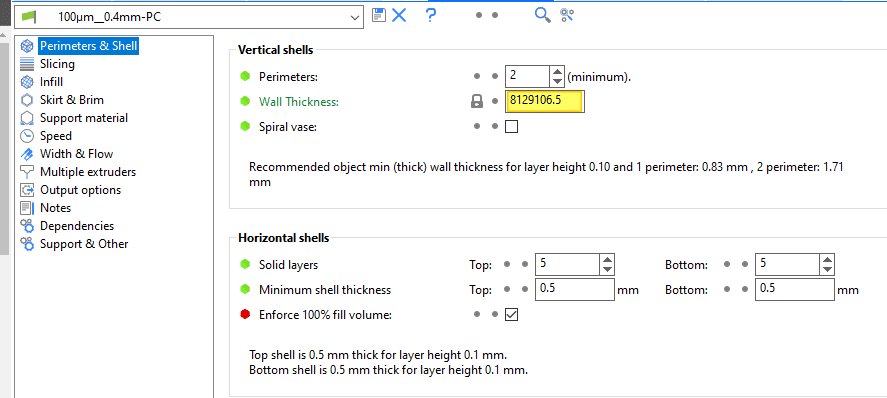
Walls that are too thin might fail midway through a print, while overly thick walls waste material and take far longer to print. I usually keep walls above 0.8 mm for plastic prints, especially if I’m printing with FDM. For metals like aluminum, I sometimes follow the guidelines from Protolabs that specify around 0.030 inches (0.762 mm) or thicker. Meeting a material’s minimum thickness recommendations is essential for reliability.
I often cross-check my designs with free software like Ultimaker Cura or PrusaSlicer to confirm if the slicer flags any areas as too thin. When in doubt, I scale up the thickness by a small fraction, especially around critical stress points and mounting holes.
Consider overhangs and supports
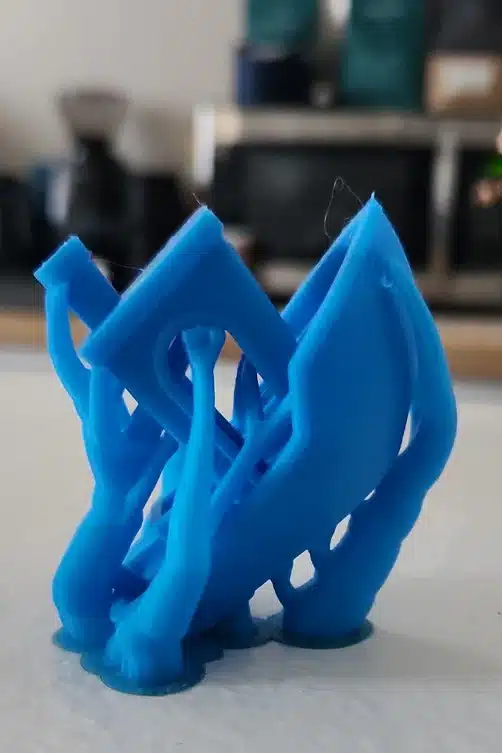
Whenever I design vertical walls or holes, I try to keep overhang angles below 45 degrees. If the design calls for more extreme geometry, I incorporate bridging features or plan for support structures that can later be removed. 3DPrinterOS advises limiting large overhangs or using adequate support to retain print quality. For FDM users, the presence of too many supports can become a hassle, so I aim for incremental designs that minimize them.
When designing holes, I sometimes turn them into chamfered or triangular shapes near the top. That small adjustment helps me reduce support use and overhang complexity. For more detailed advice, you could check out how to design for 3d printing.

Refine your first layer
I have found that the first layer can make or break the entire print. A slightly uneven initial layer tends to introduce curling or elephant’s foot at the base. I use a slow and steady print speed for this layer and watch the bed temperature to achieve optimal adhesion. For certain flexible filaments like Ninjaflex, I adjust the extruder settings and employ a spring-loaded drive block to prevent filament jams (Instructables).
If I spot any sign of the filament not sticking, I pause right away and fix the bed leveling or adjust the nozzle distance. By ironing out first-layer issues early on, I save a lot of time and material.
Review your design continuously
At the end of every design process, I run a quick checklist before printing. Are my walls properly thick? Do I have large overhangs that need support? Is my file high enough resolution or do I risk jagged surfaces? According to Hubs, the transition from a digital model to a physical object demands thoughtful consideration of real-world constraints. I also double-check my scaling and orientation to avoid dimension mistakes and unexpected warping. Sometimes a slight rotation of the part on the build platform results in a better surface finish or fewer supports. That checklist matters most when you are making practical 3D printed items that need to fit, hold weight, or survive daily handling.
If you want even more guidelines, take a look at design rules for 3d printing. And if you’re creating designs from scratch, you might also find my tips in how to create 3d models for printing helpful.


Answer common questions
How thin can my walls be?
In most FDM-based printing, you should keep walls at least 0.8 mm thick for stability. For metals and advanced industrial processes, consult the specific requirements, such as 0.030 inches for aluminum from Protolabs.Where do I start if I’m completely new?
I recommend Tinkercad for beginners. It’s straightforward, free, and you can graduate to more advanced CAD software later when you need specialized features.Do I always need supports for overhangs?
Not always. Overhangs below 45 degrees often print fine without supports. If your model goes beyond that angle, consider tapered edges, internal bridging, or generating removable support structures.What if I see warping on large prints?
Warping is common with large, flat parts. Use a heated bed if possible, apply adhesion aids like glue or painter’s tape, and ensure your first layer is pressed down evenly.Can I combine multiple models into one file?
Yes. Software like 123D Design or Fusion 360 lets you fuse multiple STL files, subtract sections, or hollow out interiors. This can simplify complex assemblies, but make sure you keep track of each part’s thickness and clearances.
These are the core guidelines I rely on when printing my own models. By focusing on precise geometry, appropriate thickness, minimal warping, and well-managed supports, my prints come out looking sharp and functional. I hope these tips can help you avoid unnecessary trial and error. Once you feel comfortable with the basics, you can push the boundaries of what’s possible in 3D printing design.
Many print issues begin before slicing. This guide to clean 3D models explains why topology, scale, normals, and final use should be checked early.
- 52shares
- Facebook0
- Pinterest52
- Twitter0
- Reddit0