A Christmas iPhone wallpaper works best when it suits the season and still lets your phone do its job. The clock should stay readable, app icons should be easy to find, and the design should still look good in the second week of January. This guide covers how to choose a style, use color and negative space, find and license images, crop and install them, and customize your own.
Seasonal phone backgrounds look more polished when contrast, icon visibility and screen proportions are considered together. These professional Christmas iPhone wallpapers offer a curated way to update an iPhone without sacrificing readability.
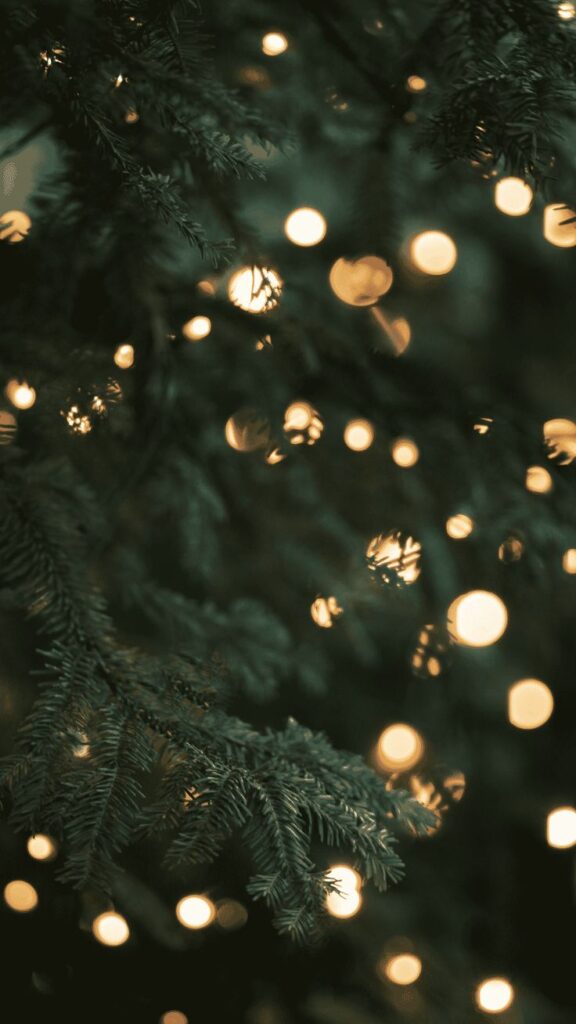
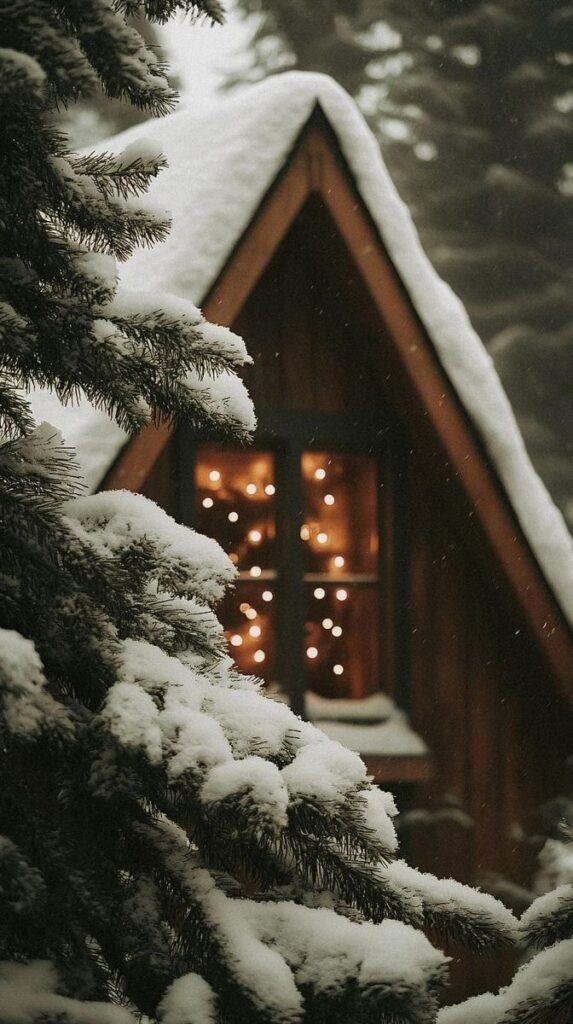
Why a festive wallpaper deserves a careful choice
Your phone is one of the objects you look at most often, so its background shapes how the device feels to use. A seasonal wallpaper is a small way to bring holiday decoration into that space, much like choosing ornaments or a winter coat.
Professional wallpapers differ from random festive images in a few practical ways. They have enough resolution for a modern screen, a deliberate color palette, and a composition that leaves room for the clock, widgets and icons. Phones are also visible in meetings and on desks. A well-chosen design can feel festive without looking out of place at work.
Styles of Christmas iPhone wallpaper
Christmas wallpapers cover a wide range of artistic approaches. Knowing the main styles makes it easier to narrow your search before you start downloading.
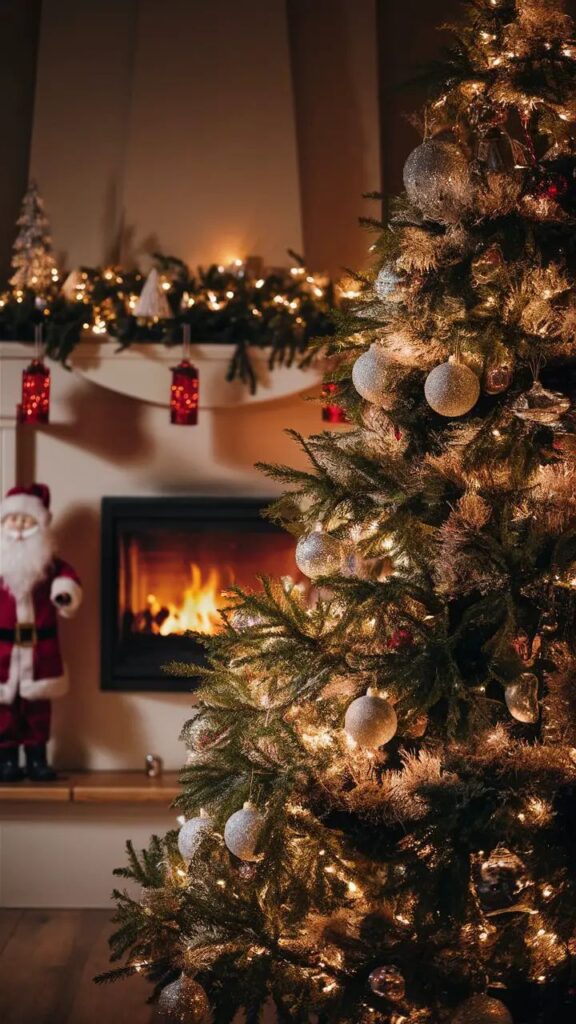
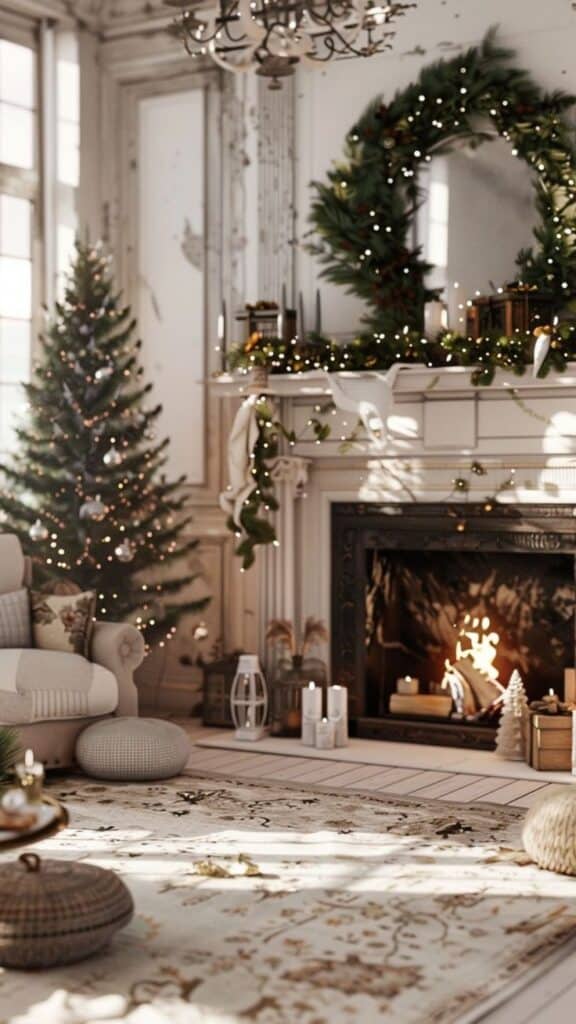
Classic and traditional
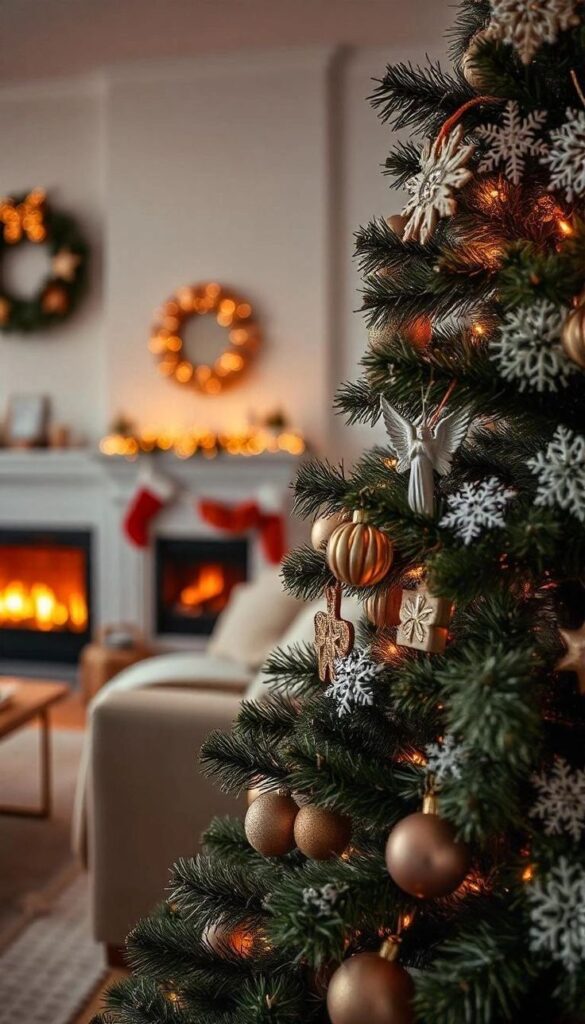
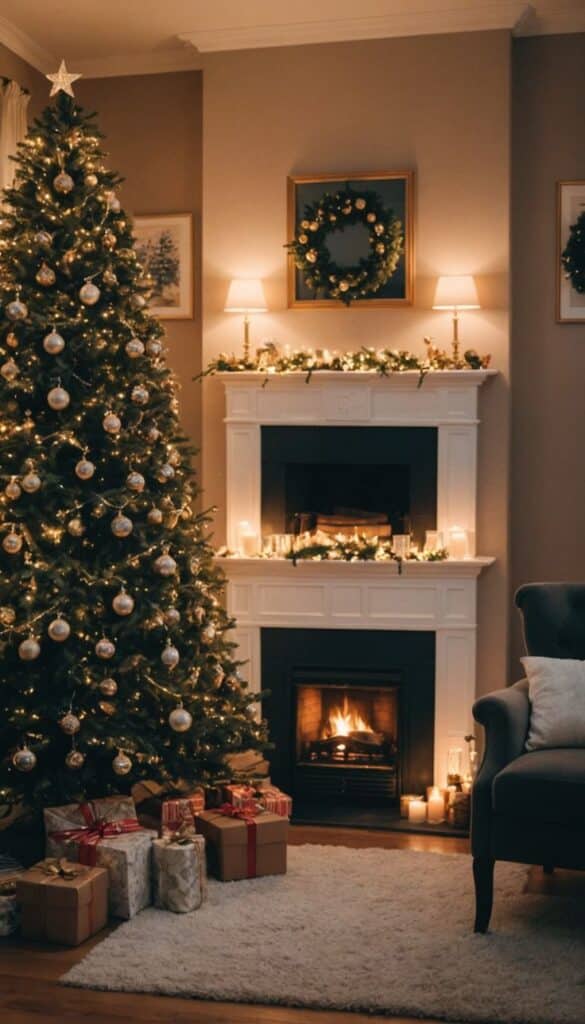
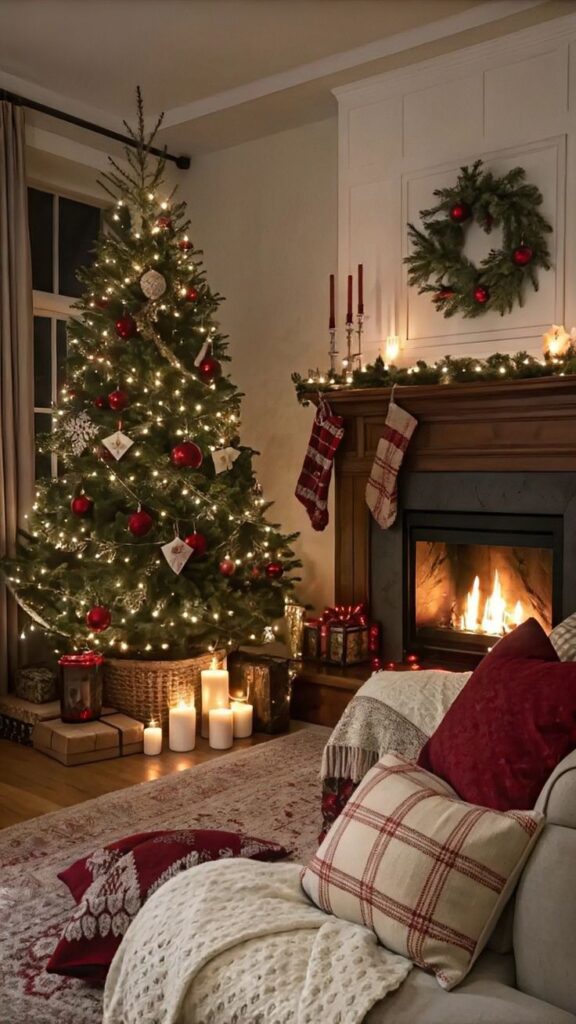
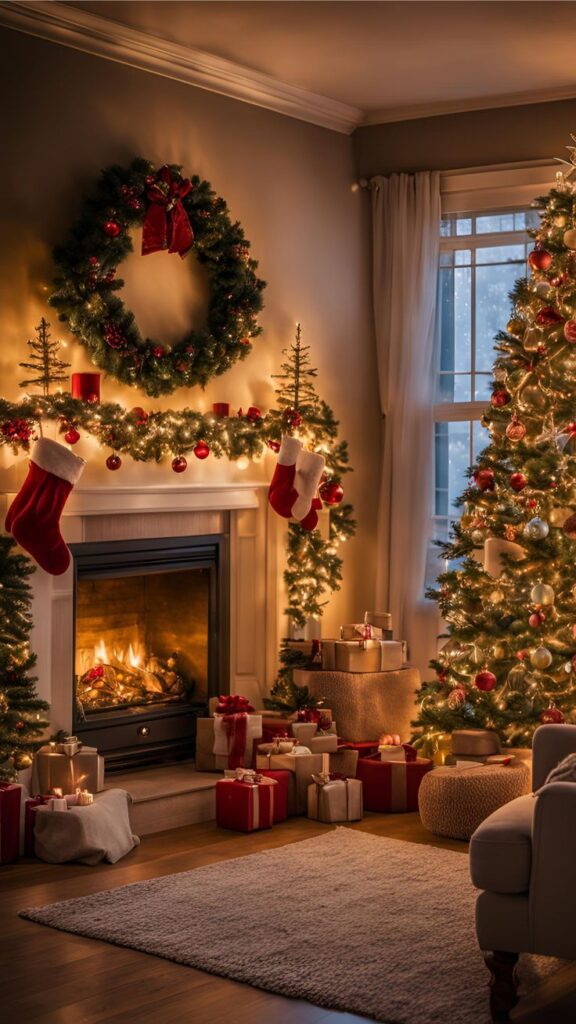
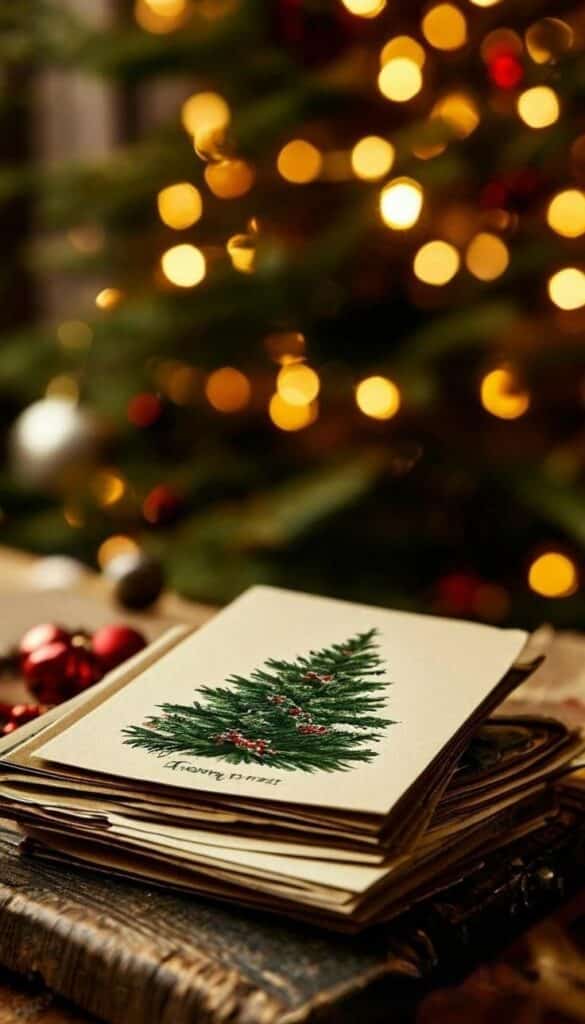
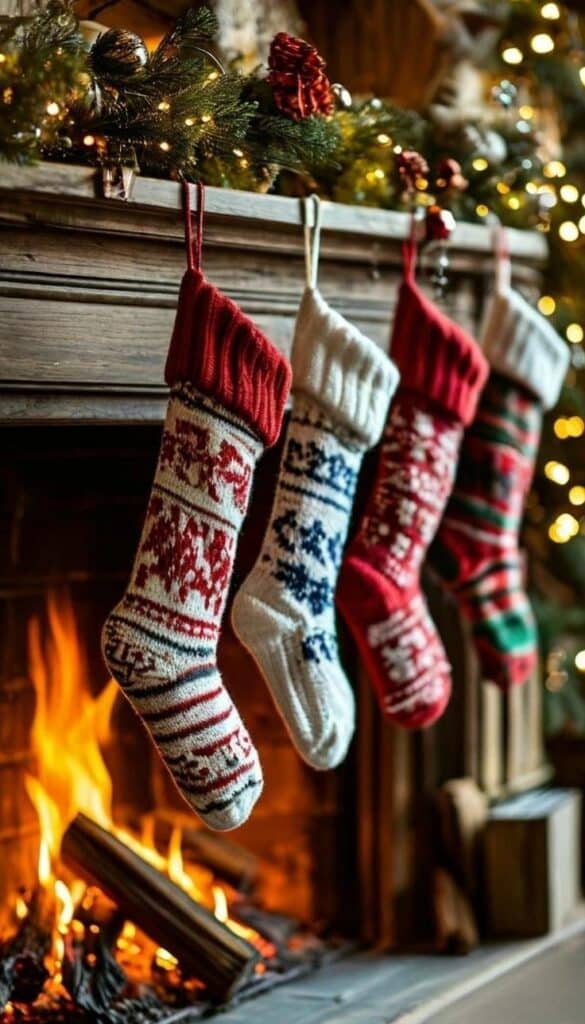
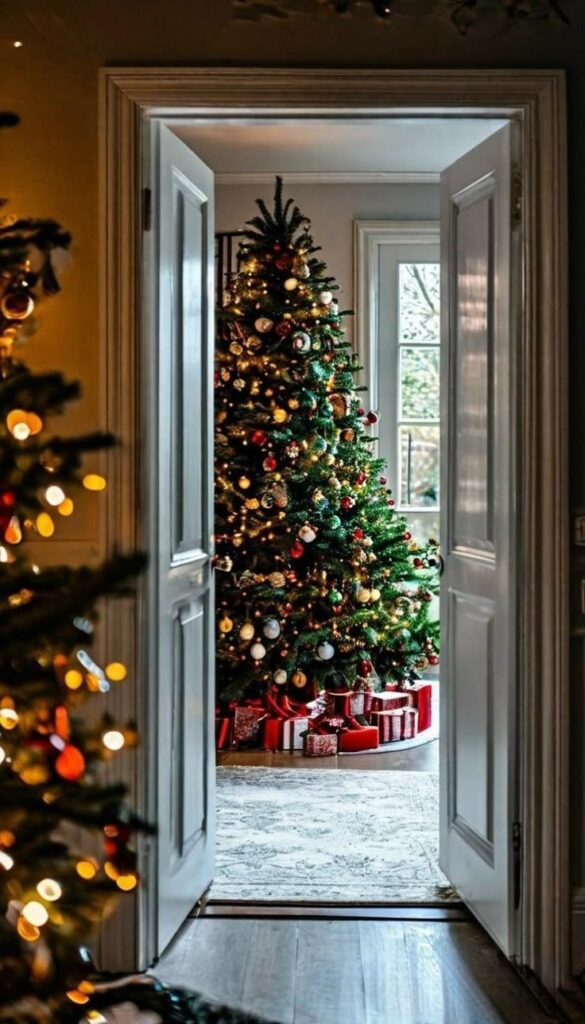
Traditional designs use the familiar imagery of Christmas. Expect Santa and his sleigh, reindeer silhouetted against a moonlit sky, decorated trees, glowing fireplaces and snowy landscapes with small cottages. Many recall vintage Christmas cards or classic holiday illustrations.
The palettes tend to be rich: deep reds, emerald greens, gold and crisp white. These designs suit anyone who prefers conventional Christmas aesthetics. Because they are often detailed, check that the busiest areas do not sit behind your icons or clock.
Modern and minimalist
Minimalist wallpapers reduce festive elements to their essentials. They rely on geometric shapes, simple icons and restrained palettes, such as muted tones, pastels or monochrome schemes with a single accent color. Common motifs include abstract snowflakes, stylized trees and delicate star patterns.
The focus is on composition and negative space. That leaves app icons and widgets clearly visible while the holiday theme stays obvious. This style is a safe choice for work settings or for anyone who prefers a calm, contemporary look.
Whimsical and playful
Playful Christmas iPhone backgrounds add humor and lightness. They often feature cartoon characters, mischievous elves, comic animal scenes or cheerful takes on festive symbols. Bright colors and energetic compositions are typical, and many have a storybook quality.
These designs appeal to children and to adults who enjoy a more lighthearted Christmas. They can be busy, so they often work better on the Lock Screen than behind a full grid of apps.
Color, contrast and negative space
A wallpaper never appears on its own. It sits behind the clock, notifications, widgets, app icons and, on recent models, the Dynamic Island or notch. Judging a design means judging how it handles all of these layers.

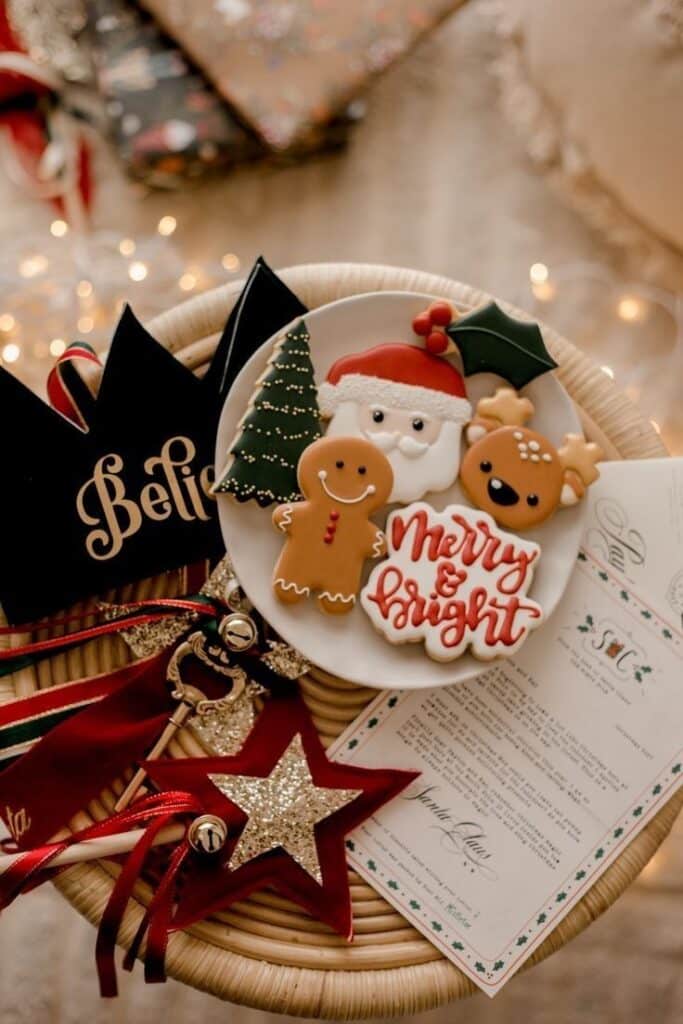
App icons and widgets
Icons need contrast against the background. Dense patterns and fine detail make them harder to pick out, which slows you down every time you open an app. Look for designs with calmer, more open areas where your most-used apps sit.
If you use widgets on the Lock Screen or Home Screen, check how they read against the image. Some wallpapers are designed with clear zones for information, which makes widgets easier to scan.
Clock, notifications and the Dynamic Island
On the Lock Screen, the time and notifications matter most. Check how the colors and patterns behind the clock interact with its typeface. A strong highlight or a bright ornament behind the numbers can make them hard to read at a glance.
On newer iPhones, consider the top edge of the screen too. Some designs use the Dynamic Island as part of the composition, while others work better when that area stays fairly plain.
A useful rule: preview the wallpaper with your actual clock and widgets visible. Keep important details away from those areas. For the Home Screen, try a simpler companion image, such as a solid color, a gradient or a blurred version.
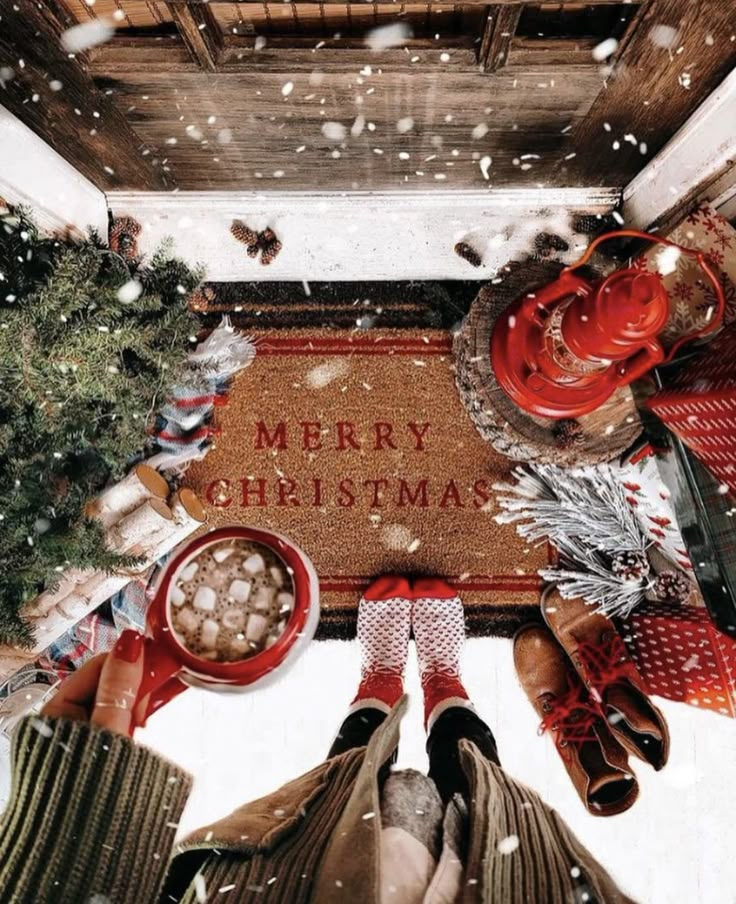

Choosing between your options
Once you know which style and layout suit you, a short selection process helps you settle on one design rather than switching every day.
Match your style and setting
Start with your general taste. You might lean toward sleek modern design, classic elegance, whimsical charm or quiet minimalism. If your phone is often visible at work, factor that in. Someone in a formal office may prefer a minimal design with small festive touches, while a designer might choose a more artistic or abstract interpretation.
Test a few candidates
Thumbnails rarely show how a wallpaper will look on your screen. Save a few favorites and set each one as your Lock Screen and Home Screen for an hour or two. Look at it in different lighting, with notifications arriving, and as you move between apps.
Ask yourself whether it stays pleasant and unobtrusive, and whether it makes apps harder to find. If you are unsure how it comes across, a friend or colleague can give you a quick second opinion.
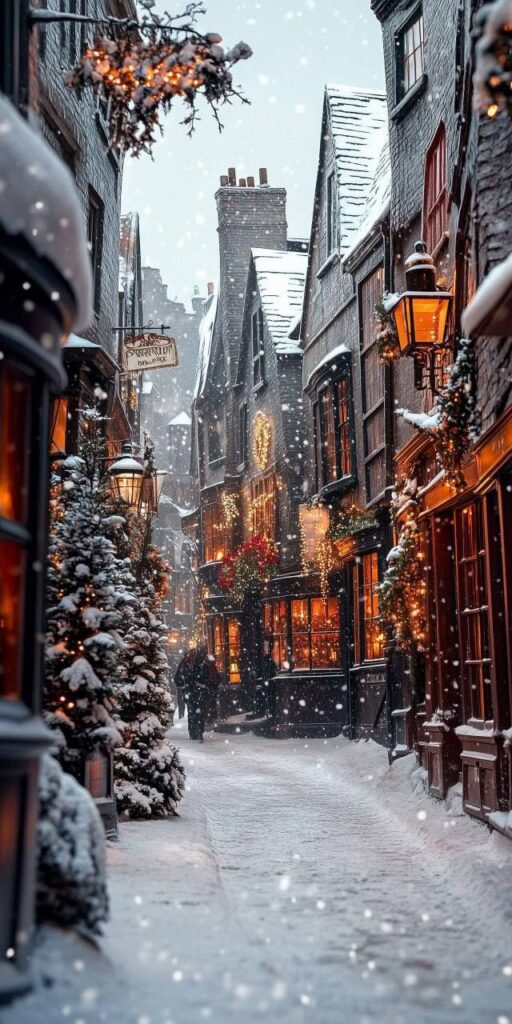
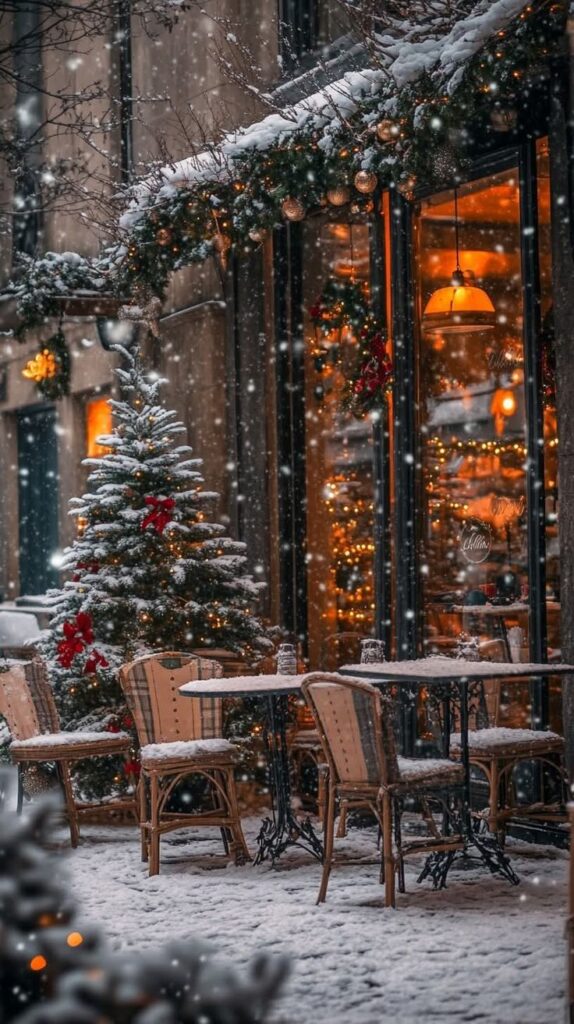
Think about long-term appeal
You will probably keep a Christmas wallpaper for several weeks. Very bright, cluttered or novelty designs can wear thin quickly. Picture how the design will feel on December 1, on December 24 and in early January. Designs that feel warm or calm without overwhelming the screen usually last longer.
Where to find wallpapers and how to check licensing
Christmas wallpapers come from many places, including wallpaper apps, independent illustrators, design marketplaces and stock photography libraries. Quality and usage terms vary widely between them, so check both before you download.

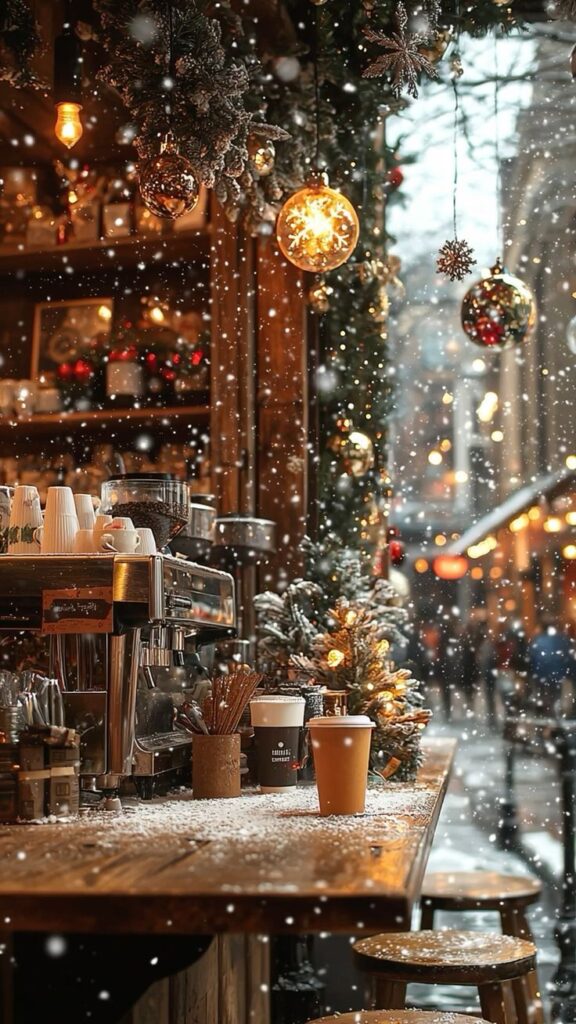
- Resolution: choose files that are at least as large as your iPhone screen, so the image stays sharp after cropping.
- License terms: read the usage terms on the source page. Free to download does not always mean free to share, edit or use commercially.
- Credit: if you post a screenshot of your setup, credit the artist where the license asks for it.
- Paid artwork: check file dimensions and previews before paying. Buying directly from the artist can also support their work.
Cropping and installing your wallpaper
Setting a wallpaper takes a few steps in the Settings app. Apple’s guide to changing the wallpaper on iPhone covers the current process.
- Save the image to the Photos app on your iPhone.
- Open Settings and tap Wallpaper.
- Tap Add New Wallpaper.
- Choose Photos, then select your Christmas wallpaper.
- Pinch and drag to crop the image so the part you want is framed on screen.
- Tap Add, then choose Set as Wallpaper Pair to use it on both screens, or Customize Home Screen to set the Home Screen separately.


If you customize the Home Screen, you can pick a different photo, a solid color, a gradient or a blurred version of the Lock Screen image. Matching or complementary screens usually look the most cohesive.
Adjust the preview before saving
Available photo effects depend on your iPhone, iOS version and chosen image. Preview any effect with the clock and widgets visible. If it hides useful detail or makes the time harder to read, leave it off.
Try the photo styles offered in the wallpaper editor and compare them with the original. Choose the version that keeps the subject clear and the screen easy to scan.


Using iOS features for a cohesive setup
A few built-in features help the wallpaper fit the rest of your phone.
- Focus modes: you can link different Lock Screens and Home Screens to different Focus modes. A quiet, minimal Christmas design could appear in your Work Focus, with a more colorful one in Personal.
- Widgets: choose Lock Screen widgets whose look suits the wallpaper. A weather widget showing a snowflake icon, for instance, fits naturally with a winter scene.
- Custom icons with Shortcuts: the Shortcuts app lets you create app shortcuts with your own icon images. It takes time, but holiday-themed icons can make the whole Home Screen match your wallpaper.
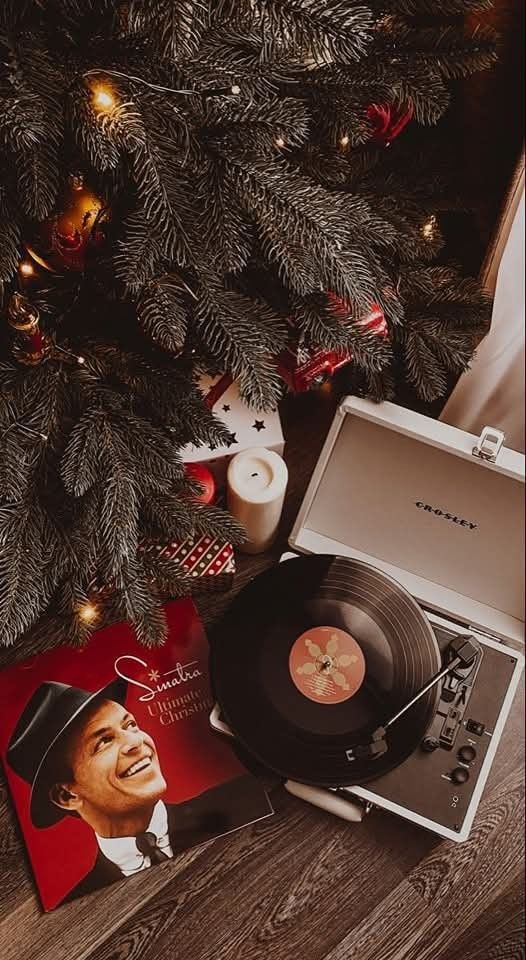
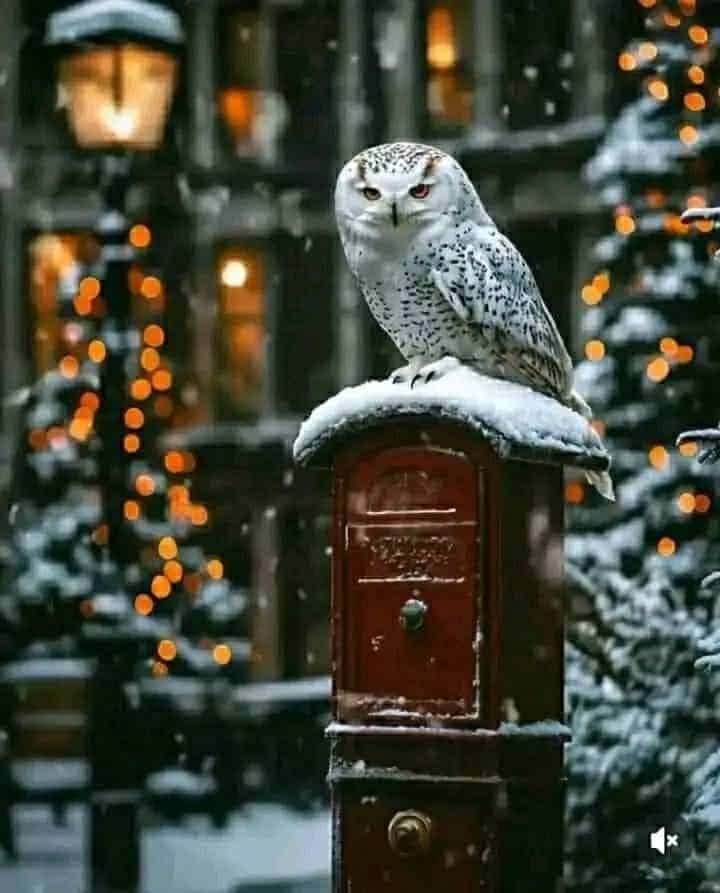
Making your own wallpaper
If you use tools such as Adobe Photoshop, Illustrator or Canva Pro, you can design your own wallpaper. This gives you full control over color, composition and where the empty space falls. The same standards apply as for any professional design.
- Use high-quality assets: start from high-resolution textures, subtle patterns or properly licensed stock photography.
- Follow basic design principles: keep colors harmonious and the composition balanced, and keep the clock and icons legible.
- Design for your iPhone: work at your model’s screen resolution and allow for the notch or Dynamic Island and the areas covered by system elements.
Plan a seasonal rotation
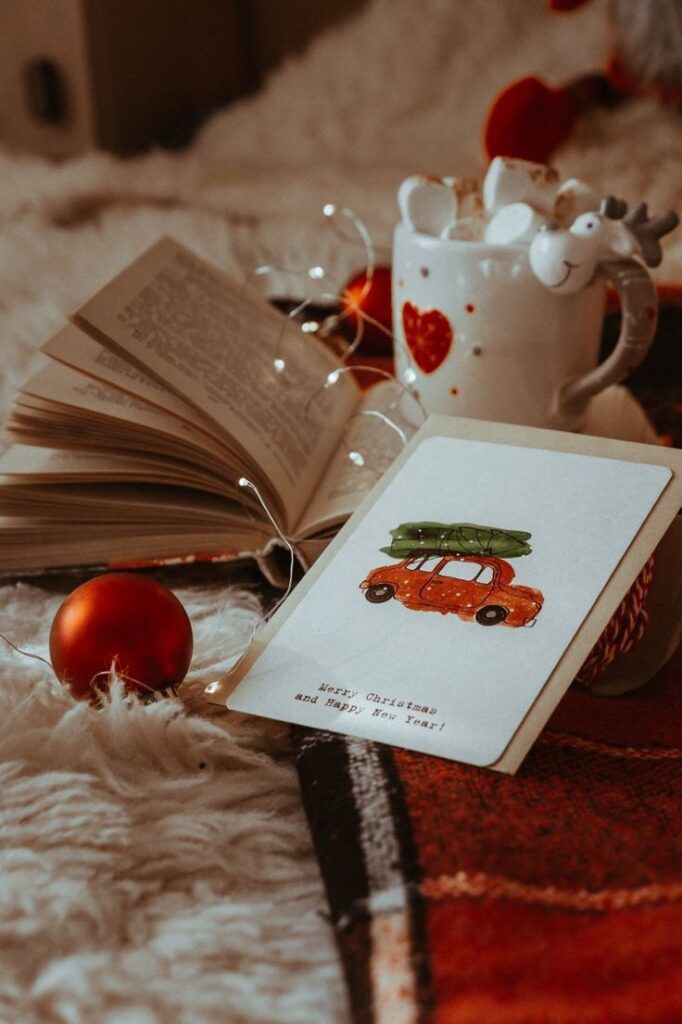
Rather than picking one image for the whole season, you can plan two or three wallpapers that follow the holidays. Set them up in advance as separate Lock Screens, so switching takes only a moment.
- Early December: general winter themes, such as snowflakes, frosty trees or subtle festive patterns.
- Mid-December and Christmas week: more explicit Christmas imagery, such as ornaments, nativity scenes or firelight.
- After Christmas and into the New Year: designs that bridge both holidays, such as sparkling lights, abstract celebrations or quiet winter landscapes that still work in January.
Each time you switch, check that the image still looks sharp and that your icons and clock remain easy to read.
- 33shares
- Facebook0
- Pinterest30
- Twitter3
- Reddit0