Turn your Minecraft builds into real-life flex
You spend hours pouring your heart and soul into your Minecraft base, your most intricate redstone contraptions or that amazing pixel art. Then you log off and – bang – it’s all just stuck on your screen for all eternity.
Time to change that – bringing your beloved creations into the real world is not only possible, but easier than you think.
In this tutorial you’re going to learn step by step how to bring your Minecraft projects to life in 3D. From choosing the right design to holding a finished version of your magnum opus in your hands – all possible. You’ll see there are two ways to go about it:
- The Fast Track – a beginners guide to using AI tools like Meshy to turn a screenshot into a print-ready 3D model
- The Full Monty – a way to print out your entire world just as you built it
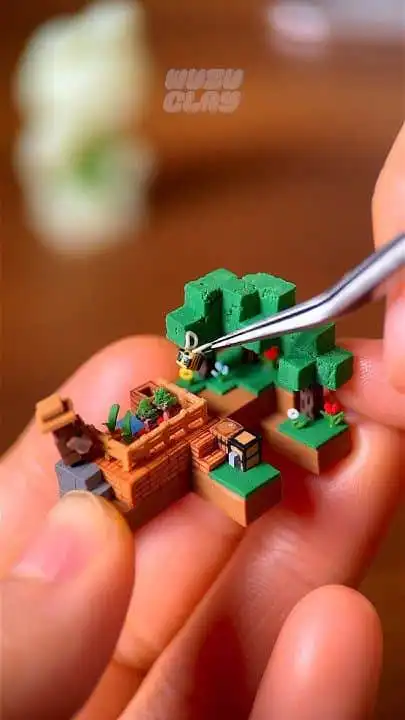
Table of contents
- Know what you are actually printing
- Pick the right Minecraft project
- Fast path: Use Meshy AI to 3D print Minecraft-style models
- Full world path: Export your Minecraft world
- Convert your world for Mineways
- Use Mineways to create a 3D printable model
- Prep your Minecraft model in Blender or similar tools
- Slice and print your Minecraft model
- Finishing and painting your Minecraft print
- Show-off ideas that impress friends
- FAQs about how to 3D print Minecraft builds
Know what you are actually printing
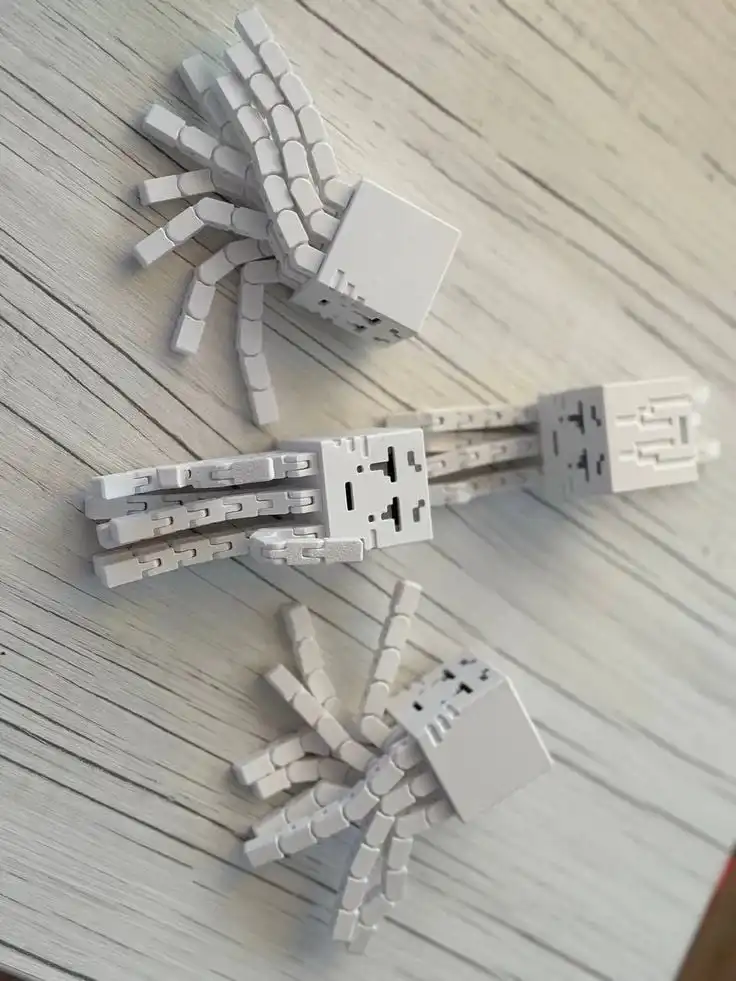
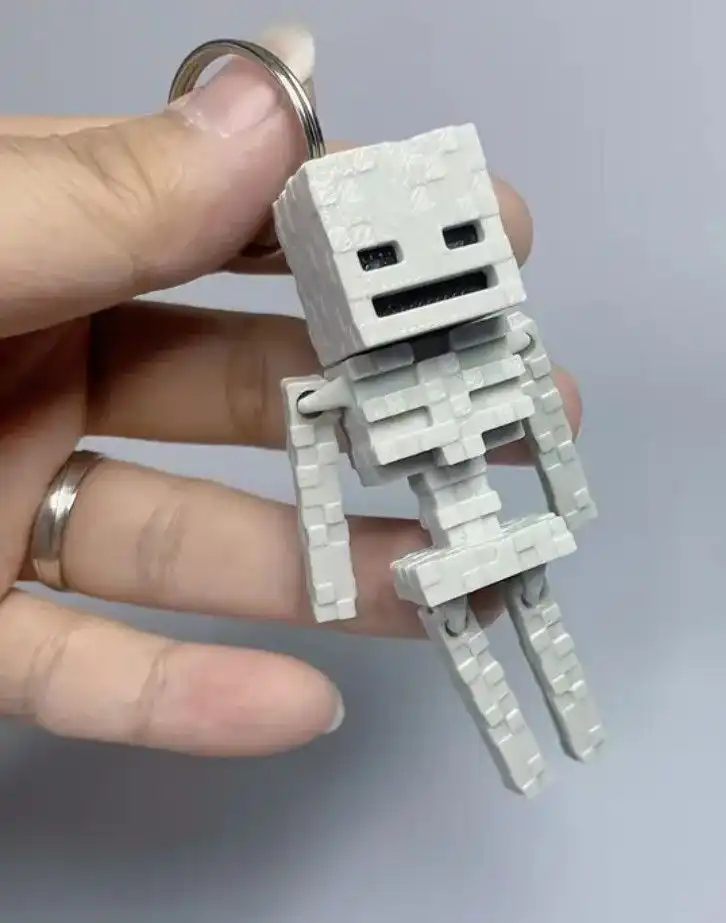
Before you dive into how to 3D print Minecraft builds, you should be clear on what is actually happening behind the scenes.
At a high level, you are doing this:
- Take a Minecraft build or world
- Turn it into a 3D model file that your printer understands
- Feed that file into the slicer software to get G-code
- Let your printer build it layer by layer in plastic or other materials
The cool part is that Minecraft already uses blocks (voxels), which is basically how 3D printers think about shapes, too. That is why Minecraft 3D printing is beginner-friendly and especially good for pixel-art style projects (Meshy AI Blog).
The key challenge is not “Can you do it?”
It is “How do you get from block world to a clean STL file that does not fail halfway through the print?”
That is what you are about to learn.
Pick the right Minecraft project
You can technically try to 3D print anything, but if you want a first-attempt win that impresses your crew, choose the right target.
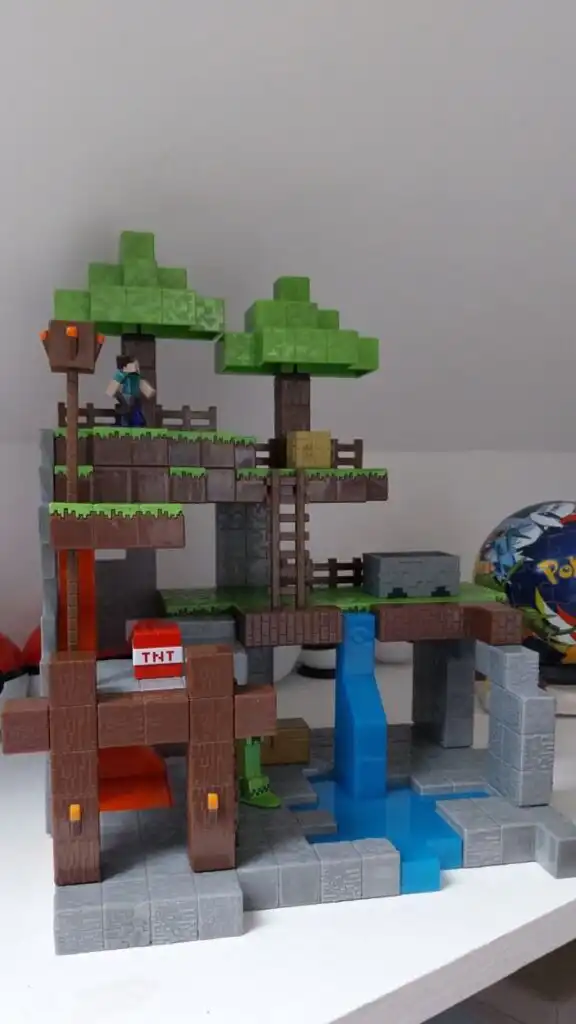
Choose a print-friendly build
When you decide how to 3D print Minecraft worlds, start with something that is:
- Chunky and sturdy
- Has minimal overhangs
- Does not rely on tons of tiny details
Guidelines from real-world tutorials say the best beginner models are simple castles, bases, or houses with minimal floating parts (Instructables).
Good starter ideas:
- A compact castle on a hill
- Your starter base with a bit of terrain
- A pixel-art character or logo
- A small village chunk with 2 to 3 buildings
Save your massive mega-base for round two.
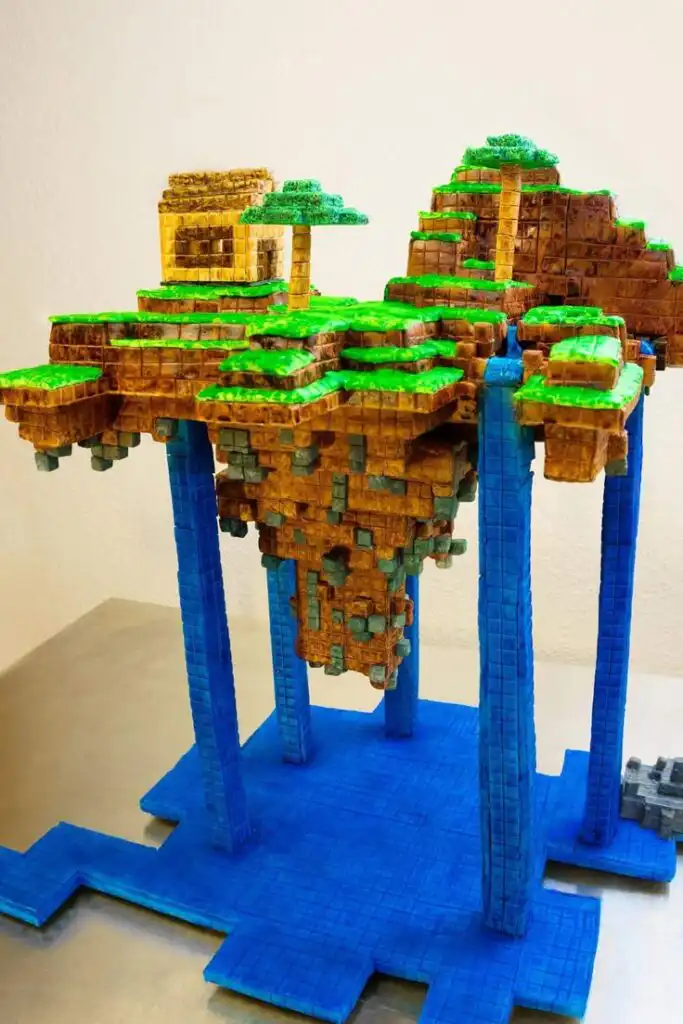
Thicken fragile details in-game
If you have access to the world, do a quick upgrade pass before exporting:
- Double thin walls
- Thicken tree trunks and narrow towers
- Replace delicate slabs or stairs with solid or half blocks, since detailed blocks like stairs do not export or print as cleanly (Prusa3D Blog)
- Accept that tiny flowers and details will often show up as color specks rather than full shapes on small models (Instructables)
These tweaks will dramatically improve your odds of a solid print.
Fast path: Use Meshy AI to 3D print Minecraft-style models
If your goal is less “exact world snapshot” and more “I want a Minecraft-style figure of my base, skin, or pet,” Meshy AI gives you a quick shortcut.
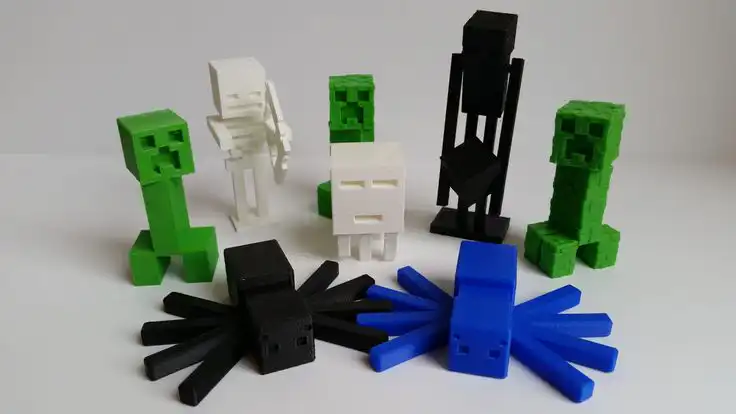
When to use Meshy
Use this path if:
- You have a screenshot or pixel art you like
- You want a Minecraft-style 3D print, not necessarily a 1:1 replica of your entire world
- You do not want to dig around in world folders and exports
According to the Meshy team, Minecraft 3D printing with Meshy AI works by turning 2D images (JPG or PNG) of your Minecraft builds or pixel art into Minecraft-style 3D voxel models that you can then export and print (Meshy AI Blog).
Step 1: Capture a clean image
- Open Minecraft and load your build or skin
- Turn off extra UI and chat if possible
- Take a clear screenshot from a flattering angle
- Save it as JPG or PNG
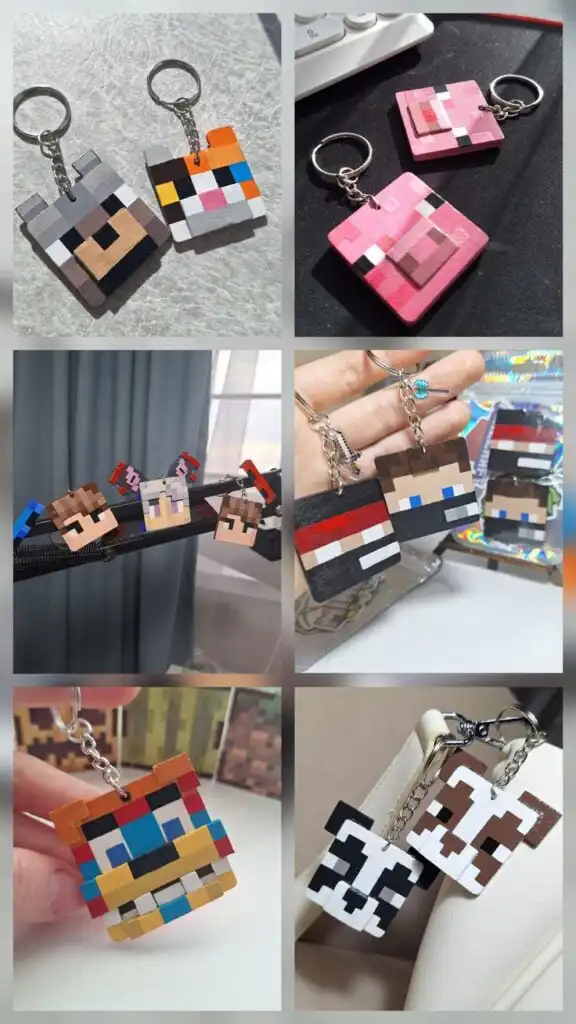
You can also use pixel art or fan art, as long as Meshy can clearly see the subject.
Step 2: Upload to Meshy and generate the 3D model
- Go to the Meshy AI platform
- Upload your chosen JPG or PNG
- Let Meshy auto-generate a voxel model that captures the Minecraft aesthetic (Meshy AI Blog)
- Review the preview, then tweak or rerun if needed
Now you have a 3D Minecraft-style model without touching your world files.
Step 3: Export for 3D printing
Meshy supports .obj and .glb exports for these Minecraft-style voxel models (Meshy AI Blog).
- Export as OBJ or GLB
- Open the model in a 3D tool like Blender to check scale and orientation
- Export from Blender to STL if your slicer prefers STL
You can then load this STL into Cura, PrusaSlicer, or your favorite slicer and print.
Meshy is your fastest route if you want a Minecraft-style figurine or blocky statue to show off on your shelf.
Full world path: Export your Minecraft world
If your goal is “I want my actual base or realm in my hand,” you will go a bit deeper.
This approach uses tools like Chunker and Mineways to move from world save to STL.
In this example, you will see how to 3D print Minecraft builds from a Windows 10 realm, but the same idea applies to local saves.
Step 1: Download your realm to a local world
If your build lives in an online realm on Windows 10:
- Open Minecraft
- Go to the Worlds menu
- Find your realm and click Edit
- Hit Download World
You will now have an offline world copy in your worlds list that sits on your computer (Reddit).
Step 2: Find the world folder
On Windows 10, your downloaded world usually lives here:
C:\Users\username\AppData\Local\Packages\Microsoft.MinecraftUWP_8wekyb3d8bbwe\games\com.mojang\minecraftWorlds
From there:
- Open that folder
- Identify the world folder that matches your realm
- Right-click and compress it into a ZIP file
You are preparing it for conversion into a Java-compatible format (Reddit).
Convert your world for Mineways
Step 3: Use Chunker to convert to Java format
Mineways works best with Java Edition worlds, so you use Chunker to convert your Bedrock or Windows world.
- Go to the Chunker online tool
- Drag and drop your zipped world into the interface
- Choose a Java edition export, such as Minecraft 1.19.4
- Click Convert & Download
- Extract the resulting world archive on your computer
Now you have a Java-style world that Mineways can understand (Reddit).
Use Mineways to create a 3D printable model
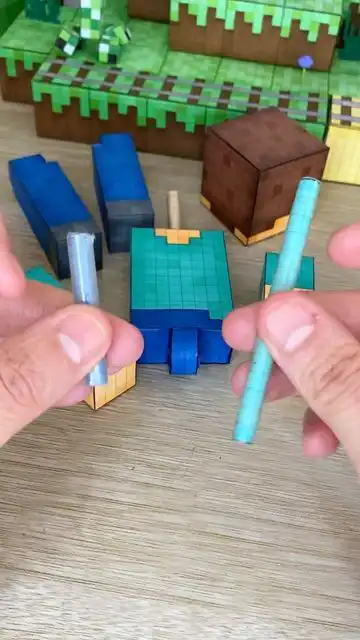
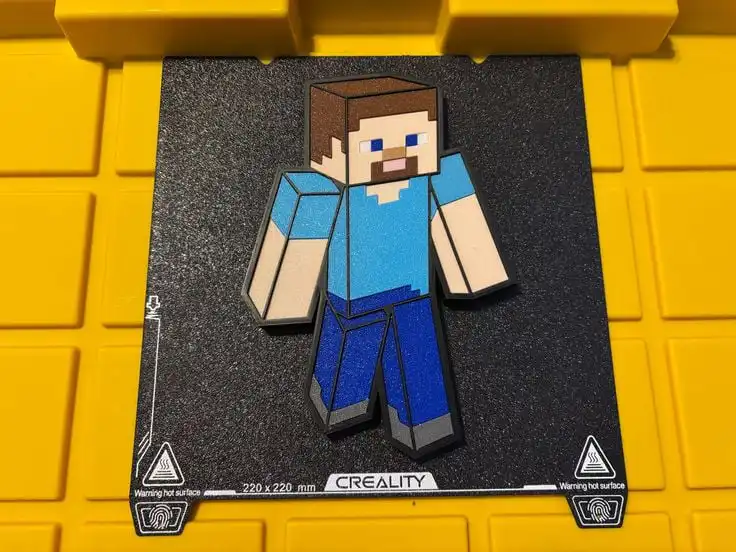
Mineways is the workhorse of the “how to 3D print Minecraft worlds” pipeline. It lets you choose exactly what part of your map you want, customize the size, and output STL.
According to multiple guides, Mineways is free and lets you export any selected area as an ASCII STL file, with control over model size, height, and options like hollowing the model (Instructables).
Step 4: Open your converted world in Mineways
- Download and install Mineways on your computer
- Launch it and open the Java world that Chunker produced (Reddit)
- Navigate the overhead map until you spot your build
You will see a top-down view of your world.
Step 5: Select your build area
You do not want your entire world. You want a focused, printable section.
- Click and drag a selection box around the build you want
- Include a bit of surrounding ground so the build has a base
- Avoid giant caves or deep underground sections, since those add complexity and cost
Both Reddit users and Instructables tutorials suggest minimizing underground features so the model is cleaner and cheaper to print (Instructables).
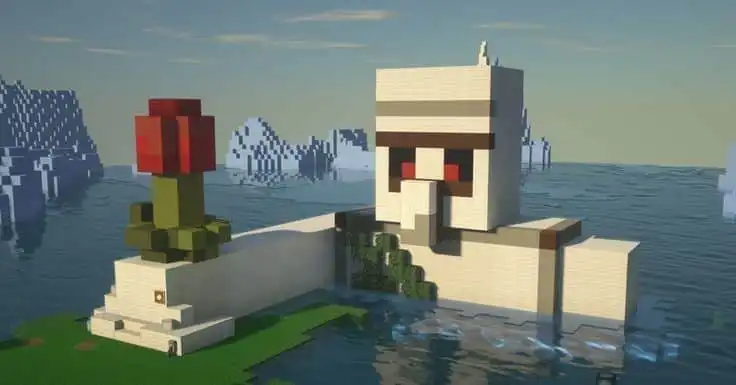
Step 6: Configure size, scale, and details
In Mineways export options, you can tweak:
- Block size (for example, 3 mm per block) (Reddit)
- Height limits, so your model is not taller than your printer’s Z axis (Instructables)
- Whether to hollow out the model to save material and cost (Instructables)
- Material assumptions if you are sending it to a service like Shapeways
Pro tips from the guides:
- If you print with full-color sandstone at a service like Shapeways, using colored sandstone in Mineways helps keep that multicolor Minecraft look (Instructables)
- Hollowing a model saves money but can make it more fragile, especially around edges and thin sections (Instructables)
Start with a solid or softly hollowed model for durability, especially if your friends are going to be handling it.
Step 7: Export to STL
When you are happy with the selection and settings:
- Choose Export for 3D printing in Mineways
- Export as an STL file, typically ASCII STL
- Save it with a clear name, like
mycastle_v1.stl
Before you print, do a quick STL preview in a simple viewer like Preview on Mac or 3D Builder on Windows to look for weird, stray blocks or chunks you might want to remove (Instructables).
If something looks off, go back to Mineways or even Minecraft and fix the source.
Prep your Minecraft model in Blender or similar tools
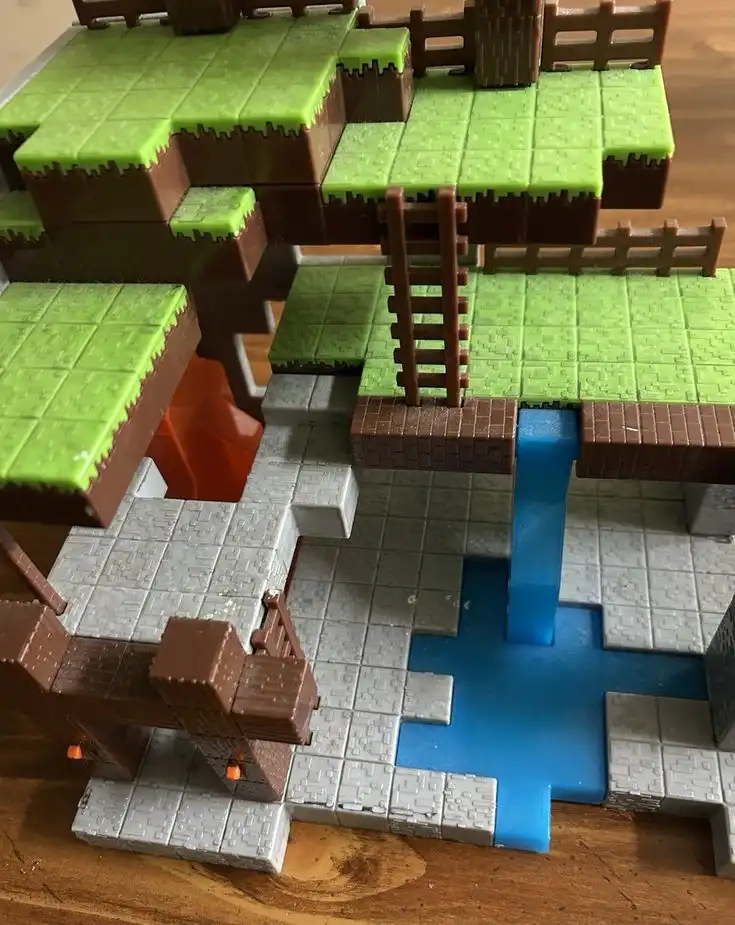
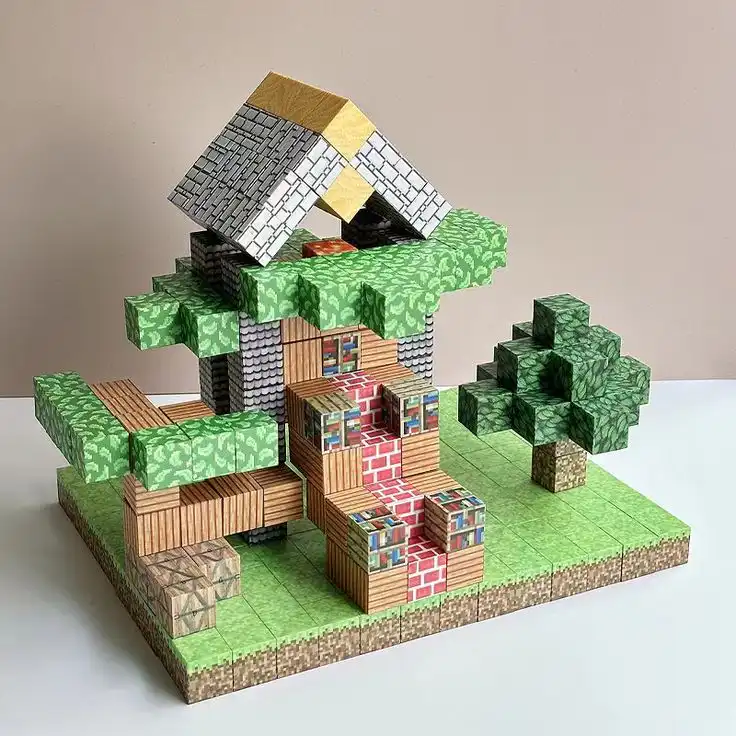
If your build is small and simple, you might go straight from Mineways to the slicer. But for anything big, complex, or spanning multiple chunks, you are better off doing a cleanup pass in Blender or another 3D editor.
Reddit makers use Blender to:
- Split large models into multiple parts
- Fix non-manifold geometry
- Make sure everything is scaled correctly to millimeters (Reddit)
Step 8: Import STL and set units
- Open Blender
- Import your STL file
- Set units to millimeters and choose a unit scale of 0.001 for accurate sizing (Reddit)
Now your Minecraft model will be scaled correctly for typical slicers.
Step 9: Split big models into printable chunks
If your model is too large for your printer’s build volume, or is likely to fail as one huge part:
- Switch to wireframe or edit mode
- Use vertex or face selection to select logical regions: towers, walls, terrain pieces (Reddit)
- Separate them into individual objects or meshes
- Name each part clearly:
tower_left,gate_house,terrain_front, etc.
According to the Reddit workflow, you then export each part as its own STL file, which lets you print your castle or base piece by piece and assemble later (Reddit).
Also use Blender to:
- Run checks for non-manifold geometry and fix it
- Remove tiny floating parts that will never print well
- Flatten or thicken areas that feel fragile
The goal is not perfection. It is “this will actually print and survive handling.”
Slice and print your Minecraft model
You now have STLs that are clean, scaled, and ready. Time to talk hardware.
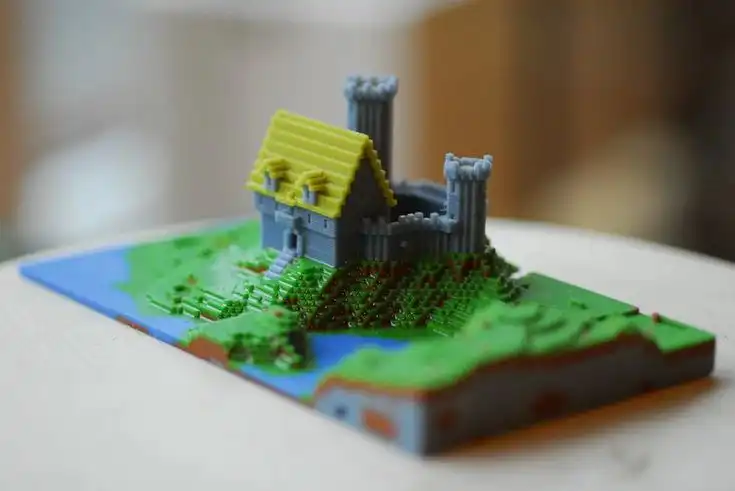
Step 10: Choose your 3D printer and material
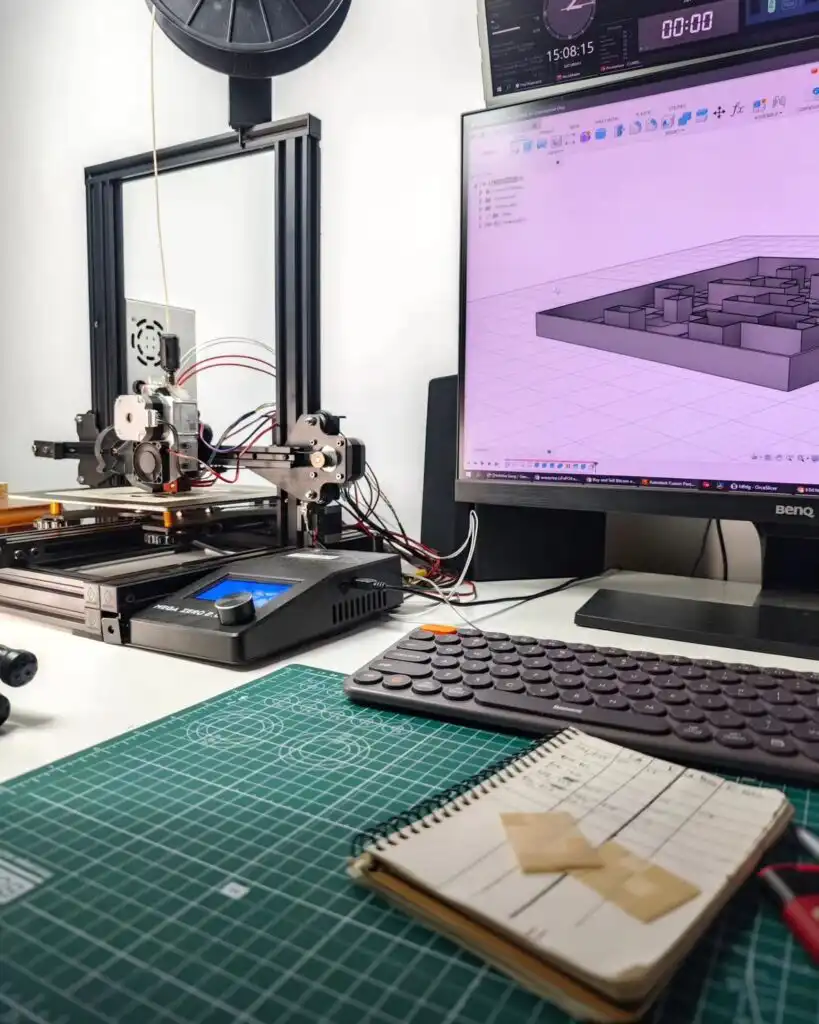
For home printing, popular printers for Minecraft-style models in 2025 include:
- Creality
- Prusa
- Anycubic
These work with formats like STL and G-code and handle voxel-style models well (Meshy AI Blog).
Common setup:
- PLA filament for easy, low-warp prints
- 0.4 mm nozzle
- Layer height between 0.12 mm and 0.2 mm
If you do not own a printer, you can:
- Use a local printer through services like 3D Hubs, which connect you to nearby makers and reduce shipping needs (Instructables)
- Send files to Shapeways for full-color sandstone versions of your world (Instructables)
Step 11: Load into the slicer and configure
Open your slicer of choice, such as Cura or PrusaSlicer.
- Import your STL
- Position it flat on the bed
- Choose settings like:
- Layer height: 0.16 or 0.2 mm
- Infill: 15 to 25 percent for solid feeling parts
- Supports: Only where necessary, since Minecraft models are inherently blocky
- Check that your model fits inside the build volume
If you are following Prusa workflows, you can also manage scale by treating one Minecraft block as 1 mm³, then scaling up later in slicer, for example, scaling trees to 350 percent for visibility (Prusa3D Blog).
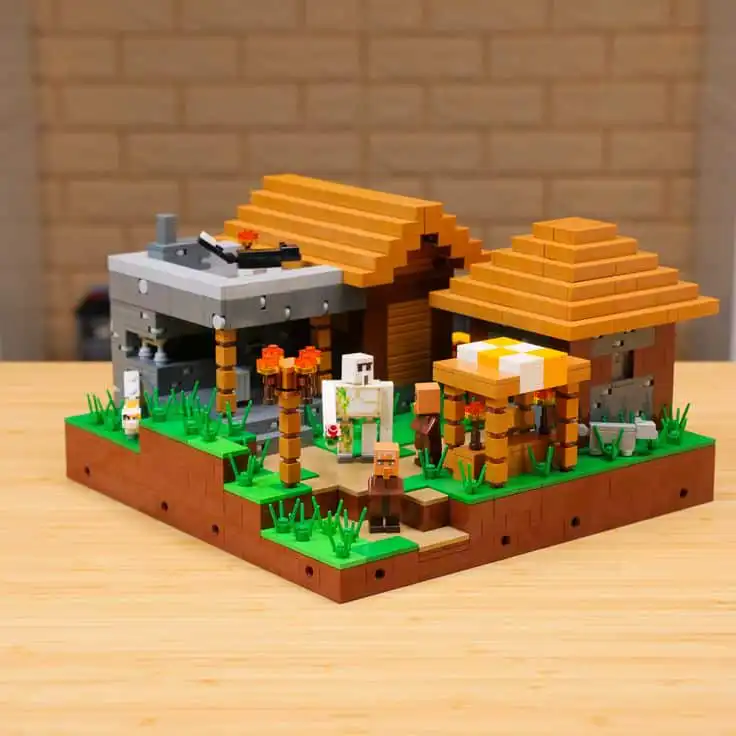
Step 12: Print and monitor
Start the print and watch the first few layers:
- Make sure adhesion looks solid
- Check that there are no crazy overhangs being attempted without support
- Confirm there are no random floating islands that Mineways accidentally preserved
For taller builds, peek in periodically. If everything looks stable by mid-height, you are in good shape.
For color 3D printing on compatible setups, Mineways can even integrate with workflows that generate G-code and allow color changes through tools like ColorPrint (Prusa3D Blog). That is more advanced, but it is there when you want to level up.
Finishing and painting your Minecraft print
You have a fresh print. It looks like a tiny plastic world. Now you make it display worthy.
Step 13: Clean up supports and surfaces
Post-processing for Minecraft prints is fairly straightforward:
- Remove supports carefully with pliers or flush cutters
- Do a light sanding on rough areas, especially if it was a home print, since the texture can be a bit coarse (Instructables)
If you printed your build in multiple parts:
- Dry fit all pieces
- Use super glue or plastic-specific glue to assemble
- Fill any large seams with a bit of filler and sand smooth if needed
Step 14: Paint your Minecraft world
You have two main routes:
Monochrome plastic vibe
- Skip painting, keep the raw plastic aesthetic
- This can actually look amazing on clean, minimalist builds
Full Minecraft color
- Prime the model
- Use acrylic paints to block in the distinctive Minecraft colors, especially on roofs, trees, and terrain
- Larger prints are easier to paint, since small blocks are harder to detail (Instructables)
Some makers use special filaments like WoodFill for wooden parts, then paint and glue everything together for extra texture (Prusa3D Blog).
If you ordered a full-color sandstone print from a service like Shapeways:
- You get color directly baked into the model using materials like full-color sandstone
- These models are more delicate, so support them with a sturdy base and handle carefully (Instructables)
Removing glass blocks in advance can also make it easier to look through windows into detailed interiors (Instructables).
Show-off ideas that impress friends
You did all the work of figuring out how to 3D print Minecraft builds, so do not just leave the model in a drawer.
Here are ways to turn your prints into conversation starters:
- Desk trophy of your first base
Put it on your desk as a “before I knew how to play” relic. - Side-by-side screenshot vs print
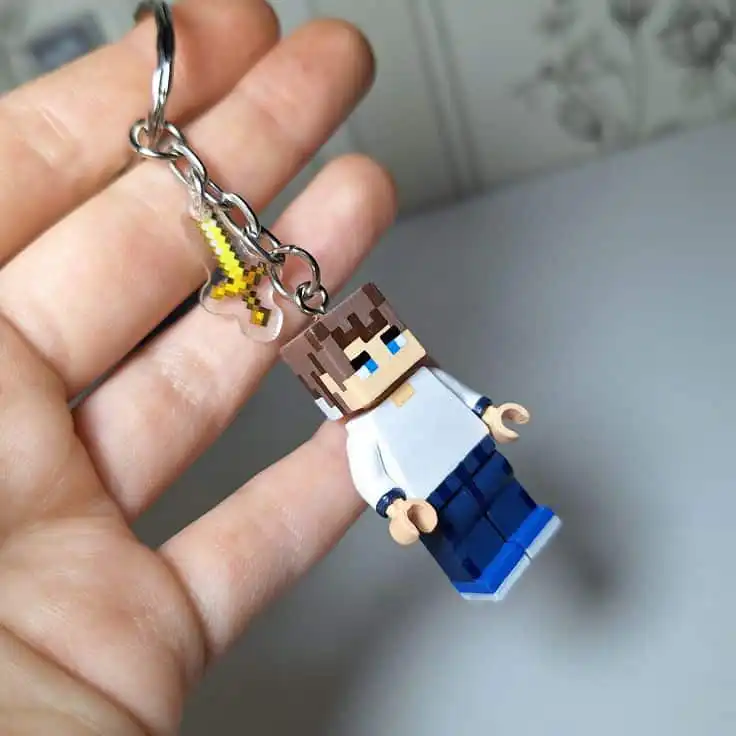
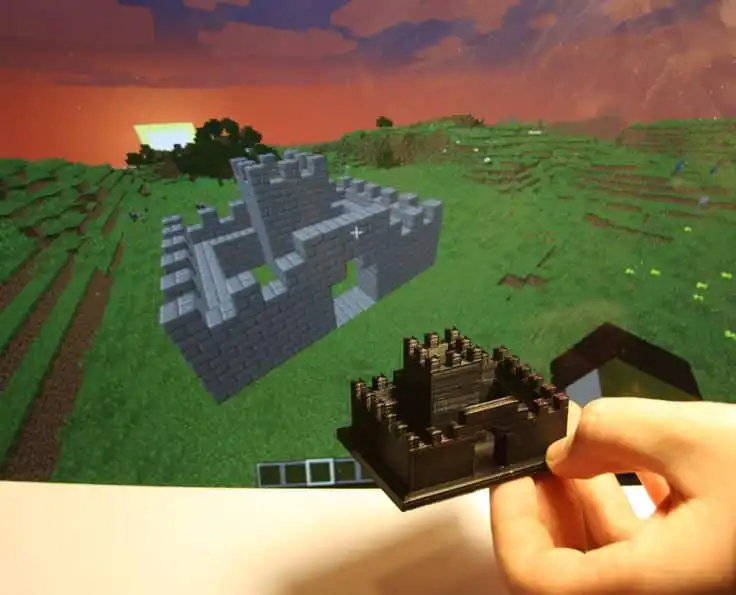
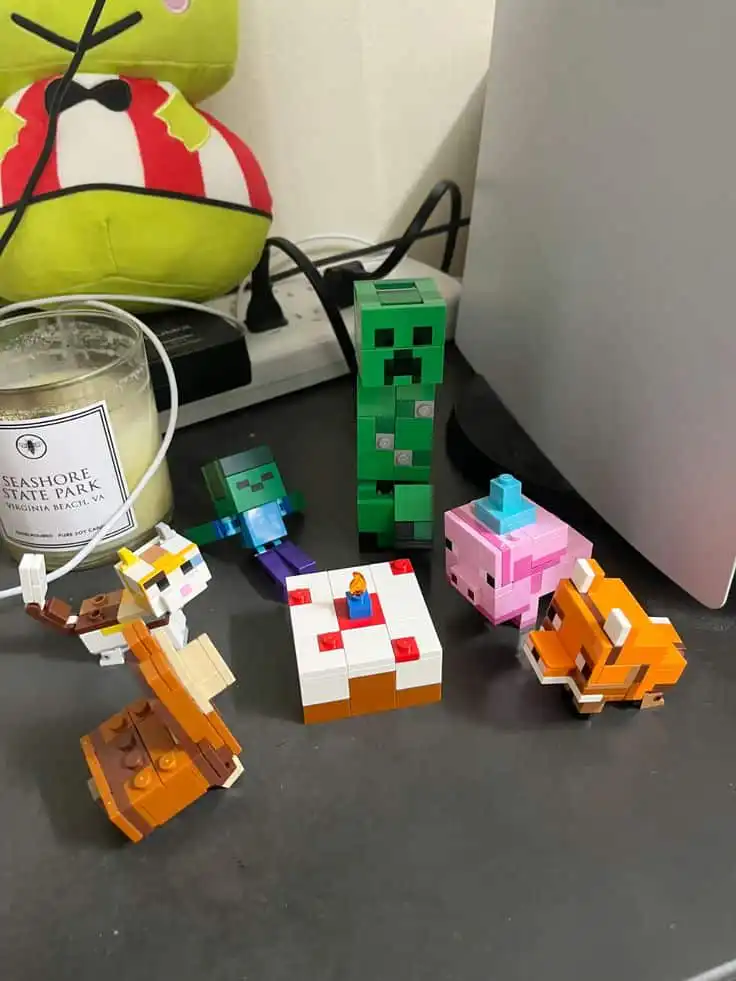
Take a screenshot of the in-game build and place your 3D print next to it. Instant flex. - Minecraft avatar or pet figurine
Use Meshy AI to turn your skin or pet into a display piece (Meshy AI Blog). - Custom gifts
Print a friend’s favorite base, village, or farm as a birthday or graduation gift. - STEM or classroom projects
Use printed Minecraft models to teach scale, design, and basic engineering. Educators already use tangible Minecraft models to bring STEM lessons to life (Meshy AI Blog).
Your build history becomes a physical timeline. And every time someone asks, “Wait, is that from Minecraft?” you get to tell the story.
FAQs about how to 3D print Minecraft builds
1. What is the easiest way to 3D print Minecraft if I am a beginner?
If you are just starting and want fast results, using Meshy AI is one of the easiest ways to get a Minecraft-style 3D print.
You simply upload a 2D image of your Minecraft build or pixel art, Meshy generates a voxel-based Minecraft-style model, and you export it in OBJ or GLB format for use in Blender and your slicer (Meshy AI Blog).
If you want a true world export, follow the Mineways path but start with a small, simple build.
2. Do I need a specific 3D printer to print Minecraft models?
You do not need a special “Minecraft printer,” but you do need a printer that can handle standard formats like STL and G-code.
In 2025, home and educational printers from Creality, Prusa, and Anycubic are commonly recommended for Minecraft-style prints. They work well with slicers like Cura or PrusaSlicer and are very capable of printing voxel models (Meshy AI Blog).
3. Can I 3D print my Minecraft world in full color?
Yes, but not usually on a basic home printer out of the box.
Your main options:
- Export a color-aware model via Mineways and send it to a service like Shapeways, which offers full-color sandstone prints that preserve Minecraft’s textures and colors (Instructables)
- Use color workflows with Mineways and tools like ColorPrint if you have compatible multi-material or color-change printers (Prusa3D Blog)
- Print in plain plastic at home and paint the model yourself
Full-color sandstone looks amazing but is more fragile, so it is best used for display pieces.
4. How do I avoid fragile or broken edges in my Minecraft print?
You can avoid fragile prints by:
- Choosing builds with few overhangs and lots of solid blocks
- Thickening walls and trunks in Minecraft before export
- Being careful with options like hollowing in Mineways, since hollow models are cheaper but more fragile and prone to broken edges (Instructables)
- Printing a bit larger so tiny details do not become razor thin in the real world
If in doubt, print a small test slice of your build before committing to a huge full model.
5. Can I 3D print my Minecraft realm from Windows 10?
Yes. To 3D print a Minecraft base from a Windows 10 online realm:
- Download a local copy of the realm from the Worlds menu using Download World (Reddit)
- Find the world in the
minecraftWorldsfolder on your PC and zip it - Upload the ZIP to Chunker and convert it to a Java-compatible format, such as 1.19.4
- Open the converted world in Mineways, select the area you want, and export to STL (Reddit)
- Clean it up in Blender if needed, then slice and print
Follow that pipeline and your realm stops being “just a server” and becomes something you can actually hold.
You now know how to 3D print Minecraft builds using both the fast Meshy AI route and the full world export route with Mineways.
Pick one base, one castle, or one piece of pixel art.
Run it through the pipeline.
Put the finished model on your desk and let your friends ask how you pulled it off.
- 1share
- Facebook0
- Pinterest1
- Twitter0
- Reddit0