If you’re looking for a fast route to designing a sleek, professional website, the Figma web design tutorial is your new best friend. You can go from blank canvas to interactive masterpiece without needing fancy software or coding know-how. Ready to dive in? Let’s break down the steps that will save you time and frustration.
Prepare your Figma setup
Before you start crafting website layouts, make sure you have the right environment:
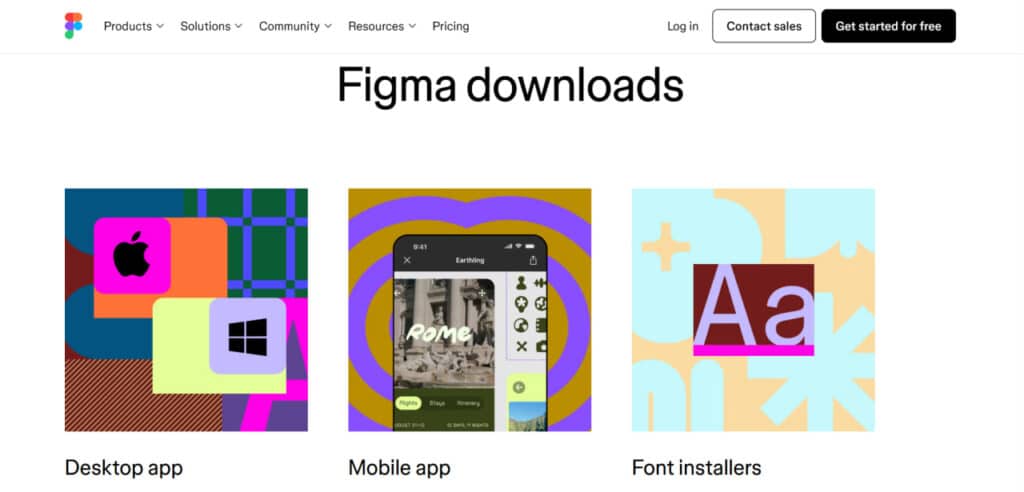
- Sign up for a free Figma Starter plan (no paid subscription needed). This plan gives you all the essentials to follow along (Figma Help Center).
- Decide whether you’ll use a browser tab or the desktop app. Both work seamlessly, so pick whichever fits your workflow.
- Check your system requirements in Figma’s help resources to ensure smooth performance.
Keep notification-free blocks of time in your schedule to focus on practicing and experimenting with each feature. The fewer distractions, the faster and more efficiently you’ll learn.
Map your website plan
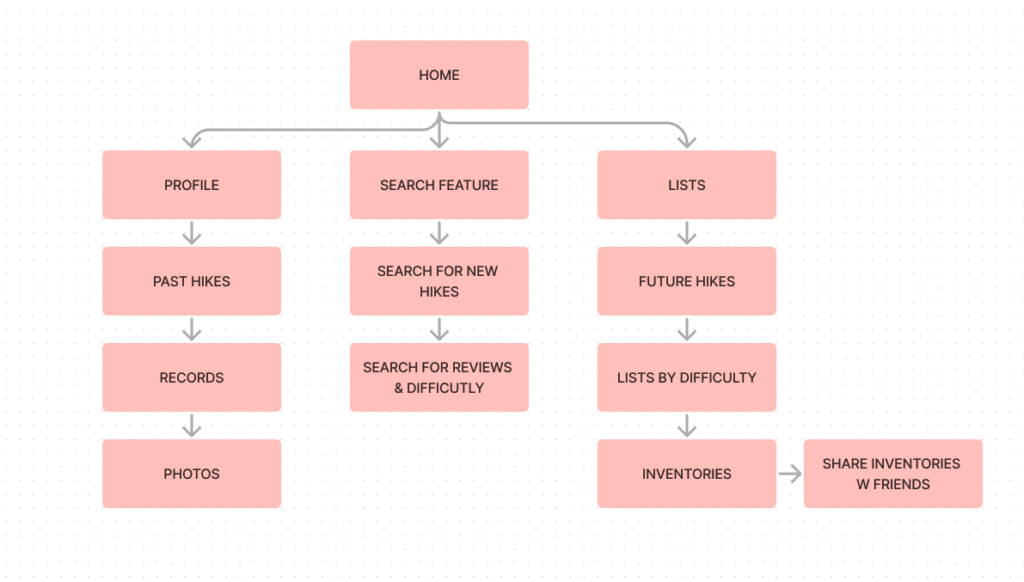
Now that you’re up and running, it’s time to plan your site structure:
- Draft a sitemap by jotting down each page you need, like Home, About, and Contact, plus any subpages (figma.to.website).
- Organize your ideas in a simple outline or mind map. This helps you see the bigger picture and ensures each page has a clear purpose.
- Sketch quick page layouts on paper or in Figma’s whiteboard area. Early brainstorming prevents wasted time on random design detours.
Create and refine wireframes
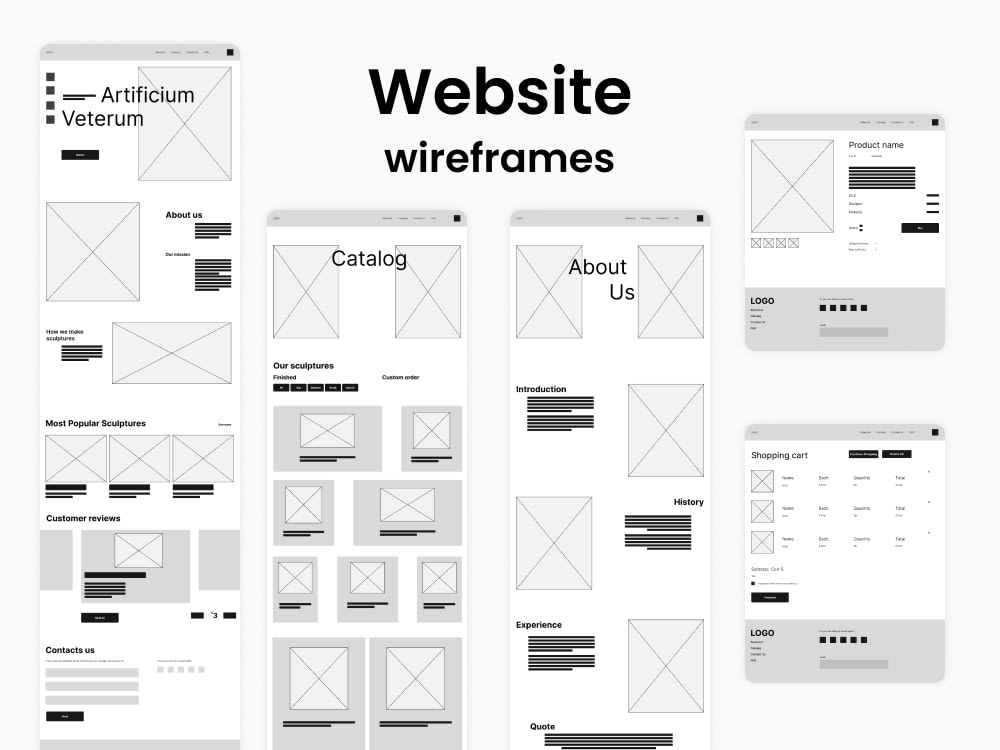
Next comes the foundation of your design:
- Choose a wireframe kit or basic shapes in Figma’s toolbar. Even rectangles and placeholder text work wonders for idea testing (Figma).
- Use Frames ([[F]]), Text ([[T]]), and Rectangle ([[R]]) tools to block out each section. Don’t get bogged down with colors or fancy fonts yet.
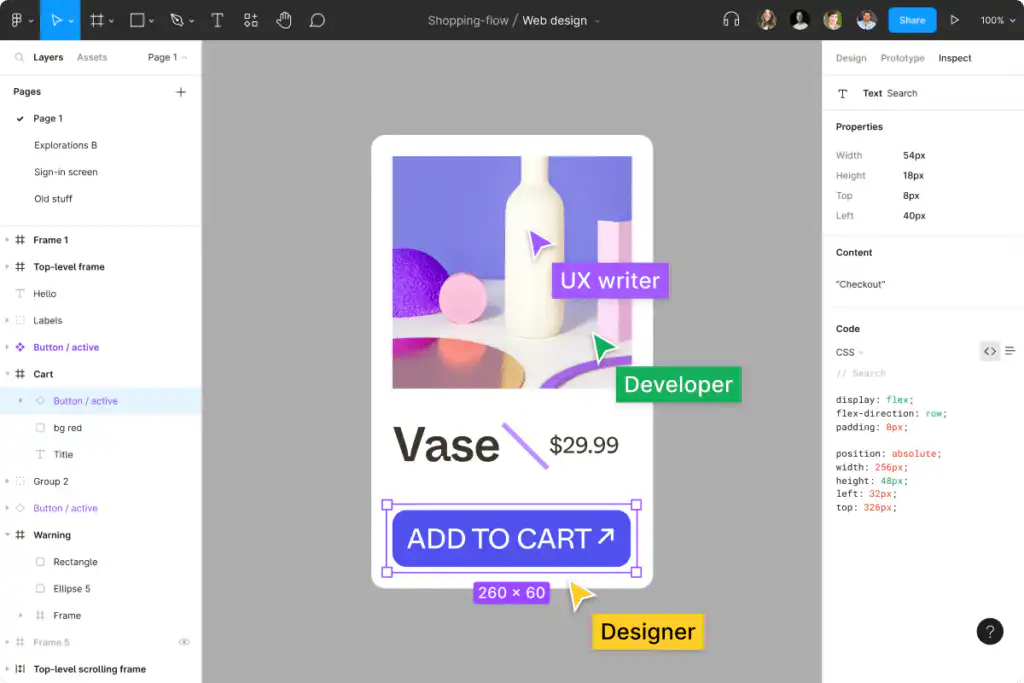
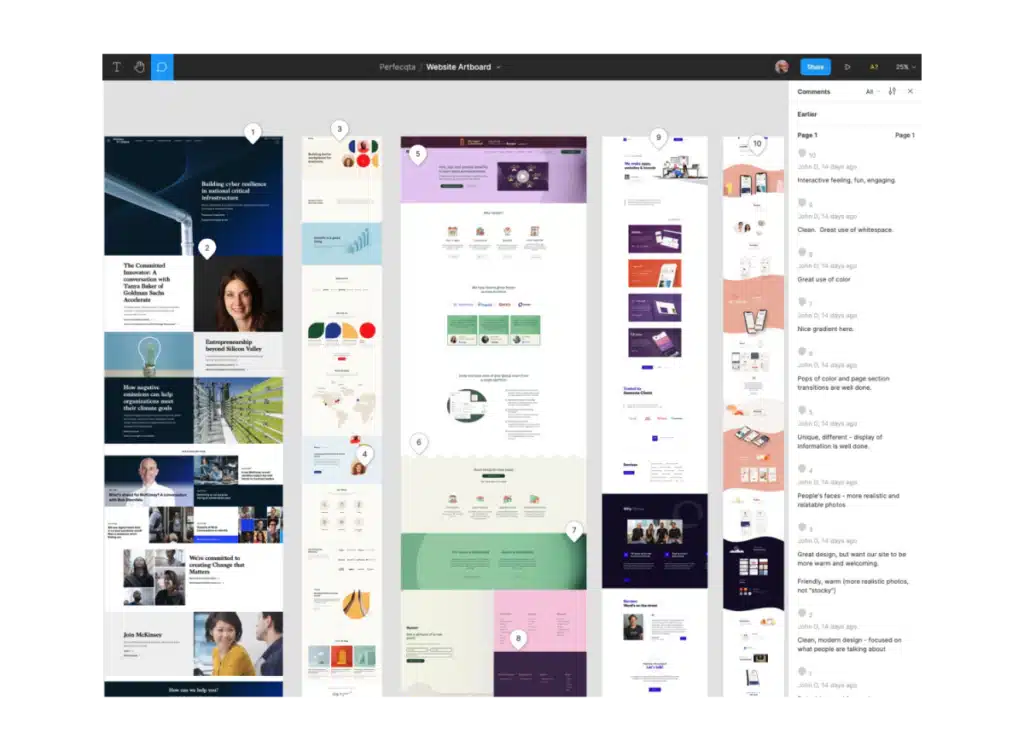
- Share your wireframes with collaborators for real-time feedback. Figma lets everyone, including clients, jump into the file and leave comments.
Play around fearlessly. It’s much easier to rearrange elements in wireframe mode before adding final visuals.
Build interactive prototypes
Got your wireframes locked in? Move on to prototyping:
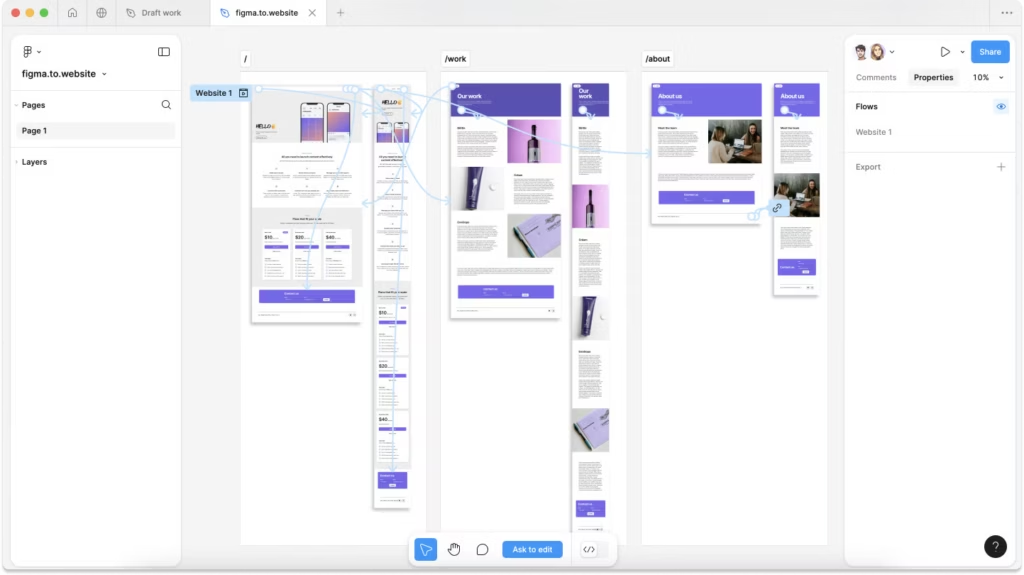
- Link your screens together with clickable buttons or menus to simulate real navigation (figma.to.website).
- Add animation effects like after delay or scrolling content if you want a dynamic experience (Design+Code).
- Test each prototype in Presentation view to see how users will move through your site. Spot funky transitions now, rather than discovering them after launch.
Interactive prototypes help you confirm that your website’s flow makes sense. Fewer surprises mean a smoother handoff to development.
Export and publish effortlessly
When you’re ready to share or finalize your design, Figma makes exporting easy:
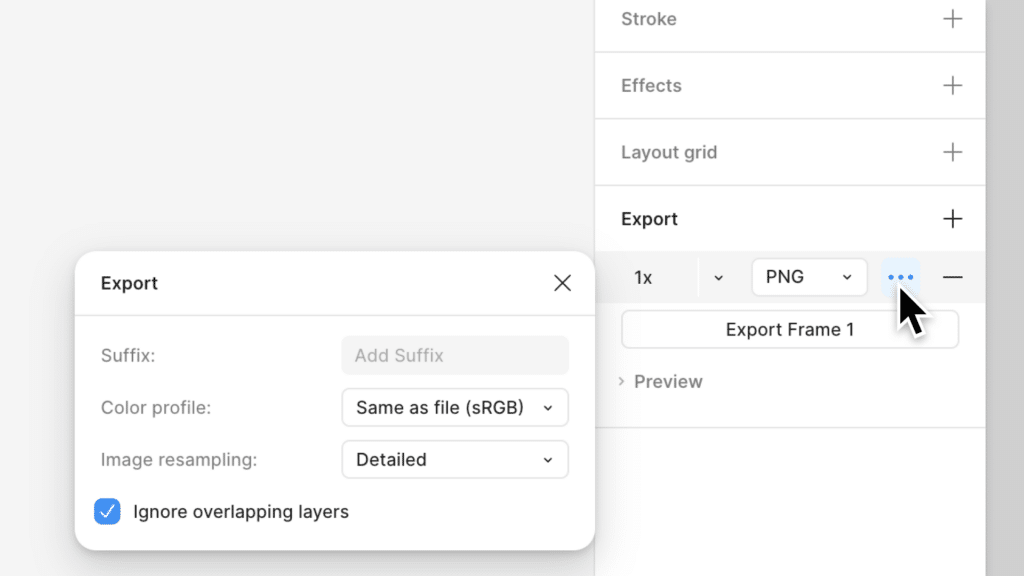
- Use the export panel in the right sidebar to choose file formats (PNG, SVG, PDF, or JPG) and pixel resolution (Figma Help).
- For precise slices or partial exports, select the Slice tool under Region tools. This is perfect for assets or screenshots you want to share quickly.
- Name your layers with slash separators (for example, “icons/facebook/share”) so exported files auto-organize into nested folders.
- Ready to go live? Use the Figma.to.website plugin to convert your final design into a hosted, responsive website that matches your layout exactly (figma.to.website).
No more juggling multiple design and coding tools. A single workflow means you save time and stay in your creative zone.
Frequently asked questions
Do I need a paid plan to follow this tutorial?
No. The Figma Starter plan is free. You can access the essential tools without a paid subscription.Can I collaborate with teammates in real time?
Absolutely. Figma’s real-time collaboration lets multiple people jump into the same file, leave comments, and make edits on the spot.Is it possible to convert Figma designs into a live website?
Yes. By using the figma.to.website plugin, you can publish your design directly to a fully hosted website.How do I make my design responsive in Figma?
Lean on auto layout and fluid grids. These features ensure your frames and components adapt to different screen sizes.Do I lose quality when exporting assets?
Figma supports multiple formats and resolutions. If you pick the right export settings, you’ll maintain high-quality visuals.
Give this Figma web design tutorial a try and see how much time you can reclaim in your design process. Once you get the hang of it, you’ll wonder how you ever managed without it. Happy designing!
- 24shares
- Facebook0
- Pinterest21
- Twitter3
- Reddit0