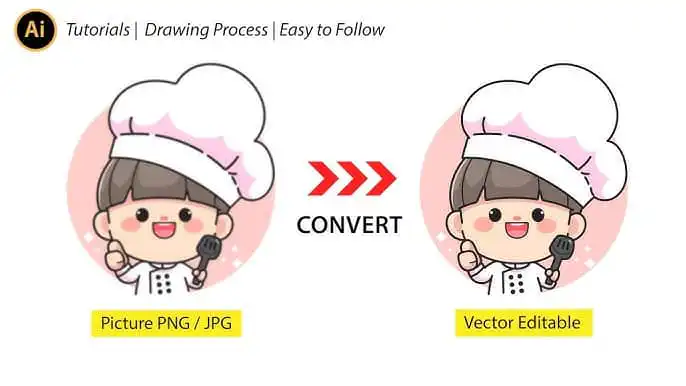
Tired of pixelated graphics and fuzzy edges? Learning how to convert images to vector ensures your designs stay clean, professional, and perfectly scalable across every platform. Let’s walk you through the essentials, from prepping your file to rounding up the best tools for clean, scalable results.
Explore how to convert images to vector
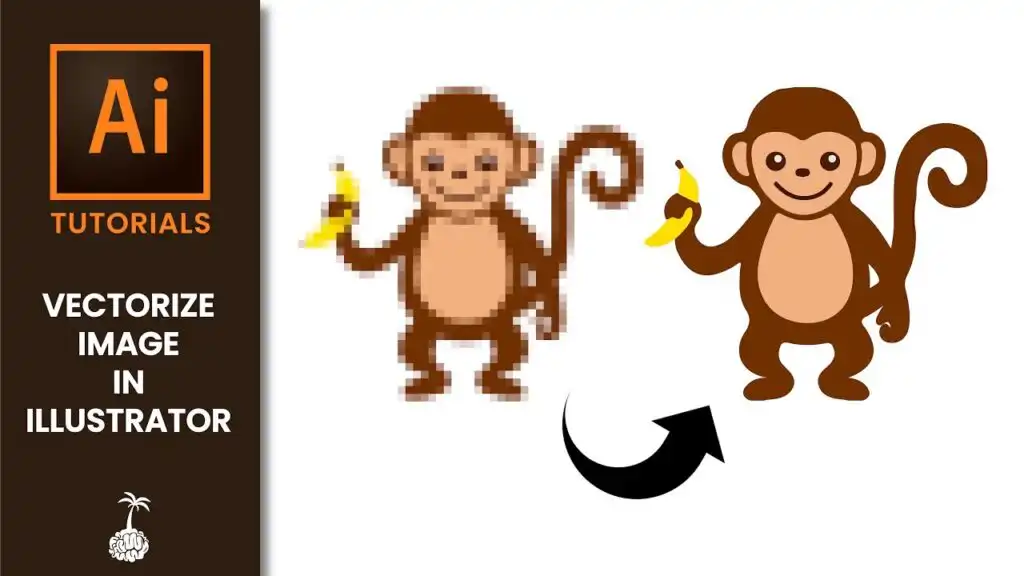
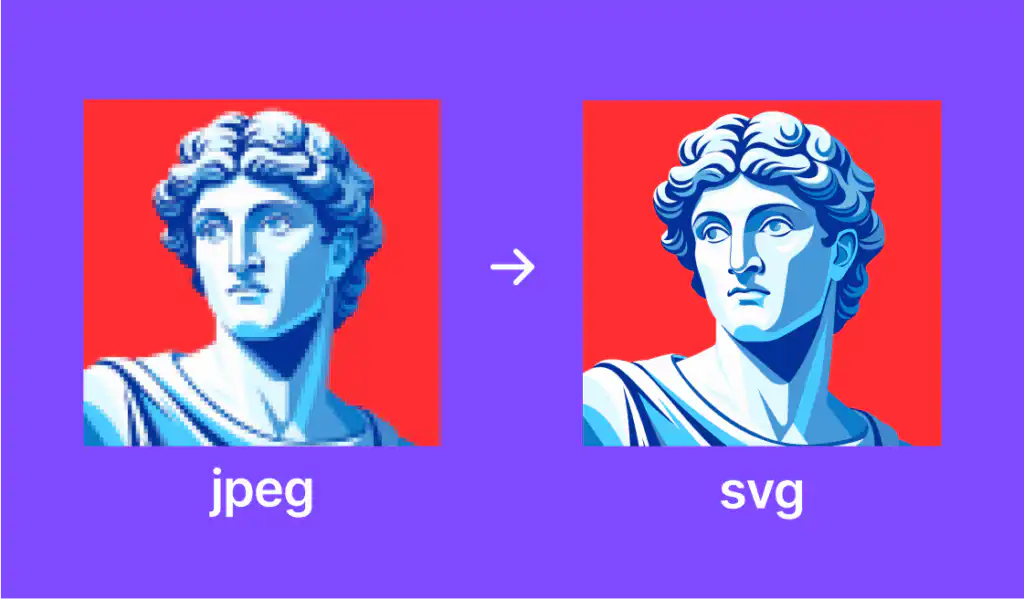
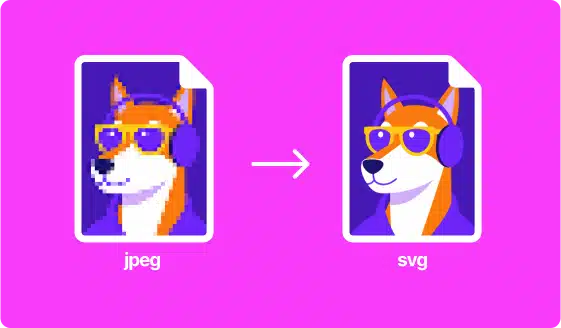
Before you dive into tools, it helps to know exactly what you’re converting. A bitmap or raster image is made of thousands of tiny pixels and can look fuzzy when enlarged. In contrast, a vector image is plotted by mathematical paths that scale infinitely without losing quality. According to Corel Vector Documentation, that means you can zoom in on individual lines and still get a perfectly sharp result.
Prepare your image first
You’ll want to start with a clear, high-resolution image. Remove any background clutter and reduce the number of colors if you can. Tools like Scan2CAD recommend lines around 4–5 pixels thick and at least 300 dpi for a smoother conversion. Getting your image as clean as possible helps any automated process quickly detect edges and shapes.
Try these five vector tools in 2025
There are plenty of options out there, and each one brings something different to the table. Here’s a quick look at five go-to solutions:
| Tool | Best for | Key features |
|---|---|---|
| Adobe Illustrator | Versatile design work | • Vectorize tool on iPad and desktop • Customizable settings (Adobe HelpX) |
| Recraft AI | Fast one-click conversions | • AI-powered vectorization • Maintains detail & color (Recraft Blog) |
| Scan2CAD | Technical drawings & logos | • Cleans and prepares images • Powerful raster effects (Scan2CAD) |
| CorelDRAW | Precision vector tracing | • PowerTRACE with AI assistance • Tailored presets for logos (CorelDRAW) |
| Corel Vector | Online vector editing | • Resolution-independent shapes • Basic photo editing (Corel Vector Documentation) |
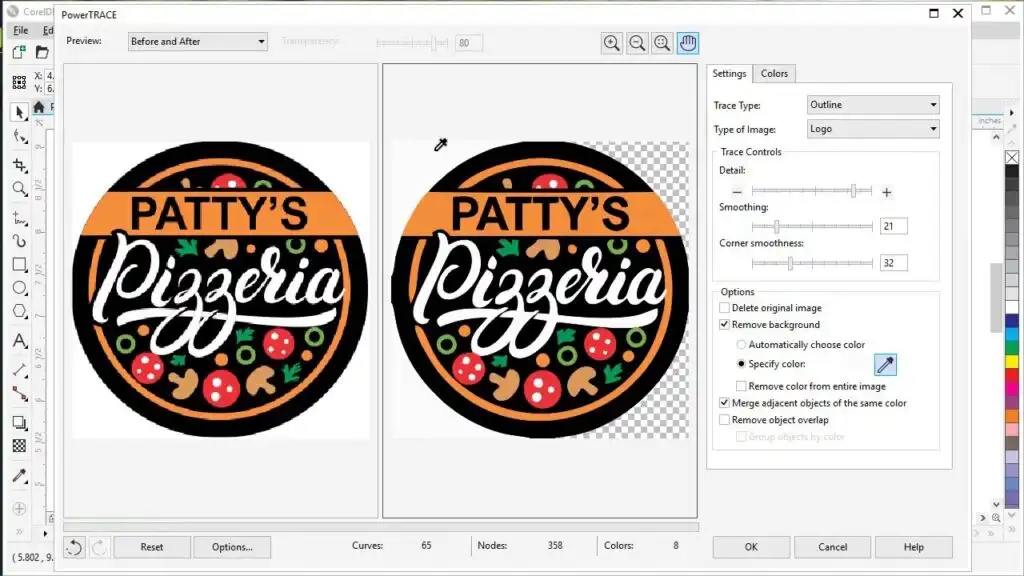
After you run your image through one of these tools, make sure to fine-tune your vector. Adjusting path smoothness, merging shapes, and reducing unnecessary nodes will help keep your file lightweight and ready for prints, web use, or even your Cricut machine.
Check these quick FAQs
Do I need an expensive tool to convert images to vector?
Not necessarily. While Adobe Illustrator and CorelDRAW are industry standards, there are free or affordable online converters, such as Recraft’s AI Image Vectorizer, that handle everyday tasks just fine.How do I keep the color accuracy in my vector file?
If you’re dealing with multiple colors, reduce them before conversion. Keep an eye on the color mode in your vectorization software. Tools like Scan2CAD let you carefully segment colors to prevent any big shifts.What file formats should I save my vector in?
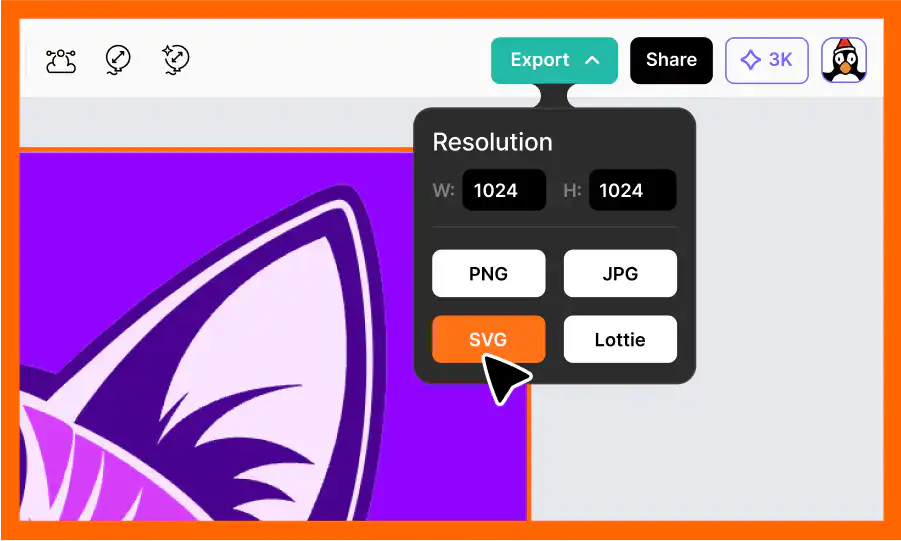
Common vector outputs include SVG, AI, and EPS. All are widely supported, so choose the format that best fits your workflow or the project’s requirements.Is it possible to convert a low-resolution image to a clean vector?
It can be tricky. You’ll probably need to do some manual cleanup first—removing background noise or thickening lines—to ensure your tool can detect edges correctly. The higher the image quality, the better your result.Why do my converted vectors look jagged?
Jagged edges often happen when the original image is too fuzzy or has faint lines. Try smoothing or thickening lines, or use line-art presets if your software offers them.
Whether you’re working on logos, illustrations, or giant billboard prints, vectorizing your images keeps them looking stellar in every size. Now you’ve got the essentials plus a set of reliable tools. Roll out your next design without worrying about pixelation, and watch your projects shine. Enjoy the crisp new look!
- 1share
- Facebook0
- Pinterest0
- Twitter1
- Reddit0