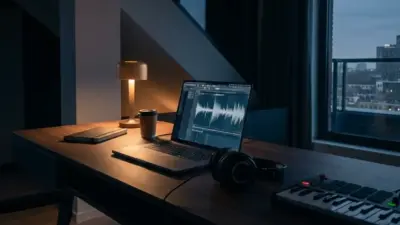
A good Text to Music tool doesn’t just “make songs”—it shortens the distance between an idea and a publishable edit. That’s the real appeal of Tomusic Text to Music: clear controls (genre/mood/tempo), multiple models, dedicated generators for common creator scenarios, and a Music Library that preserves your workflow so you can repeat what works.
If your goal is faster content production without settling for generic stock audio, this workflow upgrade pays back quickly—especially once you start saving and reusing your best “sound identities.”
Why Choose AI Text to Music for Content Creation?
AI Text to Music is built for creators who need speed without sacrificing fit. Instead of scrolling stock catalogs and settling for “almost right,” you start from your scene, describe the vibe, and generate music that matches your edit—then iterate until it clicks. The result is a workflow that’s more aligned with how creators actually publish: fast, repeatable, and consistent.
Save time on finding royalty-free tracks
A Text to Music workflow cuts out the browsing loop and replaces it with creator-first iteration: describe → generate variations → keep the best take. It reduces decision fatigue because you’re producing music for your scene, not fishing through a catalog.
Key wins for creators
- No browsing loop: start from your video idea, not a playlist
- Iteration is the feature: try → tweak → regenerate
- Best for fast needs: Shorts/Reels beds, intro/outro consistency, A/B ad variants
Customize audio mode to fit your video perfectly


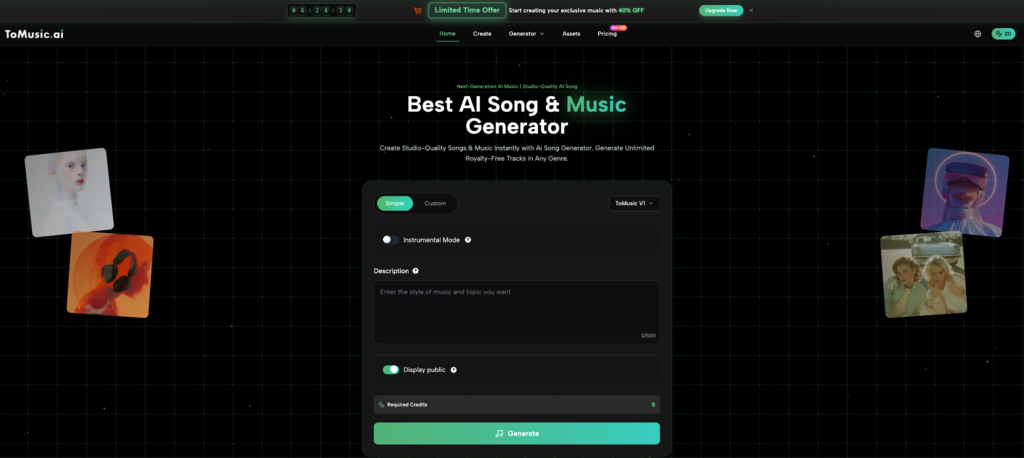
The biggest win isn’t just speed—it’s alignment. On ToMusic’s generator page, you can guide outputs with genre, mood, voice, and tempo, and add style tags or lyrics when you want more direction. That means your soundtrack can follow your edit’s emotional arc rather than fighting it.
Creator-ready arc examples
- Calm intro → brighter lift → clean loopable outro
- Cinematic tension → drop → resolve
Features of Tomusic Text to Music
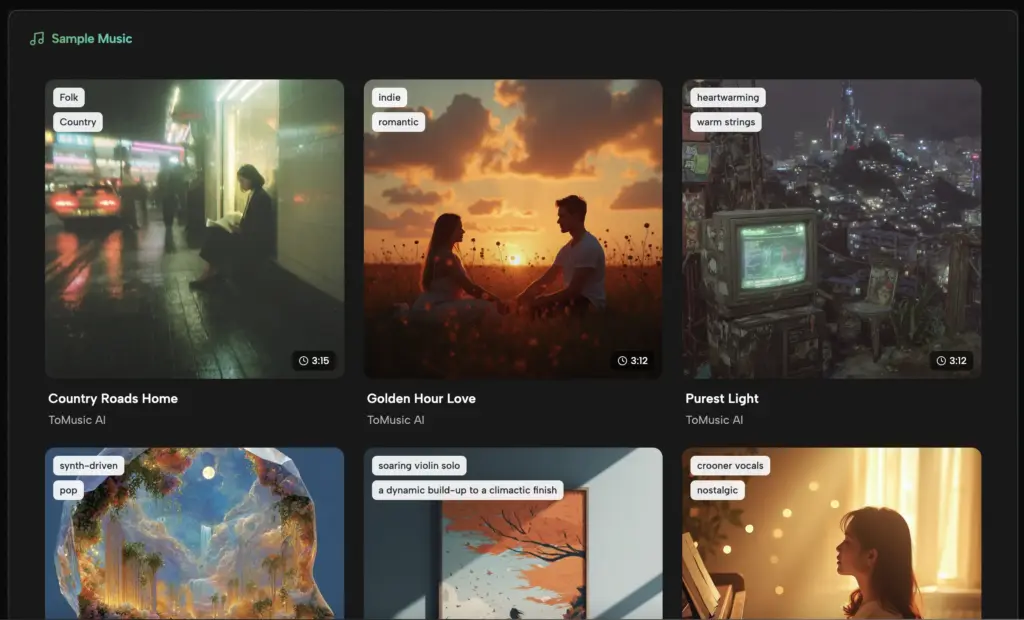
ToMusic Text to Music AI is positioned as a controllable Text to Music system, not a random one-click button. The platform combines model choice, Simple/Custom creation modes, scenario-based generators, and a Music Library—so you can generate quickly and stay consistent over time.
Multi-Model Music Generation for All Situations
When using ToMusic, you get access to four different AI music models (V1 through V4). This means you’ve got the flexibility to choose your workflow depending on your needs: if you’re always churning out music for social media posts, a quick output will do. But if you’re looking to create something more in-depth or expressive, you can definitely go for the richer results.
Why This Kind of Flexibility Matters
- Switch Up Your Model to Match Your Work Speed
- Break Free from Being Stuck in One Sound
Simple vs Custom Modes: Tailoring ToMusic to Your Work Style
One of the really cool things about ToMusic is that it has Simple and Custom modes – these are designed to cater to two different ways creators think: Get Something Useable Fast (Simple) and Get Super Precise Control (Custom). This way, beginners can use it without getting overwhelmed, while the pros can still get the level of detail they need.
Stuff You Can Tweak Right in the UI
- Title and Style Options
- Genre, Moods, Voices, and Tempos
- Lyrics Input (Visible Right on the Generator Page)
- Play with the Instrumental Option
Specialized Generators for Common Creator Scenarios
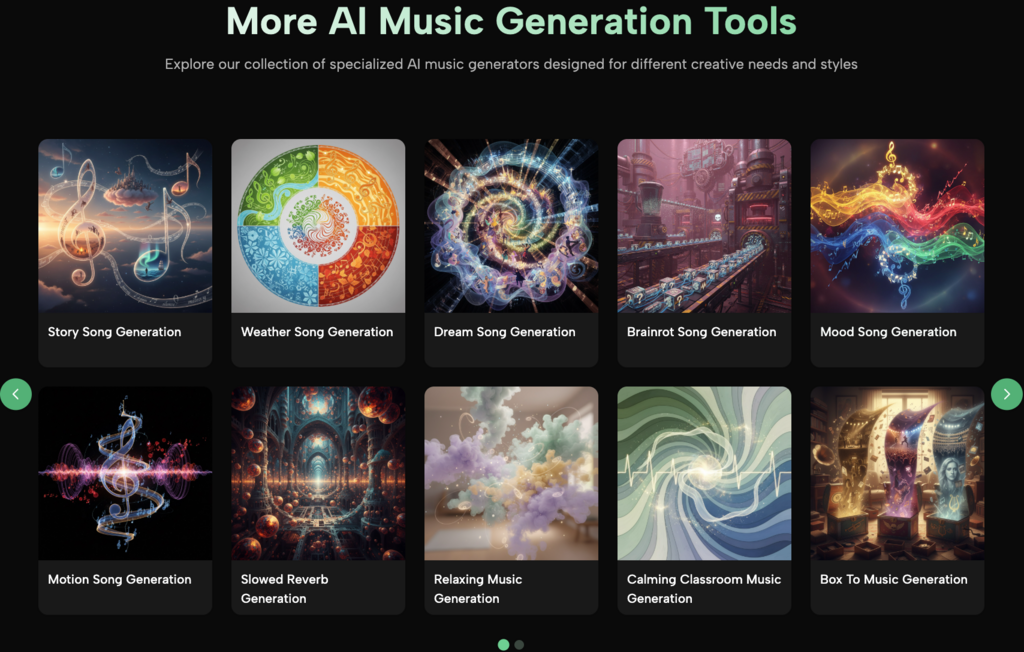
ToMusic also has some dedicated generators like Story, Weather, Mood, Motion, Slowed Reverb, Relaxing, Vlog, and so on. You could put it like this: Pick a Scenario First, Then Start Writing – and what you’ll get is music that’s a lot more consistent, because you’re starting with a clear idea of what you want.
Why does this improve consistency
- Less “prompt anxiety” (you’re not starting from blank)
- More repeatable results (scenario → refine tone + tempo)
Music Library that saves everything


ToMusic’s Music Library emphasizes that tracks are saved with metadata like titles, tags, descriptions, lyrics, and generation settings, with search and downloads. For creators, the real value is reproducibility: you can recreate what worked and keep your channel’s audio identity consistent.
What this unlocks
- Reusable “sound identities” for a channel or brand
- Faster iteration because you build on prior winners
How to Use Tomusic Text to Music
A clean Tomusic Text to Music workflow follows a simple logic: decide your intent, describe the vibe, apply a few controls, generate, then refine with small changes until the track matches your edit. The key is to treat generation as iteration, not “search.”
Step 1: Sign up and choose your genre
Start by choosing your intent—background bed, intro/outro, or featured vocal track—then select a genre that matches your content format. This one decision dramatically improves first-try results because it sets the creative boundary.
Highlight: Intent first → better outputs faster
Step 2: Write a descriptive text prompt
A strong prompt is short, specific, and visual. One reliable formula is: scene + mood + instrumentation + tempo reference.
Example
- “lofi chill background for rainy-night coding, soft drums, warm keys, slow tempo”
Highlight: Specific beats long (clarity > length)
Step 3: Adjust tempo and duration settings
Tempo is one of the fastest ways to align music with an edit. The best habit is changing one knob at a time—mood or tempo—so you learn what actually drives improvement.
Highlight: Small changes → predictable iteration
Step 4: Generate and download your track
Generate a few takes, keep the best version, then download for editing. Treat your best take as an asset: save it in your library so you can reuse the same vibe later.
Highlight: Save winners → build a repeatable system
Common Questions About Text to Music
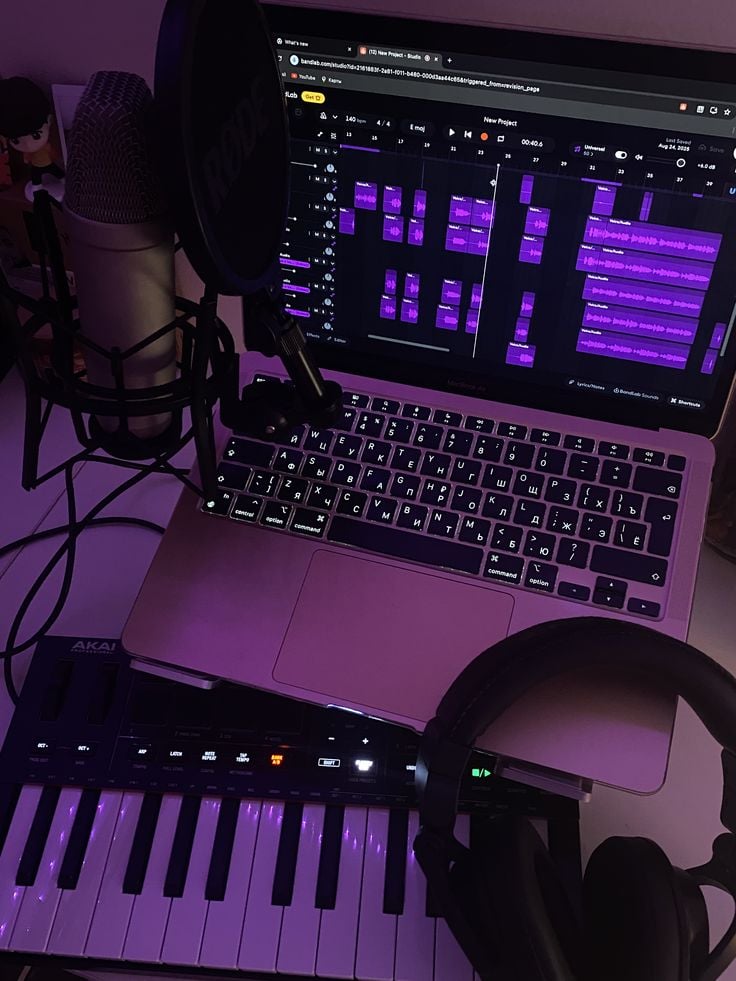
Can I make instrumental-only tracks?
Yes—an Instrumental option is visible on the generator interface, which is ideal for background beds that shouldn’t compete with voiceover or dialogue.
How do I get more consistent results for my channel?
Consistency comes from building a “house style”: keep a similar tempo range and instrument palette, reuse a proven prompt pattern, and rely on your Music Library history so you can recreate winners instead of starting from scratch.
Can I see how a track was generated?
ToMusic’s Music Library indicates that tracks include generation metadata such as the original prompt, lyrics, settings, and timestamp—useful for reproducibility and version control.
Conclusion

A good Text to Music tool doesn’t just “make songs”—it shortens the distance between an idea and a publishable edit. That’s the real appeal of Tomusic Text to Music AI: clear controls (genre/mood/tempo), multiple models, dedicated generators for common creator scenarios, and a library that preserves your workflow so you can repeat what works.
If your goal is faster content production without settling for generic stock audio, this workflow upgrade pays back quickly—especially once you start saving and reusing your best “sound identities.”
- 146shares
- Facebook0
- Pinterest146
- Twitter0
- Reddit0