Curious about how to create 3d models for printing? We are here to guide you through the essential steps so you can design efficient, accurate, and visually impressive 3D models. Whether you are completely new or looking to refine your craft, our goal is to help you shape your ideas into ready-to-print forms. Let’s explore a step-by-step process, complete with tips and references from industry experts.
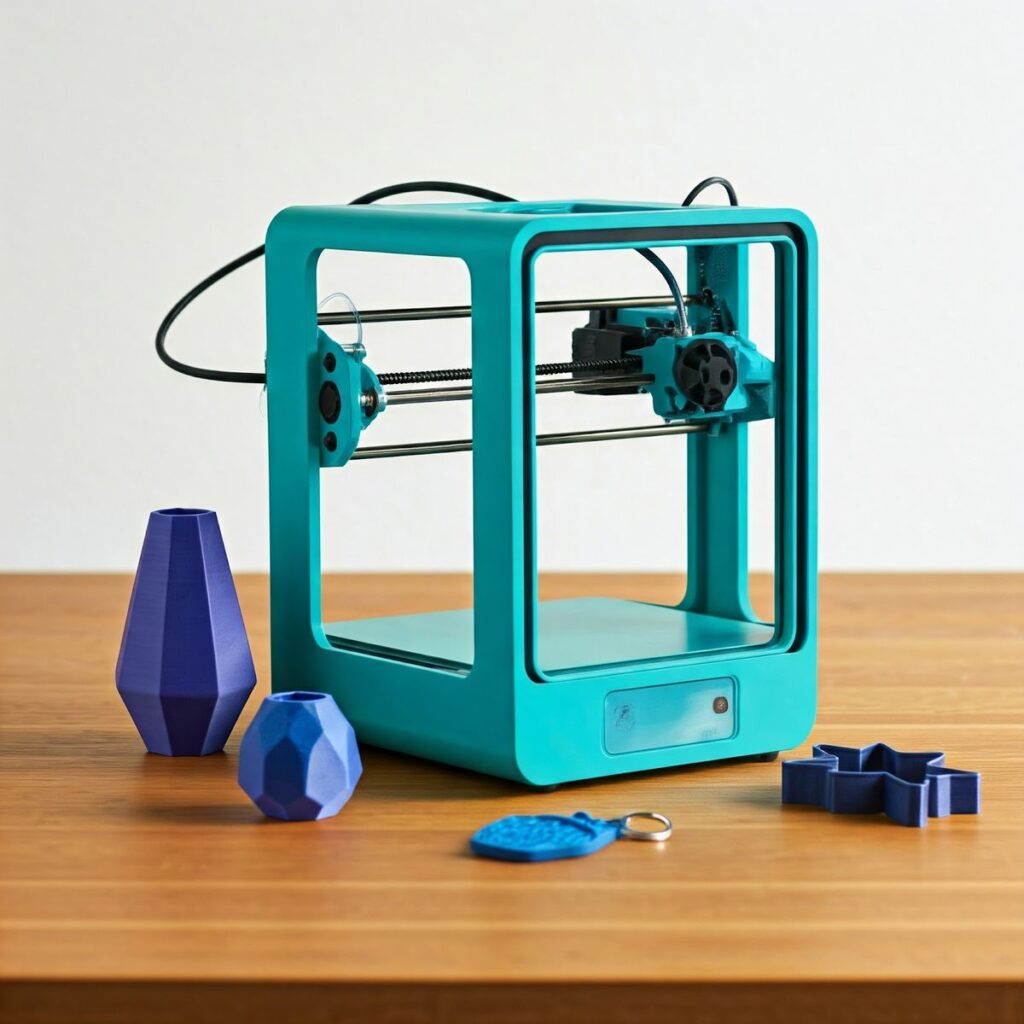
Plan your 3D model
Before we dive into software or file formats, it is vital to determine the purpose of your 3D print. Are you creating a decorative figurine, or do you need a tight-fitting mechanical part?
- Identify the style: Organic models (like characters or art pieces) benefit from sculpting tools such as Blender or ZBrush. On the other hand, functional or mechanical shapes usually call for CAD-based software like Tinkercad, Fusion 360, or FreeCAD.
- Pin down dimensions: Precise measurements are crucial for functional parts, so double-check your target dimensions and scaling. According to 3DPrinterOS, accurately sizing your model saves time and prevents wasted materials.
- Consider the end-use material: Different materials have different properties. For metals, you might need extra supports and rounded corners, as explained by i.materialise.
Laying out these fundamentals keeps us focused and ensures our design meets both aesthetic and practical needs.
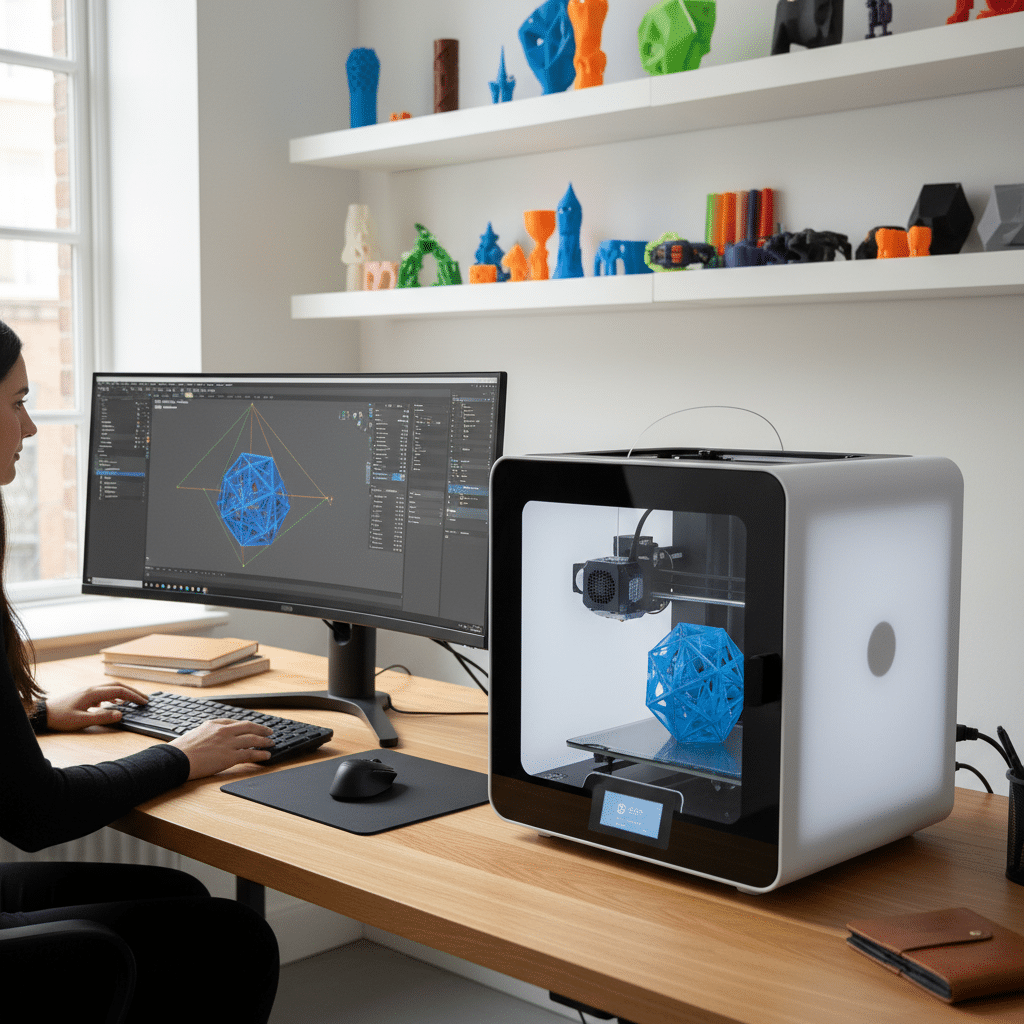
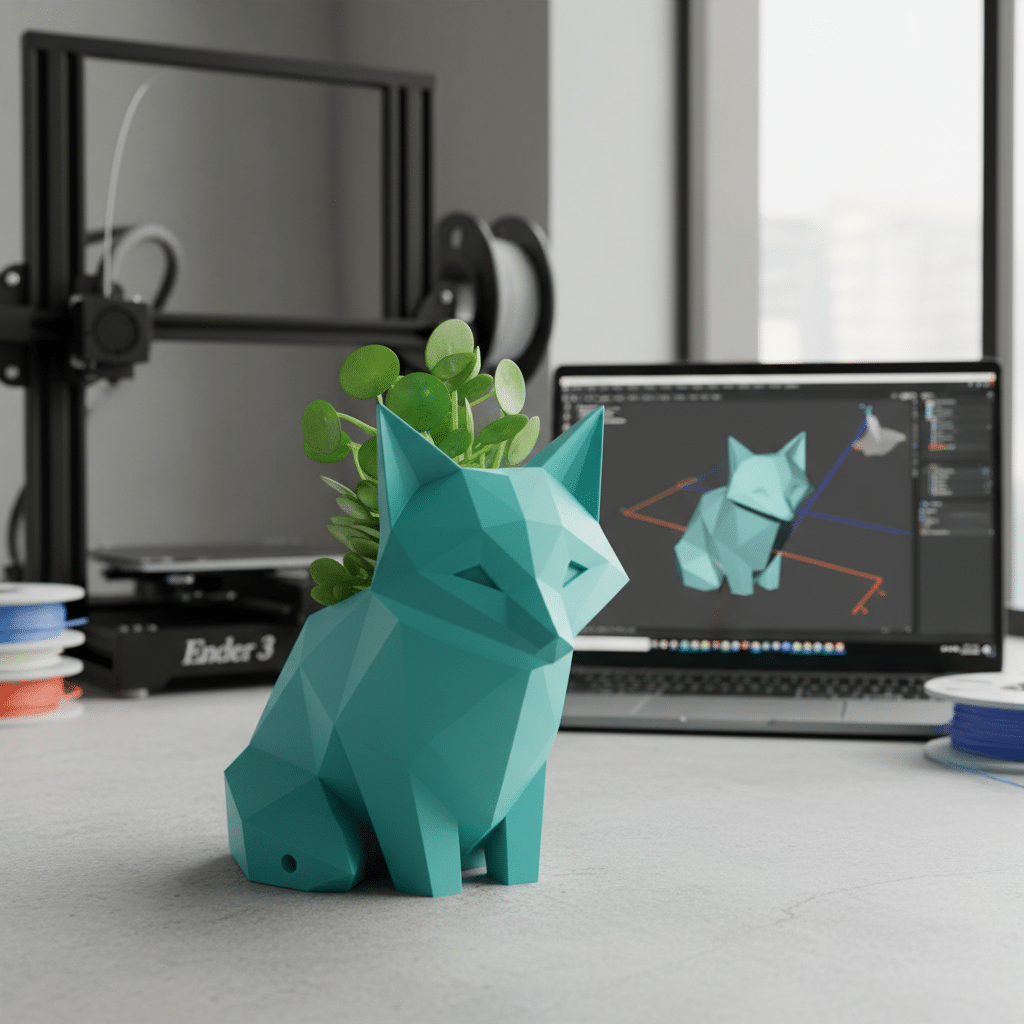
Pick the right software
Next, we decide which software to use. Our choice depends on skill level and the complexity of the model.
- Beginners:
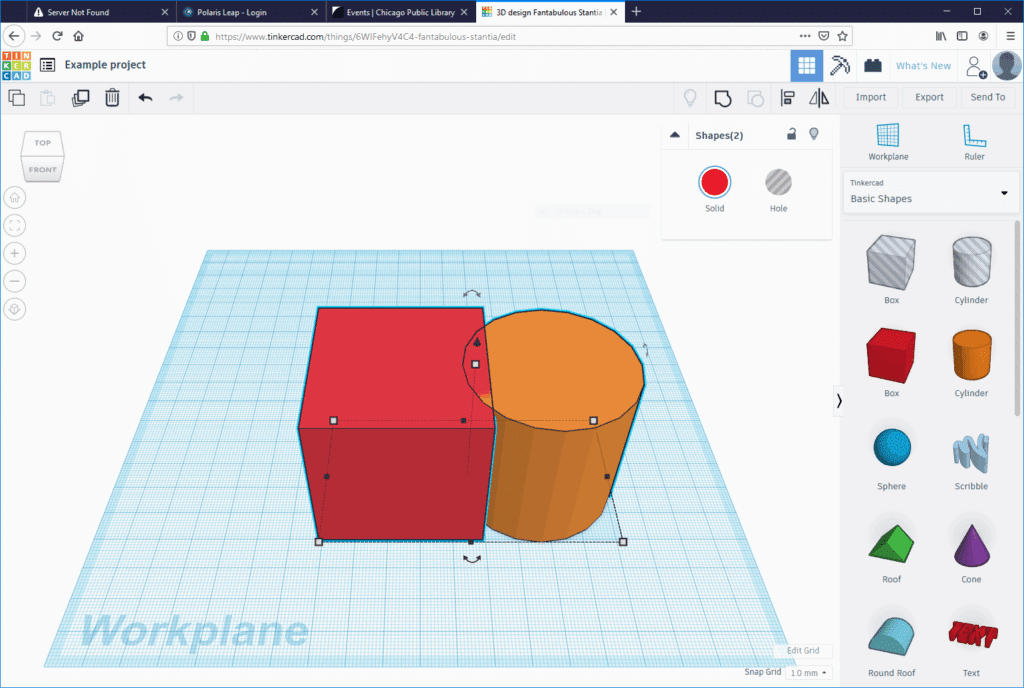
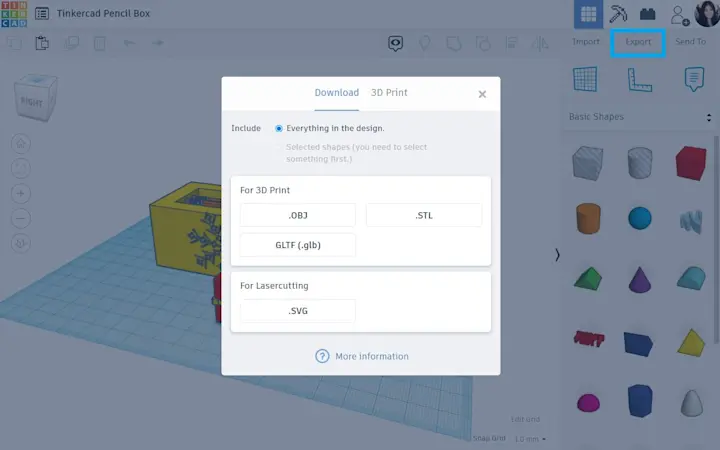
- Tinkercad is a popular, free browser-based solution. It is recommended for anyone getting started, thanks to its simple drag-and-drop interface (Instructables).
- FreeCAD works for open-source enthusiasts who prefer a community-driven tool, though it can feel a bit complex for first-timers.
- Intermediate to advanced:
- Onshape offers browser-based parametric modeling. As of 2025, it remains free for non-commercial use and is accessible on most devices (Instructables).
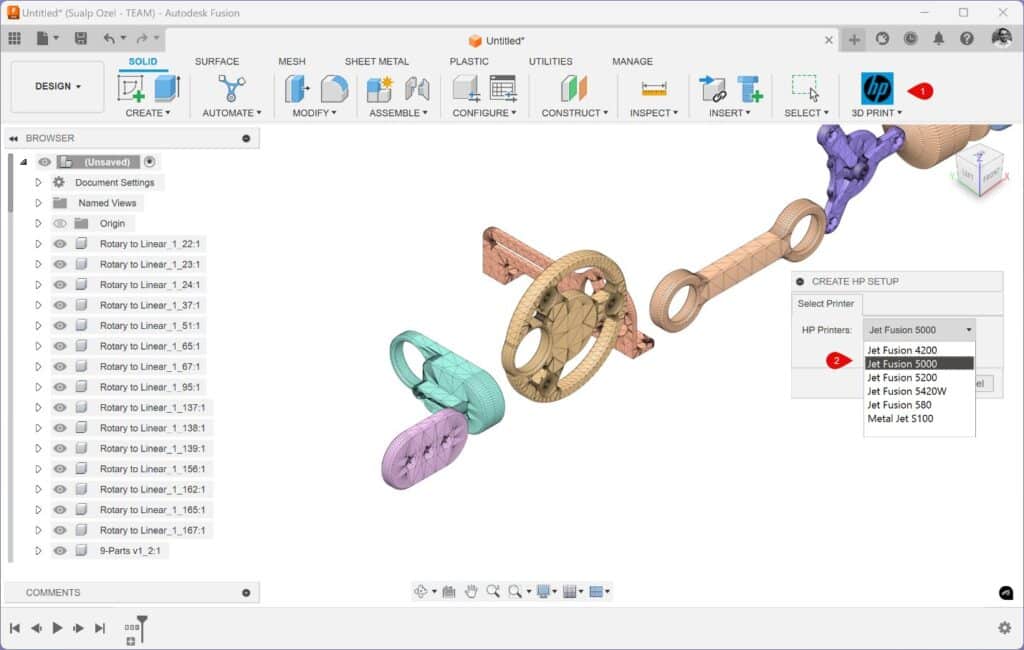
- Fusion 360 delivers powerful CAD features for product design and engineering. It is free for personal and educational use, although there is a learning curve (University of Florida Makerspace).
If you want a deeper look at different CAD platforms, check out our guide to the best software for 3d printing design.
Model with strong geometry
Once you have your software ready, the next step is creating a 3D model that is structurally sound for printing. Proper geometry saves time and helps avoid failed prints.
- Optimize wall thickness: Too thin, and your model could break. Too thick, and you risk wasted material or internal stresses. As i.materialise notes, consistent wall thickness is a key factor in print success.
- Manage overhangs: Overhangs can cause printing failures if they are too steep. Rotate or split your design to reduce the need for excessive supports.
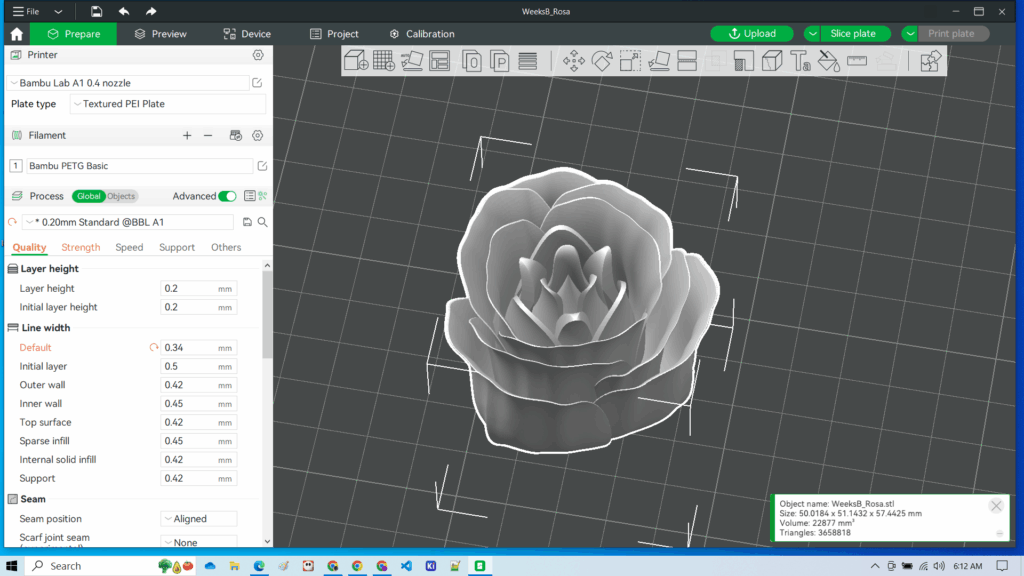
- Check mesh resolution: High resolution leads to huge file sizes and slow prints. Low resolution results in rough, blocky prints. Striking the right balance matters.
- Close your geometry: All surfaces must be watertight (no holes) before slicing. Gaps in your model can lead to misprints.
For more practical design considerations, explore our design rules for 3d printing and additional 3d printing design tips.
Export to the correct format
Selecting the right export format is essential for a smooth 3D printing process:
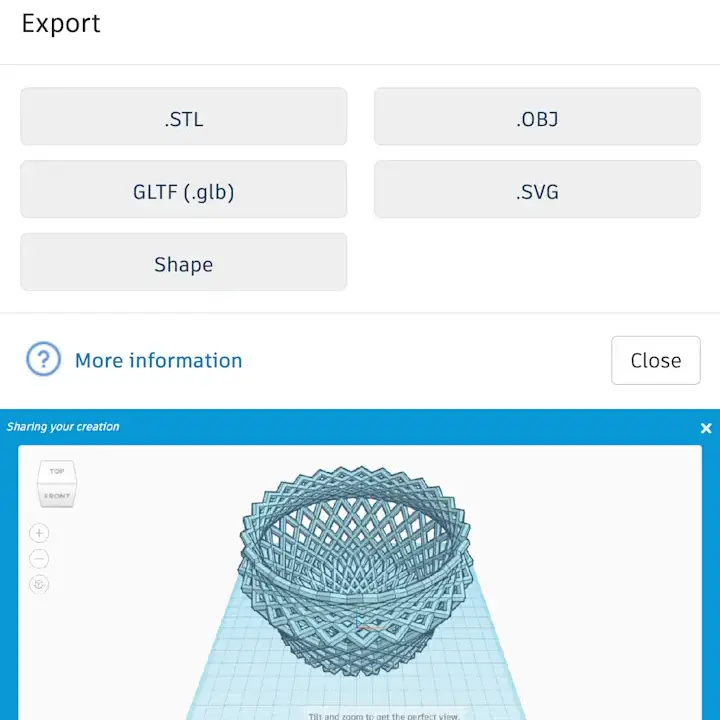
- STL: This is the most universal file extension for slicing software, though it does not store color data (Xometry).
- OBJ or VRML: If your model includes textures or color details, these formats preserve more information and are widely supported.
- 3MF: A newer format that stores color, material types, and other metadata more efficiently. It is increasingly accepted by major CAD and printing platforms.
We also share more comprehensive advice in our how to design for 3d printing article if you want step-by-step guidance on file prep and slicing.
Test and refine your design
With your model exported, it is time to print. Not everyone has an at-home printer, so consider local makerspaces, libraries, or lab services like Shapeways and Ponoko to get your designs printed at a reasonable cost (Instructables).
- Print small prototypes first: Test prints let us identify weak points or fit issues, which we can correct in later iterations.
- Iterate and improve: Each reprint helps us refine designs until they match our vision.
- Experiment with materials: A design that prints perfectly in PLA may need changes for ABS or metal. Always follow the guidelines for your chosen filament or material.
After a few rounds of trial and error, we can finalize our model with confidence and start producing functional or decorative goods that match our exact goals.
Frequently asked questions
Can we use any software for 3D printing models?
Absolutely, but the best choice depends on your project requirements and comfort level. Beginners often start with Tinkercad. Advanced users tend to prefer Fusion 360 or Onshape.Do we always need support when printing complex shapes?
Not necessarily. It depends on the design. You can sometimes rotate or split your model to reduce the need for supports. When in doubt, experiment with minimal supports to see if stability is maintained.How do we ensure correct sizing?
Always verify dimensions within your CAD software and slicer. Doing a small test print first is a smart way to confirm that your model meets actual size requirements.What if our printer cannot handle multiple colors?
Most desktop 3D printers only print one color at a time. However, some printing services can handle multicolor models if you export in OBJ or 3MF format and specify color data.Are there free resources to learn 3D modeling?
Yes. Sites like Instructables and YouTube offer a wealth of tutorials. In addition, most CAD tools provide built-in lessons or sample projects to help you build skills step by step.
- 29shares
- Facebook0
- Pinterest29
- Twitter0
- Reddit0