Getting a flawless Minecraft creeper 3d print takes more than just hitting “Print.” You need to nail the design, dial in your slicer, and calibrate your hardware so each pixel-like cube turns out crisp. In this ultimate guide, you’ll learn how to model or download the perfect creeper .stl file, fine-tune your FlashForge 3D printer, and troubleshoot any hiccups to achieve a desktop-ready figure.
Whether you’re building your first blocky mob or an experienced maker chasing pixel-perfect results, these steps will help you spend less time fiddling and more time showing off your creeper. Let’s walk through everything from design setup in Tinkercad.com to the final paint job.
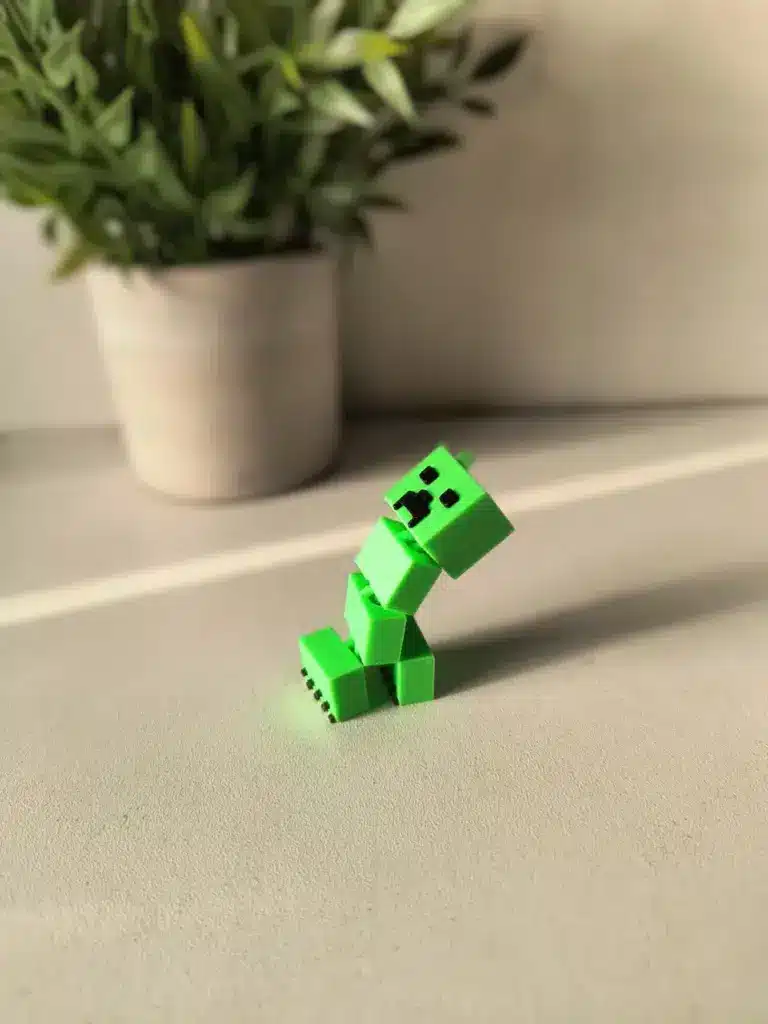
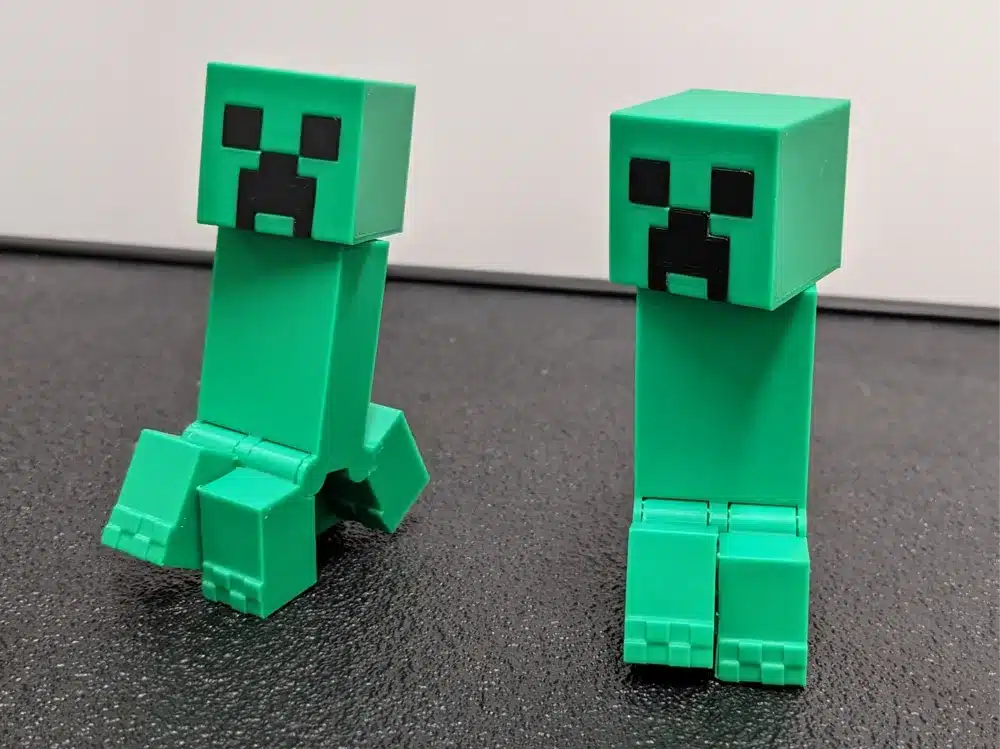
Table of contents
- Prepare your design files
- Refine your model dimensions
- Configure slicing software
- Calibrate your 3D printer
- Optimize print settings
- Execute post-print steps
- Diagnose printing problems
- Frequently asked questions
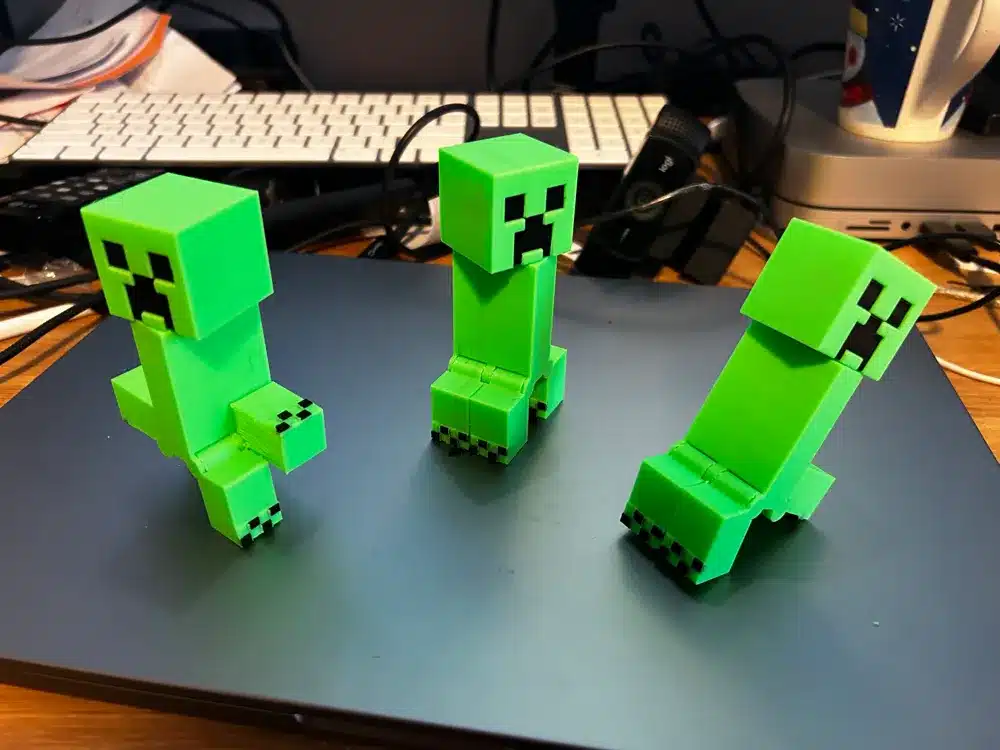
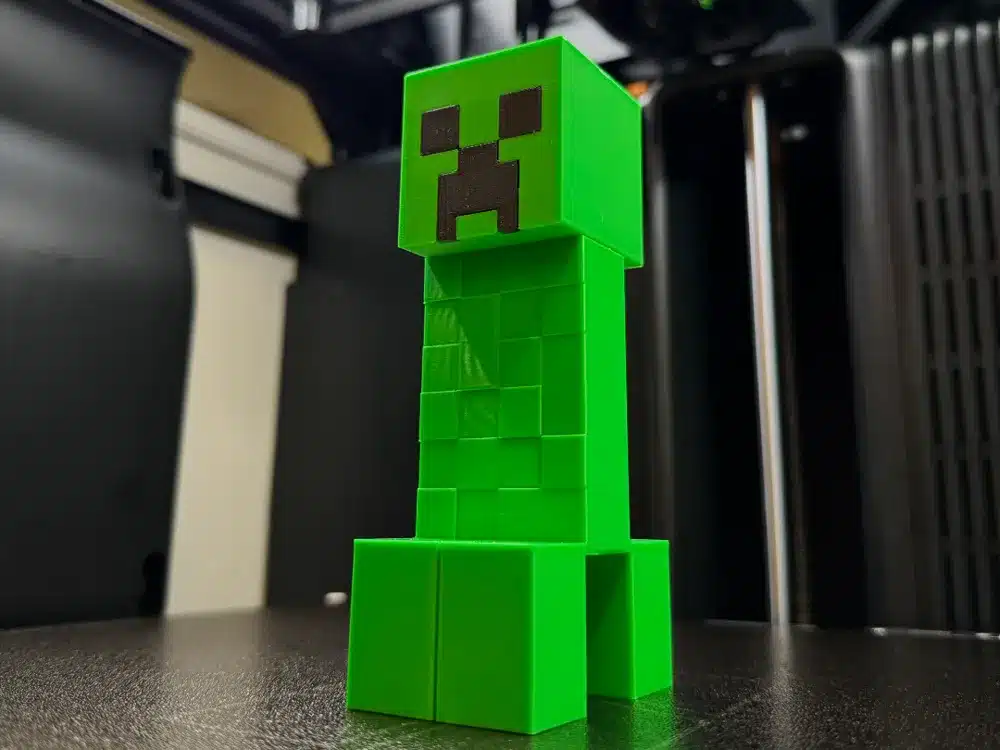
Prepare your design files
You have two paths: design the creeper from scratch in Tinkercad.com or grab a ready-made .stl. If you want full control over proportions, follow Olivia’s step-by-step tutorial on Tinkercad at Instructables. She walks you through combining cubes and cones into a cohesive mesh, using alignment tools to lock pieces in place.
Alternatively, download the free Minecraft Creeper model from Printables.com. The creator offers the .stl at no cost, and you can support them by buying a coffee if you appreciate the design (Printables.com). Once you have your .stl:
- Open it in your slicer to verify dimensions
- Check for non-manifold geometry or loose faces
- Save a backup of the original file before adjusting
Having a clean, well-structured model at this stage saves you hours later on failed prints or post-processing headaches.
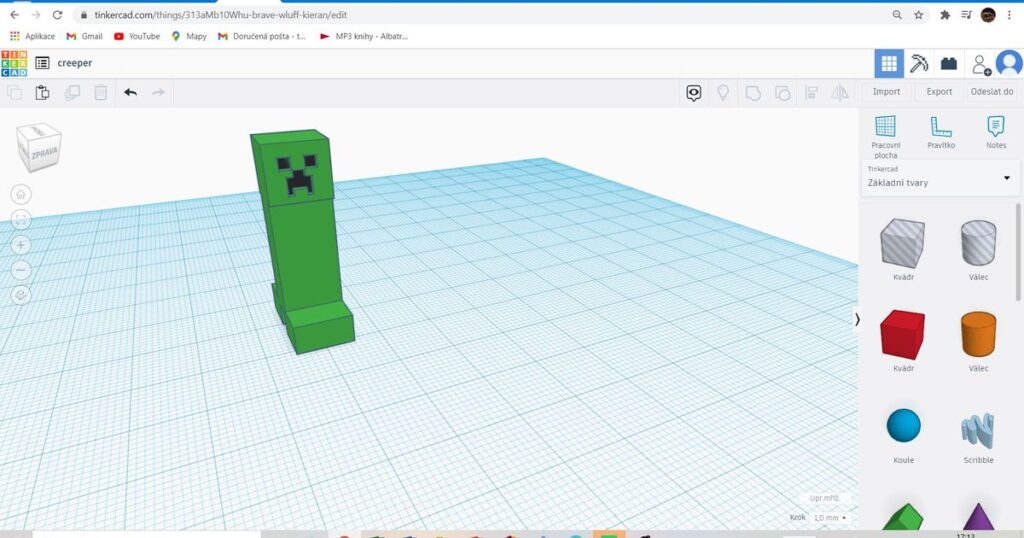
Refine your model dimensions
Pixel accuracy is the heart of a flawless creeper. Use these reference measurements from the Instructables guide to ensure each block aligns perfectly:
- Feet: four 10 mm cubes, each spaced 10 mm apart, all at the base level
- Body: single 10 × 14 × 20 mm cube, raised 9 mm above the feet
- Head: single 13 × 13 × 13 mm cube, raised 27 mm above the body
- Eye holes: 3 × 3 × 3 mm cube holes, positioned at 36 mm height on the head
- Mouth: a group of multiple 3 × 3 × 3 mm cube holes, arranged to mimic the Creeper’s frown
Tip: Apply a slight overlap (0.5 mm) between adjacent components when you group them. That small margin keeps your print from separating at the seams. Use Tinkercad’s alignment and grouping tools to lock everything into a single solid before exporting.
Configure slicing software
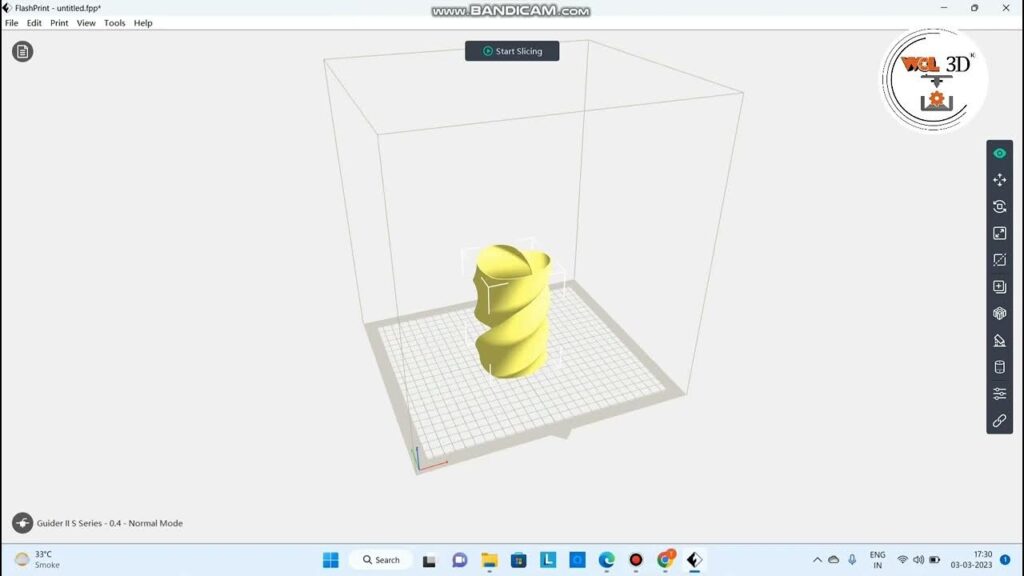
Once your model is locked and exported as an .stl, it’s time to set up FlashPrint for a FlashForge 3D printer:
- Open FlashPrint and import the creeper .stl without scaling
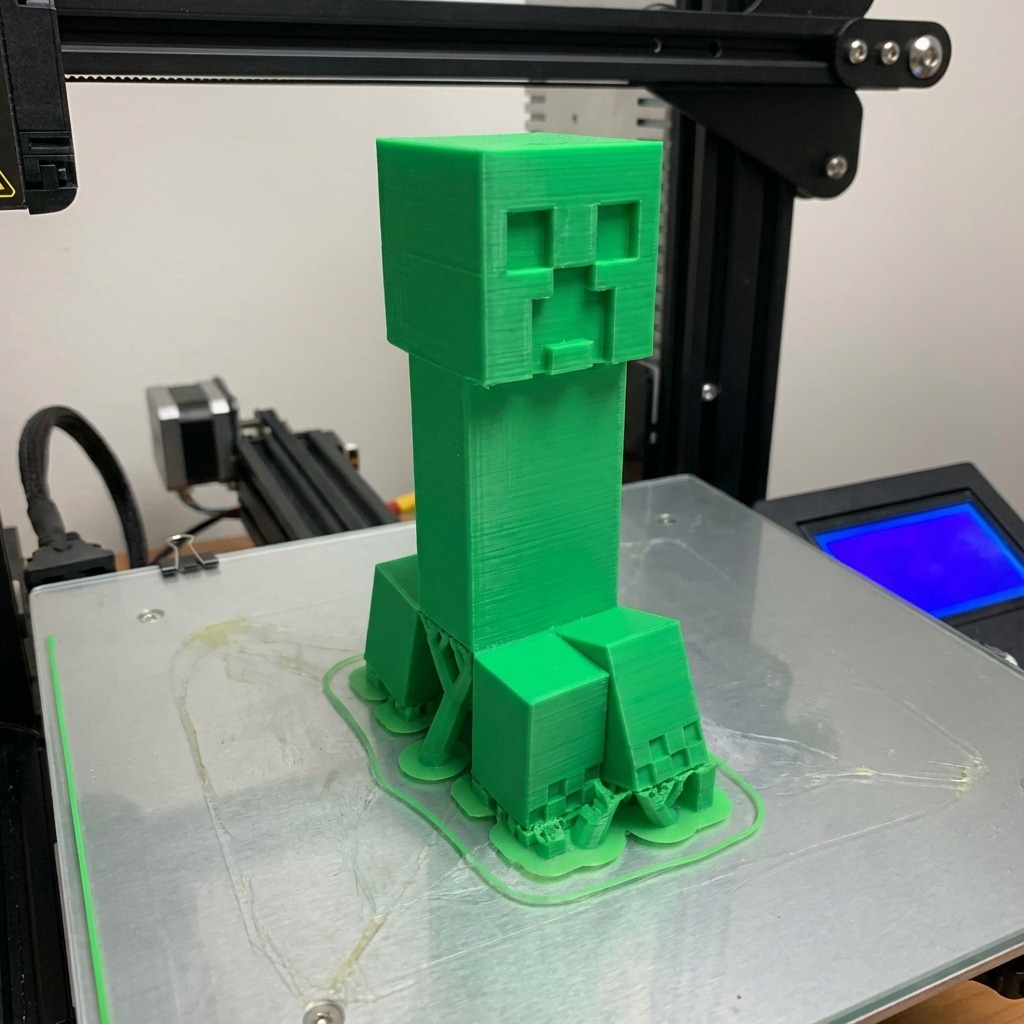
- Disable supports and raft to preserve the pixel-sharp edges
- Position the model flat on the build plate to maximize stability
- Save your project to a thumb drive in .gcode format
Recommended baseline settings from Printables.com:
| Parameter | Value |
|---|---|
| Layer height | 0.20 mm |
| Infill density | 20 % |
| Nozzle temperature | 200 °C (PLA) |
| Bed temperature | 60 °C |
| Estimated print time | ~5 hours |
| Model weight | ~38 g |
These settings balance detail with a reasonable print time, and they reflect the original creator’s successful build.
Calibrate your 3D printer
Proper calibration is non-negotiable for clean cubes and crisp edges. Before you start the official print:
- Level the bed: check all four corners and the center, adjusting knobs until a sheet of paper slides under the nozzle with slight resistance
- Clean the build surface: wipe with isopropyl alcohol to remove oils and dust
- Verify filament diameter: measure with calipers, input the exact value into your slicer
- Run a test cube: print a simple 20 mm cube to confirm dimensions and extrusion rate
- Adjust Z-offset: ensure the first layer adheres without squishing or lifting
Spending 15 minutes here pays dividends in print quality and reduces the risk of warping or adhesion issues.
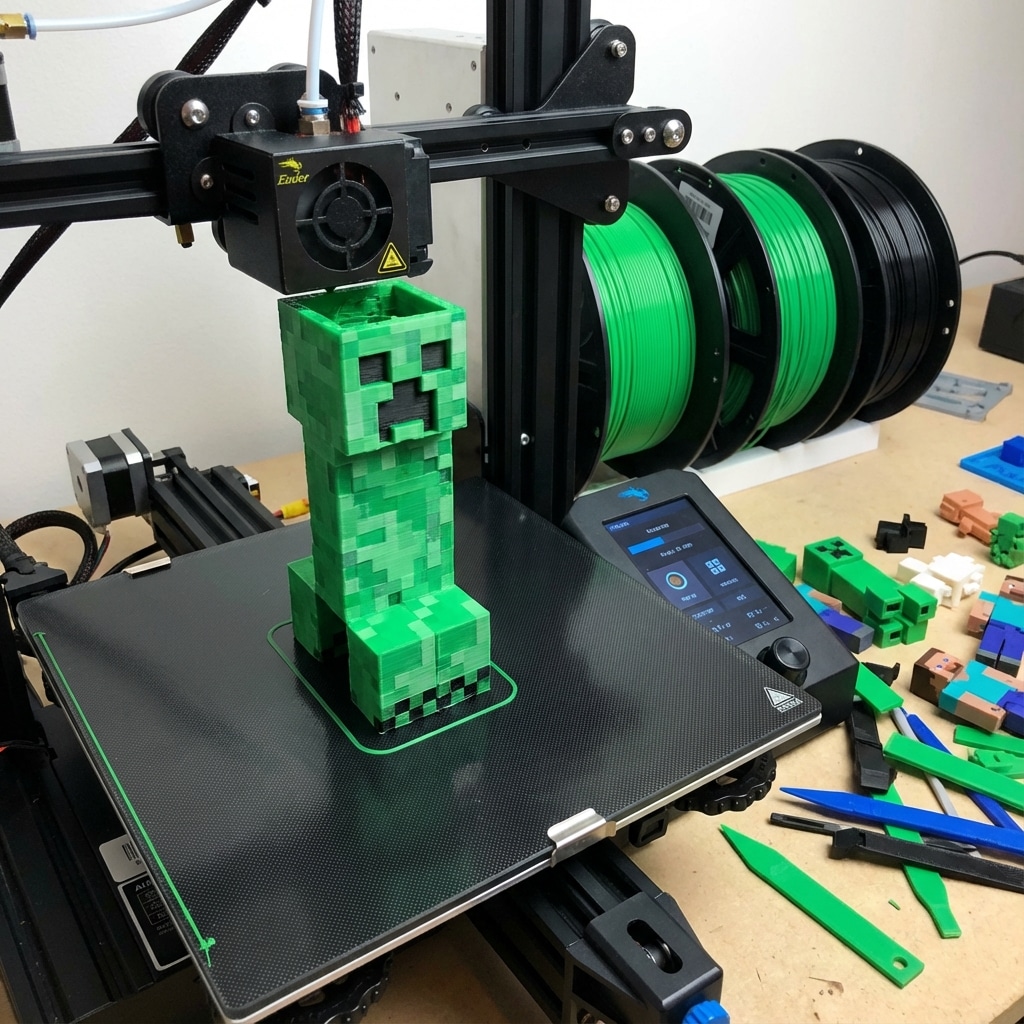
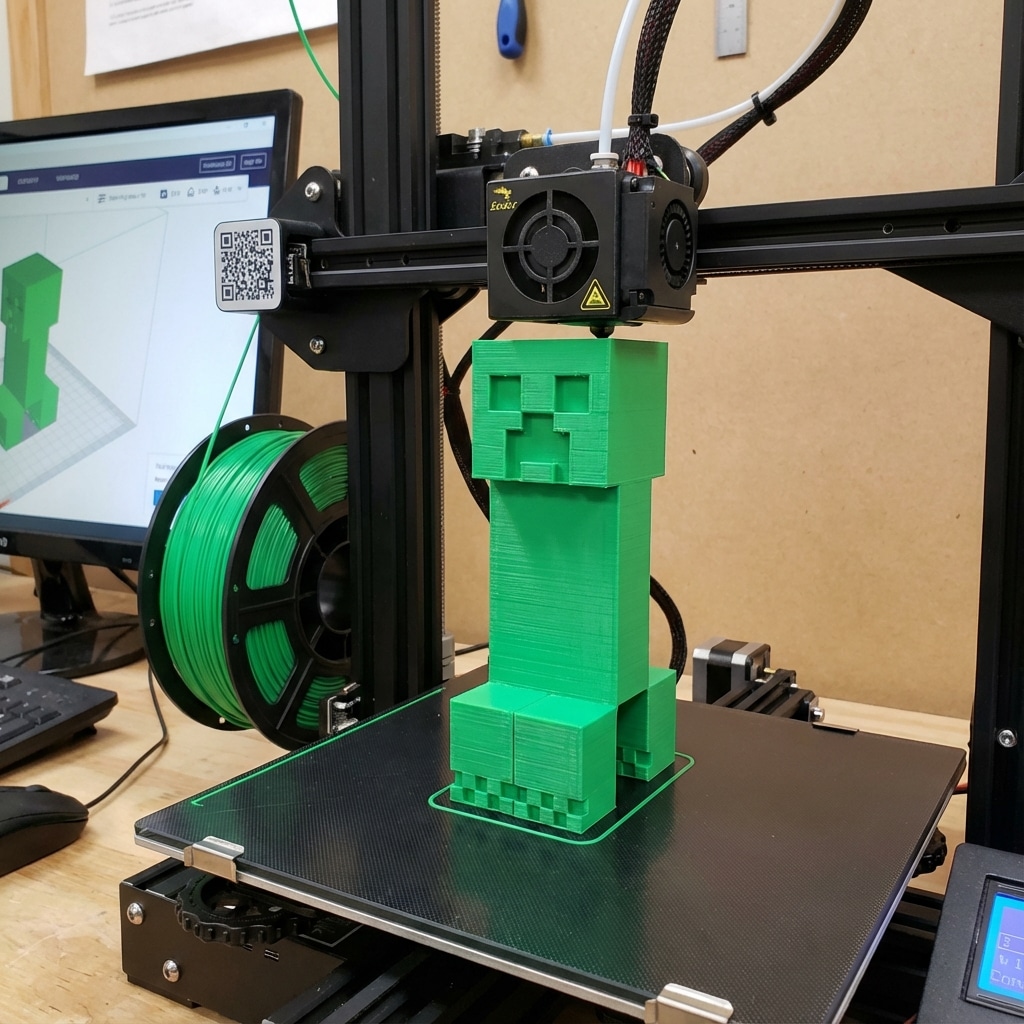
Optimize print settings
Fine-tuning these slicer parameters will sharpen corners and eliminate common artifacts:
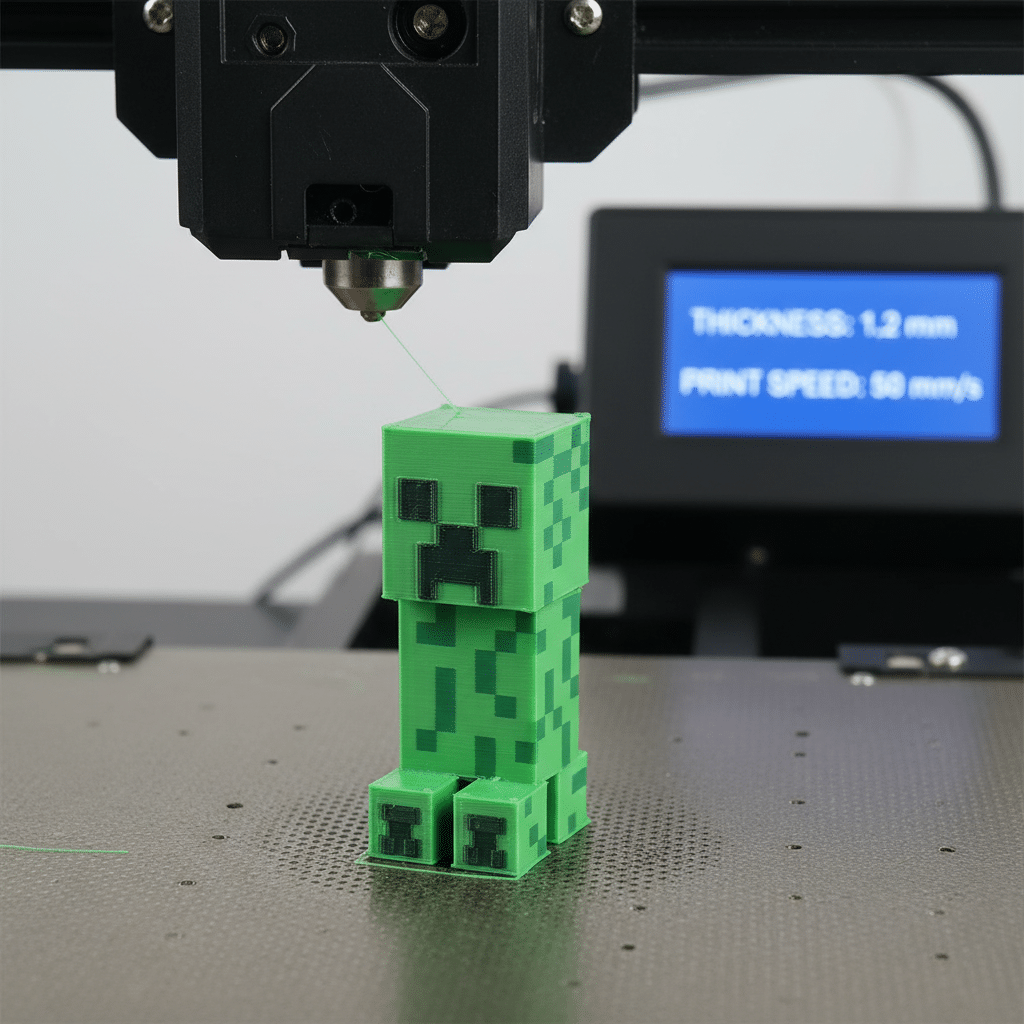
- Shell thickness: 1.2 mm (three perimeters) for solid, block-like walls
- Print speed: 50 mm/s for balanced quality and time
- Retraction distance: 5 mm at 45 mm/s to prevent stringing between cubes
- Cooling fan: 100 % after the first two layers to set edges cleanly
- Infill pattern: grid or cubic at 20 % for internal support without overuse of filament
Experiment with adjustments in small increments. For example, lower layer height to 0.16 mm if you want ultra-smooth faces, but be ready for longer prints.

Execute post-print steps
After the printer finishes, follow these steps to bring your creeper to life:
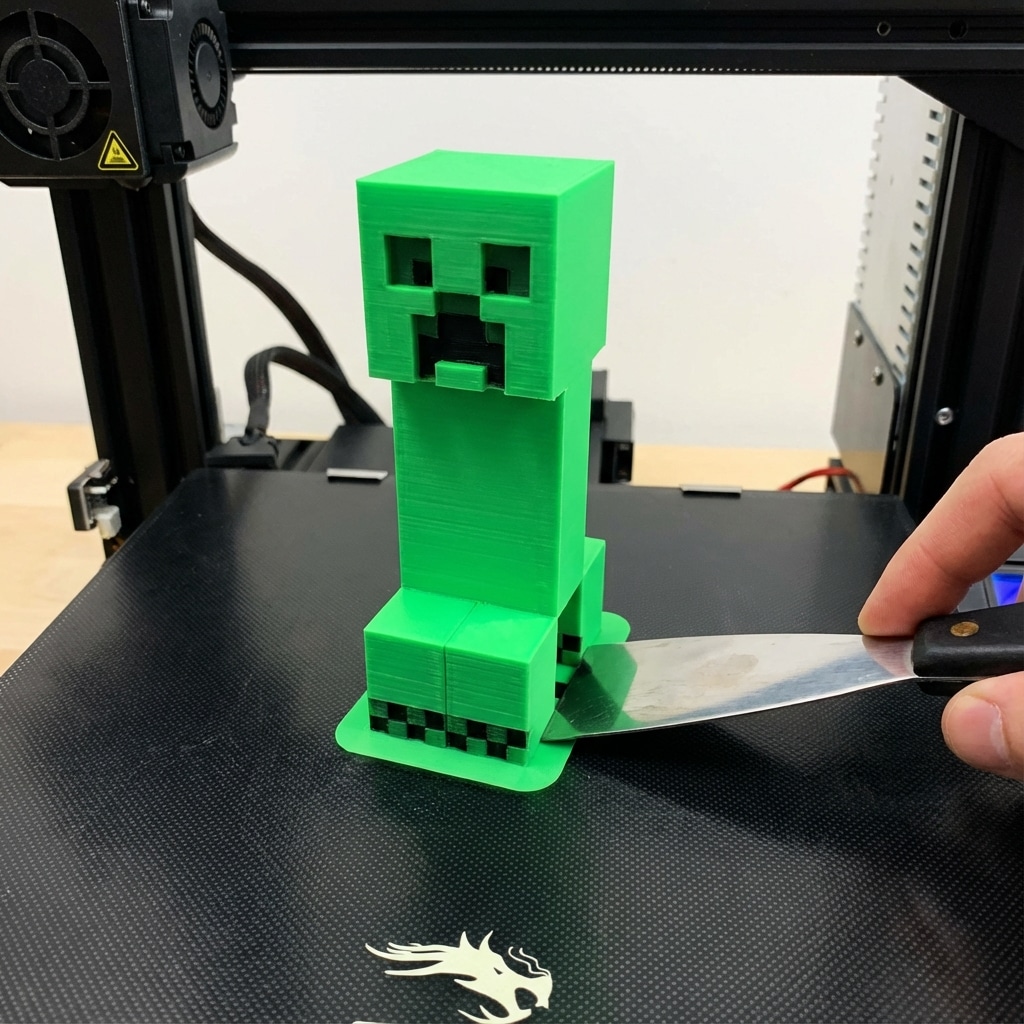
- Remove the model gently using a flat spatula or scraper
- Trim any wispy strings or blobs with flush cutters
- Sand the surface starting with 200-grit, then 400- and 600-grit paper for a smooth finish
- Apply a thin coat of primer to reveal remaining imperfections
- Paint with acrylics or spray paints in bright green, then detail the eyes and mouth in dark gray or black
- Seal with a matte or satin clear coat to protect the finish
These simple steps turn a raw print into a polished display piece.
Diagnose printing problems
Even with careful preparation, issues can pop up. Use this quick-reference table to find causes and fixes:
| Symptom | Possible cause | Fix |
|---|---|---|
| Warping at corners | Bed adhesion too low, first layer temp too cool | Increase bed temp by 5 °C, add brim or hairs |
| Stringing between cubes | Retraction distance too short, nozzle temp high | Increase retraction by 1 mm, lower temp 5 °C |
| Layer shifting | Loose belts, print speed too high | Tighten belts, reduce speed to 40 mm/s |
| Under-extrusion | Clogged nozzle, filament diameter mismatch | Clean nozzle, verify filament diameter in slicer |
| Rough surface finish | Insufficient cooling or high layer height | Boost fan speed, lower layer height to 0.16 mm |
Refer back to the calibration and slicing sections if problems persist. Small tweaks can deliver dramatic improvements.
Frequently asked questions
What filament works best for a Minecraft Creeper 3D print?
PLA is your go-to choice. It’s easy to print at 200 °C, offers good detail, and comes in bright greens that match the Creeper’s palette. If you need extra strength or heat resistance, try PETG at 240 °C with a 70 °C bed.
How long does a full-size Creeper model take to print?
With a 0.20 mm layer height and 20 % infill, expect around 5 hours of print time on a standard FDM printer. Reducing layer height will increase time, while upping layer height to 0.25 mm can shave off 30–45 minutes.
Can I scale the Creeper model without losing detail?
Yes, scaling down by up to 10–15 % keeps proportions and detail intact. Below 85 % scale, small features like eye holes can close up, so you may need to re-drill or adjust hole sizes in your CAD software.
Why should I disable supports when printing the Creeper?
The Creeper’s overhangs are minimal and blocky by design, so built-in cubes interlock cleanly. Supports add cleanup time and risk of marring the surface. Disabling supports preserves those crisp edges.
How can I paint my 3D printed Creeper for a finished look?
Start with a light primer coat to hide layer lines, then use acrylics or spray paint in at least two green tones for depth. Detail eyes and mouth with a fine brush and dark gray paint. Finish with a matte clear coat to protect your work.
You now have everything you need to achieve a flawless Minecraft creeper 3d print. Follow each step carefully, make small adjustments based on your hardware, and soon you’ll be showcasing a creeper that looks straight out of the game. Happy printing!
- 119shares
- Facebook0
- Pinterest119
- Twitter0
- Reddit0