Welcome! If you are looking for the best software for 3D printing design, you are in the right place. Whether your goal is to craft intricate figurines for fun, prototype products for your startup, or enhance your engineering workflow, the right software can make all the difference. By choosing a program that aligns with your skill level, design goals, and budget, you streamline the entire process—from the first concept sketch to that satisfying moment when you hold a freshly printed model in your hands.
In this ultimate guide, you will learn about the different types of 3D printing software, discover which features matter most when selecting a tool, and explore popular CAD and slicing solutions. You will also get tips on how to improve your overall design process and navigate future trends. By the end, you will have a clear roadmap to pick and master the software that helps you bring your creative ideas to life.
Ready? Let’s dive into the core fundamentals, walk you through a curated list of software options, and set you up to conquer your next 3D printing project with confidence.
Understand 3D Printing Software Basics
Before you start tinkering with advanced tools, get a handle on the basics. Broadly, 3D printing software can be divided into two categories: CAD (Computer-Aided Design) programs and slicing programs. Each helps you tackle a different phase of the 3D printing workflow.
- CAD Software: CAD tools let you create and manipulate 3D models. You begin by drawing shapes, adding details, or even sculpting complex forms. Once you have a final design, CAD software also helps you refine dimensions or add mechanical constraints.
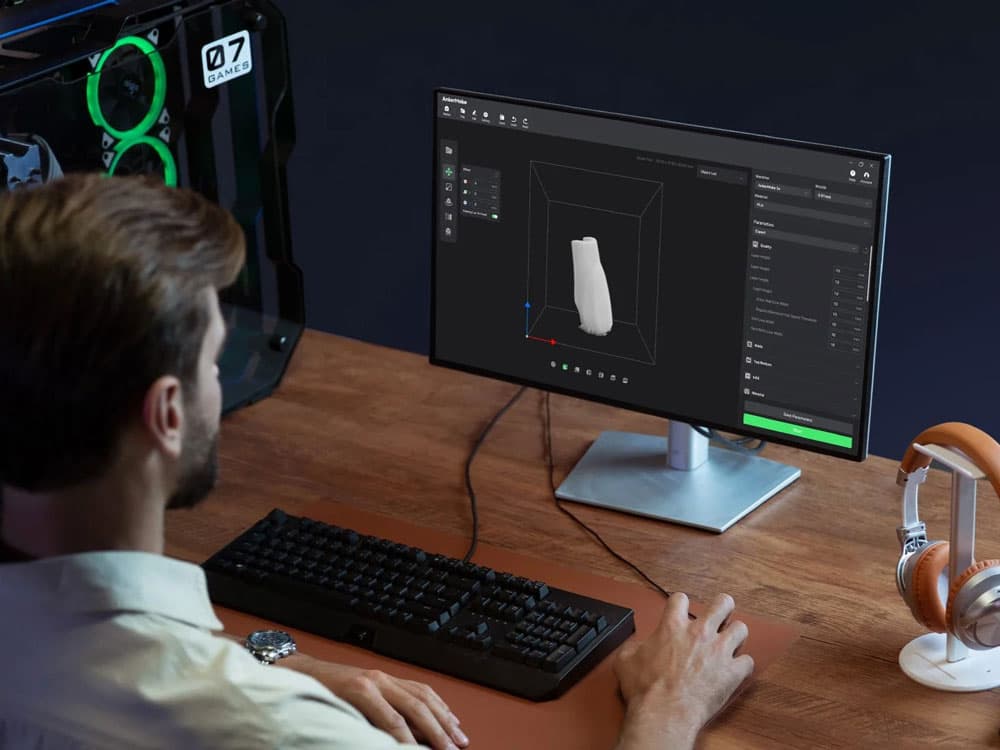
- Slicing Software: After your design is complete, slicing software converts your 3D model into machine instructions (often G-code). These instructions tell your 3D printer how to lay down material layer by layer.
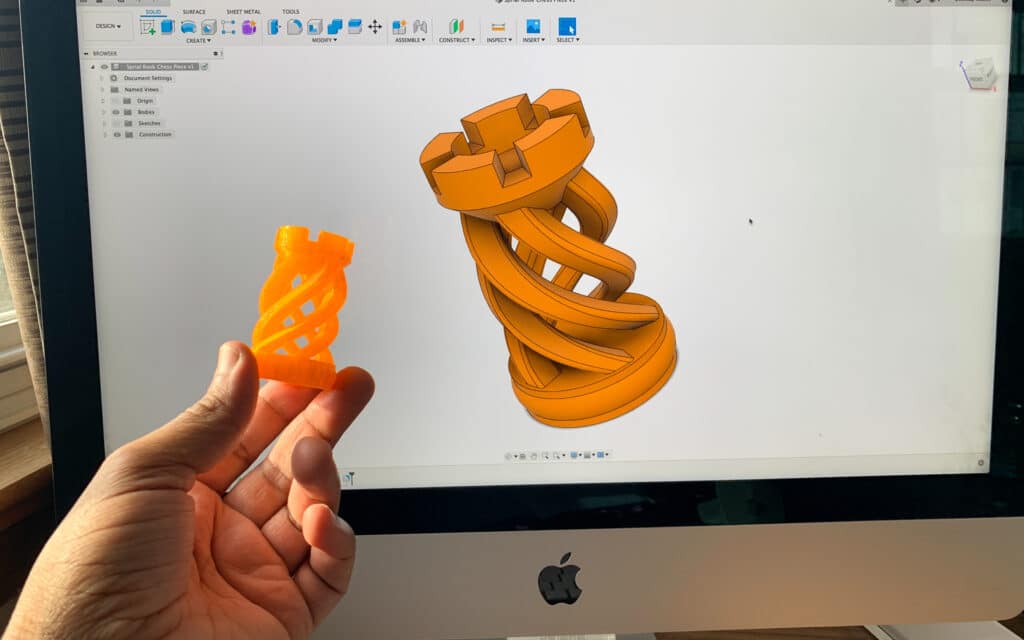
Many solutions incorporate both CAD creation and slicing. For instance, Autodesk Fusion 360 offers an integrated environment to design, test, and even slice your models for printing (G2). However, it is also common to use one program for modeling and another for slicing, depending on your preference or specific project requirements.
Key Factors For Choosing Software
Selecting the right 3D printing software is all about finding a good fit for your goals and workflow. Consider these factors:
Skill Level
- Beginners: If you are just starting, user-friendly platforms like Tinkercad or Ultimaker Cura might be your best bets. They are intuitive and free, reducing the learning curve and upfront cost.
- Advanced Users: Experienced designers often gravitate toward feature-rich platforms like Fusion 360, SolidWorks, or Blender. These tools can handle complex geometries, design simulations, and more.
Cost
- Free or Freemium: Tinkercad, Blender, FreeCAD, and Onshape (public version) provide cost-effective, sometimes fully free ways to explore 3D design.
- Paid Licenses: Fusion 360, SolidWorks, and ZBrush may offer more advanced features—at a price. Expect annual fees or perpetual licenses ranging from under $100 to several thousand dollars per year.
Hardware Requirements
- Web-Based Solutions: Tools like Tinkercad or Onshape require little more than a browser, making them perfect for lower-spec computers.
- Desktop Powerhouses: Software such as Blender or SolidWorks can be resource-intensive, especially when you get into detailed modeling and rendering.
Specific Features
- Parametric Modeling: Great for engineering parts with precise measurements.
- Slicing Integration: Some programs feature built-in slicers, so you can go straight from design to machine instructions.
- Collaboration: Cloud-based solutions enable real-time co-editing—useful if you are working with a team.
Community and Support
- Look for an active user community, frequent updates, and official tutorials. If you get stuck, you want help fast. A tool like Blender, for instance, boasts a massive global community full of video tutorials and forums.
By weighing these factors, you narrow your options and save yourself from the confusion of downloading a half-dozen apps you don’t really need.
Popular CAD Tools For 3D Printing
Once you understand the basics and key considerations, it is time to explore the core modeling software at the heart of any 3D printing project. Below are some standout CAD tools, each with its own strengths, quirks, and ideal use cases.
Tinkercad: Ideal For Beginners
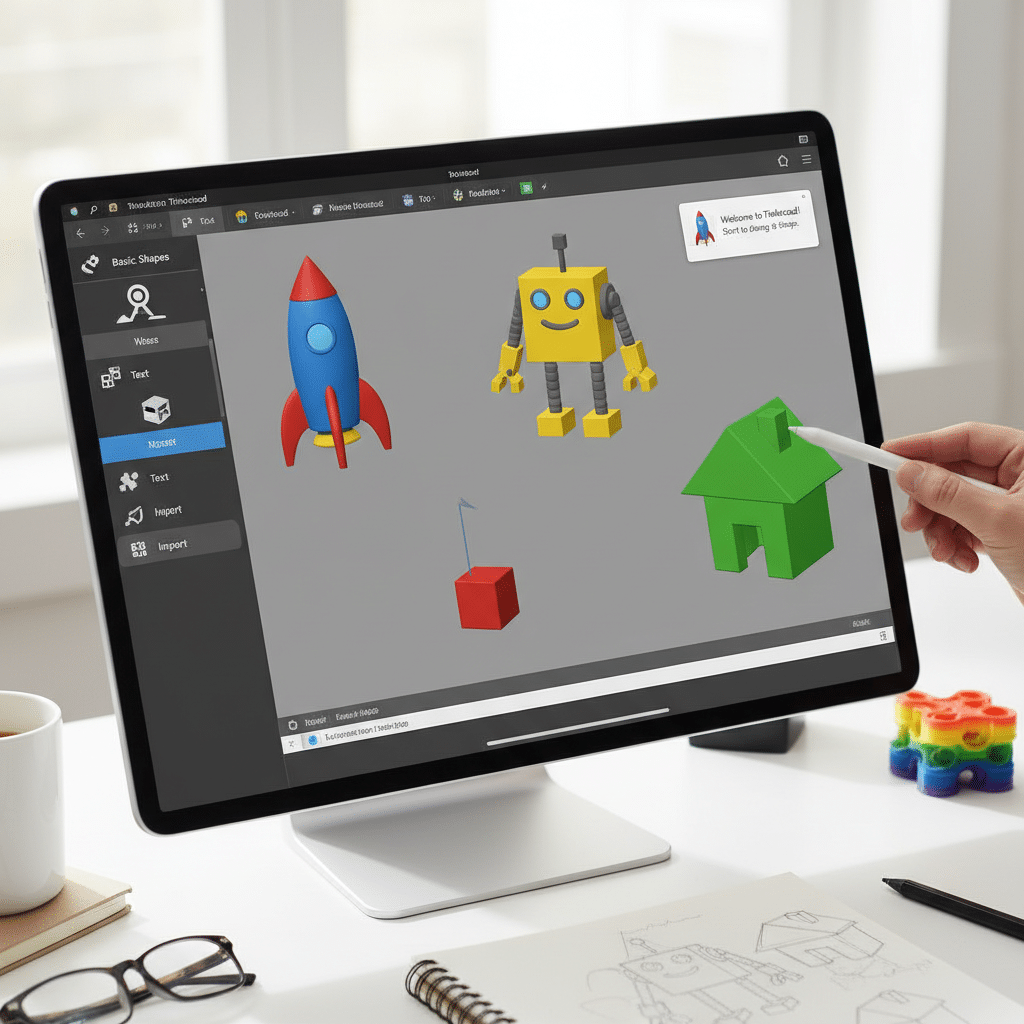
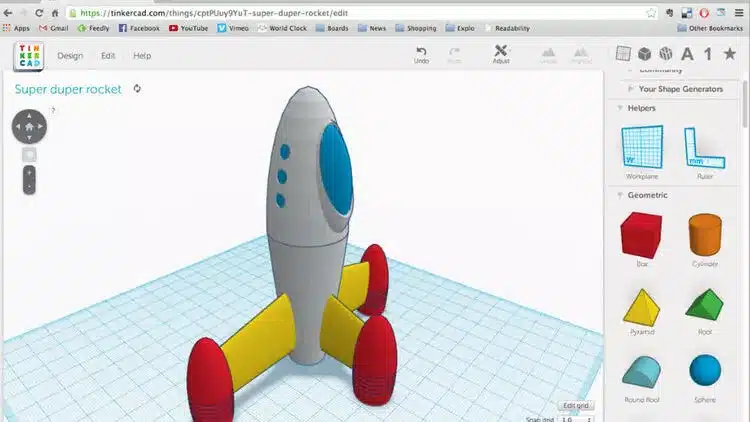
If you are completely new to 3D printing or simply prefer a user-friendly interface, Tinkercad is a perfect first step (University of Florida Makerspace). Developed by Autodesk, this browser-based tool lets you drag and drop geometric shapes to build models quickly.
Free to use.
No software installation.
Great for basic modeling and small-scale projects.
Cloud storage, so you can access designs anywhere.
Cons:
Limited advanced features, such as parametric modeling or mechanical simulations.
You may outgrow it if you need detailed engineering capabilities.
Feeling inspired to start creating your own models right away? Check out how to create 3d models for printing for a quick crash course on essential design steps.
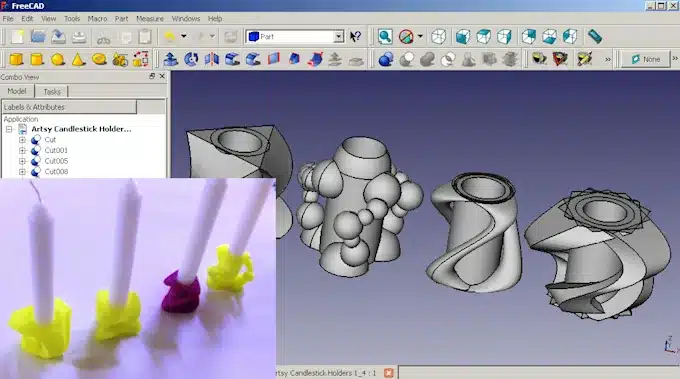
FreeCAD: Fully Open-Source
FreeCAD is a comprehensive open-source platform that runs on Windows, macOS, and Linux (Formlabs). Its parametric, constraint-based approach makes it a powerful choice if you prefer a cost-free solution but still need robust mechanical design capabilities.
Pros:
Zero cost with no hidden premium options.
Scripting support in Python and C++, so you can automate repetitive tasks.
Good for mechanical parts that require precise dimensions.
Cons:
Steep learning curve: The user interface can be unintuitive for newcomers.
Fewer official tutorials, though community forums can help you troubleshoot.
If you are considering more advanced designs, also remember to peek at design rules for 3d printing. Adhering to core rules—like handling overhangs or selecting the right infill—can save you from frustrating misprints down the line.
Blender: Sculpt And Animate
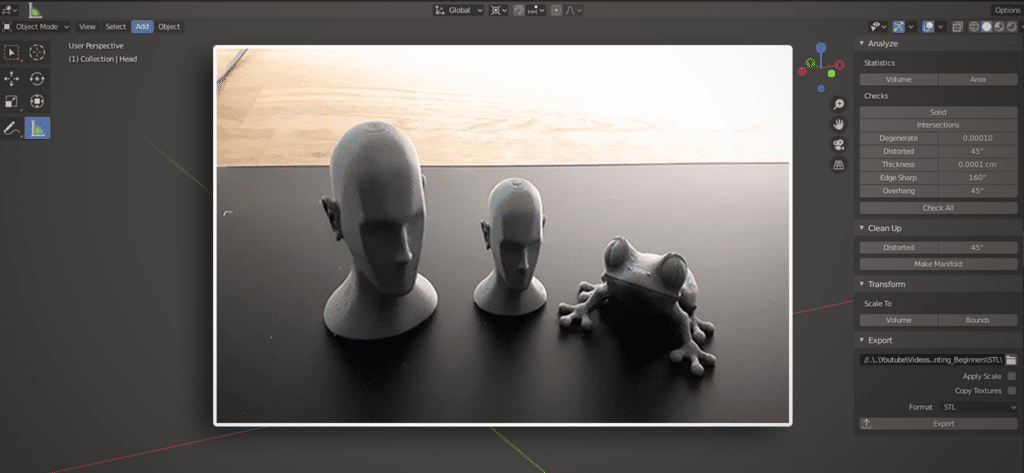
Blender is a free and open-source giant that excels in 3D modeling, sculpting, texturing, and even animation (eufyMake). Though it caters more to artists and game developers, many advanced hobbyists and professionals still use Blender for 3D printing—especially if they are working on organic or highly detailed models.
Pros:
Broad capabilities: from video editing to advanced sculpting tools.
Huge global community with extensive tutorials.
Constantly updated by active open-source contributors.
Cons:
Not ideal for dimension-critical engineering.
A dense interface can be overwhelming at first glance.
If you are an artist at heart looking to create detailed character models or fantasy miniatures for tabletop gaming, Blender might be your go-to solution. Just note that precisely measured mechanical components are often easier to model in parametric-focused tools.
Onshape: Real-Time Collaboration
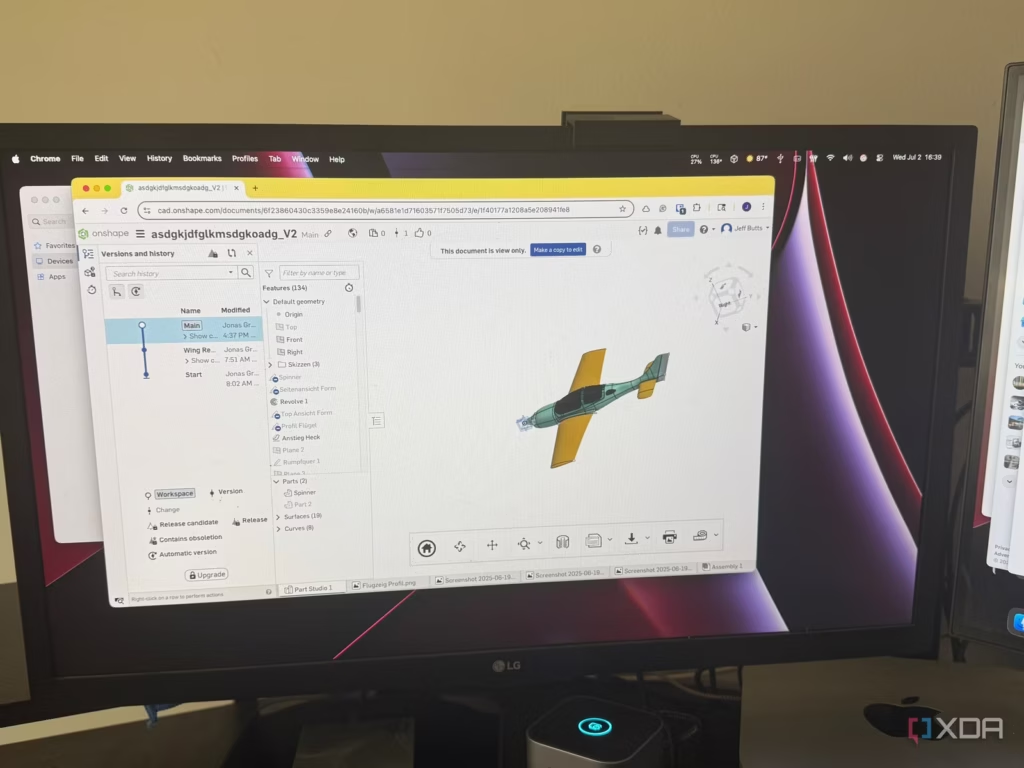
Onshape brings parametric CAD to the cloud. You can work on your designs from just about any device, including tablets and smartphones, and there is a free plan if you do not mind keeping your projects public (Reddit).
Pros:
Browser-based, so it requires minimal computing power.
Real-time collaboration: multiple users can edit a model simultaneously.
Parametric features that rival desktop-based solutions.
Cons:
The free version forces you to share designs publicly, which is not ideal for proprietary work.
Lacks an integrated slicer. You will need a separate slicing tool to finalize the print job.
For parametric modeling on the go, Onshape is a game-changer—especially for group projects or classrooms where instant collaboration matters. If you plan to integrate design and manufacturing with minimal toggling between applications, you might consider a more unified platform.
Fusion 360: End-To-End Platform
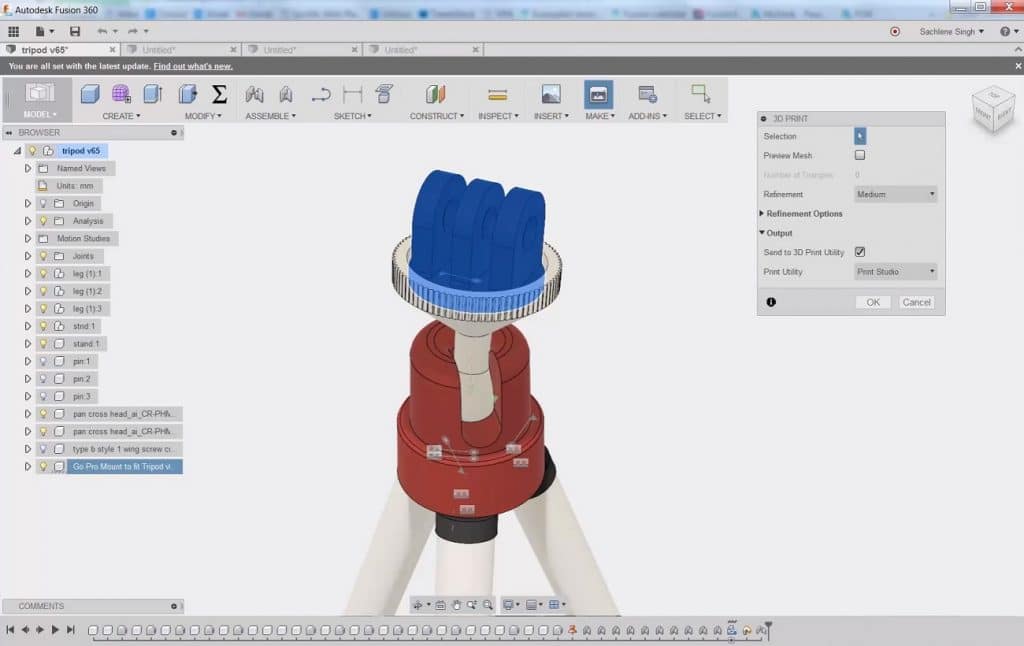
Developed by Autodesk in 2013, Fusion 360 is a cloud-based workhorse that bundles CAD, CAM, and even simulation capabilities under one roof (Formlabs). With parametric modeling, mesh repair, built-in slicing (in newer versions), and generative design features, Fusion 360 addresses just about every stage of product development.
Pros:
Great all-in-one solution for professional or high-level hobby use.
Free for students, educators, and small startups.
Offers mechanical simulation and generative design tools for testing part performance.
Cons:
Commercial license is around $476/year in 2025 (eufyMake).
Internet-dependent workflow can be limiting if you have intermittent connectivity.
If your mission involves creating precise components that must stand up to real-world stress, or you simply love having modeling and slicing integrated in one package, Fusion 360 is hard to beat. You can also incorporate AI-driven shape optimization to innovate complex forms that traditional modeling might miss.
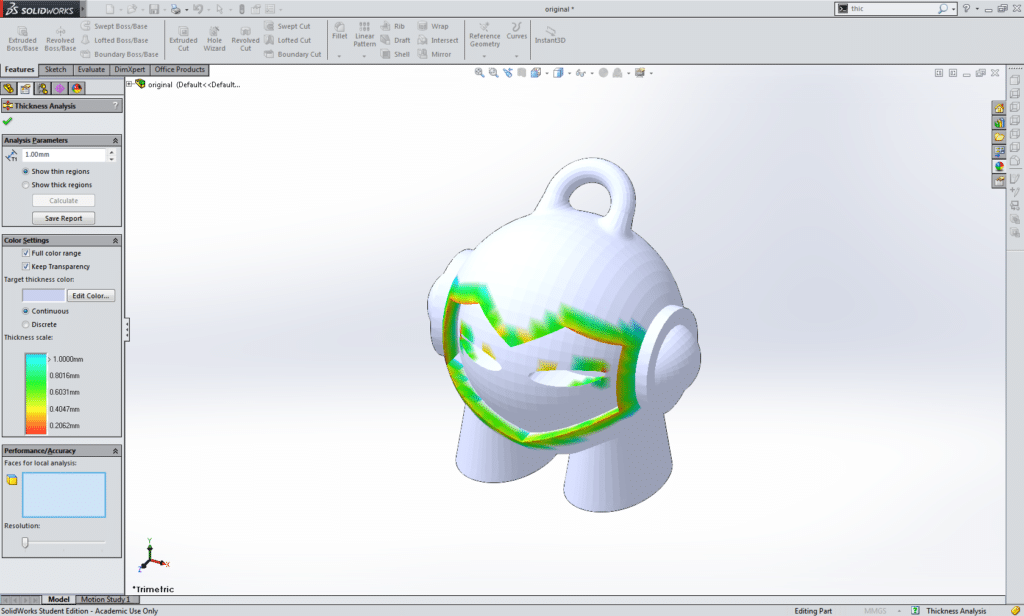
SolidWorks: Engineering Excellence
SolidWorks, created by Dassault Systèmes, is one of the most widely used professional CAD tools (Formlabs). Renowned for its robust parametric engine and engineering simulations, it is often the software of choice for seasoned professionals needing precise product design.
Pros:
Extremely powerful parametric, constraint-based modeling.
Industry standard for mechanical engineers.
Vast library of tutorials, training, and community support.
Cons:
Licensing fees can run from $2,820 to $4,716 annually in 2025 (eufyMake).
Primarily Windows-based, so Mac or Linux users are out of luck without virtualization.
If you pursue professional engineering or product development, you may find that a workplace or client relationship all but requires SolidWorks. However, the cost can be prohibitive if you are just designing fun gadgets at home.
Top Slicing Solutions
You have shaped your 3D model, but you still need to instruct the printer on the specifics—like infill density, layer thickness, and support structures. That’s where slicing software comes in. While many CAD programs now provide basic slicing features, dedicated slicers often offer deeper control and optimization.
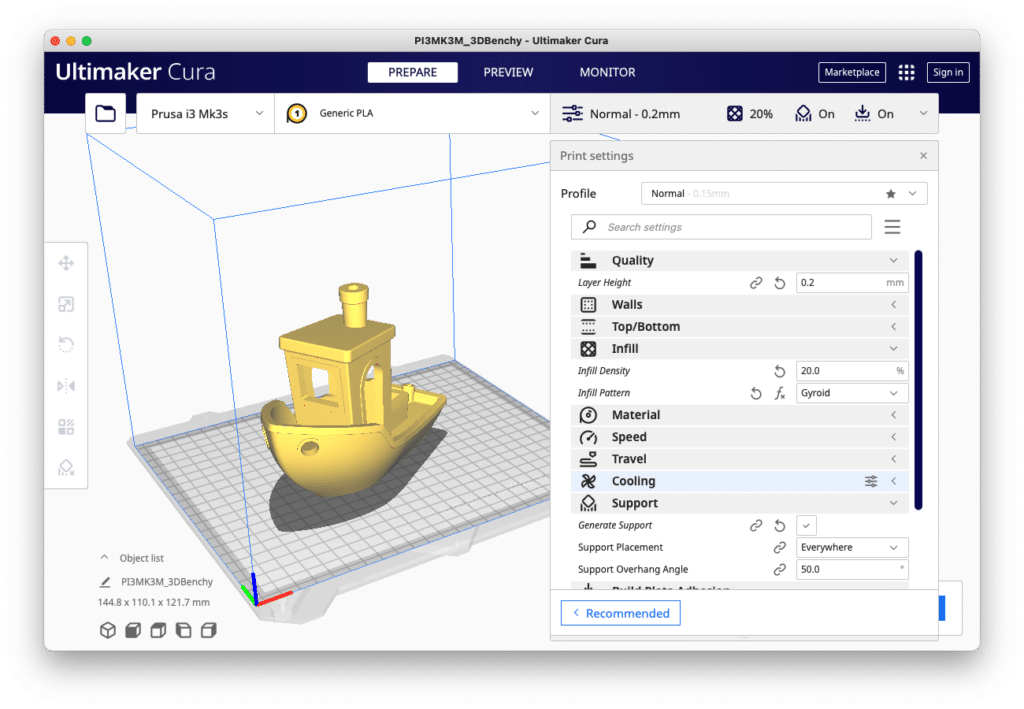
Ultimaker Cura
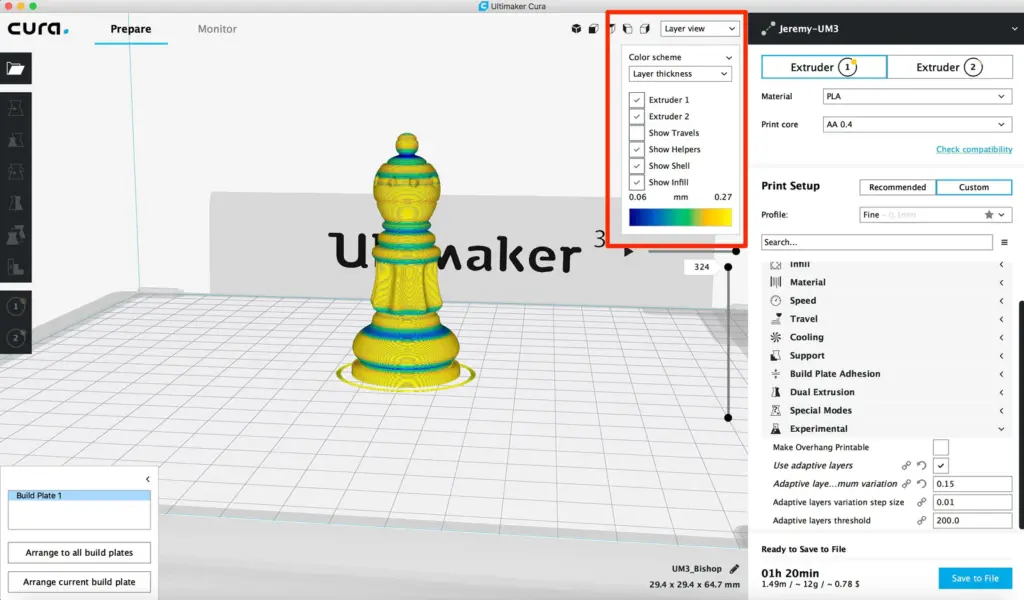
A free, powerful slicer from Ultimaker, Cura is a go-to program for countless makers worldwide (G2). Engineers and hobbyists alike appreciate its real-time slicing previews and compatibility with a wide range of printers. You can quickly adjust print settings like layer height or temperature, then generate G-code in a few clicks.
Pros:
Zero cost, large user community.
Over 400 adjustable print settings.
Automatic printer detection and easy integration with Ultimaker hardware.
Pros:
Resource-intensive on older machines.
Time estimates can occasionally mislead you, especially with complex prints.
Cura also offers unique tree supports, which can reduce filament usage and printing time. It is a fantastic starting point if you want to keep your workflow simple and cost-free.
Simplify3D
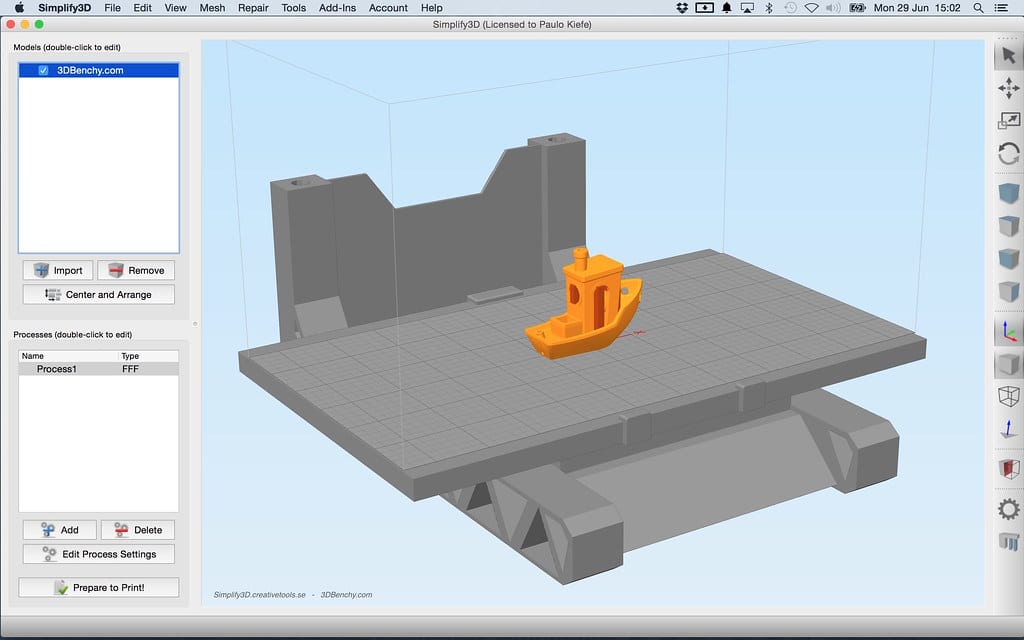
When you want maximum control over print parameters, Simplify3D shines. This paid software uses an advanced slicing engine to help you tackle complex geometries or unusual filaments (Golden Gate Molders).
Pros:
Highly optimized slicing algorithms.
Robust support customization, including removable support pillars for intricate models.
Profiles for numerous 3D printers, so you can switch hardware easily.
Cons:
Purchase cost may deter hobby-level users.
Interface can feel dated compared to modern slicers.
Professionals frequently rely on Simplify3D to ensure top-notch print quality with minimal trial and error. However, if you are on a tight budget, you may prefer a free slicer like Cura or PrusaSlicer before paying for a premium license.
Trends And Future Outlook
3D printing continues to expand into new industries—healthcare, automotive, aerospace, consumer products—and software evolves in tandem. Keep an eye on these emerging trends if you plan to stay at the cutting edge:
- Artificial Intelligence and Machine Learning: Software is beginning to offer AI-driven design suggestions, from automatically generating support structures to predicting potential print failures before they happen (Golden Gate Molders).
- Cloud Collaboration: More and more platforms facilitate real-time design input from multiple stakeholders, regardless of geographical location (Onshape is a key example).
- Sustainability Features: Expect advanced design analysis to optimize material usage and reduce waste, spurred by growing environmental awareness.
- Integration With Other Manufacturing Technologies: Programs like Siemens NX are bridging the gap between additive and subtractive manufacturing, creating seamless hybrid workflows, especially for metal 3D printing (G2).
- Accessibility and Education: As software becomes more user-friendly, you will see an even younger audience stepping into 3D modeling—widening the talent pipeline and fueling further innovation.
Designing Efficiently For 3D Printing
Even the best software out there can’t guarantee a perfect print out of the box, not if you don’t put some thought into how you’re designing and modeling things. That’s why we’ve put together these tips to help cut down on frustration and get your success rate up:
- Start with the basics
You can use Tinkercad, SolidWorks or whatever else floats your boat – the point is to start with something simple and work your way up. This way you can sort out the nitty gritty dimensioning and orientation without getting bogged down in the fancy stuff. - Don’t let your overhangs get out of control
If you’ve got a design that requires some serious overhangs, you’re going to want to keep an eye on those angles. Anything beyond 45 degrees is generally a no-go, so if you need to get some heavy overhangs to fit together, either add some supports or split the design up into smaller bits. If you want to get really in-depth with this sort of thing, check out the design rules for 3d printing. - Prototype just enough
It’s a good idea to print out small test pieces before you commit to a big print. This will help you get your settings just right and save you a bunch of filament in the process. We like to call these “mini-tests” because they allow you to dial in your settings without wasting any time or materials. - Play to your printer’s strengths
You know your printer’s good at certain things – like layer resolution or bed size – so design around those strengths. Reading up on d printing design tips might also come in handy for troubleshooting issues like warping or bridging. - Parametric modeling to the rescue
If precision is key, then you’ll want to take a close look at parametric modeling. Tools like Fusion 360 and Onshape can save you from having to redraw everything from scratch every time you need to make a change. Just update a parameter and let the software do the rest. - Test, refine and repeat
One of the best things about 3D printing is that you can iterate and refine your designs at an incredible speed. Use this to your advantage by tweaking, refining and reprinting until you finally hit that sweet spot of form and function.
For a more holistic view on building print-ready designs from concept to completion, head over to how to design for 3d printing and boost your know-how in one focused read.
For a broader tool overview beyond print-specific programs, compare this 3D modeling software guide with your printer, material, and export needs.
FAQs About 3D Printing Software
How Do I Pick A 3D Design Tool As A Total Beginner?
If you have never touched 3D software before, start with Tinkercad. It runs in your web browser, lets you drag and drop shapes, and minimizes system requirements. You can always graduate to a more advanced platform like Fusion 360 or Blender once you are comfortable.Is Paid Software Necessarily Better For 3D Printing?
Not always. Paid software typically offers specialized features—like advanced slicing, mechanical simulations, or generative design—that can matter for professional engineers. If you are a hobbyist, free or lower-cost solutions might cover your needs perfectly without breaking the bank.Should I Keep Changing My Slicer Settings For Each Print?
It depends on how varied your projects are. If you print similar objects and use the same filament, you can rely on established profiles. But if you switch to different materials or attempt more complex geometries, adjusting settings is wise to avoid failures.Can One Software Handle Both Modeling And Slicing?
Yes. Some programs—like Fusion 360—incorporate basic to intermediate slicing features. However, it might be more efficient to pair a specialized modeling suite, such as SolidWorks or Blender, with a dedicated slicer like Simplify3D or Cura for complete control.What If My Printed Parts Keep Failing?
Common issues include improper supports, incorrect slicing parameters, or design flaws. Break it down step by step: adjust your slicer settings, test different materials, or revisit your design to reinforce thin walls. Reading up on how to design for 3d printing can also clarify potential pitfalls.
By combining the right software choices with thoughtful modeling strategies, you are on your way to creating quality 3D prints that look good and function well. Whether you are designing mechanical parts, artistic sculptures, or educational prototypes, today’s software landscape has something for you. Pick the tool that fits your budget and skill level, iterate quickly, and enjoy the process of turning creative concepts into a tangible reality. Nothing beats the thrill of seeing your digital idea take shape layer by layer. Happy printing!
Software matters most when it helps you see the first layer, supports, and print time before the machine starts. These beginner 3D print projects give a low-risk way to test a slicer profile while you learn what each setting changes.
- 33shares
- Facebook0
- Pinterest33
- Twitter0
- Reddit0