Static images are great—until the platform, the client, or your own content calendar starts demanding motion. That’s where Image to Video AI earns its keep: it lets creators and teams convert a still photo into a short, polished clip without opening a timeline editor or wrestling with keyframes. Below is a practical, informational guide toImage to Video AI—what it is, who it’s for, how to get better results, where it fits in real workflows, and how to troubleshoot the most common “why does this look weird?” problems.
What Is Image to Video AI (and Why Creators Actually Use It)
At its core, Image to Video AI takes a single image (sometimes a small set of images) and generates a short video by adding:
- Camera motion (slow zoom, pan, push‑in)
- Subtle animation (light sweeps, gentle background movement)
- Transitions and pacing that make the frame feel “alive”
If you’re a marketer, writer, designer, or video creator, you’ve probably run into at least one of these pain points:
- You have strong product photos, but ads perform better as video.
- Your article or carousel would get more reach as a short clip, but editing takes time.
- Your poster design looks premium, yet feels “flat” on social feeds.
- You need more creative variants for testing—fast.
This is exactly the sweet spot for Image to Video AI: turning existing assets into motion content with minimal production overhead. In day‑to‑day work, it often functions as a dependable image to video and photo to video bridge—especially for short formats.
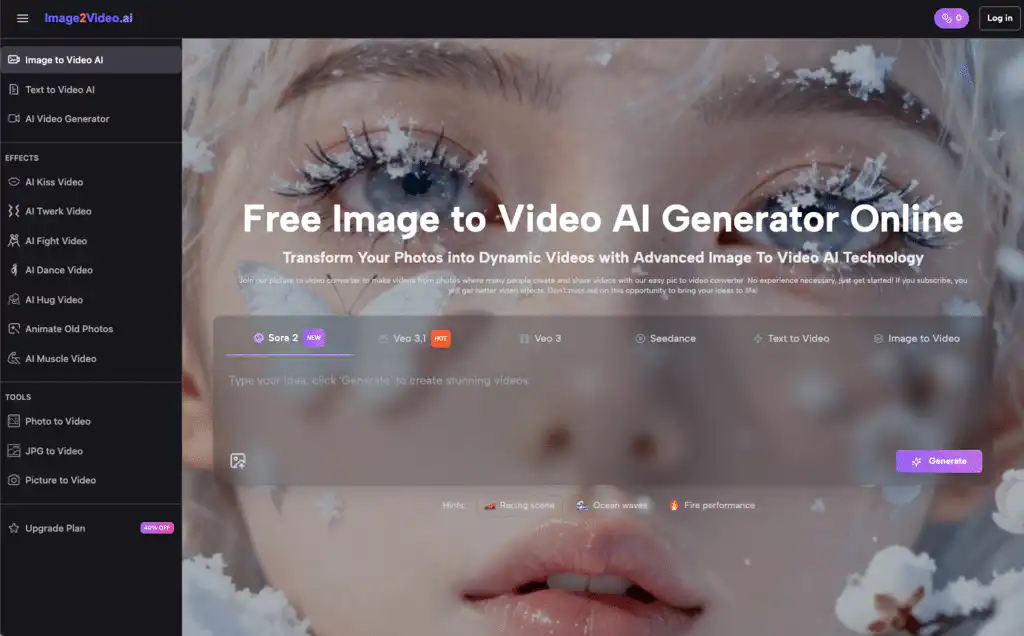
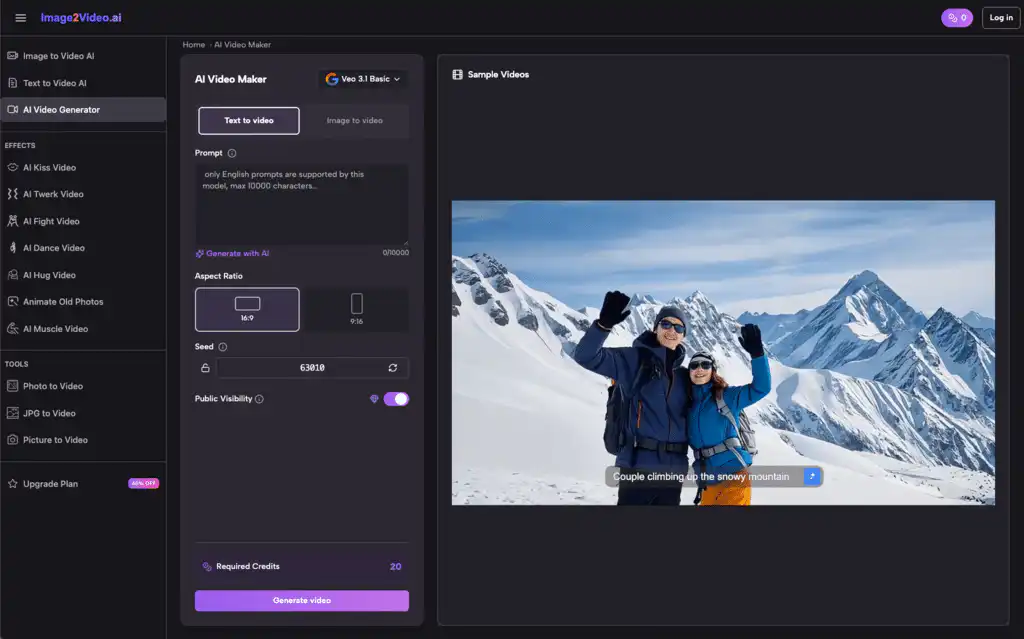
How to Use an Image to Video AI Generator (4 Simple Steps)
Most online tools follow a straightforward flow. Here’s the process for a typical picture video maker using Image to Video AI—kept intentionally simple so you can repeat it daily.
Step 1: Upload Your Picture (JPEG/PNG)
Upload your photo to the online photo to video converter. Image to Video AI tools commonly support JPEG and PNG, which covers most creator workflows.
Quick prep tip: choose a clear image with a strong subject. Crowded frames can still work, but they’re harder to animate cleanly.
Step 2: Enter a Text Prompt Description
Describe what you want in plain English. The best Image to Video AI prompts sound like director notes, not poetry.
Focus on:
- Camera motion
- Small, believable movement
- Style (clean, cinematic, warm, high‑contrast)
- Constraints (don’t change text, don’t warp faces, don’t add objects)
Step 3: Wait for Image to Video Processing
You’ll typically see a “processing” status. Many Image to Video AI conversions complete in about five minutes (varies by tool and load).
Step 4: Preview, Download, and Share
Once status shows “Completed,” download your MP4 and publish it. This is where Image to Video AI shines: quick turnarounds for social, ads, landing pages, and content repurposing.
Prompting for Better Results With Image to Video AI (Practical Templates)
The difference between “wow” and “why is the logo melting?” is usually the prompt.
A Prompt Formula That Works
Use this structure for consistent Image to Video AI outcomes:
- Subject + placement
- Camera move
- Motion details (keep subtle)
- Lighting/mood
- Hard constraints (what must NOT change)
Prompt Template Examples (Copy/Paste)
Below are prompts I’d actually use for image to video and photo to video production.
- Product photo (ad‑ready)
- “Keep the product unchanged. Slow push‑in camera. Subtle light sweep across the packaging. Clean studio lighting. Smooth motion. No extra objects. No text distortion.”
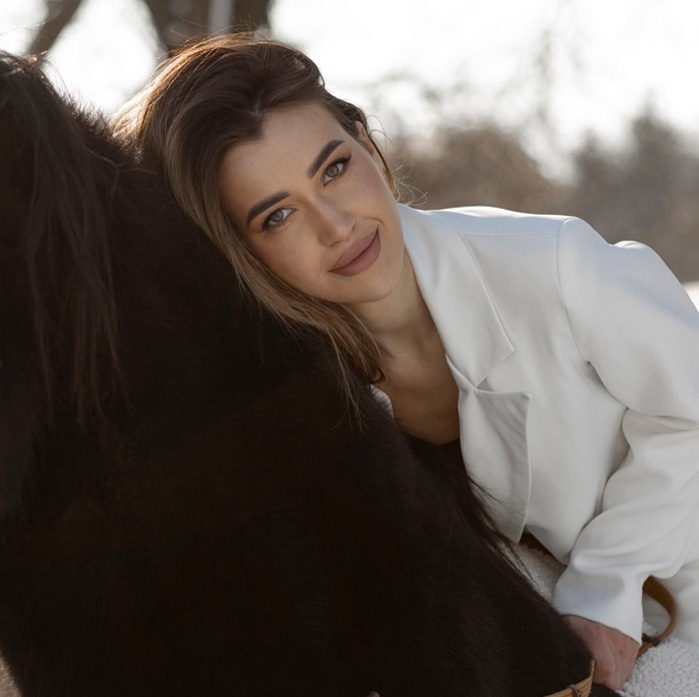
- Portrait photo (natural motion)
- “Gentle camera pan left to right. Natural blink. Slight hair movement. Soft daylight. Keep facial features consistent. Avoid warping.”
- Poster or design with typography
- “Slow zoom‑in with subtle background motion only. Keep all typography sharp and readable. No letter changes. No melting or morphing. No new elements.”
A rule I stick to: for Image to Video AI, start conservative. You can always add more motion later, but fixing distorted text or drifting faces wastes time.
Real‑World Workflows: Where Image to Video AI Saves the Most Time
It’s easy to generate one clip. The real value of Image to Video AI shows up when you build a repeatable workflow.
Workflow 1: Ad Creative Variations (High Volume, Fast Testing)
Goal: turn one photo into 5–10 clips quickly.
- Choose one hero image
- Create 3–5 prompt variants (different camera moves and pacing)
- Keep constraints consistent
- Export MP4s and add text/CTA in your editor
This approach keeps image to video production moving even when your editing pipeline is backed up.
Workflow 2: Article → Short Video Teaser (Repurposing Without Filming)
Goal: transform a written piece into motion content.
- Select 3–6 key images (or generate supporting visuals)
- Use Image to Video AI to create 5‑second clips for each
- Stitch them together with captions and voiceover
This is one of the cleanest uses of photo to video conversion for writers and content marketers.
Workflow 3: E‑commerce Product Showcase (More “Product Feel”)
Goal: make listings and socials more dynamic without a full shoot.
- Main product photo → slow push‑in + light sweep
- Detail shots → slow pans highlighting material/texture
- Combine into a short reel
Even a few seconds of Image to Video AI motion can increase perceived quality—because it looks like intentional presentation, not just a static catalog.
Common Problems (and How to Fix Them) in Image to Video AI Outputs
When Image to Video AI goes wrong, it usually fails in predictable ways. Here’s a practical troubleshooting guide.
Text Looks Warped, Blurry, or “Rewritten”
Why it happens: the model tries to animate the entire frame and treats text like texture.
Fixes:
- Add: “Keep all typography sharp and readable. No text distortion.”
- Use gentler motion (slow zoom or subtle pan only)
- Avoid extreme camera moves and heavy effects
This matters a lot for image to video posters, promo graphics, and product cards.
Faces Drift or Look Inconsistent
Why it happens: too much facial motion requested, or the tool “reinterprets” identity.
Fixes:
- Limit movement: blink, slight head motion, subtle hair
- Add: “Keep facial features consistent. Avoid warping.”
- Prefer camera motion over character motion
For photo to video portraits, less is more.
The Motion Feels Jittery or Cheap
Why it happens: conflicting instructions or overly aggressive motion.
Fixes:
- Use one camera move at a time
- Ask for “smooth motion” explicitly
- Keep effects subtle—avoid stacking multiple stylizations
It Looks Nothing Like What You Wanted
Why it happens: vague prompts (“make it more premium”) aren’t executable.
Fixes:
- Replace vibes with instructions:
- “premium” → “clean studio lighting, slow push‑in, smooth motion”
- “cinematic” → “soft contrast, gentle grain, slow camera move”
That shift alone can dramatically improve Image to Video AI consistency.
What to Look For in a Free Online Image to Video AI Generator
Not all tools are equal, and “free” can mean different things. Here’s a quick comparison table based on what actually affects day‑to‑day production of image to video and photo to video assets.
| Feature | Free Online Image to Video AI Generator | Traditional Editing / Complex Tools | Why It Matters |
| Setup time | Browser-based, no install | Installs, plugins, templates | Faster turnaround for Image to Video AI tasks |
| Input/output | JPEG/PNG in, MP4 out | Many formats, more settings | Simple photo to video pipeline |
| Speed | Often ~minutes per clip | Manual edits can take hours | Better for volume and iteration |
| Best use case | Short clips, hooks, promos | Long-form, detailed edits | They complement each other |
| Skill level | Low barrier | Learning curve | More teammates can contribute |
If you’re producing daily content, you want image to video to be predictable: stable motion, clean output, and a short path from idea to MP4.
Key Takeaways: How to Get Reliable Image to Video AI Output
If you want Image to Video AI to be a production tool—not a novelty—focus on repeatability:
- Use Image to Video AI for short, high-impact motion assets: hooks, promos, showcases.
- Keep prompts “director-style”: camera move + subtle motion + constraints.
- For image to video with text, explicitly protect typography.
- For photo to video portraits, prioritize camera motion over facial motion.
- Build a small prompt library so your team can produce consistent clips quickly.
Done right, Image to Video AI turns your best photos into videos that look intentional, professional, and ready to ship—without turning your week into an editing marathon.
- 0shares
- Facebook0
- Pinterest0
- Twitter0
- Reddit0