How to design for 3D printing might seem daunting at first, but with the right approach, anyone can create successful parts that print smoothly. From selecting the best material to tackling design constraints, each decision can influence the final outcome. This ultimate guide explores the fundamentals of 3D printing design, highlights best practices for specific printing processes, and walks through crucial considerations like supports and wall thickness. By the end, readers will have the tools and confidence to design parts that print with minimal frustration.


Understand The 3D Printing Basics
Before diving into how to design for 3D printing successfully, it helps to have a firm grasp of the 3D printing landscape. Each process has its own strengths, limitations, and recommended design rules. From fused deposition modeling (FDM) to stereolithography (SLA) and more advanced methods like selective laser sintering (SLS), the method you choose will influence everything from material possibilities to how you orient your parts.
Some common processes include:
- Fused Deposition Modeling (FDM) – Works by extruding molten plastic layer by layer and is often used for quick prototypes.
- Stereolithography (SLA) – Offers smooth finishes and great detail with photopolymer resins.
- Selective Laser Sintering (SLS) – Uses a laser to fuse powder materials, allowing for complex, support-free shapes.
- Direct Metal Laser Sintering (DMLS) – Sintering metal powder into solid metal parts.
Each of these technologies handles overhangs, small features, and layer lines differently. Understanding these differences is the first step in designing for success.
Choose The Right Printing Process
Selecting the best process for your project can eliminate a host of headaches later. While FDM is the most accessible, many designers prefer SLA for its high resolution and finish quality. SLS shines in creating intricate geometry without large support structures, and DMLS allows you to build fully functional metal components.
Fused Deposition Modeling (FDM)
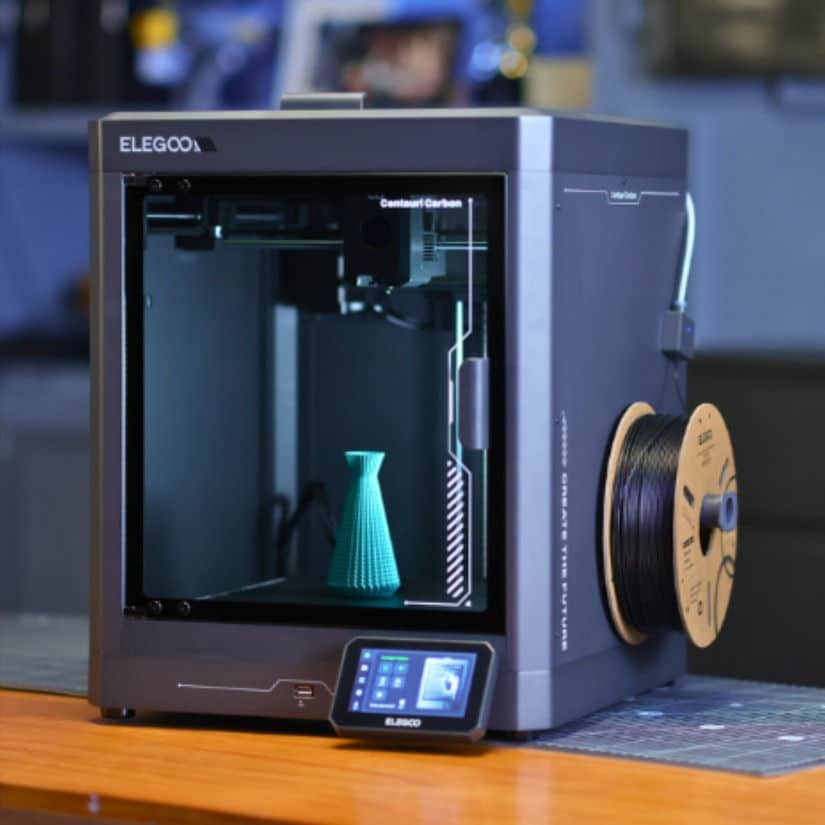
FDM printers are popular in homes, schools, and small workshops thanks to their affordability and simplicity. Because it involves layering molten plastic, which can cool at slightly different rates, some design considerations are necessary:
- Anisotropy: FDM parts are typically weaker along the Z-axis due to incomplete layer bonding. (Formlabs)
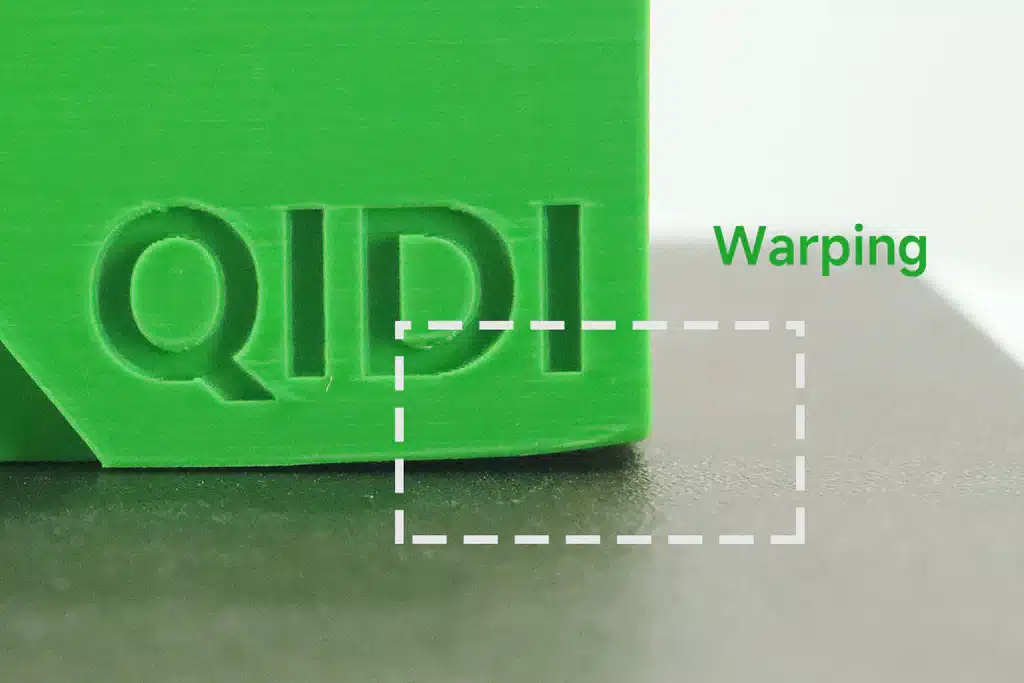
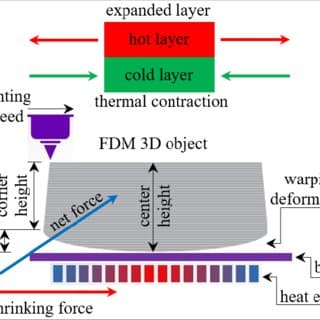
- Warping: Large, flat surfaces can lift or warp unless designed with chamfered or rounded edges.
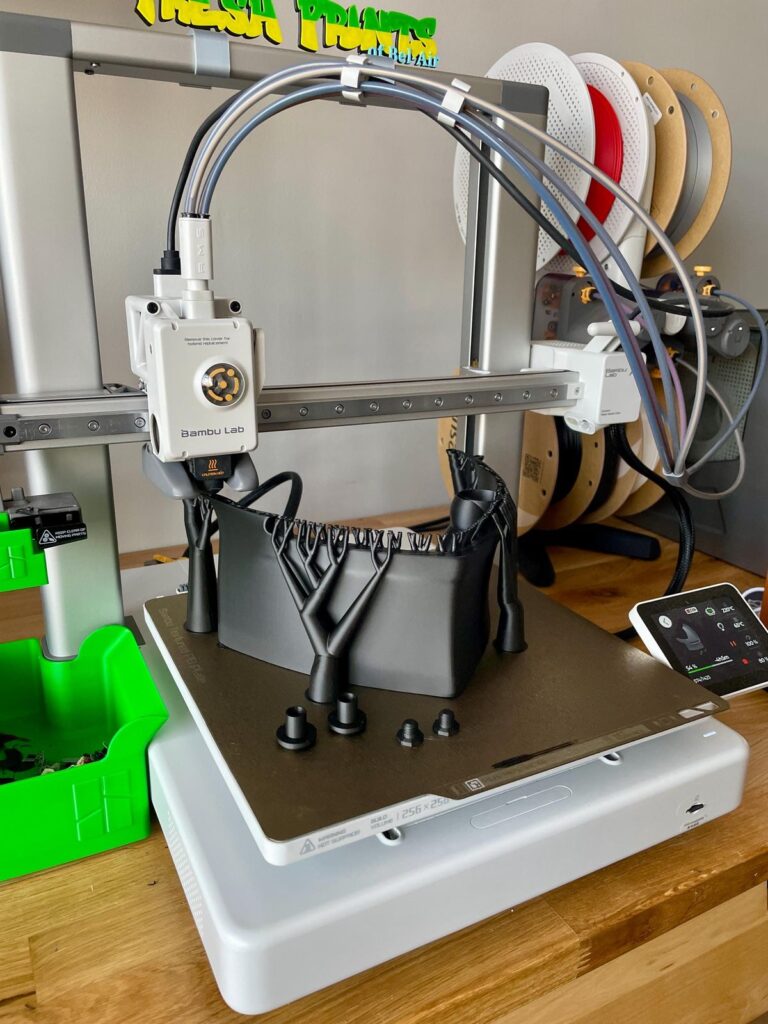
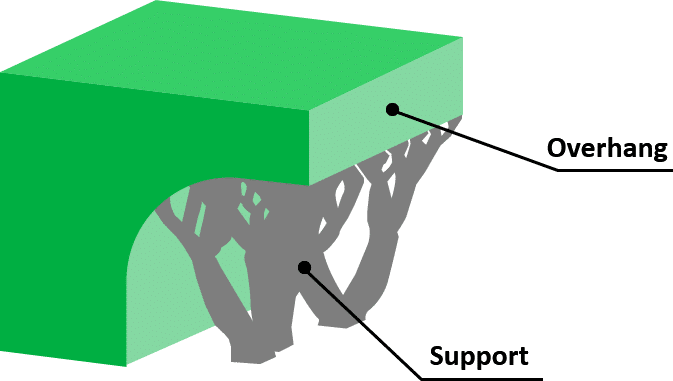
- Supports: Overhangs above 45 degrees might need supports, which can mar surface finishes once removed.
Stereolithography (SLA)
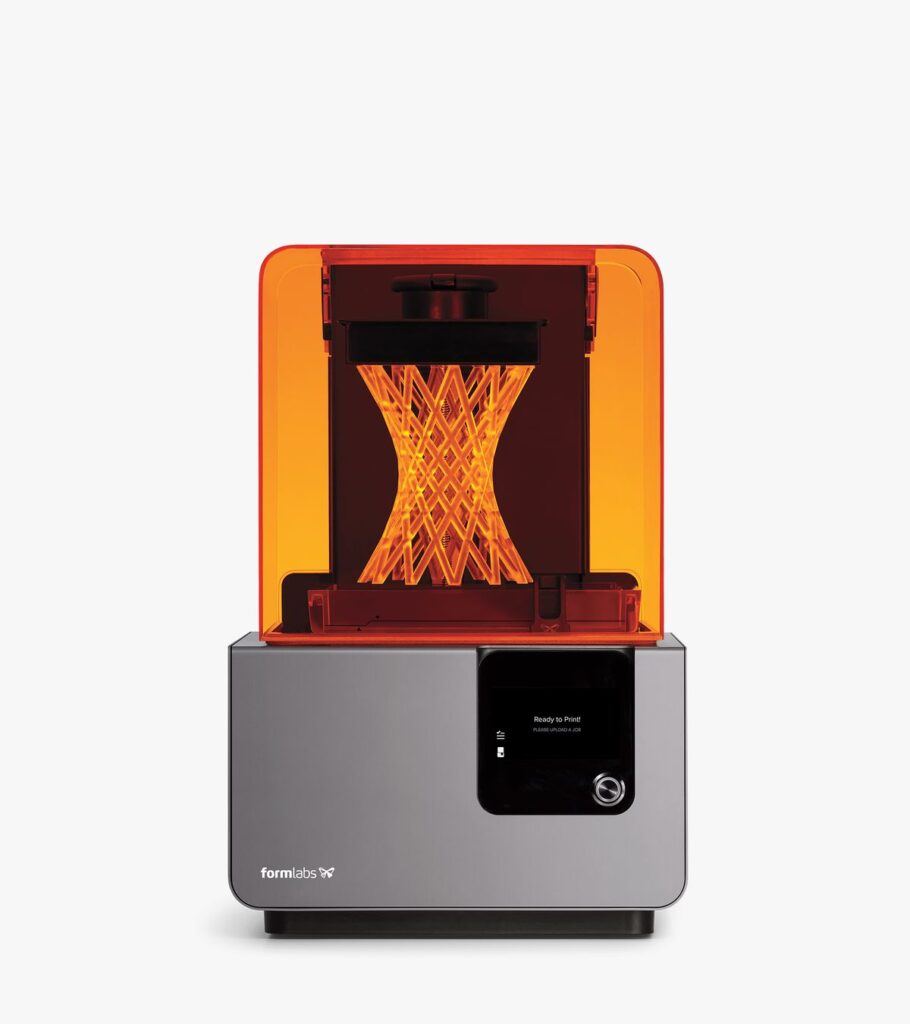
SLA printers craft parts from a photopolymer resin and can reproduce tiny details reliably. They often yield smoother surfaces than FDM, reducing post-processing. However, designers must be cautious about:
- Minimum Feature Size: SLA can print fine details, although small holes under 0.020 inches (0.508 mm) may risk sealing shut. (Protolabs)
- Supports and Orientation: Parts are cured upside down or right side up, and orientation can influence the number of supports needed.
- Resin Properties: Resins vary in strength, flexibility, and heat resistance.
Selective Laser Sintering (SLS)
SLS uses a laser to fuse powder materials. It shines in producing geometries with interior channels or complex shapes that don’t require removable supports. Typical concerns include:
- Warping In Large Parts: Parts above 7 inches (177.8 mm) can warp if not designed for even heat distribution. (Protolabs)
- Shelling Thick Parts: Reducing solid volume by hollowing out thick areas reduces warping due to uneven cooling.
- Powder Removal: Any enclosed geometry must allow for powder extraction.

Direct Metal Laser Sintering (DMLS)
DMLS fuses metal powder into robust, functional metal parts. It is suitable for applications where strength and temperature tolerance matter. Key points to keep in mind:
- Overhang Support: Overhangs larger than 0.020 inches (0.5 mm) will need support structures. (Protolabs)
- Minimum Wall Thickness: Aluminum requires 0.762-1.016 mm. Other metals might allow finer features, but still need careful design.
- Print Orientation: Metal printing is more expensive and can require elaborate support removal afterwards.
Focus On Crucial Design Considerations
No matter which process you choose, several universal guidelines help ensure prints come out right. These revolve around geometry, thickness, bridging, warping, and fitting multiple pieces.
Mind The Minimum Wall Thickness
Thin walls can lead to structural weaknesses, warping, or printing failures. Generally, a thickness of at least 0.8 mm to 1.0 mm is recommended for plastic-based processes. In FDM specifically, two extrusion widths (about 0.9 mm) are often cited as a safe minimum. (Hydra Research)
Metal 3D printing demands thicker walls for adequate strength. For aluminum, the recommendation is around 0.030 to 0.040 inches (0.762 to 1.016 mm). (Protolabs)
Account For Overhangs And Supports
Regardless of the printing process, overhangs raise concerns. Each layer needs something beneath it to avoid drooping. While SLS inherently supports part geometry with unfused powder, FDM and SLA often rely on physical supports that require cleanup. To minimize or eliminate these supports:
- Keep Overhangs Under 45 Degrees: Steeper ones may form cleanly without supports in some printers, but going beyond 45 degrees generally requires them. (Hubs)
- Add Chamfers Instead Of Tall Vertical Walls: For FDM, a small 0.3 mm chamfer near the base can prevent the “squished” first-layer lip. (Hydra Research)
- Limit Long Bridges: Horizontal distances over 10 mm may need under-support or bridging settings. (Hydra Research)
Prevent Warp By Rounding Corners
Warping occurs when parts cool unevenly, causing edges or corners to lift. For large FDM prints, adding radii bigger than 4 mm at corners can reduce stress during cooling. (Hydra Research) In SLS or MJF (Multi Jet Fusion), hollowing thick sections can help prevent differential shrinkage. (Protolabs)
Account For Fit When Designing Assemblies
Designers often need parts to interact or snap together. Clearance must be built into each dimension to accommodate real-world tolerances:
- Loose Fit: Around 0.2 mm clearance for FDM.
- Tight Fit: Around 0.1 mm can work in some materials, but variations in extrusion or resin can affect results. (Hydra Research)
Select Suitable 3D Modeling Software
Creating your model is often the most exciting part of the process. Tools range from user-friendly, web-based programs to robust professional packages. If you need more advice on software options, check out best software for 3d printing design.
Tinkercad For Beginners
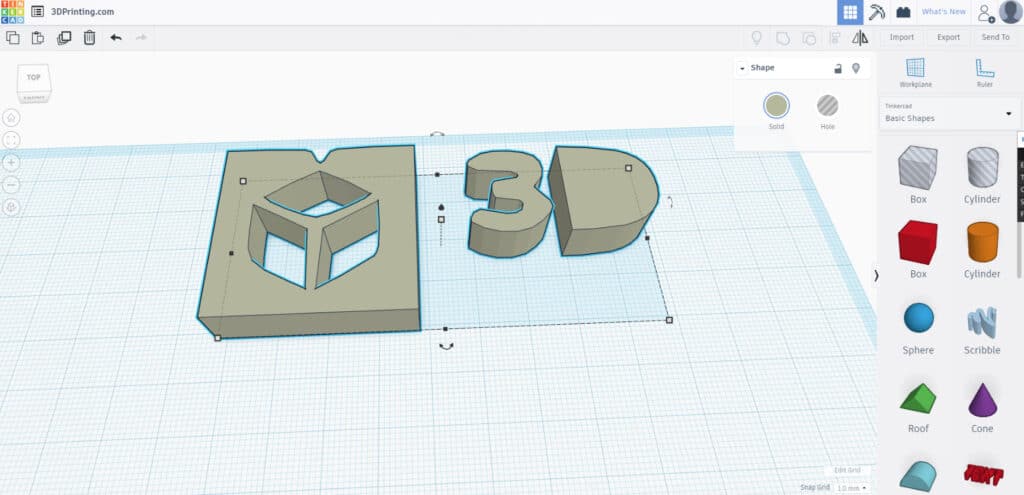
Tinkercad is an ideal starting point for those curious about how to create 3D models for printing without tackling advanced features. It allows designers to literally drag and drop shapes onto the canvas to form a 3D object. Tinkercad also offers built-in tools to analyze overhangs or slicing issues. (3DPrinterOS)
Fusion 360 For Advanced Parametric Modeling
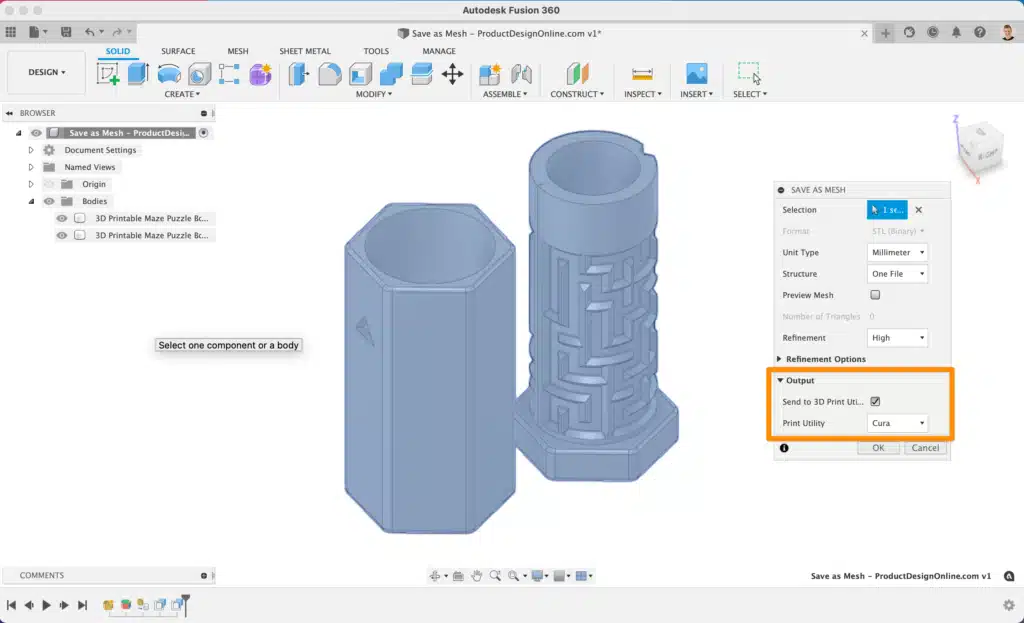
Fusion 360 is a powerful program tailored to more intricate mechanical designs. Its parametric modeling tools enable dimension-driven sketches that can be easily adjusted later. According to the University of Florida Makerspace, it is recommended for intermediate or advanced users wanting to produce complex, precise objects. (University of Florida Makerspace)
Blender For Artistic Creations
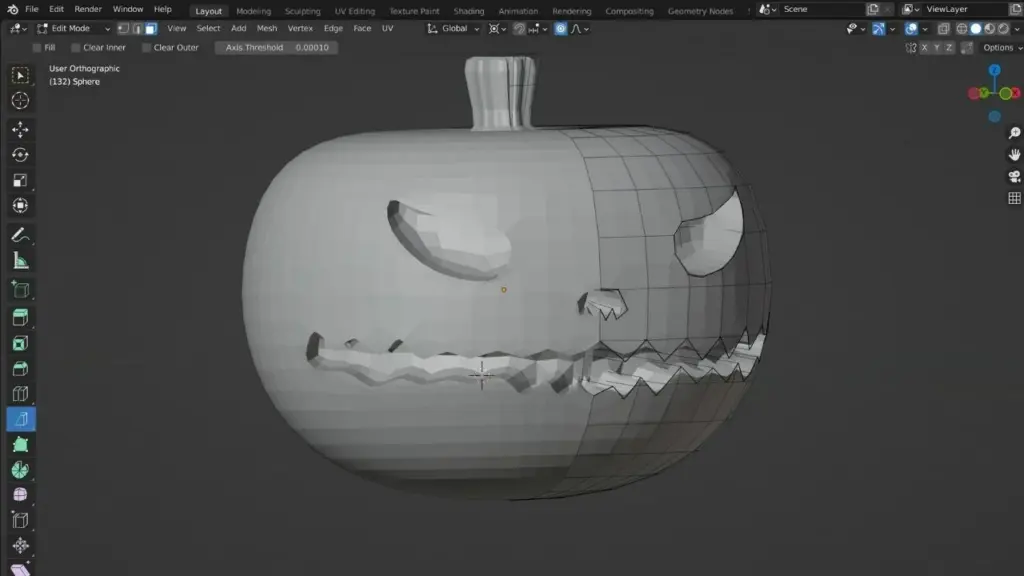
Blender is a free, open-source option that excels at organic modeling and animation, though it sometimes demands a steep learning curve. Artists and sculptors often prefer Blender for detailed figurines or decorative parts. (University of Florida Makerspace)
For more design guidance, explore how to create 3d models for printing to pick up additional tips on preparing models effectively.
Prepare The Model For Printing
Once the general design is done, it’s time to set it up for the printer. This step often involves ensuring the mesh is watertight (no holes or missing faces), choosing the best orientation, and adding supports or brims.
Ensure A Solid, Single-Surface Model
Most slicers require an error-free mesh. Holes, overlapping geometry, or self-intersections can cause failed prints. Software like ZBrush offers Dynamesh tools to fuse multiple sub-objects, which helps to create a single clean surface. (Guild of Natural Science Illustrators)
Orient The Model Optimally
Orientation impacts support placement, surface finish, and overall part strength. In resin printing with SLA, orienting the part around a 45-degree angle often decreases the surface area contacting the build plate, which reduces stress on newly formed layers. (Guild of Natural Science Illustrators)
For FDM, orienting the part to reduce tall, unsupported walls or large bridging spans is advisable. Aligning the strongest axis of the model with how the printed layers stack can enhance strength.
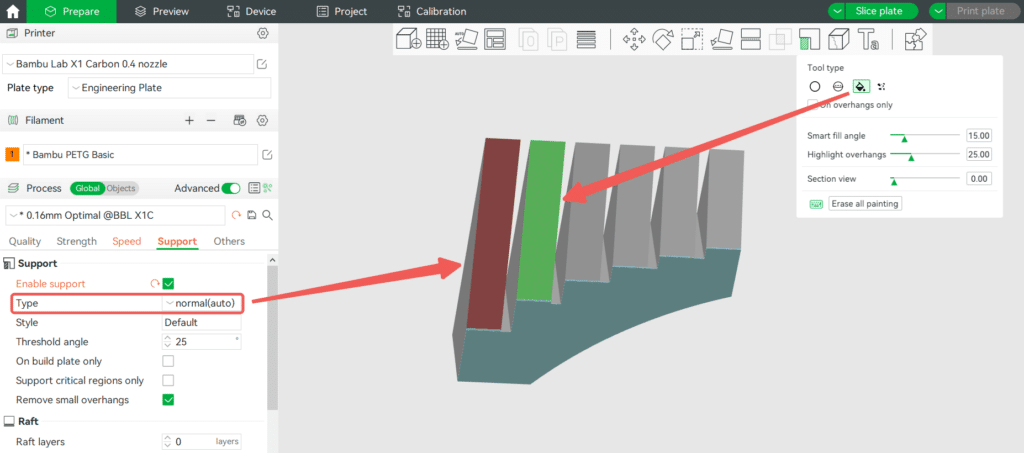
Generate Supports And Manage Overhangs
Even with thoughtful orientation, some features will need support. Default slicer settings often provide a good starting point, but adjusting support thickness or density might minimize scarring and ease removal. For example, SLA supports can be minimized by balancing the model’s angle and contact points. For FDM, you can tweak the support infill or pattern in the slicing software. (Guild of Natural Science Illustrators)
Test And Troubleshoot The Design
Even well-prepared models can run into issues if your printer settings aren’t optimized. Fortunately, helpful guides exist specifically to address these challenges.
Identify Common Print Issues
Printed parts might suffer from under-extrusion, warping, stringing, poor bridging, or gaps. Simplify3D’s “Print Quality Troubleshooting Guide” is a classic resource that pinpoints possible causes and solutions for these problems. (Simplify3D)
Common issues to look out for:
- Not Sticking To The Bed: Usually a bed-leveling or adhesion problem.
- Gaps in Top Layers: Can occur if the top infill is insufficient or the nozzle is under-extruding.
- Stringing and Oozing: Incremental retraction adjustments often help reduce leftover filament strings.
Adjust Print Settings
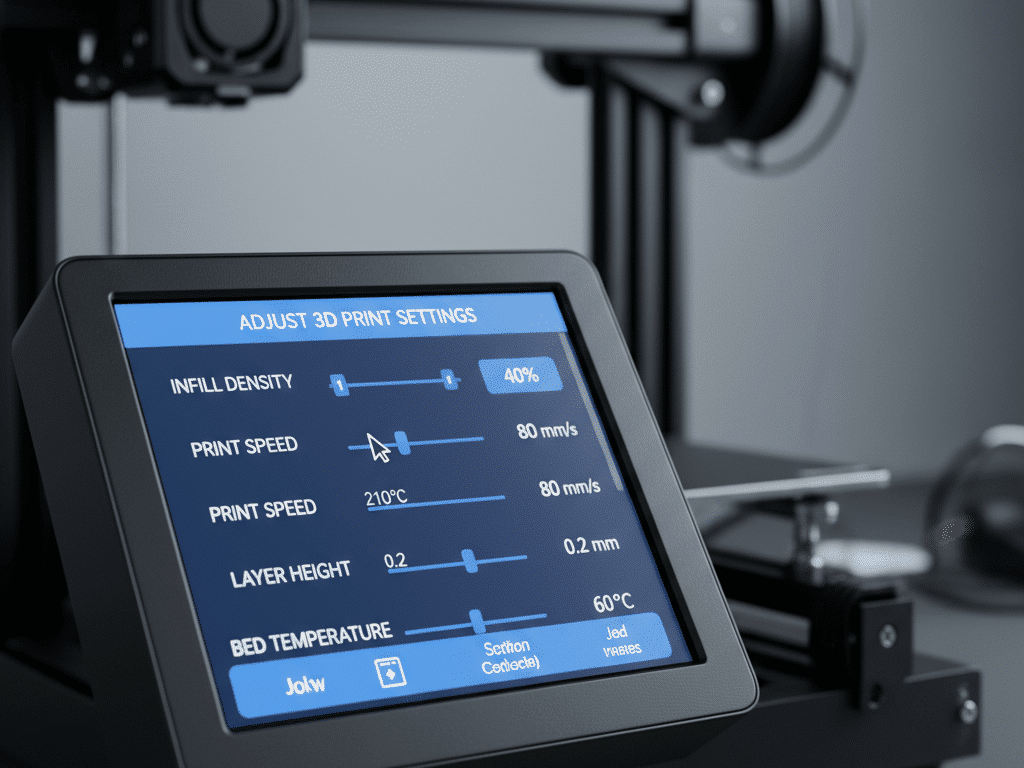
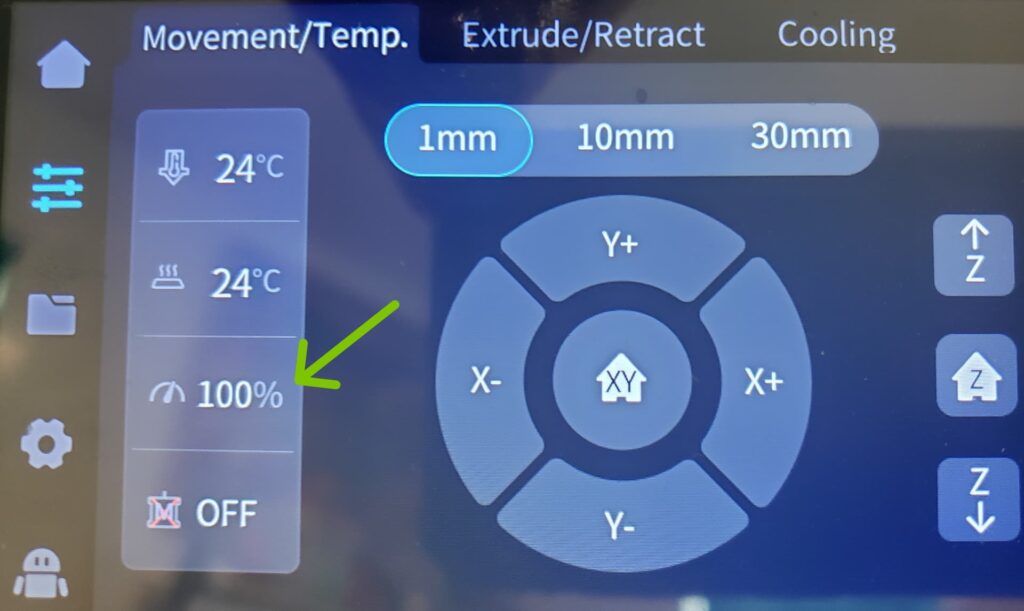
One of the biggest perks of designing for 3D printing is the ability to fine-tune slicer settings. Temperature, layer height, infill density, and print speed all affect how neatly your design translates into reality:
- Temperature: Extruder or bed temperature that’s too low can cause under-extrusion and weak layers.
- Layer Height: Thinner layers yield smoother surfaces but increase print time.
- Infill: Higher infill improves strength but uses more material and time.
Refine The Design In Cycles
If essential features aren’t printing as intended, boosters or relief cuts might help. Adding fillets or chamfers to edges can reduce stress concentrations and warping. Revisiting the clearance in any assemblies can keep the final prints from snapping or failing to fit. These design improvements often happen through trial and error, so quick test prints are crucial.
When it comes to learning more about design rules, the resource design rules for 3d printing can be a handy companion.
Post-Process For A Refined Finish
After the print finishes, the final touches can make the difference between a rough prototype and a polished, ready-to-use part. Post-processing tasks vary by technology:
Sand And Smooth Surfaces
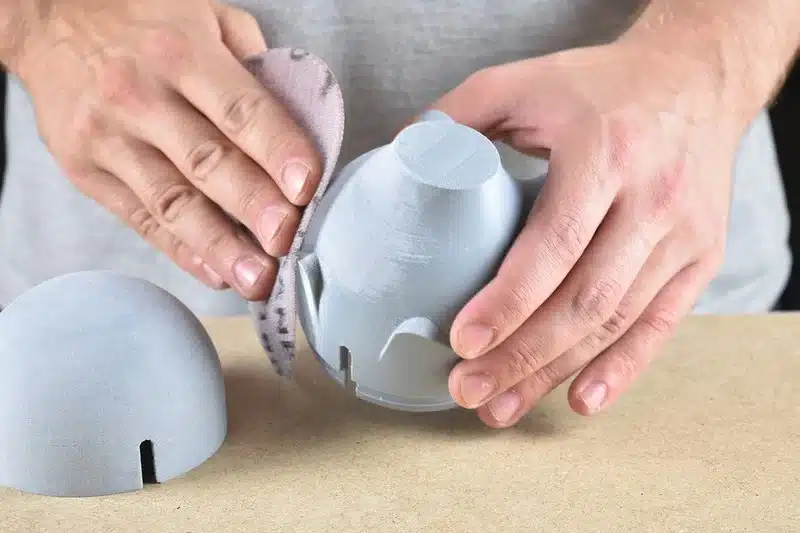
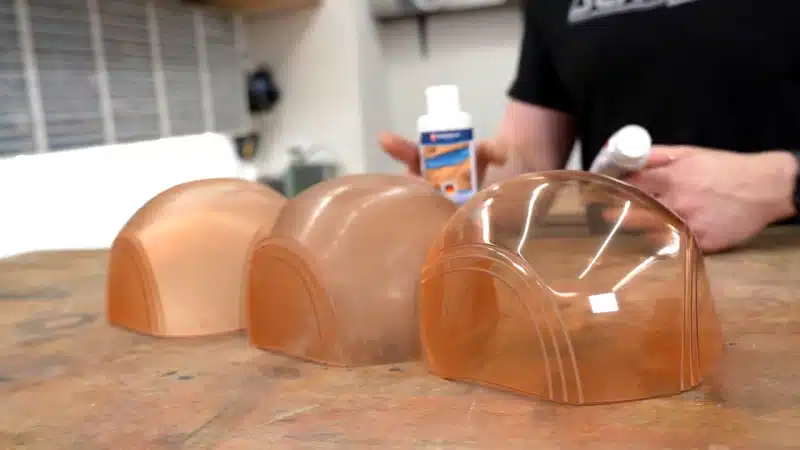
FDM prints often show visible layer lines. Sanding the surface with fine-grit paper (e.g., 220-800 grit) can achieve a smoother finish, though do it gently to avoid removing too much material. Some designers use filler primer or epoxy-based coatings to fill in the lines. SLA and resin prints may only need minimal sanding, especially if supports were small and removed carefully.
Paint And Assemble
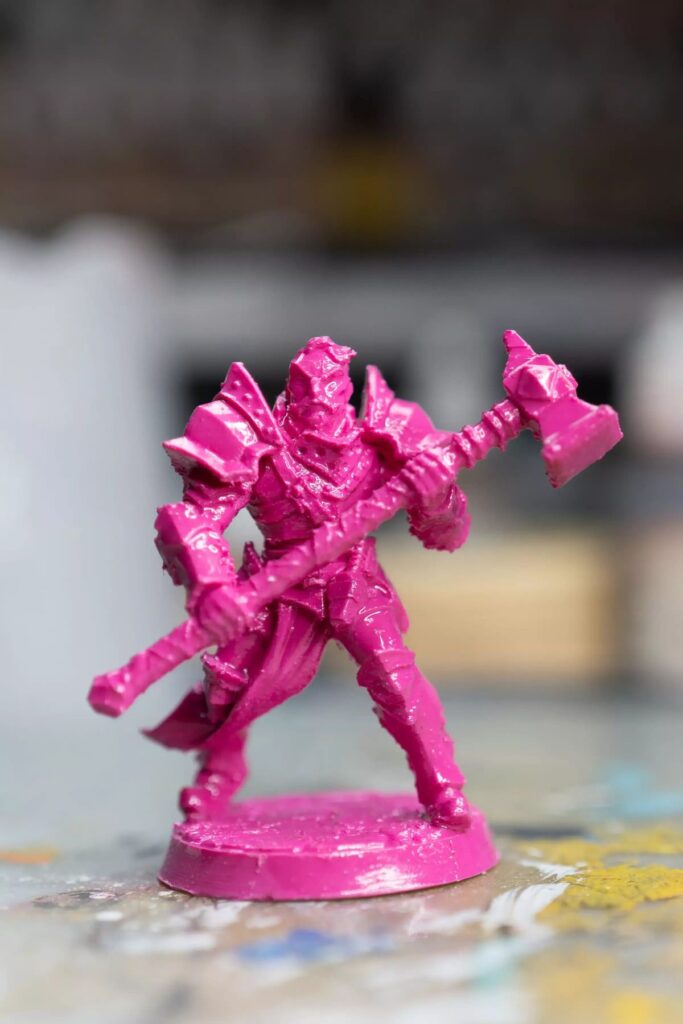
Painting can elevate the appearance of decorative models, figurines, or concept prototypes. Use primer paint designed for plastics or resin and apply multiple thin coats for an even finish. If your design includes multiple parts, you can also assemble them after painting, ensuring alignment pins or slots still fit well following surface modifications.
For more general advice and strategic insights, check out 3d printing design tips to supplement these guidelines.

Key Takeaways from 3D printing
- Get familiar with the different 3D printing processes – like FDM, SLA and others, each has its own strengths and weaknesses.
- Think about your minimum feature sizes – printing thin walls or tiny holes can catch you out, especially when working with metal or resin – but we all know that already.
- Plan for overhangs – most 3D printers struggle with really steep parts, so just think about using a chamfer or making the angle smaller, or maybe you’ll need some supports.
- Be aware of warping – big flat areas or sharp corners can sort of lift off the bed – now and then a bit of rounding or hollowing the part can really help reduce stress.
- Make sure parts can fit and move together – when you need parts to join together, you’ll need to leave a bit of wiggle room for when they get assembled in the real world.
- Pick the right software for you – there’s tons out there – like Tinkercad and Fusion 360 – pick one that matches your level of skill and the level of detail your project needs.
- Troubleshoot and try again – tweak your slicer settings, change the part orientation, and refine the design, back and forth, until you get a result that’s what you want.
Designing for 3D printing can be an absolute blast and a real creative outlet. With these 5 basic ground rules in place, you’ll find yourself running into fewer of the usual headaches that come with lousy part geometry, bits that are too thin, or tolerances that just don’t quite fit.
FAQs
- What’s The Easiest Software For Beginners To Get Started With?
Tinkercad is an awesome choice if you’re trying to get a feel for designing for 3D printing without running into too many difficulties. The best part is that it’s completely free, web-based and easy to use – meaning it’s perfect for people who are new to all this. - How Do I Stop My Prints Warping On An FDM Printer?
Warping usually happens because of uneven cooling, or if the bed isn’t sticking properly. A few things you can try to help prevent warping are adding a bit of chamfers to the base of your prints, making sure the edges are nice & rounded, making sure your heated bed is actually properly levelled, and using a printer enclosure – it can all make a big difference. - Why Is Wall Thickness Such A Big Deal?
If your walls are too thin, your prints can start to delaminate or warp, which is super annoying. Generally speaking, most plastics need to be at least as wide as two extrusion widths (about 0.9mm), while metals need to be even thicker to be structurally sound. - What If I Have Overhangs That Are Larger Than 45 Degrees?
If your overhangs are steeper than that, they’re probably going to need a bit of support otherwise they’ll just collapse or droop. Some printers can handle a bit more, but it’s always a good idea to check your printers limits or experiment with some design tweaks to see what works best. - How Can I Get A Smooth Finish On My FDM Prints?
A combination of sanding your prints with progressively finer grit sandpaper, followed by a coat of filler primer or a thin layer of epoxy, tends to do the trick. Just be careful around edges & detailed areas, you don’t want to accidentally sand away any of the important details.
The thing is though, a little bit of planning goes a long way when it comes to getting good results from your 3D prints. By following these guidelines, and consistently tweaking your designs, you can avoid a lot of headaches, save on material costs, and end up with a printed product that you can be proud of.
- 13shares
- Facebook0
- Pinterest13
- Twitter0
- Reddit0