You may have heard that learning how to make vector graphics can feel overwhelming, but it does not have to be that way. As soon as you understand the basics of shapes, anchor points, and editing tools, your designs can go from rough sketches to professional-quality artwork. The steps below will walk you through a quick tutorial so you can create crisp and scalable images without any fuss.
Gather your tools
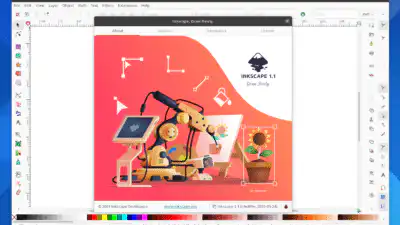
- Pick your software. Popular options include Adobe Illustrator, CorelDRAW, and Inkscape. Beginners often enjoy Inkscape because it is free, while CorelDRAW or Illustrator offer advanced features (CorelDRAW).
- Use a reliable device. A laptop or desktop with a multi-core processor and good display is ideal for running vector software smoothly. A drawing tablet can help you map out lines more precisely.
- Have inspiration at hand. Collect a few references or sketches to guide your vectors. Some designers find real-life objects or everyday scenes most inspiring.


Create basic shapes
- Start a new document in your chosen software and make sure you set up the correct dimensions if you have a specific project in mind, like a logo or icon.
- Use shape tools (rectangle, ellipse, polygon) to block out your initial design. Vector graphics rely on mathematical data rather than pixels, so these shapes will scale up or down without losing quality (Penji).
- Keep your layers organized so you can move or edit shapes easily. Assign helpful names to each layer if your design is complex.

Refine with anchor points
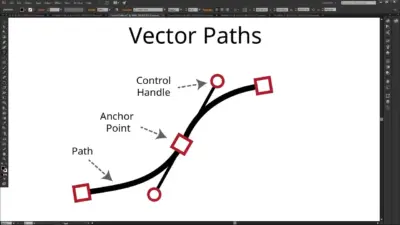
- Switch to the pen tool or anchor point tool to add and edit points on any shape. Anchor points give you control over the curves and paths that define each shape (Big Red Illustration).
- Drag handles to adjust curves. The smoother your curves, the more polished your overall design will look.
- Zoom in closely to spot any uneven paths or jagged lines. Fine-tuning your anchor points can transform a rough draft into crisp, professional vector art.

Style and color
- Apply fill and stroke colors. You can choose flat colors, gradients, or patterns to give your vector image depth and personality.
- Explore color harmony. Consider the principles of composition and color theory for balanced, visually appealing artwork (Penji).
- Group related elements. If you have multiple shapes that form one part of the design, grouping them keeps everything neatly organized.
Export and share
- Save in a vector format first. Common extensions include .ai, .svg, and .eps. These formats preserve all vector data for easy scaling and editing.
- Export to other file types as needed. If you plan to post your design online, exporting to PNG or JPEG might be more convenient. But remember, these raster formats will lose the infinite scalability advantage.
- Use the final vector file for consistent, high-quality results across different platforms, from social media banners to billboard prints (Wikipedia).
Answers to common questions

What is the difference between vector and raster images?
Vector images are defined by mathematical paths and points, so they can be scaled to any size without losing clarity. Raster images use pixels that can become blurry or pixelated when enlarged.
Do I need an expensive drawing tablet?
Not necessarily. A standard mouse or trackpad can work fine, especially when using shape tools. However, a tablet with stylus support can speed up your workflow and help you achieve smoother curves.
Which software is best for beginners?
Free or open-source editors like Inkscape or Krita are great starting points. If you need advanced tools, CorelDRAW and Adobe Illustrator offer subscription or one-time payment models (CorelDRAW).
Can I edit my vector artwork after exporting?
Yes, as long as you keep the original vector file (like .ai, .svg, or .eps). Once you export to raster formats such as PNG or JPEG, you will lose the flexibility of vector editing.
How can I turn a sketch into a vector?
Tools like Adobe Illustrator’s Vectorize option (iPad version) or PowerTRACE in CorelDRAW can automatically convert a hand-drawn sketch or raster image into crisp vector paths (Adobe HelpX).
Now that you have a handle on how to make vector graphics, it is time to experiment with shapes, colors, and creative ideas. With a bit of practice, you will be producing high-quality vector designs that scale beautifully for any project. Go ahead, open your software, and share your first pro-level vector masterpiece.
- 0shares
- Facebook0
- Pinterest0
- Twitter0
- Reddit0