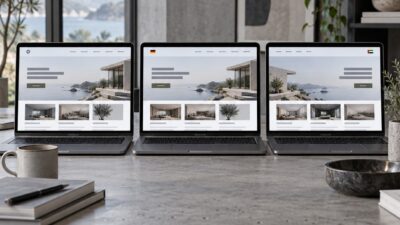
Using Figma for web design is becoming a natural choice for many designers who need an all-in-one platform to handle brainstorming, prototyping, and developer handoff efficiently. If you have been looking at design tools or are curious about trying Figma, this friendly review walks you through what to expect, how it works, and whether it’s right for you.
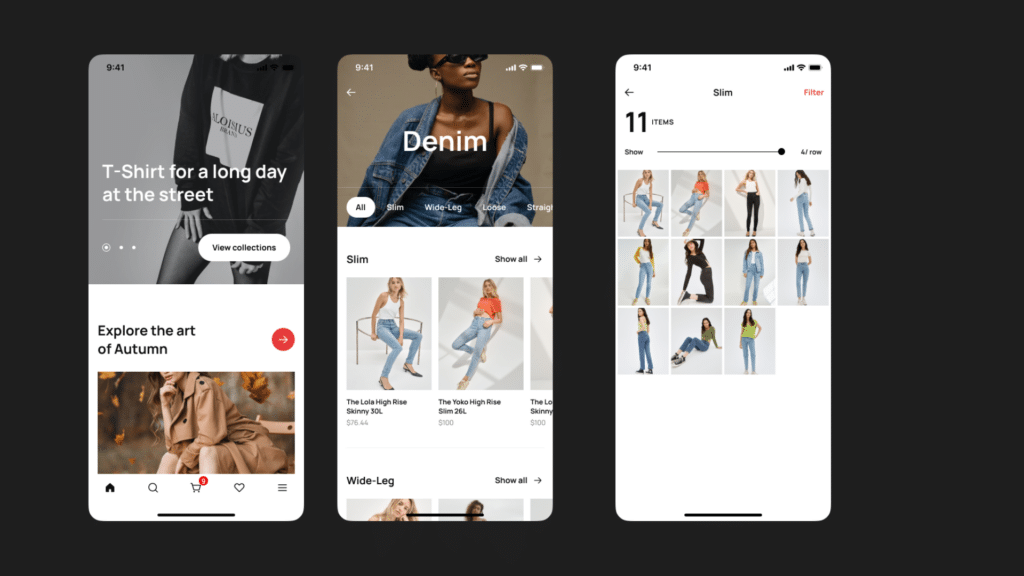
Why consider Figma for web design
Figma is known for its browser-based operation and real-time collaboration features, making it especially appealing if you work in a distributed team. As of December 2024, over 4 million designers worldwide use Figma (Webstacks). You can break free from constant software updates or version conflicts, since everyone sees the same project in the cloud. When you’re using Figma for web design, you’re also tapping into an extensive component library and powerful tools like Auto layout to keep your designs consistent.
Key Figma features to explore
Figma’s appeal comes from how it streamlines the entire web design process, from wireframing to handing off code to developers.
Real-time collaboration
Multiple team members can edit the same design file simultaneously, providing immediate feedback through comments or FigJam brainstorming sessions (Toptal). This eliminates the slowdown of back-and-forth file exchanges, so you can stay focused on producing your best work.
Responsive design tools
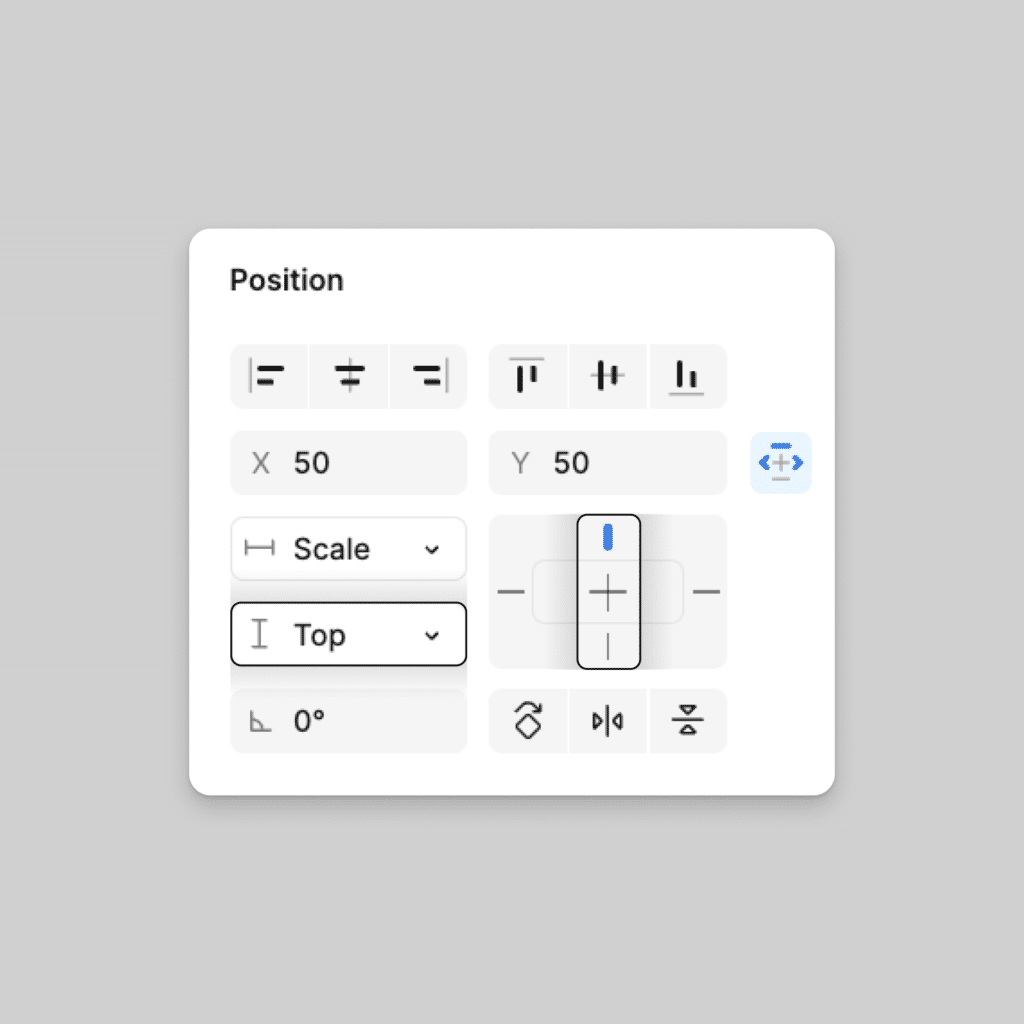
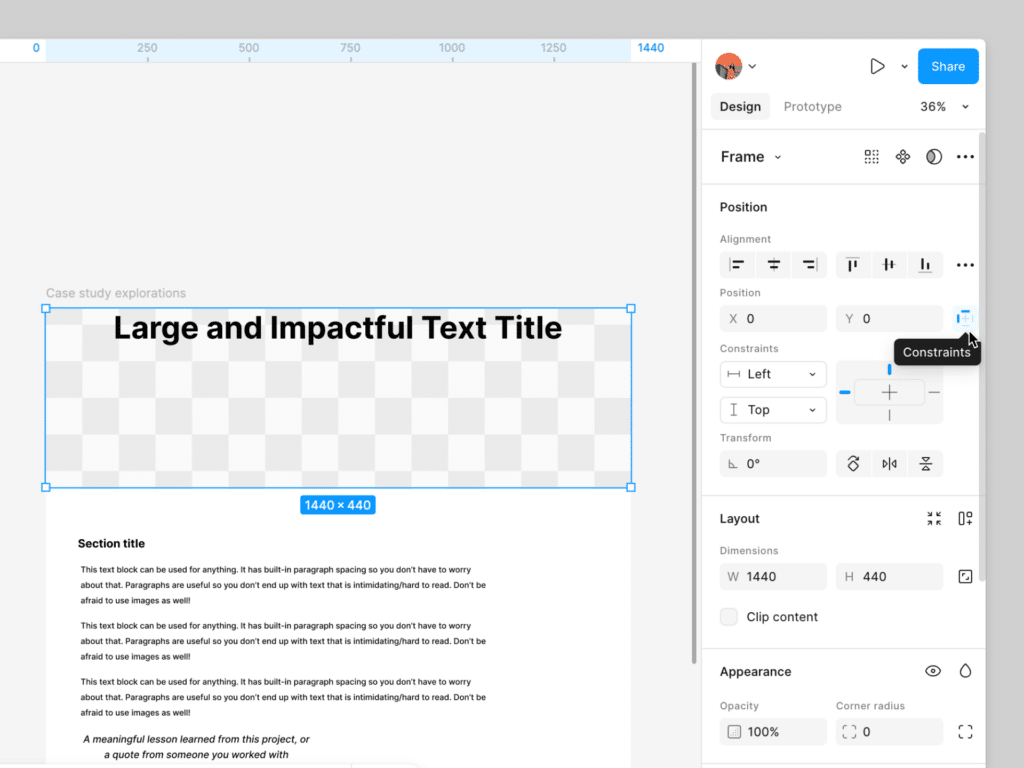
Figma’s Auto layout, Constraints, and Variants allow you to adapt elements for various screen sizes quickly. You can create fluid layouts that automatically adjust to content changes or device limitations (Designlab). This means you spend less time resizing objects and more time polishing the user experience.
Prototyping and animation
Rather than juggling separate design and prototyping apps, Figma combines both in a single interface. You can build interactive flows with Smart Animate and connect frames so the final prototype feels realistic (Figma Help Center). This helps you run early usability tests or stakeholder demos without writing any code.
Smooth developer handoff
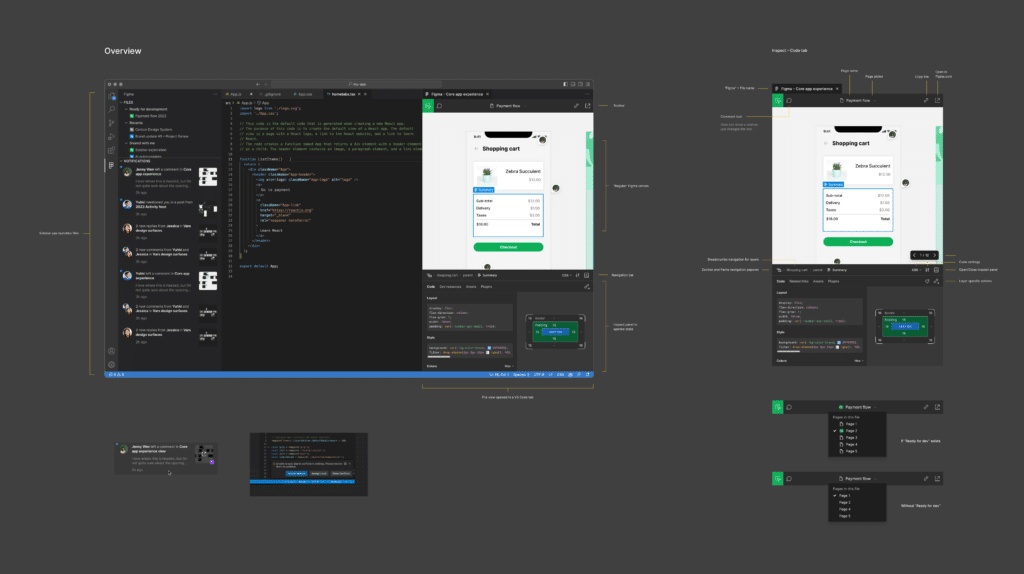
Figma’s Dev Mode makes it easy for developers to inspect elements, view CSS code, and export assets directly (Toptal). You don’t have to worry about re-creating styles or losing details. Developers can access everything they need from the same shared file.
Comparing free vs. paid plans
One factor to consider is cost. Figma offers a robust free tier suitable for personal projects and small teams, letting you work on a few files without extra fees. By contrast, Adobe XD phased out its free version and now requires a paid subscription (Designlab). If budget is a concern, Figma’s free option can be enough to get started with basic web designs or prototypes. Moving up to a paid plan unlocks features like more advanced project organization, unlimited version history, and Figma Make for functional prototypes.
Getting started with Figma
If you’re new to Figma, you’ll find its interface relatively intuitive compared to other design tools. Here are a few tips to help you begin your journey.
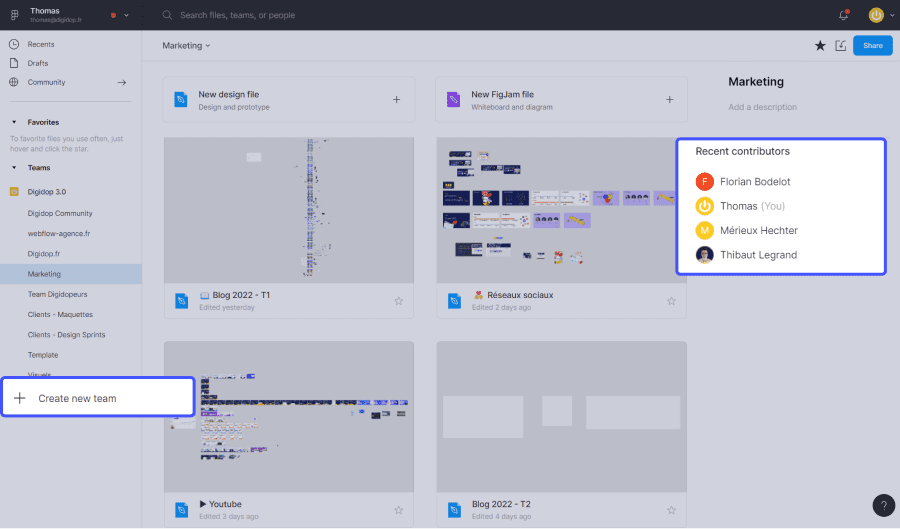
Set up your team environment
Organize your projects in Figma teams so you can control permissions and file visibility. Team settings can be Open, Closed, or Secret, ensuring that only the right stakeholders have access (Figma).Use shared libraries
If you have design system elements, store them in dedicated libraries. That way, every project you create can automatically stay on-brand and consistent (Figma).Explore Auto Layout and Constraints
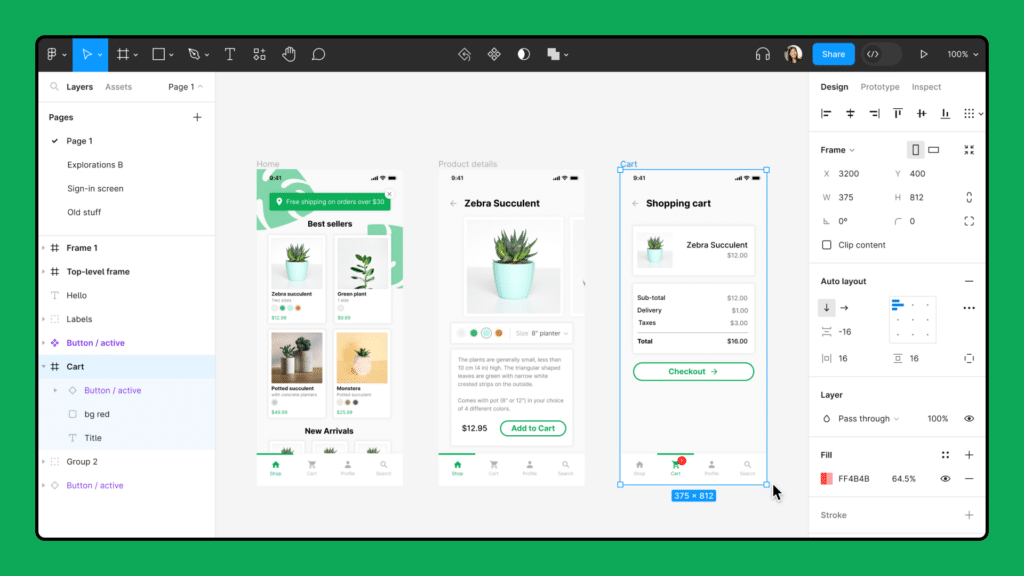
These features enable responsive workflows by allowing frames and components to adapt to changing screen sizes or content. This is especially handy for designing websites that scale across mobile, tablet, and desktop.Take advantage of branches for testing
Branching offers a safe environment to experiment with drastic changes without disrupting your main file (Figma). If something doesn’t work out, you can revert easily.

Is Figma right for you
Figma is a great fit if your priority is seamless collaboration, responsive web designs, and a highly accessible workflow. With its free tier, it’s also a relatively low-risk tool to try. Though it can handle complex vector work, you might still prefer specialized illustration software for more artistic tasks. However, if your projects revolve around creating fluid, interactive websites and you value real-time teamwork, Figma is absolutely worth considering.
FAQs
Can I create a live website directly from Figma?
Yes. Figma Sites (Beta) allows you to publish fully responsive websites without leaving Figma (Figma Help Center). This saves you from constantly switching platforms.
How does Figma handle developer handoff?
Developers can access design files in Dev Mode, where they can see a live view of elements, export them, and copy the relevant CSS or code snippets. This streamlines communication and reduces errors during implementation (Toptal).
What makes Figma different from Adobe XD?
Figma’s real-time collaboration and free plan stand out. Adobe XD requires a paid subscription for most features, and its collaboration is not as seamless. Figma’s browser-based approach also means no installations or version conflicts (Designlab).
Is Figma suitable for beginners?
Absolutely. Figma’s learning curve is relatively gentle, and the community offers numerous tutorials, templates, and courses, including resources from the Figma team itself (Figma Help Center). You can start small and scale up as you learn.
Are there limitations to Figma’s free plan?
The free plan limits how many projects and files you can collaborate on, but it still offers most of the core design and prototyping features. If you manage a growing team or need advanced organization, it may be time for a paid subscription.
Using Figma for web design can simplify your entire process compared to juggling multiple tools. If you want a versatile environment that keeps everyone, from designers to developers, on the same page, consider giving Figma a try. It might become your go-to solution for creating, testing, and launching modern, responsive websites.
- 12shares
- Facebook0
- Pinterest9
- Twitter3
- Reddit0