Figma website design templates offer an efficient way to create visually appealing and consistent web pages without starting from scratch. By customizing existing frameworks or building your own from a blank canvas, you can accelerate your design process and maintain brand consistency. This tutorial explores how to work with Figma website design templates—covering setup, customization, responsive techniques, collaborative features, and final site publishing.

Prepare your Figma environment
Before you begin using any Figma website design templates, ensure you have the tools and workspace ready.
Sign up or log in
If you are new to Figma, create a free account on Figma’s website. Current users can simply log in, making sure they have the latest version of Figma, which often includes new features such as Figma Sites in beta.
Organize your projects
- Create a dedicated team or project folder for each website you design.
- Add collaborators to the project if you plan to work in real time with other designers or stakeholders.
Familiarize yourself with Figma’s interface
- Get comfortable with the toolbar, layers panel, and inspector.
- Explore the asset libraries or design systems you might already have.
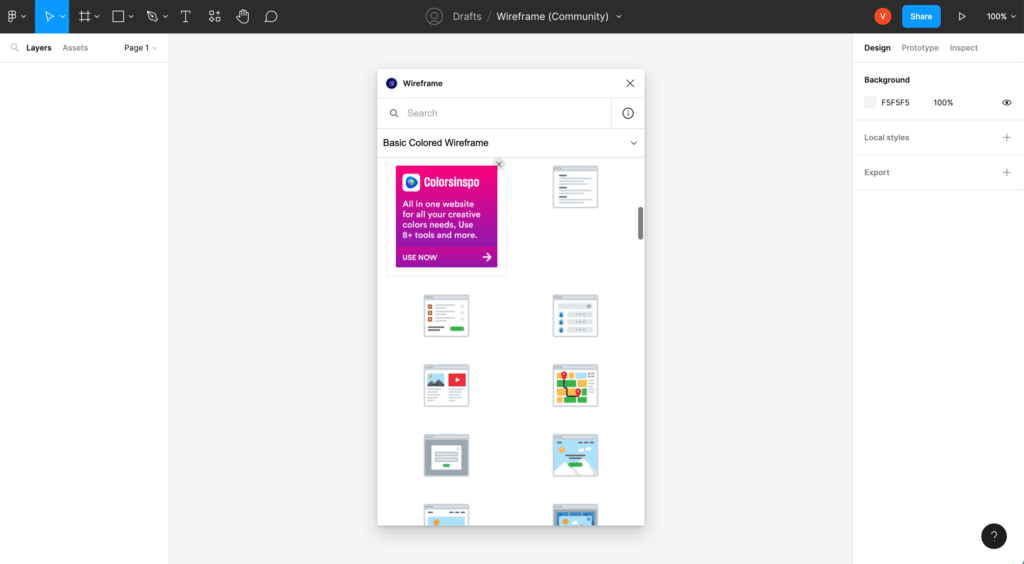
- Check out the community section to see available templates, widgets, or plugins.
Explore Figma’s product lineup
Keep in mind that Figma offers more than just design and prototyping. Tools like FigJam for whiteboarding or Dev Mode for developer handoffs might be useful for your project. Figma Sites, a newer beta feature, focuses on publishing fully responsive websites directly from your projects (Figma Help Center).
Use existing templates
One of the quickest ways to get started is using existing templates from the Figma Community or Figma itself. These templates can jumpstart your design process.
Explore community resources
- Visit the Figma Community tab to browse an extensive range of website templates created by Figma users and design studios.
- Look for designs that match your site’s desired style or layout.
Filter by relevance
- Use the available filters for category (e.g., landing pages, portfolios, business sites).
- Read template descriptions to see if they meet your technical needs, such as responsiveness or e-commerce compatibility.
Duplicate the template
- Click “Duplicate” to copy a community template into your workspace.
- Organize the duplicated template in the relevant project folder you created earlier for easy retrieval.
Review and update assets
- Adjust text styles, imagery, color palettes, and fonts to reflect your brand guidelines.
- Ensure that the template’s structure aligns with the functionality you need, such as product galleries or sign-up forms.
Check out specialized templates
- “MNTN Landing Page” template offers an adventurous aesthetic, ideal for brands with a rugged style (Creative Corner Studio).

- “Sølve Ecommerce & Shop” template is built with e-commerce in mind for better product showcasing (Creative Corner Studio).

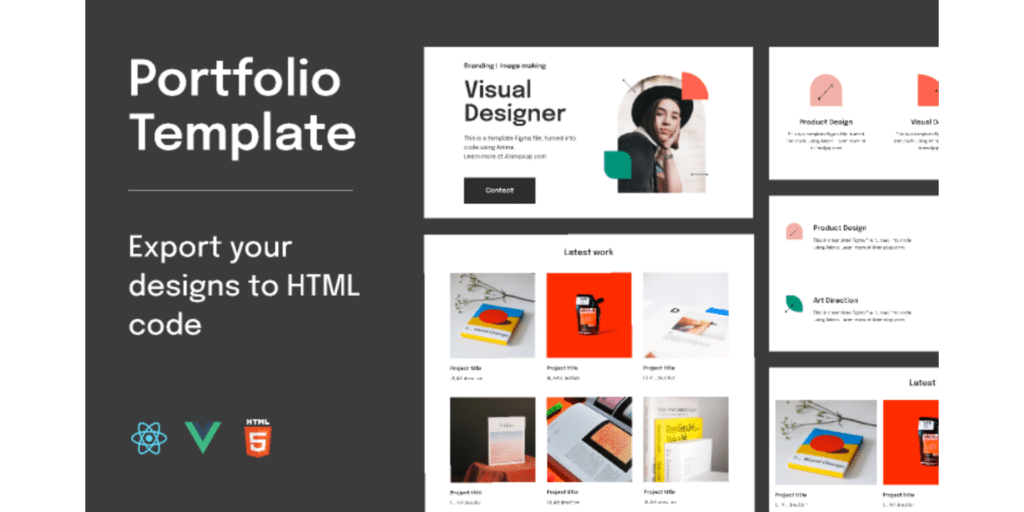
- “Visual portfolio” template is a clean, responsive layout suitable for showcasing creative work (Creative Corner Studio).
Using these ready-made resources can speed up your workflow while ensuring professional design standards.
Create custom templates
If you want total creative control or need to match a unique brand identity, building custom templates is the way to go.
Start with a blank file
- Create a new Figma file.
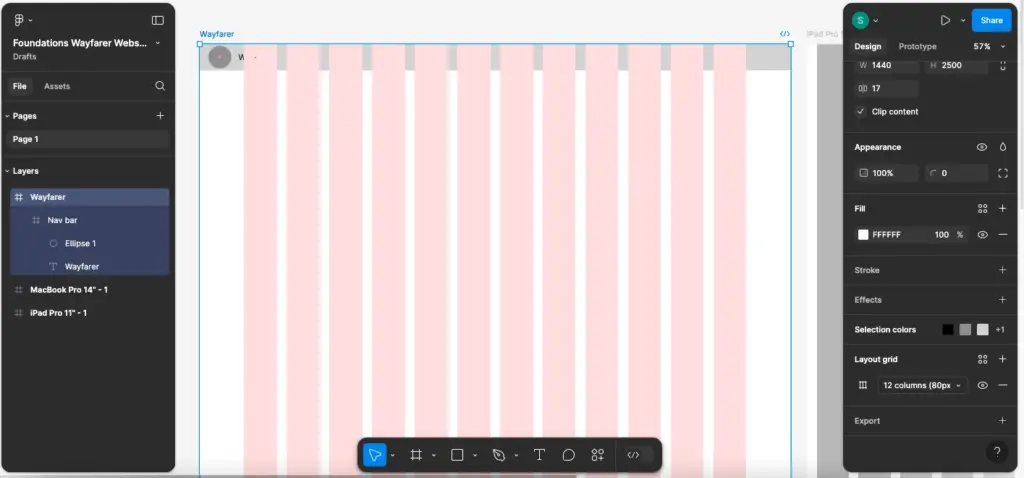
- Switch to a layout grid or columns that match the project’s desired page width or framework.
Establish design systems
- Set up components such as buttons, navigation bars, and form elements.
- Define text styles for headings, subheadings, and paragraphs.
- Maintain consistent color schemes and typography across all pages.
Integrate a shared library
- If you are part of an organization, create or connect to an existing organizational design library.
- A shared library allows for simultaneous updates, ensuring everyone is using the latest design elements (Ouiflow).
Convert your file into a template
- Navigate to File Settings, where you can publish your design as a template if you have organizational permissions (Figma Help).
- This action allows your teammates to quickly create new pages or projects from the shared template whenever they need.
Protect the layout
- Lock layers that represent critical elements such as headers or footers so that collaborators can’t accidentally shift them.
- Use Figma’s component constraints to keep your layout intact if elements move or resize.
Once published, your custom template becomes the foundation for future designs across your team or organization. This strategy helps you maintain a consistent brand look, even as different team members create multiple pages.
Add responsive features
Responsive design is essential for modern websites that must adapt to various devices. Figma offers tools to help you seamlessly integrate responsive behavior.
Use auto layout
Figma’s auto layout feature automatically adjusts spacing, padding, and alignment when screen sizes change. This is especially convenient for pages like landing pages or e-commerce grids (AND Academy).
Design with frames
- Group your sections (headers, main content blocks, footers) in separate frames.
- Apply resizing behaviors so elements respond correctly to different viewports.
Explore breakpoints
- Create multiple variations of the same page to test breakpoints for mobile, tablet, and desktop.
- By identifying key breakpoints, you can quickly see how your site’s layout adapts at each size.
Leverage UI kits
Figma offers UI kits for iOS, Android, and other platforms. These kits contain pre-built components and styles that showcase best practices for designing across screens (AND Academy).
Apply consistent resizing
- Use the “Scale” tool to maintain uniform transformations across groups of elements.
- Consider Figma’s smart selection feature to adjust spacing or resize grouped elements without losing alignment (AND Academy).
By building responsiveness directly into your template, you reduce the need for extensive rework later, especially if you handle multiple site projects.

Collaborate with teams
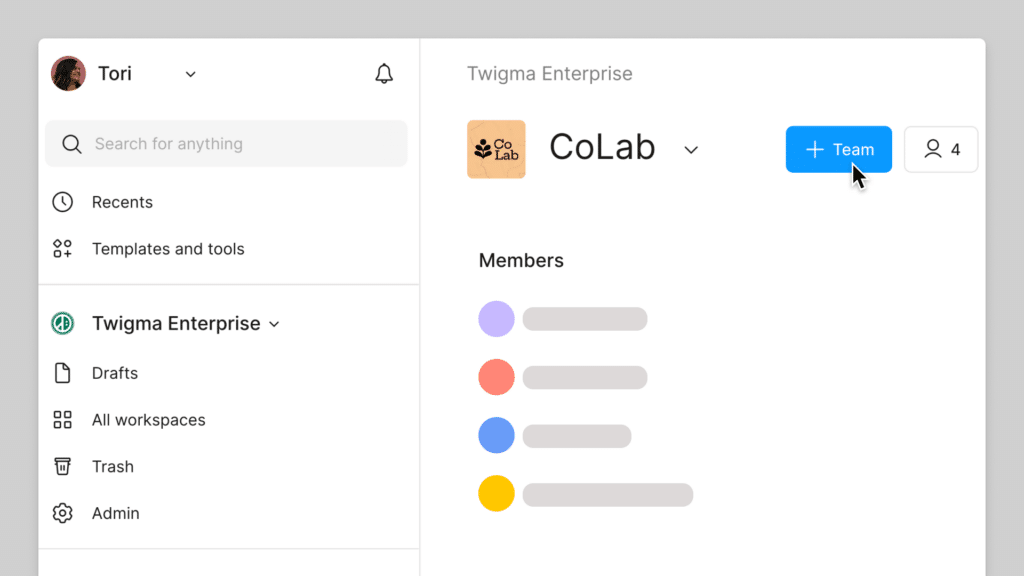
Figma thrives on real-time collaboration, allowing you to create website design templates with team efficiency in mind.
Invite contributors
- Provide edit access to designers, developers, or stakeholders.
- Encourage them to add comments, suggest changes, or share ideas directly on the canvas.
Work in real time
- A major advantage of Figma is that multiple users can simultaneously edit files and see each other’s cursors (AND Academy).
- This eliminates lengthy email threads and ensures everyone’s input is captured in one place.
Assign roles and permissions
- Set permissions based on each collaborator’s needs. Some may view only, while others can edit.
- Organization admins can enable or disable publishing of custom templates, making them visible only when needed (Figma Help).
Manage version history
- Revert to previous versions in case of unwanted edits.
- Keep track of each collaborator’s contributions to maintain clarity on who changed what and when.
Notify team members
- Use built-in notifications and mentions to ensure relevant team members review your updates swiftly.
- Mark any to-do items or tasks in the comments to keep discussions organized.
With Figma’s teamwork capabilities, you can develop and refine your templates without geographic or time zone constraints, a benefit that has grown more critical with distributed workforces.
Prototype and iterate
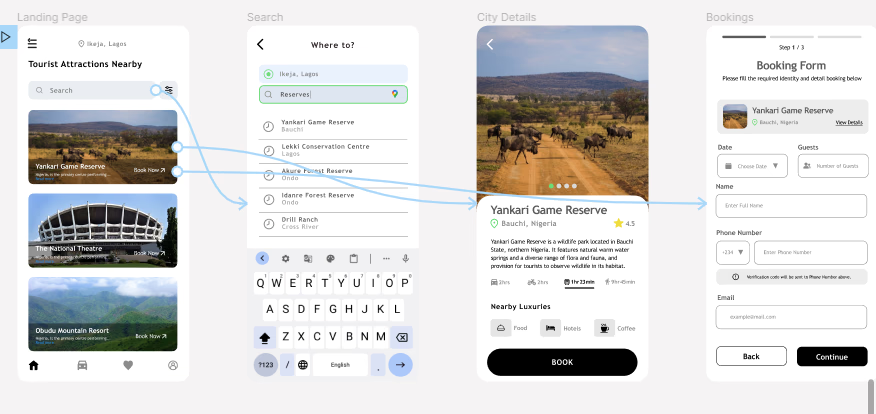
Creating prototypes helps you test ideas, gather feedback, and refine your template before going live. Figma assists with turning your static design into an interactive user experience.
Link your frames
- Convert each page section or screen into a clickable prototype by placing hotspots and defining transitions.
- Check how users navigate from one step to another in your website flow.
Integrate advanced interactions
- Use dynamic overlays, transitions, and scrolling effects to replicate real-world use cases.
- Explore text or element animations if it suits your brand style.
- Fight the urge to overuse animations—keep interactions purposeful.
Conduct remote testing
- Share the prototype link with testers or stakeholders.
- Gather feedback about page clarity, navigation, or design consistency.
- Note that Figma’s integrated prototyping feature allows rapid testing without external coding (Ouiflow).
Refine your template
- Make updates directly in your design file as feedback comes in.
- Re-publish your template so future designs reflect the improvements.
Consider the Figma to Webflow plugin
For professionals wanting to move from design to a live site quickly, the Figma to Webflow plugin can help transform your design frames into fully functional websites with minimal manual transfer (Ouiflow).
Prototyping in Figma allows you to identify usability flaws early, significantly cutting down on time-consuming rework later.
Publish with Figma Sites
Figma recently introduced Figma Sites, a beta feature that brings web publishing capabilities directly inside the design environment.
Understand Figma Sites
- Figma Sites lets you transform your design frames into fully responsive web pages, complete with breakpoints and media queries.
- It integrates with other Figma products like Dev Mode, making it easier for design teams to collaborate.
Set up a site project
- Create a new project or choose an existing one.
- Label any frames you plan to publish as “Site Pages.” This ensures they translate correctly into your final site (Figma).
Use the CMS feature
- Figma Sites includes a built-in content management system (CMS).
- Collaborators can edit text and images from a dedicated interface, preserving the original layout (Figma).
Insert blocks and embeds
- Take advantage of drag-and-drop blocks for common sections like hero banners, contact forms, or product carousels (Figma Pricing).
- Embed external services or media, such as videos or social feeds, if your site requires them.
Test responsiveness
- Preview your pages for mobile, tablet, and desktop to see how they adapt.
- Check for any layout shifts or alignment issues, especially for image-heavy designs.
Apply AI features
- Figma Sites integrates AI-assisted editing that can help generate code, refine animations, or make suggestions based on your prompts (Figma).
- While AI can expedite the development process, review all code suggestions to ensure they align with your brand requirements.
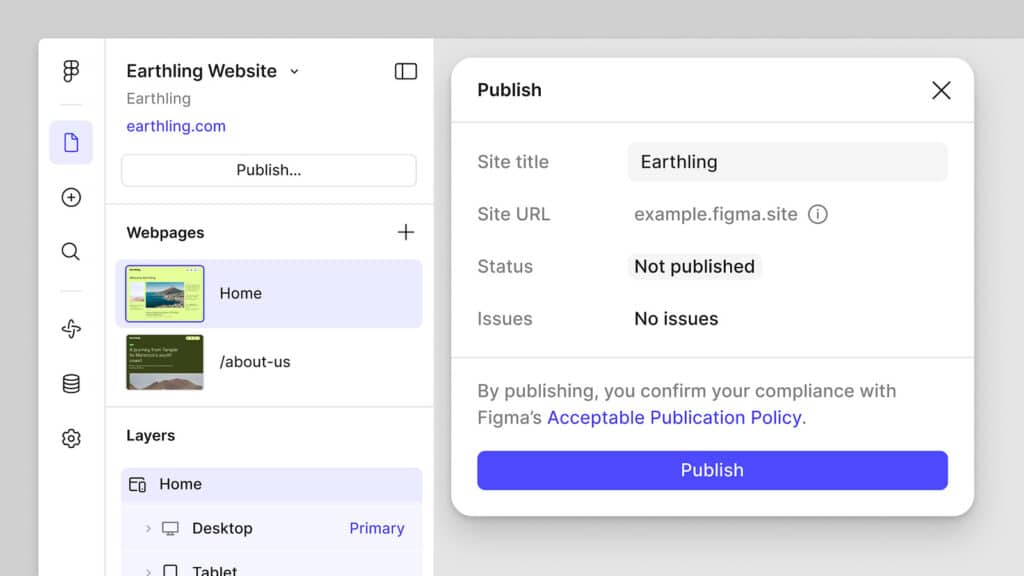
Publish your site
- Click the “Publish” button to host your Figma website on a Figma-provided domain or connect a custom domain option if available.
- Once published, your responsive site is live and accessible to your audience.
Publishing through Figma Sites offers a streamlined design-to-deployment workflow. This can be especially beneficial for smaller teams or those who want an all-in-one solution without juggling separate platforms.
FAQs about these templates
Below are some frequently asked questions about working with Figma website design templates.
How do I choose the right Figma website design template?
Look for design styles that match your project goals. Factor in the template’s navigation style, color schemes, responsiveness, and whether it supports the interactions you need. You can browse the Figma Community or consider popular templates like “Sølve Ecommerce & Shop” for e-commerce-focused projects.What if I need to customize a pre-made template extensively?
You can always duplicate the original template into your workspace. Once there, unlock and modify elements to fit your brand guidelines. Update components, fonts, and images, and then save it as a new custom template for future use.Can I collaborate with external clients or freelancers on my templates?
Yes. Invite them to your Figma project with edit or view permissions. If you’re using organizational templates, make sure your admins adjust the team or project settings to enable external collaboration.Do I need coding knowledge to build a live site with Figma Sites?
Typically, no. Figma Sites helps turn frames into a functional website without direct coding. However, if you prefer to customize further or refine the site, you can use AI prompts or manually edit the generated code. Always double-check that any custom code meets your performance and security needs.How do I maintain brand consistency across all my Figma website design templates?
Publish a shared library with consistent design systems, color palettes, and typography. Encourage everyone on the team to use the same set of components. When changes are needed, update the shared library so all linked templates update automatically.
By following these steps and leveraging Figma’s powerful features, design teams can create, refine, and publish website projects efficiently. Whether you opt for a quick start from existing templates or craft your own from the ground up, Figma website design templates provide the flexibility, collaboration, and responsiveness needed for modern web design.
Templates help the visual side move faster, but the code still needs a stable implementation path. A planned Vue.js development workflow can turn Figma layouts into tested, reusable front-end components.
Templates save time, but they still need a real UX structure underneath them. Before choosing a kit, use this guide to Figma website design templates and the wider Figma workflow so the file stays flexible after the first screen.
- 25shares
- Facebook0
- Pinterest22
- Twitter3
- Reddit0